Dieser Inhalt ist noch nicht in deiner Sprache verfügbar.
In the app: sidebar › Observability › Monitor › Alerts (#/app/observability/monitor/alerts); budgets on an agent’s Monitor tab and a team’s Rules & limits tab
Alerts watch your AI runs for you. You set a line, for example “Research Scout’s error rate above 10% over the last hour”, and AWFlow tells you when it is crossed and again when things are back to normal.
Token budgets cap how many tokens an agent or a team uses in a month. You are warned at 80%, and you choose what happens at 100%.
Both work without an account, and both count tokens only, never money.
Create an alert
Section titled “Create an alert”Schritt 1: Open Alerts and click New alert
In Observability › Monitor, click Alerts at the top, then New alert.
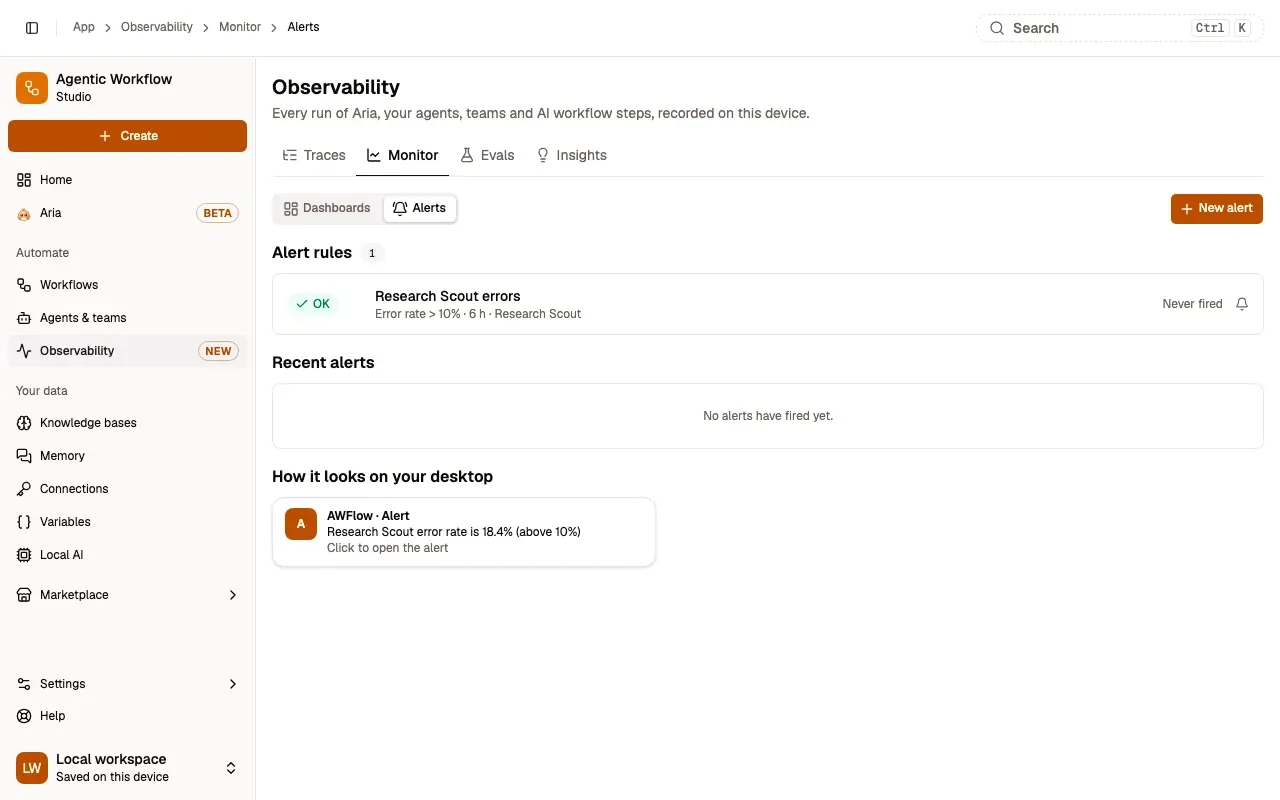
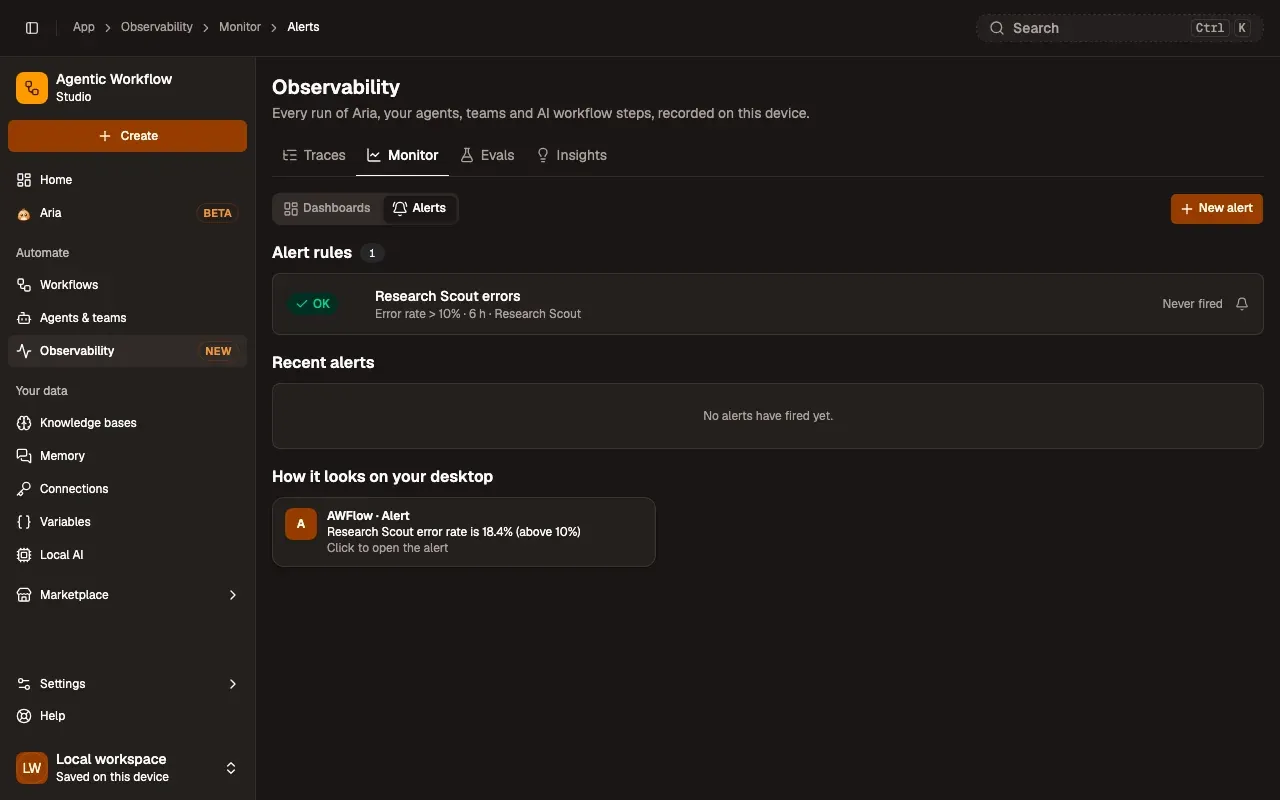
Prüfen: the New alert sheet opens.
Schritt 2: Set the condition
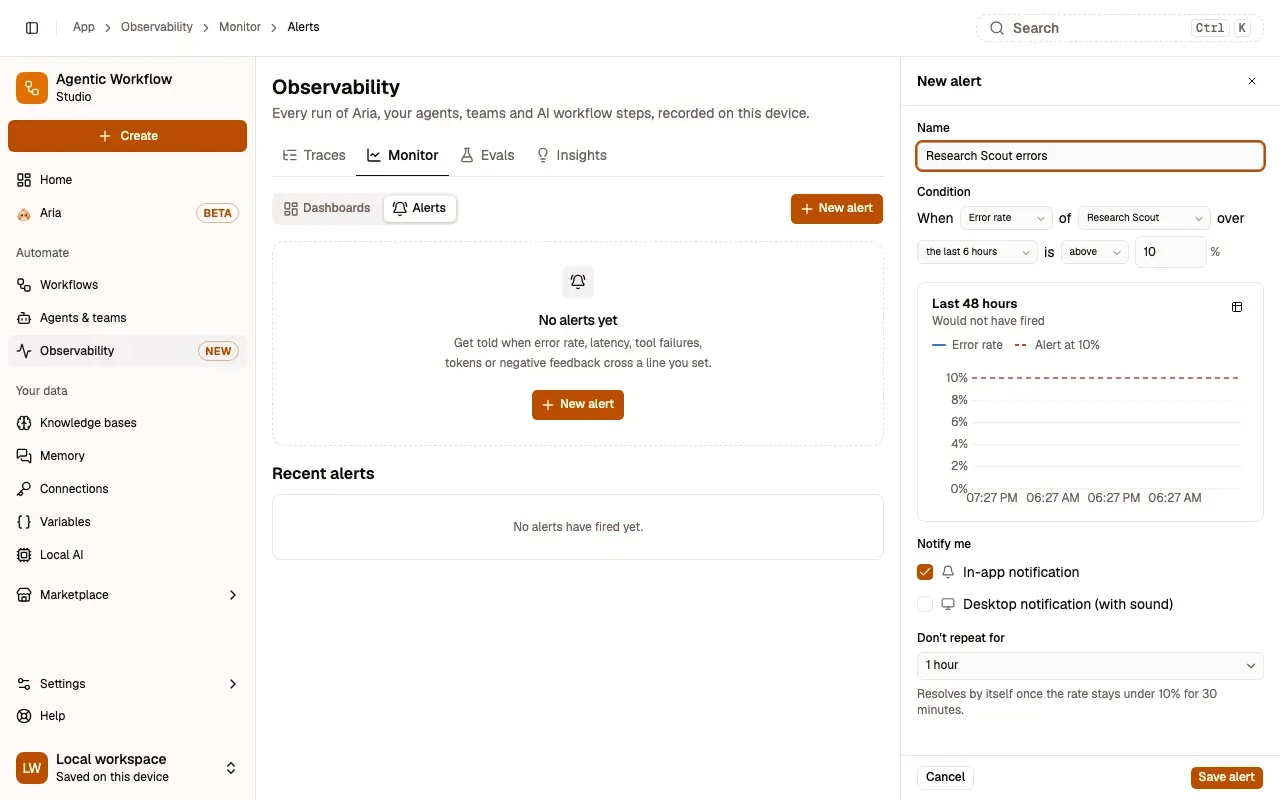
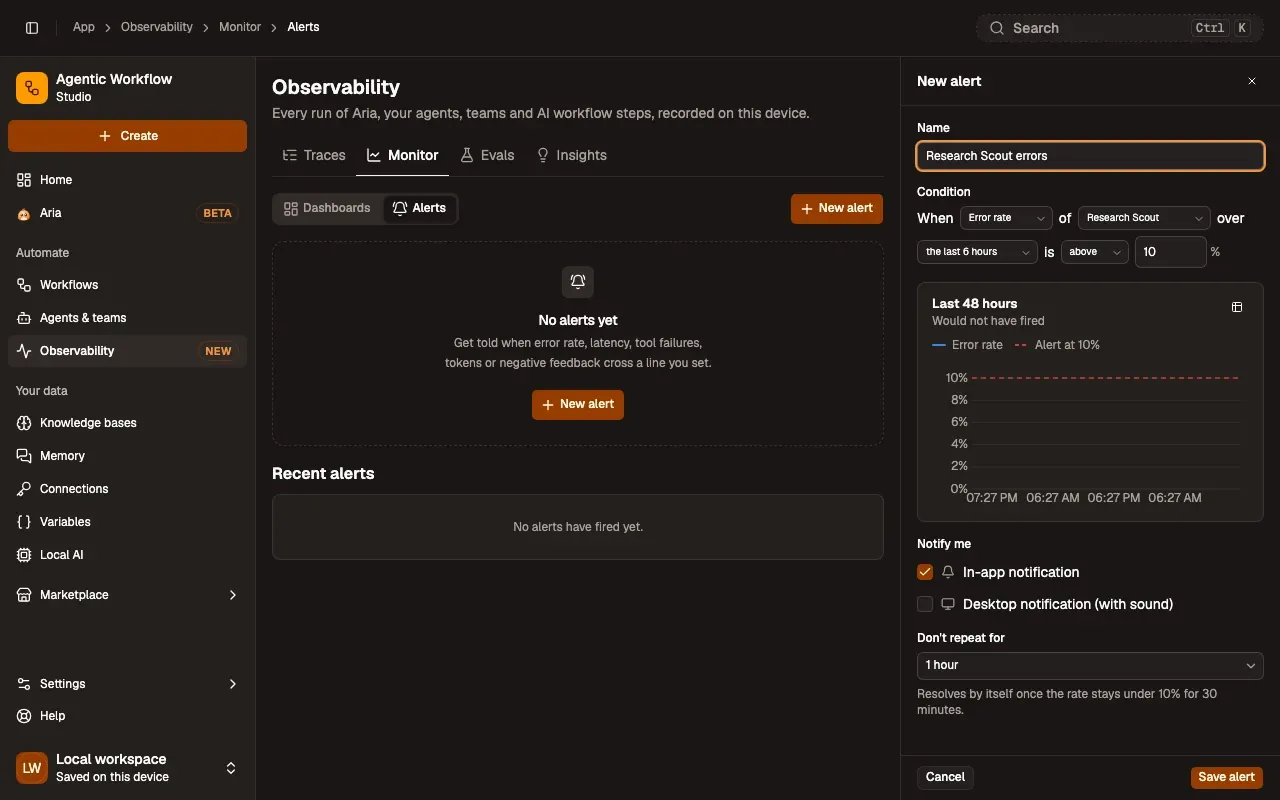
Give the alert a Name. The condition reads like a sentence: When metric of scope over window is above / at least / below threshold.
Schritt 3: Check the threshold against the last 48 hours
Type the Threshold. The Last 48 hours chart draws your line over the real values, hour by hour, with a dot where the alert would have fired, for example Would have fired 2 times. Move the line until it fires when you’d want it to.
Schritt 4: Choose how to be told and save
Under Notify me, tick In-app notification, Desktop notification (with sound) or both. Under Don’t repeat for, pick 15 minutes, 1 hour or 1 day. Then click Save alert.
Prüfen: the rule appears under Alert rules with its state.
The condition
Section titled “The condition”| Part | Choices |
|---|---|
| Metric | Error rate (%), Latency P99 (seconds), Tool failures (a count), Tokens (cloud tokens), 👎 feedback (thumbs-down runs) or Online eval score (0 to 1, see below). |
| Scope | All agents, Aria or one agent; or a source (Agent runs, Team runs, Workflow step runs, Routine runs); or where the model runs (Cloud models, On-device models). |
| Window | The last 15 minutes, hour, 6 hours or 24 hours. |
| Comparison | above, at least or below. |
| Threshold | A number in the metric’s unit. Each metric starts with a sensible value, for example 10% for error rate. |
For Tool failures, a Tool field appears: leave it empty for any tool, or type one, for example slack.post_message.
An error rate needs at least 5 finished runs in the window. With fewer, the alert waits.
Alert on online eval scores
Section titled “Alert on online eval scores”Pick Online eval score to watch the scores of online evals. The condition starts at below 0.7.
- Scope is All agents or one of your agents (Aria, sources and where the model runs aren’t offered).
- An Evaluator field appears. Leave All evaluators, or pick an agent first and then one of its evaluators. The rule then reads like Online eval score (Completeness) < 0.70.
- The value is the average score of the conversations scored in the window, and the rule needs at least 5 scores there before it can fire. With fewer, the preview says Not enough scores yet (needs 5 in a window).
- A score is 0 to 1, so a threshold above 1 shows A score is 0 to 1 and can’t be saved.
- A score counts at the time its conversation started, and the traces link of a fired alert opens them with the Low online score filter.
Fired and resolved
Section titled “Fired and resolved”Each rule in the Alert rules list shows its state:
| State | What it means |
|---|---|
| OK | The value is on the right side of the line. |
| Firing | The line was crossed. You are told once, then not again until the Don’t repeat for time has passed. |
| Muted | You muted the rule for 24 hours. It keeps its state but tells nobody. |
| Off | You turned the rule off. It is not checked and tells nobody. |
A firing alert resolves by itself once the value stays back under the line for 30 minutes (or above it, for a below rule). The resolve is an in-app notice only, and only when the fire was announced. If the runs stop altogether, a firing alert also resolves after 30 minutes.
Nummerierte Bereiche im Screenshot: 1. New alert; 2. An alert rule and its state.
The Alerts page also lists Recent alerts, fired and resolved, newest first, each with a Traces button that opens the runs behind it. Fired and resolved alerts are kept for 90 days.
Where you see alerts
Section titled “Where you see alerts”- In-app: a short message on the page you are on.
- Desktop: a system notification, with sound, as in the preview under How it looks on your desktop. Clicking it opens the alert. In the extension, AWFlow picks a badge, a chime or a system notification depending on whether you are looking at it. In the web app, ticking Desktop notification (with sound) asks the browser for permission, and no desktop notification is shown while the AWFlow tab has focus.
- The bell: an Alerts section lists the latest alerts, with Mark all read and All alerts. It works without an account. Only alerts that notified count as unread.
- Monitor: a red banner on the dashboards names the firing alert, for example Research Scout error rate is 18.4%, with View alert and Open traces. The Alerts button shows how many rules are firing.
Mute, edit or delete a rule
Section titled “Mute, edit or delete a rule”Click a rule to open it. Mute 24 h silences it for a day (Unmute ends that early). Change any field and click Save alert. Delete removes the rule; its past alerts stay in Recent alerts.
Turn a rule off
Section titled “Turn a rule off”To pause a rule without deleting it, use the switch on its row in the Alert rules list, or the On switch in the alert editor and then Save alert. An off rule is not checked, and Off shows on its row. Turn it back on when you want it again.
If the rule was firing, the alert ends when you turn the rule off, with no notice. Turning it back on starts a fresh check.
Budget rules are read-only here and have no switch. To stop one, change or remove the budget.
Token budgets
Section titled “Token budgets”A budget is a monthly token cap for one agent (Aria included) or one team. It resets on the 1st of each month.
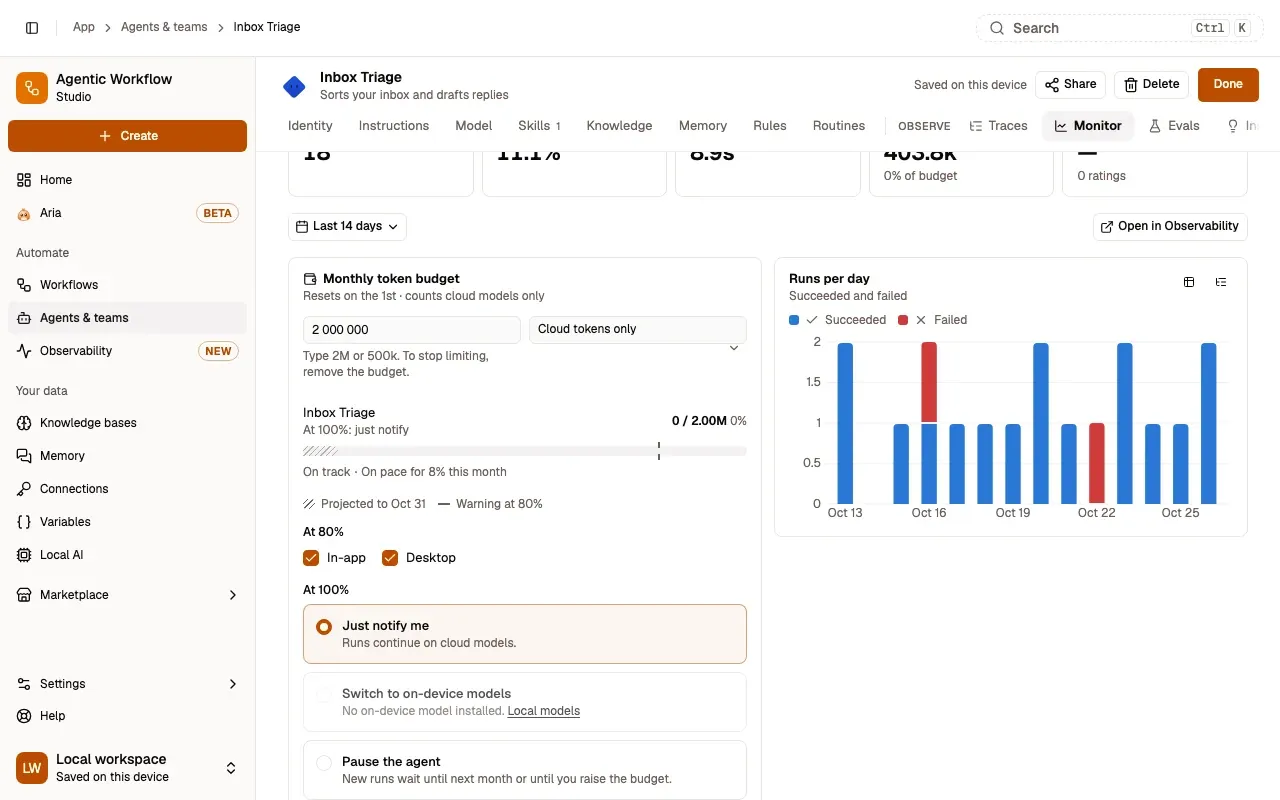
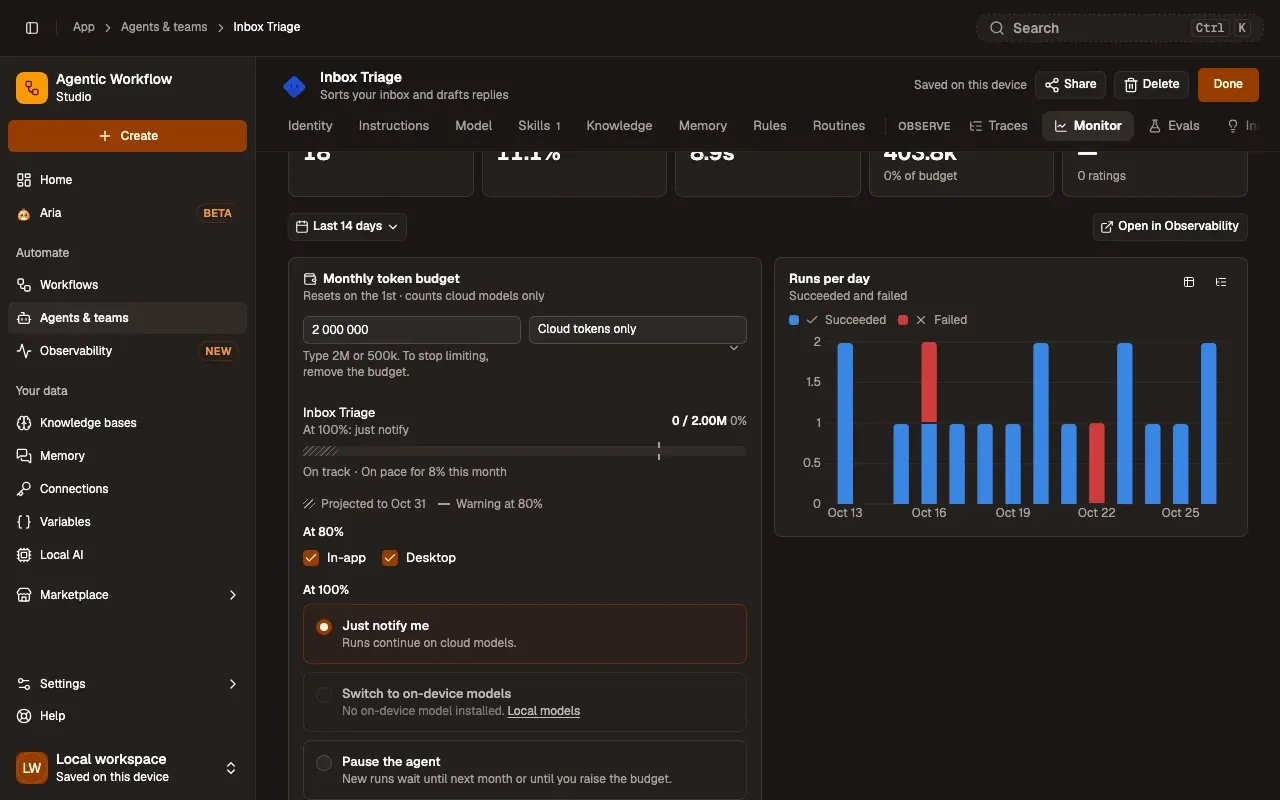
Nummerierte Bereiche im Screenshot: 1. Monthly token cap; 2. What happens at 100%.
Set a budget
Section titled “Set a budget”- Open the agent’s page, then the Monitor tab under Observe. For a team, open its Rules & limits tab.
- In Monthly token budget, type the cap, for example
2Mor500k. It saves as soon as you leave the field. - Next, keep Cloud tokens only (on-device models are free to run) or pick All tokens (incl. on device).
- Under At 80%, tick In-app, Desktop or both.
- Under At 100%, choose what happens (below), then under Notify me tick In-app, Desktop or both for the 100% notice. It has its own channels.
A budget you set up before keeps its 80% choices for the 100% notice until you change them.
Every change saves at once. To stop limiting, click Remove budget and confirm. Usage is still recorded; nothing is limited any more.
The meter
Section titled “The meter”Once a cap is set, a meter shows the tokens used this month against the cap, a dashed mark at 80% (Warning at 80%), and a hatched bar for where the month is heading (Projected to the last day of the month), based on the pace of the last 7 days. The same meters appear in the Token budgets section at the top of Monitor, fullest first, each with a link to manage it.
At 80% and at 100%
Section titled “At 80% and at 100%”At 80%, you get one warning per month: Research Scout has used 80% of its monthly token budget. (an illustrative name). Runs carry on.
At 100%, the agent does what you chose:
| Choice | What happens |
|---|---|
| Just notify me | You get one notice. Runs continue on cloud models. |
| Switch to on-device models | Cloud calls stop and the agent keeps working on your installed local model. The notice names the model. If the on-device model fails to start, the run stops with an error: it never falls back to the cloud. If the agent is set to one cloud model, or no on-device model is installed, it keeps running in the cloud and the notice says so. |
| Pause the agent (or Pause the team) | New runs stop until next month or until you raise the budget. A run that hits the budget ends with Research Scout reached its monthly token budget. and a Raise budget button, which opens the budget. |
Switch to on-device models needs an installed model: without one, the option is greyed out with a link to Local models. See Local models.
Raising the cap above the current usage re-arms the notices, so you are told again when the new line is crossed.
Budgets in the Alerts list
Section titled “Budgets in the Alerts list”Each budget also appears in the Alert rules list as a read-only rule named Budget · and the agent’s or team’s name, marked from budget. Its condition reads like Tokens ≥ 80% of 2M · month. Clicking it opens the budget editor. Budget notices land in Recent alerts and the bell like any other alert.
Evals and Insights runs
Section titled “Evals and Insights runs”Runs started by Evals experiments and by Insights are analysis traffic. They never count in Monitor: they add nothing to the charts, and alerts ignore them.
Online evals judges aren’t traced at all. Their tokens count toward the agent’s budget and toward online evals’ own monthly cap, and a paused budget pauses online evals.
Their tokens still count toward the agent’s budget, because they are real model calls. The budget never pauses or switches an experiment run, so a comparison is never cut short or changed halfway. Before an experiment runs, its estimate shows the budget that remains.
Good to know
Section titled “Good to know”- Alerts are checked only while AWFlow is running; nothing is written while it is closed, so nothing can fire.
- The Tokens alert metric counts cloud tokens. Budgets count cloud tokens too, unless set to All tokens (incl. on device). In both, input the model read from its cache counts for less.
- A rule needs a name; one saved without one reads Untitled alert.
- Teams used to have a cloud-token cap per thread. It is now a team budget with Just notify me; a cap you had changed from the default was moved over once.
- Alert rules, budgets and their history stay on this device.
Related
Section titled “Related”- Monitor: the dashboards the alerts watch.
- Traces: the runs behind an alert.
- Agents and Teams: where budgets live.
- Local models: install one so a budget can switch to it.
- Evals: test changes without moving your Monitor numbers.
- Online evals: the scores an Online eval score alert watches.
- Notifications: the bell and your other notices.