Dieser Inhalt ist noch nicht in deiner Sprache verfügbar.
In the app: sidebar › Agents & teams › open an agent › Evals tab (under Observe) › Online evals.
Experiments test an agent on examples you wrote. Online evals watch the real thing: a judge model reads a sample of the agent’s live conversations and scores each one, for example Did the answer cover the whole request? or Did it pick the right tools? You see the scores on each conversation, as daily averages in Monitor, and in alerts. The conversations that score low become test examples in one click.
flowchart LR
  C["Live conversations"] -->|a sample, e.g. 10%| J["Judge model<br/>scores each one"]
  J --> T["Scores on<br/>the trace"]
  J --> M["Monitor chart<br/>and alerts"]
  J -->|low scores| D["Dataset<br/>examples"]
  class C awf-trigger
  class J awf-ai
  class D awf-data
Set up online evals
Section titled “Set up online evals”Online evals are set per agent, for your own agents. Open the agent’s Evals tab and click Set up on the Online evals card. The setup opens on the right (at the bottom on a narrow screen), with Score live conversations already on.
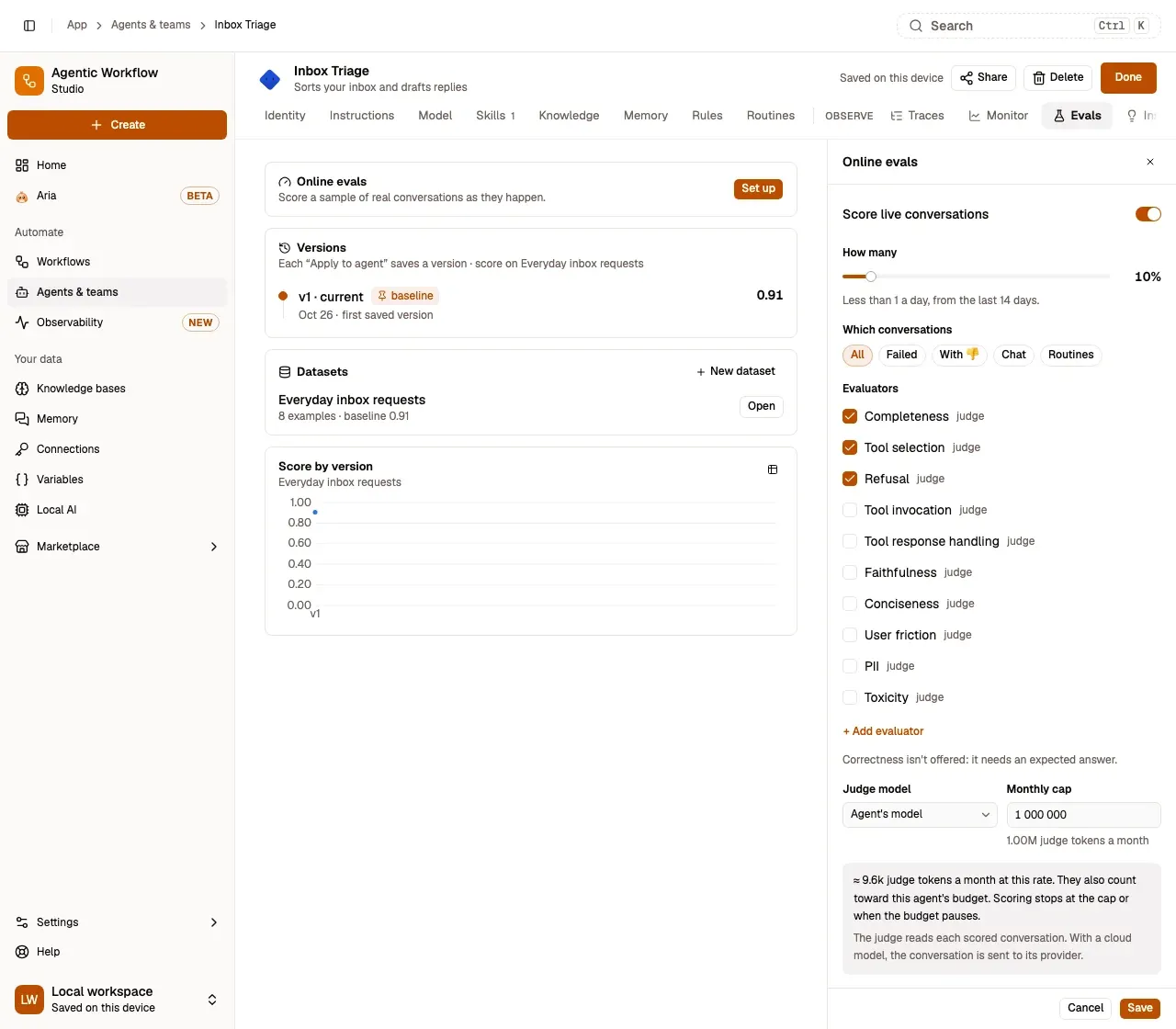
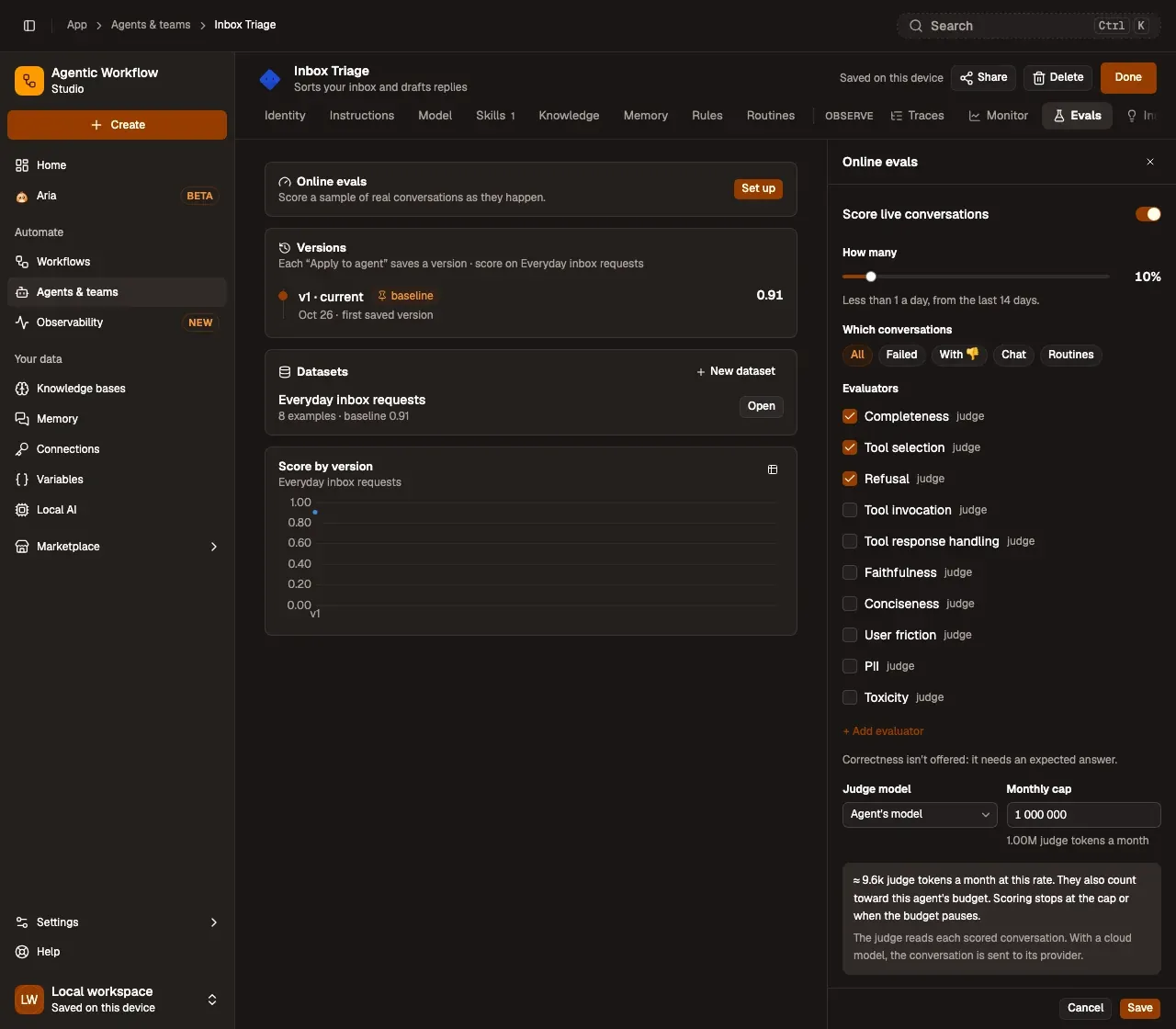
Nummerierte Bereiche im Screenshot: 1. How many; 2. Which conversations; 3. Evaluators; 4. Monthly cap.
Under the settings, a grey box estimates the judge tokens a month at this rate and says where the conversations go (see Privacy). Click Save. To change anything later, click Edit on the card; turn Score live conversations off there to pause scoring without losing the setup.
Which evaluators you can use
Section titled “Which evaluators you can use”Online evals only offer reference-free evaluators: ones that can judge an answer without knowing the right answer in advance. A live conversation has no expected answer to compare with, so Correctness (and checks such as Must contain or Expected tools called) are not offered. The setup says so: Correctness isn’t offered: it needs an expected answer.
| Kind | Evaluators |
|---|---|
| Judge | Completeness, Tool selection, Tool invocation, Tool response handling, Faithfulness, Conciseness, Refusal, User friction, PII, Toxicity |
| Your rubric | A judge with your own instructions, added with + Add evaluator |
| Code check | Valid JSON, Regex, JSON schema, Latency, Tokens |
Some judges skip a conversation they can’t apply to: Tool invocation and Tool response handling need a conversation that used tools, and Faithfulness one that looked something up. A skipped evaluator writes no score, rather than a 0. Code checks use no judge tokens.
Choose how answers are scored explains each evaluator.
Tokens: the monthly cap and the agent’s budget
Section titled “Tokens: the monthly cap and the agent’s budget”- The monthly cap belongs to online evals. Once the judge has used it, scoring stops until the next month. The card shows how much is used: Judge tokens · October, with a meter.
- The same tokens also count toward the agent’s token budget. When the budget pauses the agent, online evals pause too. When the budget is set to switch to an on-device model, a cloud judge stops, while an on-device judge goes on.
- Code checks only? Then nothing is spent, and neither the cap nor the budget stops them.
What happens next
Section titled “What happens next”Scoring starts with the conversations that begin after you save. New conversations in the sample are scored within a few minutes, while AWFlow is open in a tab. For older conversations, use Score past traces.
The card then shows what online evals did over the last 7 days:
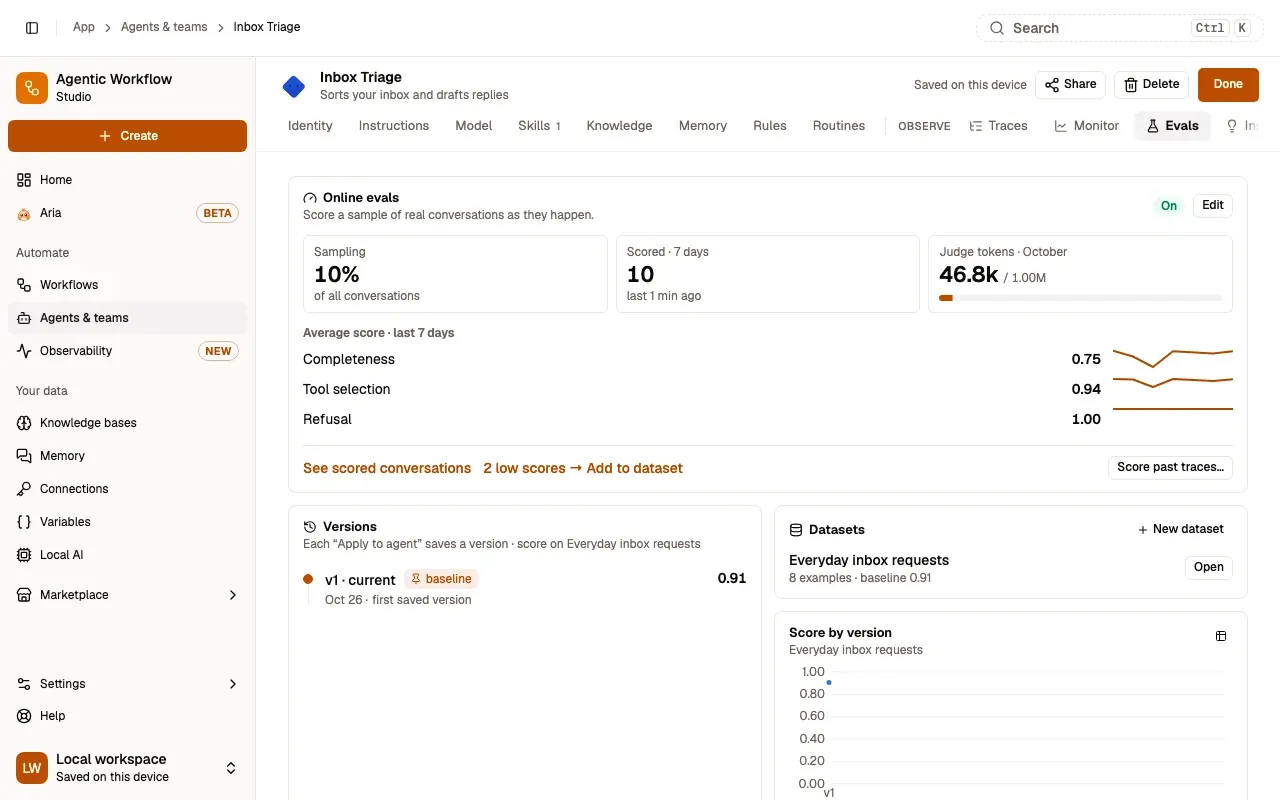
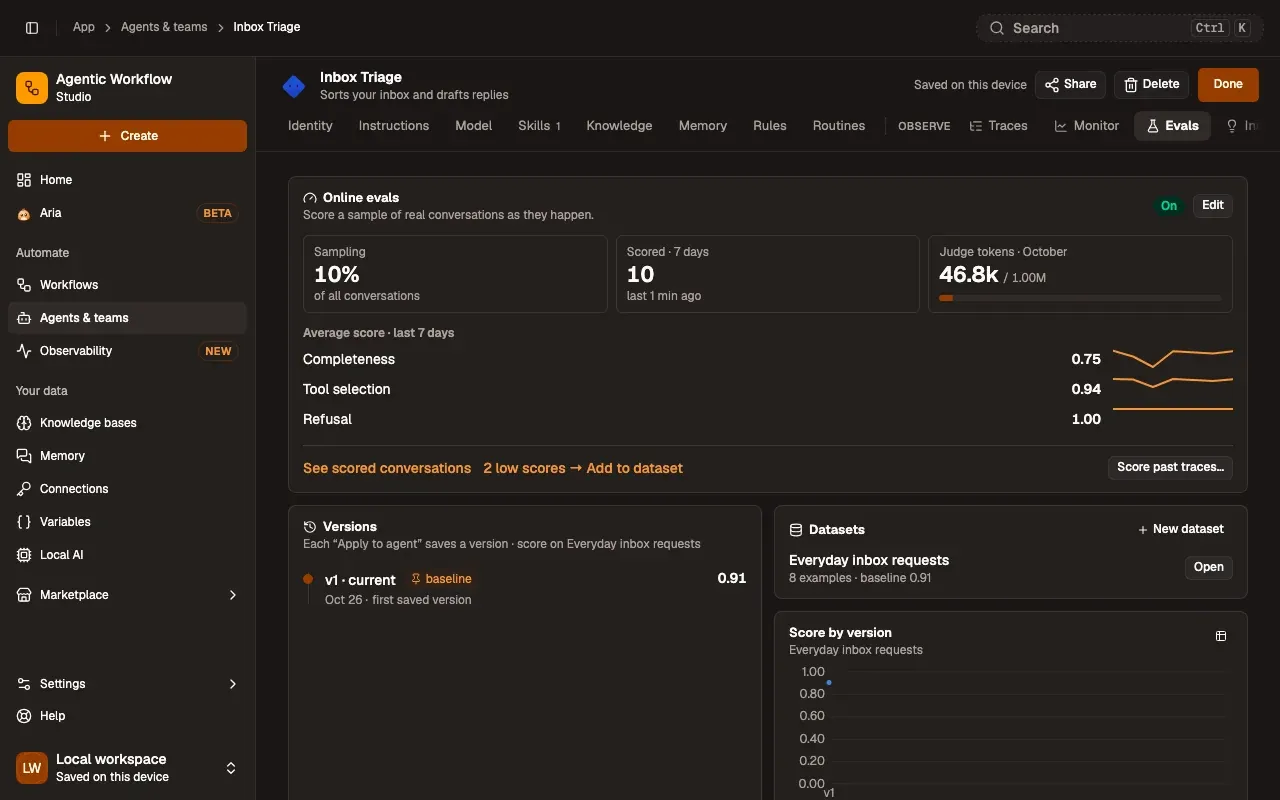
Nummerierte Bereiche im Screenshot: 1. Online evals card; 2. Edit; 3. 2 low scores → Add to dataset; 4. Score past traces….
On a wide screen the card spans the whole tab, above Versions and Datasets. On a narrow one, such as the side panel, the tiles shrink to one summary line (10% of conversations · 10 scored in 7 days · 46.8k / 1.00M judge tokens) and the trend lines become ↑ / ↓ arrows. A code check shows its pass rate (92% pass) instead of an average. If the judge failed on some conversations, the card says so (3 judge calls failed in the last 7 days. They are tried again.).
Scores on a trace
Section titled “Scores on a trace”Open a scored conversation in Traces. Online scores appears under the summary, with one chip per evaluator: ✓ for a pass, ✕ for a low score.
Schritt 1: Open a low score
Click a ✕ chip, here Completeness 0.35. The explanation says why the judge scored it low.
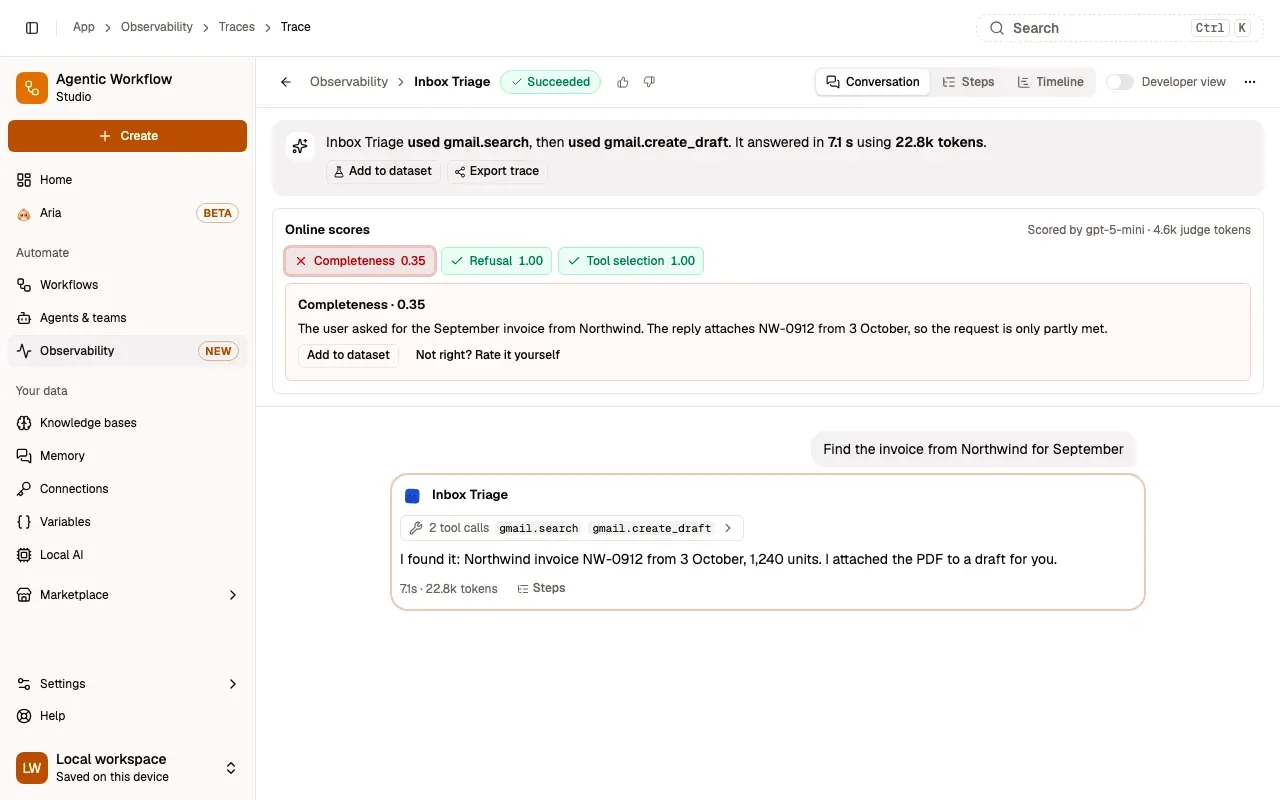
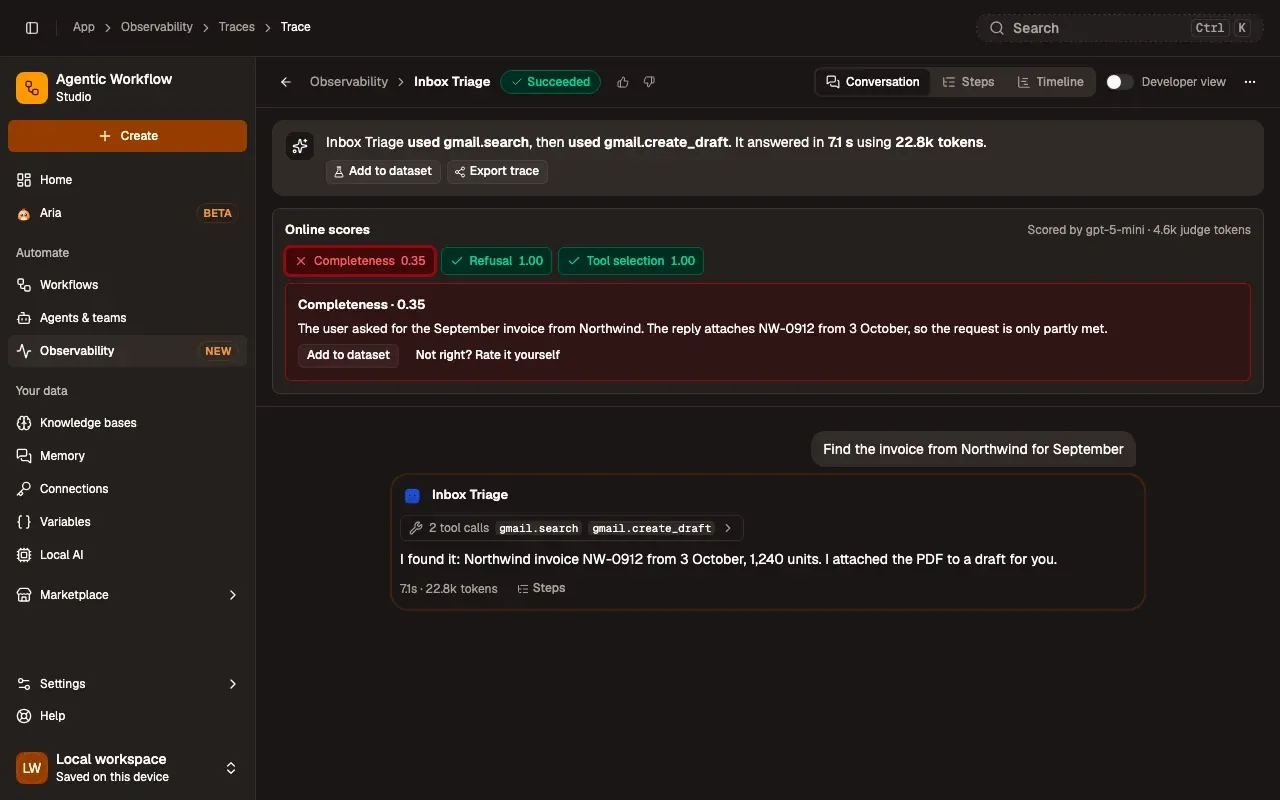
Prüfen: the judge's explanation opens under the chips.
Schritt 2: Act on it
Add to dataset saves the conversation as a test example. If you disagree with the judge, Not right? Rate it yourself jumps to the trace’s Not helpful (👎) button at the top, so your own rating counts too.
The line on the right says which model scored it and how many judge tokens it took: Scored by gpt-5-mini · 4.6k judge tokens.
Scores are 0 to 1, higher is better. A judge’s score under 0.5 is a low score, and so is a failed code check, which shows · fail instead of a number.
Find and keep the low scores
Section titled “Find and keep the low scores”- In Traces: click Filter, then under Online score pick Low online score (or Scored online for every scored conversation) and click Show results. The filter shows as a chip you can remove. The card’s links open the same list for this agent.
- As test examples: on the card, click the low-score link (2 low scores → Add to dataset). Add low scores to a dataset lists the agent’s conversations with a low score in the last 7 days, worst first, with their low scores, all selected. Pick the Dataset, untick what you don’t want, and click Add 2 examples (the count follows your selection). If the agent has no dataset yet, the link opens New dataset first, then the list.
Then run an experiment on that dataset to check that your next change fixes them.
The scores in Monitor
Section titled “The scores in Monitor”When the agent has scores, its Monitor tab adds an Online eval scores chart: the average score per evaluator and day.
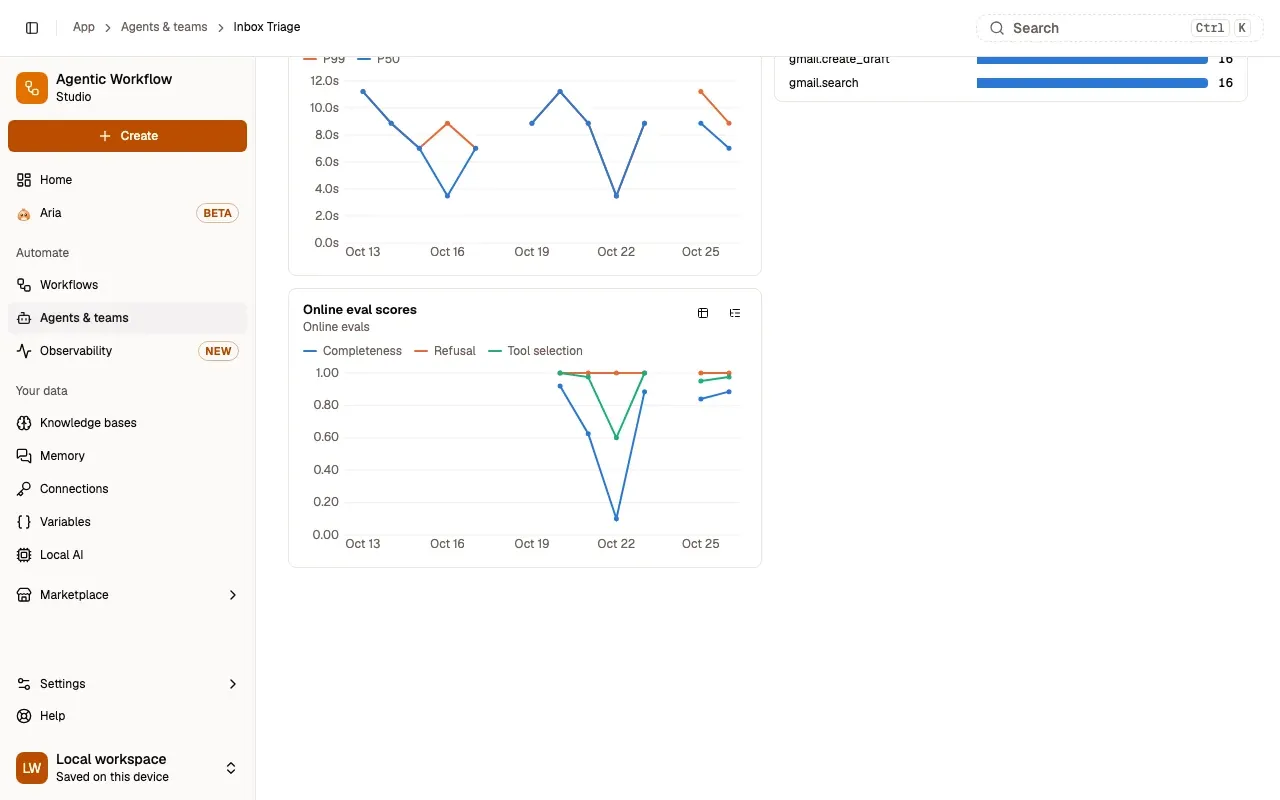
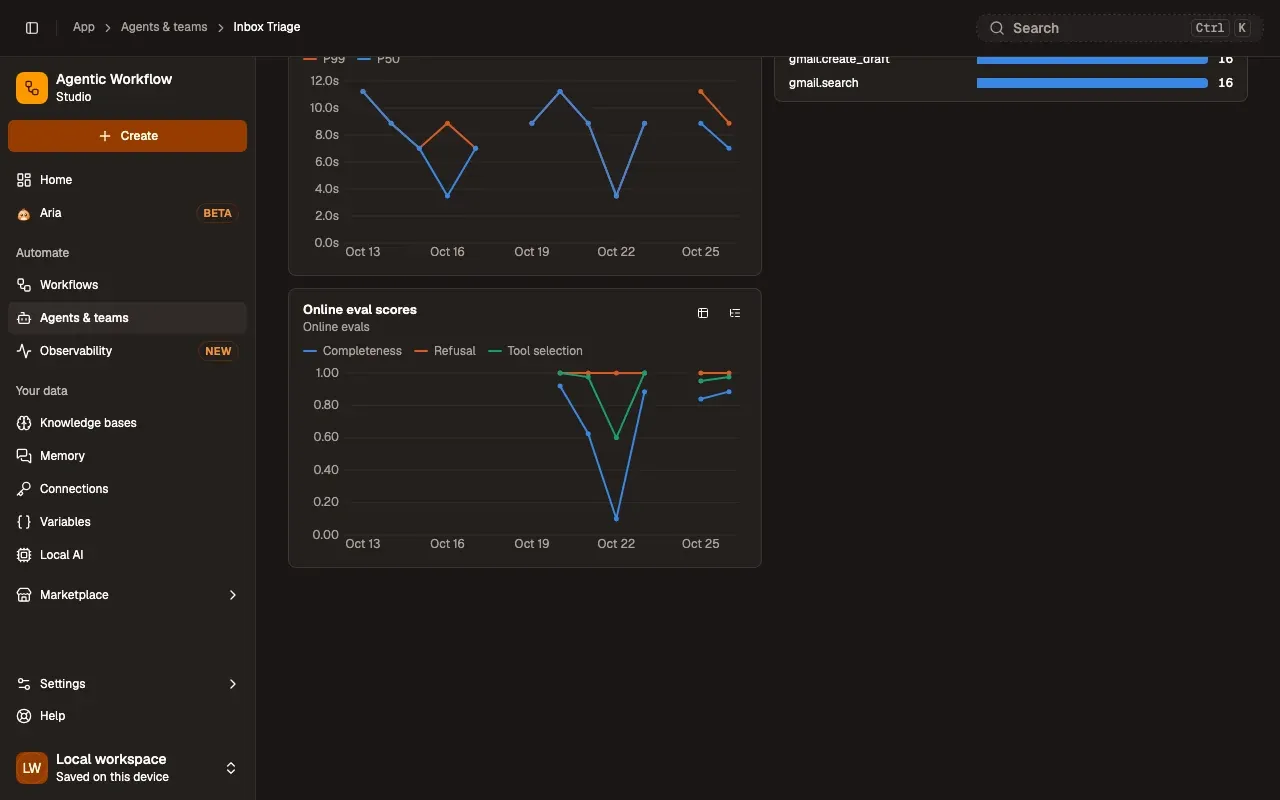
Nummerierte Bereiche im Screenshot: 1. Online eval scores.
In a custom dashboard, add a chart with Data set to Online evals. Its metric is Eval score (0–1), and it groups by Evaluator, Agent or Agent version.
Get an alert on scores
Section titled “Get an alert on scores”In Monitor › Alerts, click New alert and pick Online eval score as the metric.
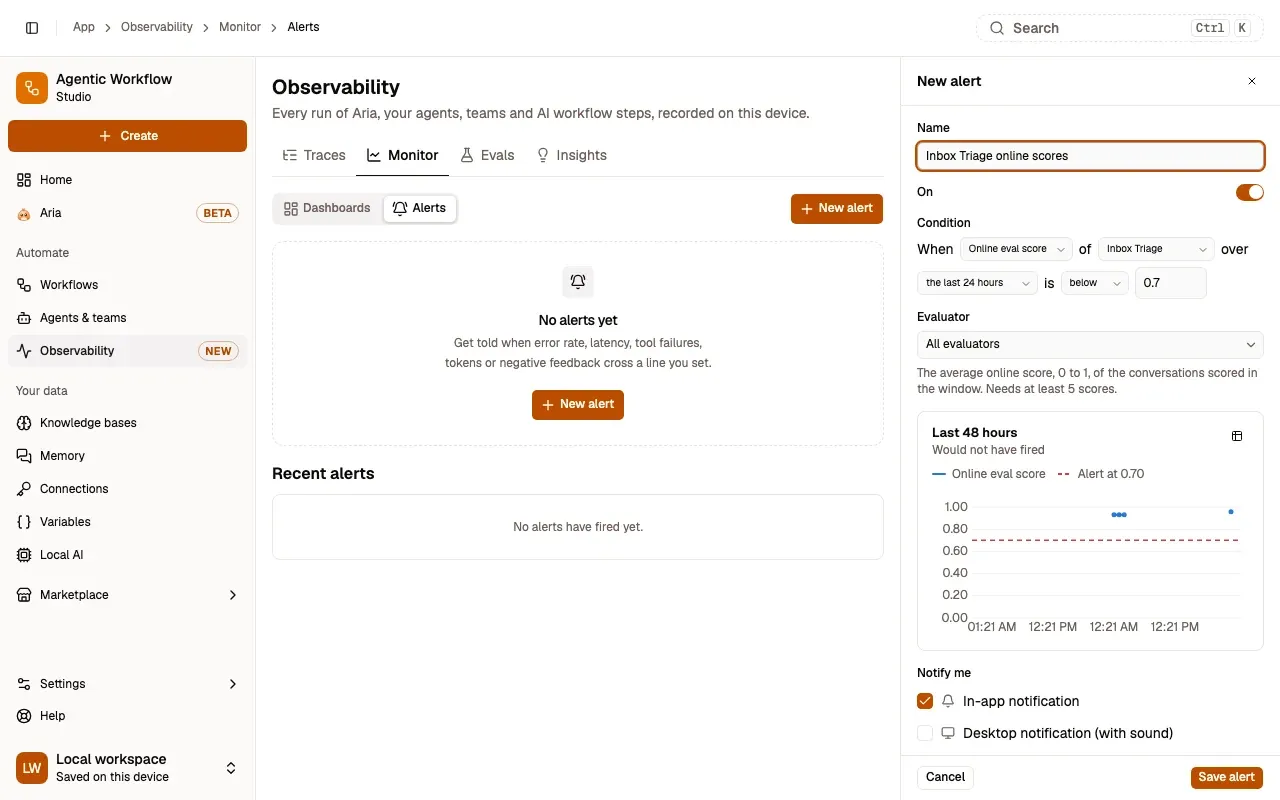
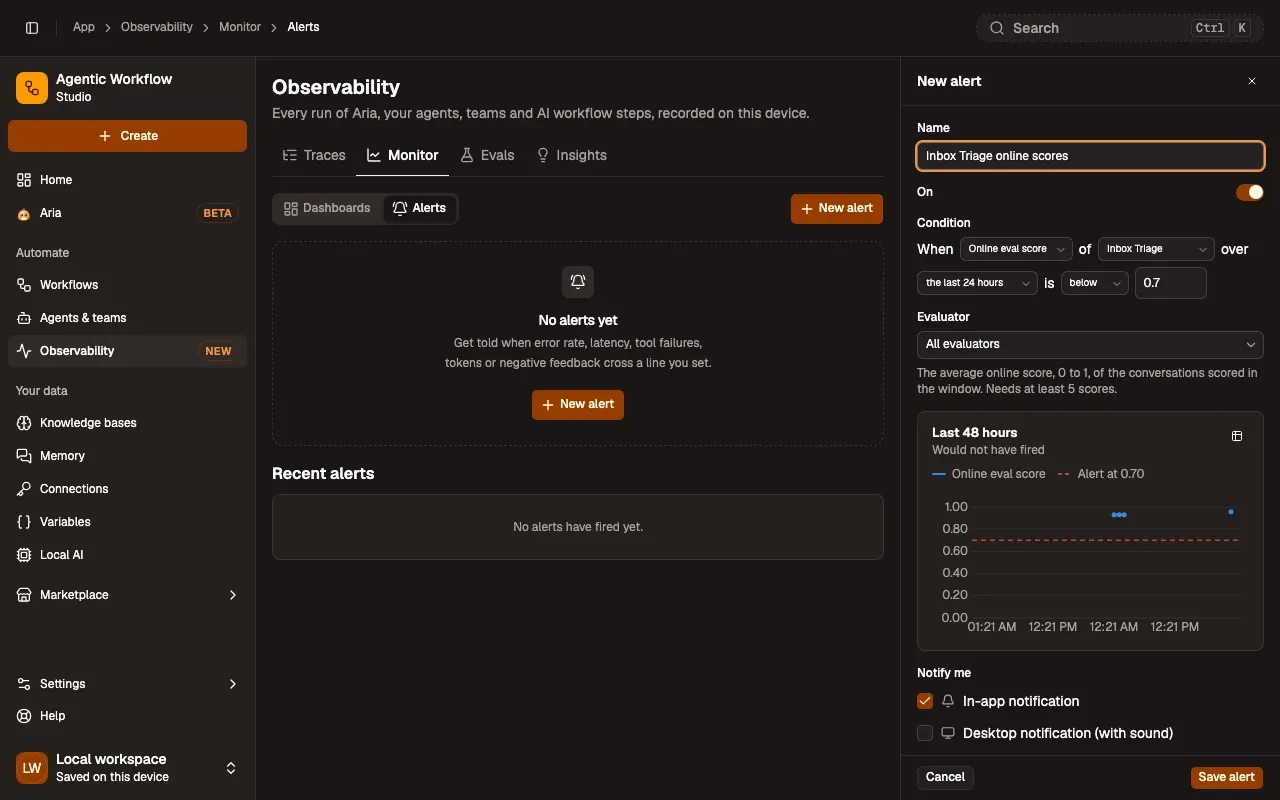
Nummerierte Bereiche im Screenshot: 1. Online eval score; 2. Evaluator.
The preview shows whether the alert would have fired over the last 48 hours, and the saved rule reads like Online eval score (Completeness) < 0.70. Scores are 0 to 1, so a line above 1 isn’t accepted. Alerts & budgets covers the rest.
Score past traces
Section titled “Score past traces”Online evals start with new conversations. To score the ones before:
- On the card, click Score past traces….
- Pick How far back: 7 days, 14 days or 30 days. The estimate reads like 42 conversations · 126 judge calls · ≈ 189k tokens. It uses the same sample, conversations and evaluators as the setup, and leaves out the ones already scored.
- Click Start. A progress bar on the card counts the conversations; Stop ends it early and keeps the scores made so far.
It stops by itself at the monthly cap or when the agent’s budget pauses, and says so when it’s done. Leaving the Evals tab stops it too.
Privacy
Section titled “Privacy”The judge reads each conversation it scores, the request and the answer, with the tool calls.
- With a cloud judge (the agent’s model when it’s a cloud one, or a model from Cloud), each scored conversation is sent to that model’s provider, as the agent’s own messages are. The setup says With a cloud model, the conversation is sent to its provider.
- With an on-device judge (from On this device), nothing leaves your device: The judge runs on this device: scored conversations never leave it.
- The scores stay in this browser, next to the traces. A cloud judge needs your secret vault unlocked; while it’s locked, scoring waits.
Good to know
Section titled “Good to know”- Scores live as long as their trace. When a trace is removed (by Keep traces for in Settings & privacy, or by hand), its scores go with it. Scoring a conversation never keeps it longer. Adding it to a dataset does.
- Sampling is per conversation and stable. Each conversation is in the sample or not for good: every tab agrees, a conversation is never scored twice, and raising the rate keeps every conversation that was already in.
- The judges never appear in the scored trace. Their calls are not added to the conversation they score, and they never count in Monitor’s runs or tokens. Their tokens do count toward the cap and the agent’s budget.
- Aria and teams are not covered yet. Online evals are for your own agents.
- Deleting an agent deletes its online evals setup. Its scores go with its traces.
Related
Section titled “Related”- Evals: datasets, evaluators and experiments.
- Traces: filter on Low online score.
- Monitor: the Online evals chart data.
- Alerts & budgets: alerts on scores, and the agent’s token budget.
- Agent versions: test a fix before you keep it.