See it happen
Section titled “See it happen”Get Page Metadata returns one item with the page’s url, title, canonicalUrl and description. In Display Markdown, you drag title from the Input panel into the Content field. The field now holds {{ $input.title }}, and the run shows the real title.
Example run: Get Page Metadata, 1 item → Display Markdown, shows the title. Illustration of a run. Drag a field, then check the preview under the setting.
| # | url | title | canonicalUrl | description |
|---|---|---|---|---|
| 0 | https://example.com/pricing | Pricing · Example | https://example.com/pricing | Plans for teams of every size |
Drag a value into a field
Section titled “Drag a value into a field”Run the workflow (or the steps before this one) so they have data to show, then double-click the node to open its settings. On a narrow window, open the Input / Output pane from the dialog’s footer.
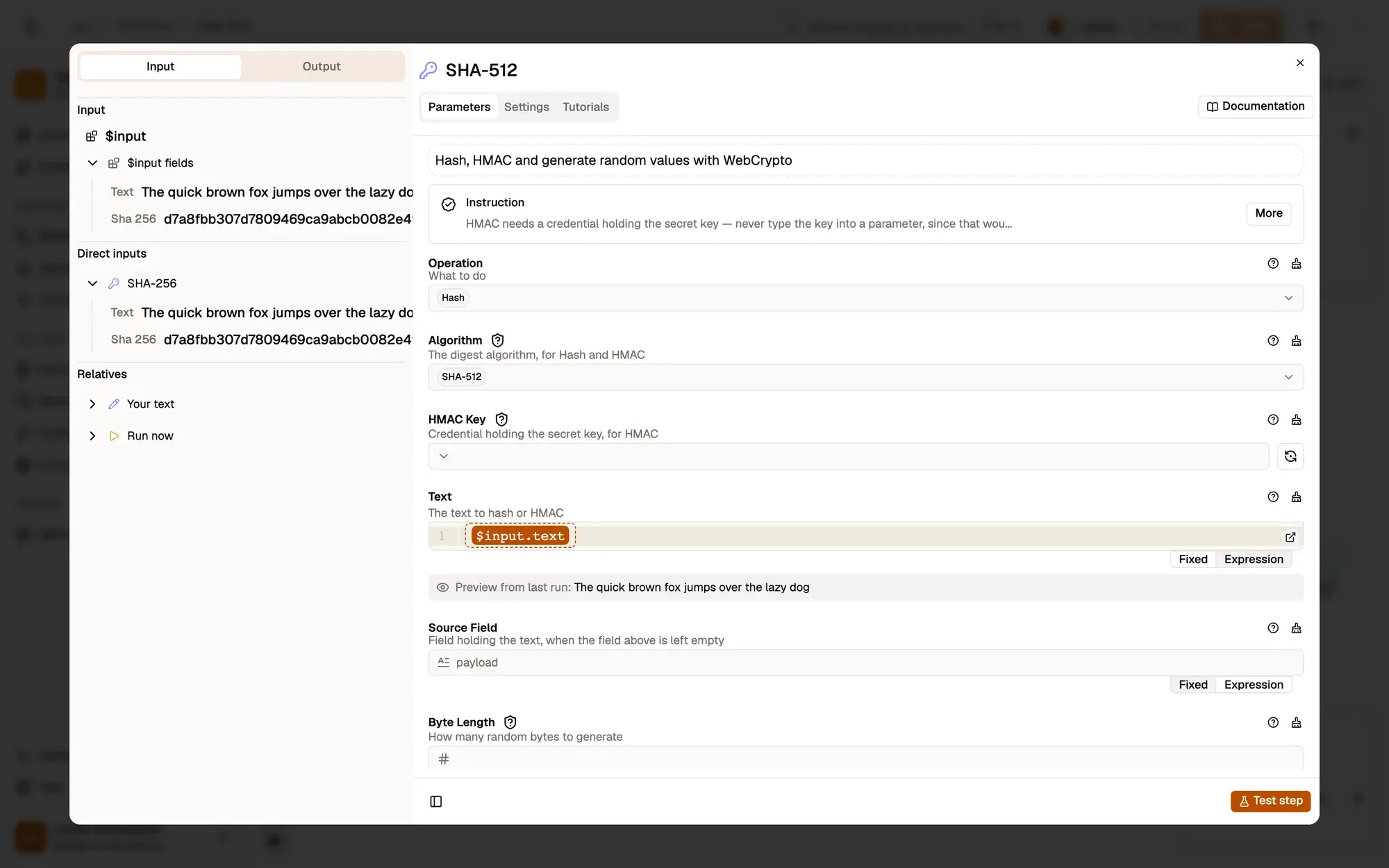
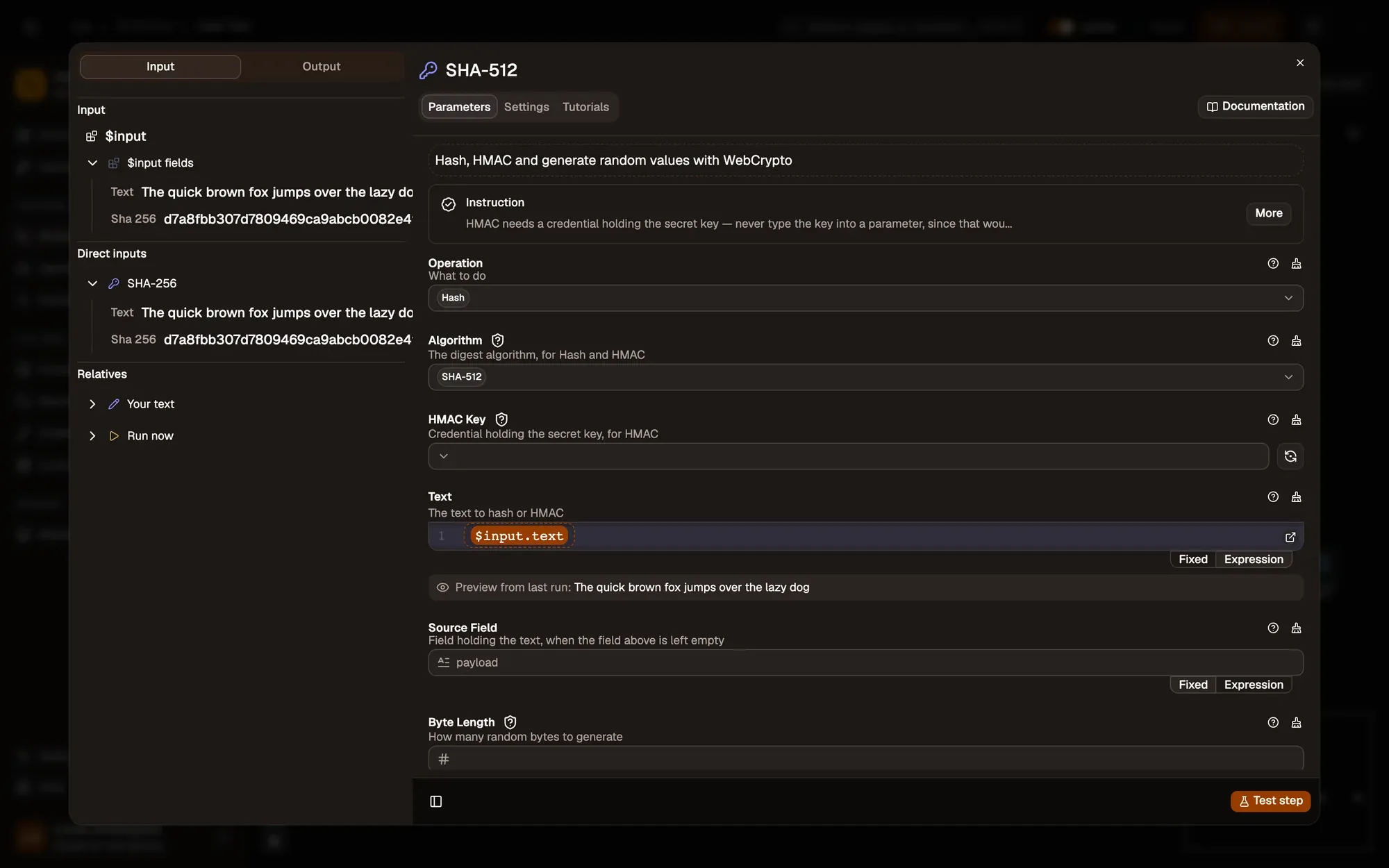
Numbered areas in the screenshot: 1. Input tab; 2. Fields from the previous step: drag one into a field; 3. An earlier step and its fields; 4. The expression the drag creates; 5. Preview from last run.
A step that hasn’t run yet shows Run this step to see its data instead of fields. Click it to run that step on its own.
What the drag writes
Section titled “What the drag writes”| You drag… | The field gets… |
|---|---|
| $input | {{ $input }}, the whole incoming data |
| A field under $input fields | {{ $input.title }} |
| A nested field | {{ $input.metadata.description }} (a dot path) |
| A field of a step under Direct inputs or Relatives | {{ $('Get Page Metadata').title }}, using the step’s label |
Prefer $input when the value comes from the step right before. A $('…') reference breaks if you rename that step, and a reference to a step further back returns its whole output rather than the matching item (see Item linking).
You can mix mapped values with your own text in one field: Summary of {{ $input.title }}.
Drag, type, or reshape?
Section titled “Drag, type, or reshape?”- Drag from Input The value exists as is in an earlier step. Example The page title into a message.
- Type an expression You need a fallback, a comparison or a small calculation. Example {{ $input.title || "Untitled" }}
- Reshape first Many settings need the same cleaned-up value. Example Edit Fields builds title and url once; later steps read $input.
You’ll notice this when…
Section titled “You’ll notice this when…”The Input panel shows no fields, only a Run button
The steps before this one haven’t run yet, so there’s no data to show. Click Run this step to see its data, or run the whole workflow once.
There’s no “$input fields” list
The list appears only when exactly one step with data feeds this node. With several incoming steps, drag fields from Direct inputs instead.
The preview says “Run once to see a preview”
The field holds an expression, but the steps it reads from have no data from a previous run. Run the workflow once and open the settings again.
A mapped field is empty during the run
The field isn’t on the item, or it’s nested deeper than you mapped. Open the previous step’s Output tab and compare the path with your expression. Missing values become empty text rather than an error.