See it happen
Section titled “See it happen”Try / Catch guards a page read. The page has changed and the step fails, so the rest of the guarded steps are skipped and the Catch branch receives one item describing the failure.
Example run: Try / Catch, 1 item → Get Element Data, error → Catch branch, 1 item. Illustration of a run. The Catch item names the failed step, its error and the data it was given.
| # | nodeLabel | message | input |
|---|---|---|---|
| 0 | Get Element Data | No element matches the selector .price | {"url":"https://shop.example/p/1"} |
Pick how to handle a failure
Section titled “Pick how to handle a failure”- Retry The failure is often temporary: a timeout, a busy server, a rate limit. Example Up to 3 tries, 1 second apart, transient errors only.
- Continue On Fail The step is optional and the rest of the run should go on. Example A thumbnail that's nice to have.
- Try / Catch A group of steps needs a plan B when any of them fails. Example If the page can't be read, post an alert and stop.
- Error Trigger You want to hear about failed runs, whatever failed. Example Message yourself when the nightly sync fails.
Retry a flaky step
Section titled “Retry a flaky step”Double-click the step to open its settings, then:
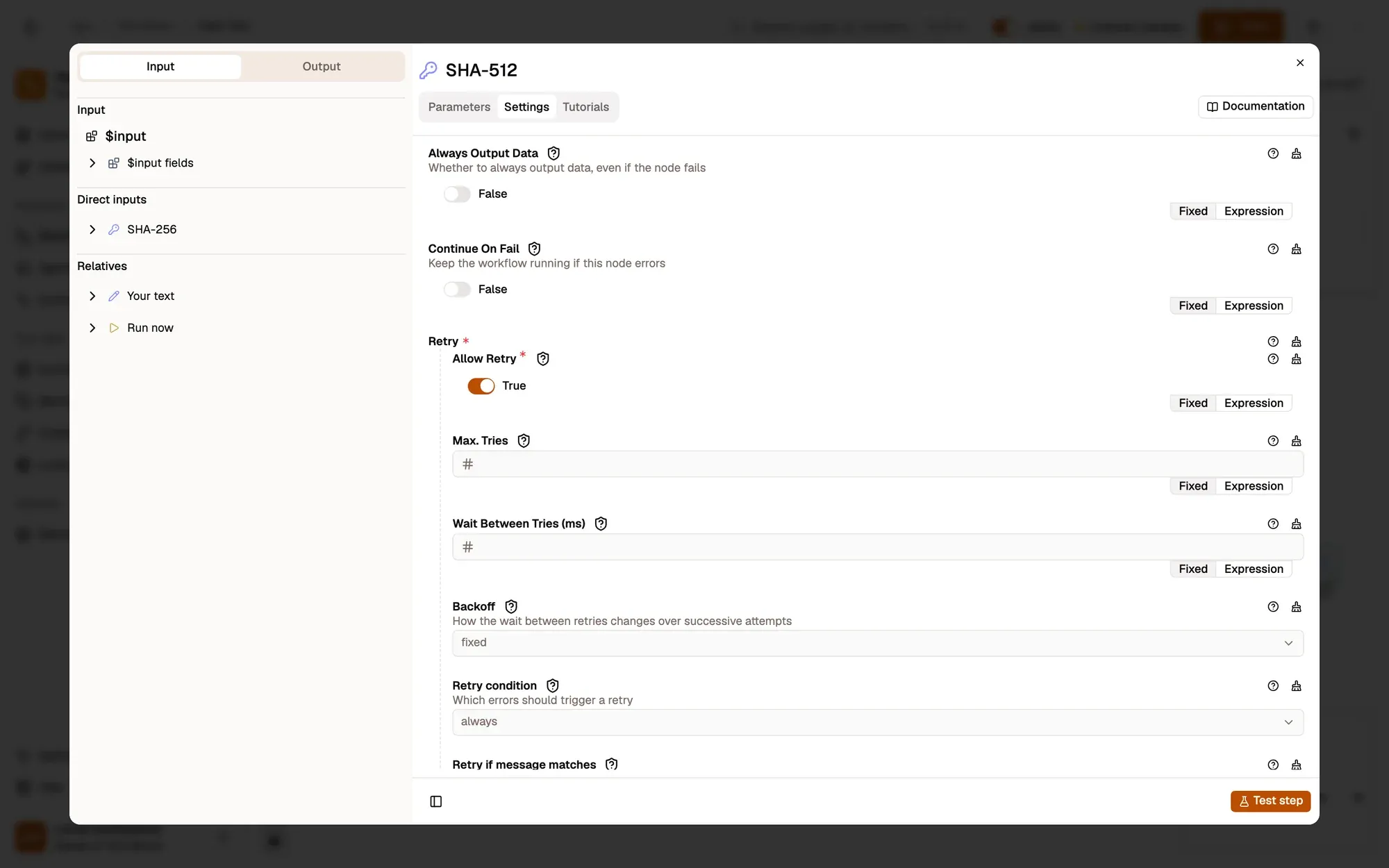
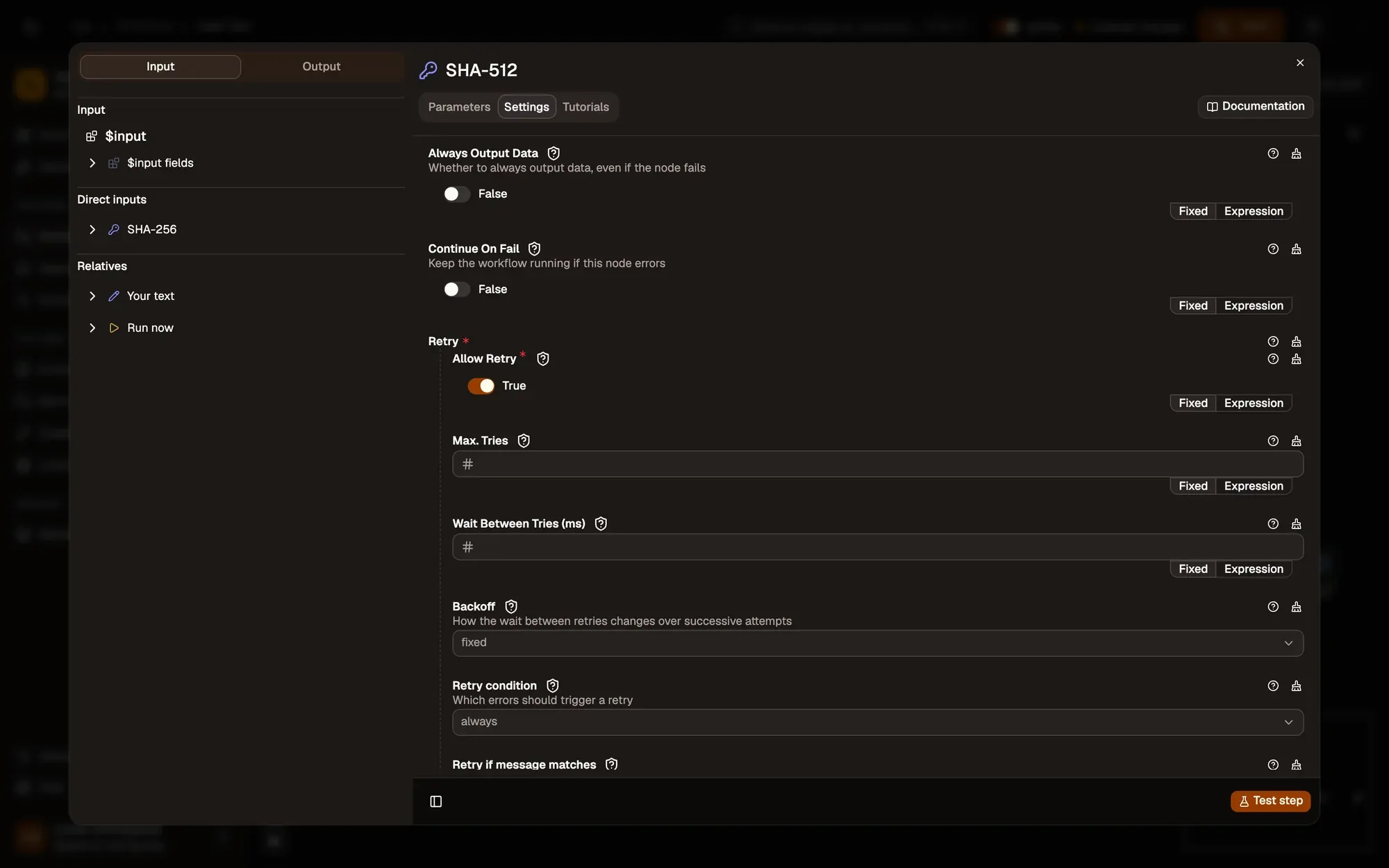
Numbered areas in the screenshot: 1. Settings tab; 2. Allow Retry; 3. Max. Tries; 4. Wait Between Tries (ms); 5. Backoff; 6. Retry condition.
Carry on after a failure
Section titled “Carry on after a failure”Two more switches sit in the same Settings tab:
Numbered areas in the screenshot: 1. Continue On Fail; 2. Always Output Data.
Retry runs first. When it’s used up, Continue On Fail decides whether the run stops or goes on.
Catch a failure with Try / Catch
Section titled “Catch a failure with Try / Catch”Wire the steps you want to protect to the Try output of a Try / Catch node, and the plan B to Catch. Bring both branches back into the same step to mark where the guarded part ends.
flowchart LR
  S[Start] --> T{Try / Catch}
  T -->|Try| F[Get Element Data] --> P[Edit Fields]
  T -->|Catch| A[Send an alert]
  P --> J[Save]
  A --> J
  class T awf-flow
  class F,P awf-data
  class A awf-err
  class J awf-ok
If a guarded step fails, the rest of the Try branch is skipped and Catch runs with nodeLabel, message and input. A failure inside the Catch branch isn’t caught by the same Try: it goes to an outer Try / Catch, or ends the run.
To stop a run on purpose with a clear message, use Stop and Error.
Hear about failed runs
Section titled “Hear about failed runs”An Error Trigger starts a workflow when a watched workflow fails. It receives the failed workflow, the step that failed, the error and its input. It fires for runs that start on their own (a schedule, a page load, a hotkey and so on), not for runs you start yourself from the designer, and not for failures a Try / Catch already handled.
You’ll notice this when…
Section titled “You’ll notice this when…”One failing step ended the whole run
That’s the default. Turn on Retry or Continue On Fail in the step’s Settings tab, or guard it with Try / Catch.
A step kept retrying a “401 Unauthorized” error
Retry condition is set to Any error. Set it to Transient errors only so the step fails fast when the problem won’t go away, then fix the connection.
The steps after a Continue On Fail step get an empty item
That’s how Continue On Fail works: the failed step outputs one empty item. Add a fallback in later expressions, such as {{ $input.title || "Untitled" }}, or check for it with an IF.
The Error Trigger didn’t fire
You started the run yourself, a Try / Catch handled the failure, or the alert workflow isn’t activated. See the Error Trigger rules.
A page step fails with an element not found
The page changed, or it wasn’t ready yet. Add Wait For Element before the step, and check the selector still matches. See Browser context.