Ce contenu n’est pas encore disponible dans votre langue.
In the app: canvas ⋯ › Workflow settings, or the ⋯ menu of a row in Workflows
Step settings change one step. (For a quick look at the workflow, click its name in the canvas header: the Workflow info popover shows its status, version, behaviour, storage and folder, and links here.) Workflow settings gather the choices that apply to the whole workflow. On a wide screen they open in a side sheet; in the side panel they take the full width.
Changes apply to the canvas at once and mark the workflow as unsaved: press Save to keep them. One Undo reverts everything you changed in the sheet.
Running
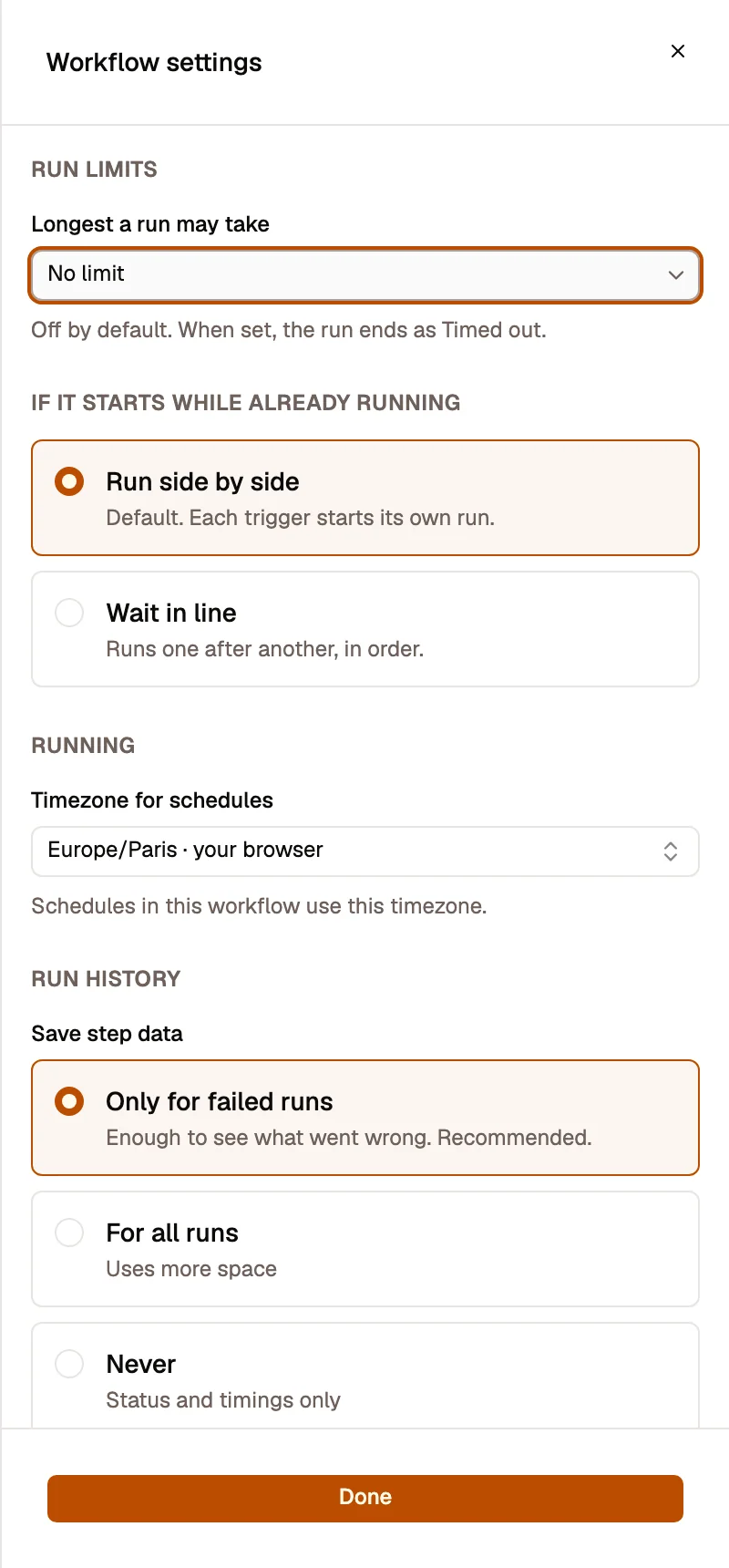
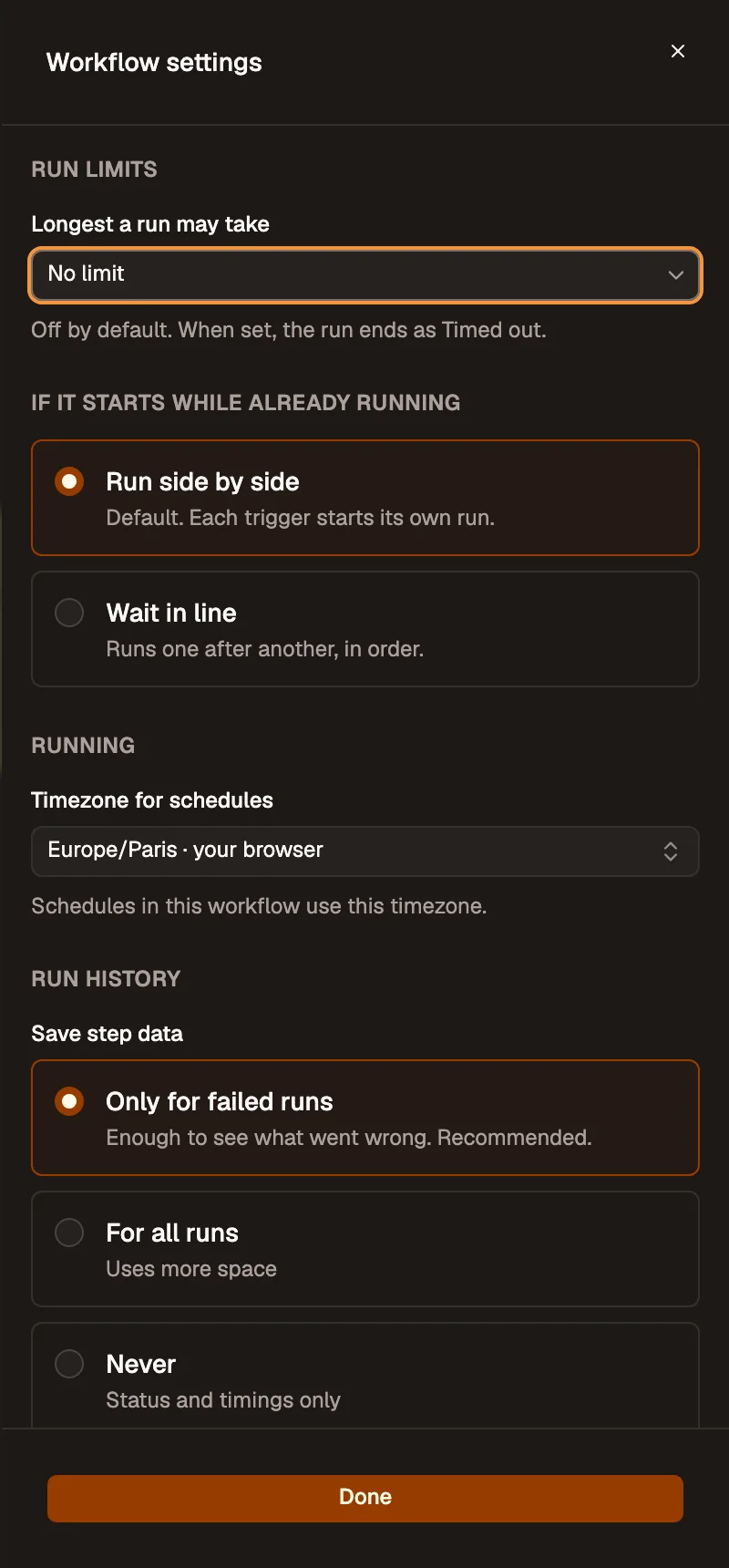
Section titled “Running”Timezone for schedules: the timezone every Schedule rule of this workflow uses, unless a rule sets its own. Not set means your browser’s timezone, as before. When you pick a zone, the sheet tells you when the schedules will fire (“Schedules will fire at 09:00 in Europe/Paris”).
When you install a workflow from the marketplace or a template, the author’s timezone is dropped: your schedules run in your time.
Run limits
Section titled “Run limits”Longest a run may take: No limit by default. When set, a run that takes longer stops and ends as Timed out (the step running then is canceled). Only running time counts: the time a run spends paused or waiting (an approval, a form, a long Wait) does not. A run that goes on after a pause gets only the time it has left.
If it starts while already running decides what happens when a trigger fires while a run of this workflow is still going:
- Run side by side (default): each trigger starts its own run.
- Wait in line: runs go one after another, in order. Runs at the same time (1 to 5) lets a few go together. Waiting runs show as Queued in Runs, where you can cancel them.
Whatever you choose, AWFlow runs at most 10 background runs at once to protect your browser; the others wait. A trigger that fires while the app can’t take it (for example the AWFlow tab is closed) waits in line and is retried; it is dropped after 24 hours.
Run history
Section titled “Run history”Save step data decides what a run keeps of each step’s input and output, so you can open a past run later and see the data:
| Choice | What is kept |
|---|---|
| Only for failed runs (default) | The data of runs that failed or sent items to an error output. Enough to see what went wrong. |
| For all runs | The data of every run. Uses more space. |
| Never | Status and timings only: each step’s status, timing and item counts, no data. |
A change applies to new runs: runs already kept don’t change. Each input or output is capped (64 KB), long loops keep their first and last passes, files are replaced by a marker, and values that look like secrets are blanked.
Keep Manual runs: whether runs you start with Run in the editor are kept in Runs.
When this fails
Section titled “When this fails”Lists the workflows whose Error Trigger watches this one, with a badge when they are Off. Create an error workflow makes a new workflow, Off, with an Error Trigger already set to watch this one: add what should happen (a notification, a message) and turn it On.
Minutes saved per run: how much time one run saves you. It feeds Time saved on Home and Insights. Use N min suggests about 1 minute per step.
Engine
Section titled “Engine”Shows whether the workflow runs with the Classic behaviour (how it has always run) or the New behaviour (the current way steps handle items and expressions). On a Classic workflow, See what changes with the new behaviour… opens the upgrade preview. See Workflow behaviour versions.
Only the author can upgrade: the button is greyed out on an installed copy.