In the app: the recap on Home, and its link to the Insights page (#/app/insights)
Insights show what your workflows do for you over time. They are computed from your runs, on this device for workflows kept here and in your account for cloud workflows.
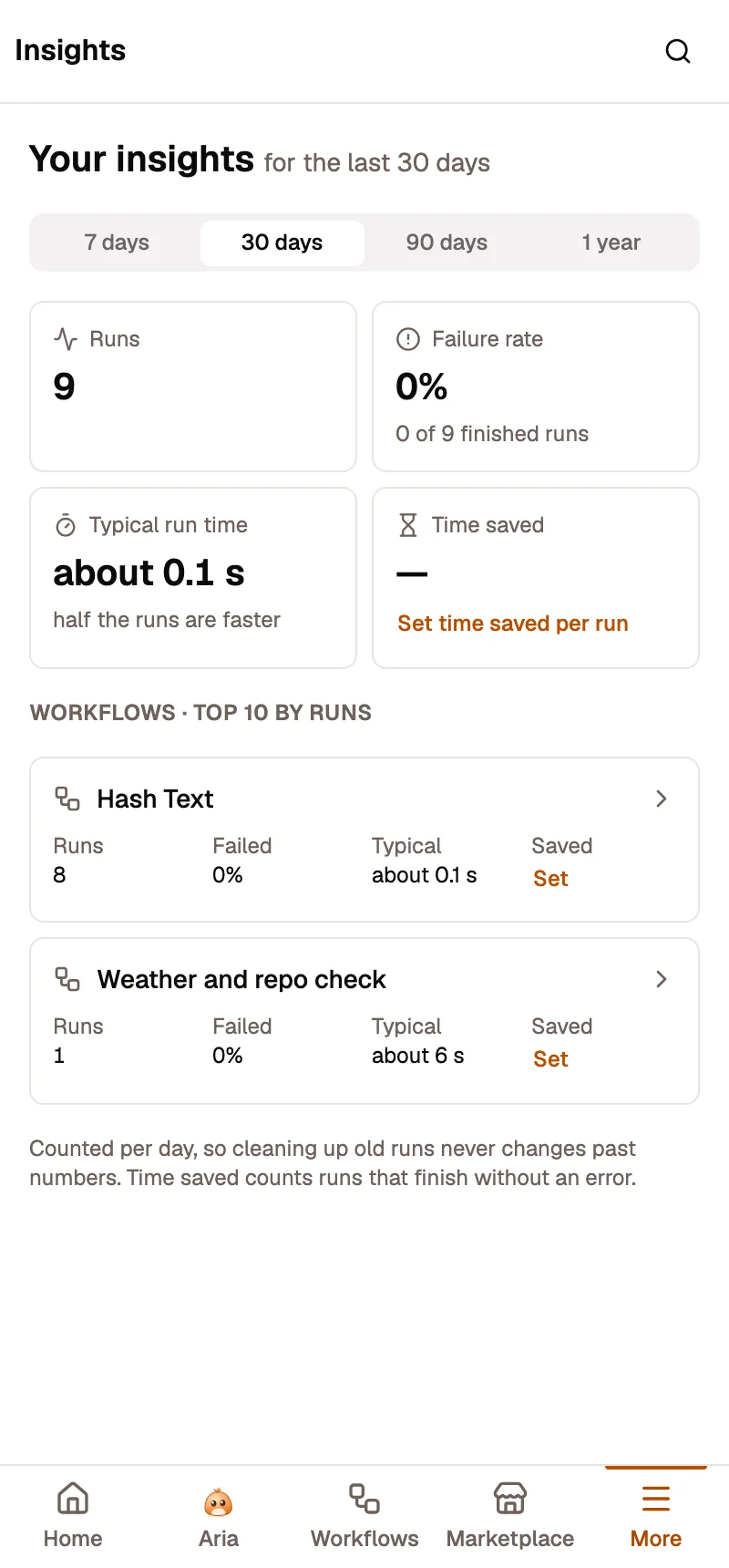
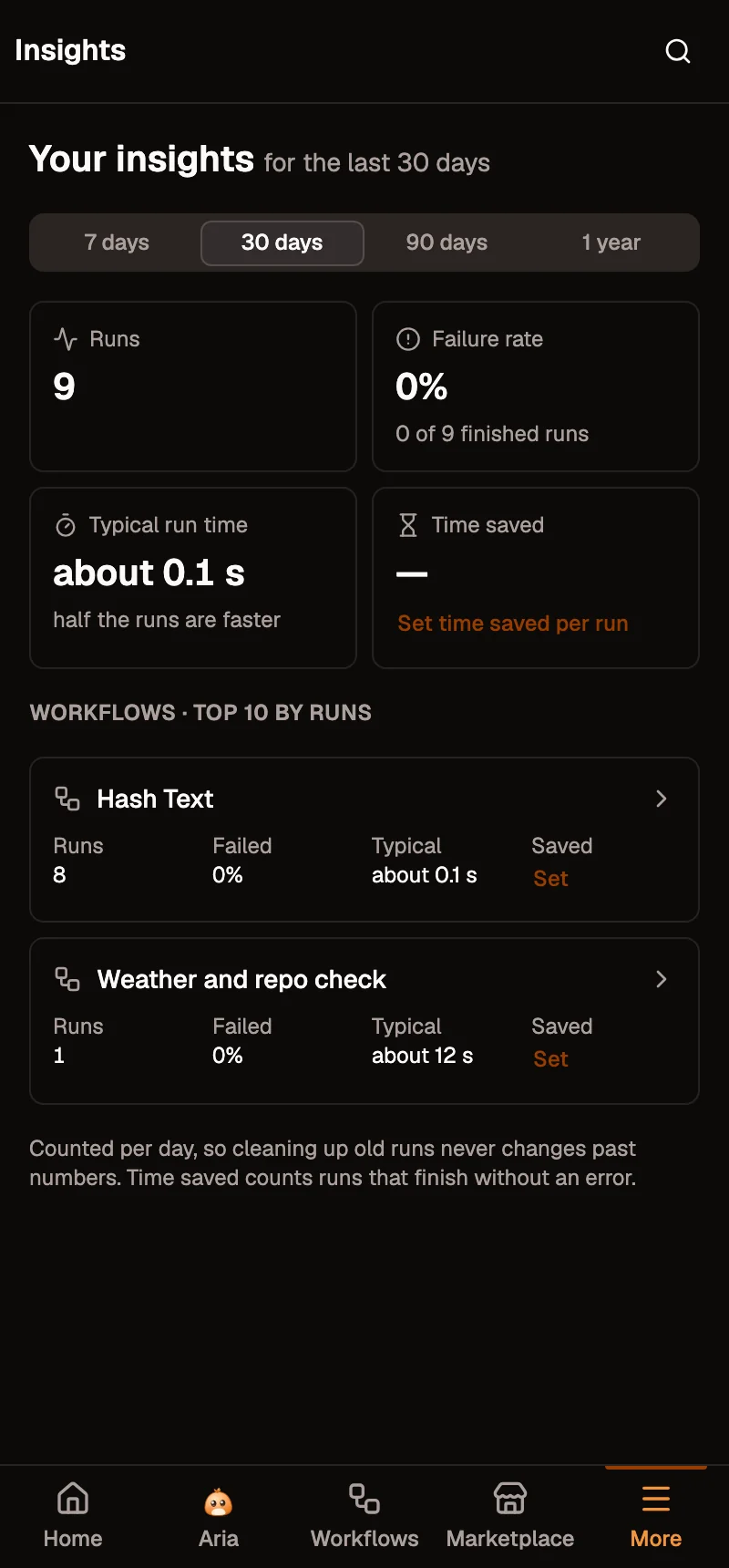
The four numbers
Section titled “The four numbers”Pick a period: 7 days, 30 days, 90 days or 1 year.
| Tile | What it shows |
|---|---|
| Runs | How many runs finished, compared with the period before. |
| Failure rate | The share of runs that failed. Runs you stopped don’t count. |
| Typical run time | About how long a run takes. |
| Time saved | Runs multiplied by the minutes each run saves you (see below). |
Below the tiles: the workflow most worth a look (for example the one that failed most), and your top workflows by runs, with their own runs, failure rate, typical time and last failure. Home shows the top 3; the Insights page the top 10 (a table on a wide screen, cards in the side panel).
For a workflow that keeps failing, the card says where: Most often at Create invoice · 7 of 9, the usual error (Usually: 429 Too many requests) and Open the step. Workflow cards and the Last failure column show the same line once a workflow failed twice. Tap the line to open Runs filtered to that workflow’s failed runs. Cloud runs count too.
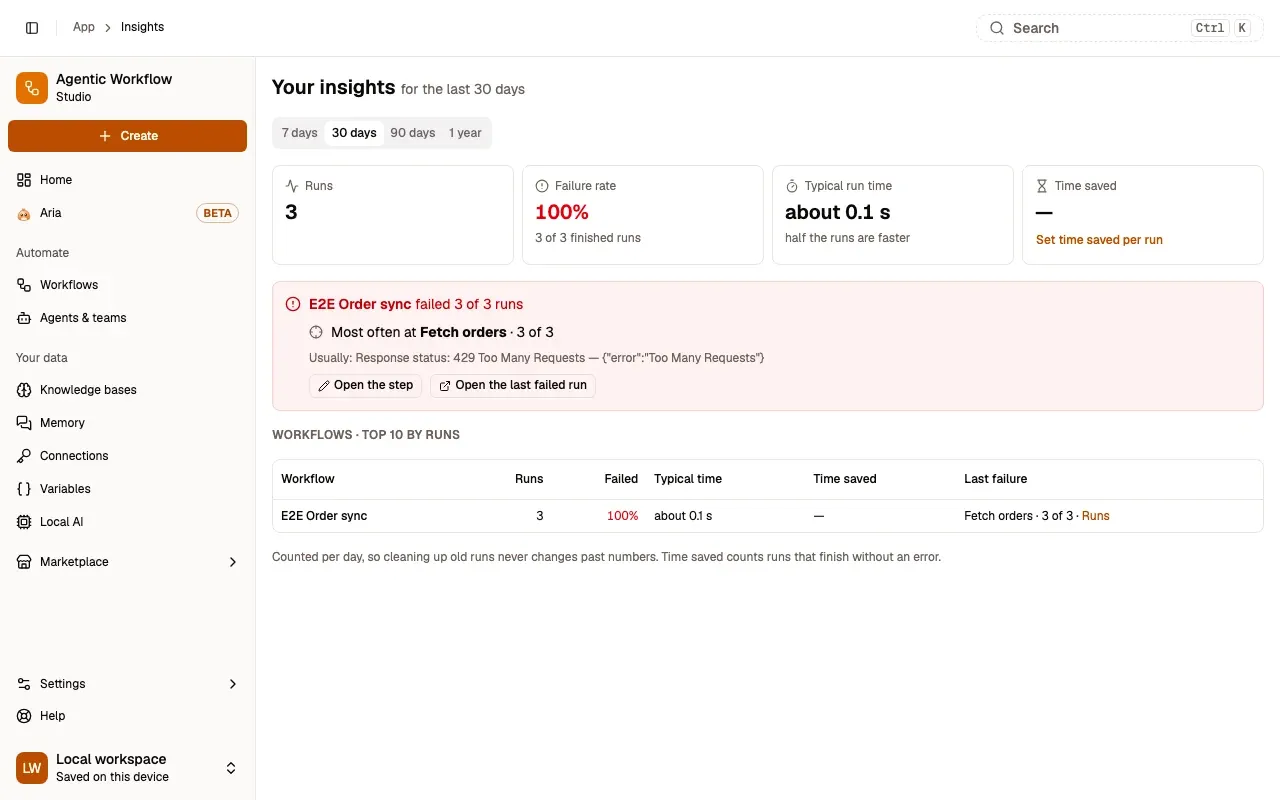
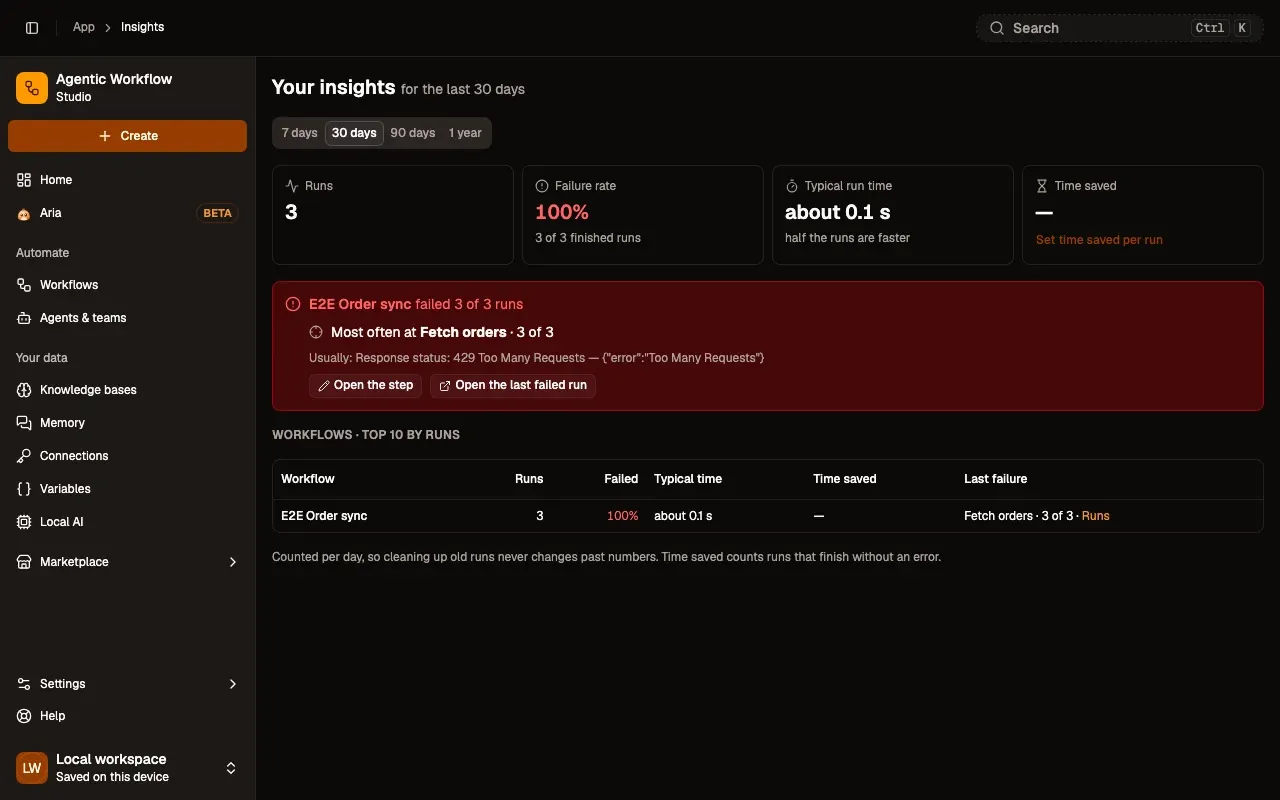
Numbered areas in the screenshot: 1. Most often at Fetch orders.
Set the time a workflow saves
Section titled “Set the time a workflow saves”Time saved needs one number per workflow: how many minutes a run saves you.
- In the workflow list of Insights, press Set next to a workflow (or open Workflow settings › Value).
- Type the Minutes saved per run. About 1 minute per step is a good start.
- Save. It is saved as a new version of the workflow.
The value applies to runs from now on. Earlier days keep their numbers.
Good to know
Section titled “Good to know”- Numbers are kept per day when each run finishes, so deleting old runs from Runs never changes past insights.
- When cloud numbers can’t load, the page shows this device’s numbers and says so.
- With no runs in the period, the page says so and links to your workflows.
Related
Section titled “Related”- Run history: every run, one by one.
- Health: workflows that keep failing on their own.