此内容尚不支持你的语言。
AWFlow improves its steps over time. When a step changes how it behaves, it gets a new version. Steps you already saved keep the version they were made with, so your workflows, and the ones you installed from the marketplace, keep doing exactly what they did. New steps you add get the latest version.
Update available
Section titled “Update available”A step that has a newer version shows an Update available · v1 → v2 badge on the canvas, and an amber Update button in the header of its settings.
- Open the step and press the Update button.
- The sheet lists what changed in each version and says that your settings are carried over.
- Press Update step. The step is updated in one change: Undo (or the toast’s Undo) puts it back.
Updating is never automatic. Run the step after updating to check its output still suits the next steps.
Steps with a version 2 in AWFlow 0.9
Section titled “Steps with a version 2 in AWFlow 0.9”| Step | What version 2 changes |
|---|---|
| HTTP Request | A JSON list in the response becomes one item per entry. Return chooses the shape; updating keeps “The whole response as one item”. |
| If, Filter, Route by value | One Match all / any per group, nested groups, lists and objects compared by content, a Type check (Loose or Strict) and Ignore case. Your AND/OR rows are converted with the same meaning. |
| Edit Fields | Keep other input fields, dotted names that build nested fields, a JSON mode, and a choice when a value doesn’t fit its type. Updating keeps literal names and today’s conversions. |
| Python Code | Runs once for all items by default (much faster); {{ }} in the code is no longer replaced; errors name the line and the item. Updating sets Once for each item, so the result stays the same. |
| In-Page Form | New field types (email, link, choice, checkboxes, hidden), choices as a list, placeholder, help, default, min/max, and pages with Back and Next. |
| Chat Trigger | A Chat Memory is no longer required: a Respond to Chat step, or the last AI step, is the reply. |
| Tools Agent, Basic LLM Chain | With an output parser and a model that can use tools, the answer comes back with typed fields, asked again once if wrong. |
| Guardrails | Quick checks without a model, Clean up the text, and an optional AI policy with a confidence. Updating turns your policy into the AI policy check and leaves the quick checks off. |
| Merge | Three more modes: Append, Combine by position and Every combination. Updating keeps the mode and keys. |
| Workflow Tool | The agent passes named, typed arguments instead of one text input. |
Replace a deprecated step
Section titled “Replace a deprecated step”When a workflow has a step that is deprecated and AWFlow names the step that takes its place, a banner under the editor header says so (Read page is deprecated), with Replace step. It asks first (Replace Read page?): the new step takes its place with the same links in and out, and the sheet lists the settings that carry over (same meaning) and those that don’t. The step keeps its name. Its kept result and its last run’s data don’t carry over. The swap is one change: Undo puts the old step back.
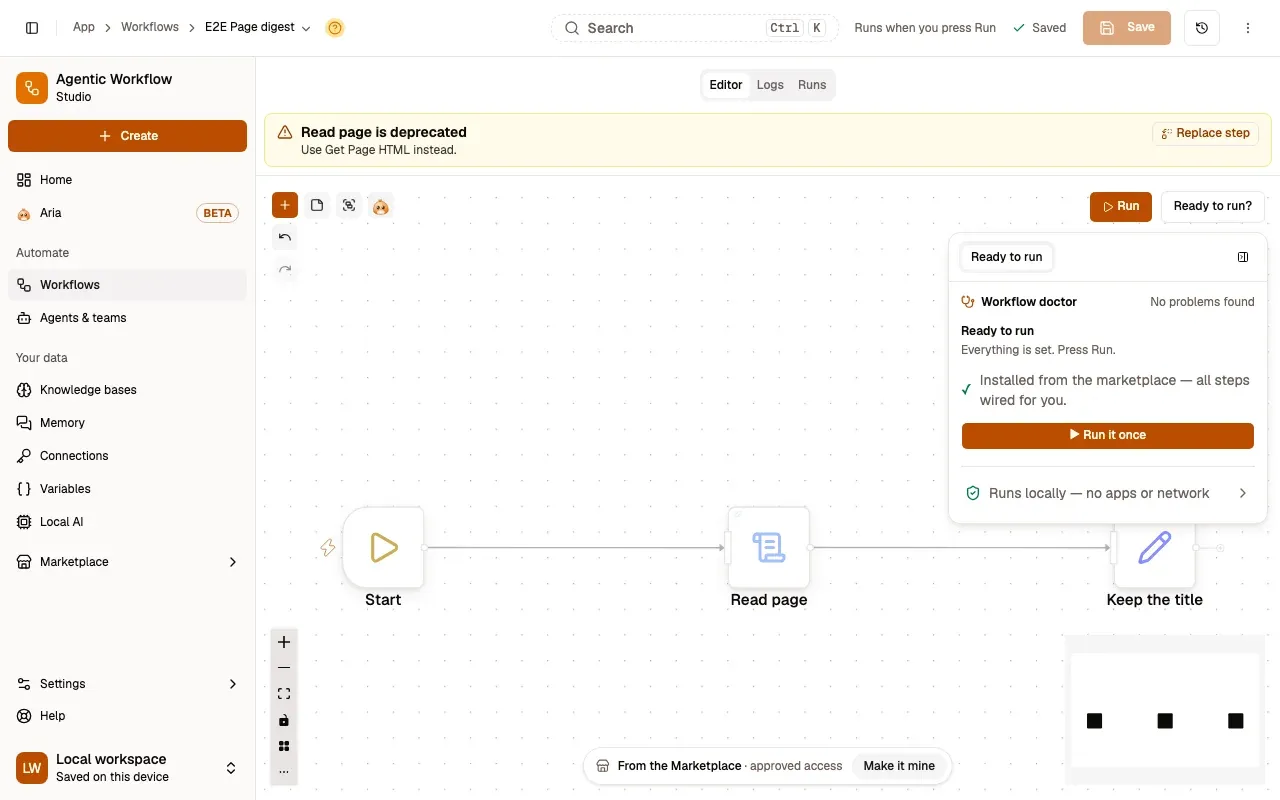
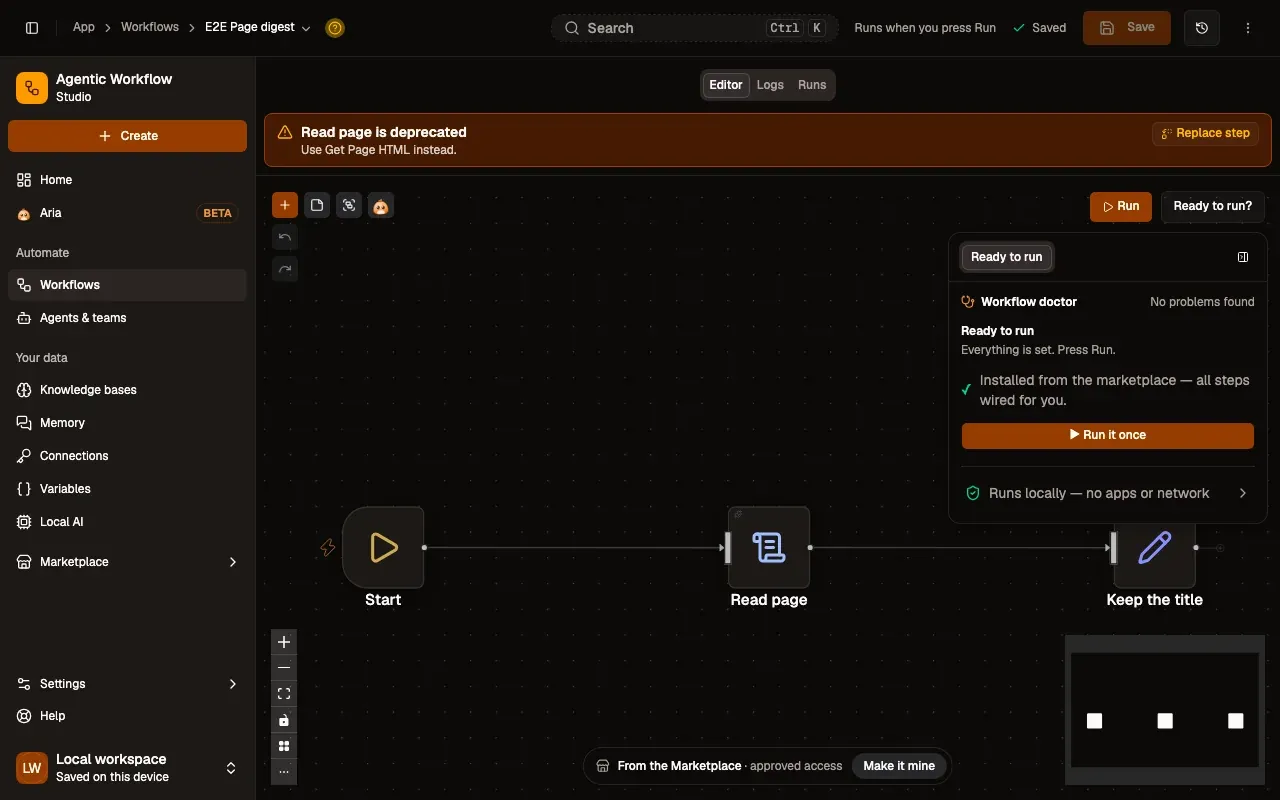
截图中的编号区域:1. Read page is deprecated; 2. Replace step。
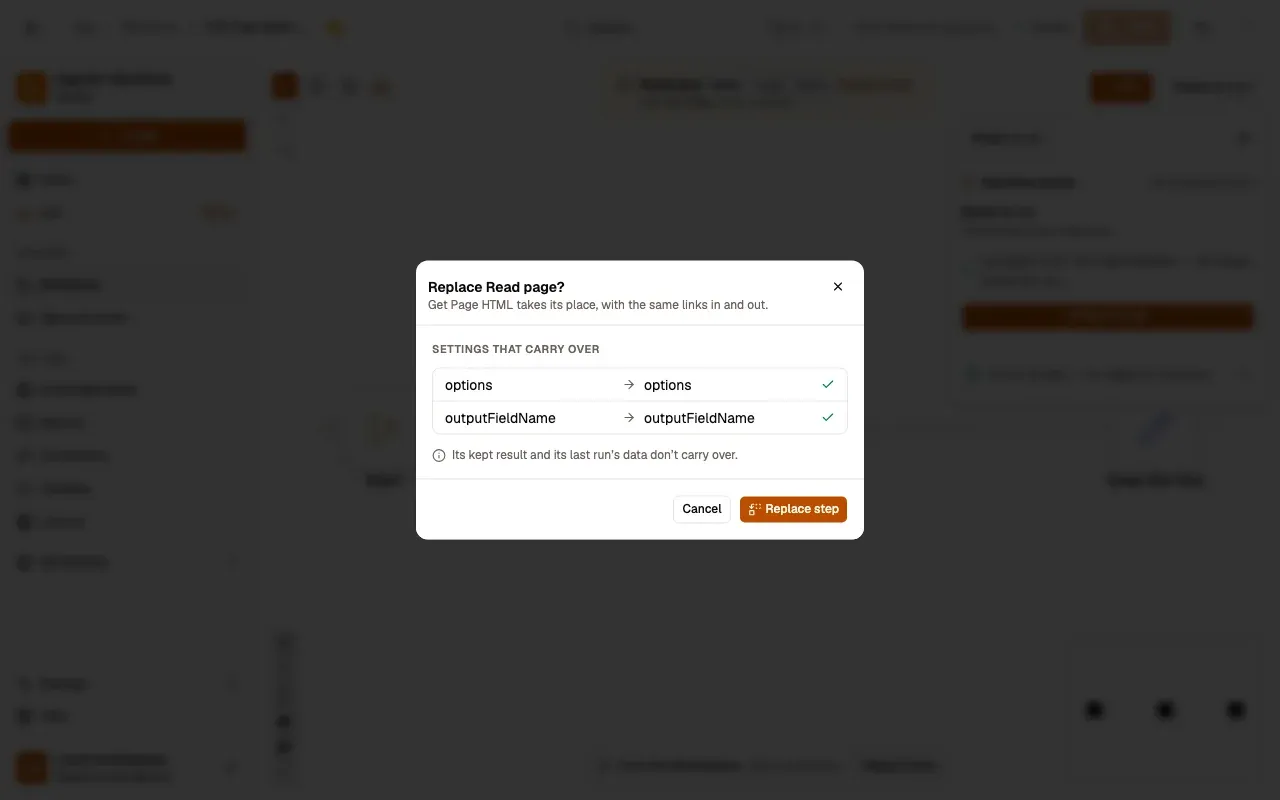
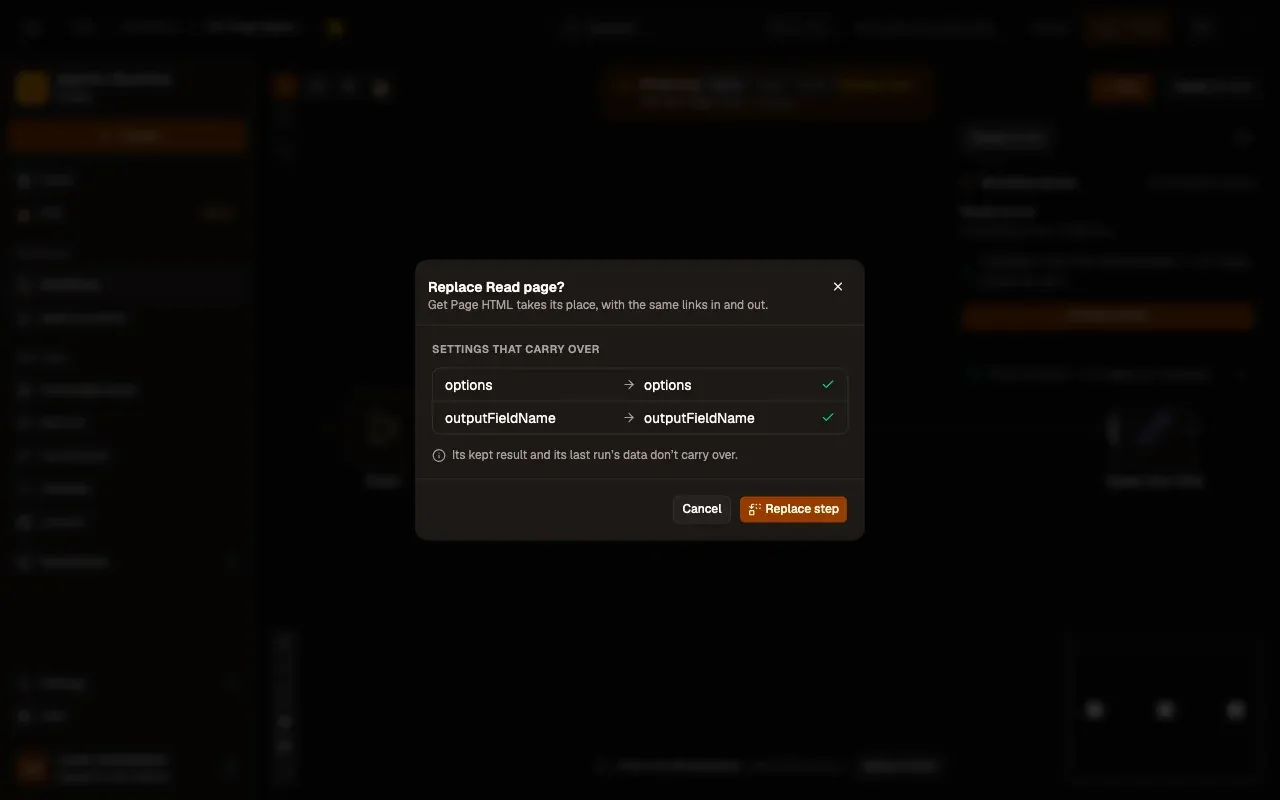
截图中的编号区域:1. Settings that carry over; 2. Replace step。
A step made with a newer AWFlow
Section titled “A step made with a newer AWFlow”If you open a workflow made with a newer version of AWFlow than yours (an import, or a workflow from another device), a step it doesn’t know yet shows a lock badge and a card: made with a newer AWFlow. It doesn’t run, and the workflow is never changed. Press Check for updates, or see Updating AWFlow.
For authors
Section titled “For authors”Publishing doesn’t update your steps. Someone who installs your workflow gets the versions you used, so it behaves for them as it did for you. See also Workflow behaviour versions, which apply to the whole workflow.