此内容尚不支持你的语言。
≈ 2 min
扩展程序
网页应用
JWT
询问 Aria⌘IBefore you start
Section titled “Before you start”- A Mistral account with billing or credit set up.
Used by
Section titled “Used by”Set it up
Section titled “Set it up”Use Chat Mistral in a workflow. The key is a saved credential.
-
Create a key. In the Mistral console (La Plateforme), open API Keys, click Create new key and copy it.
-
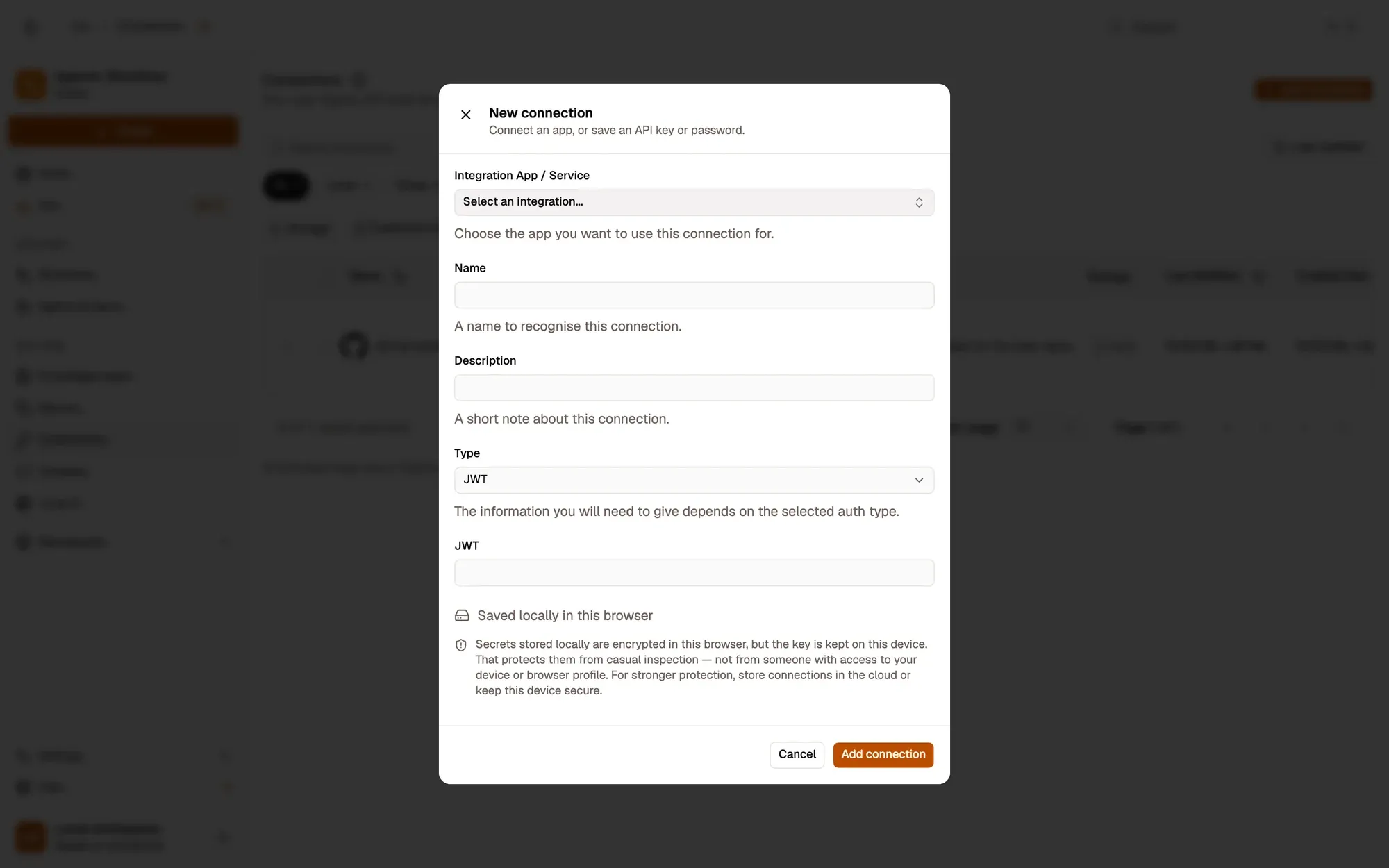
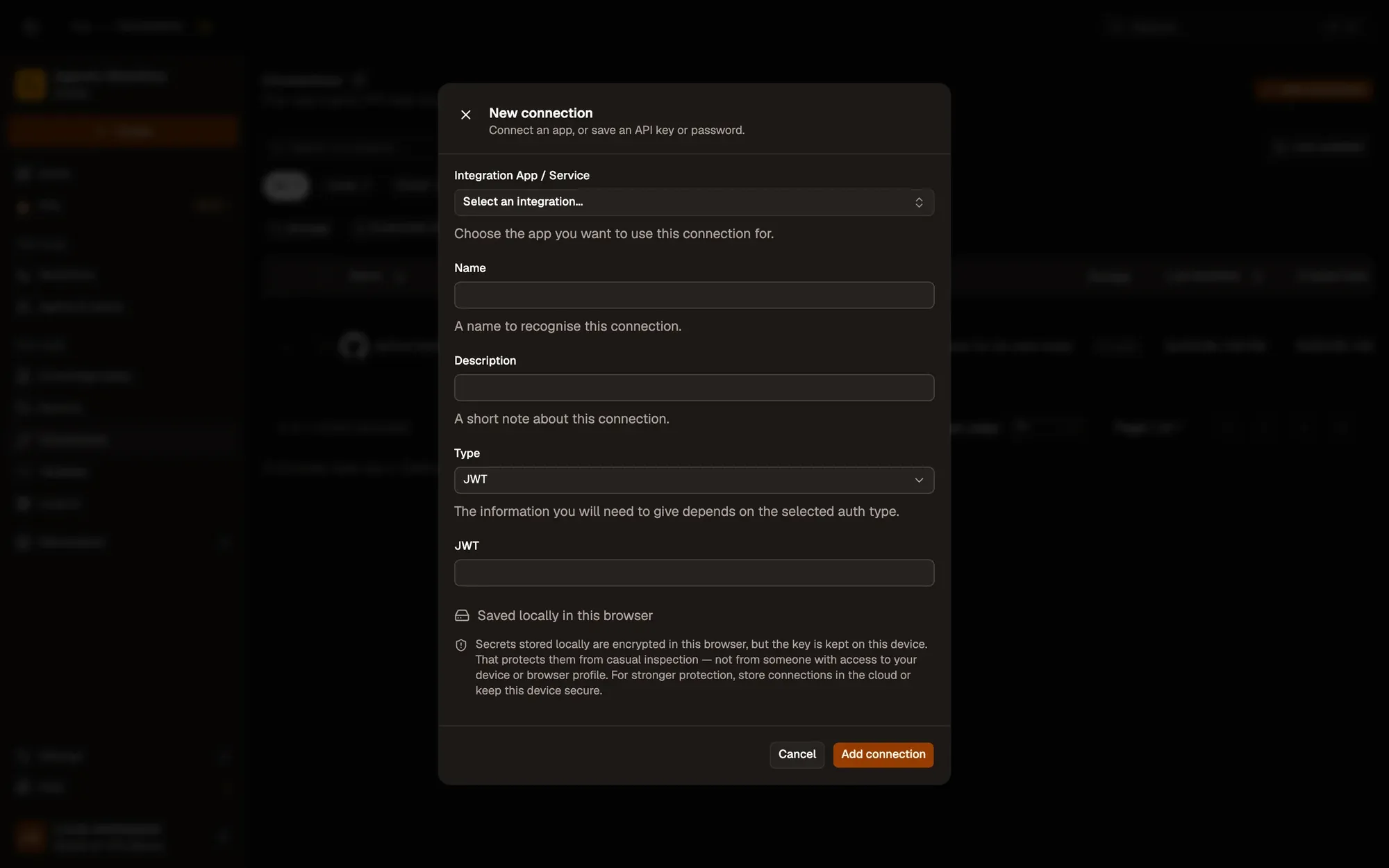
Save it in AWFlow. Open Connections and click Add connection (or Connect in the step’s Authentication field), then fill the New connection form. In the browser side panel the form comes in two steps: tap API key or password (or click Continue), then fill the rest.
截图中的编号区域:1. Integration App / Service: none (an API key or password); 2. Name; 3. Type: JWT; 4. JWT; 5. Where the secret is stored (here, locally in this browser); 6. Save the connection。
-
Pick it in the node. In Chat Mistral, choose the credential in Authentication and type the Model id.
Where your token lives
Section titled “Where your token lives”Common issues
Section titled “Common issues”- A 401, “invalid API key” or “Incorrect API key” error. The key was mistyped, revoked, or belongs to another account. Create a new key and update the credential (or the provider in Settings › Providers).
- A 429 or “quota” error. The account is out of credit or over its rate limit. Add credit or wait, then run again.
- An embeddings node fails with 401 while a chat node with the same key works. The credential is a Bearer Token. Embeddings nodes pass the value to the provider as it is, so use a JWT credential that holds only the key.