Dieser Inhalt ist noch nicht in deiner Sprache verfügbar.
In the app: sidebar › Observability › Insights. For one agent: open the agent, then its Insights tab under Observe.
Insights answer questions about many conversations at once. You pick a question, for example Where does Inbox Triage get stuck? A model reads a sample of the agent’s recent conversations, sorts them into categories and writes a short summary that points to the conversations behind each finding. Run a report once, or let it run every day, week or month so you can follow the trend.
flowchart LR
  S["Sample of<br/>conversations"] --> M["A short summary<br/>of each one"]
  M --> C["Categories"]
  C --> R["Report<br/>summary, trend, table"]
  R --> D["Create dataset"]
  R --> F["Fix with Aria"]
  class S awf-data
  class M awf-ai
  class C awf-ai
  class R awf-flow
  class D awf-data
  class F awf-ok
The Insights page
Section titled “The Insights page”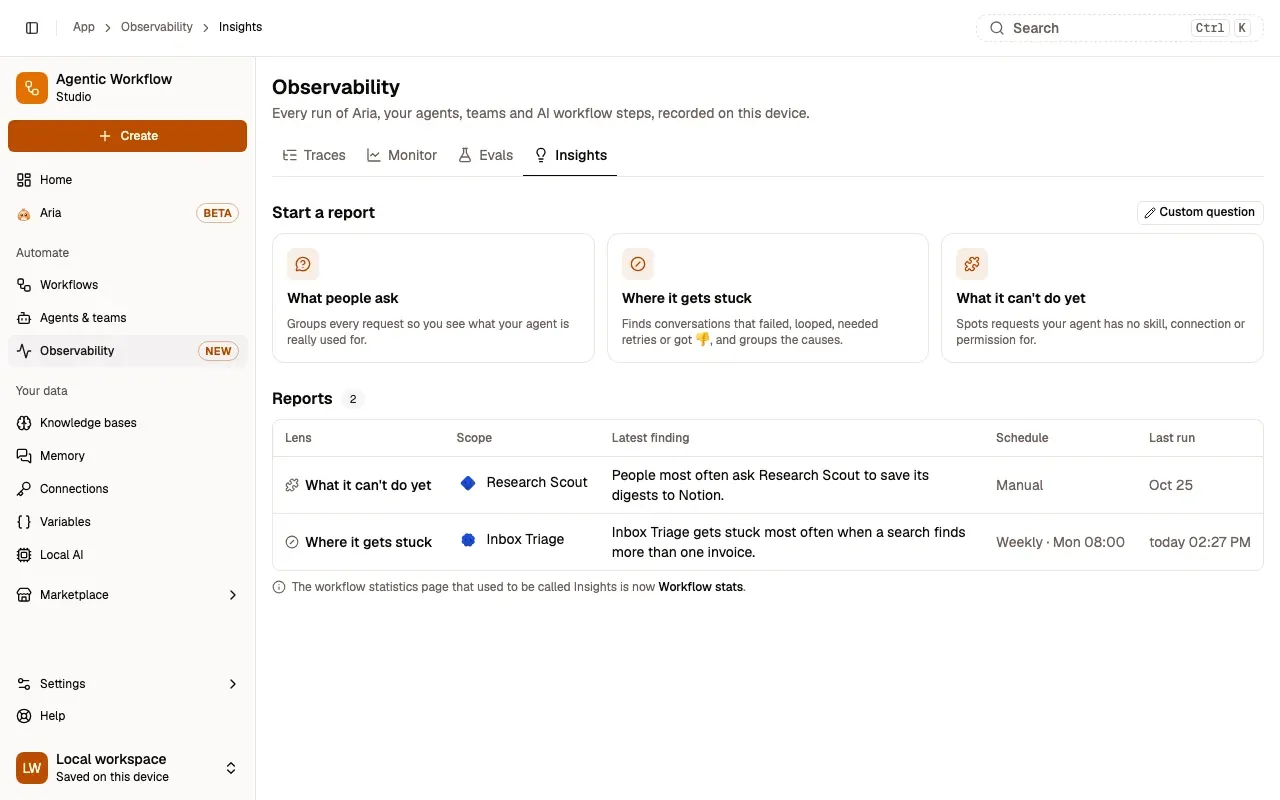
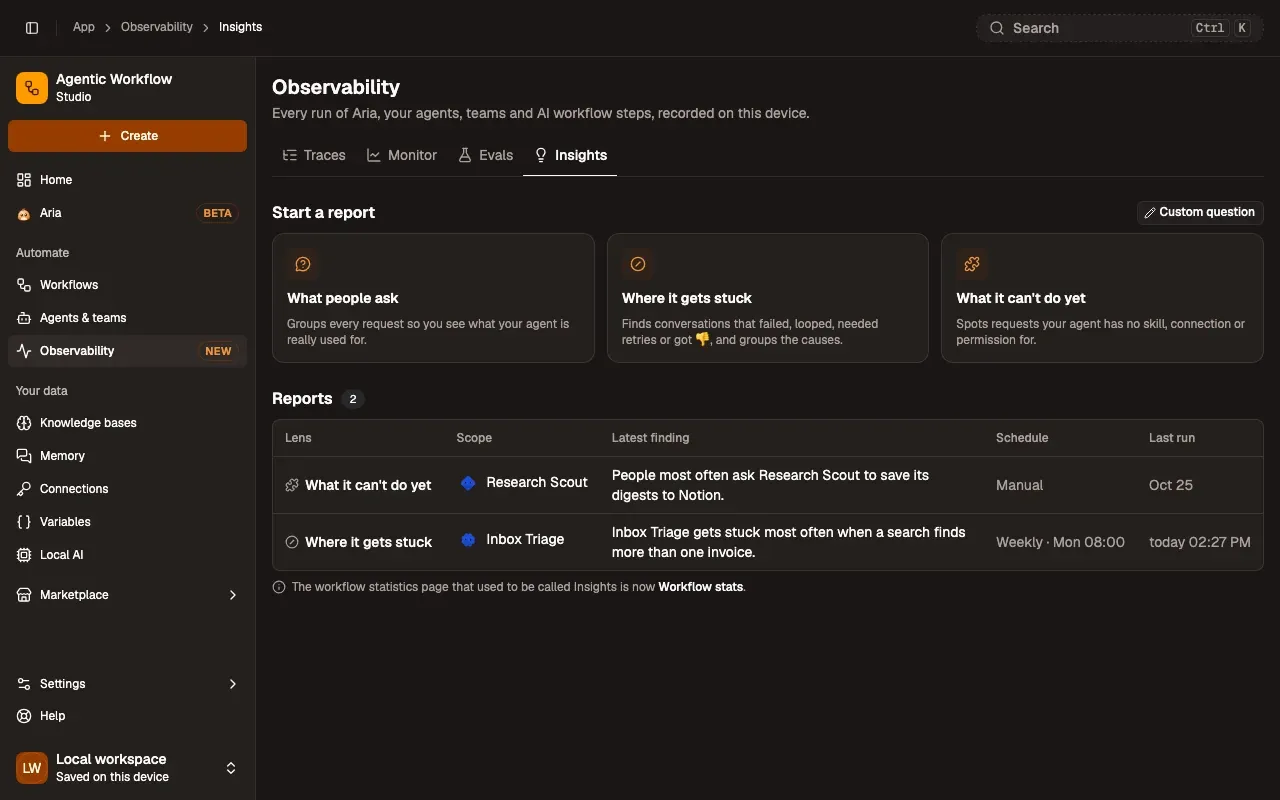
Nummerierte Bereiche im Screenshot: 1. Start a report from a lens; 2. Your reports.
The lenses
Section titled “The lenses”A lens is a ready-made question. It decides which conversations are read and how they are grouped.
| Lens | Which conversations it reads | What you get |
|---|---|---|
| What people ask | Every conversation in the period. | The kinds of requests, with their share and trend. |
| Where it gets stuck | Only conversations that failed, had a tool call fail, hit a step limit, a loop or a timeout, got a 👎, or waited at an approval for more than an hour. | The causes, grouped. |
| What it can’t do yet | Every conversation in the period; the model keeps the requests the agent had no skill, connection or permission for. | Missing abilities, each with a suggestion to add it. |
| Custom question | Every conversation in the period; the model keeps the ones that answer your question. | The answer to your question. |
Insights never read their own analysis runs, experiment runs or Aria’s helper runs, so a report doesn’t analyse itself.
Create a report
Section titled “Create a report”Press a lens card or Custom question. The New report page has four parts.
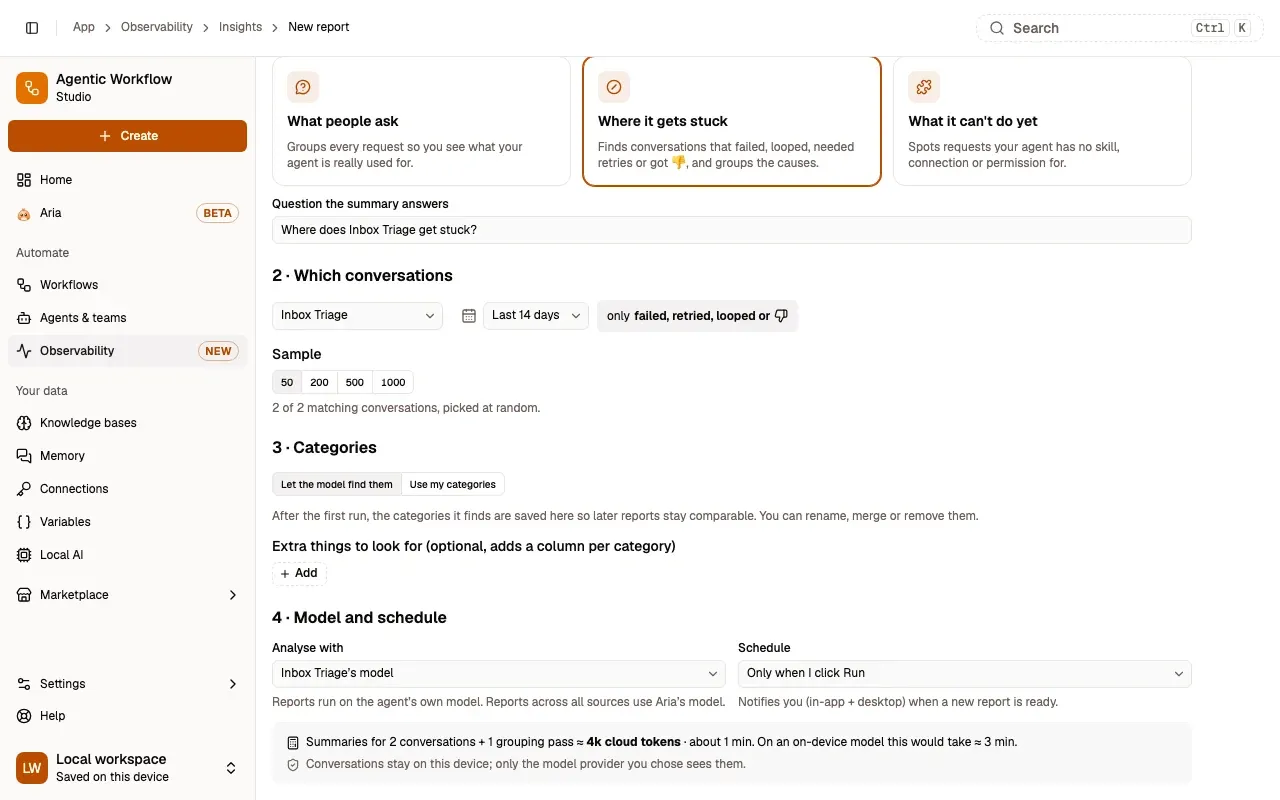
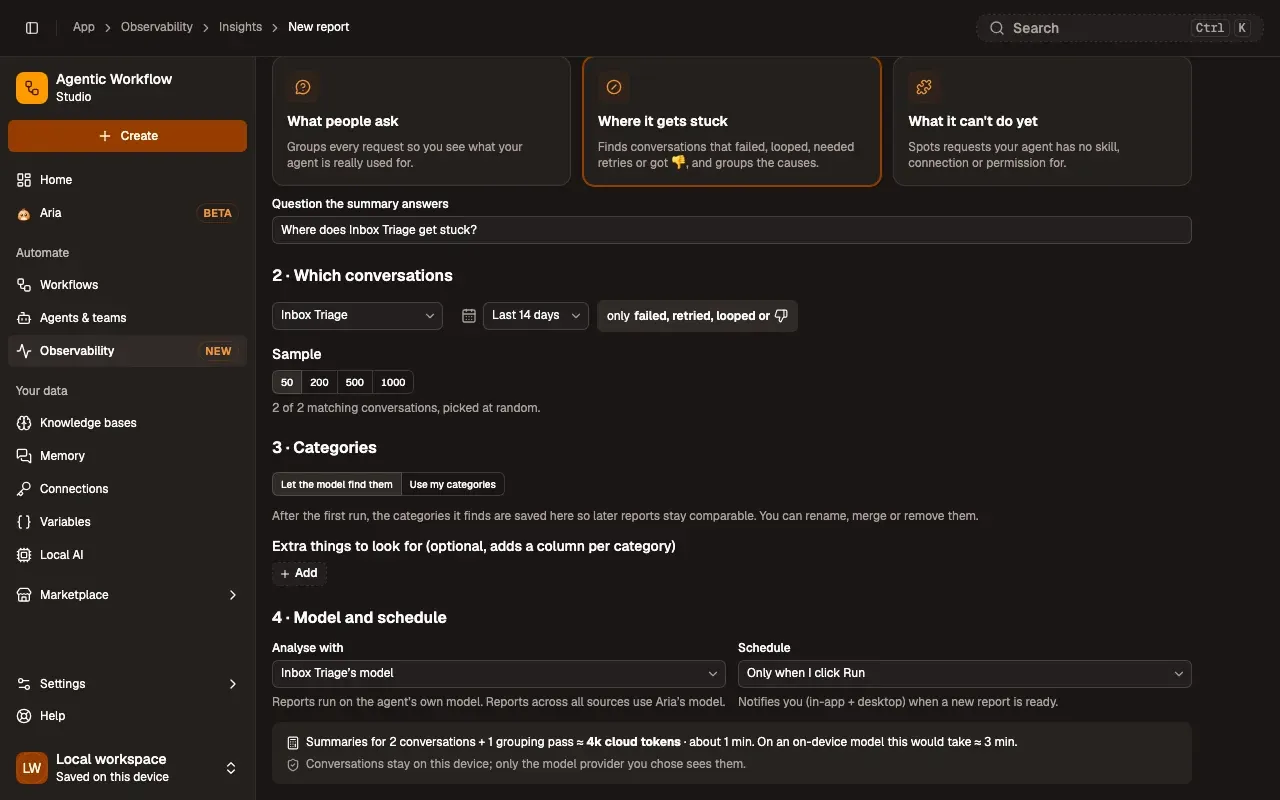
Nummerierte Bereiche im Screenshot: 1. Lens; 2. How many conversations; 3. Categories; 4. Schedule; 5. What it costs in tokens and time.
Then press Run now, or Save without running to keep the report for later.
Which conversations
Section titled “Which conversations”The defaults are the last 14 days and a sample of 200. Under the sample, a line such as 200 of 612 matching conversations, picked at random. tells you how many conversations match. When fewer match than the sample size, all of them are read. With Where it gets stuck, a chip reminds you that only failed, retried, looped or 👎 conversations count.
A report for All sources runs on Aria’s model. A report for one agent runs on that agent’s model, unless you pick another one under Analyse with.
Categories
Section titled “Categories”- Let the model find them (the default): the first run finds the categories. They are then saved on the report, and later runs reuse them, so this week’s report compares with last week’s.
- Use my categories: write the categories yourself, each with a Name and What it is (which conversations belong there). Add up to 12 with Add category. The run sorts conversations into them and doesn’t look for its own.
Conversations that fit no category go to Other.
Extra things to look for
Section titled “Extra things to look for”Under Extra things to look for (optional, adds a column per category), add up to 3 extra questions the model answers for each conversation. Each has a key, such as user_frustrated or language, and a type:
- Yes/no: the column shows the share of the category’s conversations that are a yes.
- Text: the column shows the most frequent answer and how often it came up.
A key uses lowercase letters, digits and _, starts with a letter and is at most 32 characters long.
The estimate and the privacy line
Section titled “The estimate and the privacy line”Before you run, the box at the bottom shows what the run will take, for example:
Summaries for 200 conversations + 1 grouping pass ≈ 101k cloud tokens · about 1 min. On an on-device model this would take ≈ 23 min.
With an on-device model there are no cloud tokens, so the line gives only the time and asks you to keep the tab open. The numbers in the example are illustrative.
Under it, the privacy line: Conversations stay on this device; only the model provider you chose sees them.
Read a report
Section titled “Read a report”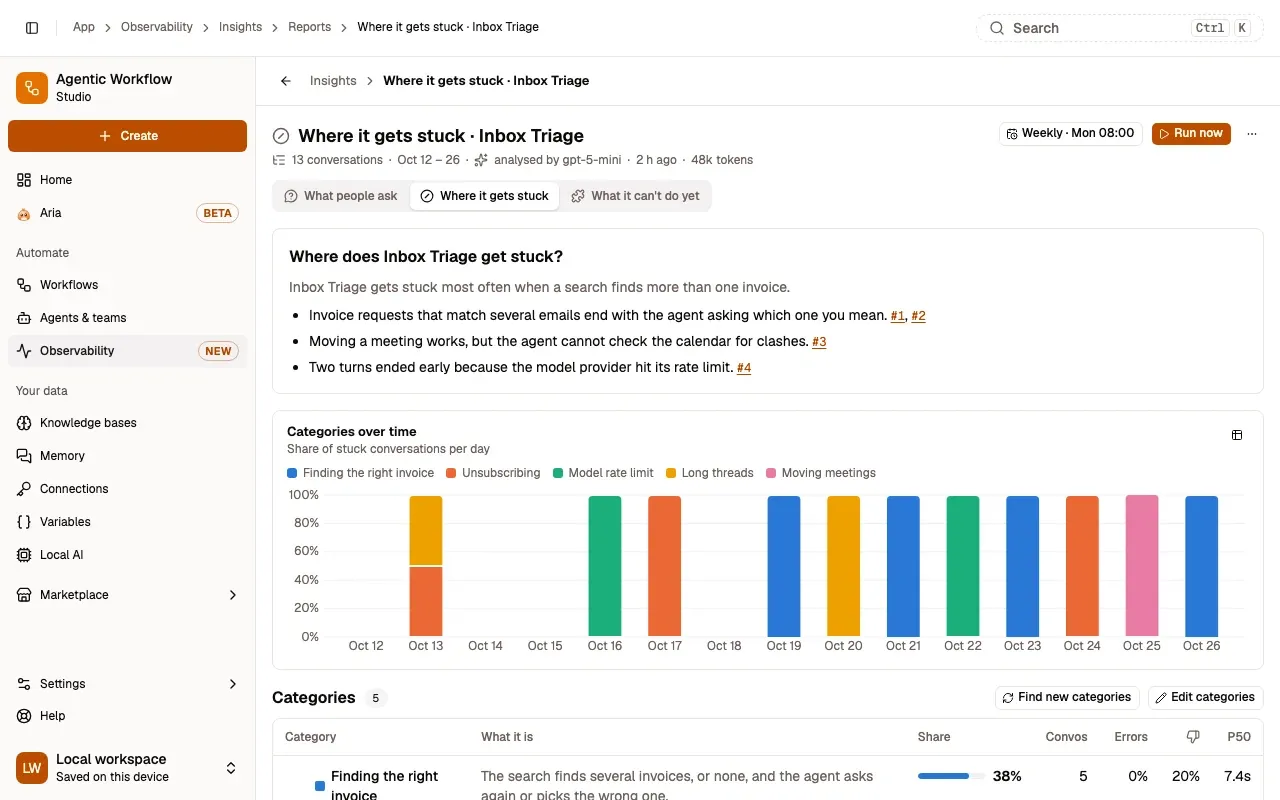
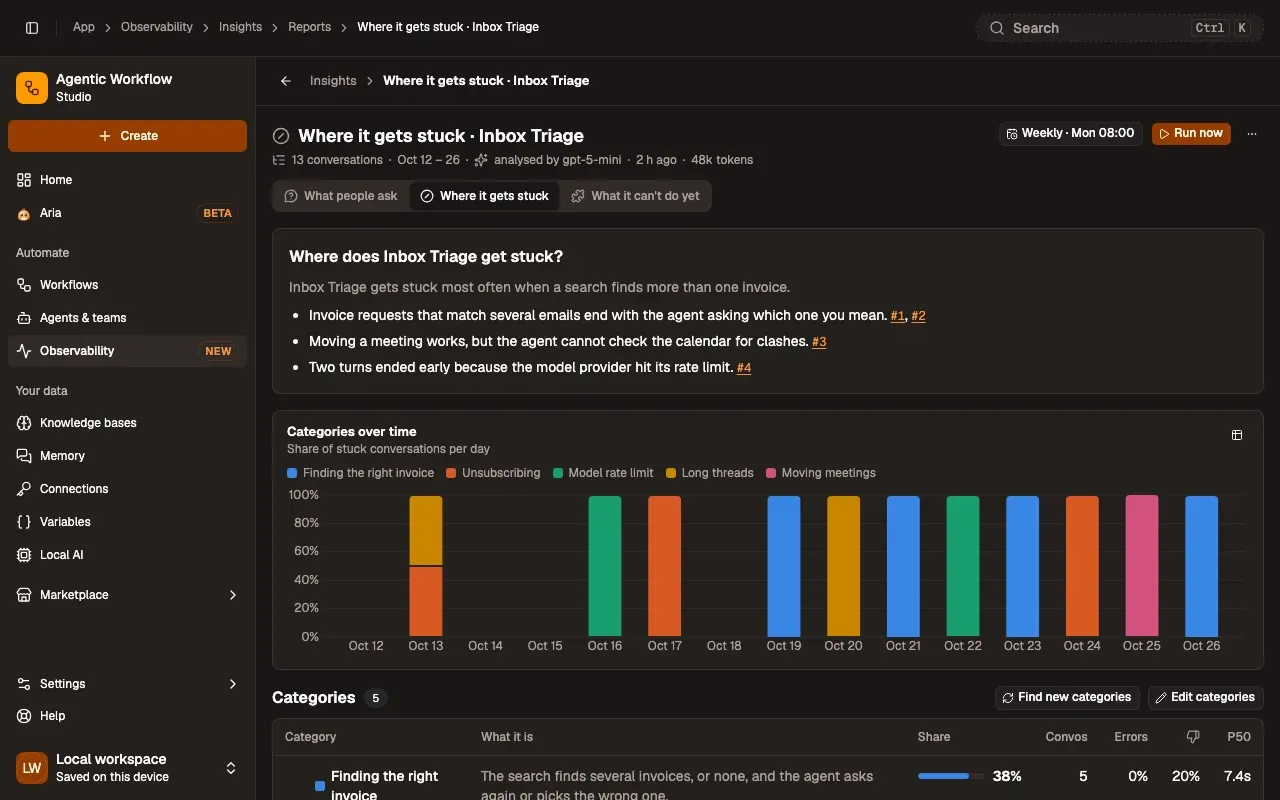
Nummerierte Bereiche im Screenshot: 1. The summary; 2. Schedule; 3. Run now; 4. Categories; 5. Edit categories.
The line under the title tells you what was read: how many conversations, the period, the model that analysed them and how many tokens it used. Between the summary and the table, a chart shows each category’s share per day (for example Share of stuck conversations per day).
Each row of the table has:
- Open: the category page, with its conversations.
- Dataset: turns the category’s conversations into an Evals dataset (see Create a dataset).
- Fix with Aria: when it’s offered, proposes a tested change to the agent. See Fix with Aria.
- On a What it can’t do yet report, a suggestion button such as + Connect Gmail (see Suggestions).
More actions › Delete report deletes the report with all its runs and their categories. The conversations stay in Traces.
While it runs
Section titled “While it runs”A run picks the conversations, summarises them, finds the categories, sorts the conversations into them and writes the summary. The page shows the step and the progress, for example Summarising conversations · 40 / 200.
Keep this tab open while it runs. If you close it, the run shows Interrupted. Press Resume to continue where it stopped; it doesn’t summarise the same conversations again. You can also Cancel a run, and resume it later.
Earlier runs
Section titled “Earlier runs”When a report has run more than once, the Earlier runs menu in the header lets you open an older run. A report keeps its last 12 runs. Each run keeps its own categories, so editing categories never changes a past run.
Find new categories
Section titled “Find new categories”The categories are saved after the first run, so later runs stay comparable. When they no longer fit (the agent does new things, for example), press Find new categories. This clears the saved categories, and the next run finds new ones. The button is hidden while a run is in progress.
Edit categories
Section titled “Edit categories”Press Edit categories. A panel opens with the report’s categories. Changes apply from the next run.
- Rename a category or change What it is. Trends and links keep working after a rename.
- Merge into… another category: the merged category disappears and becomes a subcategory of the one you picked, so the next run still tells them apart. A category holds at most 3 subcategories; when the target is full, the panel says No room for more subcategories in ….
- Remove a category with its remove button.
- Add category to add one. A report holds 1 to 12 categories, and each needs a name.
- Add or change the extra things to look for, up to 3.
Press Save. Past runs keep their own categories; the next run uses the new ones.
A category
Section titled “A category”Open on a row shows the category page.
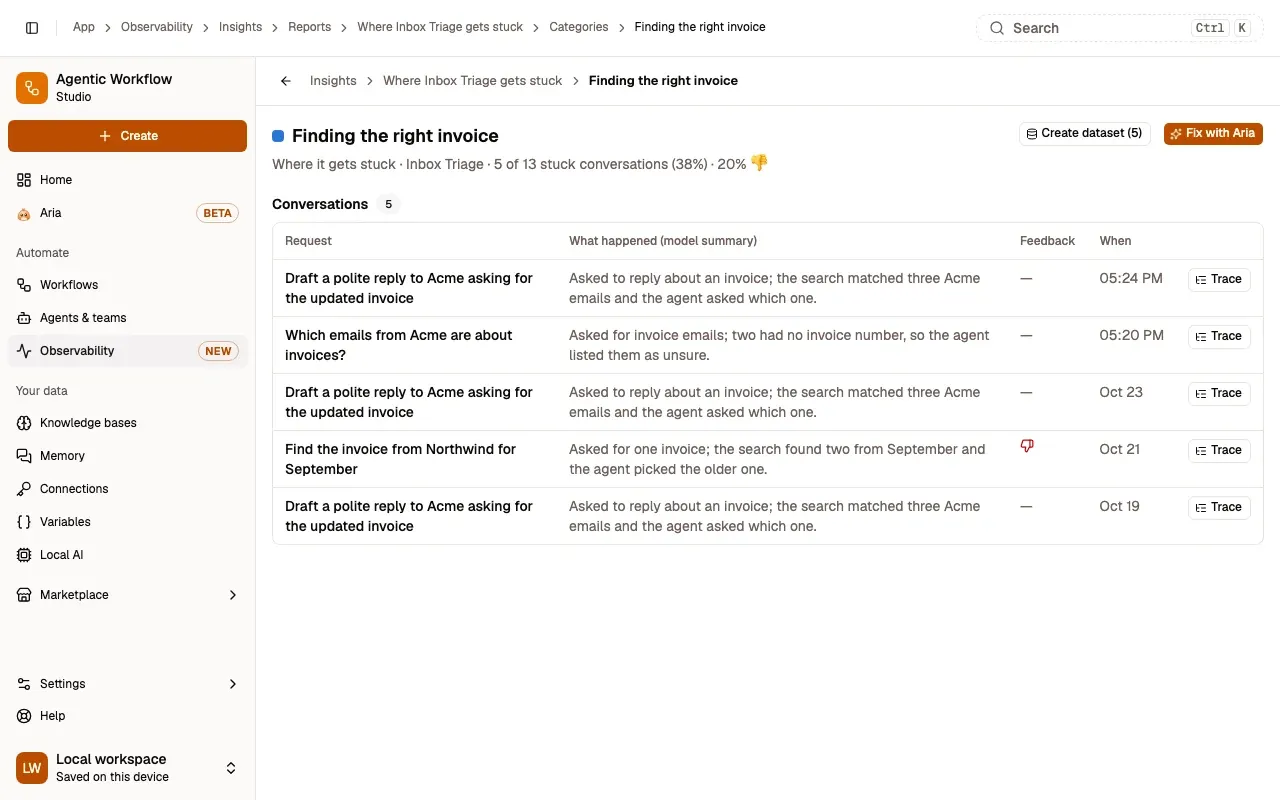
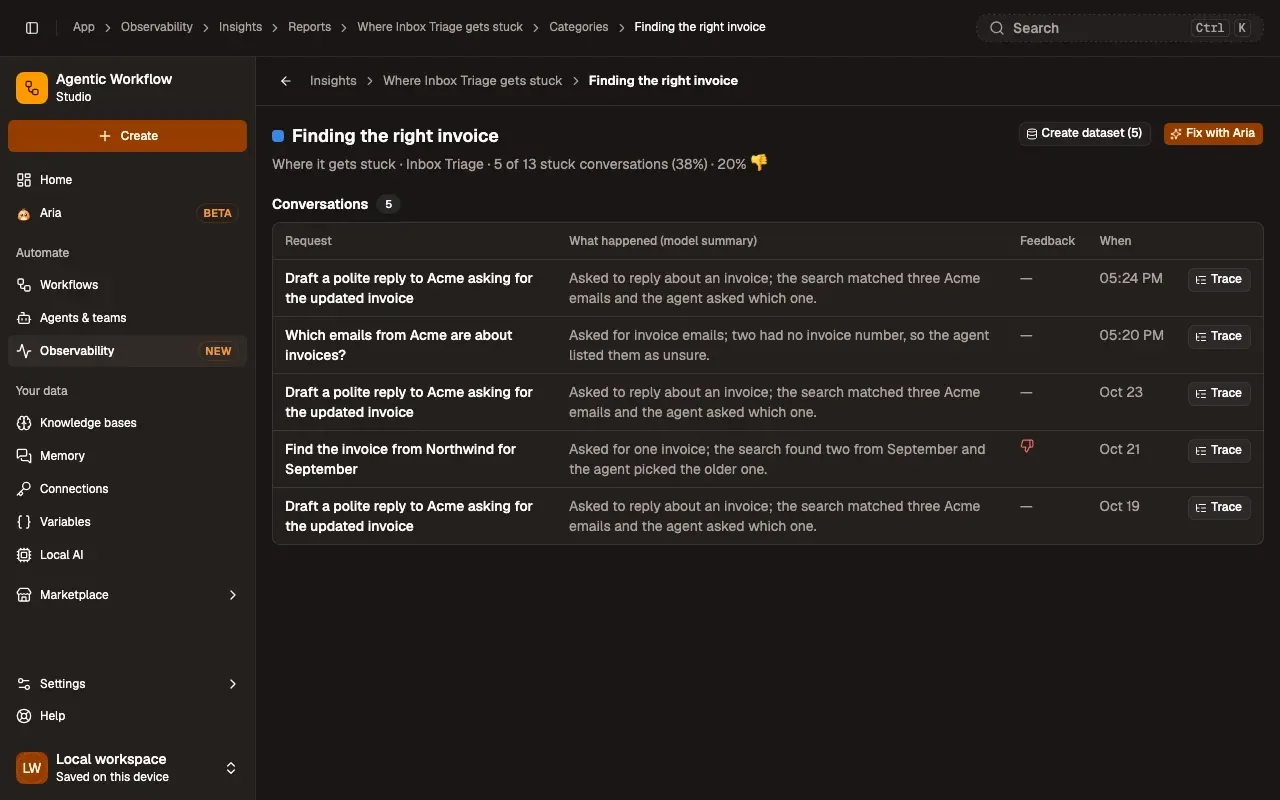
Nummerierte Bereiche im Screenshot: 1. Turn them into a dataset; 2. Fix with Aria; 3. The conversations.
The header line tells you how big the category is, for example 12 of 38 stuck conversations (32%). Subcategories, when there are any, are listed above the conversations. The list shows 50 conversations at a time; Show more loads the next ones.
The summaries in the table are written by a model. Open the Trace to see what really happened.
Create a dataset
Section titled “Create a dataset”Create dataset (N) on the category page, or Dataset on a report row, opens the Create dataset dialog: Turn these conversations into an Evals dataset.
- Check the Dataset name.
- Leave Ask the model for the expected answer on to have the report’s model write what a good answer is for each conversation. You can edit them in the dataset.
- Press Create dataset. The first 50 conversations become test examples. Open in the confirmation goes to the dataset.
What to do with the dataset next is in Evals.
Suggestions for what it can’t do yet
Section titled “Suggestions for what it can’t do yet”On a What it can’t do yet report, the model also suggests how to add each missing ability. Each suggestion is a button on the category’s row that opens the page where you add it. Nothing is installed or connected for you.
| Suggestion | Where it takes you |
|---|---|
| Connect an app (for example + Connect Gmail) | The Connections page, with the form for a new connection open. |
| Find a “…” workflow | The marketplace, searching for that kind of workflow. |
| Add an MCP server | The agent’s Skills tab. |
| Create a routine | The agent’s Routines tab. |
Add an MCP server and Create a routine need an agent, so an All sources report never shows them. Other and empty categories get no suggestion.
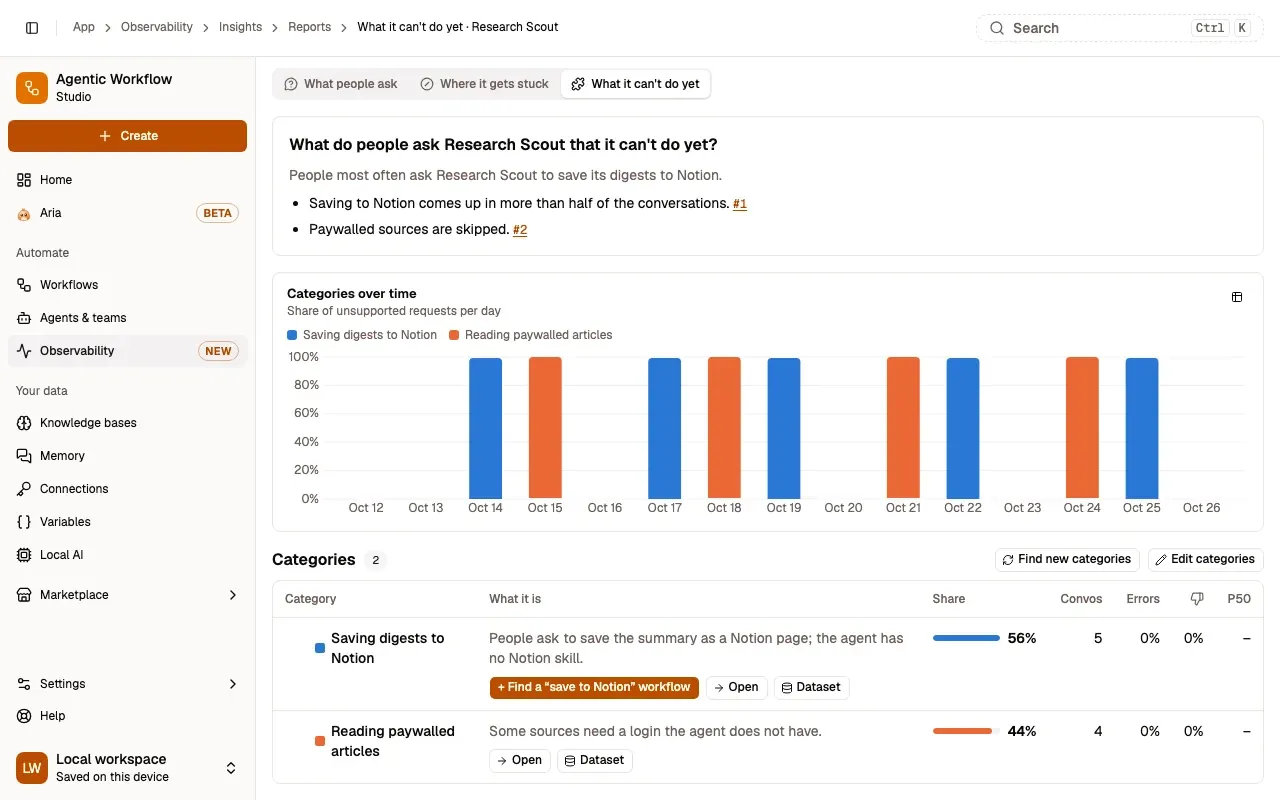
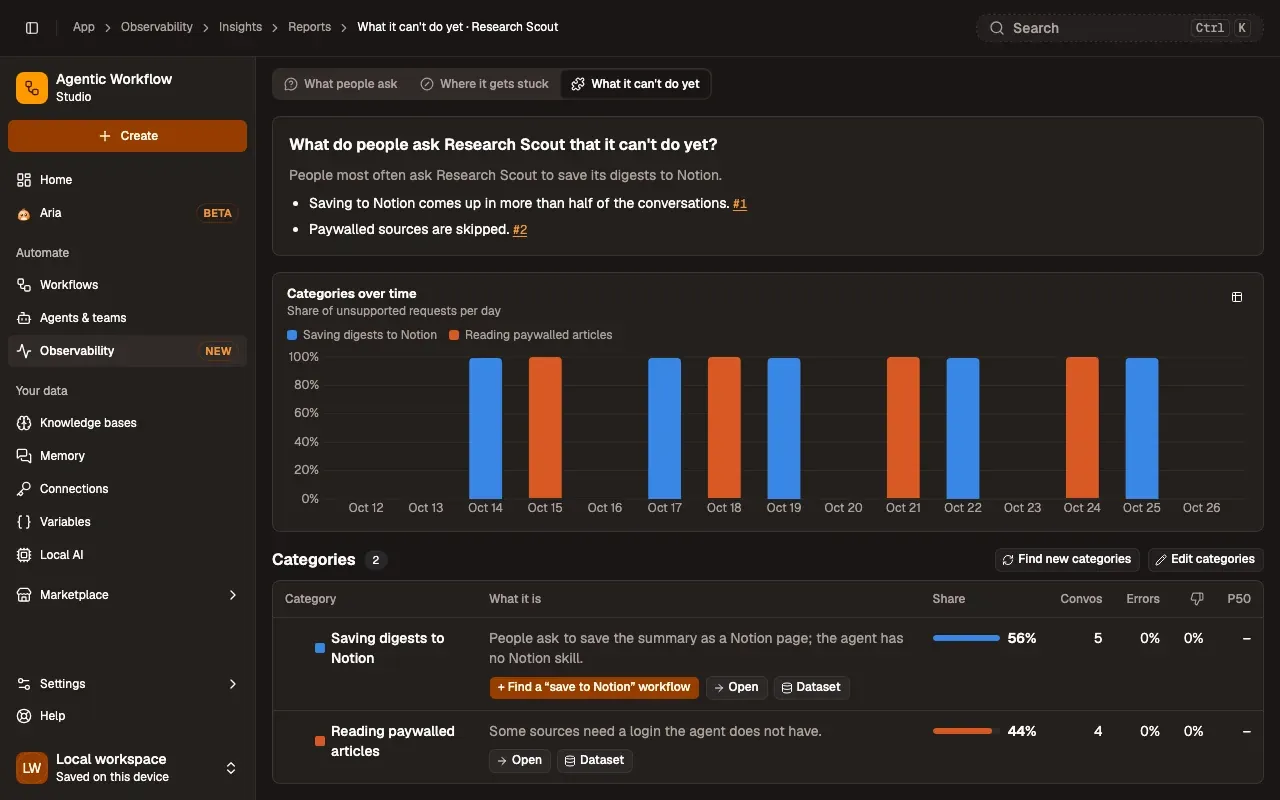
Nummerierte Bereiche im Screenshot: 1. The suggested skill.
Schedule a report
Section titled “Schedule a report”Pick a Schedule when you create the report, or click the schedule button in the report header later.
| Option | When it runs |
|---|---|
| Only when I click Run | Never on its own. Shown as Manual in the list. |
| Daily · 08:00 | Every day at 08:00, your local time. |
| Weekly · Monday 08:00 | Every Monday at 08:00. |
| Monthly · 1st | On the 1st of each month at 08:00. |
A scheduled report only runs at times after you set the schedule; it never fills in the past.
Notify me
Section titled “Notify me”With a schedule, Notify me has two checkboxes, both on by default:
- In-app: the new report shows in the bell and as a message in the app.
- Desktop: a notification from your browser. The first time, the browser asks for permission.
The notice gives the report name and its headline, for example Where it gets stuck · Inbox Triage: …. A scheduled run that fails says so too.
When AWFlow was closed
Section titled “When AWFlow was closed”Scheduled reports run in an open AWFlow tab. If no tab was open at 08:00, the report runs the next time you open AWFlow. It catches up only the latest missed time: after a week away, a daily report runs once, not seven times.
If you close the tab while a scheduled run is going, it shows Interrupted and doesn’t start again on its own. Open the report and press Resume.
Waiting for vault unlock
Section titled “Waiting for vault unlock”A report that uses a cloud model needs the model’s key. If your keys are protected by a passphrase vault and the vault is locked when the report is due, the run doesn’t fail. It waits:
- the Schedule column of the list shows Waiting for vault unlock;
- the report page shows Waiting for vault unlock to run the … report., with a Passphrase field and Unlock;
- you get a notice that the report is waiting.
Once you unlock the vault, here or anywhere in AWFlow, the report runs shortly after.
The agent’s Insights tab
Section titled “The agent’s Insights tab”Open an agent, then Insights under Observe.
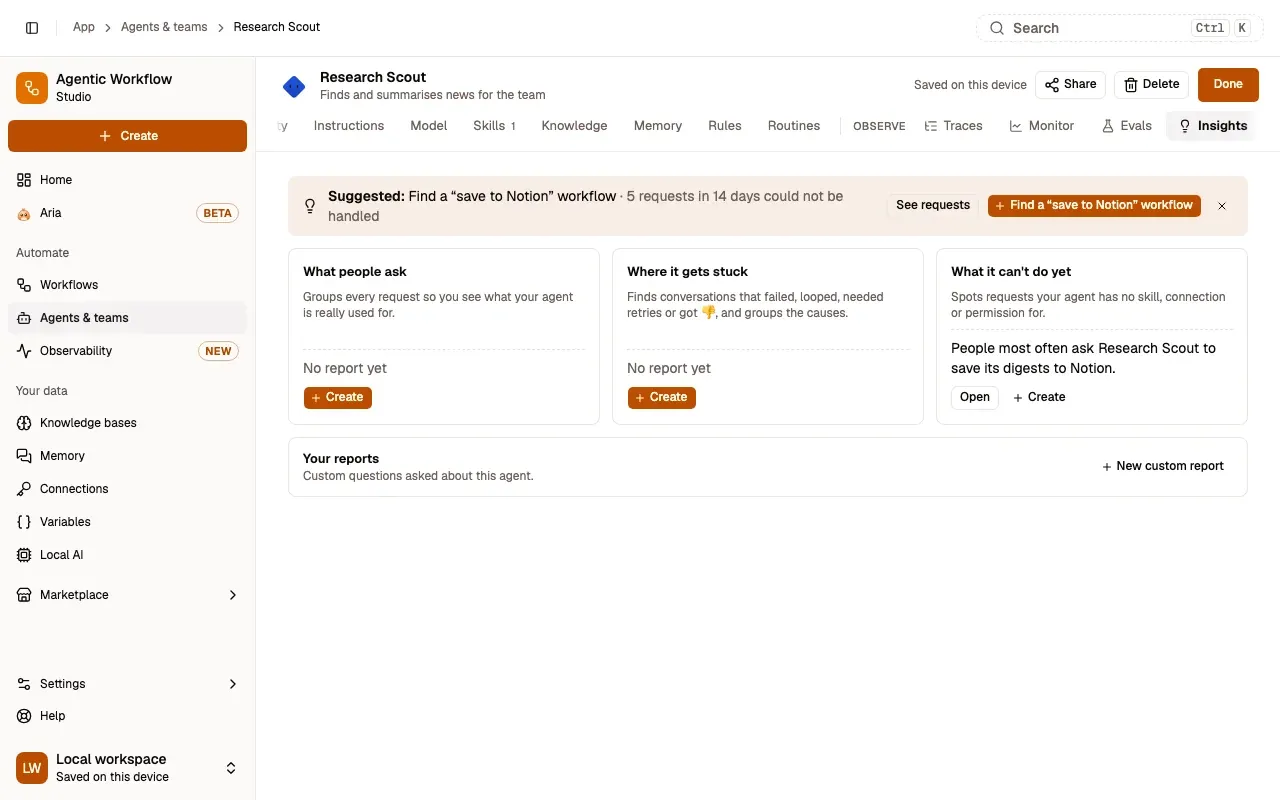
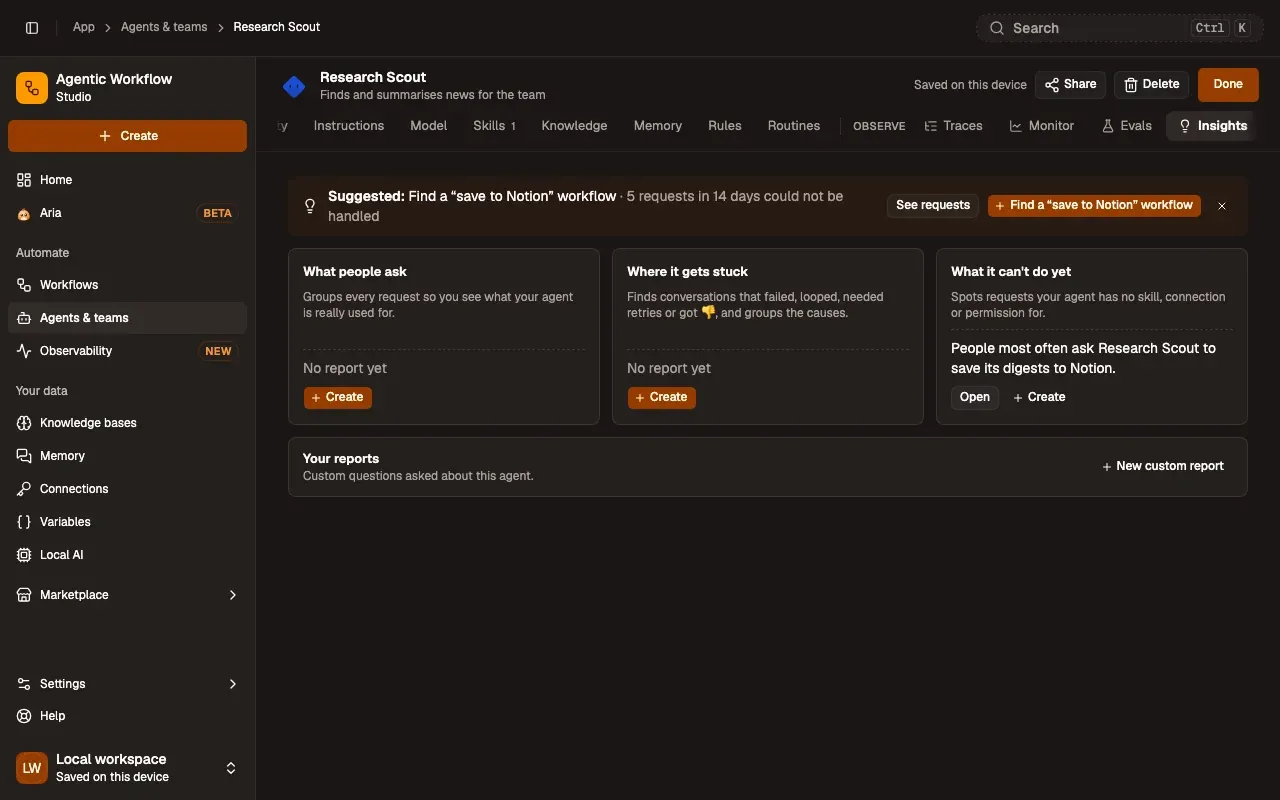
Nummerierte Bereiche im Screenshot: 1. A suggested skill; 2. One card per lens.
The banner shows the suggestion of the largest category that has one. Dismiss suggestion hides it; a later run can suggest it again. Under the cards, Your reports lists the custom questions asked about this agent, and New custom report starts one.
Good to know
Section titled “Good to know”- The model can only read what was recorded. If content capture was off, a conversation has no prompts or replies to read; the line under the title counts these (… without recorded content). See Settings & privacy.
- Conversations stay on this device. Only the model provider you chose for the report reads them.
- Insights runs use tokens, and they count toward the agent’s token budget (Aria’s for All sources). A budget paused at its limit stops a run before its first model call. Insights runs never appear in Monitor.
- Sometimes the model leaves a few conversations out. They are counted as not analysed in the line under the title.
- Every category name, summary and suggestion is written by a model, so it can be wrong. The examples on this page are illustrative.
- The conversations cited in the summary and the first 20 of each category are kept while the report exists. Other conversations follow your retention setting, and their Trace button can then lead to a trace that is gone.
Related
Section titled “Related”- Fix with Aria: turn a category into a tested change.
- Evals: use a category’s dataset in an experiment.
- Traces: every conversation, one by one.
- Alerts & budgets: the bell, notifications and token budgets.
- Local secret vault: unlock the keys scheduled reports need.
- Workflow stats: runs, failures and time saved for workflows.