Credentials stored in this browser are always encrypted. By default, the key sits on the same device, which only stops casual snooping. The local secret vault adds a passphrase: the key is made from it, never saved anywhere, and secrets can only be read after you unlock.
It protects:
- every credential in a local workspace, and local credentials when you’re signed in,
- your conversations and remembered facts (memory). Titles, sizes and dates stay readable so lists still work.
Cloud credentials are not covered; they are encrypted on the AWFlow server. See Privacy & data.
Turn it on
Section titled “Turn it on”-
Open Settings › Preferences › Local secret protection.
-
Type a Passphrase of at least 8 characters and repeat it in Confirm passphrase.
-
Click Enable. Your local credentials are re-encrypted, and your memory is encrypted in the background.
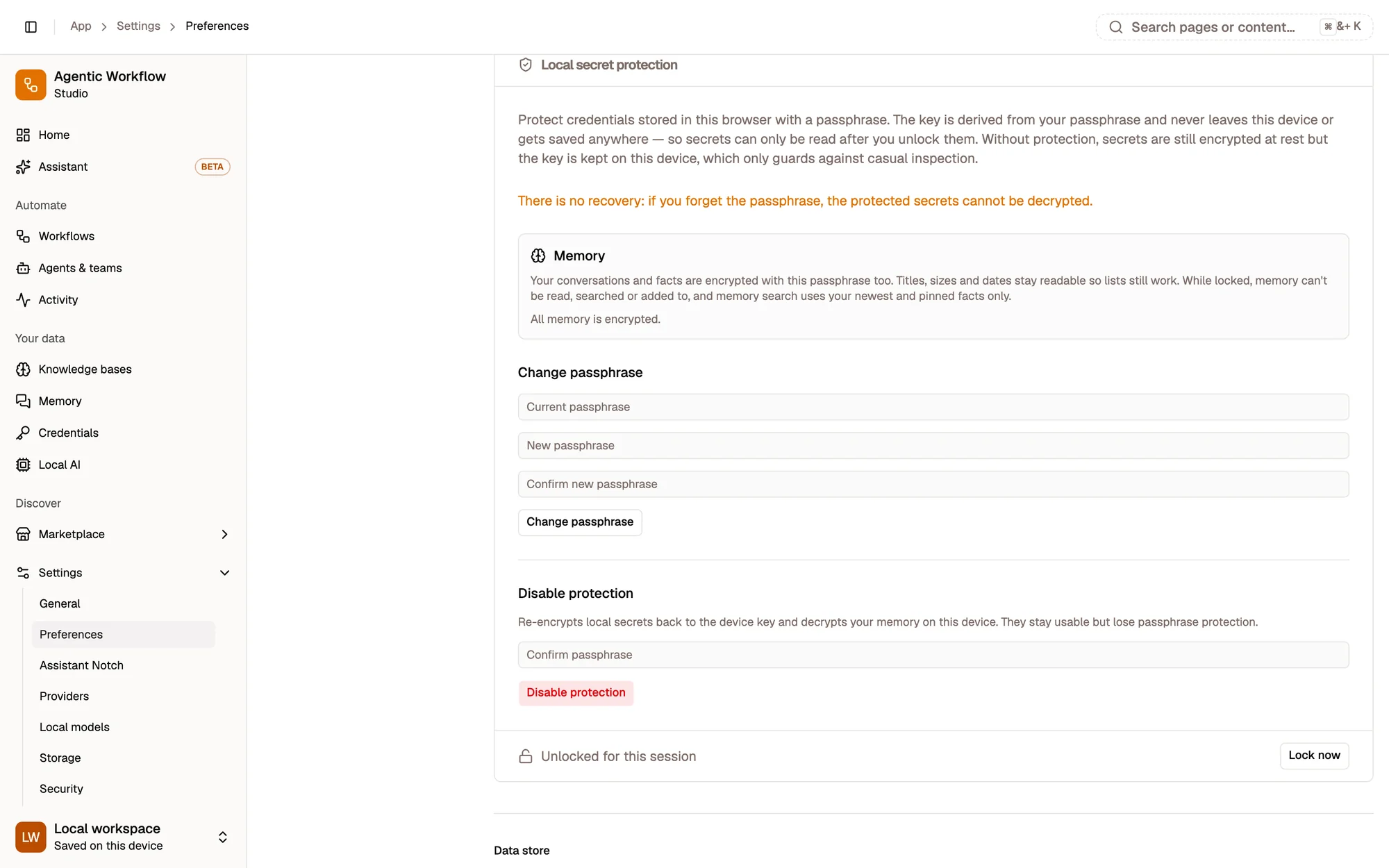
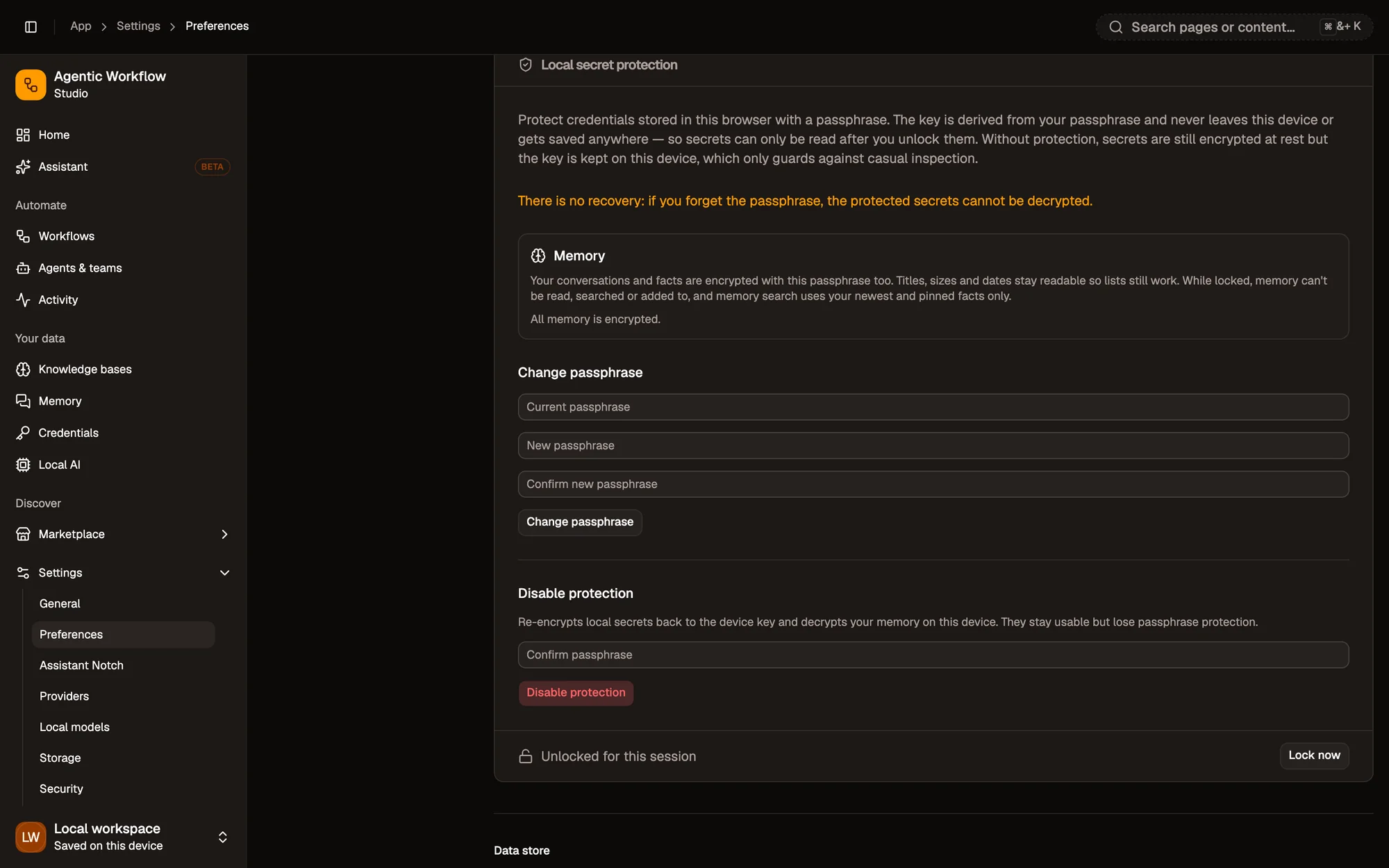
- No recovery if you forget the passphrase
- Memory is encrypted too
- Change passphrase
- Unlocked for this session, with Lock now
Unlock and lock
Section titled “Unlock and lock”The vault locks every time the app reloads. While it is locked:
- the Credentials page and the workflow setup panel ask for your passphrase,
- memory can’t be read, searched or added to,
- you can’t save new local credentials.
Type your passphrase and click Unlock. It stays unlocked for this session. Click Lock now to lock it early.
Change or remove the passphrase
Section titled “Change or remove the passphrase”When unlocked:
- Change passphrase asks for the current one and a new one.
- Disable protection asks for the passphrase, then goes back to the device key and decrypts your memory. Your secrets keep working but lose passphrase protection.