Dieser Inhalt ist noch nicht in deiner Sprache verfügbar.
When you fix a step in the middle of a workflow, you don’t need to start again from the trigger. Run from here runs the step you pick and the steps after it, using what the earlier steps already produced.
Start it
Section titled “Start it”- Run from here in the step’s menu, or in its right-click menu on the canvas.
- In the step’s settings, the arrow next to Run step (Run step ▾) › Run from here.
- Select the step and press
Command + Shift + EnterCmdShiftEnterControl + Shift + EnterCtrlShiftEnter .
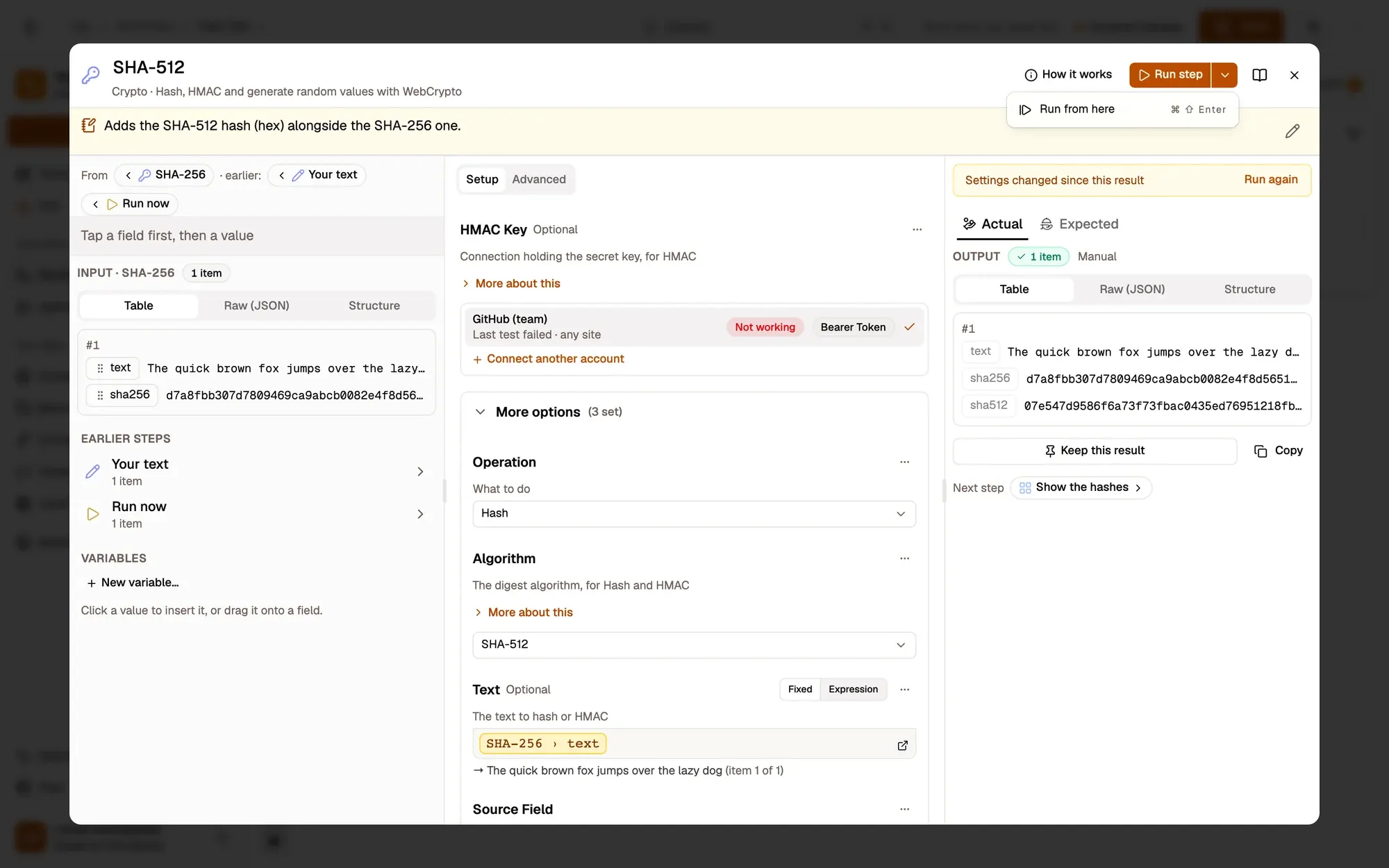
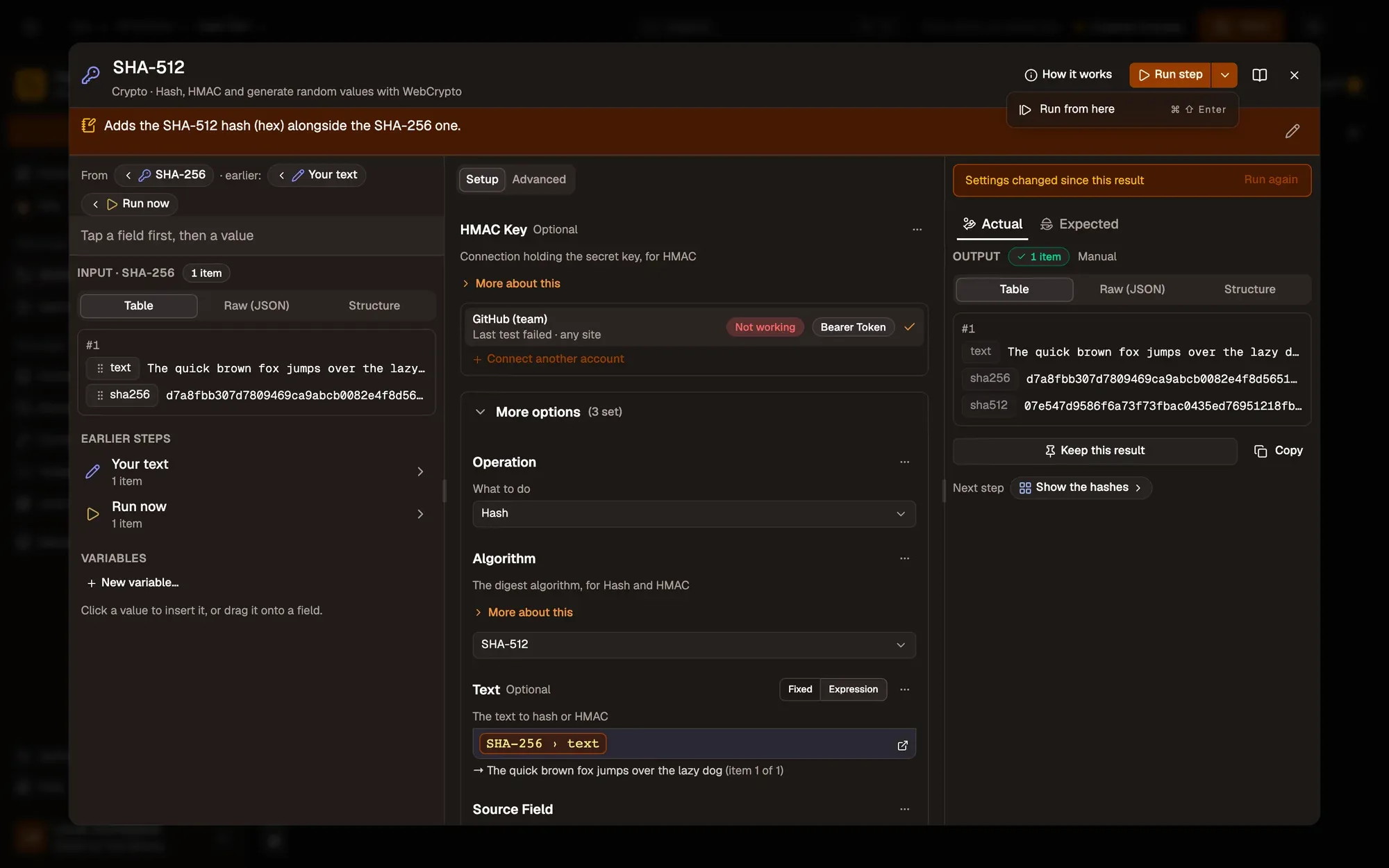
Nummerierte Bereiche im Screenshot: 1. More ways to run (next to Run step); 2. Run from here.
The run bar reads, for example, Running from Count open issues · step 2 of 3.
Where the earlier data comes from
Section titled “Where the earlier data comes from”Each step that leads into what runs uses, in this order:
- its kept result, if it has one;
- else its last result from this editor session;
- else its data from the last saved run (when the workflow keeps step data, see Workflow settings).
Those steps show a Data from a past run badge, and the Last run panel says which earlier results were used. A normal Run clears the badges.
If an earlier step has no result at all, AWFlow asks Run from …?: run that step first (recommended), or Run from here anyway (the step then receives no items).
In Runs
Section titled “In Runs”A run started this way is recorded like a manual run, shown as From a step · Count open issues in Runs.
Related
Section titled “Related”- Kept results
- Debug a run in the editor: run a step with the data of a past run.
- Keyboard shortcuts