Build a workflow without leaving the keyboard. Press
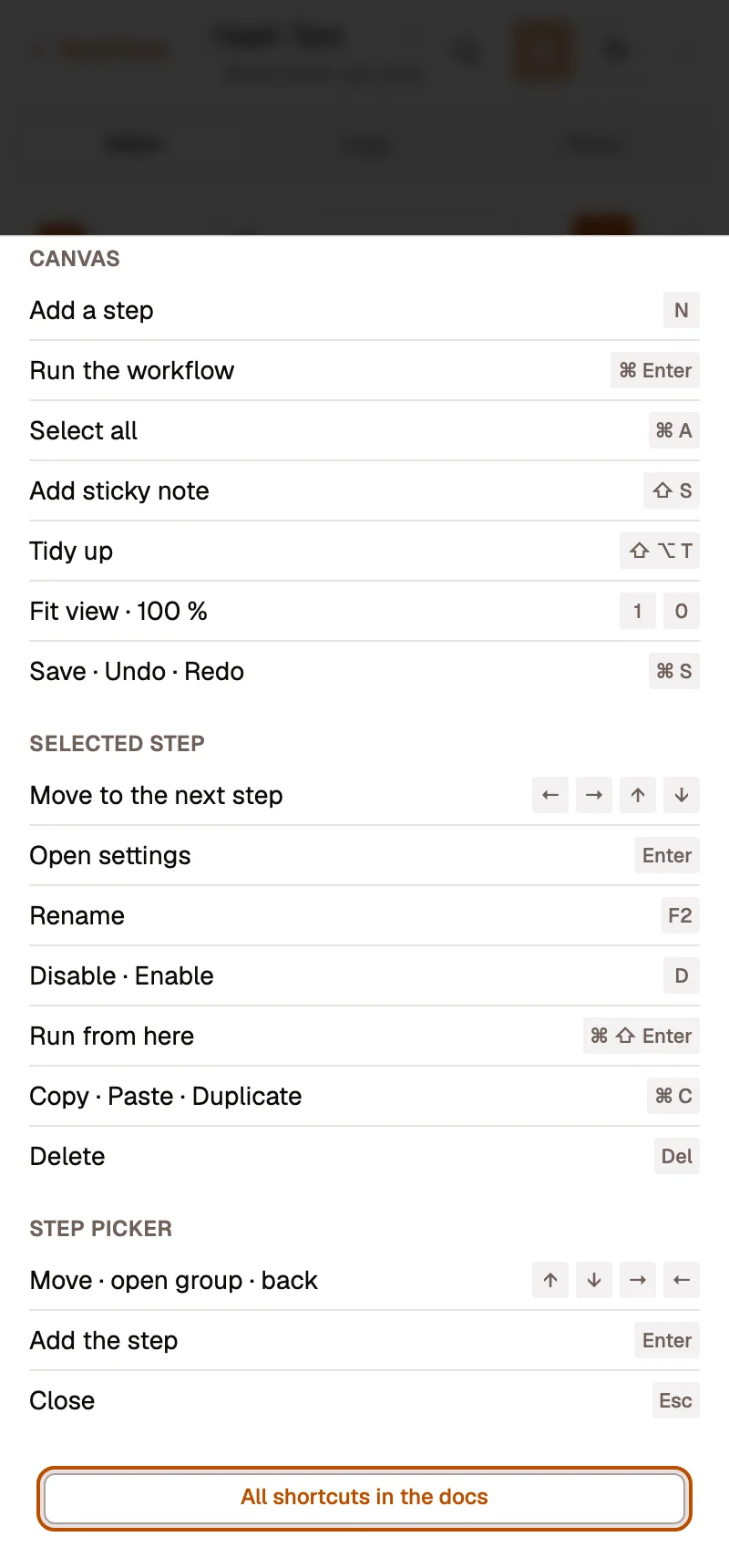
| Action | Shortcut |
|---|---|
| Add a step (after the selected one) | |
| Add a sticky note at the centre | |
| Tidy up the canvas (or the selection) | |
| Run the workflow | |
| Save | |
| Undo | |
| Redo | |
| Select all |
The selected step
Section titled “The selected step”| Action | Shortcut |
|---|---|
| Open its settings | |
| Run from here | |
| Rename it in place | |
| Disable or enable it | |
| Duplicate | |
| Copy | |
| Paste | |
| Delete | |
| Go to the next / previous step | |
| Go to the step above / below |
The arrows follow the links between steps, then move between steps side by side. The selected step gets a focus ring and stays in view.
Copy also puts the steps on your system clipboard, so you can paste them into another workflow, even in another window. Connections, secrets and personal fields are removed from the copy. Pasting the text of an .awf file asks whether to paste its steps here or import it as a new workflow.
| Action | Shortcut |
|---|---|
| Fit the workflow in view | |
| Zoom to 100 % | |
| Show the shortcut sheet |
Step picker
Section titled “Step picker”| Action | Shortcut |
|---|---|
| Move through the results | |
| Add the highlighted step | |
| Clear the search, then close |
The search box has focus when the picker opens, and the first result is highlighted, so typing a name and pressing Enter adds it.
Step settings and fields
Section titled “Step settings and fields”| Action | Shortcut |
|---|---|
| Open the full-screen expression editor (in an expression field) | |
| Move a condition or field card up / down | |
| Rename the step (in the settings header) |
Anywhere in the app
Section titled “Anywhere in the app”| Action | Shortcut |
|---|---|
| Search and commands |
The command palette finds workflows, chats, agents, knowledge bases and connections by name, runs actions such as New workflow or Add connection, lists your recent pages, and ends every search with Ask Aria: ….
Screen readers
Section titled “Screen readers”The canvas is one stop in the tab order. Steps are announced with their name, kind, operation and status (“Get issues, GitHub, List, failed”), and links as “Connection from A to B”. Tab order follows the flow: triggers first, then each step after the one that feeds it. Turn on Settings › Preferences › Announce run progress to hear when a run starts, how it progresses and how it ends.