- Install the AWFlow extension
- Pin it to your toolbar
- Open the app in the side panel
- Decide whether you need an account (you don't, yet)
AWFlow is a browser extension. It runs in your browser, next to the page you’re on, so it can read and act on that page. You don’t need an account or a server.
Install
Section titled “Install”Step 1:Add the extension
Open AWFlow on the Chrome Web Store and click Add to Chrome, then Add extension. Edge, Brave and other Chromium browsers install it from the same store.
Check: an “Agentic Workflow” welcome tab opens.
Step 2:Pin it to the toolbar
Click the puzzle-piece Extensions icon in the toolbar, then the pin next to Agentic Workflow.
Check: the AWFlow icon stays visible next to the address bar.
Step 1:Add the extension
Open AWFlow on Firefox Add-ons and click Add to Firefox, then Add. You need Firefox 140 or later, on a computer.
Check: an “Agentic Workflow” welcome tab opens.
Step 2:Pin it and allow website access
If the icon isn’t in the toolbar, open the Extensions menu (puzzle piece) and choose Pin to Toolbar. Page steps need access to the sites you visit: keep Access your data for all websites on in about:addons → Agentic Workflow → Permissions. If it’s off, the app shows an Allow access card.
Check: the AWFlow icon is in the toolbar, and the app doesn't show an Allow access card.
Step 3:Run “Start here”
On the welcome page, click Run “Start here”. A ready-made three-step workflow runs on your device. Nothing leaves your browser.
The same page also offers Start from a template, Describe it to the AI and the 2-minute tutorial. You’ll do all of these in the next lessons, so you can leave them for now. See The welcome page.
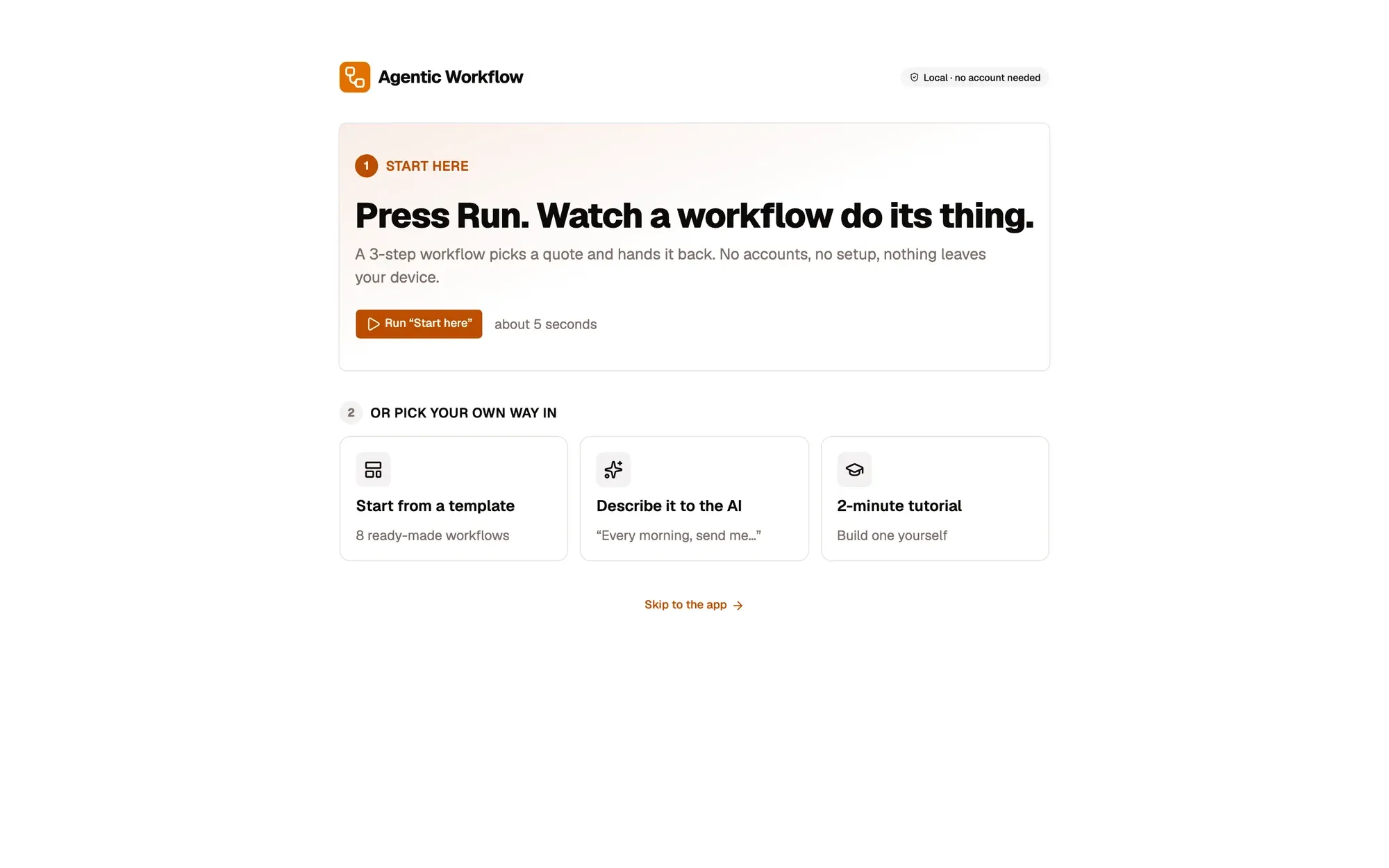
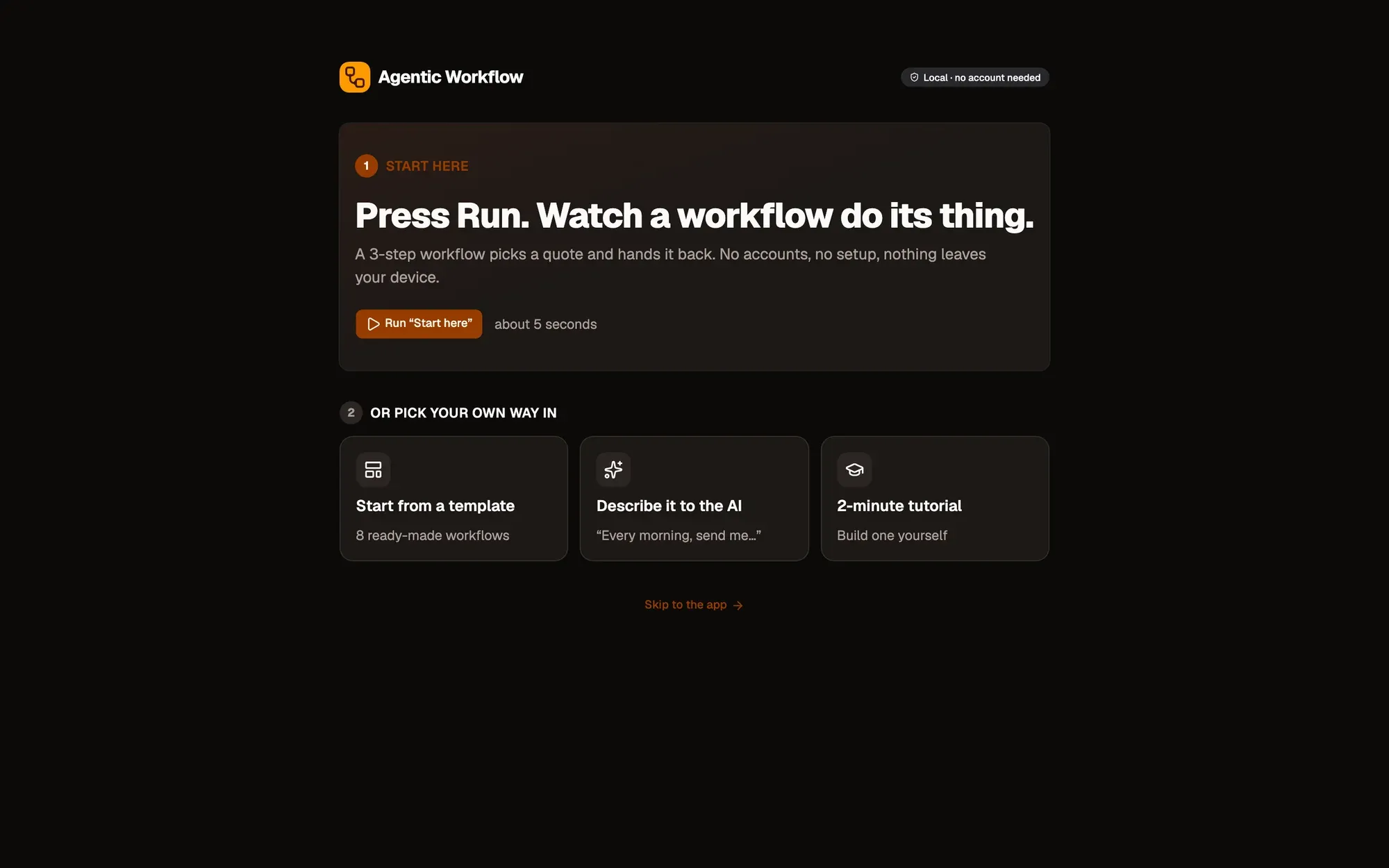
Check: the three steps light up one after the other and a quote appears, in about five seconds.
Step 4:Open the side panel
Go to any website, then click the AWFlow icon in the toolbar. The app opens in Chrome’s side panel (in Firefox, the sidebar), next to the page. In a narrow panel, the sidebar button at the top left opens Workflows, Assistant and the rest. Drag the panel’s left edge to make it wider; the canvas is easier to use above about 670px. See Using the side panel.
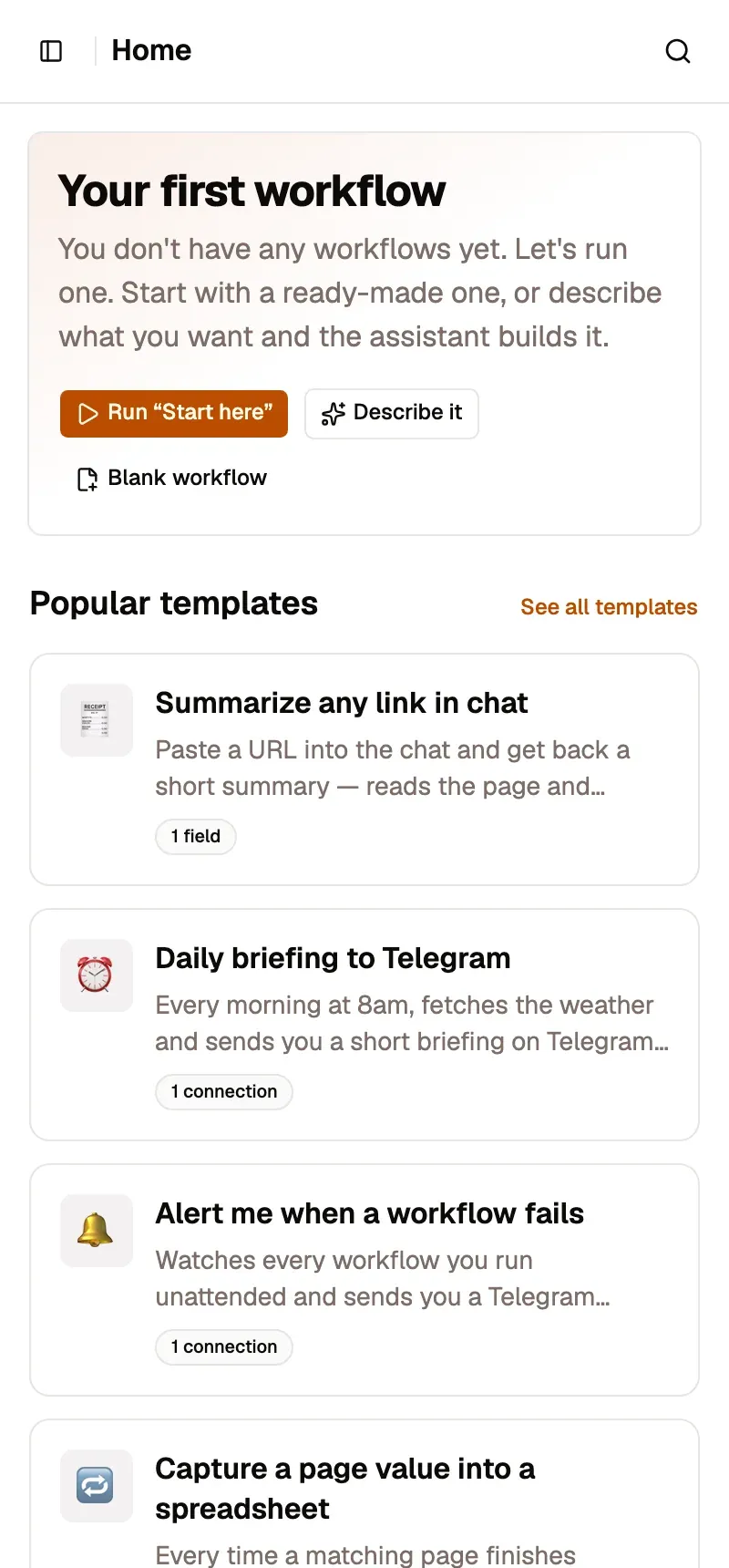
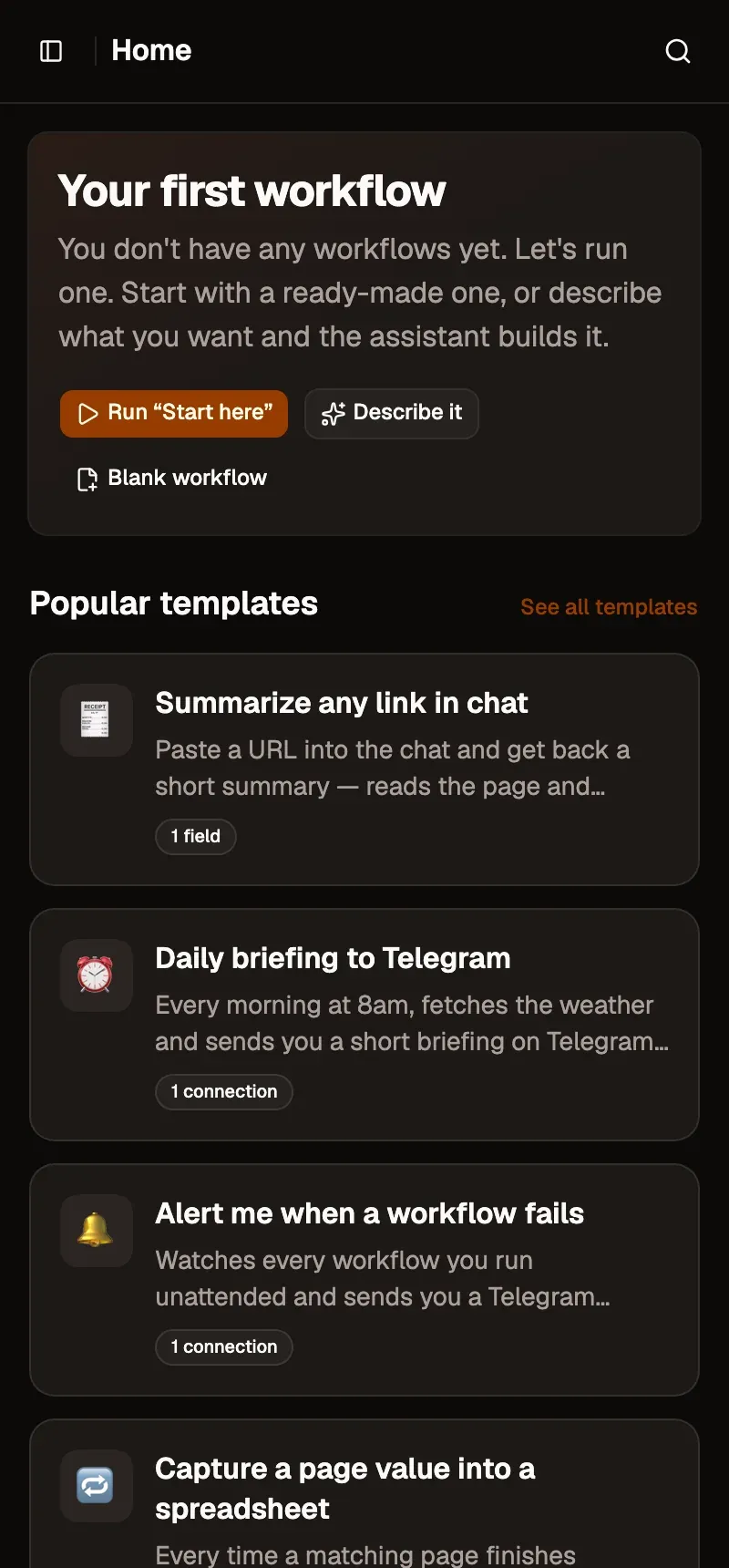
Check: the AWFlow app opens beside the page you're on, and the page stays visible.
Local workspace or account?
Section titled “Local workspace or account?”You start in a local workspace: no account, and everything is saved in this browser. That is all you need for every lesson in level 1.
Sign in later if you want your workflows in the cloud on several devices, or to install and publish workflows on the Marketplace. Your local work can move to your account when you do. AI providers, chats and knowledge bases always stay on your device. See Local or cloud.