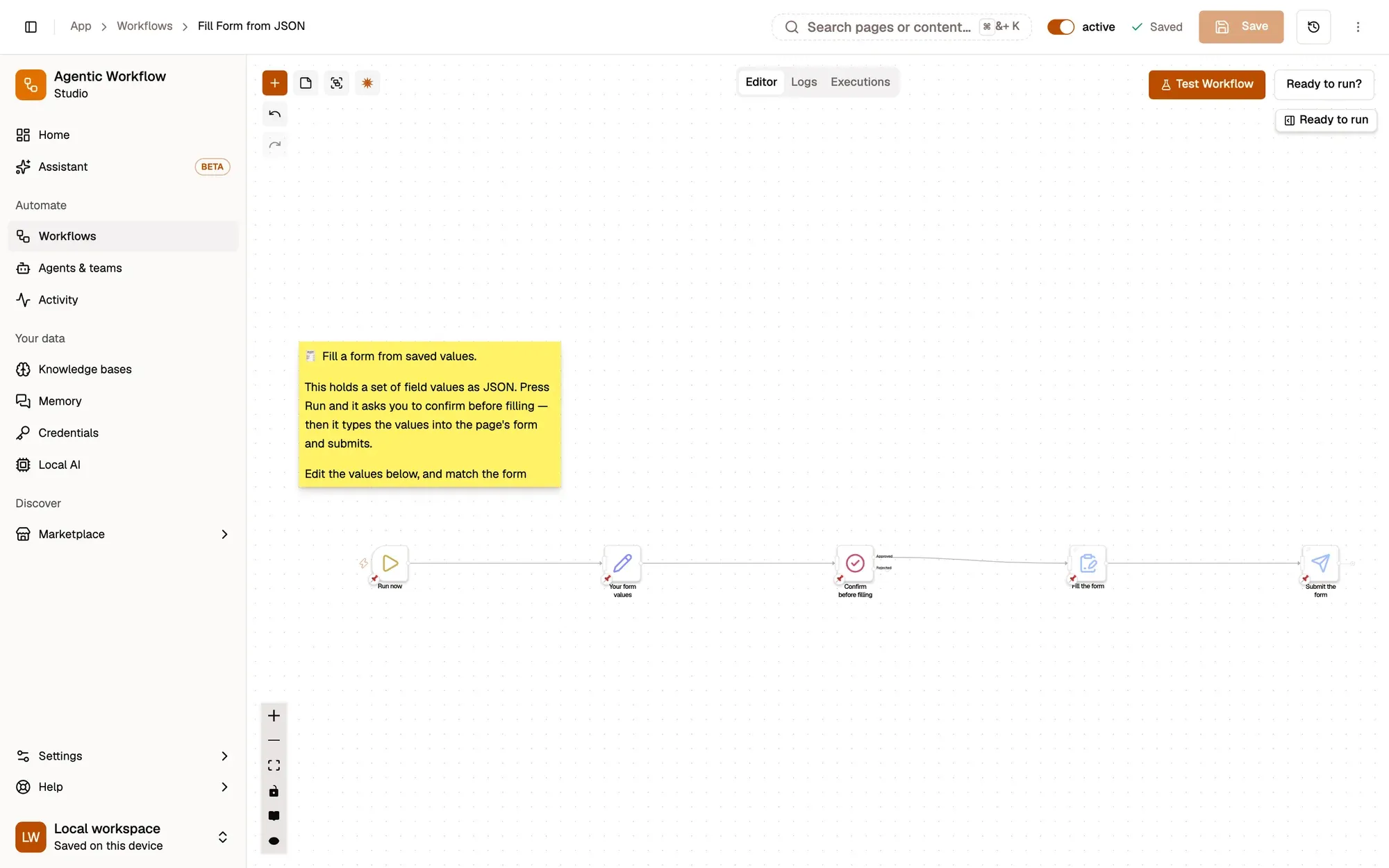
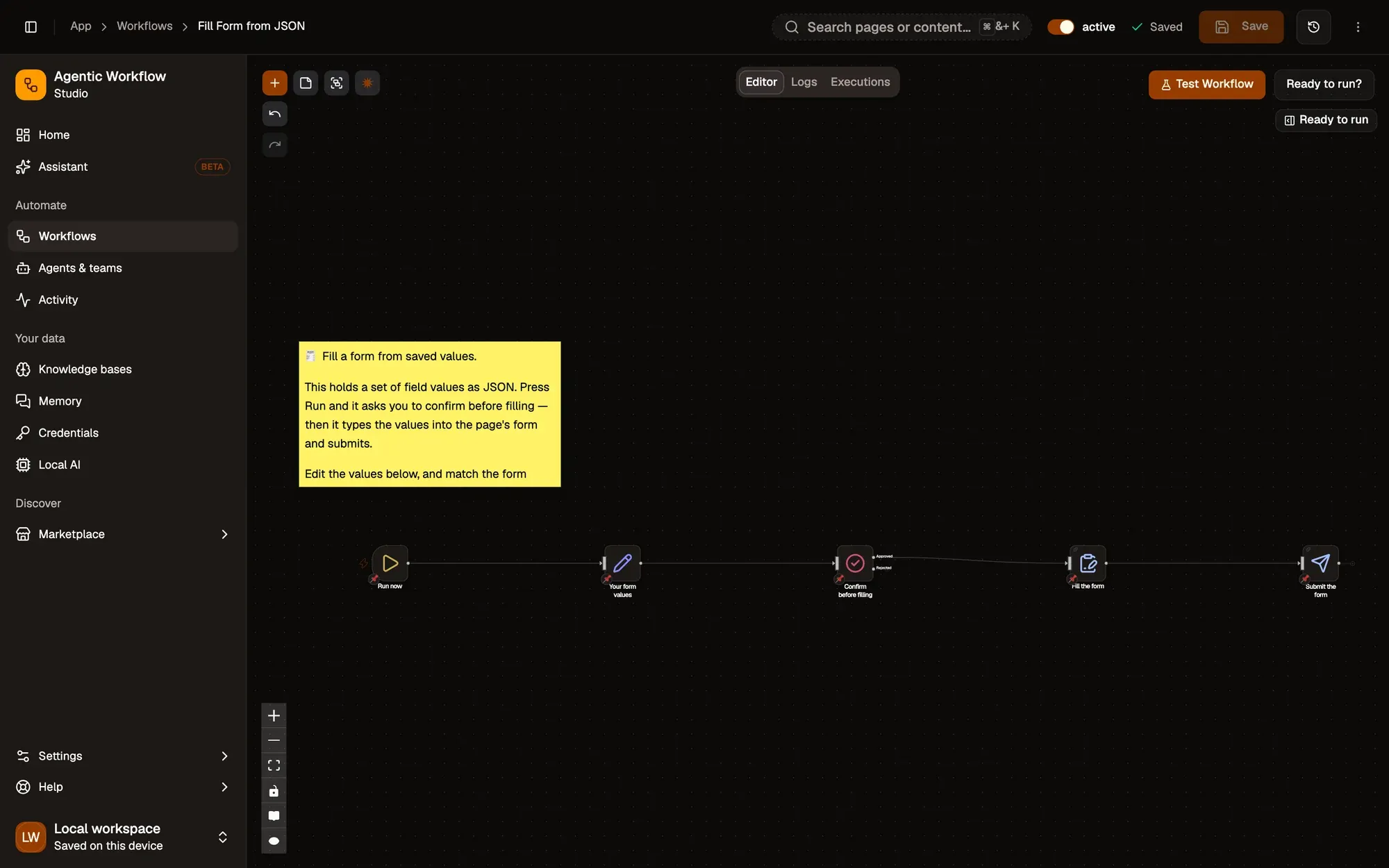
Fill Form from JSON: a workflow with 5 steps, starting with Run now and ending with Submit the form.
- Fill the form(Form Fill — open its doc page) if approved
How it works
Section titled “How it works”-
Run it on the form
When Started has no settings; run the workflow from the right-click menu on the page with the form.
Make it yours — use a Page Load trigger with the form's address to offer it every time you open that page.
-
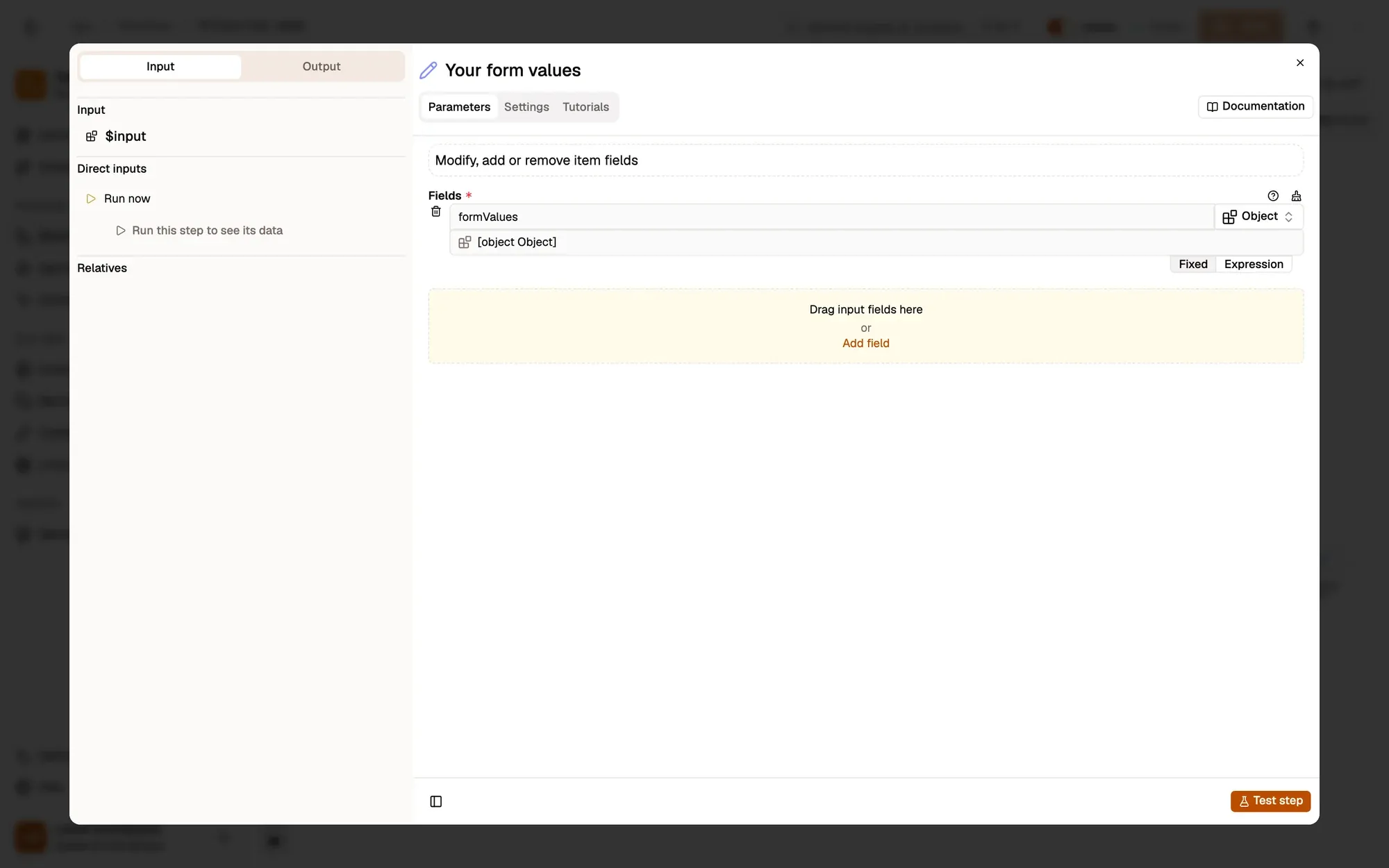
Keep your values
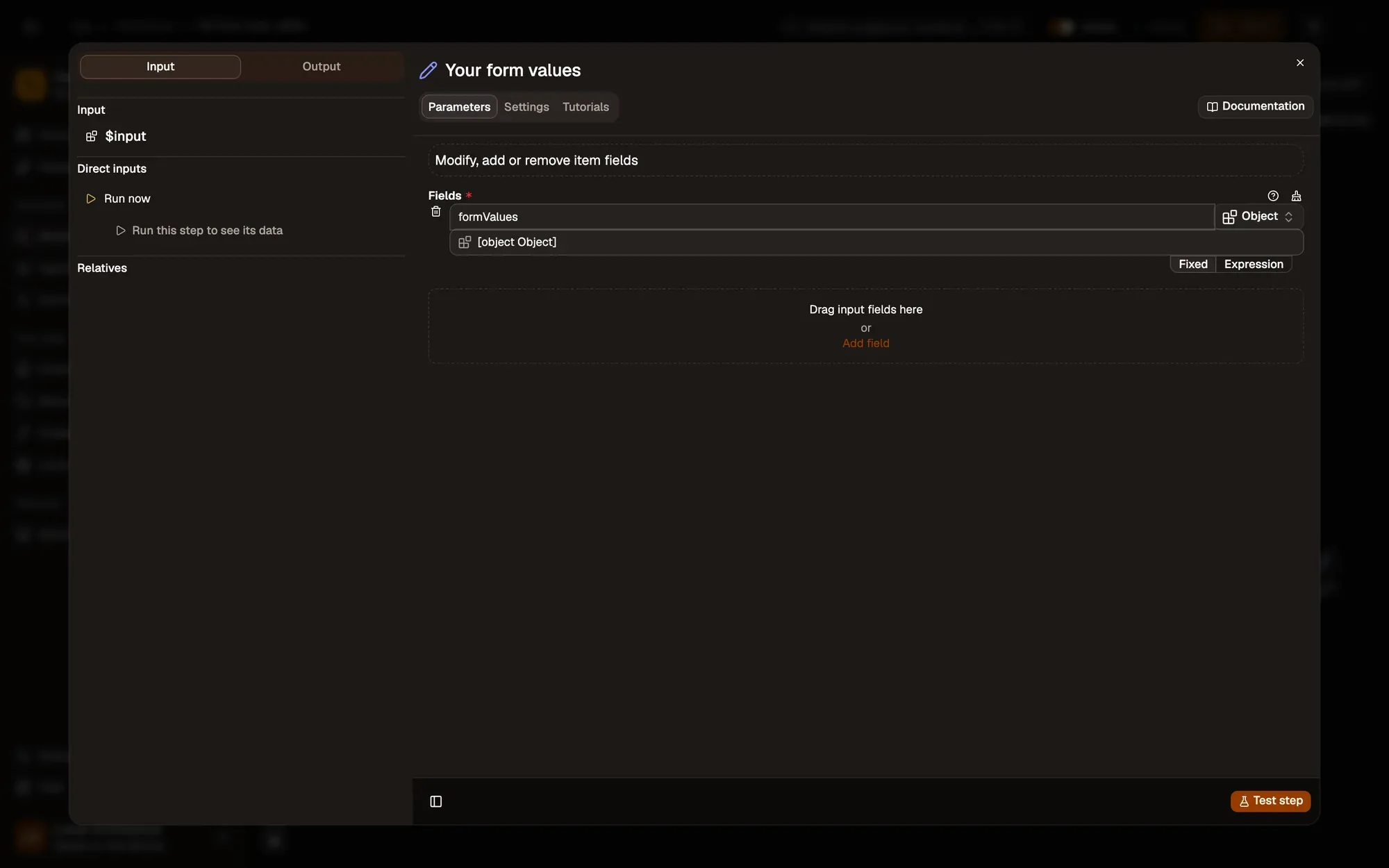
Edit Fields holds one object,
formValues, withname,emailandmessage.Make it yours — replace the sample values with yours, and add a key for each extra field (phone, company, address).
-
Ask before filling
Wait For Approvalnode reference
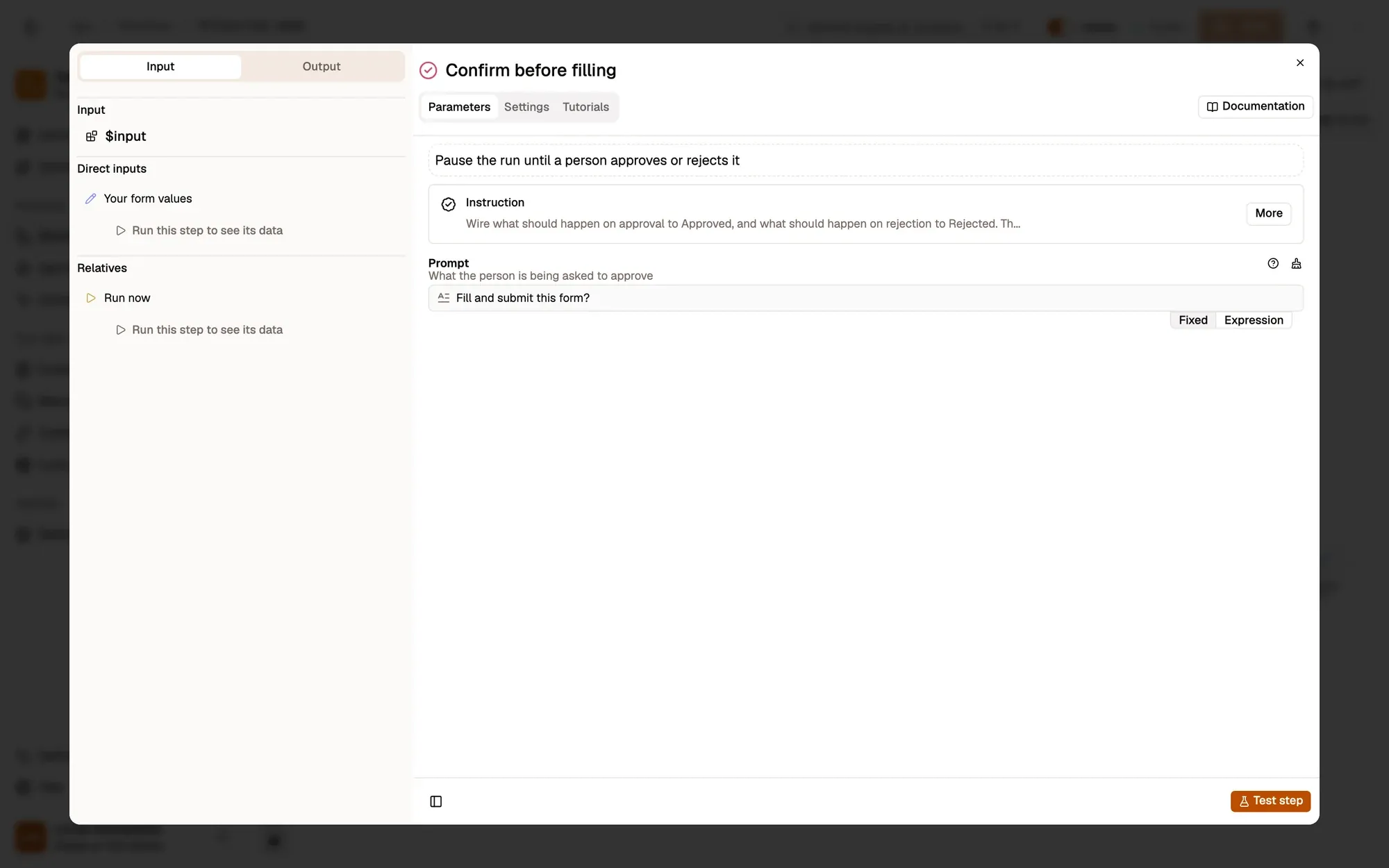
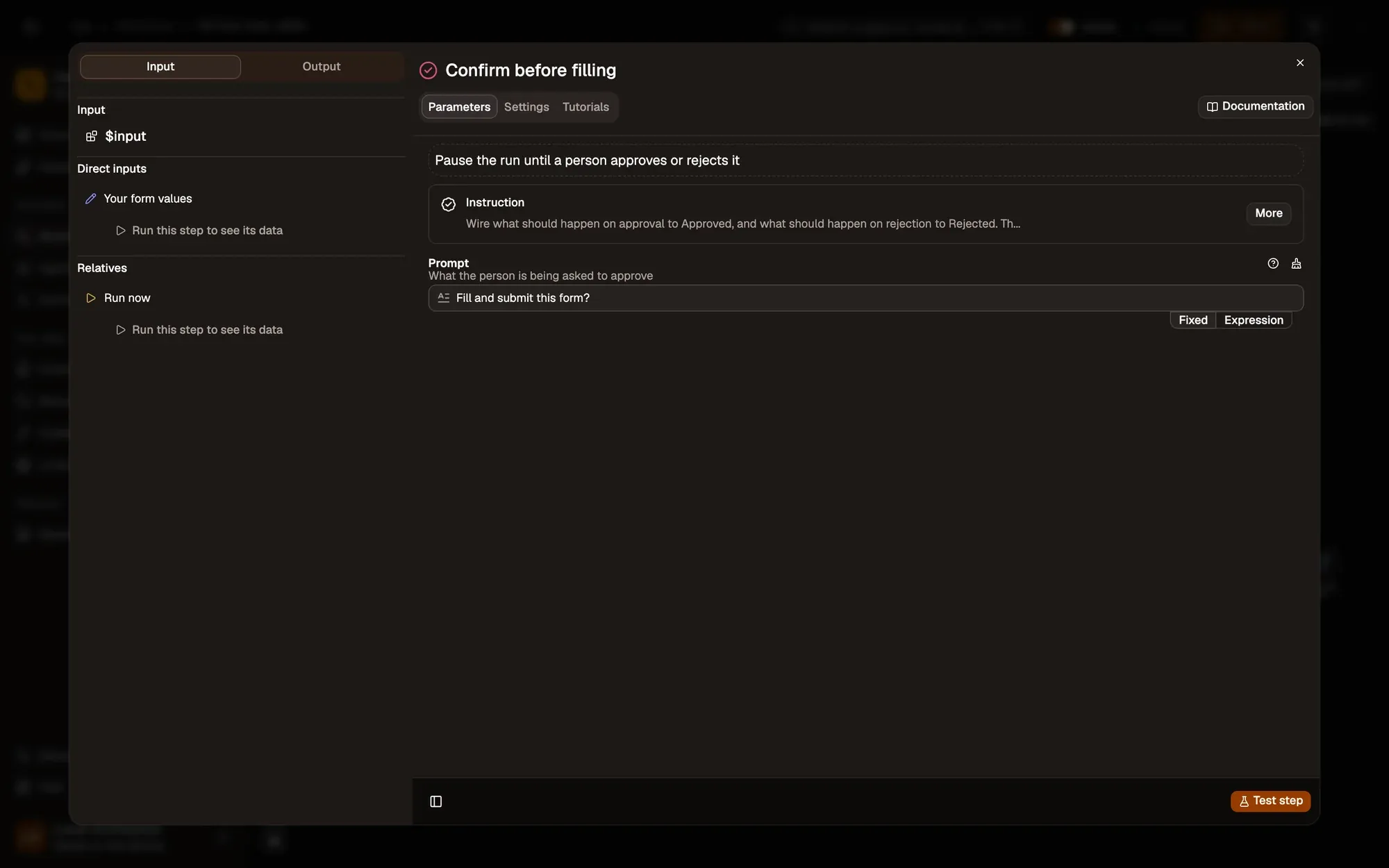
Wait For Approval pauses with Fill and submit this form?. Nothing is typed until you approve.
Make it yours — remove it once you trust the workflow on that page, or reword Prompt to name the site.
-
Fill the fields
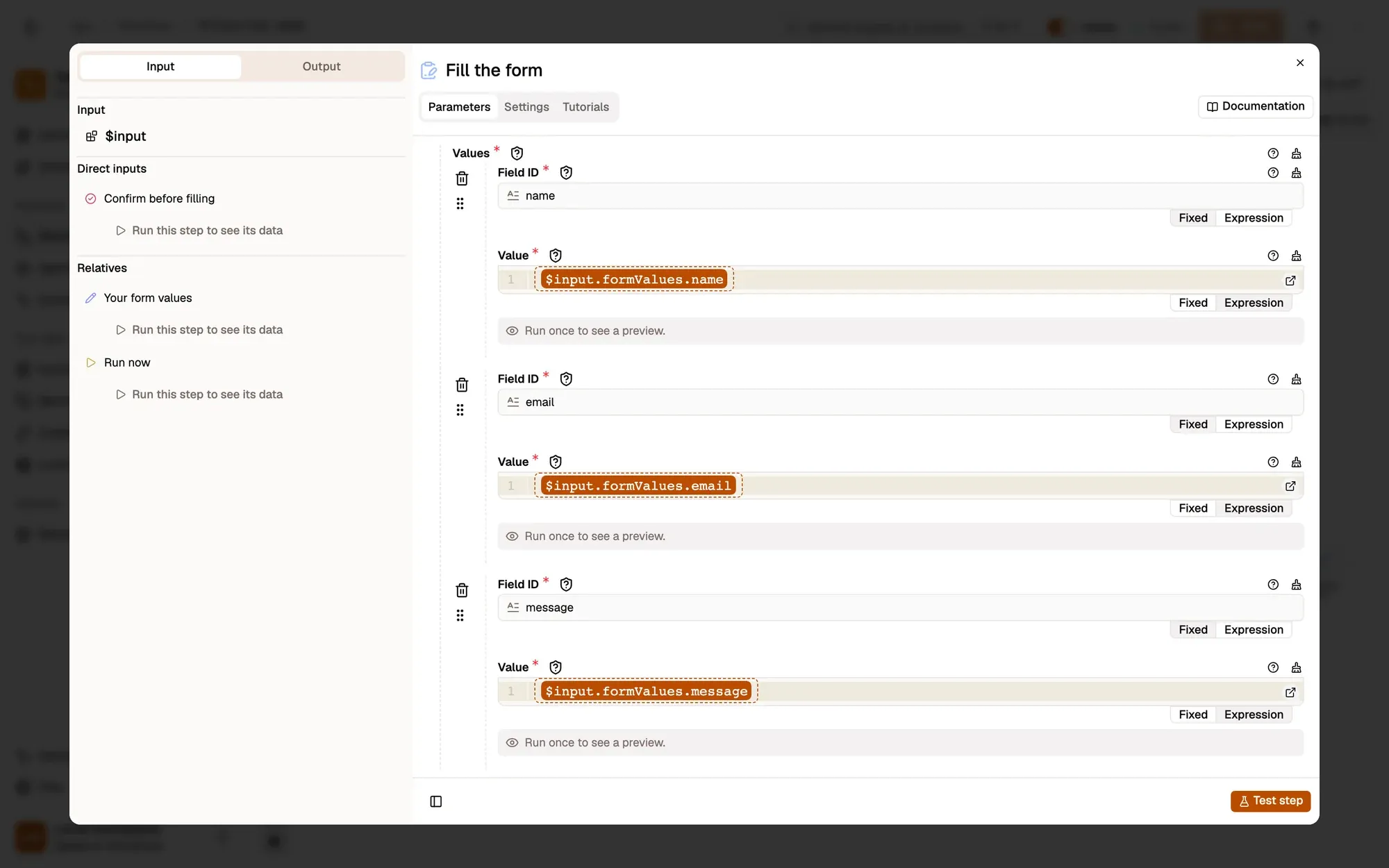
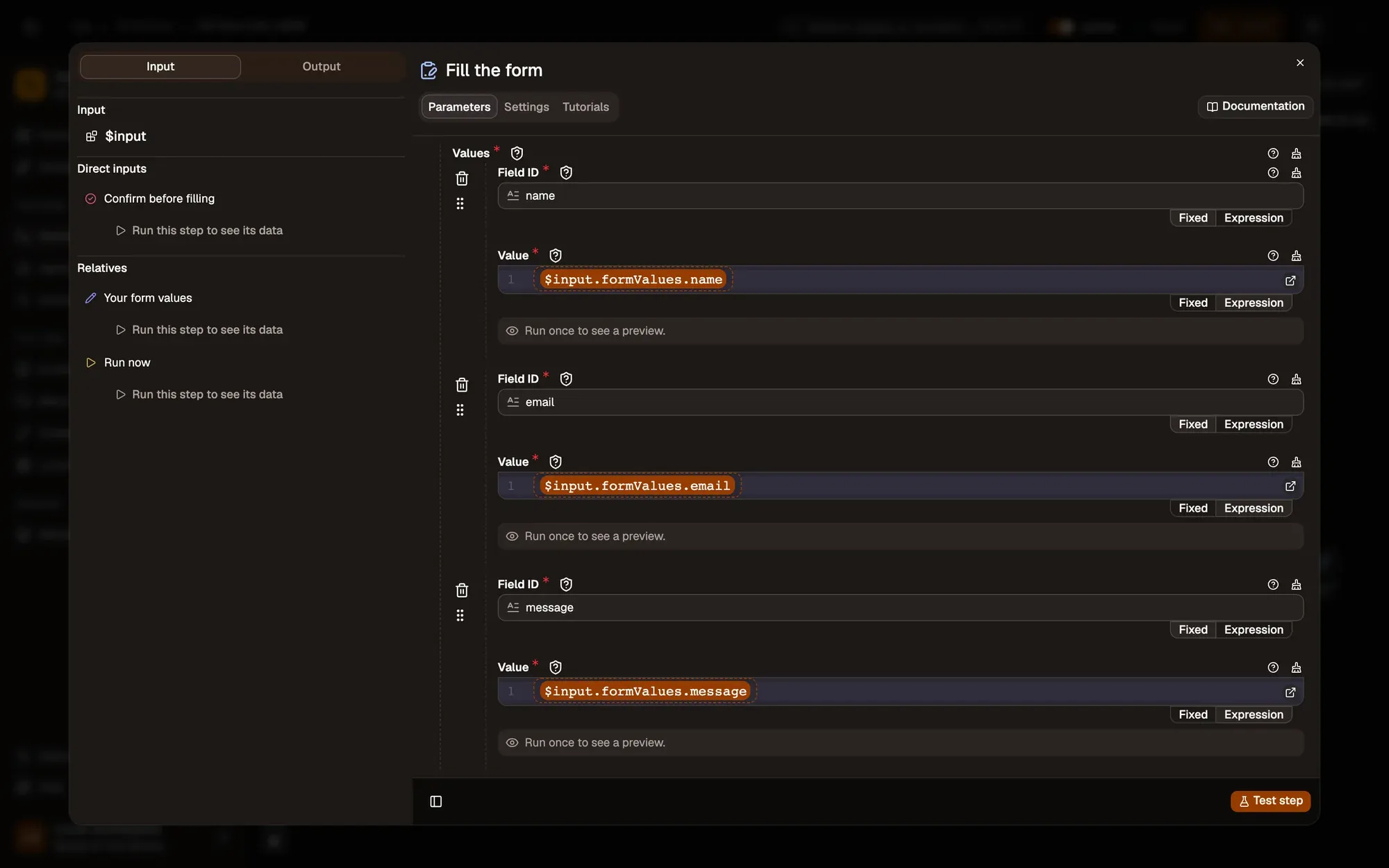
Form Fill finds the first
formon the page and types each value into the field whose id isname,emailormessage.Make it yours — match the field ids to your form. Run Get Forms Schema once to list them.
-
Submit the form
Submit Form submits the element matching
form.Make it yours — delete this step to review the filled form and press the button yourself.
Test it
Section titled “Test it”-
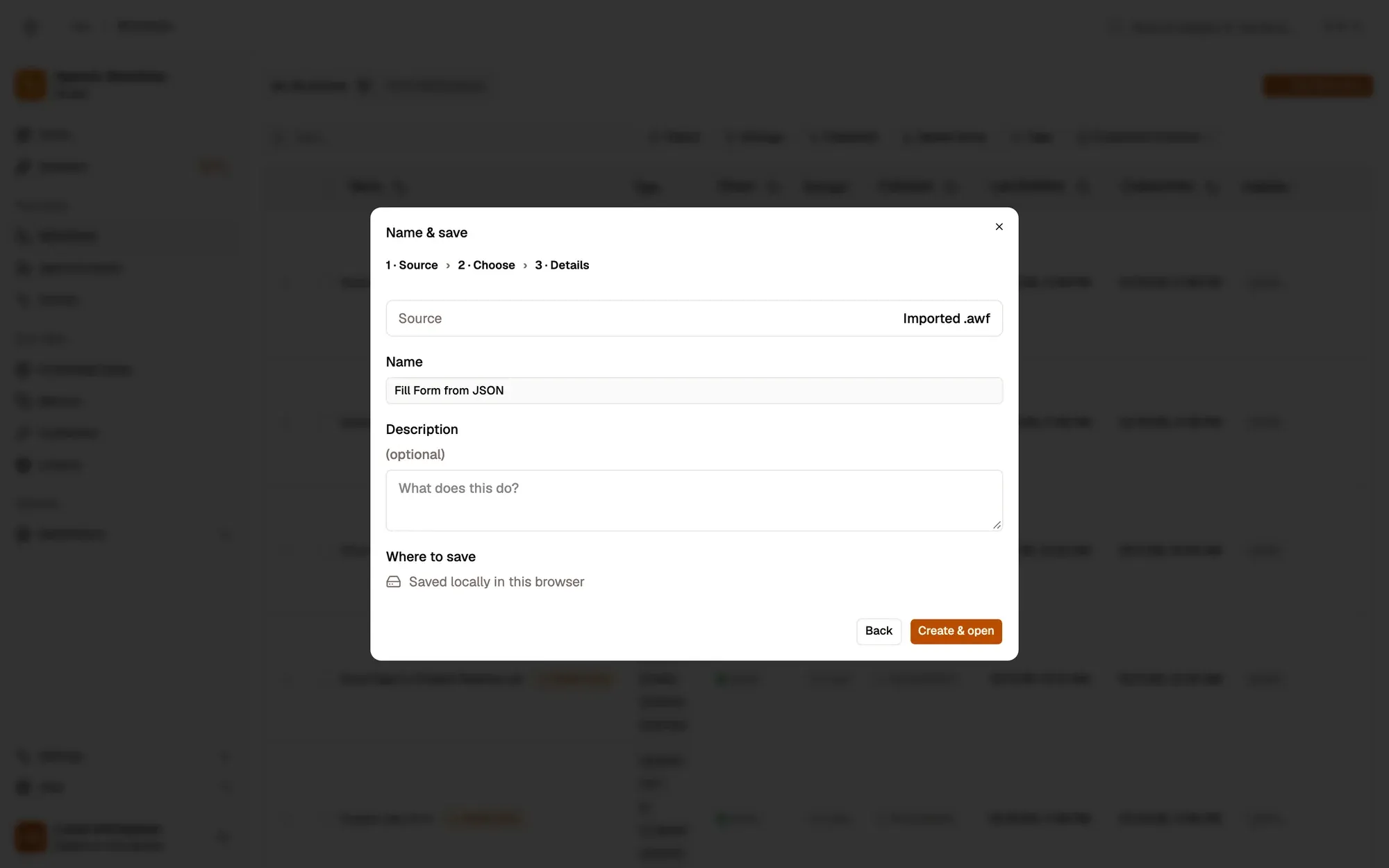
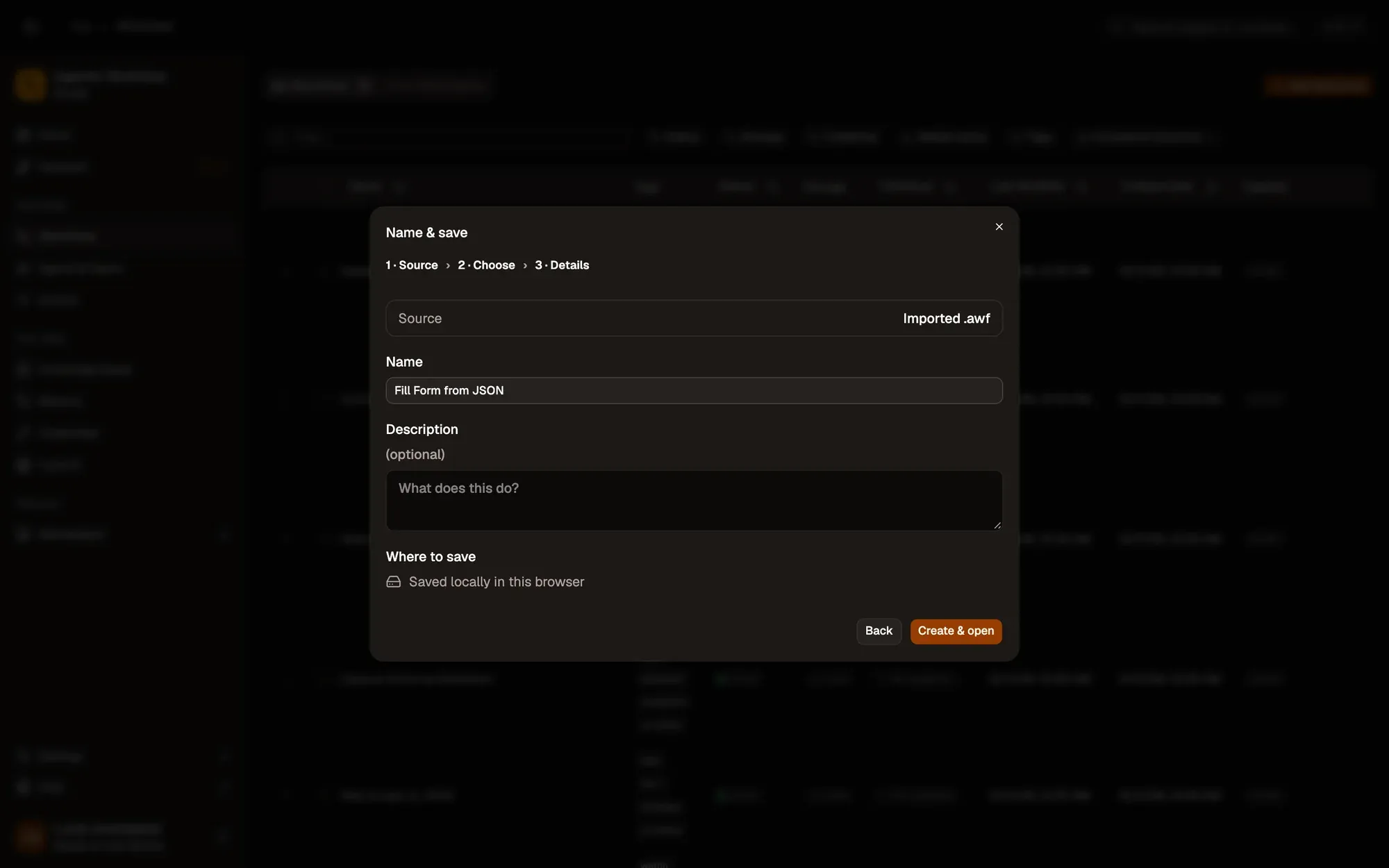
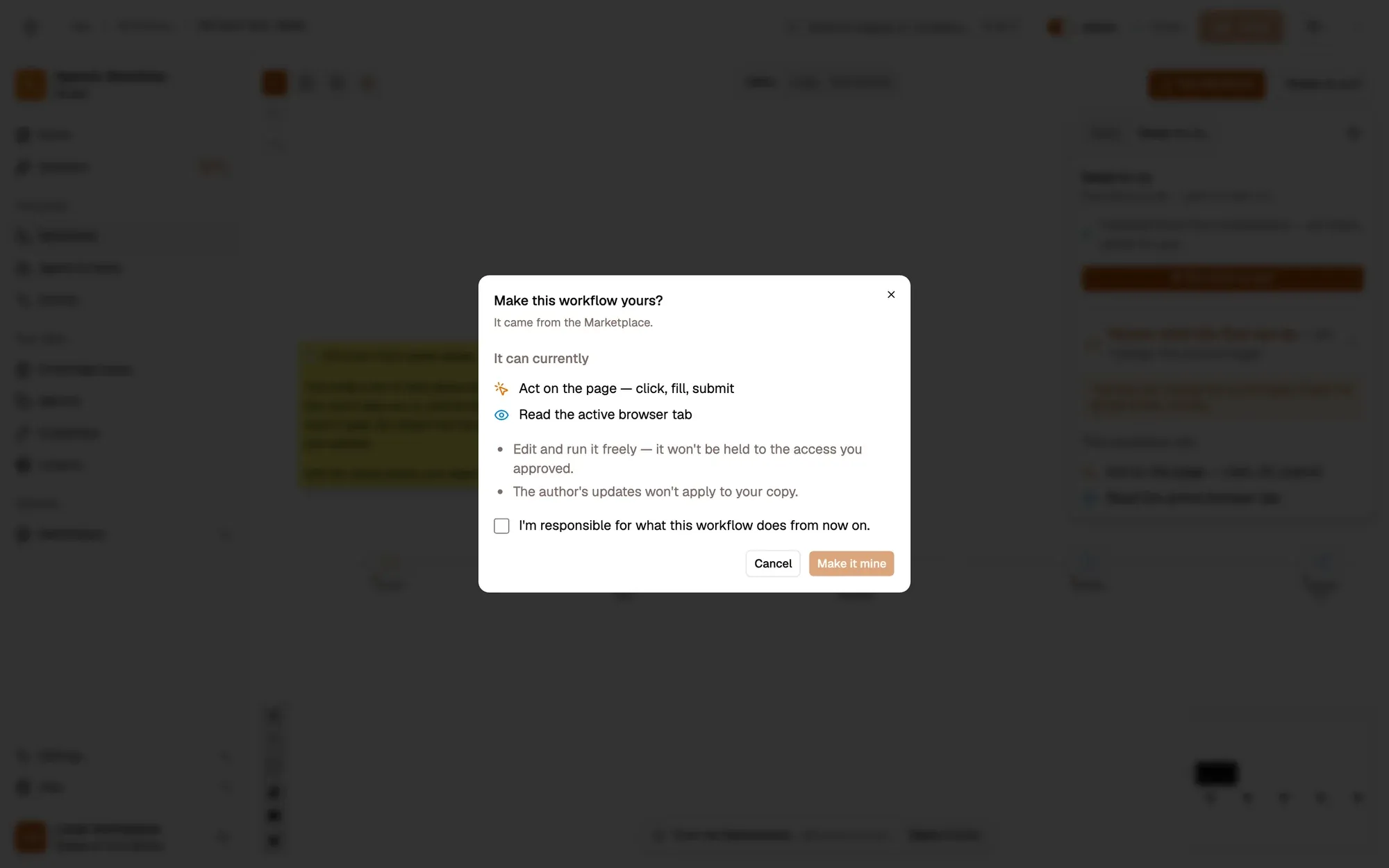
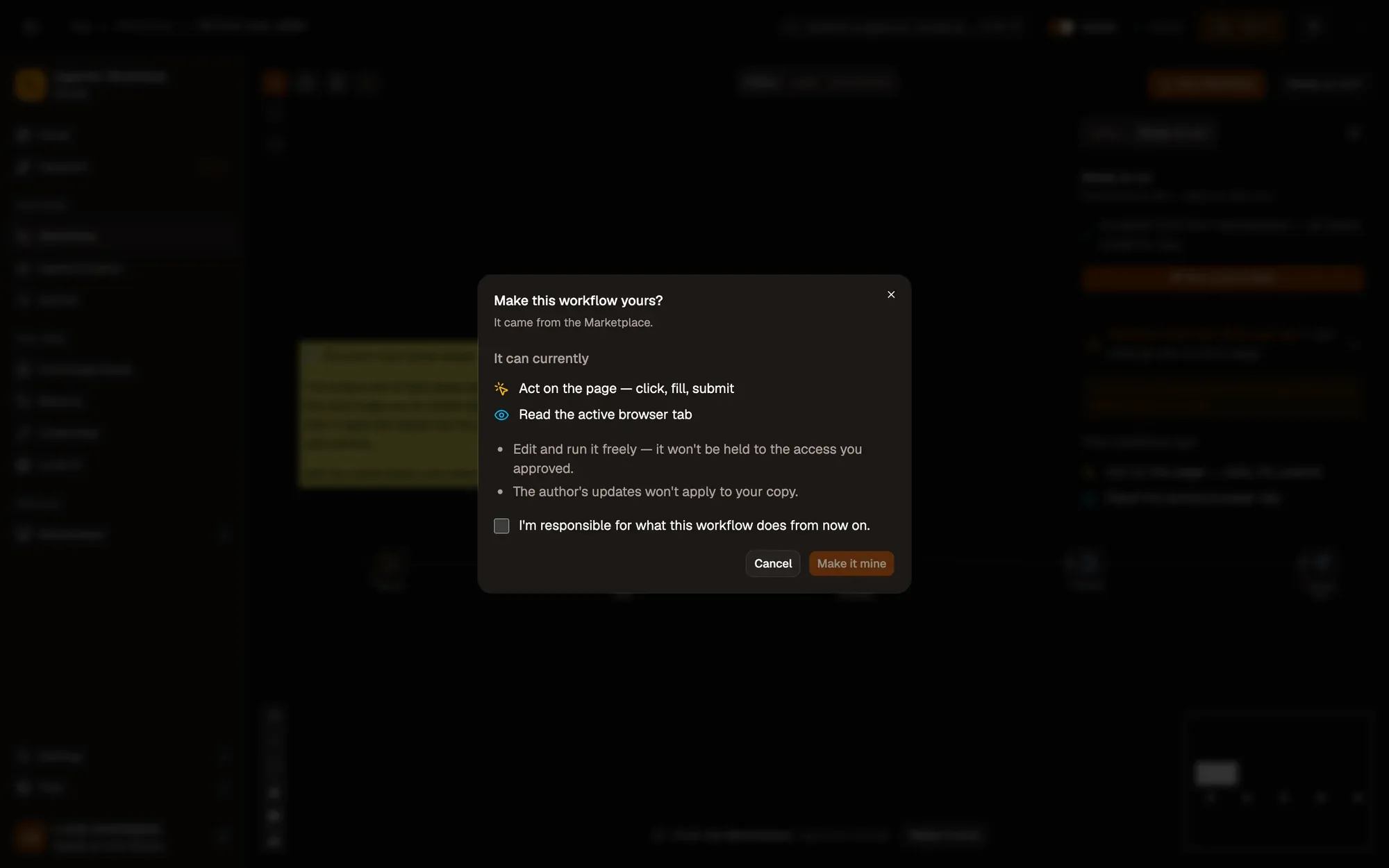
Install the recipe and open Your form values. Put your own values in. To import the file yourself, use Add Workflow › Import, choose the
.awfand click Create & open. Then click Make it mine at the bottom of the canvas, tick the box and confirm, so you can edit it. -
Open Fill the form and change the field ids to the ones on your form.
-
Save the workflow, open the page with the form, right-click it and choose Agentic Workflow › Personal Workflows › Fill Form from JSON.
-
Approve the request. The fields fill in and the form is sent.
Variations
Section titled “Variations”| Variation | What to change | Level |
|---|---|---|
| Ask for one value each time | Add an In-Page Form before Form Fill to type, say, an order number on the page. | Intermediate |
| Fill without sending | Remove Submit Form so you check the form before you send it. | Beginner |
| Click through several steps | Use UI Automation to click Next and Wait For Element between pages. | Advanced |
Troubleshoot
Section titled “Troubleshoot”- Some fields stay empty. Their ids differ from the ones in Form Fill. Use Get Forms Schema to read the real ids.
- The wrong form is filled. The page has several forms. Change formSelector in Form Fill and the DOM Selector in Submit Form to target the right one, such as
#contact-form. - The run seems stuck. It’s waiting for your approval. Approve it in the run panel or the in-page card.