Skip to content
Agentic Workflowdocs
v0.8.2Install free

recipes / write with ai

Rewrite rough text in a professional tone

Highlight a quick draft, right-click, and paste back a clear, polite version. A model on your computer rewrites it, so your words stay private.

Beginner 4 min On-device AI Write with AI

workflow · rewrite-professional.awf 4 steps

Rewrite Professionally: a workflow with 4 steps, starting with Right-click a selection and ending with Copy the rewrite.

Open in AWFlow
Right-click a selection → rewrite it with a local model → copy the result.
  1. Right-click your draft

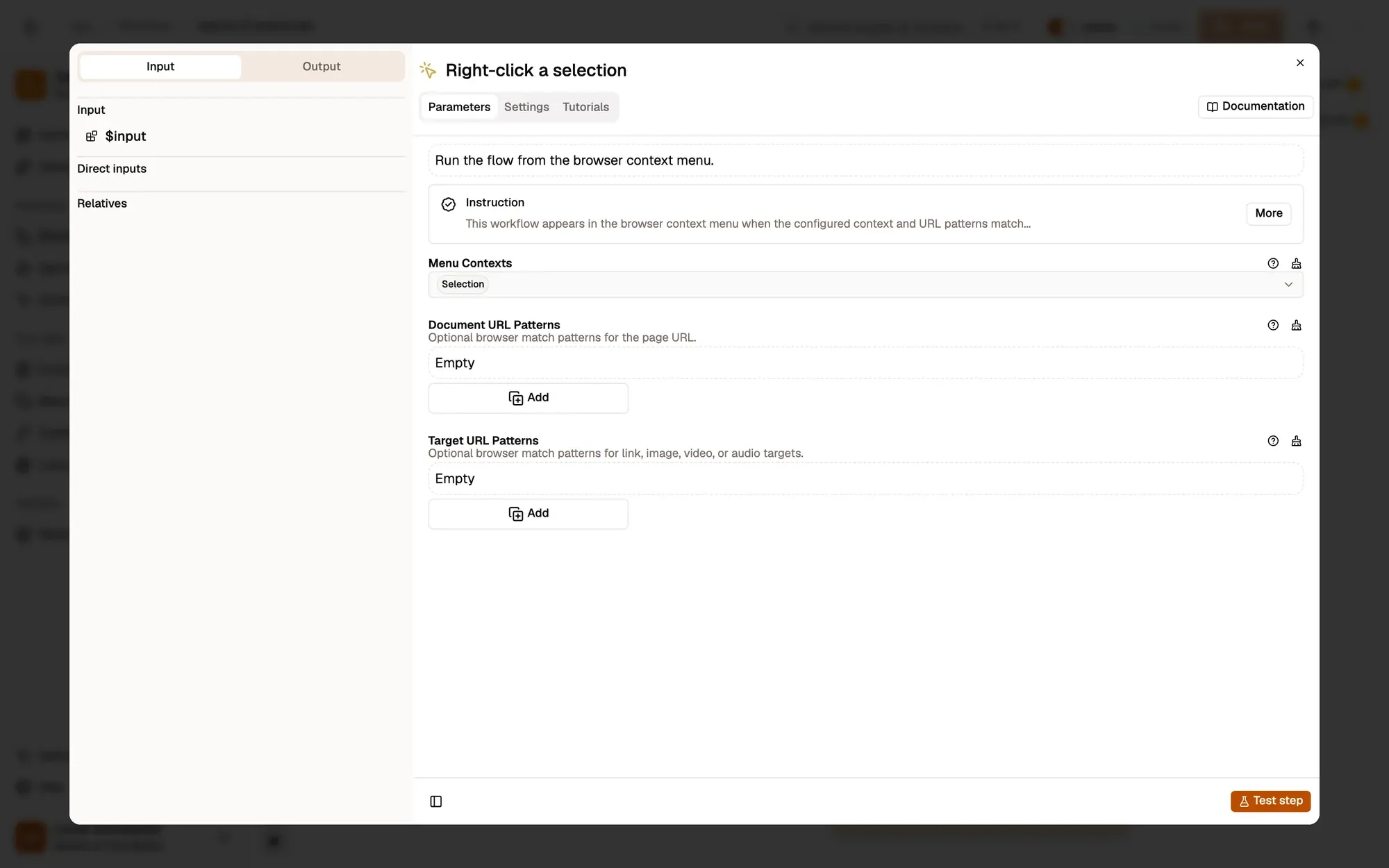
    Context Menunode reference

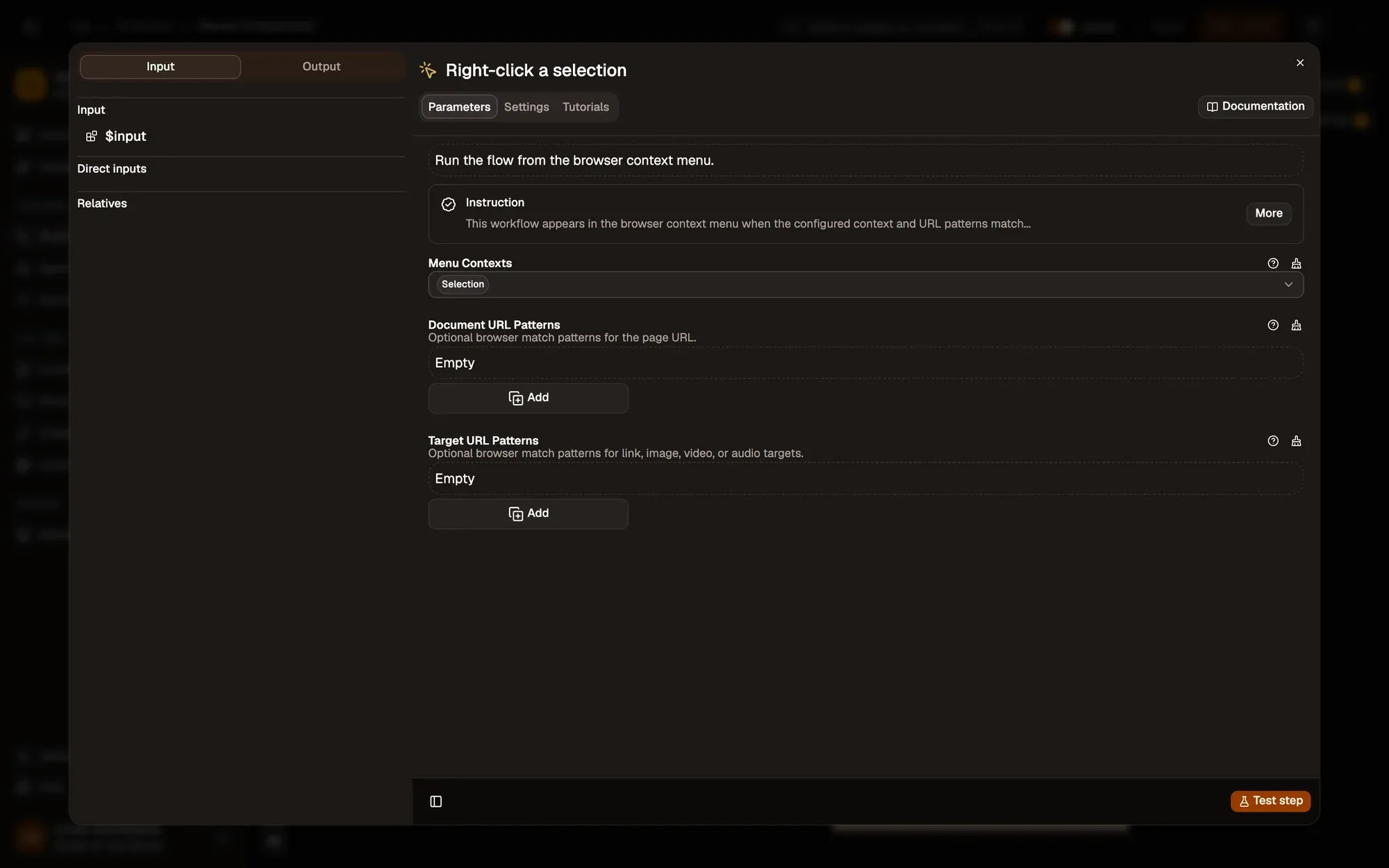
    With Menu Contexts set to Selection, the workflow appears when you right-click highlighted text, including in a text box.

    Make it yours — add Editable Field to Menu Contexts to offer it inside any text box.

    The Menu Contexts field
    The settings of the Right-click a selection trigger (Context Menu): Menu Contexts set to Selection, and empty Document URL Patterns and Target URL Patterns lists with Add buttons.The settings of the Right-click a selection trigger (Context Menu): Menu Contexts set to Selection, and empty Document URL Patterns and Target URL Patterns lists with Add buttons.
  2. Read the draft

    Get Selected Textnode reference

    Puts the highlighted text in the selection field.

    Get selected text
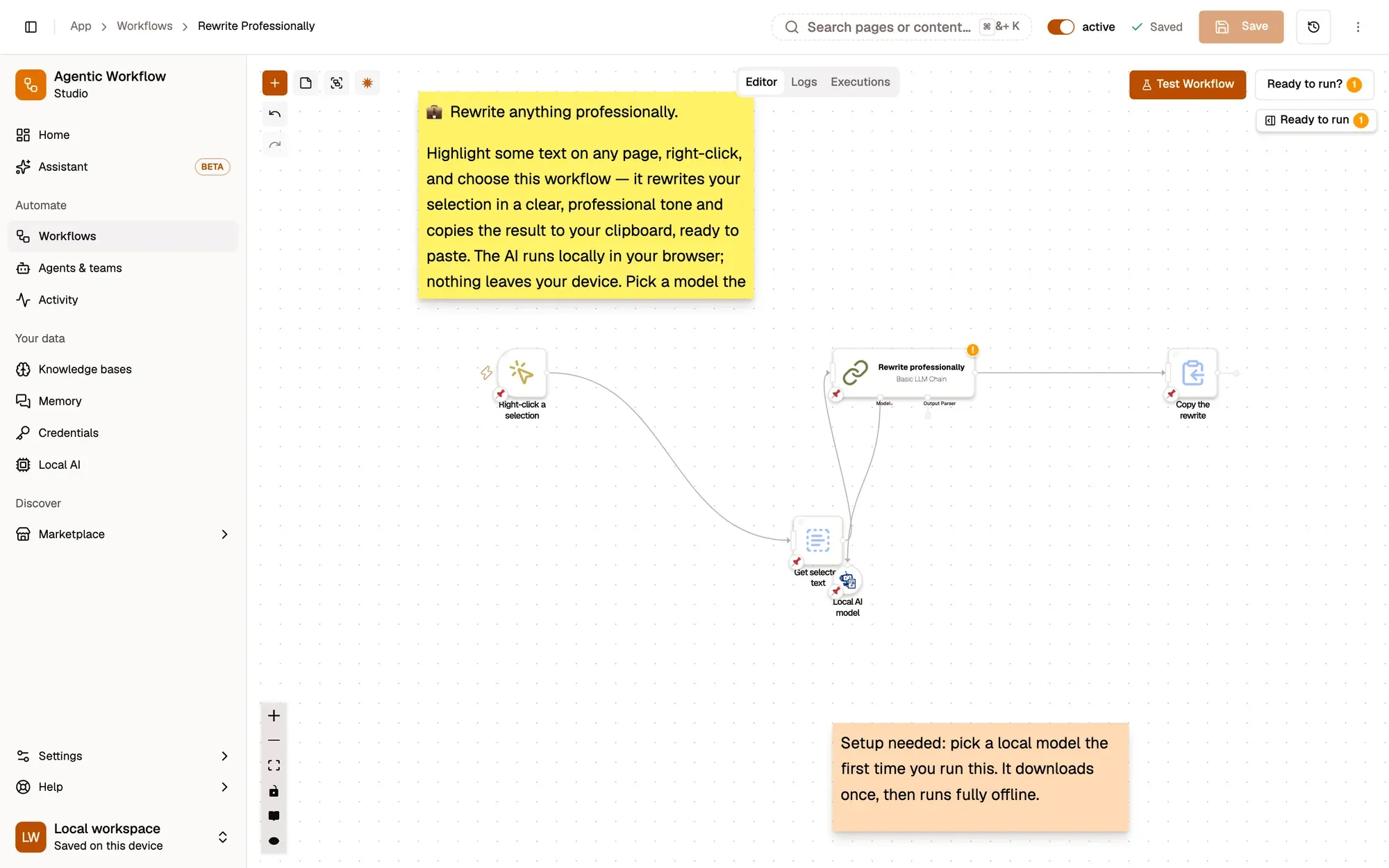
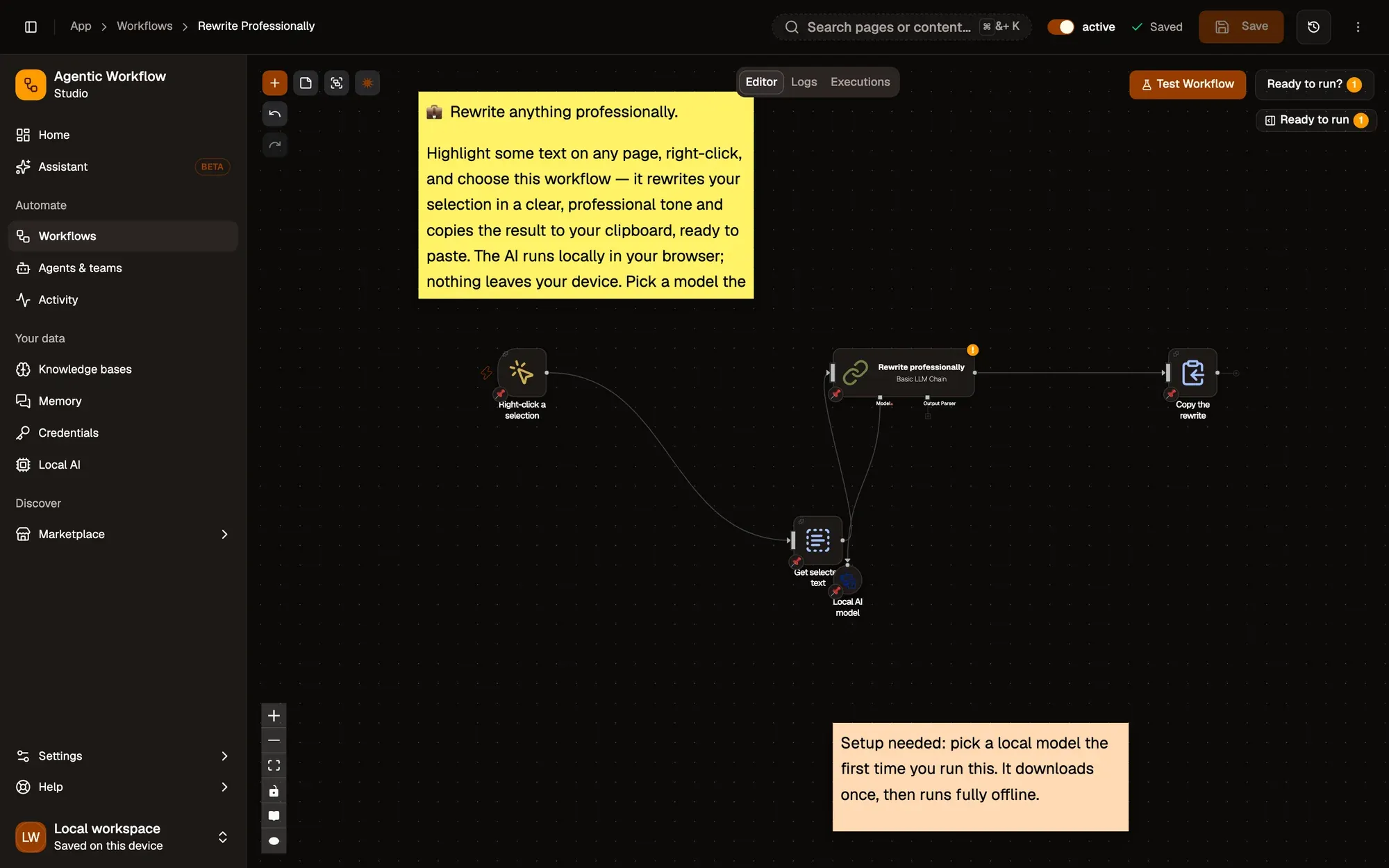
    The workflow editor with the Rewrite Professionally recipe: sticky notes and the steps Right-click a selection, Get selected text, Rewrite professionally, Local AI model, Copy the rewrite, linked left to right. The top bar shows the Workflow active switch and Save; Test Workflow is above the canvas.The workflow editor with the Rewrite Professionally recipe: sticky notes and the steps Right-click a selection, Get selected text, Rewrite professionally, Local AI model, Copy the rewrite, linked left to right. The top bar shows the Workflow active switch and Save; Test Workflow is above the canvas.
  3. Rewrite it

    Basic LLM Chainnode reference Web LLMnode reference

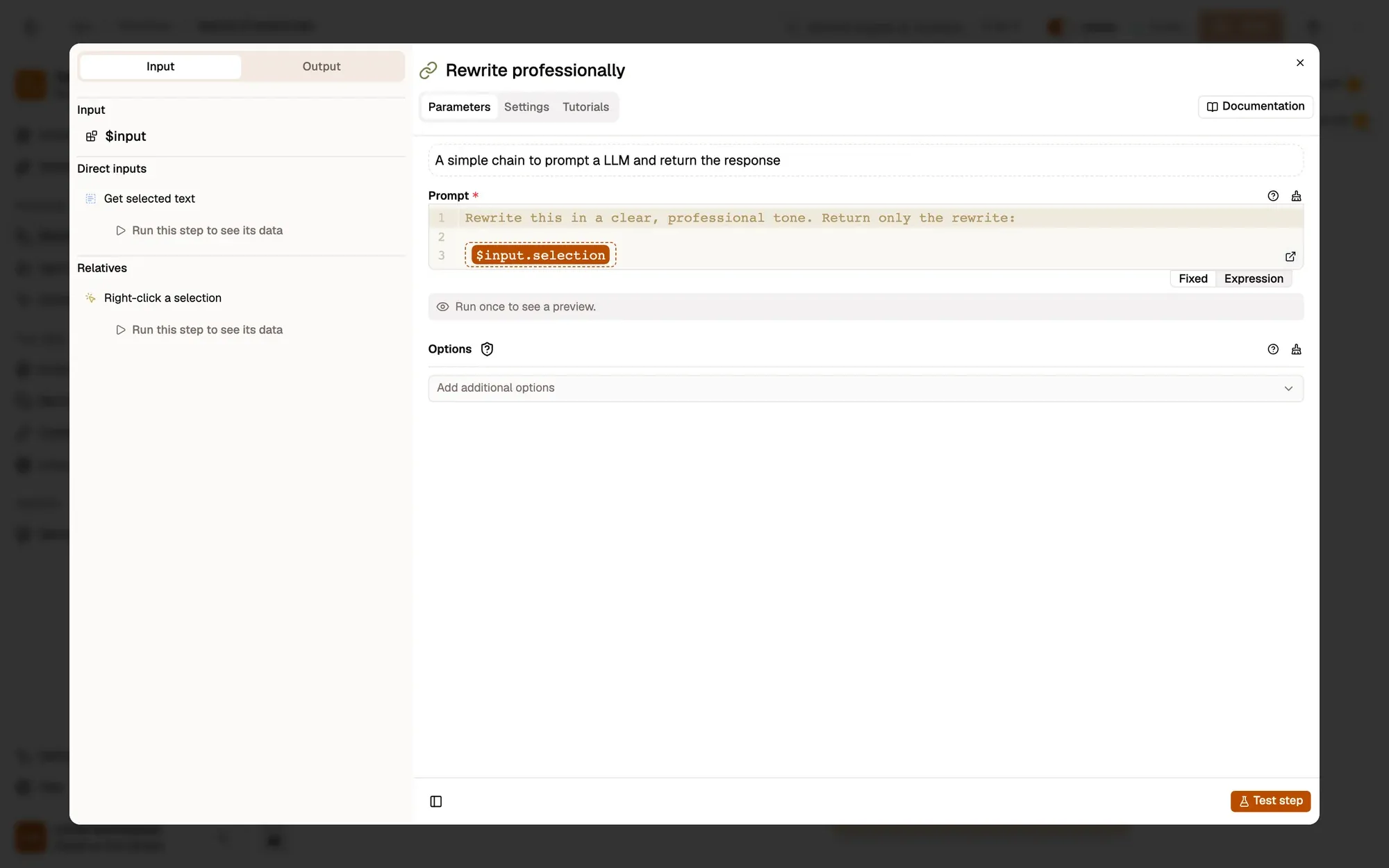
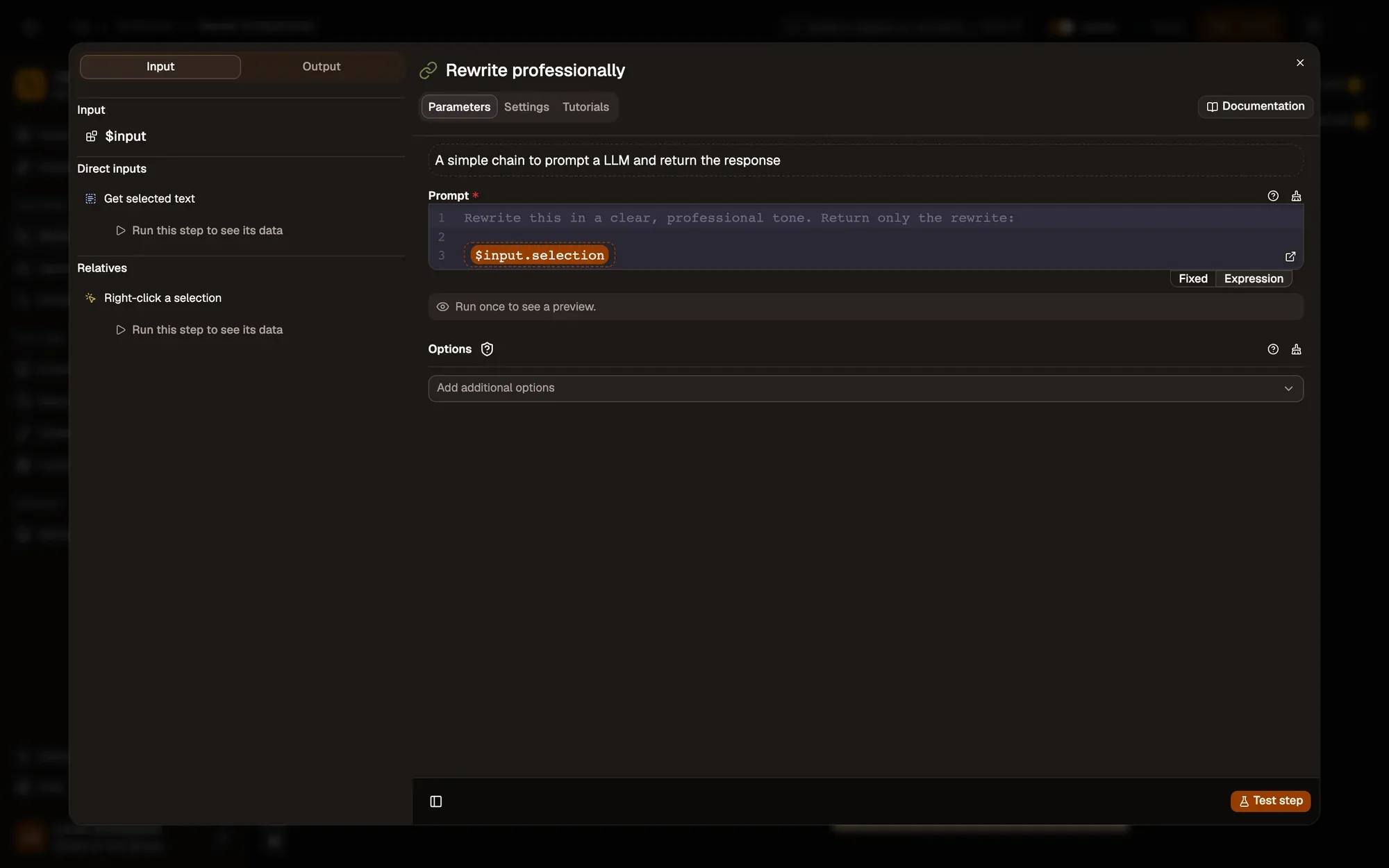
    Basic LLM Chain asks the Web LLM model to Rewrite this in a clear, professional tone. Return only the rewrite.

    Make it yours — change the tone in Prompt: friendly, shorter, or in another language. Set a house style in System message.

    The Prompt field
    The settings of the Rewrite professionally step (Basic LLM Chain): the Prompt field, as an expression, and Options with its Add additional options menu.The settings of the Rewrite professionally step (Basic LLM Chain): the Prompt field, as an expression, and Options with its Add additional options menu.
  4. Copy the rewrite

    Clipboard Writenode reference

    Clipboard Write copies the new text. Paste it over your draft.

    Make it yours — show it first with Display Markdown if you want to compare before pasting.
    Copy the rewrite
    The workflow editor with the Rewrite Professionally recipe: sticky notes and the steps Right-click a selection, Get selected text, Rewrite professionally, Local AI model, Copy the rewrite, linked left to right. The top bar shows the Workflow active switch and Save; Test Workflow is above the canvas.The workflow editor with the Rewrite Professionally recipe: sticky notes and the steps Right-click a selection, Get selected text, Rewrite professionally, Local AI model, Copy the rewrite, linked left to right. The top bar shows the Workflow active switch and Save; Test Workflow is above the canvas.
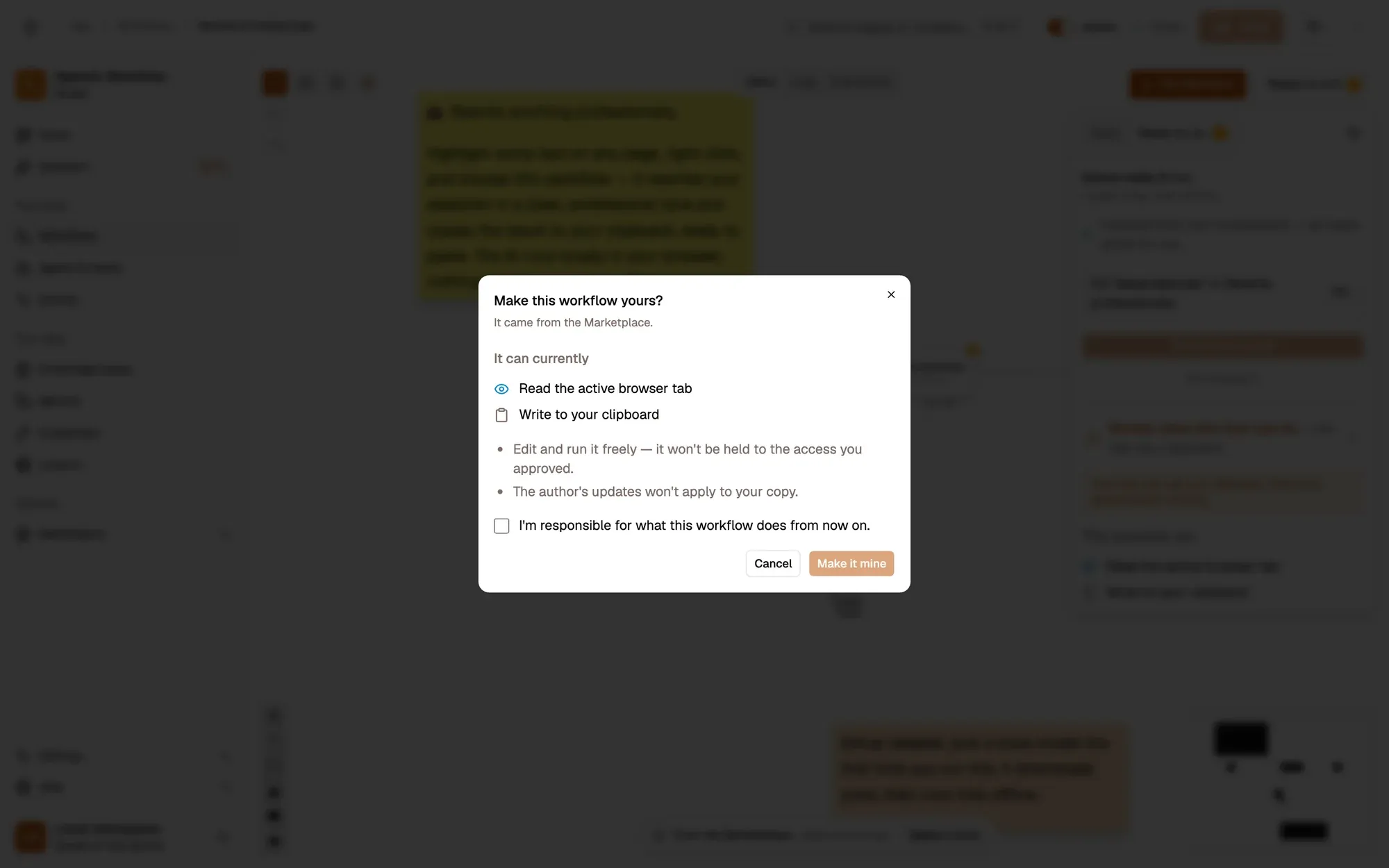
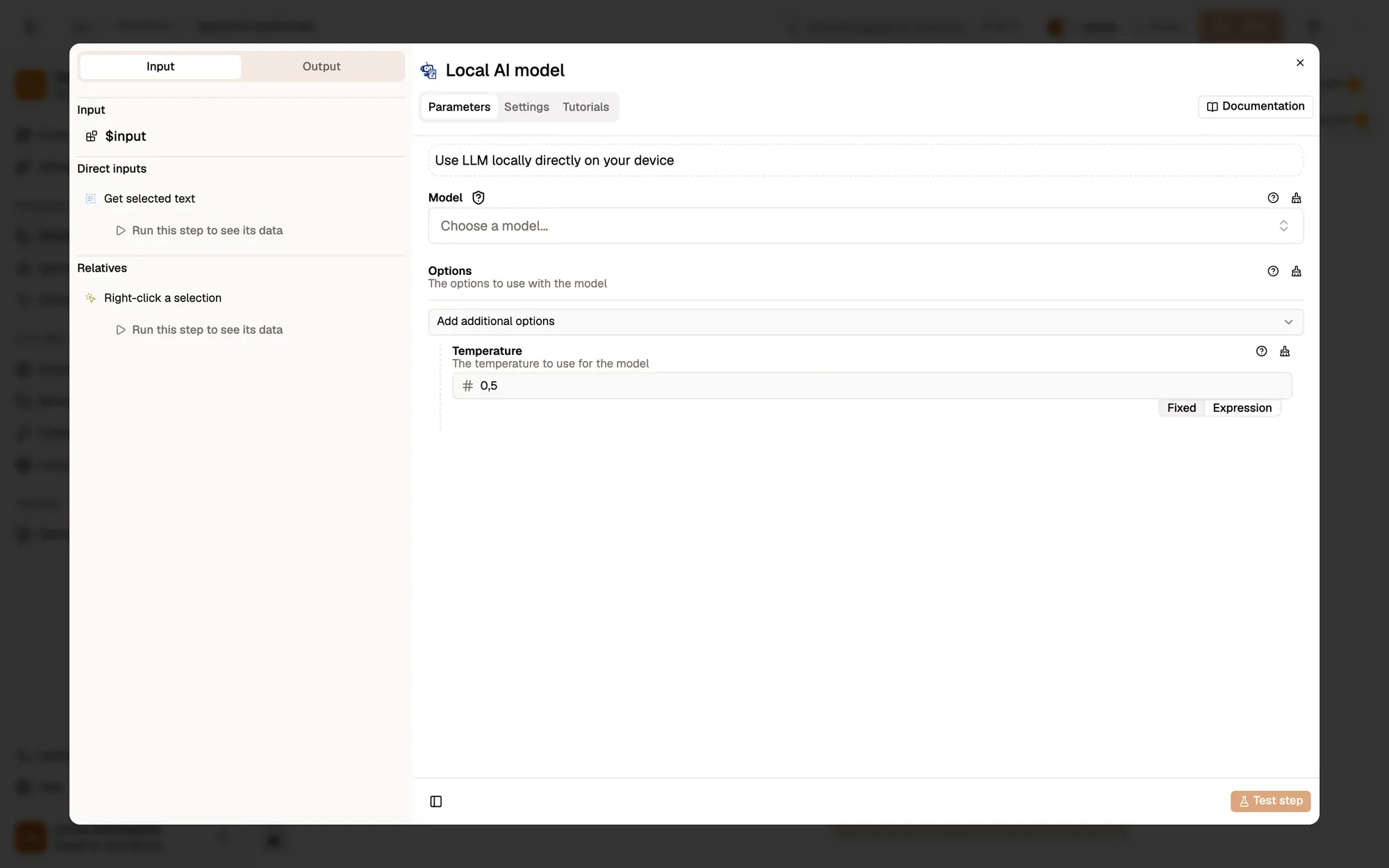
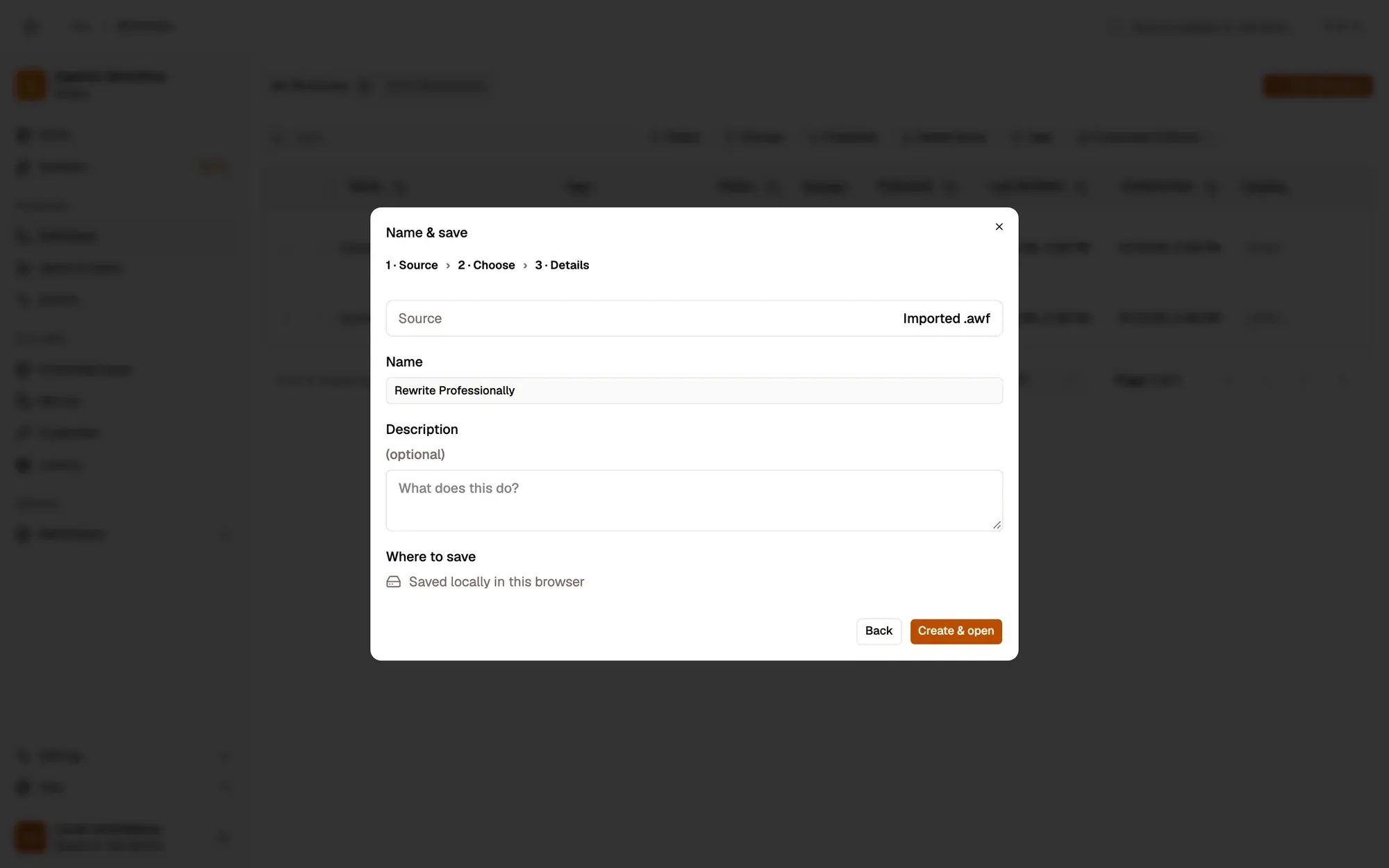
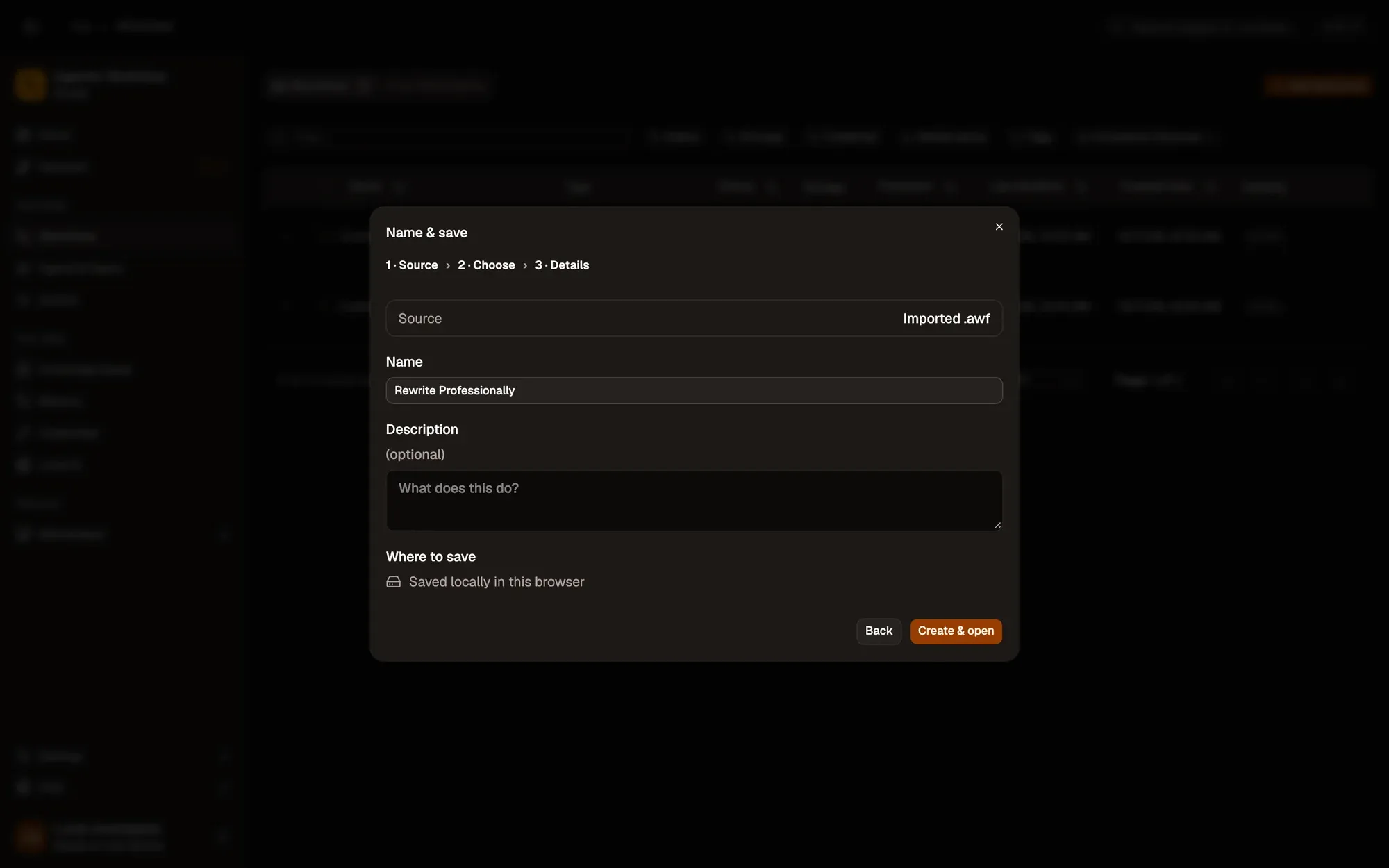
  1. Install the recipe and pick a model in Local AI model (it downloads once; see Local models). To import the file yourself, use Add Workflow › Import, choose the .awf and click Create & open. Then click Make it mine at the bottom of the canvas, tick the box and confirm, so you can edit it.

    Create & open
    The Create a workflow dialog at step 3, Name & save, after importing rewrite-professional.awf: Source Imported .awf, Name “Rewrite Professionally”, an optional Description, Where to save “Saved locally in this browser”, and the Back and Create & open buttons.The Create a workflow dialog at step 3, Name & save, after importing rewrite-professional.awf: Source Imported .awf, Name “Rewrite Professionally”, an optional Description, Where to save “Saved locally in this browser”, and the Back and Create & open buttons.
    Make it mine
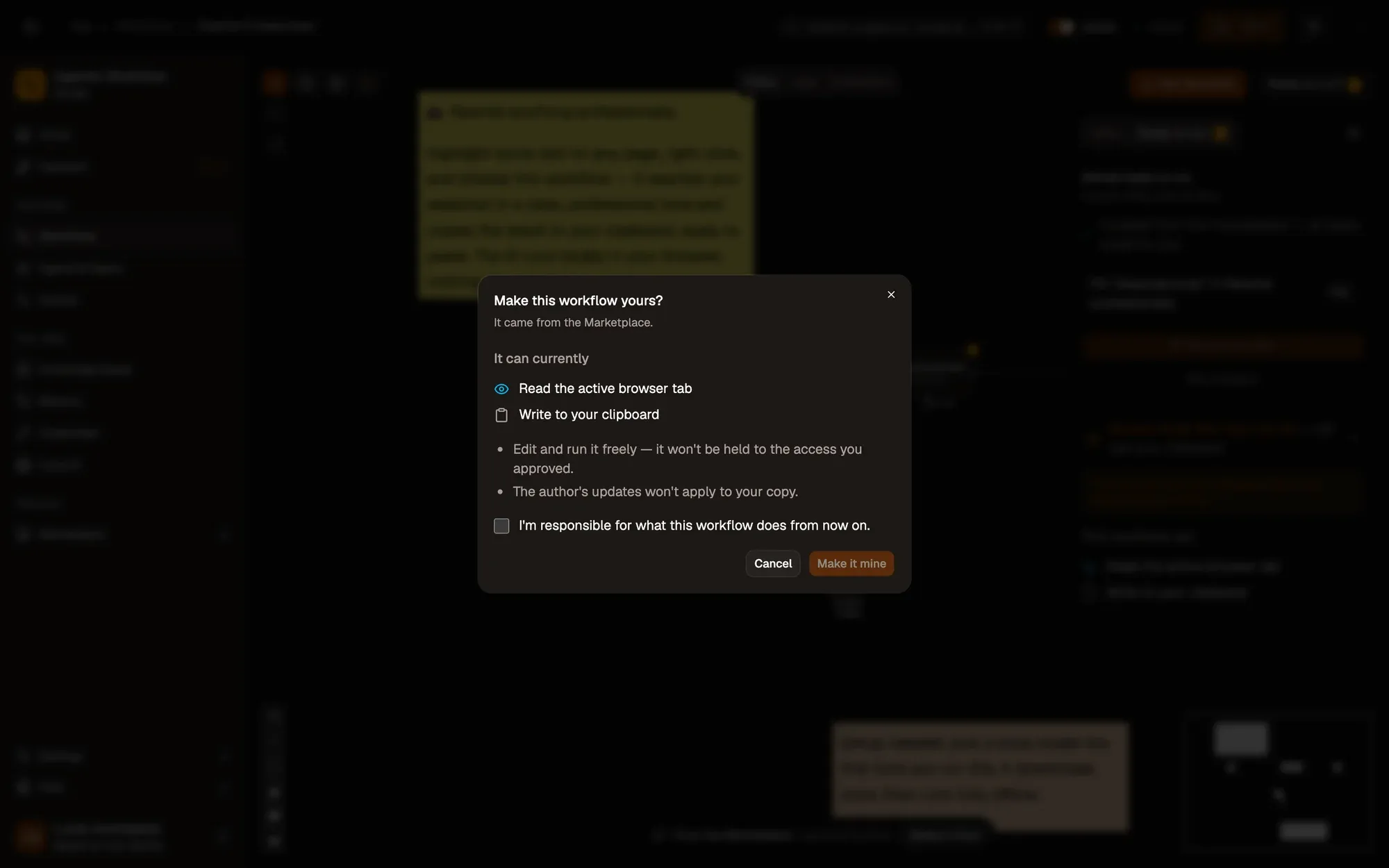
    The Make this workflow yours? dialog over the Rewrite Professionally workflow: it came from the Marketplace, It can currently lists what the workflow may access, two notes on what changes, the “I'm responsible for what this workflow does from now on.” checkbox, and Cancel and Make it mine.The Make this workflow yours? dialog over the Rewrite Professionally workflow: it came from the Marketplace, It can currently lists what the workflow may access, two notes on what changes, the “I'm responsible for what this workflow does from now on.” checkbox, and Cancel and Make it mine.
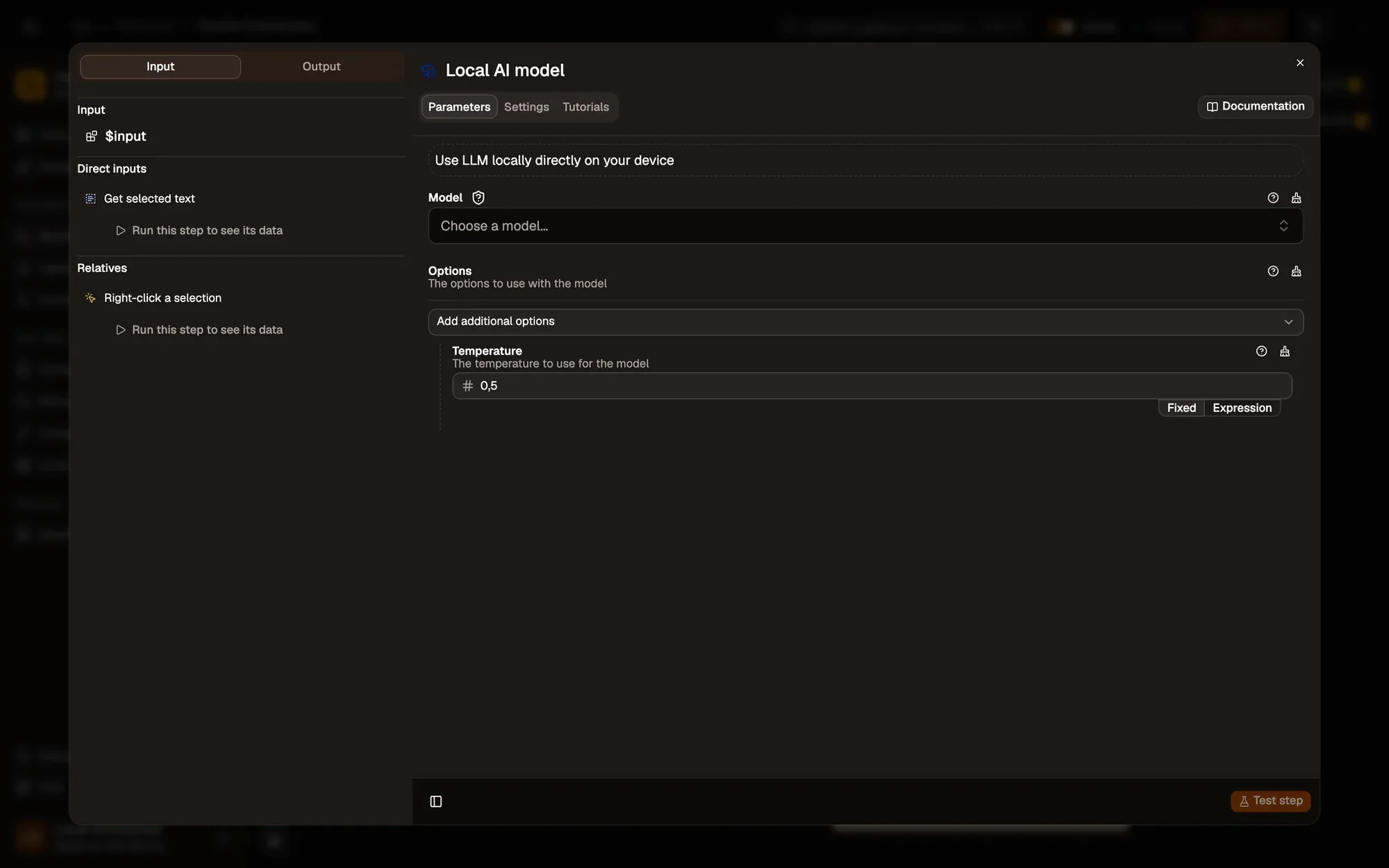
    The Model menu
    The settings of the Local AI model step (Web LLM): the Model menu still reads “Choose a model…”, with Options under it.The settings of the Local AI model step (Web LLM): the Model menu still reads “Choose a model…”, with Options under it.
  2. Save and activate the workflow.

    Workflow active switch
    The workflow editor with the Rewrite Professionally recipe: sticky notes and the steps Right-click a selection, Get selected text, Rewrite professionally, Local AI model, Copy the rewrite, linked left to right. The top bar shows the Workflow active switch and Save; Test Workflow is above the canvas.The workflow editor with the Rewrite Professionally recipe: sticky notes and the steps Right-click a selection, Get selected text, Rewrite professionally, Local AI model, Copy the rewrite, linked left to right. The top bar shows the Workflow active switch and Save; Test Workflow is above the canvas.
  3. Type “hey can u send the report asap thx” in any text box, highlight it, right-click and choose Agentic Workflow › Personal Workflows › Rewrite Professionally.

  4. Paste: you get something like “Hello, could you please send the report as soon as possible? Thank you.”
Variation What to change Level
Fix grammar only Change Prompt to Fix spelling and grammar. Keep my wording. Return only the text:. Beginner
Draft a reply Select a message and prompt Write a short, polite reply to this:. Beginner
Better writing, hosted model Plug OpenAI into the Model slot. Your text then goes to that provider. Beginner
  • The rewrite adds “Here is the rewrite:”. Small models chat. Add Do not add any introduction. to the prompt, or pick a larger model.
  • Nothing to paste. The model is still downloading on the first run. Wait for the run to finish (see the run log), then paste.
  • The menu entry is missing. Activate the workflow, then right-click and choose Get / Refresh Workflows.
Edit page

Last updated:

Was this page useful?
Ask Aria