Skip to content
Agentic Workflowdocs
v0.8.2Install free

recipes / extract data

Turn a list on a web page into structured data

Fetch a page by its address and pull each item's title and link into clean data you can reuse, without opening the page.

Intermediate 7 min No setup Extract data

workflow · web-scrape-to-json.awf 4 steps

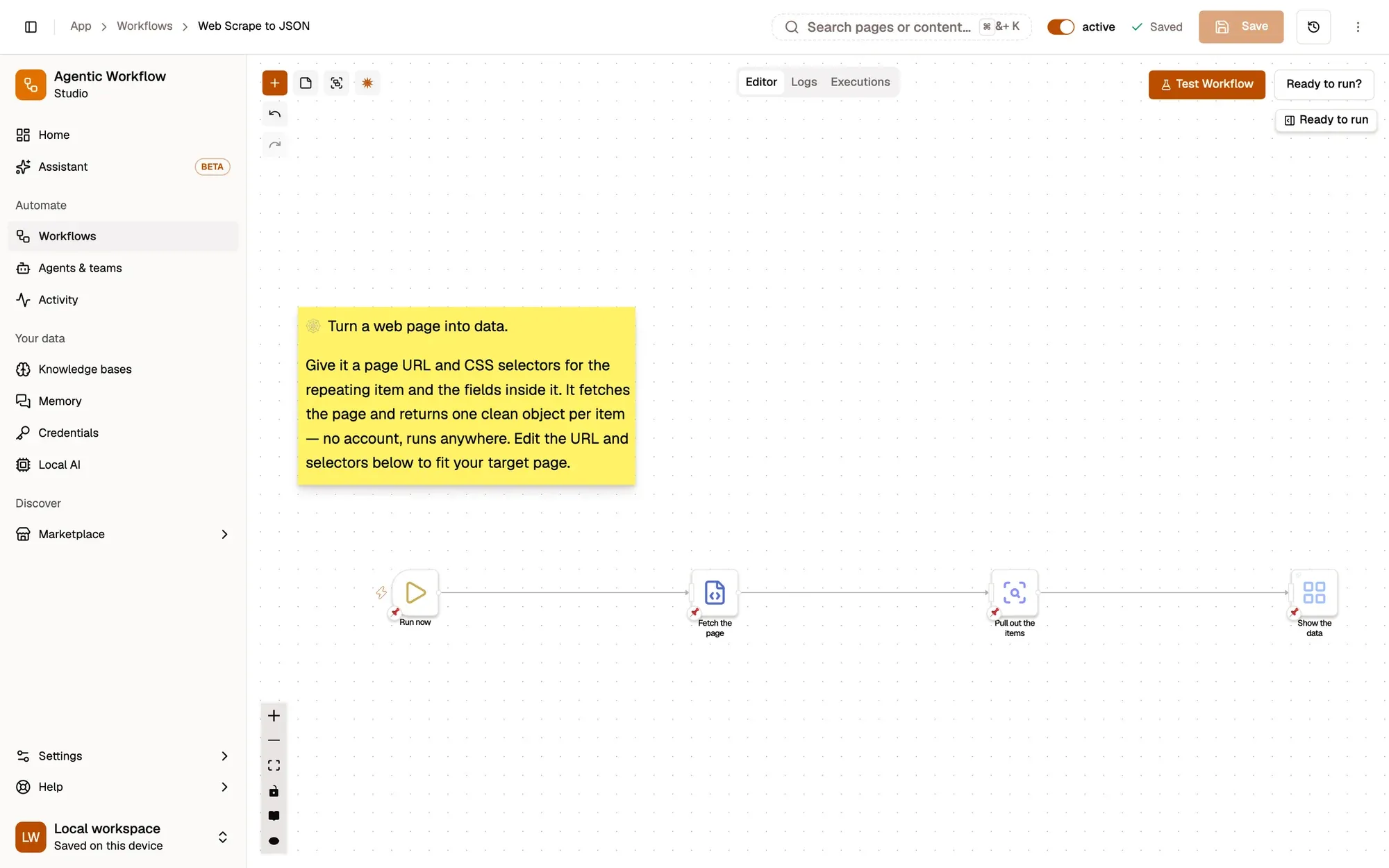
Web Scrape to JSON: a workflow with 4 steps, starting with Run now and ending with Show the data.

Open in AWFlow
Run it → fetch the page → pull out each item → show the data.
  1. Run it

    When Startednode reference

    When Started has no settings. Click Test Workflow on the canvas.

    Make it yours — run it every morning with a Schedule trigger.

    Run now (When Started)
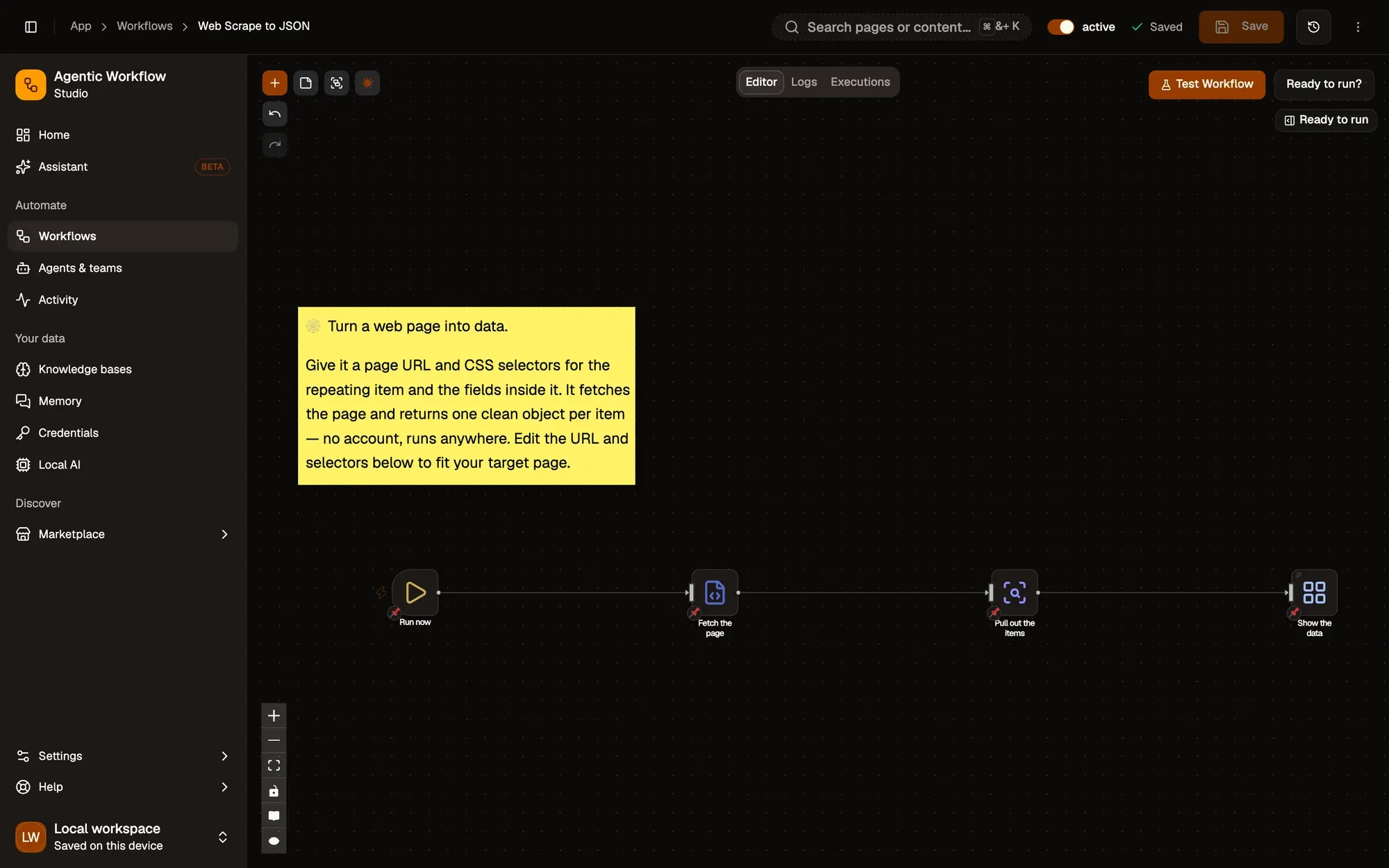
    The workflow editor with the Web Scrape to JSON recipe: sticky notes and the steps Run now, Fetch the page, Pull out the items, Show the data, linked left to right. The top bar shows the Workflow active switch and Save; Test Workflow is above the canvas.The workflow editor with the Web Scrape to JSON recipe: sticky notes and the steps Run now, Fetch the page, Pull out the items, Show the data, linked left to right. The top bar shows the Workflow active switch and Save; Test Workflow is above the canvas.
  2. Fetch the page

    Get HTML from Linknode reference

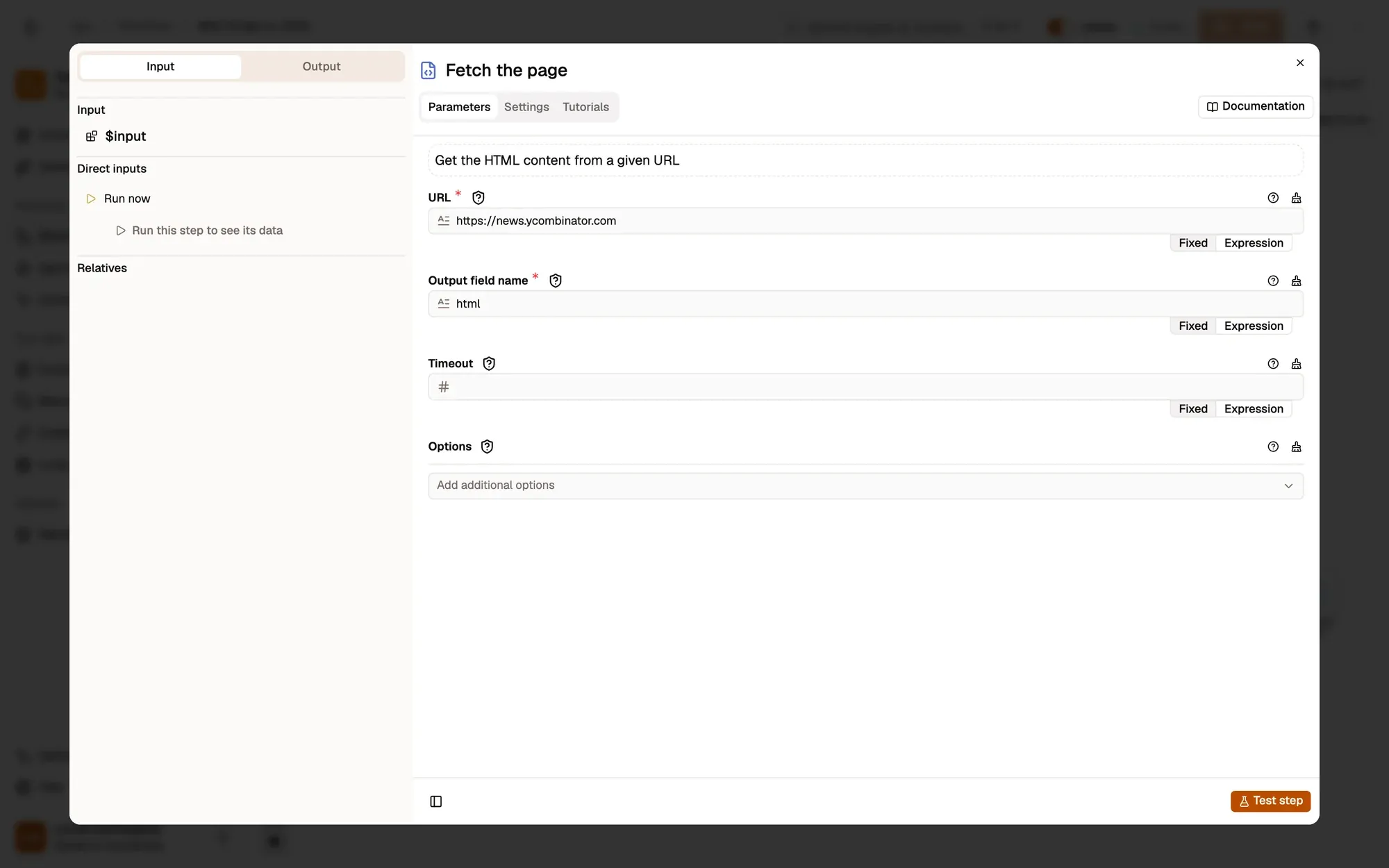
    Get HTML from Link downloads https://news.ycombinator.com and puts its HTML in html. The page doesn't need to be open.

    Make it yours — change URL to the page you want. Pages that need you to be signed in may return a login page instead.

    The URL field
    The settings of the Fetch the page step: the URL field, Output field name, Timeout and Options.The settings of the Fetch the page step: the URL field, Output field name, Timeout and Options.
  3. Pull out the items

    HTML Extractnode reference

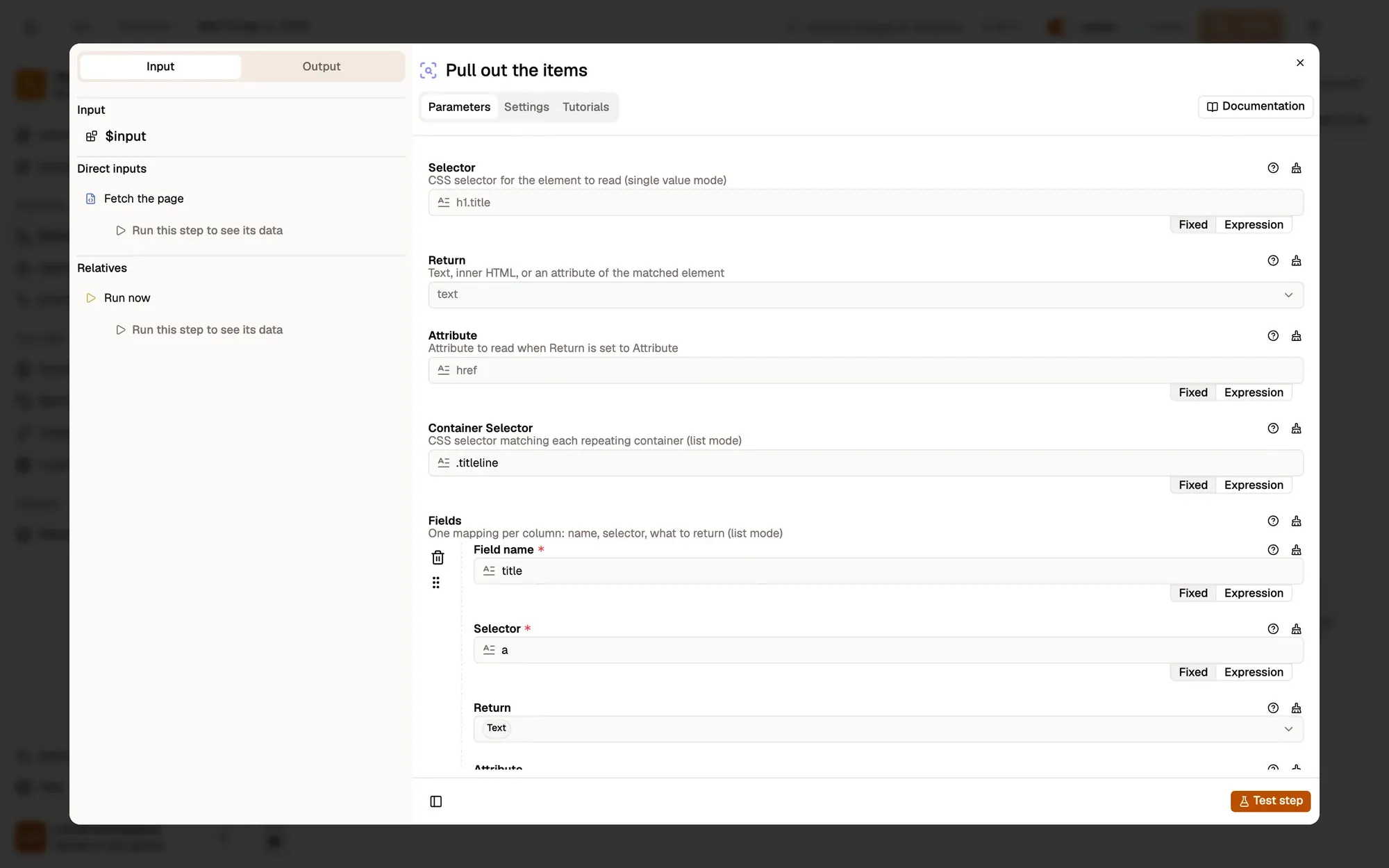
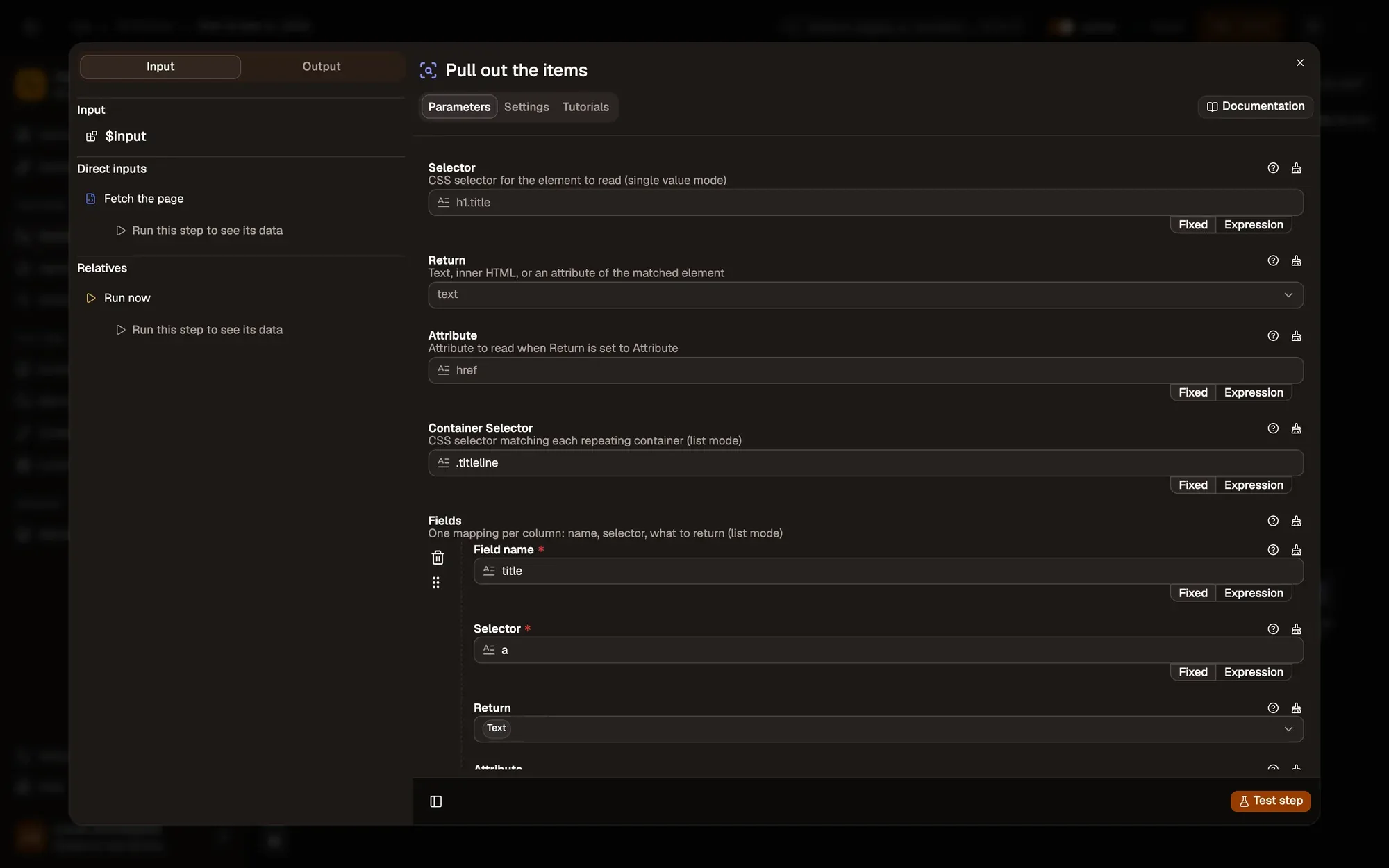
    HTML Extract in list mode finds every .titleline and, inside each, reads the link text as title and its href as link.

    Make it yours — set Container Selector to one repeated item on your page and add a field per value you want (price, date, author).

    The Container Selector field
    The settings of the Pull out the items step: HTML, Mode Repeating list, Selector, Return, Attribute, Container Selector .titleline, and Fields with a title field read from the a element.The settings of the Pull out the items step: HTML, Mode Repeating list, Selector, Return, Attribute, Container Selector .titleline, and Fields with a title field read from the a element.
  4. Show the data

    Display Objectnode reference

    Display Object shows the items as a tree you can expand.

    Make it yours — save them with Google Sheets or download them with Save as File.
    Show the data
    The workflow editor with the Web Scrape to JSON recipe: sticky notes and the steps Run now, Fetch the page, Pull out the items, Show the data, linked left to right. The top bar shows the Workflow active switch and Save; Test Workflow is above the canvas.The workflow editor with the Web Scrape to JSON recipe: sticky notes and the steps Run now, Fetch the page, Pull out the items, Show the data, linked left to right. The top bar shows the Workflow active switch and Save; Test Workflow is above the canvas.
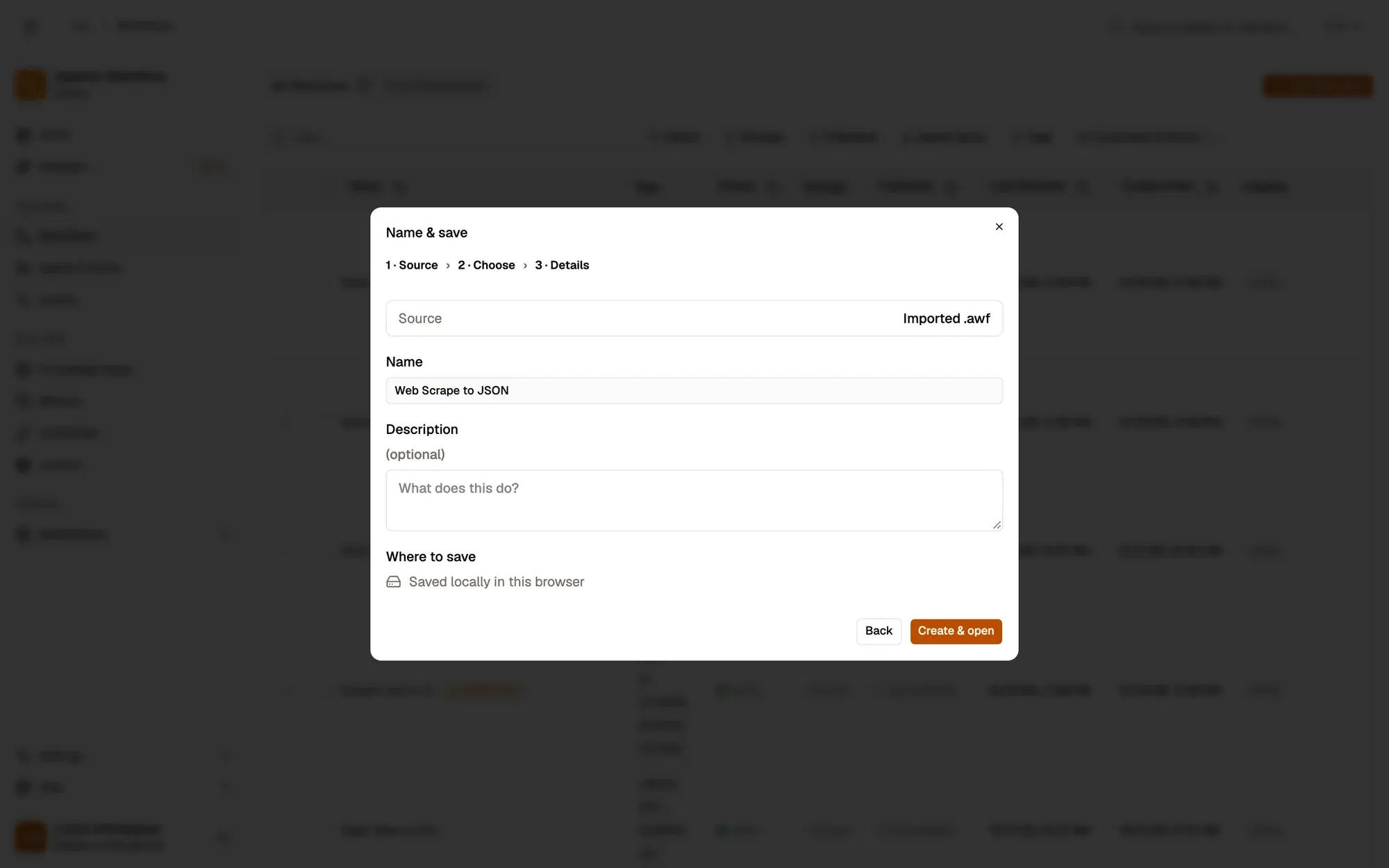
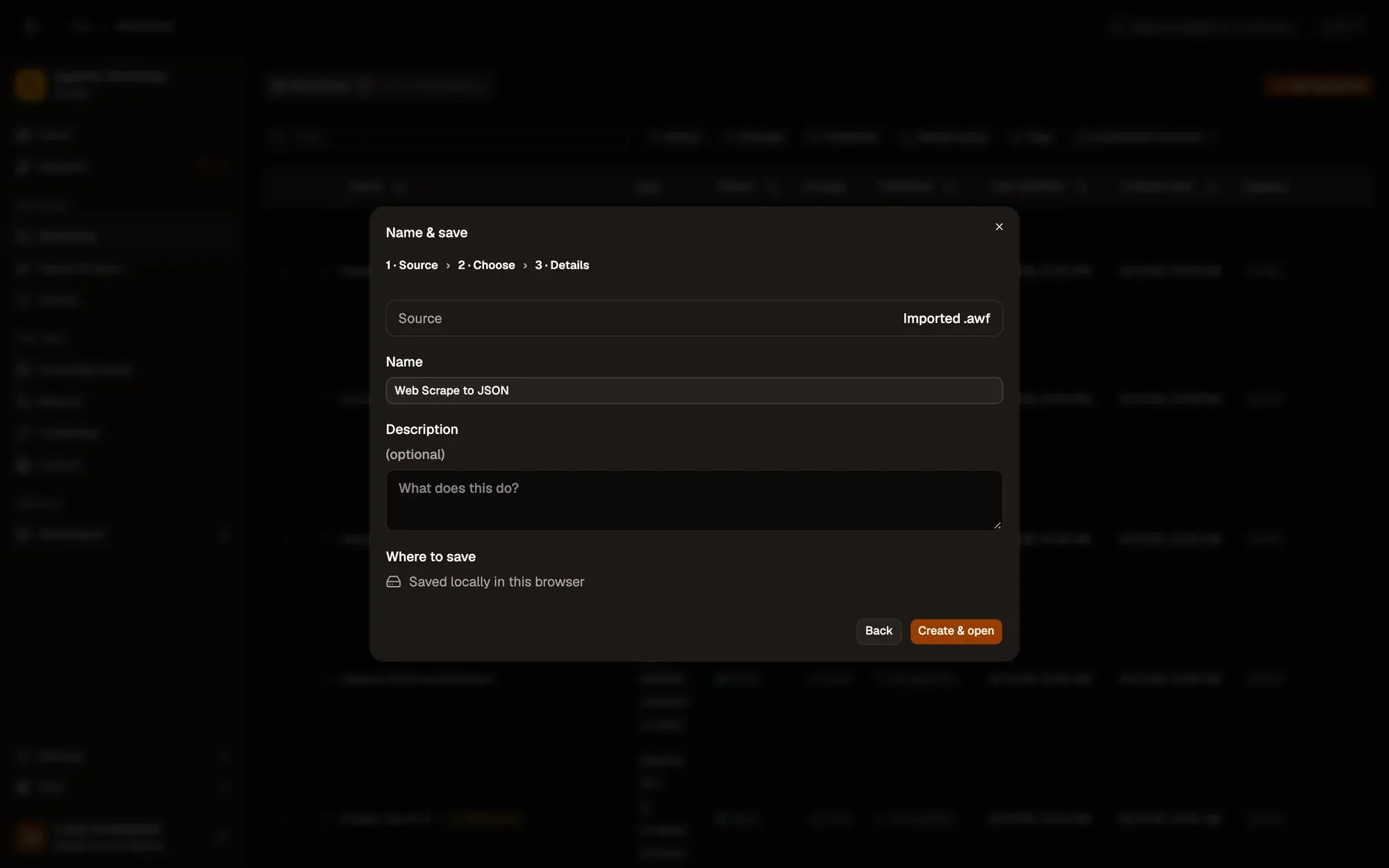
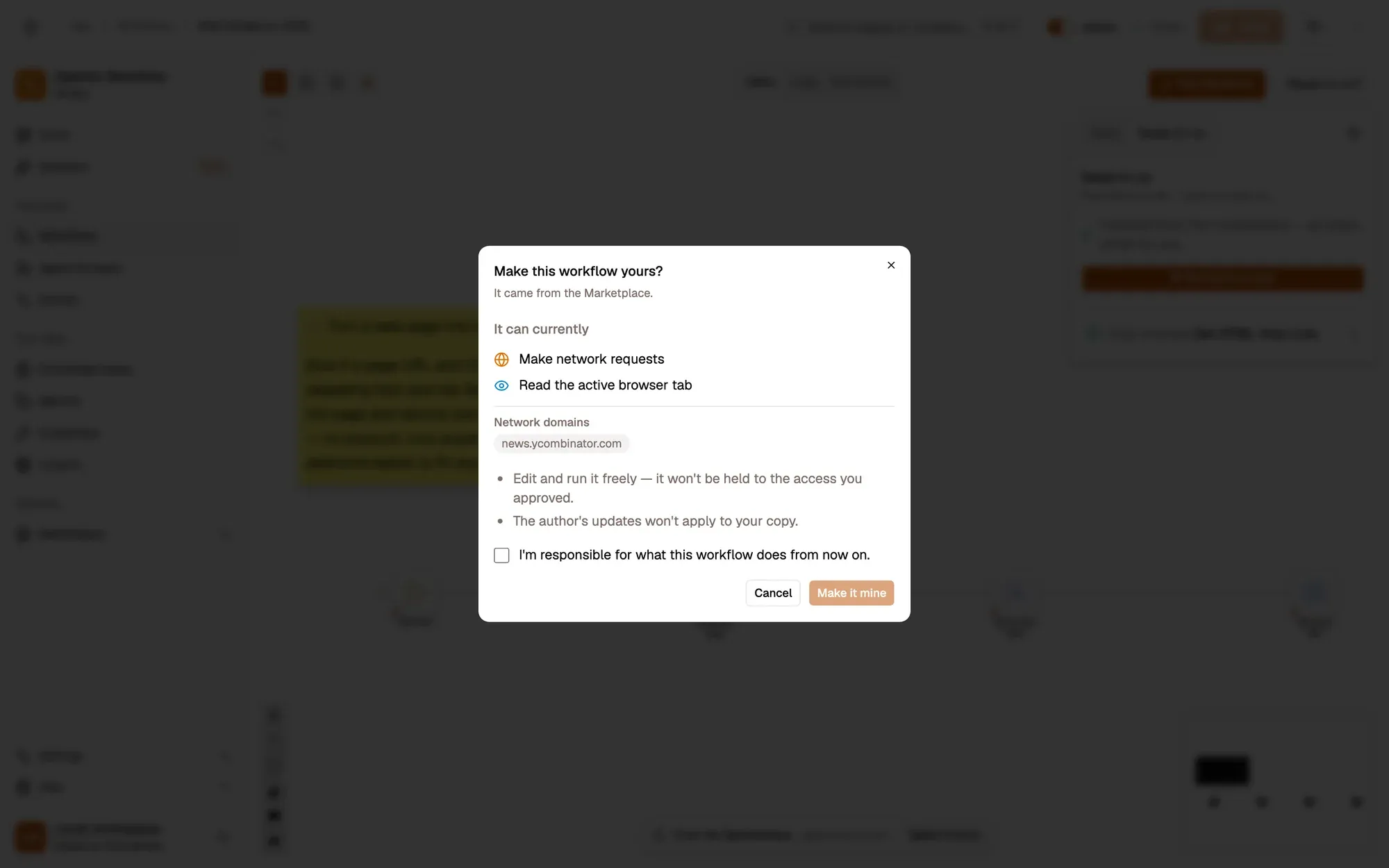
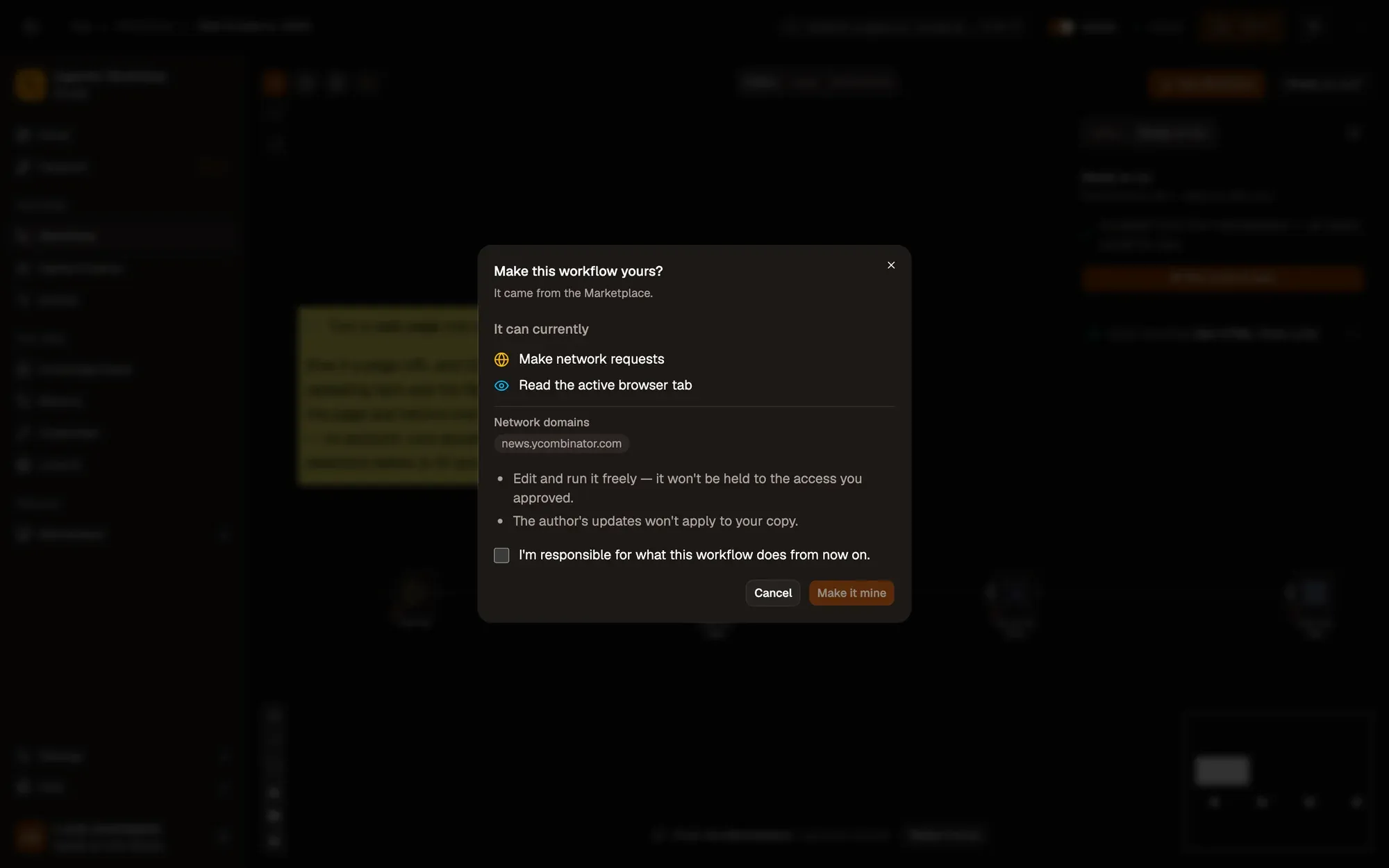
  1. Install the recipe and open it on the canvas. To import the file yourself, use Add Workflow › Import, choose the .awf and click Create & open. Then click Make it mine at the bottom of the canvas, tick the box and confirm, so you can edit it.

    Create & open
    The Create a workflow dialog at step 3, Name & save, after importing web-scrape-to-json.awf: Source Imported .awf, Name “Web Scrape to JSON”, an optional Description, Where to save “Saved locally in this browser”, and the Back and Create & open buttons.The Create a workflow dialog at step 3, Name & save, after importing web-scrape-to-json.awf: Source Imported .awf, Name “Web Scrape to JSON”, an optional Description, Where to save “Saved locally in this browser”, and the Back and Create & open buttons.
    Make it mine
    The Make this workflow yours? dialog over the Web Scrape to JSON workflow: it came from the Marketplace, It can currently lists what the workflow may access, two notes on what changes, the “I'm responsible for what this workflow does from now on.” checkbox, and Cancel and Make it mine.The Make this workflow yours? dialog over the Web Scrape to JSON workflow: it came from the Marketplace, It can currently lists what the workflow may access, two notes on what changes, the “I'm responsible for what this workflow does from now on.” checkbox, and Cancel and Make it mine.
  2. Click Test Workflow.

    Test Workflow
    The workflow editor with the Web Scrape to JSON recipe: sticky notes and the steps Run now, Fetch the page, Pull out the items, Show the data, linked left to right. The top bar shows the Workflow active switch and Save; Test Workflow is above the canvas.The workflow editor with the Web Scrape to JSON recipe: sticky notes and the steps Run now, Fetch the page, Pull out the items, Show the data, linked left to right. The top bar shows the Workflow active switch and Save; Test Workflow is above the canvas.
  3. Open Show the data in the run results: you see about 30 items, each with a title and a link from the Hacker News front page.

Variation What to change Level
Scrape the page you’re on Replace Get HTML from Link with Get All HTML, which also works on pages you’re signed in to. Beginner
Keep only new items Store the last titles with Data Store and use Remove Duplicates. Advanced
Get a CSV Add CSV Build and Clipboard Write. Beginner
  • The list is empty. The site renders its list with JavaScript, so the fetched HTML has no items. Open the page and use Get All HTML instead.
  • Links are relative (/item?id=…). The site writes them that way. Prefix them with the site address in an Edit Fields step.
  • The fetch fails in the web app. Some sites block requests from other origins; run it in the extension. See browser compatibility.
Ask Aria