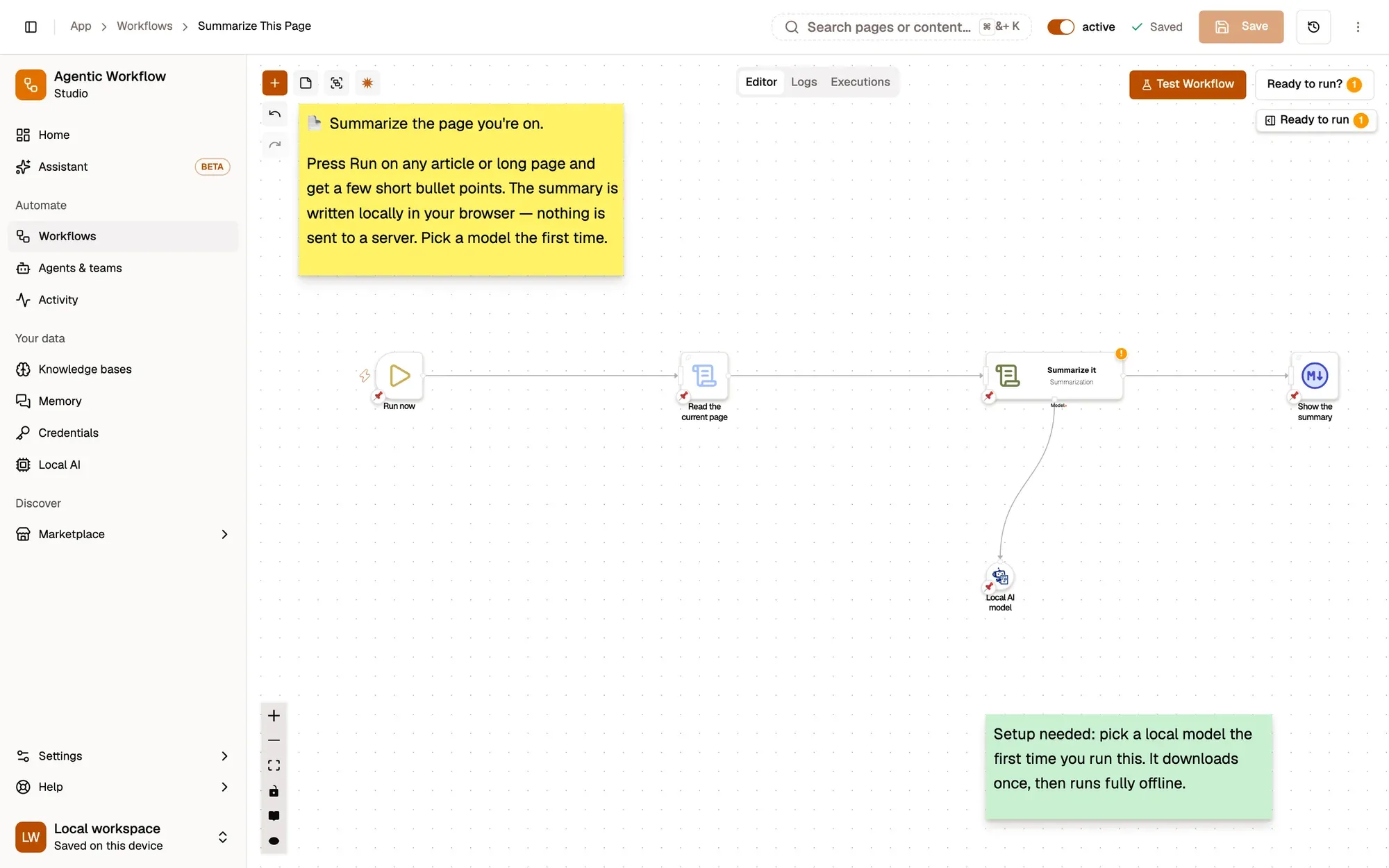
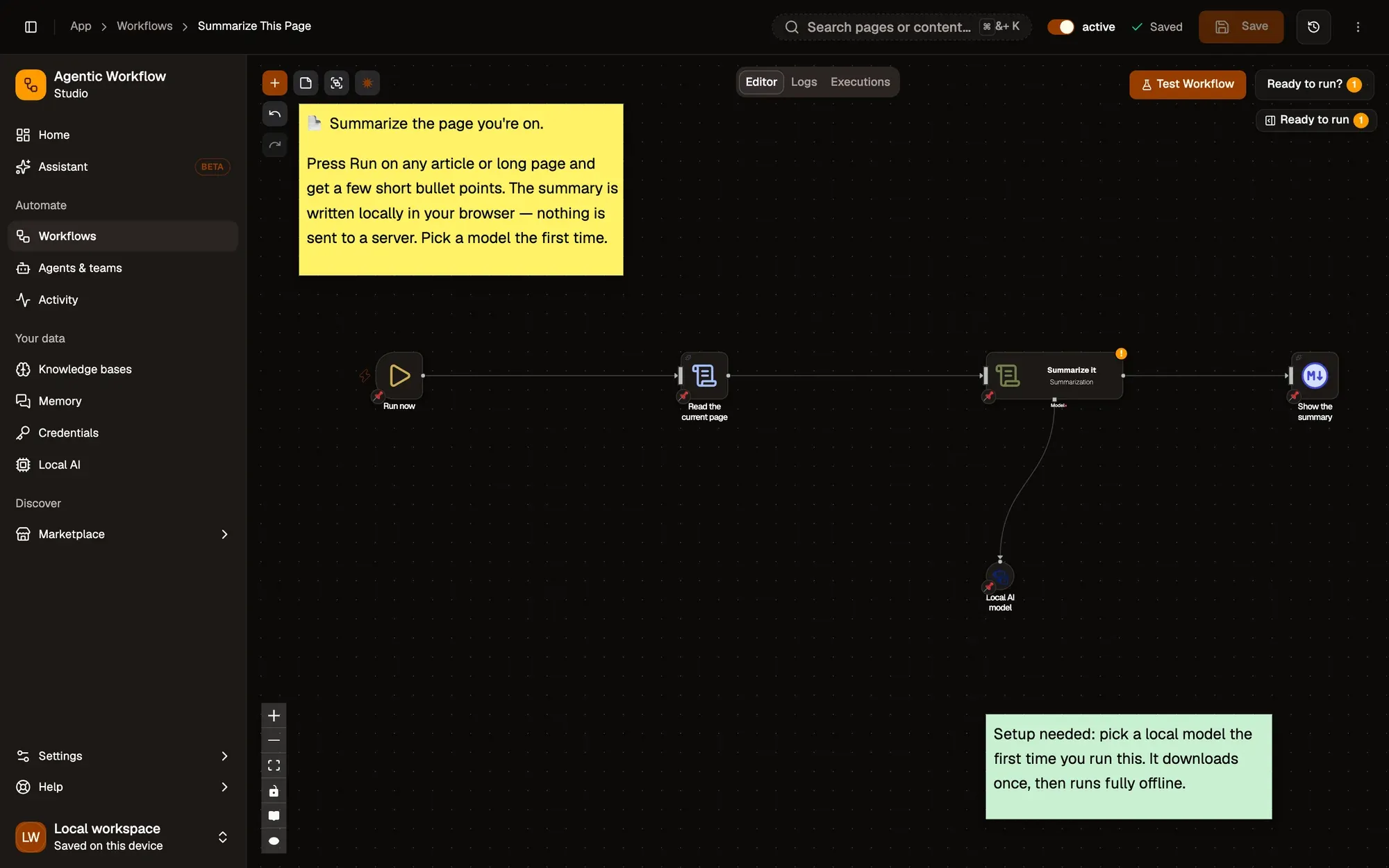
Summarize This Page: a workflow with 4 steps, starting with Run now and ending with Show the summary.
How it works
Section titled “How it works”-
Start it when you want
The workflow runs when you click Test Workflow, run it from the workflow list, or pick it in the right-click menu under Agentic Workflow.
Make it yours — swap it for a Hotkey trigger to summarize with a keyboard shortcut.
-
Read the current page
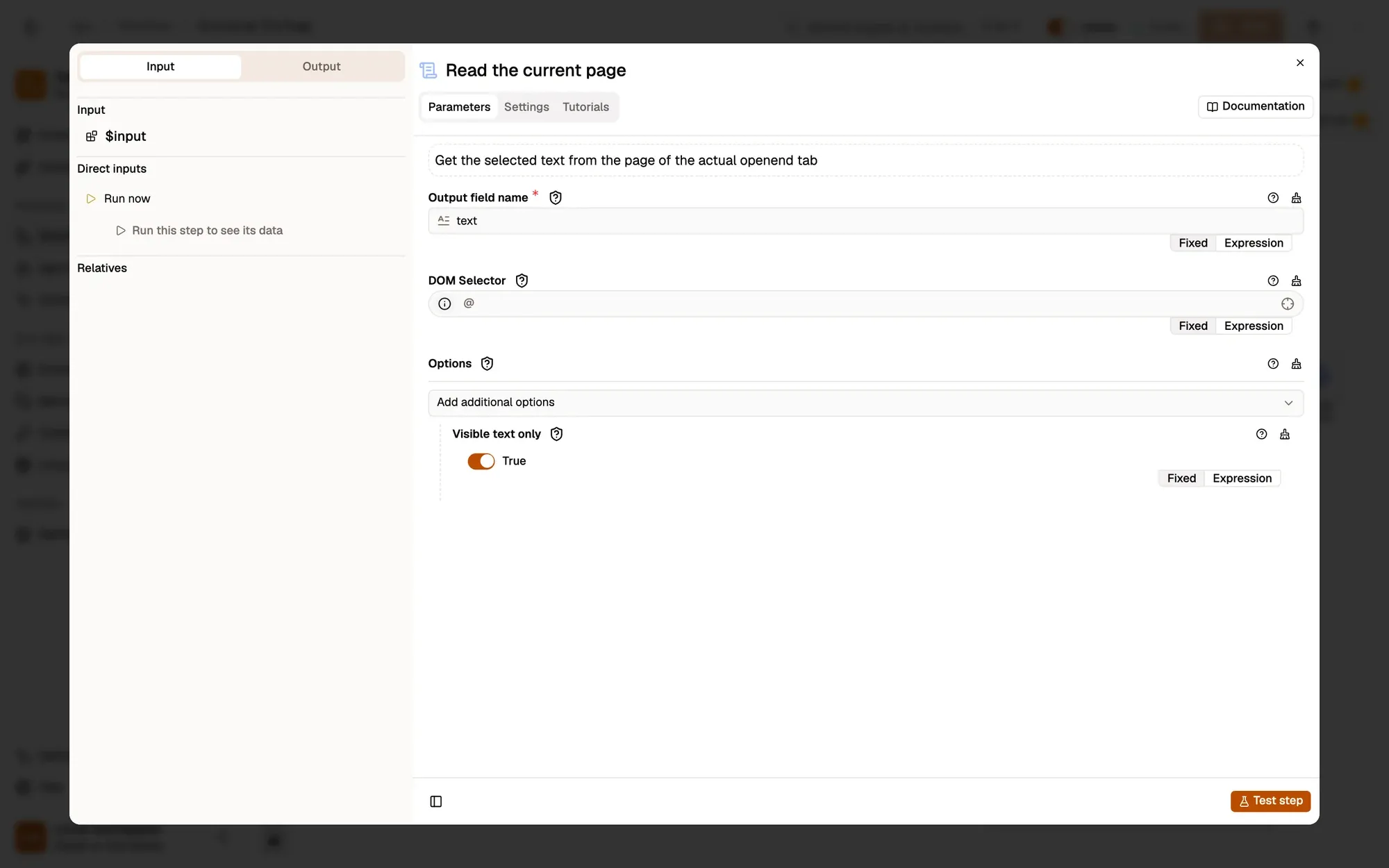
Takes the text you can see on the active tab (Visible text only is on), and puts it in the
textfield.Make it yours — set DOM Selector to
articleormainto skip menus, comments and footers. -
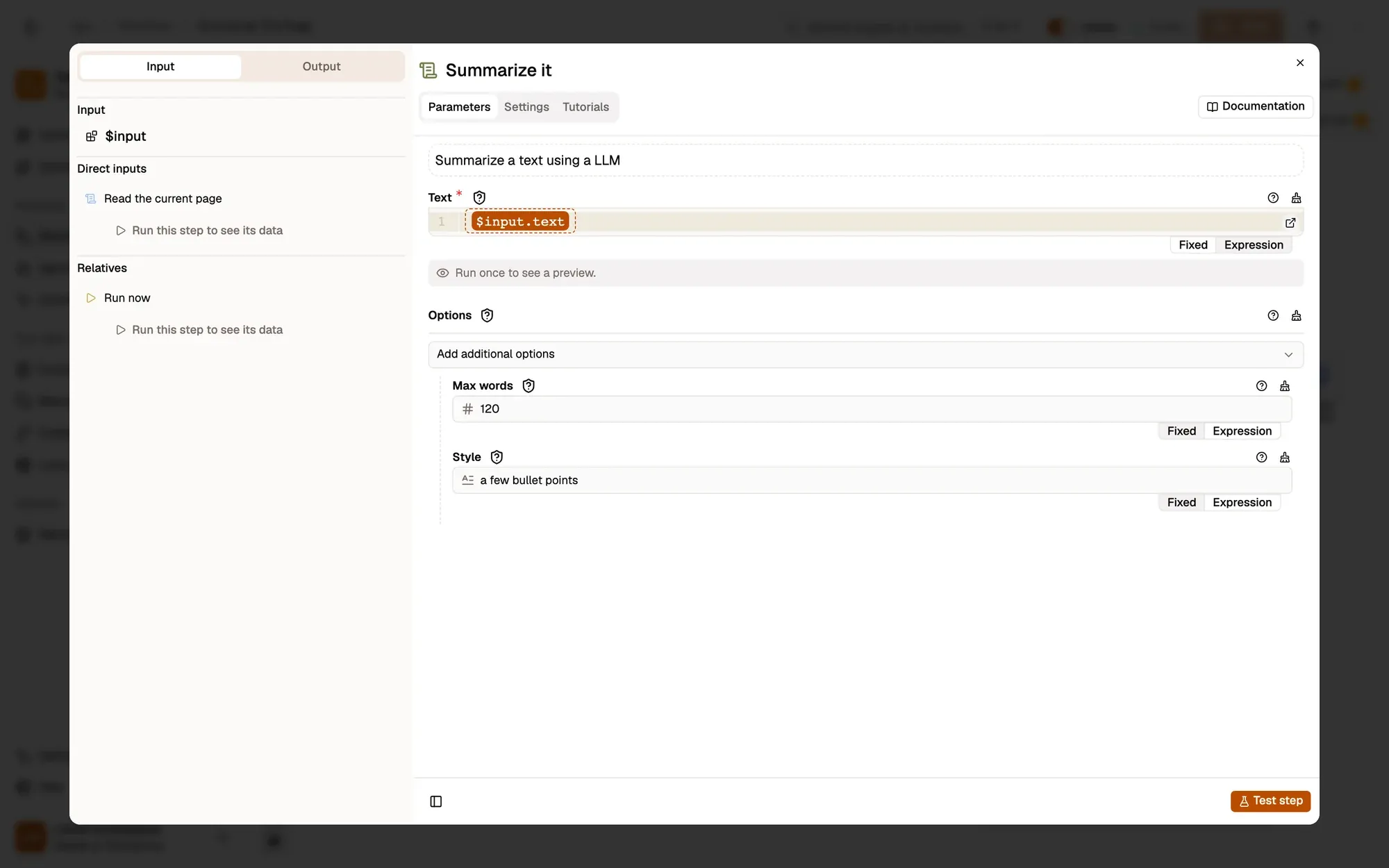
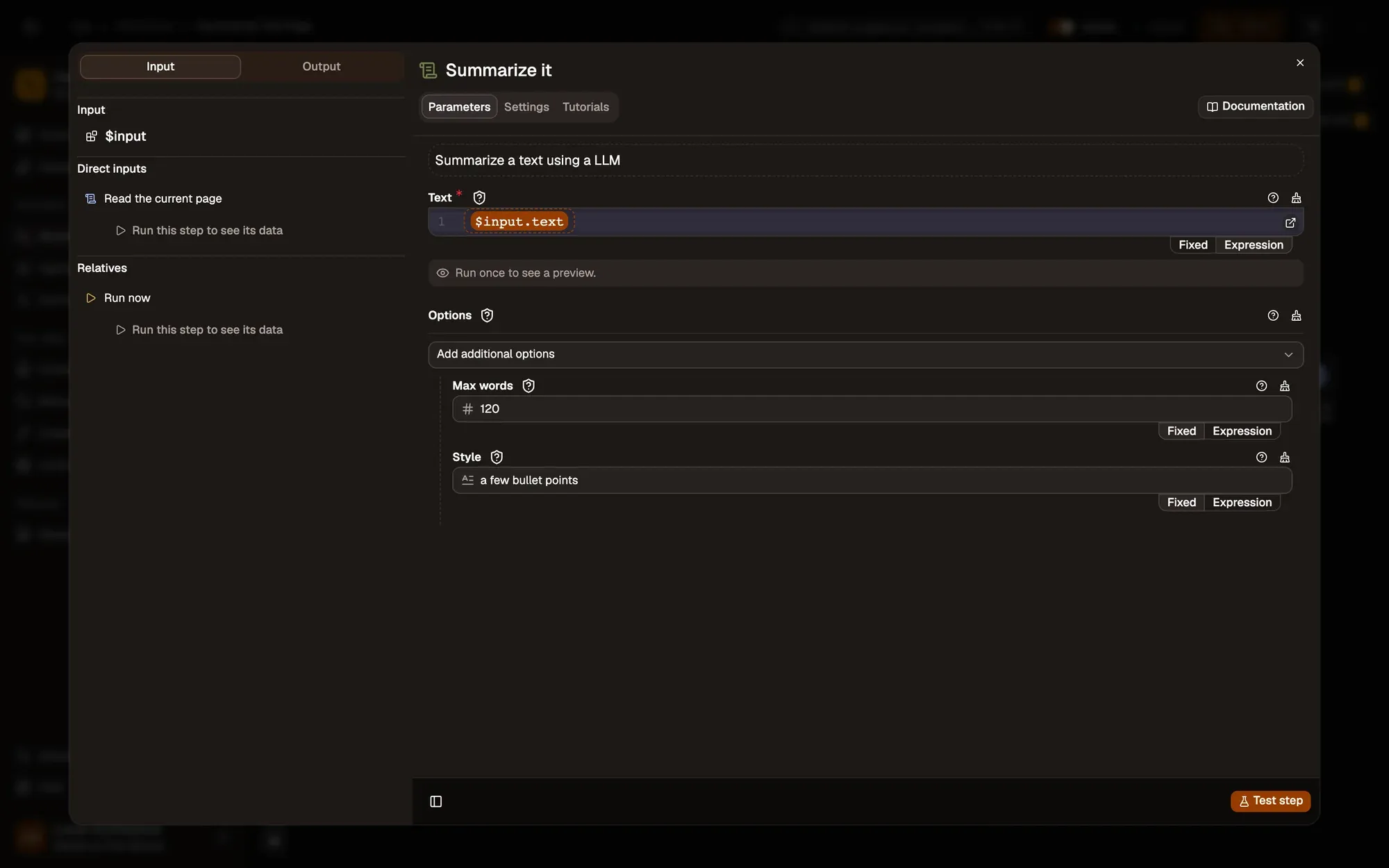
Summarize it on your device
Summarizationnode reference Web LLMnode reference
The Summarization node asks the Web LLM model for at most 120 words as a few bullet points. The model runs in your browser through WebGPU.
Make it yours — change Max words and Style (for example
one short paragraph), or pick a bigger model in Model. -
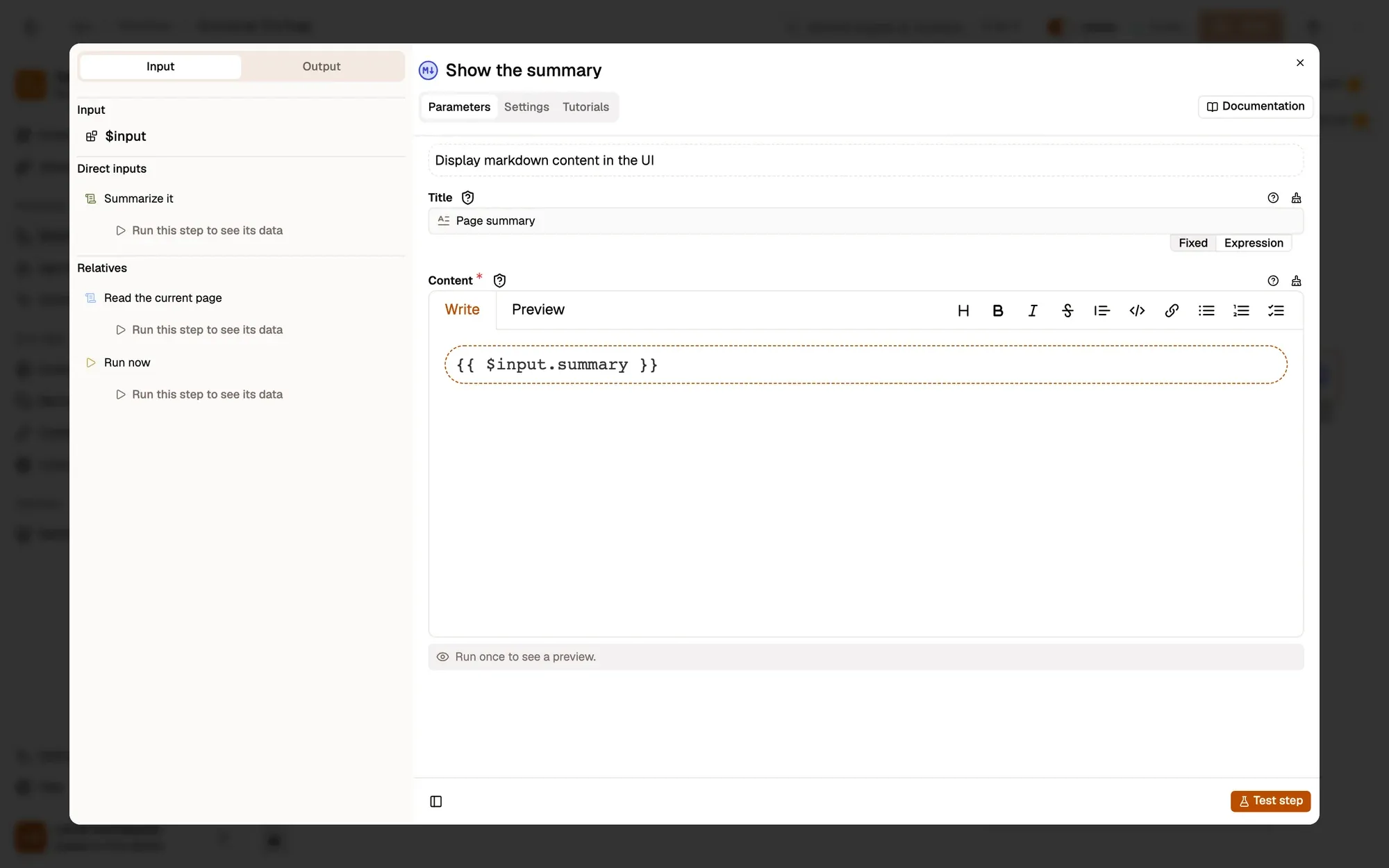
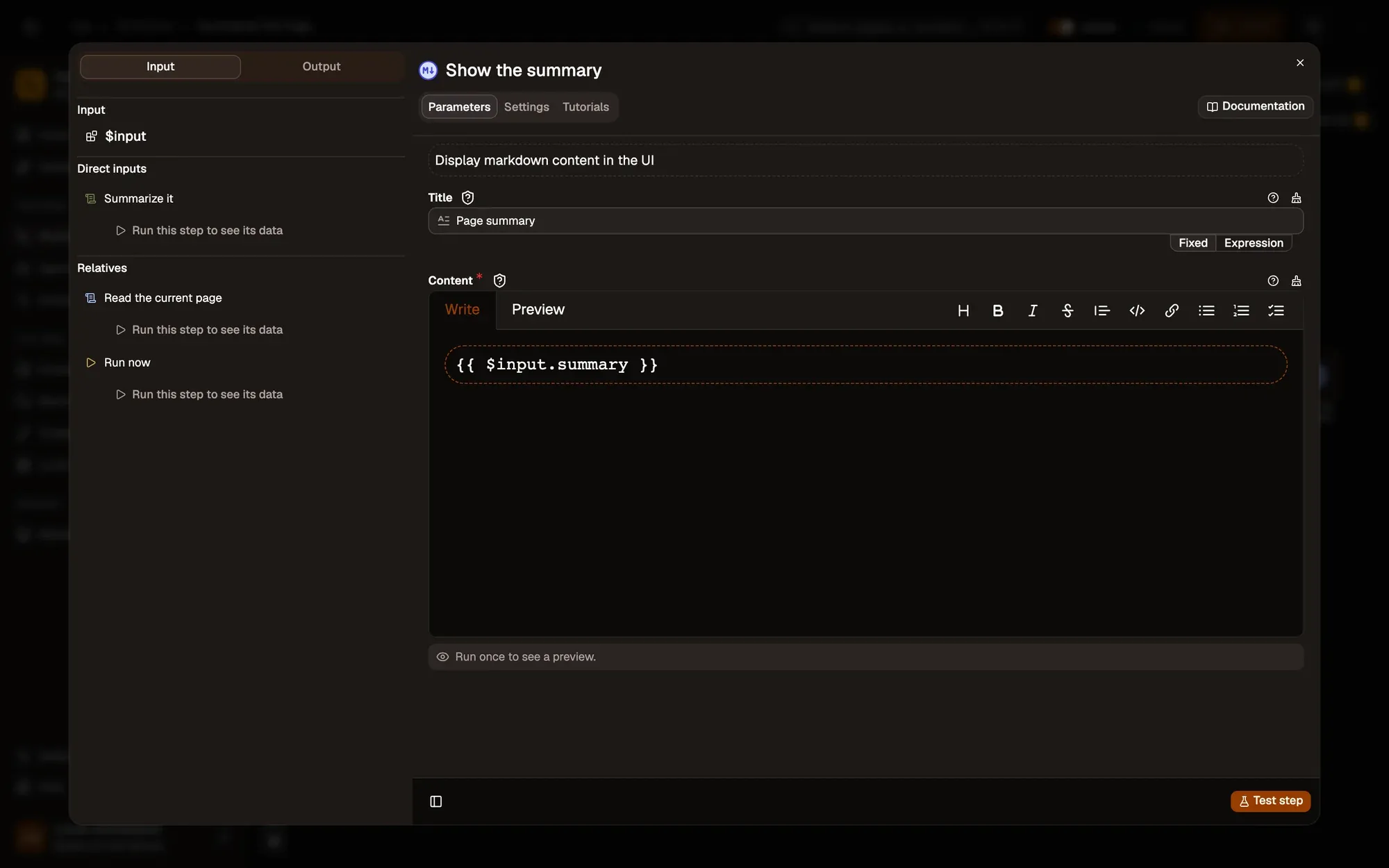
Show the summary on the page
Display Markdownnode reference
Display Markdown opens a panel in the bottom-right corner of the tab, titled Page summary, with a copy button.
Make it yours — rename the panel in Title, or send the summary somewhere instead (see the variations).
Test it
Section titled “Test it”-
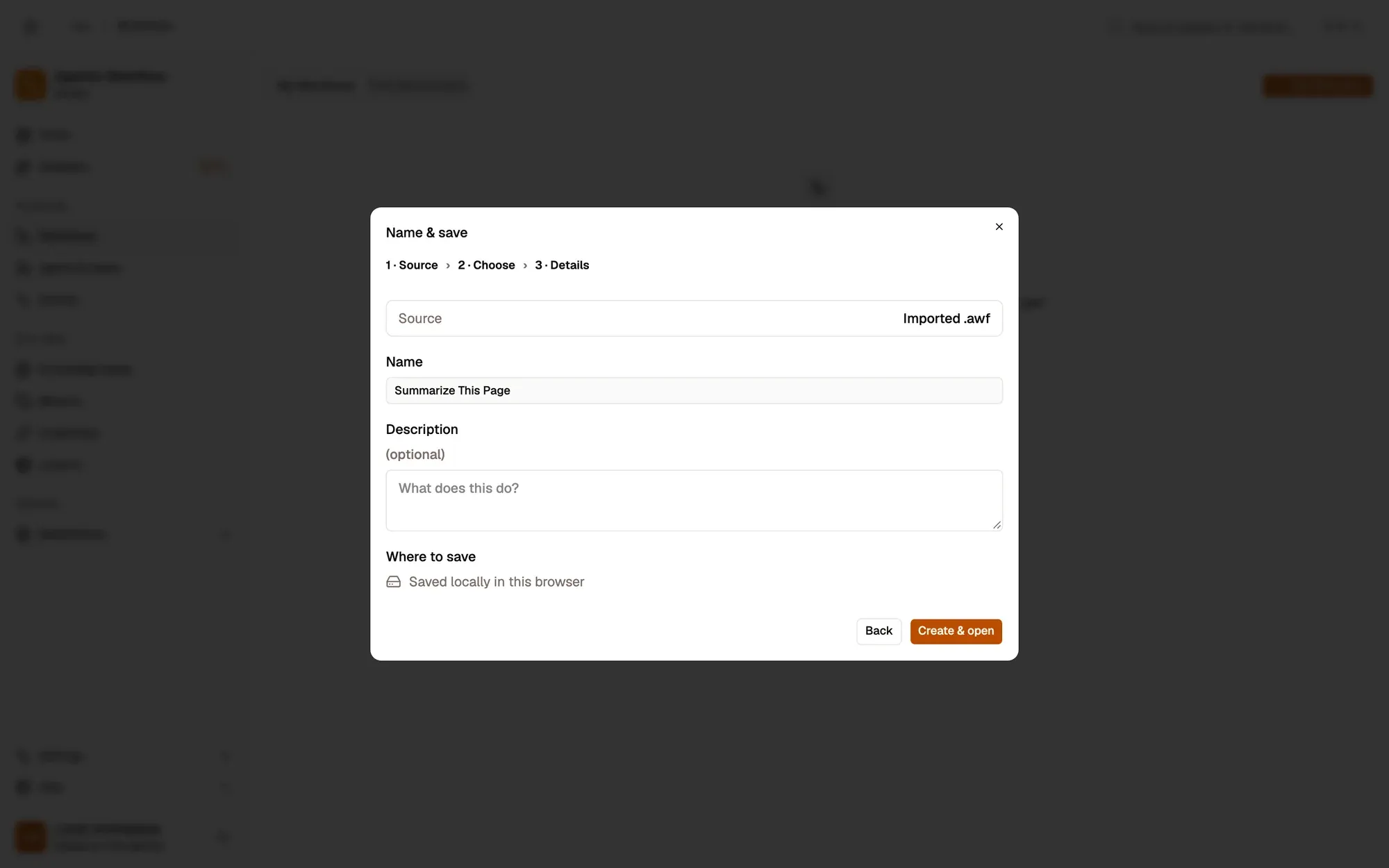
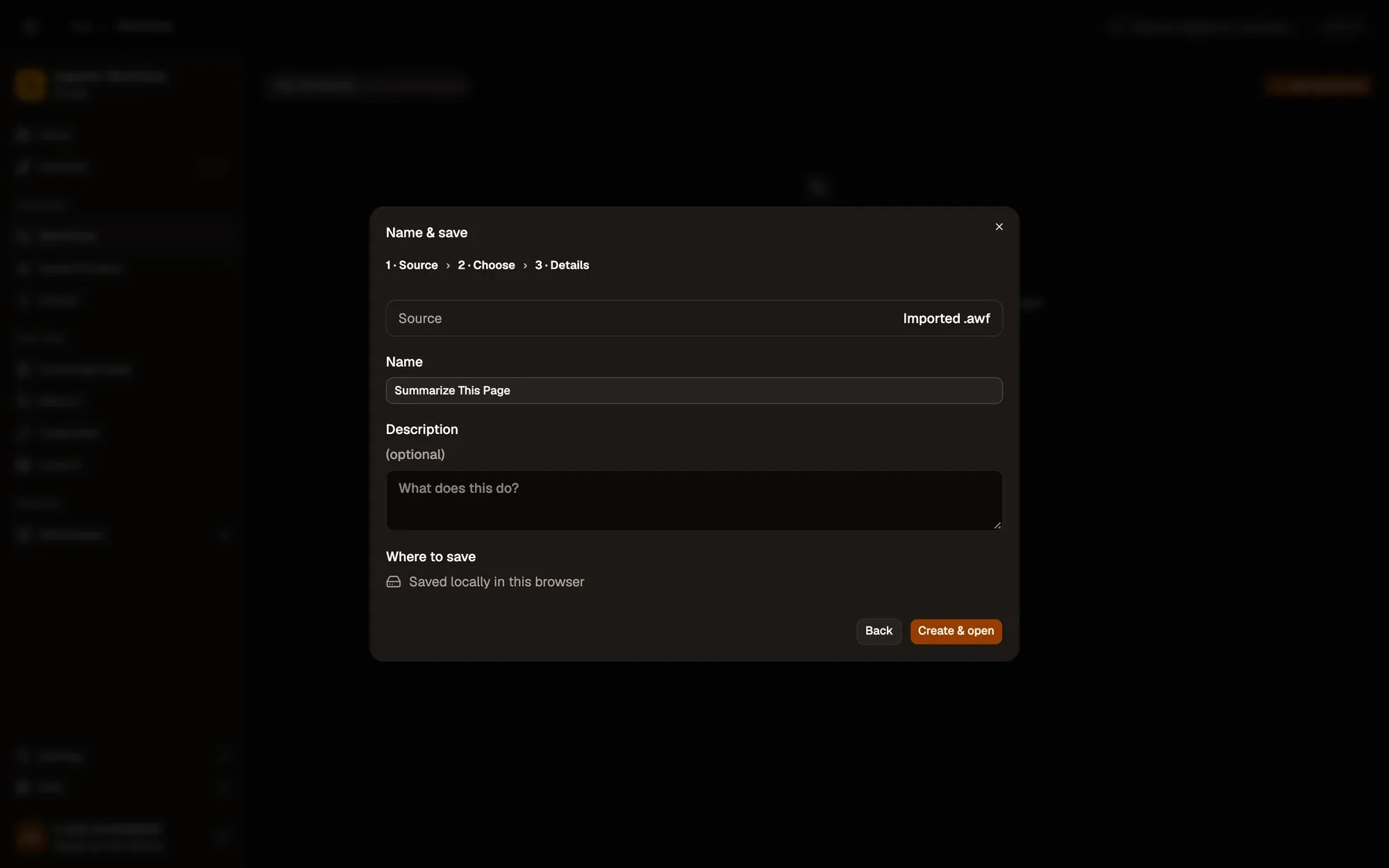
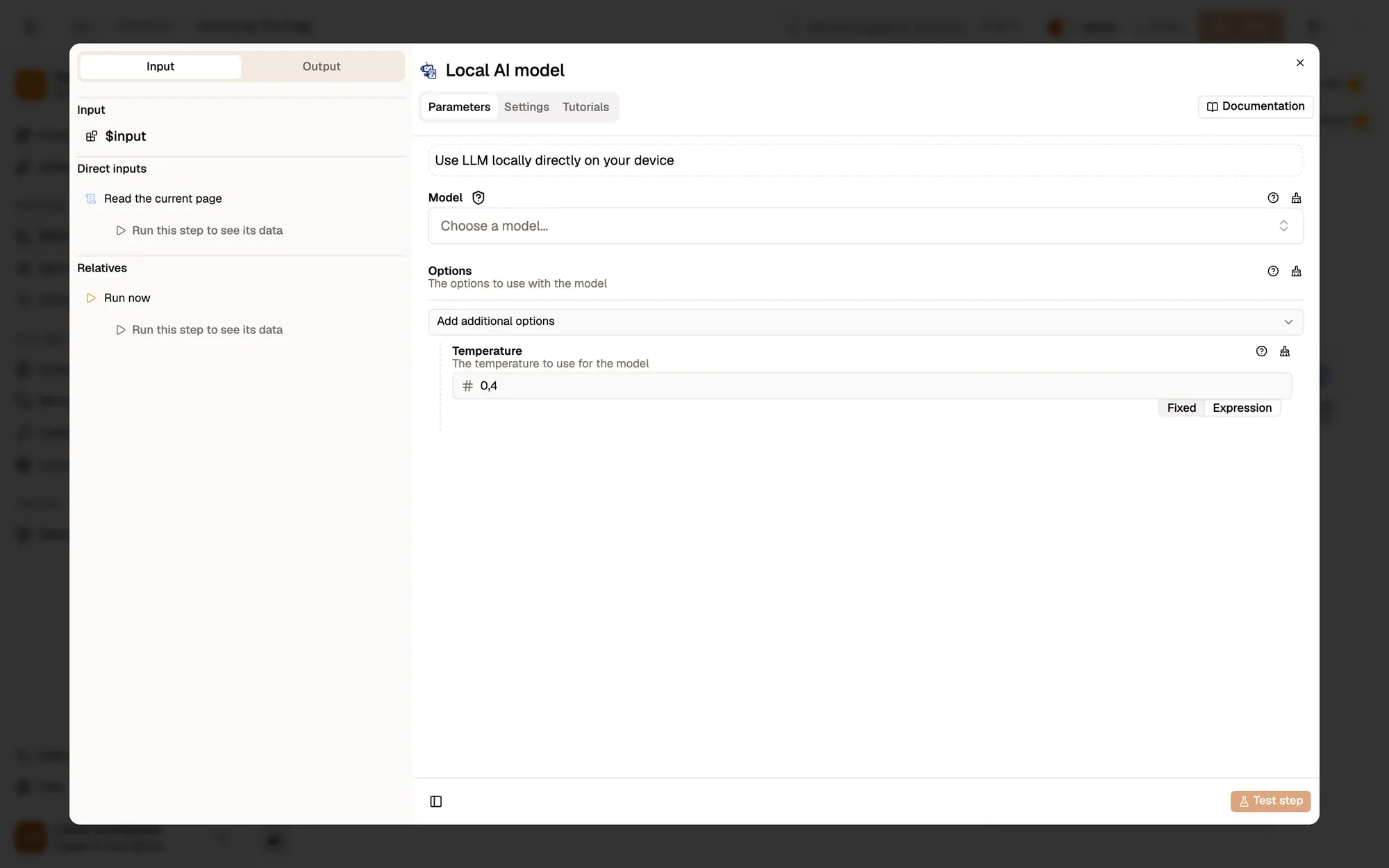
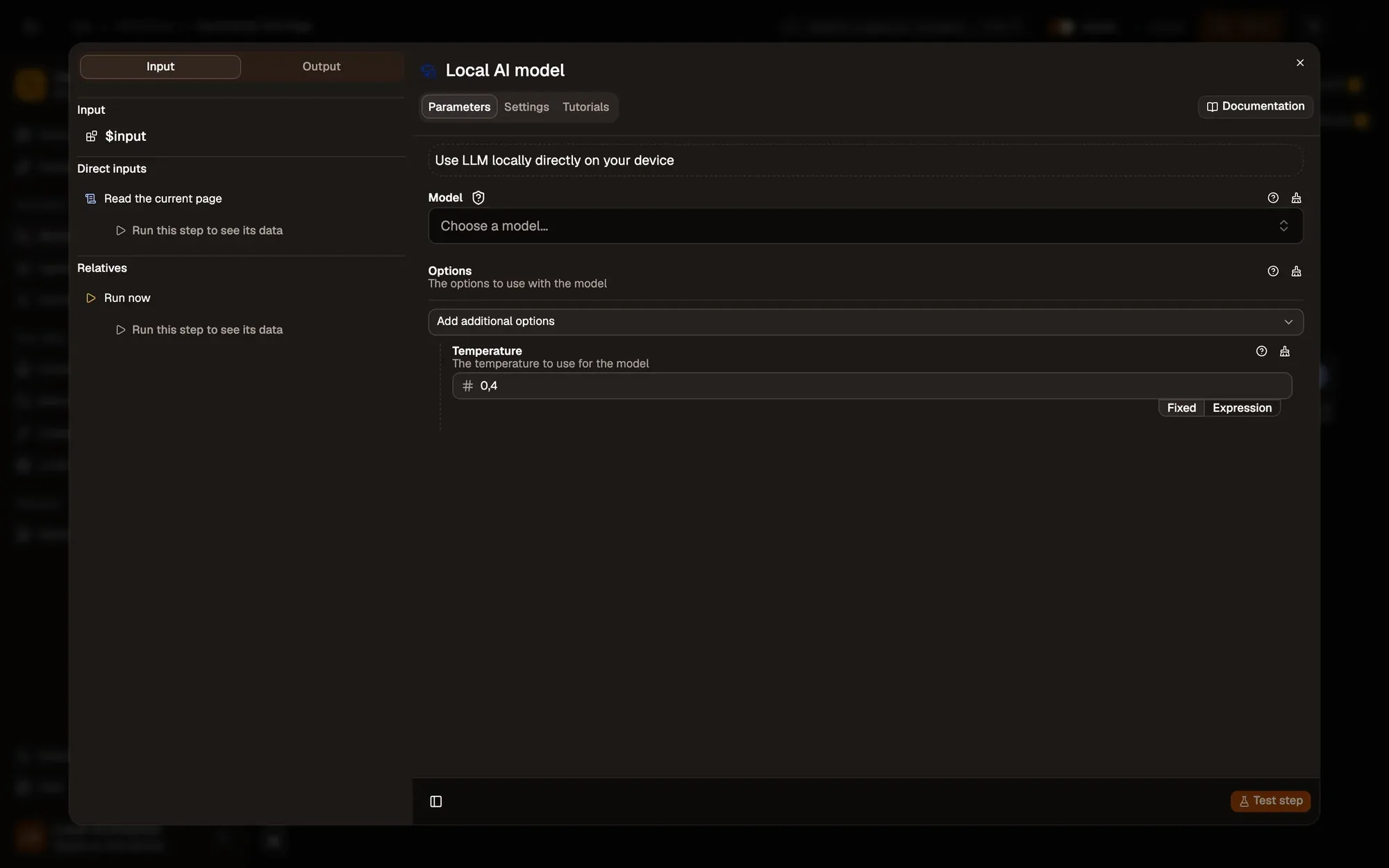
Install the recipe, open it on the canvas and pick a model in Local AI model. The first run downloads it once; installed models start right away. See Local models. To import the file yourself, use Add Workflow › Import, choose the
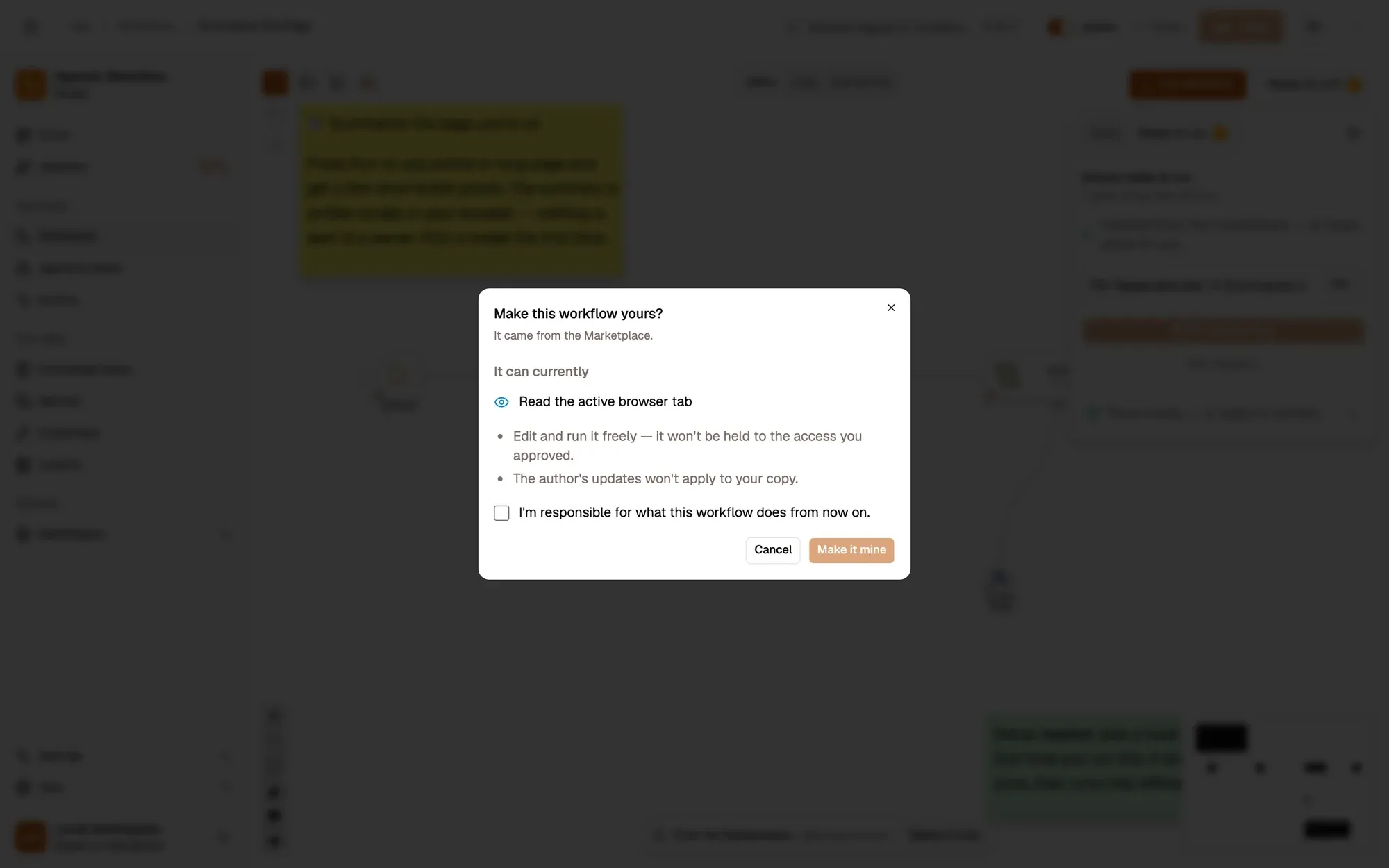
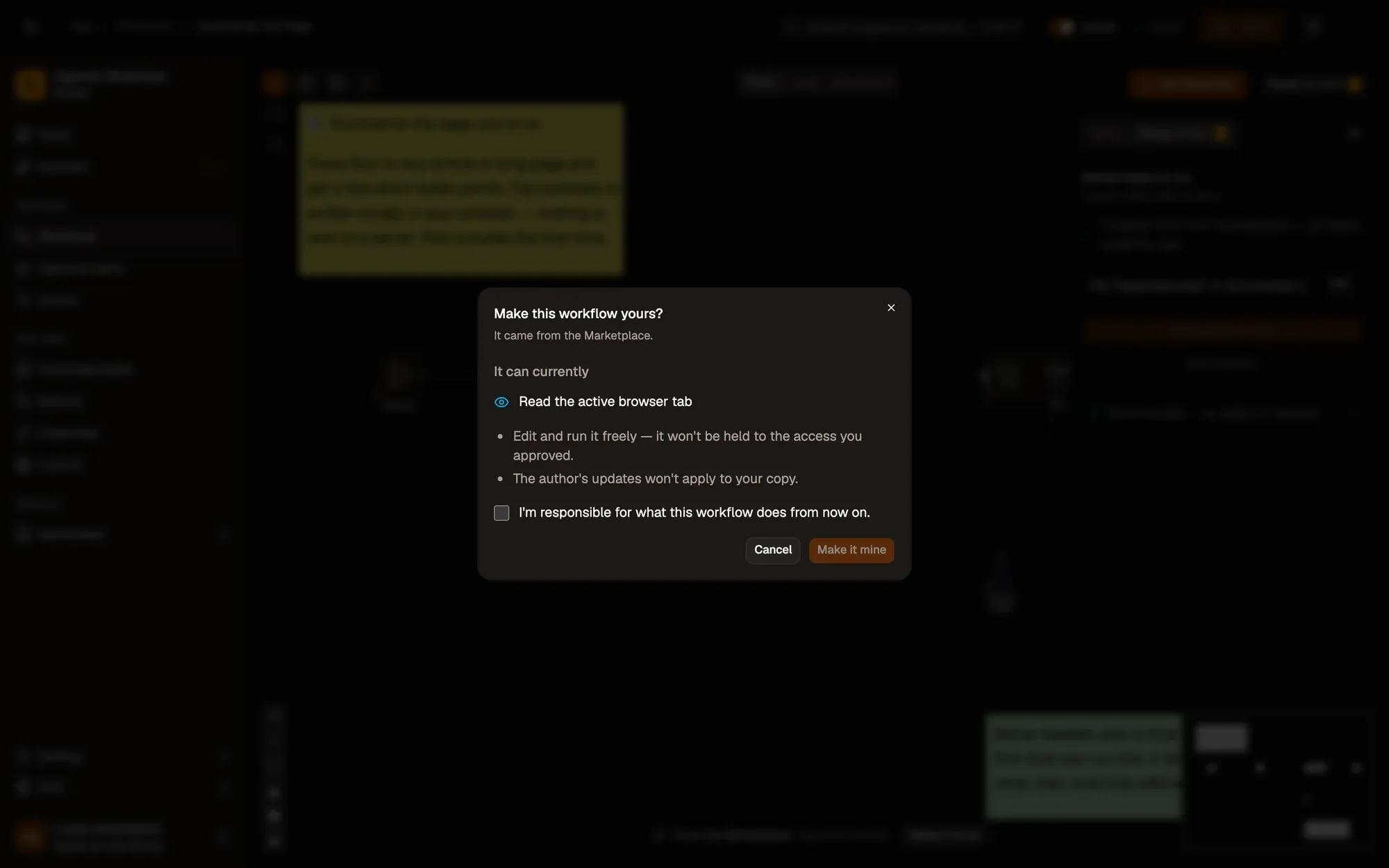
.awfand click Create & open. Then click Make it mine at the bottom of the canvas, tick the box and confirm, so you can edit it. -
Save and activate the workflow, then open a long article.
-
Right-click the article and choose Agentic Workflow › Personal Workflows › Summarize This Page. If it’s missing, choose Get / Refresh Workflows first.
-
A Page summary panel opens in the corner of the article with a few bullet points.
Variations
Section titled “Variations”| Variation | What to change | Level |
|---|---|---|
| Summarize only what you select | Replace Get All Text with Get Selected Text and a Context Menu trigger set to Selection. | Beginner |
| Use a hosted model for long pages | Plug OpenAI or Ollama into the Model slot instead of Web LLM. | Beginner |
| Keep a reading log | Connect Notion or Google Sheets to the Summarize step’s output as a second branch, to save each summary with the page’s title and link. | Intermediate |
Troubleshoot
Section titled “Troubleshoot”- The panel never appears. Display Markdown shows on the active tab. Run it from the right-click menu on the article itself, so the article is the active tab.
- The model doesn’t load. Web LLM needs WebGPU, which some browsers and graphics cards lack. Use Transformers Chat as the model instead.
- The summary covers the menu and the cookie banner. Set DOM Selector on Get All Text to the article’s container.