Find a model
Section titled “Find a model”The page groups models by task: Chat, Image classification, Object detection, Image segmentation, Depth estimation, Captioning, Moderation, Question answering, Text generation, Speech-to-text and Embeddings. Image segmentation splits an image into labelled regions (for example SegFormer); Depth estimation estimates how far each pixel is (for example Depth Anything). Both run through the Run Local Model node. Each task shows a preview and Show all.
Use the search box to filter by name, and the engine filter to narrow to WebLLM, TensorFlow.js or transformers.js.
Pick a variant
Section titled “Pick a variant”Models are listed the way you think of them, for example Llama 3.2 3B Instruct or ViT base. Open one to see its variants: the same model at different precisions (quantizations). A smaller variant trades a little quality for less memory and a faster load. Each variant shows:
- an ≈ estimated size (see Storage and sizes);
- a device fit: Fits comfortably, Tight fit or Exceeds memory, from your device’s estimated memory and hardware support;
- whether it’s installed.
The model detail view adds its task, engine and backend, context window, parameters, install footprint, a link to its source and a plain “good for…” summary. Performance on this device measures it, Use it in links to the nodes that accept it, and Also for this task lists related models.
Install and test
Section titled “Install and test”Step 1:Install a variant
Open the model and click Install on a variant under Variants. Downloads run in the background, one at a time: keep working, and cancel from the download panel in the corner.
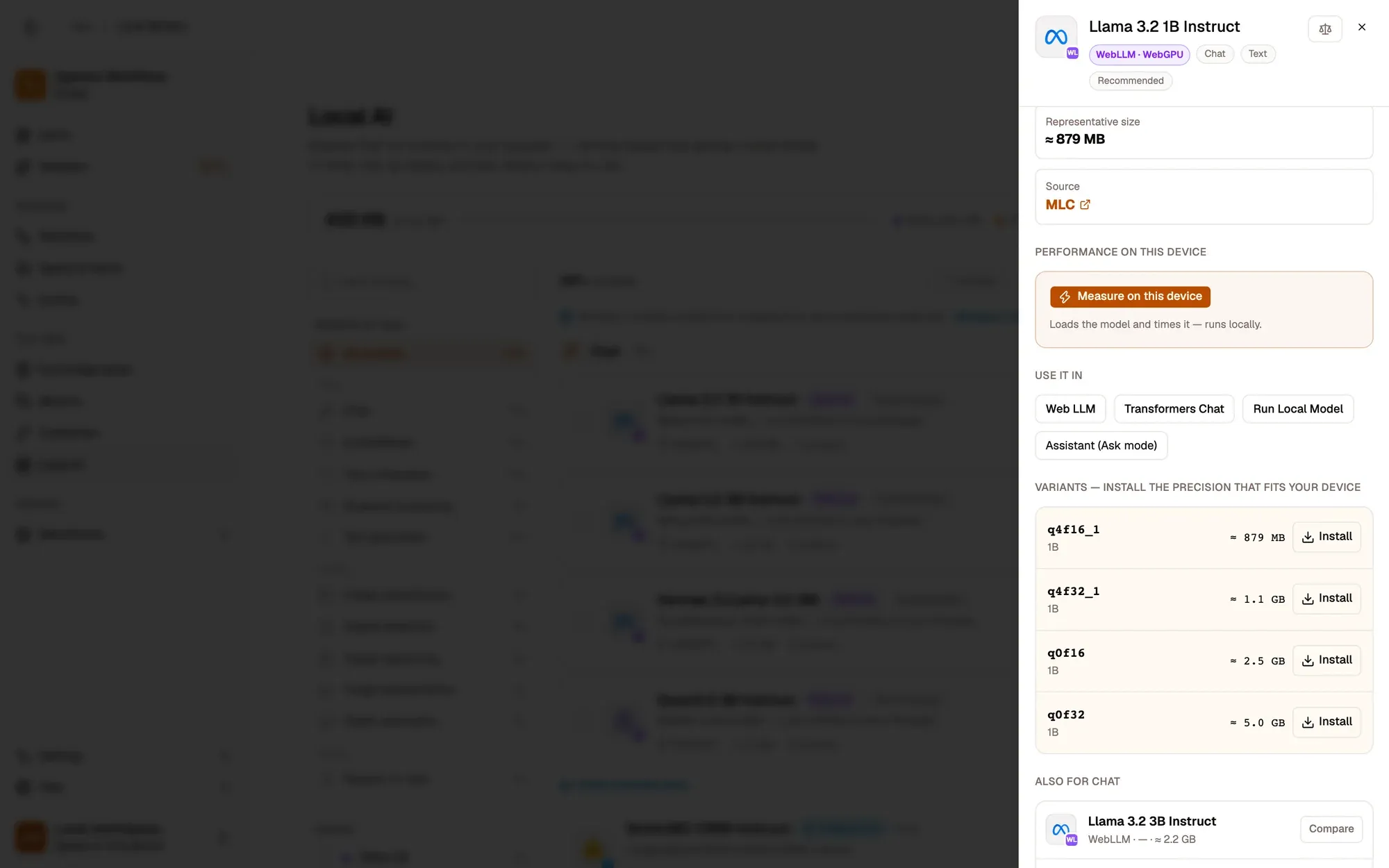
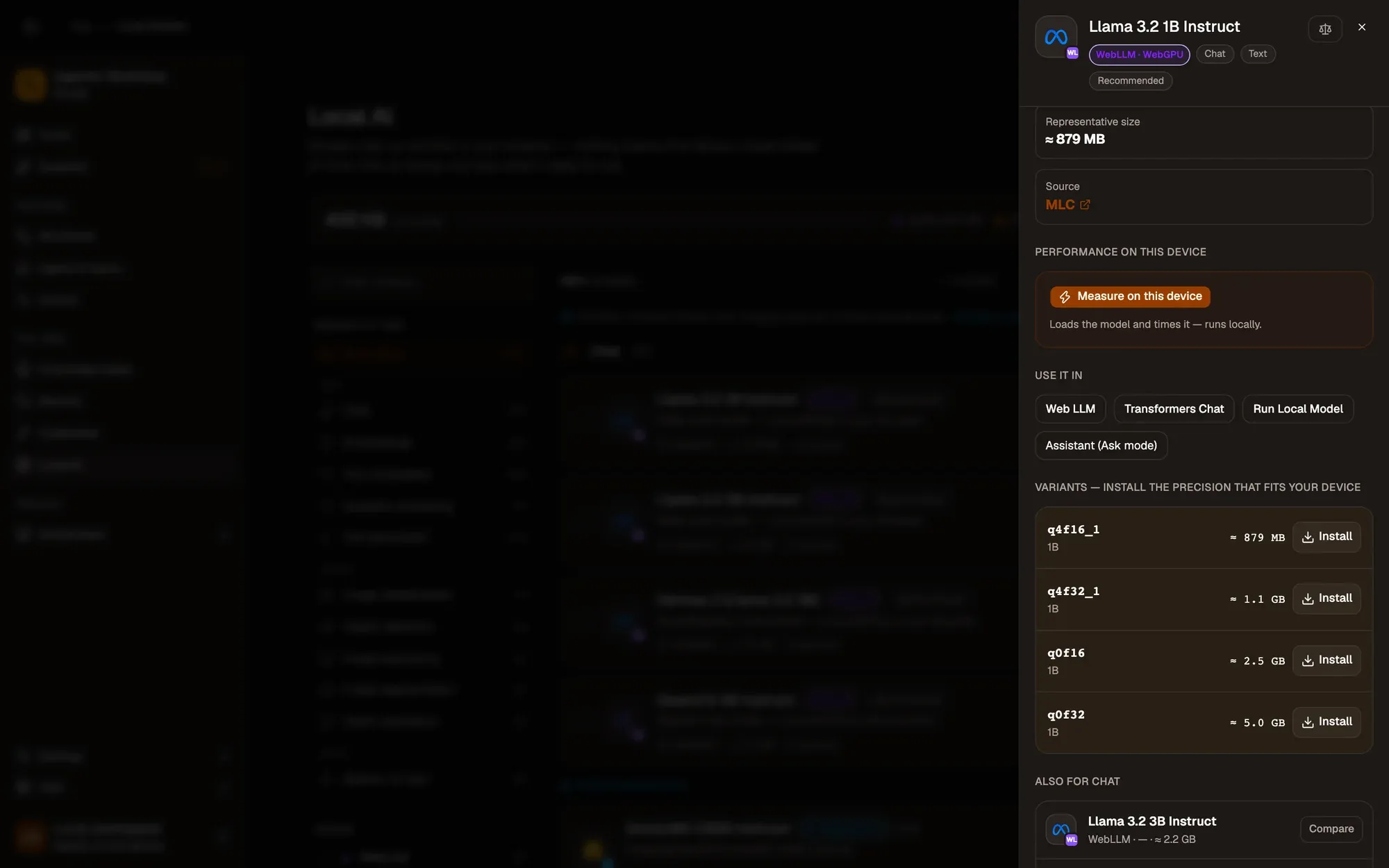
Check: the download shows in the download panel in the corner.
Step 2:Test it
When it’s done, click Test. AWFlow loads the model and runs a quick check, to confirm it works on this device.
Check: the test ends without an error.
Step 3:Make it your default (chat models)
For a chat model, click Set default to make it your default in-browser model. The assistant prefers it, and new Web LLM nodes are pre-filled with it.
Models that exceed your device’s estimated memory are still shown and installable, with a warning: they may run slowly, fail to load, or be meant for another machine.
Remove a model
Section titled “Remove a model”Remove a variant to delete its weights and free space. A workflow or the assistant set to that model downloads it again the next time it runs.
Storage and sizes
Section titled “Storage and sizes”The header shows how much browser storage your models use, out of what’s available, split across the three engines. This total is measured by your browser.
Per-model sizes are measured where the engine exposes real bytes (transformers.js and TensorFlow.js graph models), and estimated (marked ≈) where the browser doesn’t expose an exact figure.
Keep models installed
Section titled “Keep models installed”Browsers can delete stored data, including multi-gigabyte models, when space runs low. Keep models installed asks the browser to treat your models as persistent. When granted, the header shows Protected. See also Storage & clean-up.