When you’re building a workflow, you usually want to test it as you go.
AWFlow gives you two ways to do that:
- Run the whole workflow (end-to-end)
- Run one step (and only what’s needed before it)
flowchart LR
  Page["Target page"] --> Full["Test Workflow"]
  Page --> Step["Test step"]
  Full --> All["Run every connected node"]
  Step --> Needed["Run only required upstream nodes"]
  All --> Logs["Inspect outputs and logs"]
  Needed --> Logs
  class Page awf-trigger
  class Full,Step awf-flow
  class Logs awf-ok
Run the whole workflow (full run)
Section titled “Run the whole workflow (full run)”Use this when you want to see the complete result from start to finish.
Step 1:Click Test Workflow
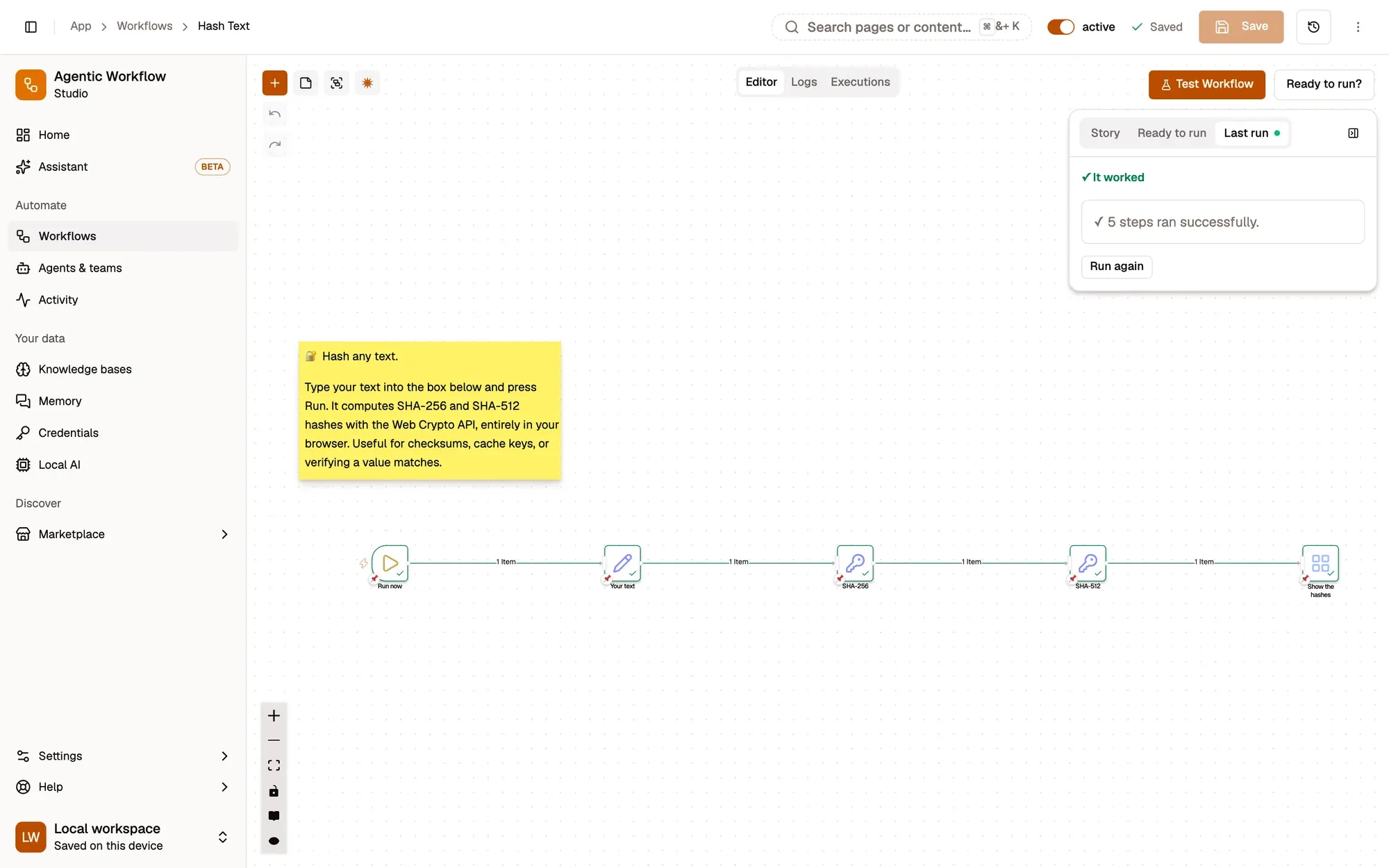
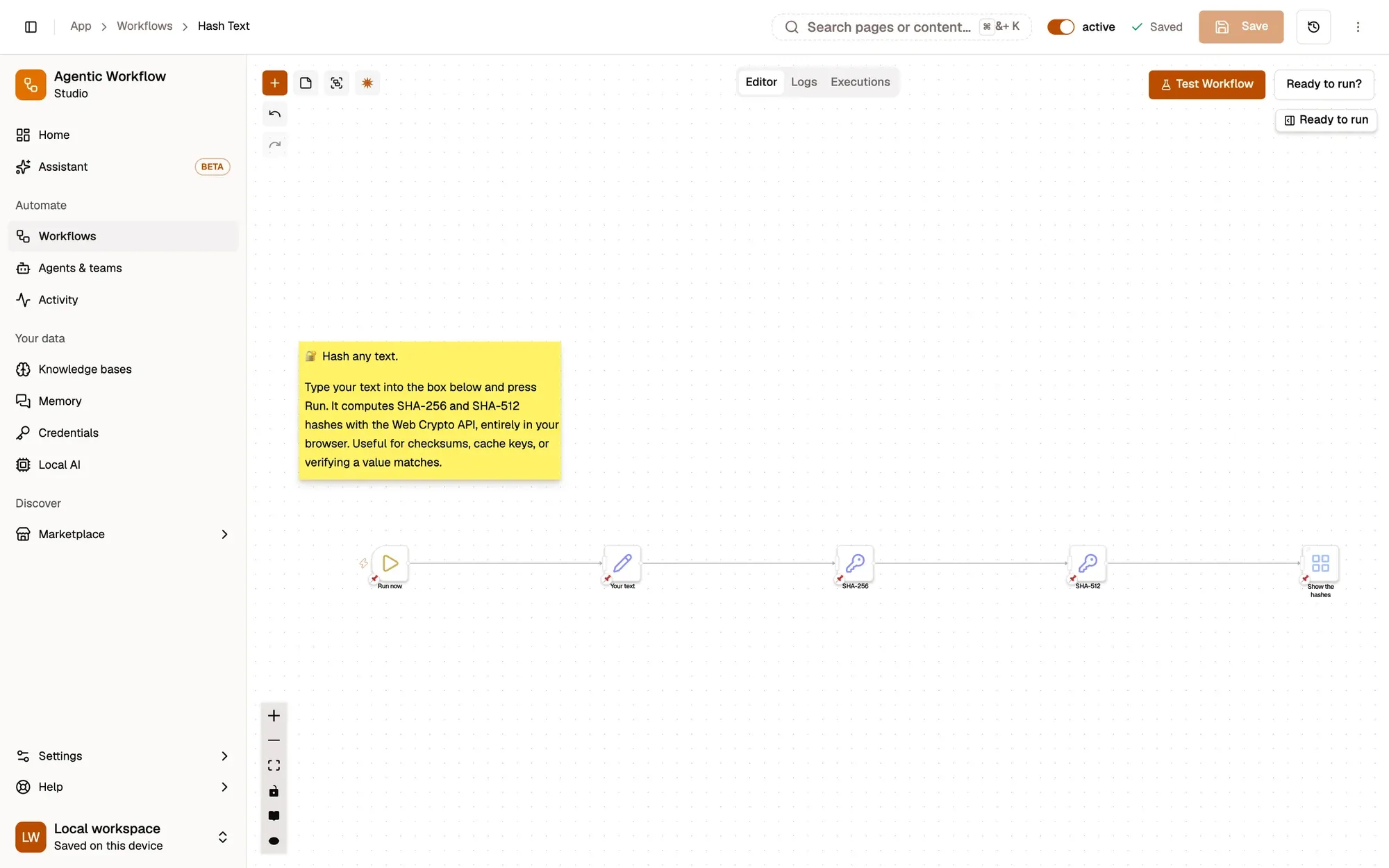
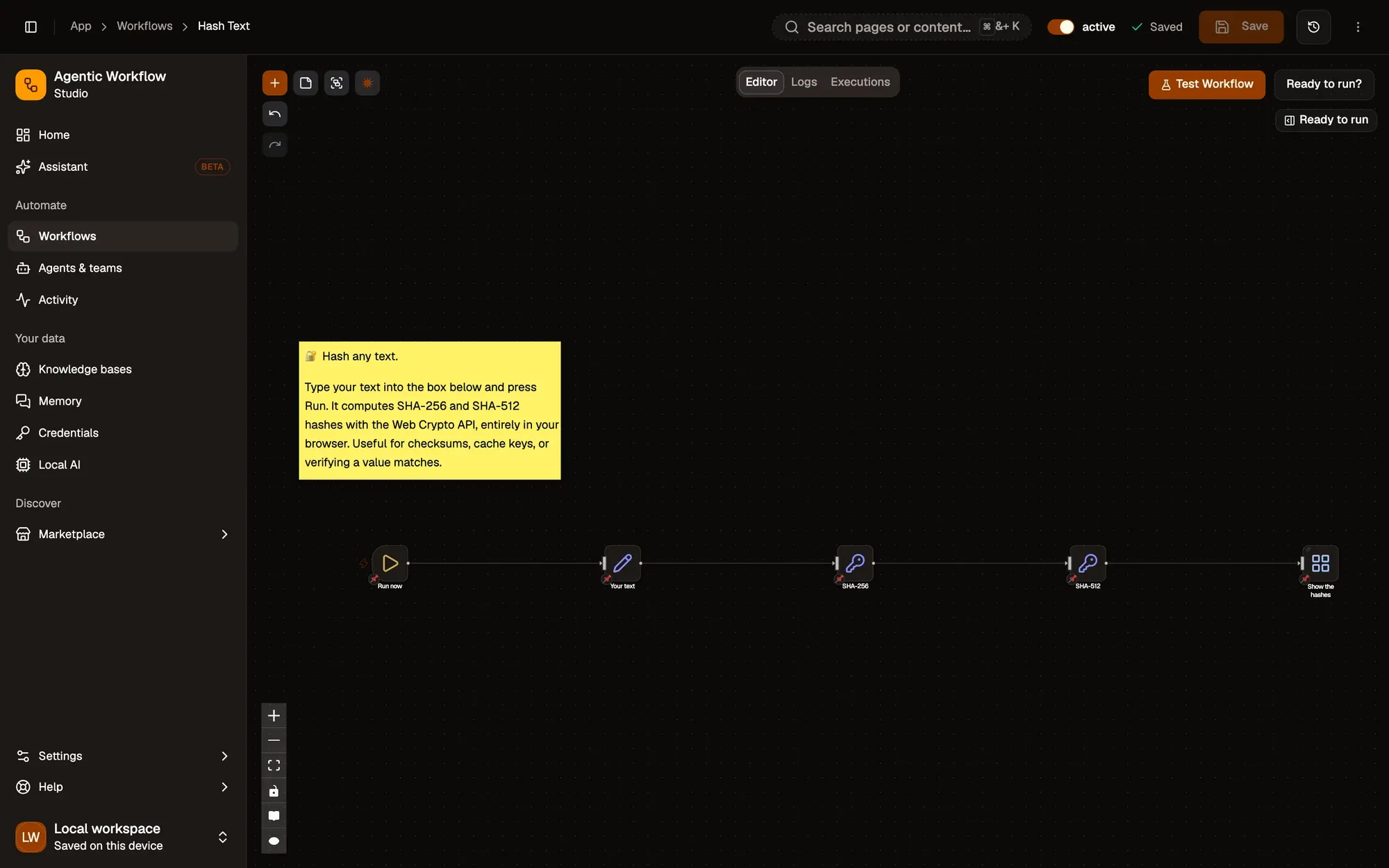
Open the page you want the workflow to work on, then, on the canvas, click Test Workflow. The workflow runs step by step, and the button turns into Running… 2 of 4 | Stop so you can see how far it got.
Step 2:Read the Last run tab
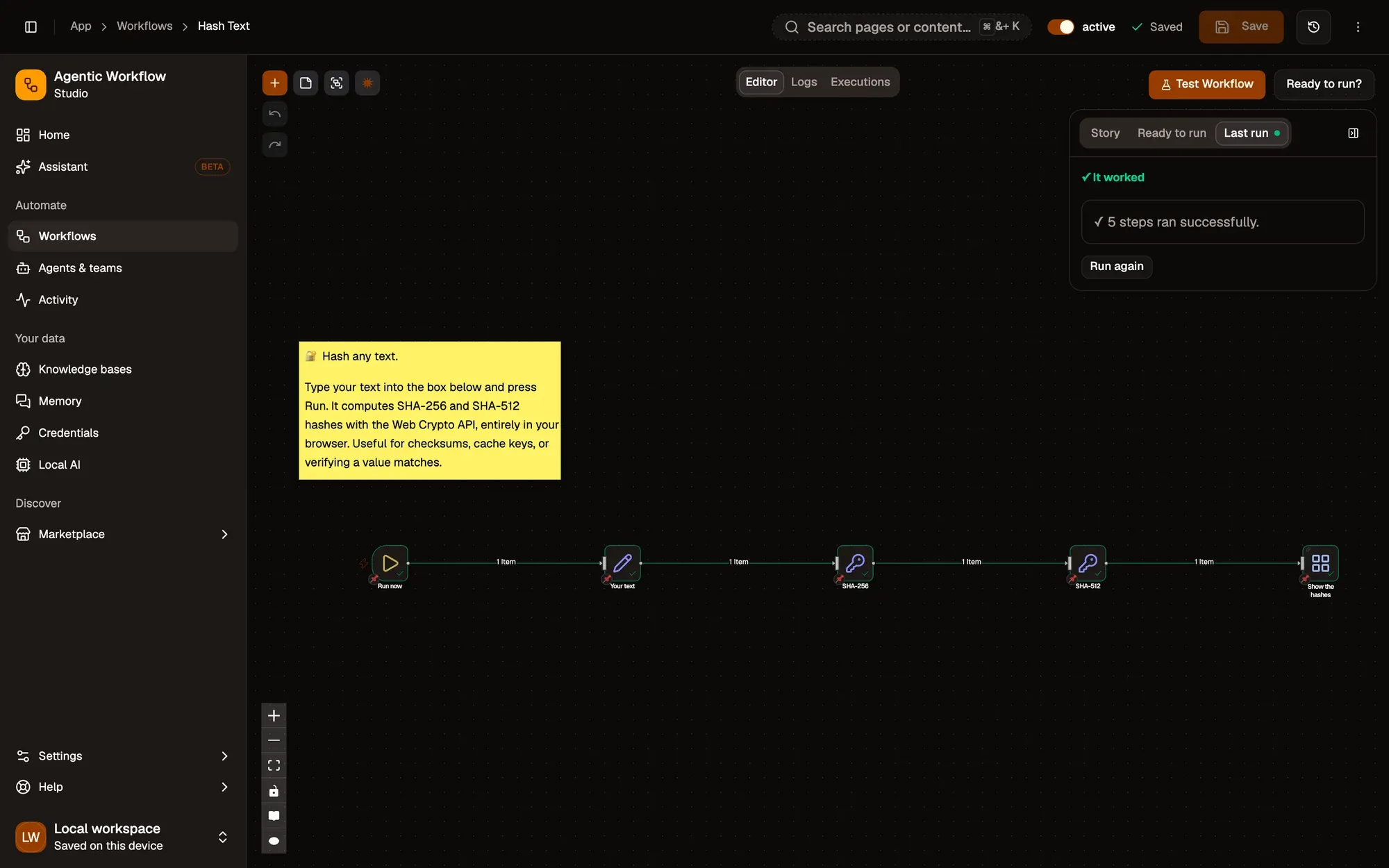
When the run ends, the Last run tab of the panel on the right says what happened in plain words. Run again starts it once more.
Check: it says It worked, or explains what went wrong.
Step 3:Check each step
Each step that ran has a green check, and each connection shows how many items passed along it. Double-click a step to see its input and output.
One run at a time
Section titled “One run at a time”While a run is in progress, every other way to start one — Test Workflow, a node’s play button, Test step, Run again, Run once to test — is disabled, with a tooltip saying why. Two runs at once would mix their outputs and logs.
You can keep editing during a run. Your changes don’t affect the run in progress, and they stay marked as unsaved until you save.
Stop a run
Section titled “Stop a run”Click Stop on the running button. The step that is already running finishes; nothing after it starts. The run is recorded as canceled, and the Last run tab shows how many steps ran before it stopped.
When a run fails
Section titled “When a run fails”The Last run tab explains the failure in plain words instead of showing the raw error:
- What happened, e.g. “Get weather couldn’t reach the service.”
- Why it probably happened — a network problem or a site that blocks requests from the browser, a refused key (401 / 403), a rate limit (429, with a countdown when the service says how long to wait), a used-up quota, a missing connection or a field that needs attention.
- Try this — a few concrete things to do, and a button to open the step’s settings, reconnect it or run again.
- Show technical details — the step, time, run id, the error the step reported and its input, with Copy details for a bug report.
You get a single notification for a failed run, and only when the panel isn’t on screen (for example when the run was started from the workflow list or the tab was in the background). Testing a single step still shows a short notification when it fails.
Run one step (partial run)
Section titled “Run one step (partial run)”Use this when you’re adjusting one node and want fast feedback.
When you run a step, AWFlow will also run any steps before it that are required to provide input.
Step 1:Open the step's settings
Double-click the step you want to test.
Step 2:Click Test step
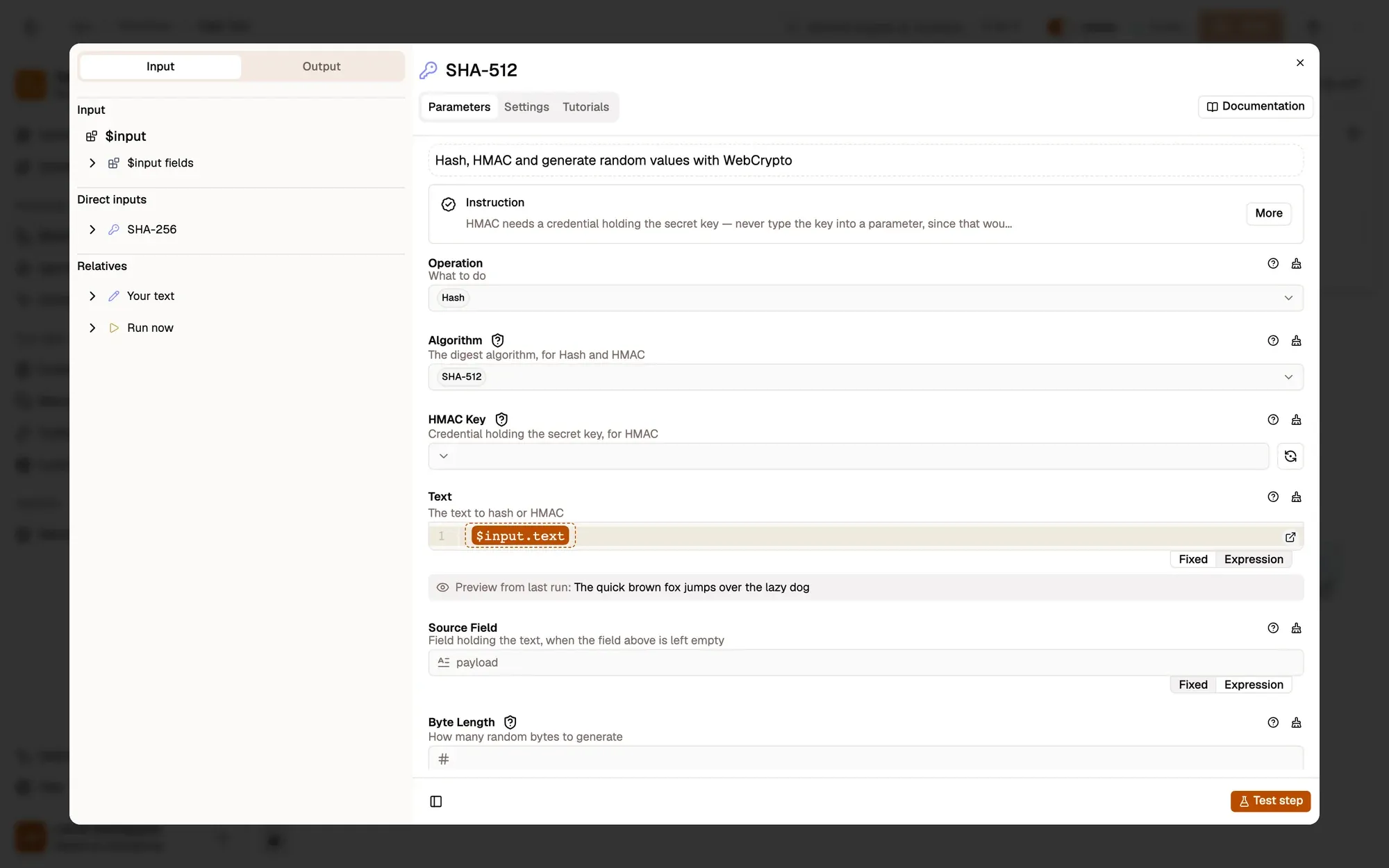
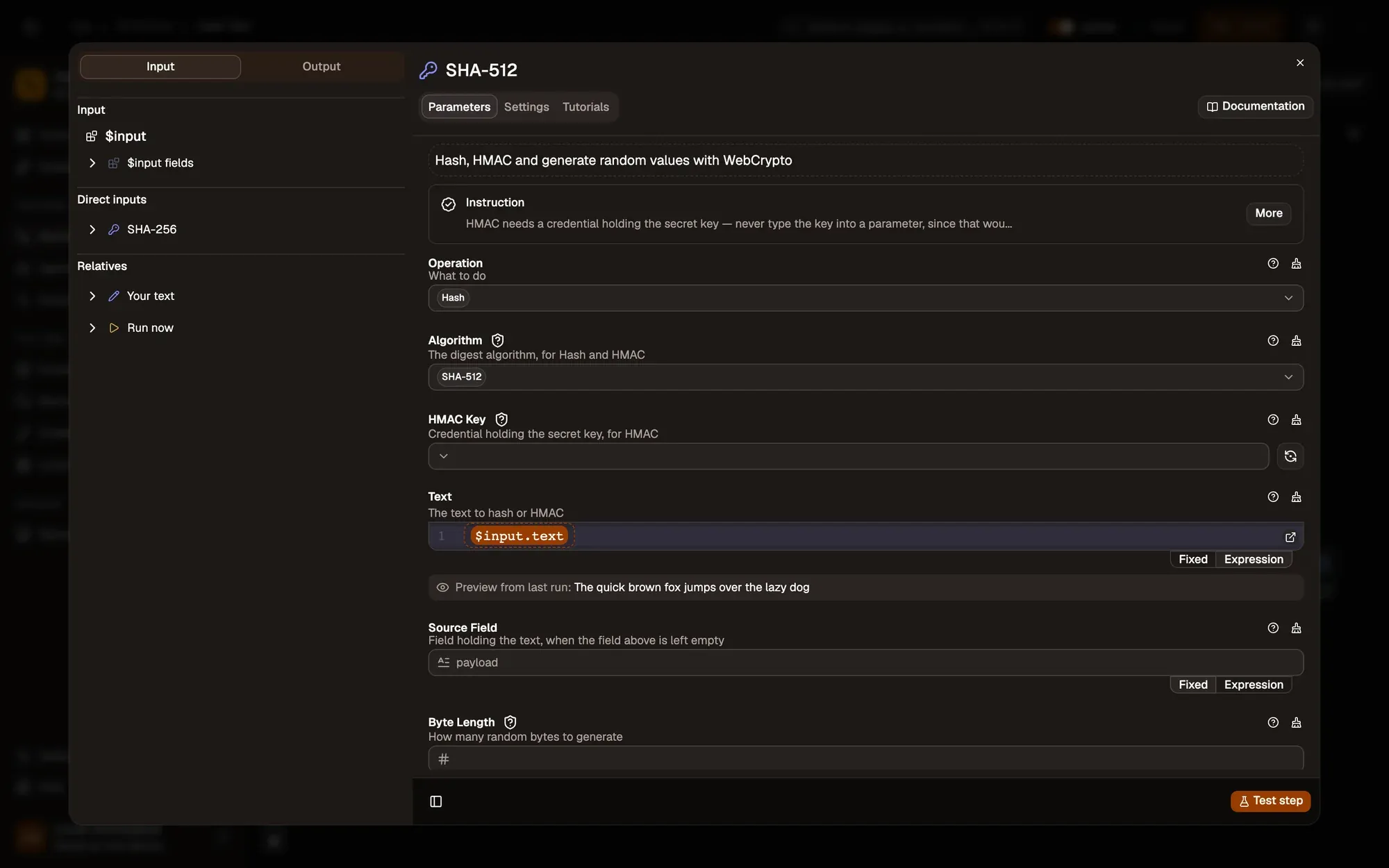
Check: the Output side of the panel shows what the step returned.
You can also right-click a step and choose Test Step.
If you don’t want parts of the workflow to run while testing, temporarily disable those nodes.
Manual and automatic runs
Section titled “Manual and automatic runs”- A manual run is one you start yourself: from the canvas, the workflow list or the right-click menu.
- An automatic run starts from a trigger, such as a schedule or a page load. The workflow must be Active. See Automatic runs with triggers.
- A run that reaches a Wait For Approval node pauses until someone approves, rejects or cancels it in the Executions panel.