Skip to content
Agentic Workflowdocs
v0.8.2Install free

use the app / settings

Site access

Review, turn off, or remove the websites and apps each workflow is allowed to use

Settings › Site access lists the websites (hosts) and connected apps each workflow is allowed to use.

You don’t add entries here. A workflow asks the first time it needs a website or an app’s credential, and you choose to allow it. If you tick Always allow for this workflow, the permission is saved and shows up on this page. Installed and imported workflows always ask; your own workflows ask only when Safe mode is on.

Step 1:Run the workflow

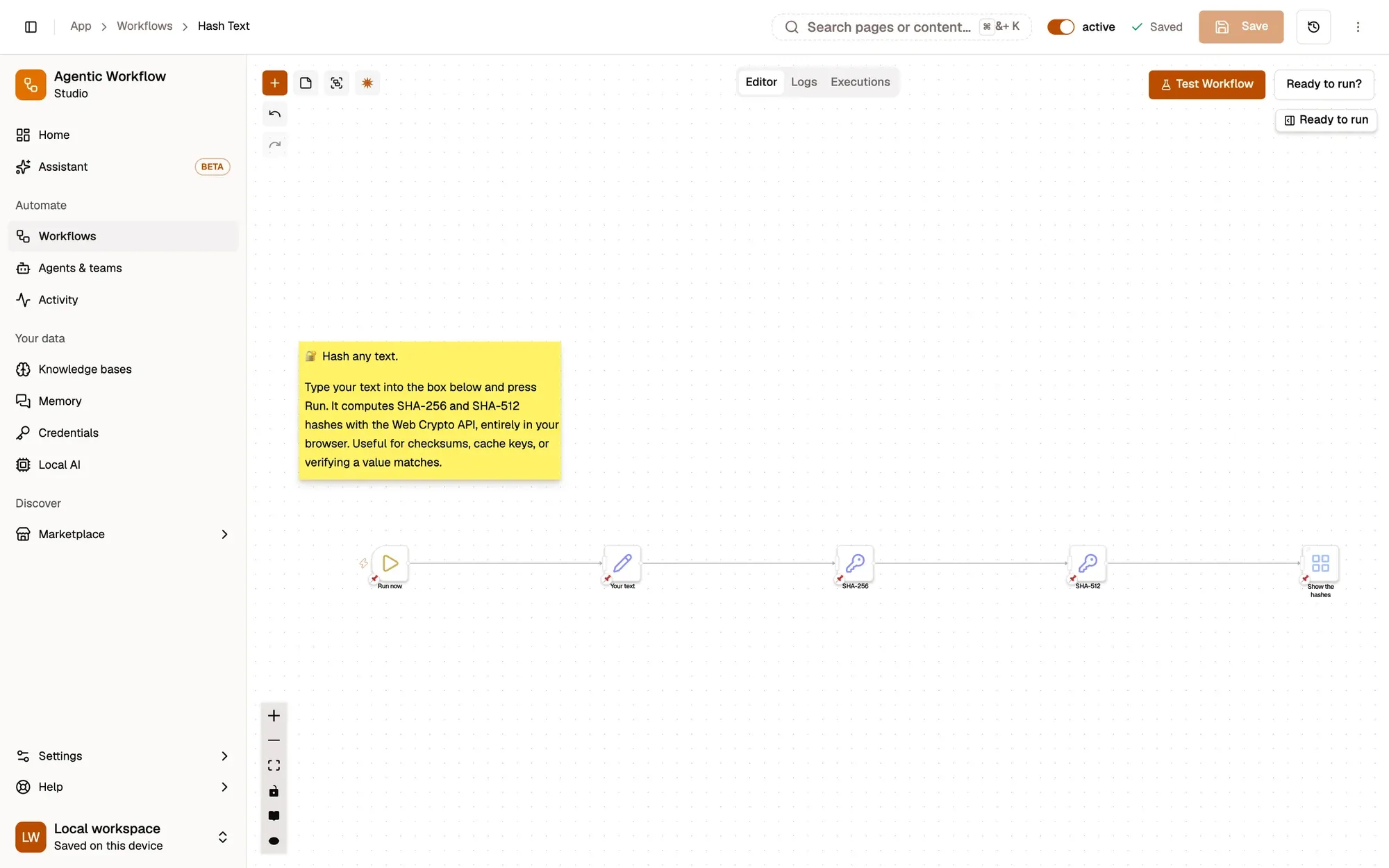
Click Test Workflow in the editor (or start the workflow any other way). When a step is about to contact a website that isn’t allowed yet, the run pauses.
Test Workflow: run it now
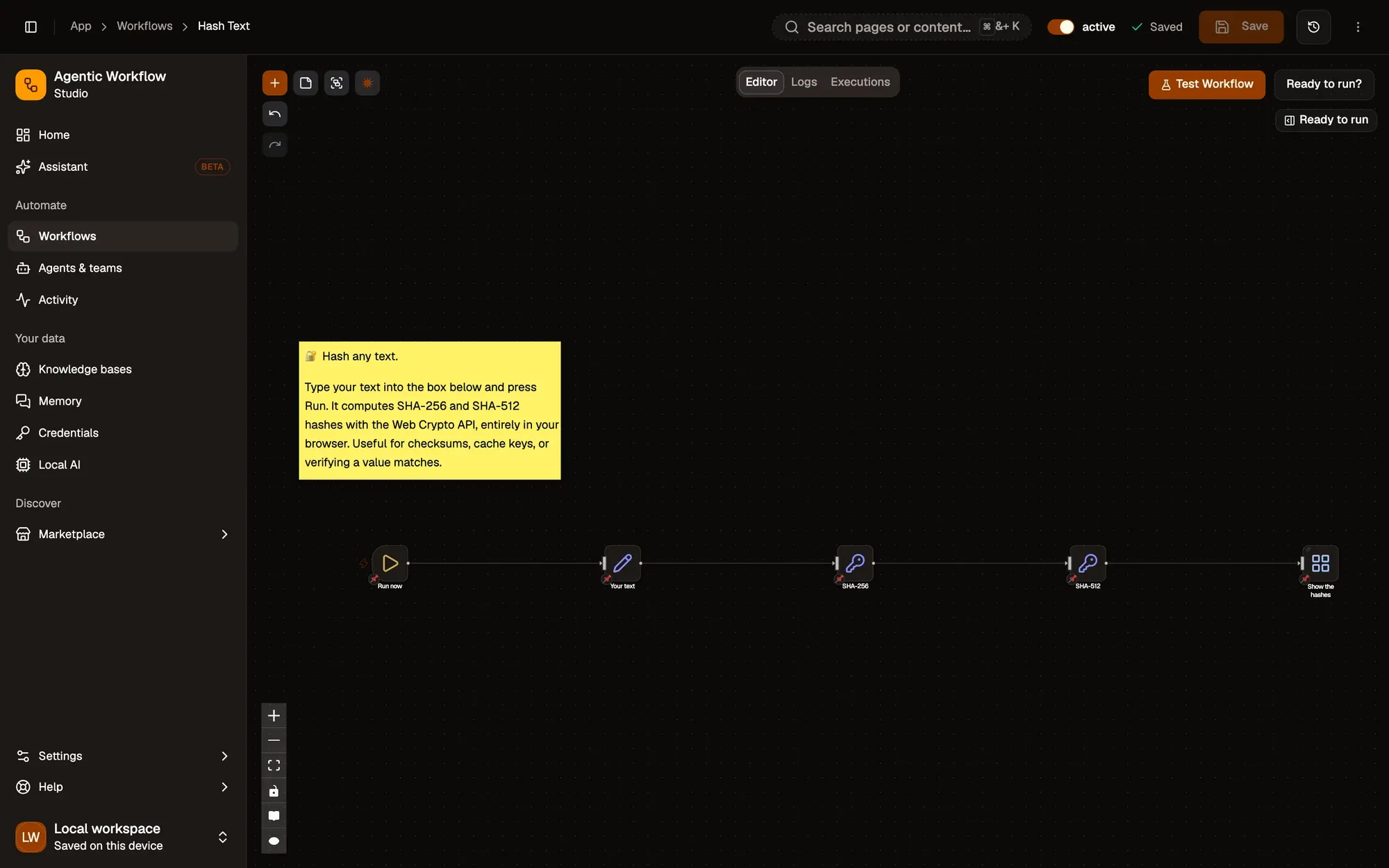
The workflow editor with the Hash Text example: a sticky note explaining it, then five connected steps (Run now, Your text, SHA-256, SHA-512, Show the hashes). The toolbar with Editor, Logs and Executions tabs is at the top, the Test Workflow button at the top right, and zoom controls at the bottom left.The workflow editor with the Hash Text example: a sticky note explaining it, then five connected steps (Run now, Your text, SHA-256, SHA-512, Show the hashes). The toolbar with Editor, Logs and Executions tabs is at the top, the Test Workflow button at the top right, and zoom controls at the bottom left.

Check: a prompt asks whether the workflow may continue.

Step 2:Allow it, always

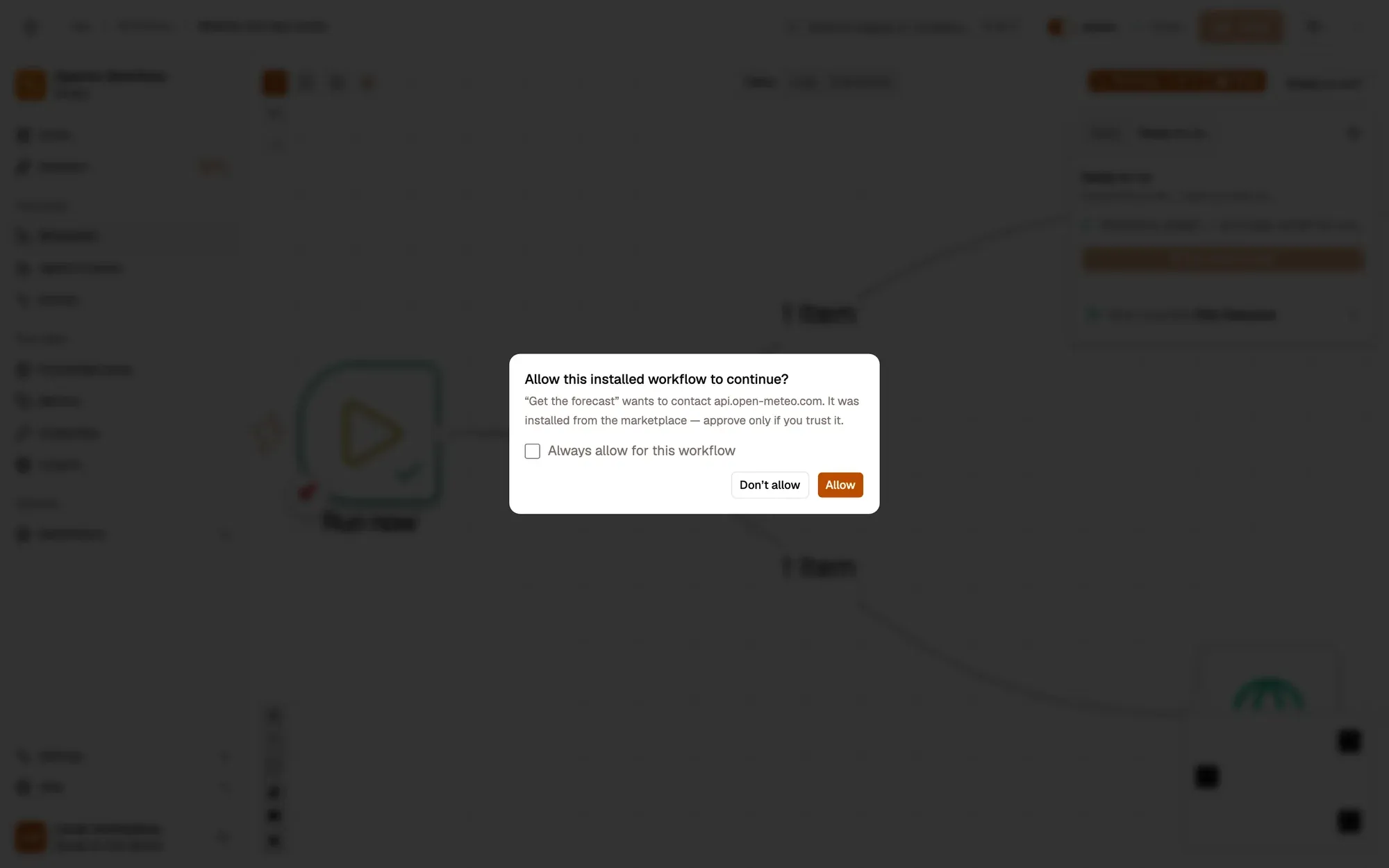
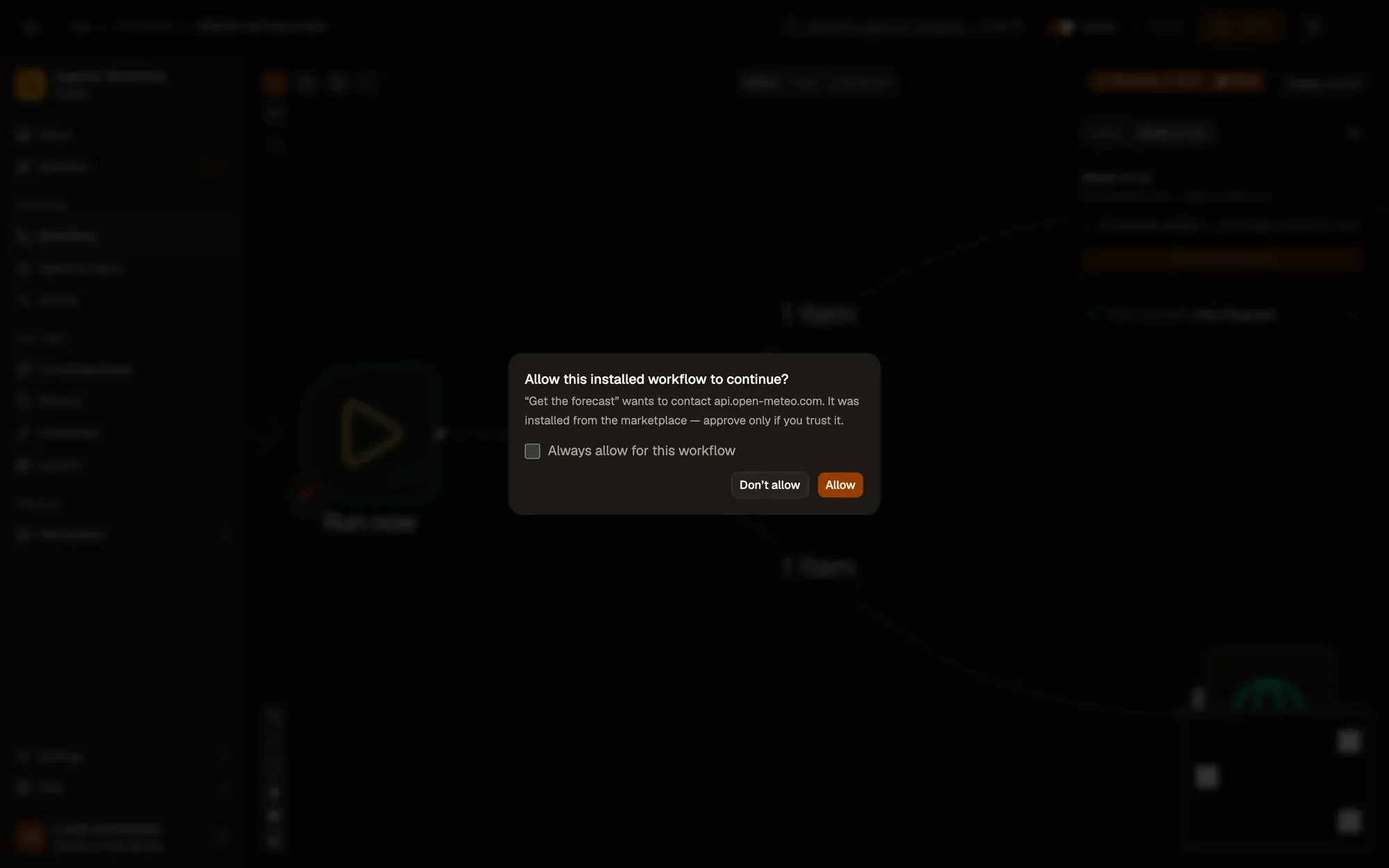
The prompt names the step and the website, for example “Get the forecast” wants to contact api.open-meteo.com. Tick Always allow for this workflow, then click Allow. Without the tick, the answer only lasts for this run; Don’t allow stops the step.
Always allow for this workflow
The workflow editor after Test Workflow, with Safe mode on: a prompt titled Allow this installed workflow to continue? says “Get the forecast” wants to contact api.open-meteo.com, with an Always allow for this workflow checkbox and Don’t allow and Allow buttons.The workflow editor after Test Workflow, with Safe mode on: a prompt titled Allow this installed workflow to continue? says “Get the forecast” wants to contact api.open-meteo.com, with an Always allow for this workflow checkbox and Don’t allow and Allow buttons.

Check: the run goes on. If another step needs another site, a new prompt follows.

Step 3:Find it in Site access

Open Settings › Site access. Each workflow you allowed has a card with its websites.
Switch a host off or on
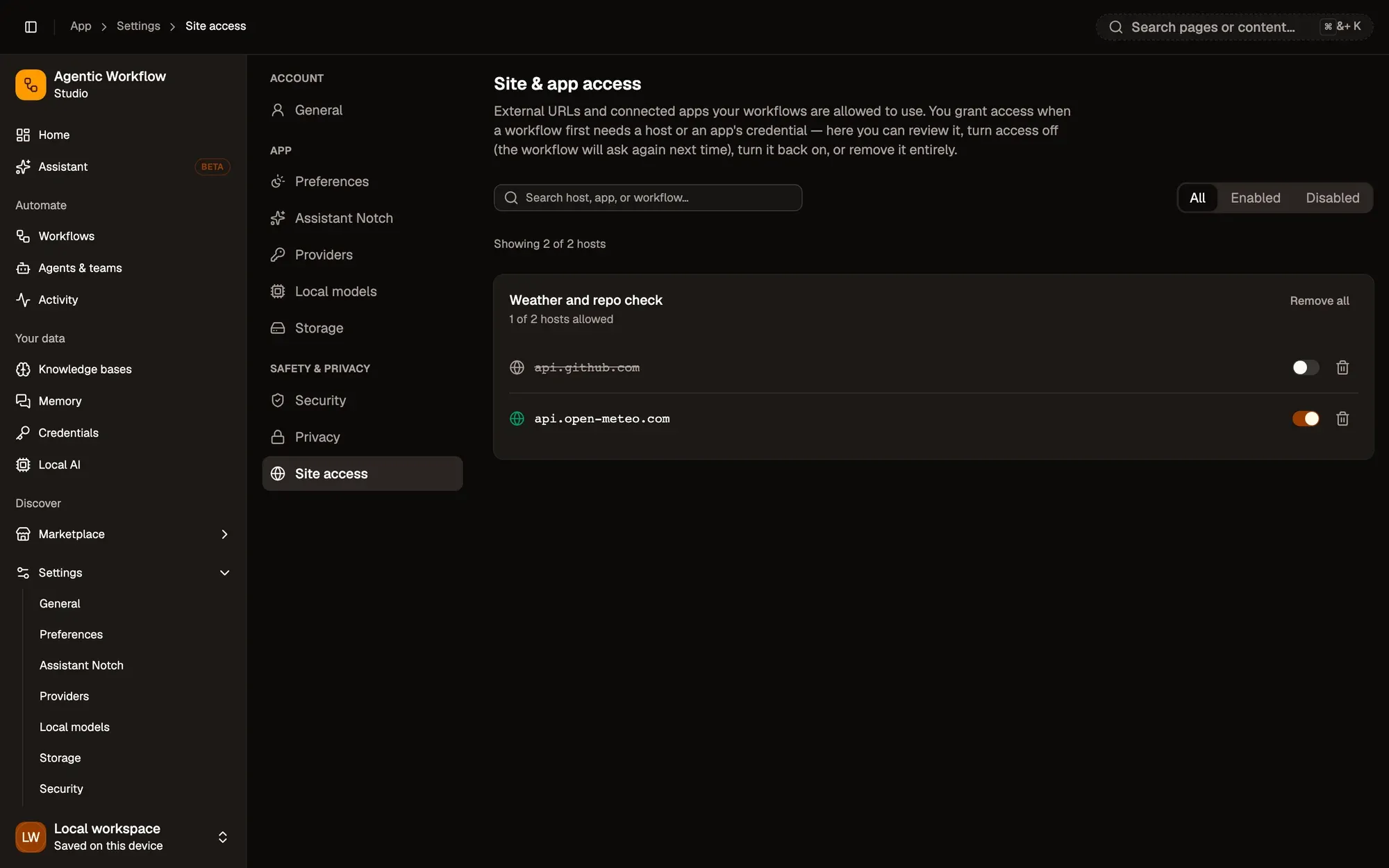
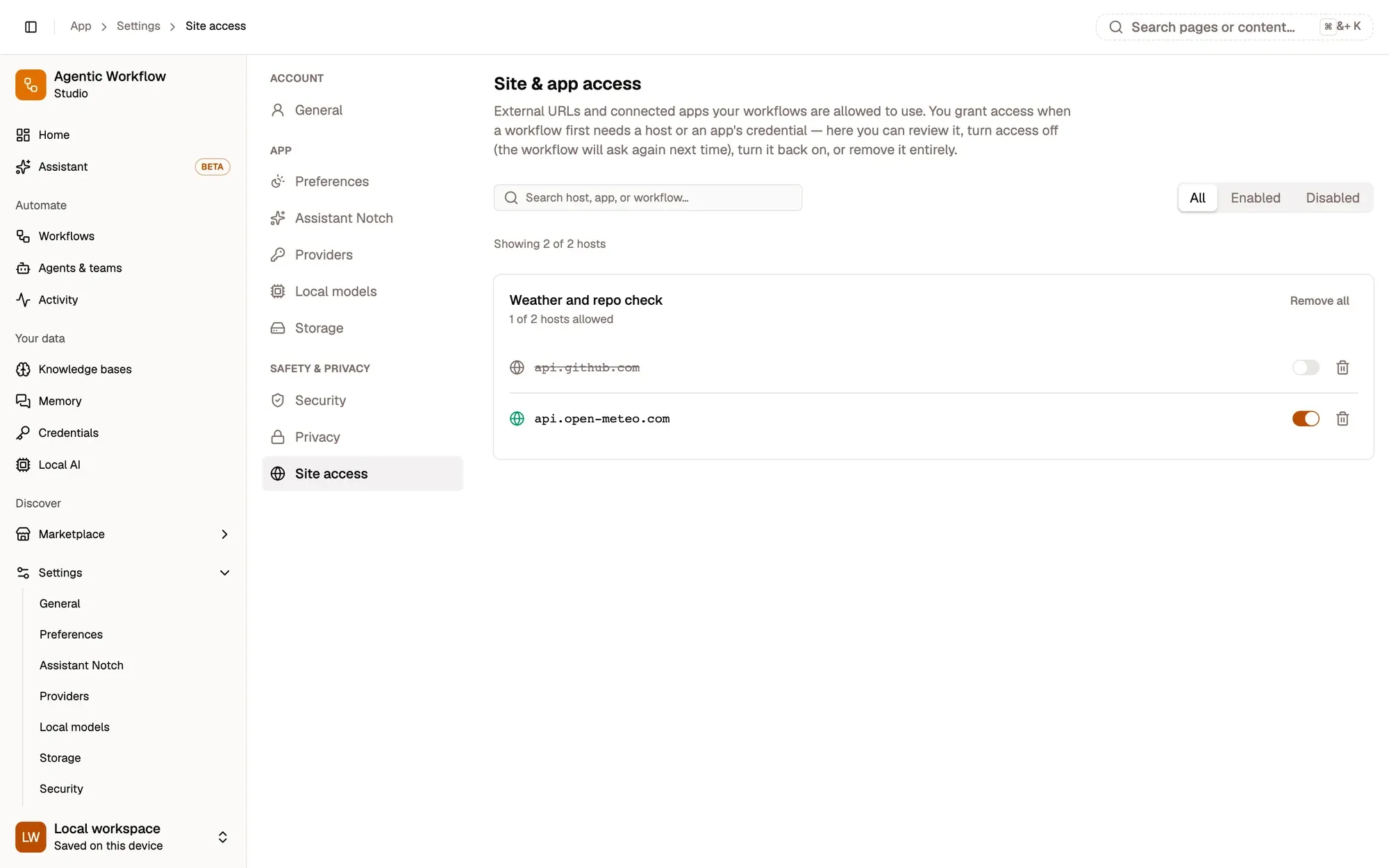
Settings, Site access, with one workflow’s grants: the Weather and repo check card (1 of 2 hosts allowed) lists api.open-meteo.com switched on and api.github.com switched off, each with an on/off switch and a trash button, and a Remove all button. Above it are the Search host, app, or workflow… box and the All, Enabled and Disabled tabs.Settings, Site access, with one workflow’s grants: the Weather and repo check card (1 of 2 hosts allowed) lists api.open-meteo.com switched on and api.github.com switched off, each with an on/off switch and a trash button, and a Remove all button. Above it are the Search host, app, or workflow… box and the All, Enabled and Disabled tabs.

Check: the workflow has a card listing the website, switched on.

Each workflow has a card with its hosts and, under Apps, its apps. Everything happens on this page:

Settings, Site access, with one workflow’s grants: the Weather and repo check card (1 of 2 hosts allowed) lists api.open-meteo.com switched on and api.github.com switched off, each with an on/off switch and a trash button, and a Remove all button. Above it are the Search host, app, or workflow… box and the All, Enabled and Disabled tabs. Settings, Site access, with one workflow’s grants: the Weather and repo check card (1 of 2 hosts allowed) lists api.open-meteo.com switched on and api.github.com switched off, each with an on/off switch and a trash button, and a Remove all button. Above it are the Search host, app, or workflow… box and the All, Enabled and Disabled tabs.

Numbered areas in the screenshot: 1. Search host, app or workflow; 2. All, Enabled and Disabled; 3. Switch a host off or on; 4. Remove a host; 5. Remove all.

A workflow you deleted appears as Removed workflow (no longer exists). You can remove its entries.

When nothing has been granted yet, the page says No site or app access granted yet.

Permissions are saved on this device only.

To clear all permissions of an installed workflow at once, you can also use Reset permissions in its row menu on the workflows list.

Ask Aria