Settings › Providers is where you connect cloud AI services for Aria and your agents. Without a provider, the assistant can still use on-device models.
Add a provider
Section titled “Add a provider”Open Settings at the bottom of the sidebar and click Providers.
Step 1:Click Add provider
At the top of the Providers card, click Add provider.
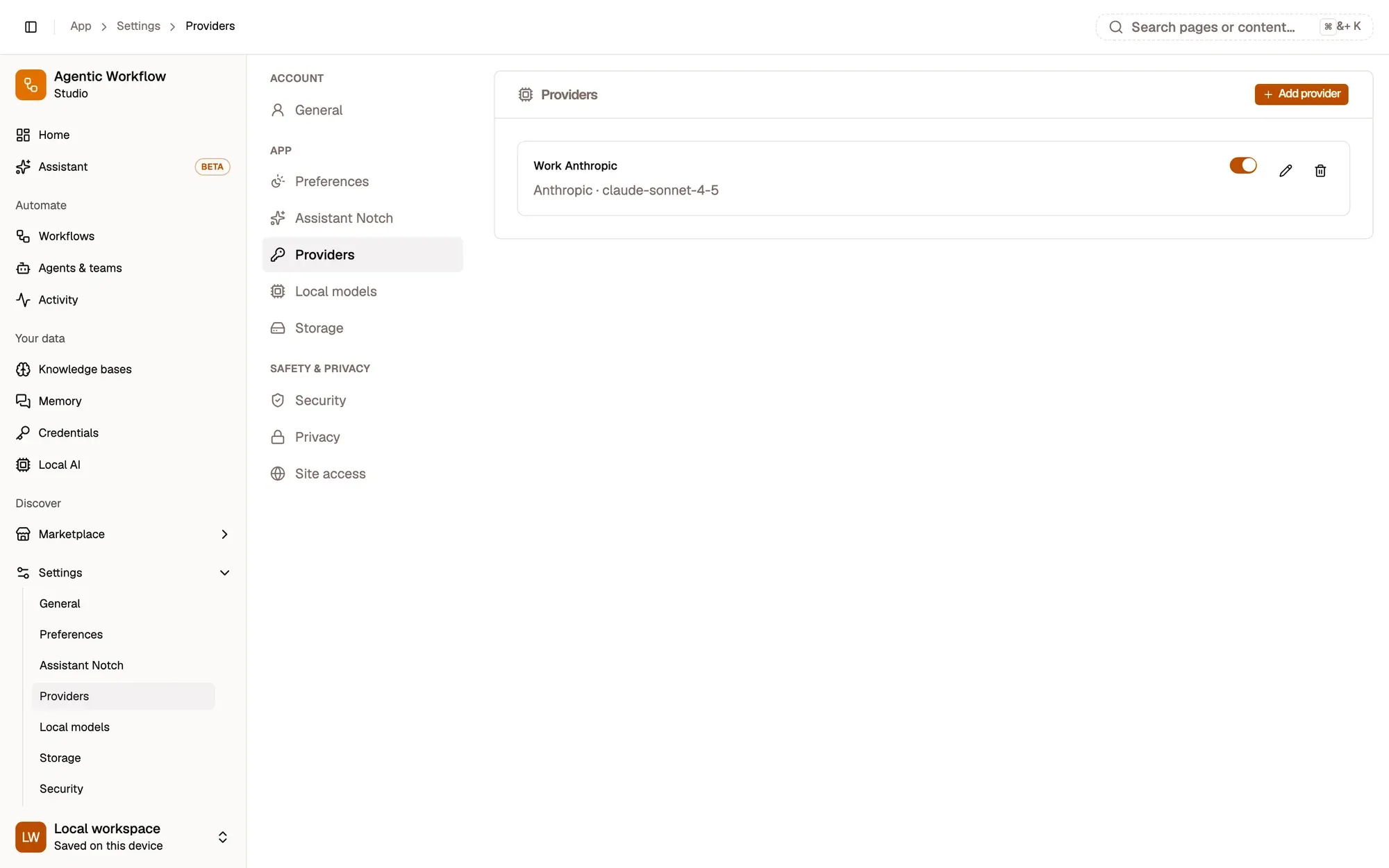
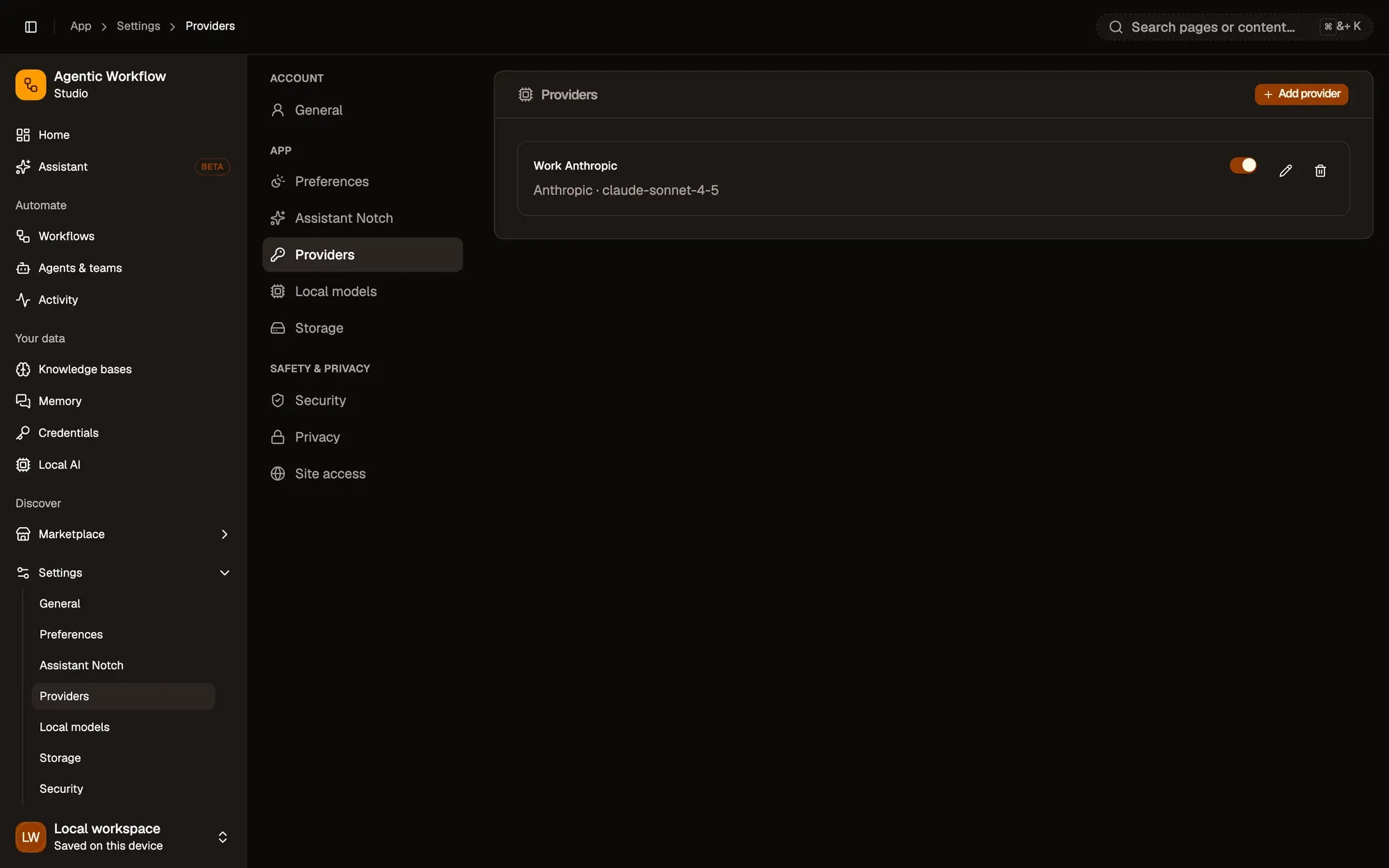
Check: the Add provider dialog opens.
Step 2:Fill in the provider
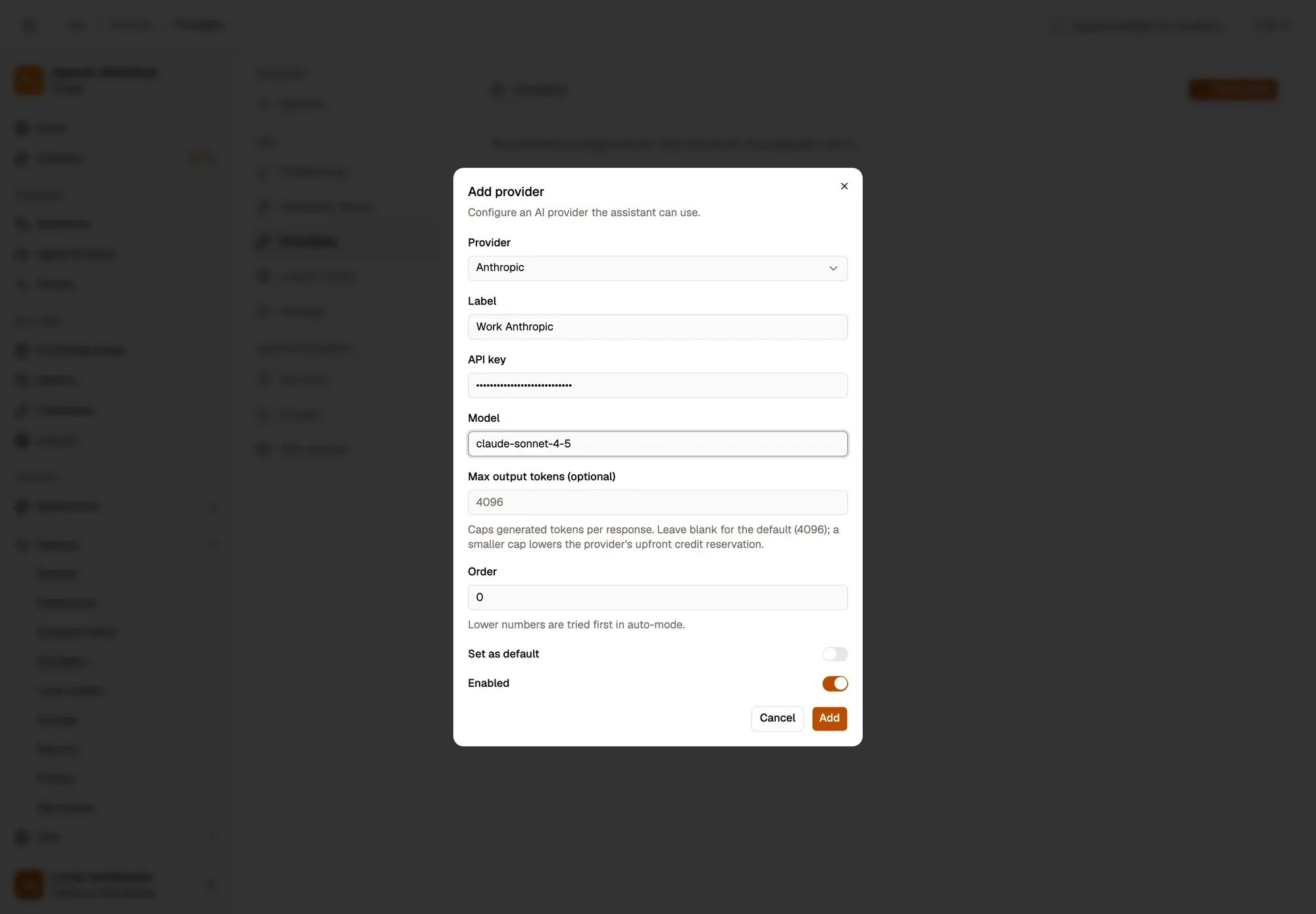
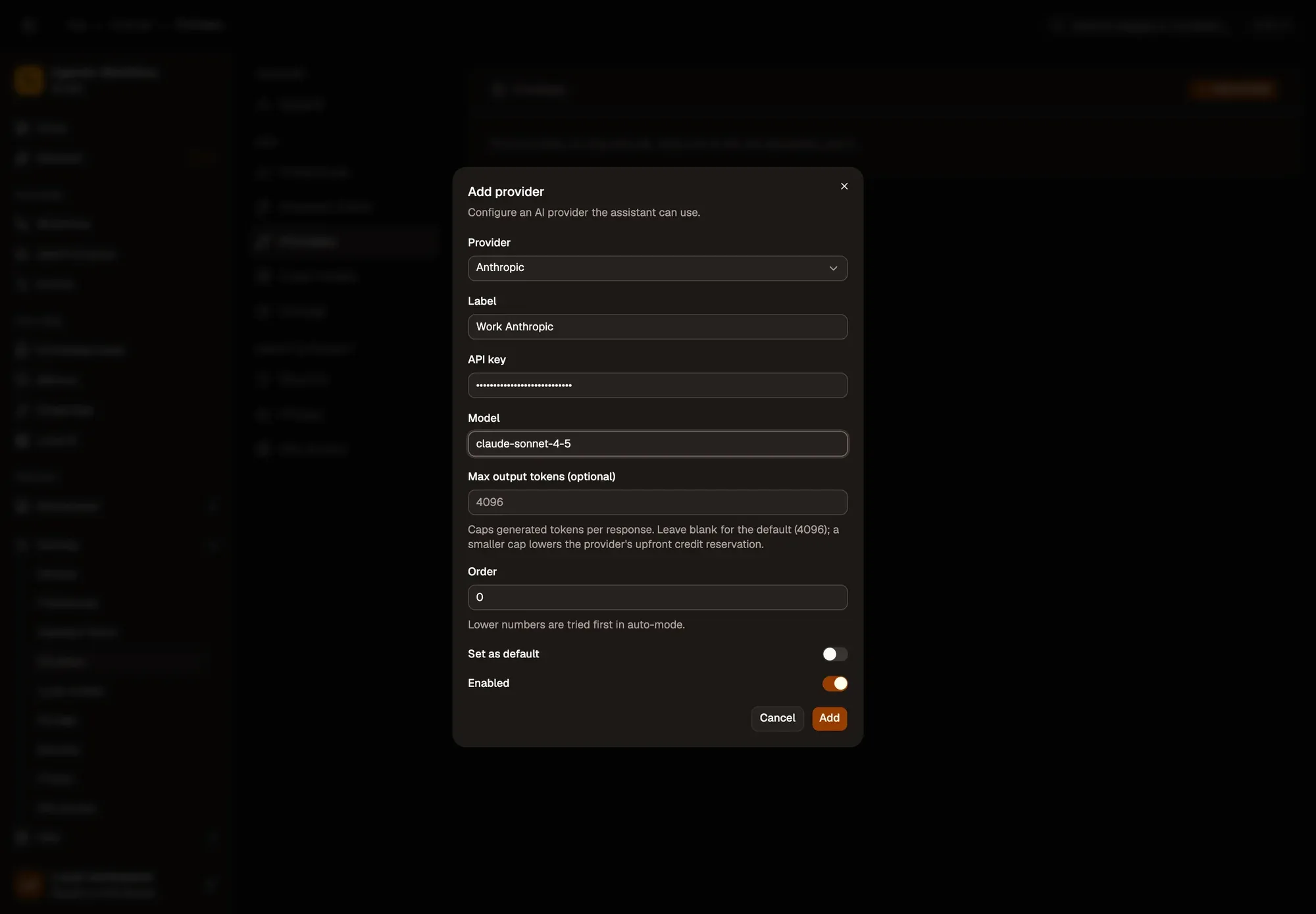
Pick the Provider: Anthropic, OpenAI, Google, Groq, OpenRouter, DeepSeek, xAI, Azure OpenAI, Ollama (local) or OpenAI-compatible. Give it a Label you’ll recognise, paste your API key, and type the Model name.
For Ollama or an OpenAI-compatible service, also fill in the Base URL. For Azure, fill in the instance and deployment names.
Step 3:Set the options and click Add
Optionally set Order (lower numbers are tried first), Set as default, and a Max output tokens cap (4096 when left blank). Then click Add. Nothing is sent to the provider until the assistant uses it.
Check: the provider is listed with its type and model, switched on.
Manage a provider
Section titled “Manage a provider”Each provider in the list has an on/off switch, Edit and Delete.
Numbered areas in the screenshot: 1. Switch the provider on or off; 2. Edit; 3. Delete.