Aria is the assistant built into AWFlow. Open Assistant in the sidebar: the home screen is a chat. Ask anything — explain, write, summarise, translate, reason — and Aria answers as it types (streaming), even on small on-device models.
When you want something done again and again, say so (“every Monday…”, “when this page changes…”) or click Build this as a workflow under a reply. Aria then builds a workflow you can open in the canvas. To keep refining one over a whole conversation, switch the composer from Chat to Build — see Building workflows in chat.
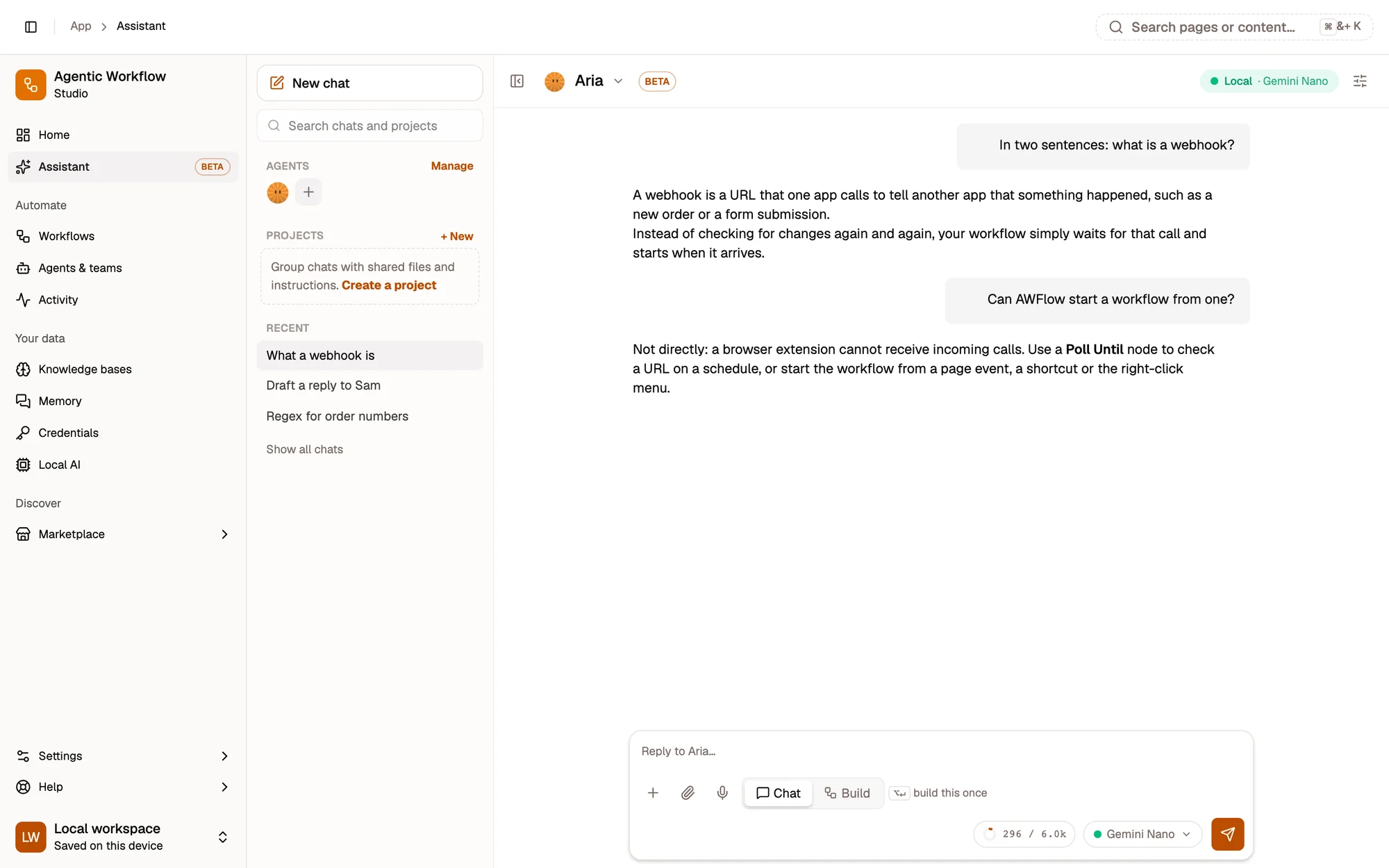
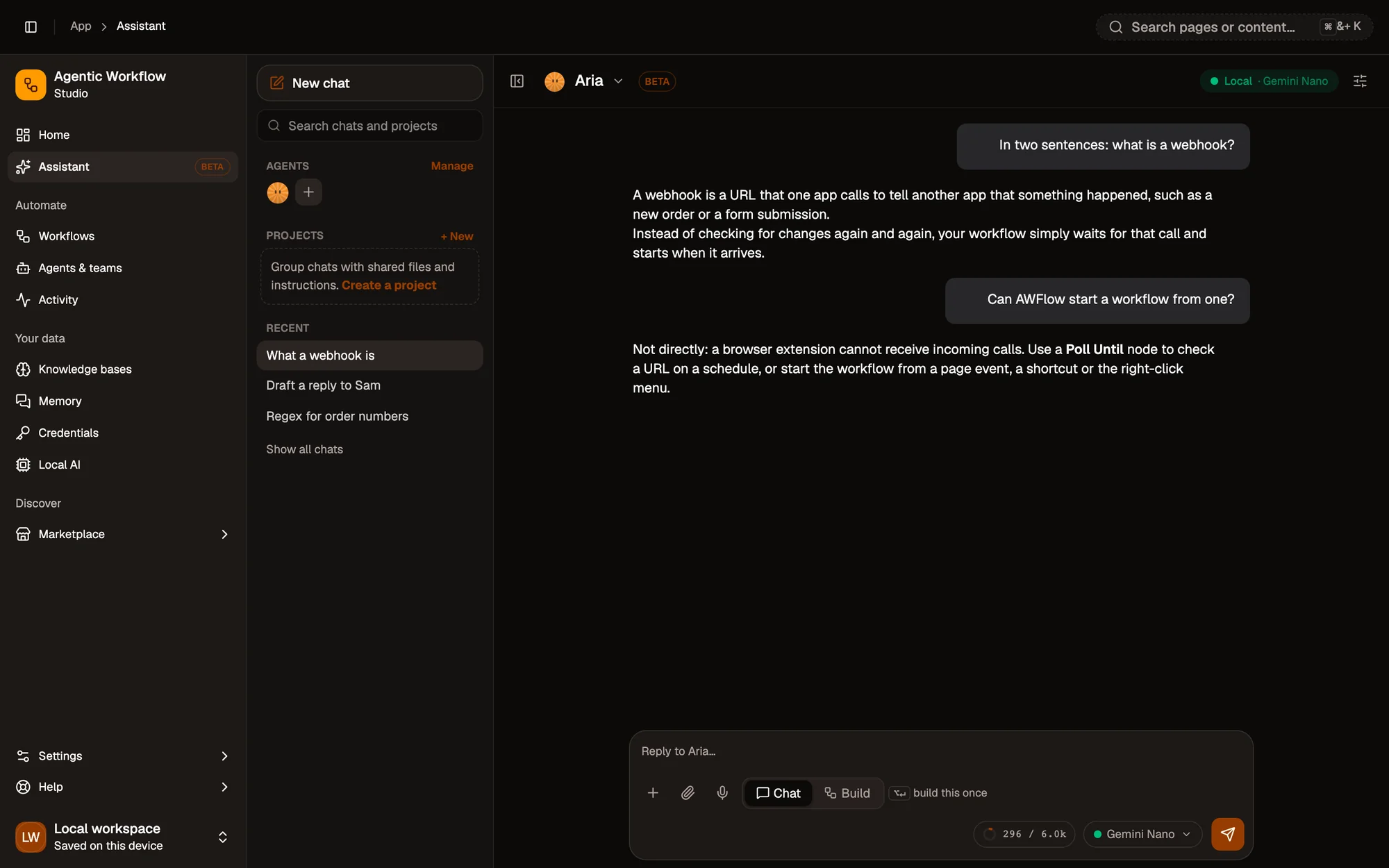
- Recent chats
- Switch agent
- Reply box, with Chat and Build modes
- Context meter and model picker
Send a message
Section titled “Send a message”Click New chat (or start from the home screen). Everything happens in the composer:
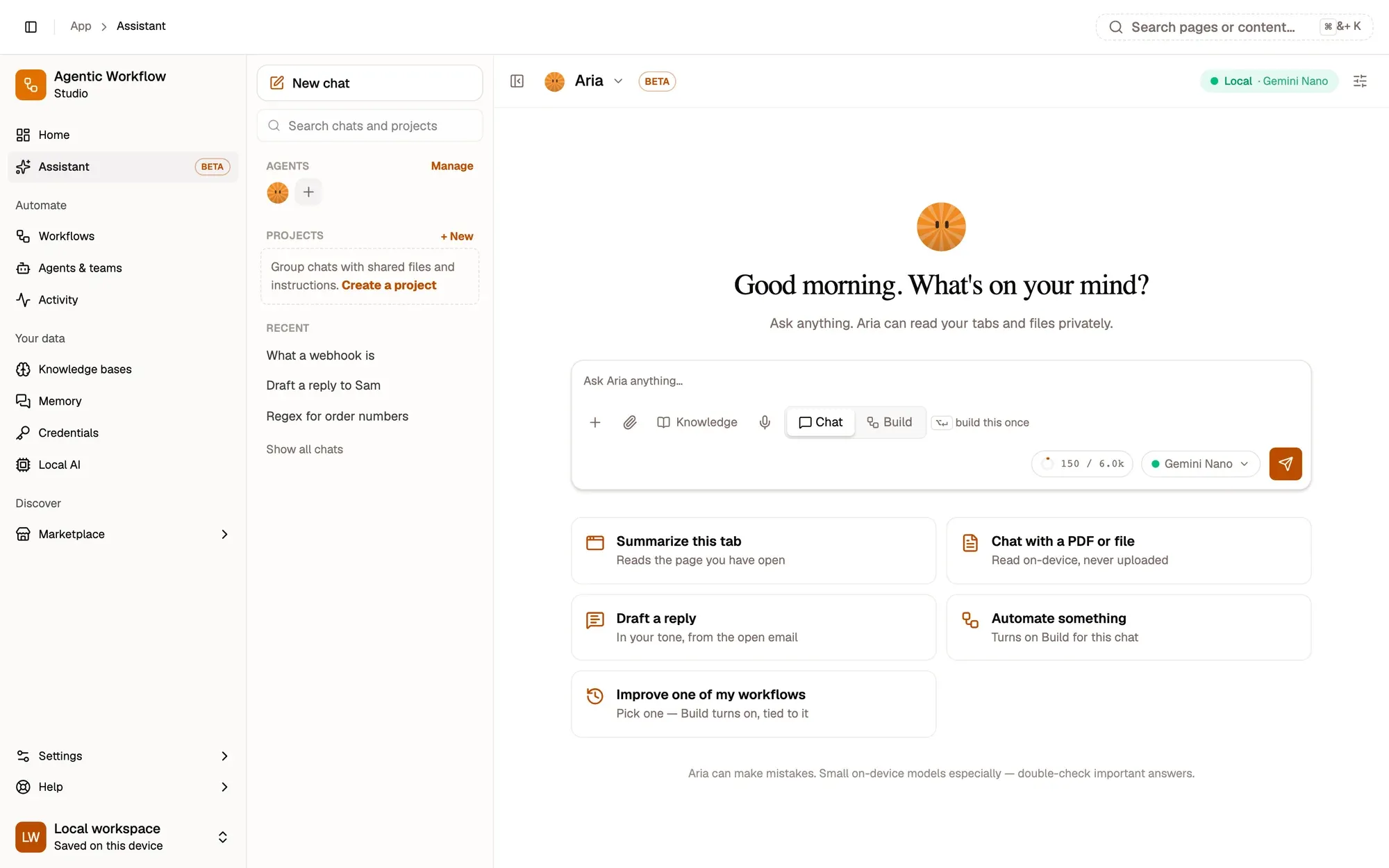
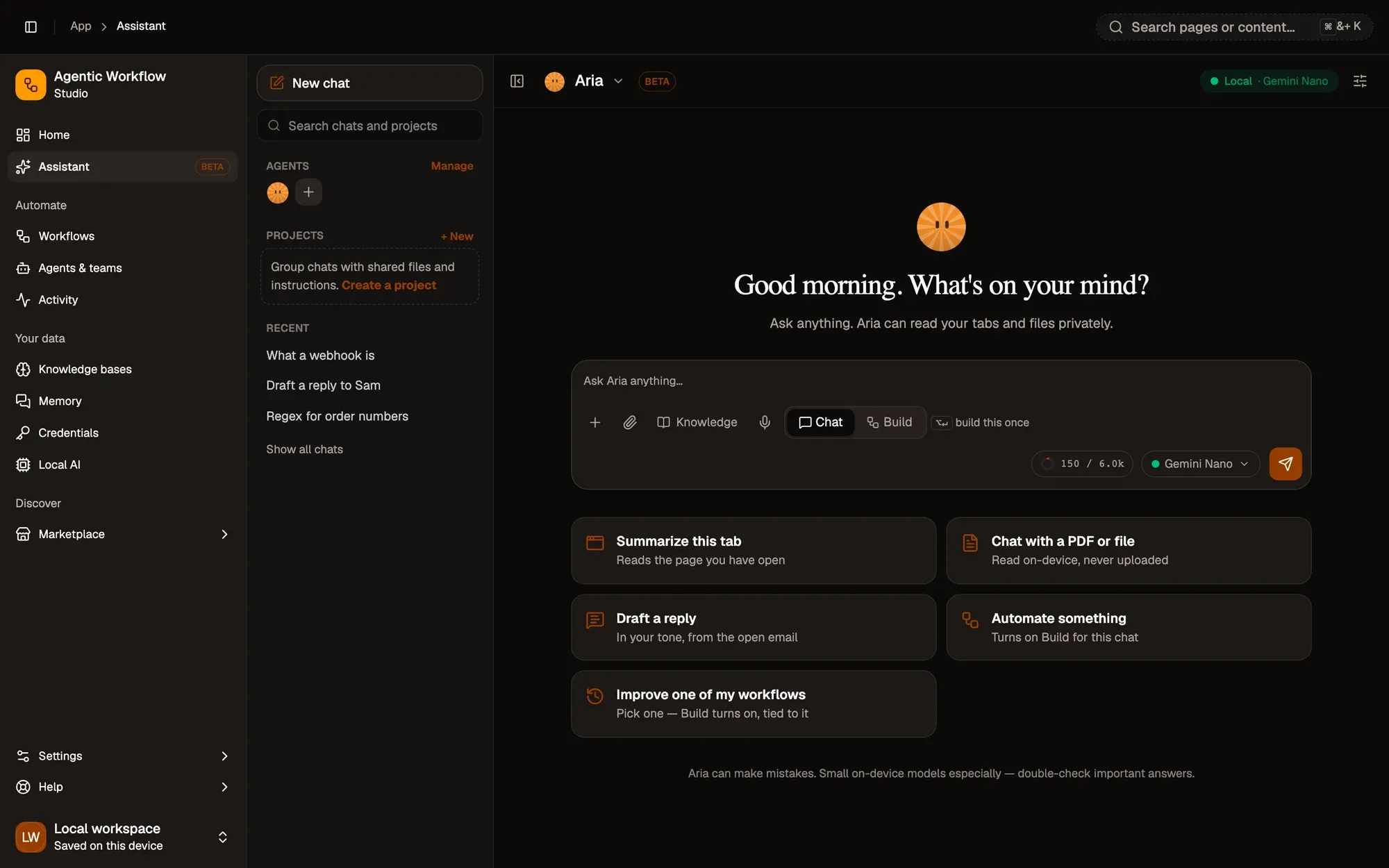
Numbered areas in the screenshot: 1. Message box.
Numbered areas in the screenshot: 2. Add context (+); 3. Attach files; 4. Dictate; 5. Chat or Build.
Numbered areas in the screenshot: 6. Context meter; 7. Model picker; 8. Send.
The side panel
Section titled “The side panel”The panel on the left keeps everything one click away:
- New chat and search — search finds projects, chat titles, words inside your messages, and agents, all on this device.
- Agents — one row of avatars: click one to chat with that agent.
- Pinned — the projects and chats you pinned.
- Projects — each opens to its newest chats; Show more opens the project.
- Recent — chats that aren’t in a project, team threads included.
- Show all chats — every conversation, with filters and bulk actions.
Use a chat’s ⋯ menu to rename, pin, move it to a project or delete it — or drag it onto a project. In the narrow browser side panel, open the same list with the ☰ button.
Models and privacy
Section titled “Models and privacy”The chat runs on the model you pick in the composer:
- On-device models (WebLLM, transformers.js, Chrome’s built-in Gemini Nano) run entirely in your browser. Nothing you type leaves your device. Install them from Local AI.
- Ollama models on your computer appear automatically under Ollama · this computer when Ollama is running — every model you have pulled, no setup needed. They run on your machine, so nothing leaves it. Models without tool support are marked Chat only. To use an Ollama server on another address, add it once in Settings › Providers (kind Ollama, with its base URL): its models are then listed too.
- Cloud providers (OpenAI, Anthropic, Gemini, OpenRouter…) use your own API key from Settings › Providers.
- Auto uses your cloud providers first and falls back to an on-device model.
Each reply shows which model answered, whether it ran on-device or in the cloud, and what it used — see the reply receipt.
The model picker
Section titled “The model picker”Each model in the picker has capability chips: Tools (can use skills, workflows and browser control), Basic tools (uses tools through its prompt: fine for simple skills, less reliable for multi-step work), No tools (chat only), Images, its context window (such as 128k), and Cache for providers that cache repeated context.
With Auto selected, the picker lists what Auto tries, in order, with each provider’s live health:
| Status | Meaning |
|---|---|
| OK / Ready | Answering normally. |
| Rate-limited · back in 0:42 | The provider asked to slow down. Auto skips it until the countdown ends, then tries it first again. |
| Key rejected / Out of credits | Click Fix to open Settings › Providers. |
| Error · back in … | It failed recently; Auto retries it after a short cool-down. |
The model answering now is marked answering now, and fell back appears when Auto had to skip your first choice. A line under the list warns what a fallback costs before it happens, for example If Auto falls back to Qwen 3 4B, long chats are summarised to fit 8k and tools are off for that reply. Use Reorder providers or Manage keys to change the chain.
A provider that fails is skipped for a cool-down (about a minute, or as long as the provider asks), then tried first again. A cloud request that gets no answer within 60 seconds times out; with Auto, the next provider then answers.
The first time you open Aria without a model — and no running Ollama, a short setup offers a recommended on-device model for your computer — or Chrome’s Gemini Nano when it is available — and your cloud providers.
Working with replies
Section titled “Working with replies”Under each reply:
- Copy the answer.
- Regenerate for another answer; use ‹ › to switch between answers.
- Branch into a new chat from that point.
- Edit one of your messages and send it again — everything after it is answered again.
- Stop a reply while it is being written; what was written so far stays, and nothing more is sent to the model. If it was using tools, a stop receipt shows what had already happened.
While a reply uses tools, its steps appear live above it. See Following Aria’s work for the work timeline, the step limit, the reply receipt and error cards.
Chat settings
Section titled “Chat settings”The settings button in the chat header opens Chat settings for the current chat:
- Model for this chat.
- Instructions for this chat — extra guidance only this chat follows.
- Creativity — from Precise to Creative.
- Use Aria’s memory — turn memory off for one chat.
- Knowledge bases — pin knowledge bases the chat can draw on, choose when to look things up (always, when relevant, or when asked), and tune the search under Advanced search settings. A Device only badge means the knowledge base is never sent to cloud models. You can also pin them from the knowledge bases chip in the composer. See Using knowledge in chats and agents.
Context meter
Section titled “Context meter”A context meter in the composer toolbar shows how much of the model’s context window your next message will use — for example 18k / 128k. It turns amber when the window is nearly full and red when it is over. Click it for the breakdown: instructions & persona, memory, tool definitions, the conversation, attachments, tool calls this turn, your message, and what is kept free for the reply.
The memory row says how many of your facts went in — for example 8 of 212 facts, the most relevant ones — and whether memory search is ready. See Assistant memory.
Each model’s window comes from a built-in list of known models, and from the model itself for Ollama and on-device models. When a model’s window is unknown, AWFlow assumes a safe 8k and the meter marks it as estimated with a ~ (for example 3k / ~8k).
Long chats and the summary
Section titled “Long chats and the summary”When a chat gets long, the oldest messages are summarised instead of being dropped. A marker in the chat shows 18 earlier messages summarised to fit · View summary: the messages stay in the chat for you to scroll to, and the model gets the summary in their place.
View summary opens it in an editor:
- It shows which messages it covers and when it was last updated.
- Edit it and Save to correct or trim what the model remembers. Your edit is sent in place of the earlier messages until one of them changes (you edit or regenerate an earlier message); the summary is then made again.
- Suggest as facts looks for lasting facts in the summary and adds them as suggestions for you to confirm — nothing is saved on its own.
From the meter you can also:
- Compact now — fold earlier messages into the summary right away, to free room before a long message.
- New chat with this summary — start a fresh chat that begins with the summary.
- Use a model with a bigger window — open the model picker.
The quick chat in the notch, the right-click card and the palette trim and summarise long chats the same way.
Interrupted replies
Section titled “Interrupted replies”Your message is saved as soon as you send it, and the reply is saved while it is written. If the tab closes or the browser restarts in the middle, the partial reply is kept and marked This reply was interrupted. On the latest reply, click Retry to answer again.
Page context, files and dictation
Section titled “Page context, files and dictation”Use + in the composer to give Aria more to work with:
- This tab or other open tabs — Aria reads the page text.
- Selection — the text you selected on the page.
- Files — PDFs, text files and images. Long files are condensed on-device to fit the model, and the steps are shown under the reply (“Read report.pdf · condensed on-device”). Once the answer is done, the steps — and the tools the agent used — fold into one line (“Read 3 items”, “Used 2 tools”) that you can click to open.
- Screenshot of the current tab.
Click the microphone to dictate. Speech is transcribed by an on-device Whisper model; your voice never leaves the browser.
When Aria answers from a knowledge base, the passages are numbered in the reply and listed as chips under it; click a number to read the passage. To keep an attachment for later, open its ⋯ menu → Save to knowledge base… (see Save to a knowledge base from anywhere).
Memory
Section titled “Memory”Aria remembers what you ask it to (“remember that my budget is €600”) — a line under the reply says Saved to Aria’s memory with Undo. When you mention a lasting preference (“I prefer guesthouses over chain hotels”), it asks first with a Remember this? card. With each message, it uses the facts most relevant to what you asked.
Memories are stored only on this device. See Assistant memory for how facts are learned, used and shared, and the Memory page for every chat and fact AWFlow keeps.
Talk to other agents
Section titled “Talk to other agents”Type @ to bring one of your agents into the chat for one answer (“@writer turn this into an email”), or a team to start a team thread (“@trip-crew 3 days in Rome”). Use the agent switcher in the chat header to chat with another agent. Type @ and pick a workflow to use, change or ask about it — see Building workflows in chat.