Knowledge bases are stored in this browser only. The extension and the web app have separate storage, and clearing site data removes them. To move a knowledge base, or keep a copy, export it to a file and import that file where you need it.
Export to a file
Section titled “Export to a file”Open the knowledge base, open its menu and choose Export. You get an .awkb file that contains everything needed to search it somewhere else: its name, description and privacy setting, every passage with its source details, the vectors, and the embedding model it was built with.
The delete dialog also offers Export first, so you can keep a copy before deleting.
Import a file
Section titled “Import a file”Step 1:Click Import
On the Knowledge bases page, click Import (or Import a file when you have none yet).
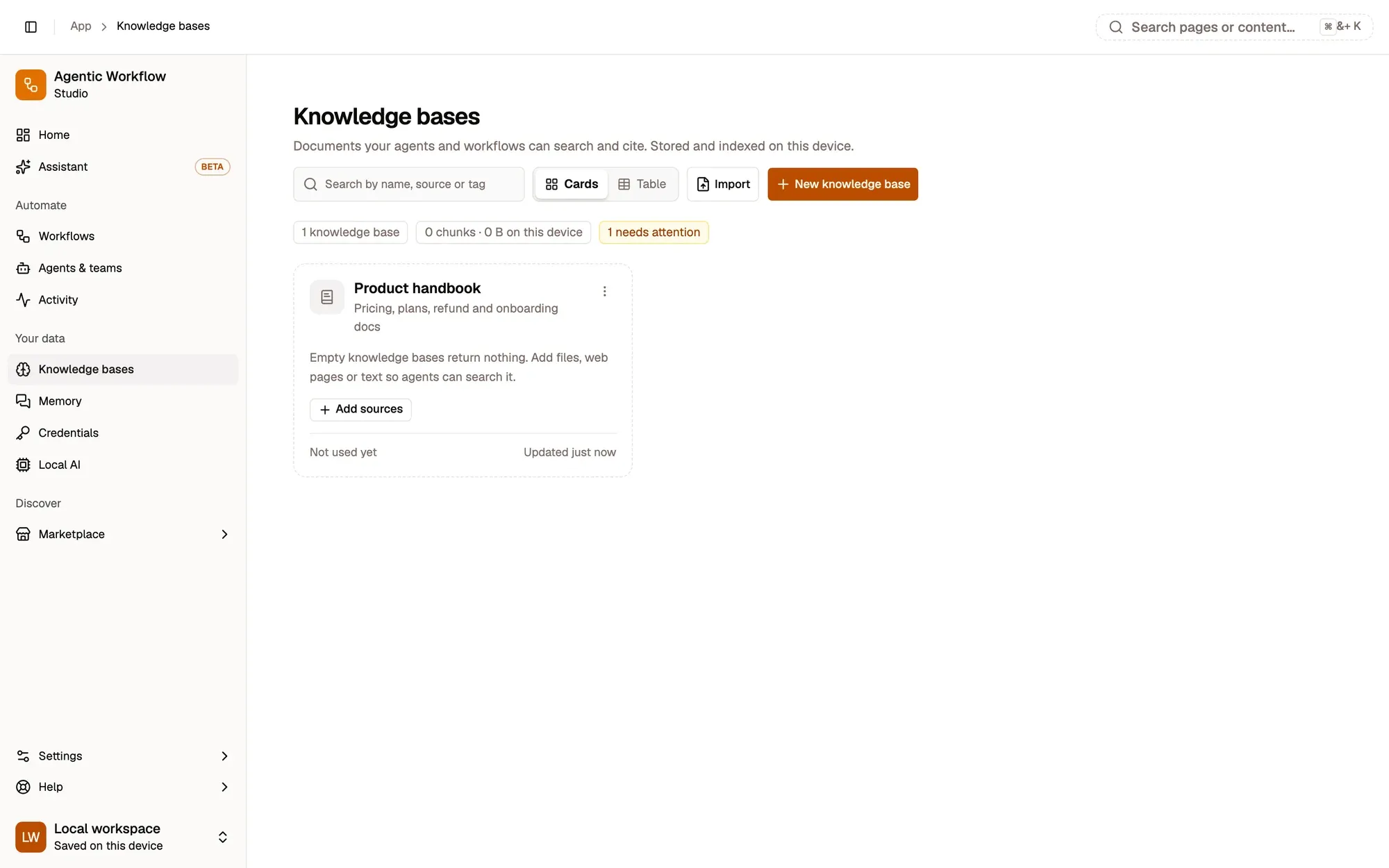
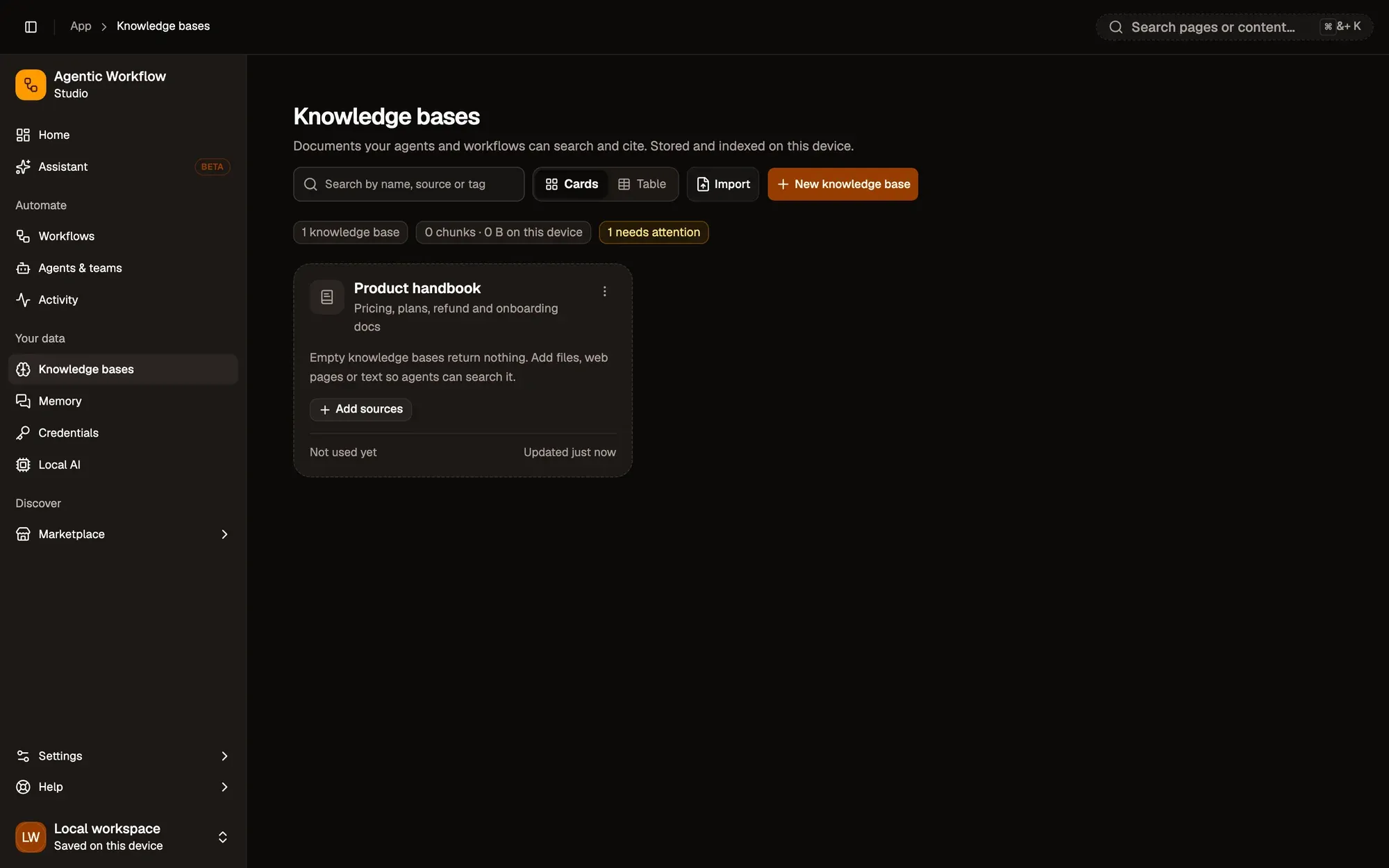
Check: the Import a knowledge base dialog opens.
Step 2:Choose the .awkb file
Pick the file. Choose another file swaps it.
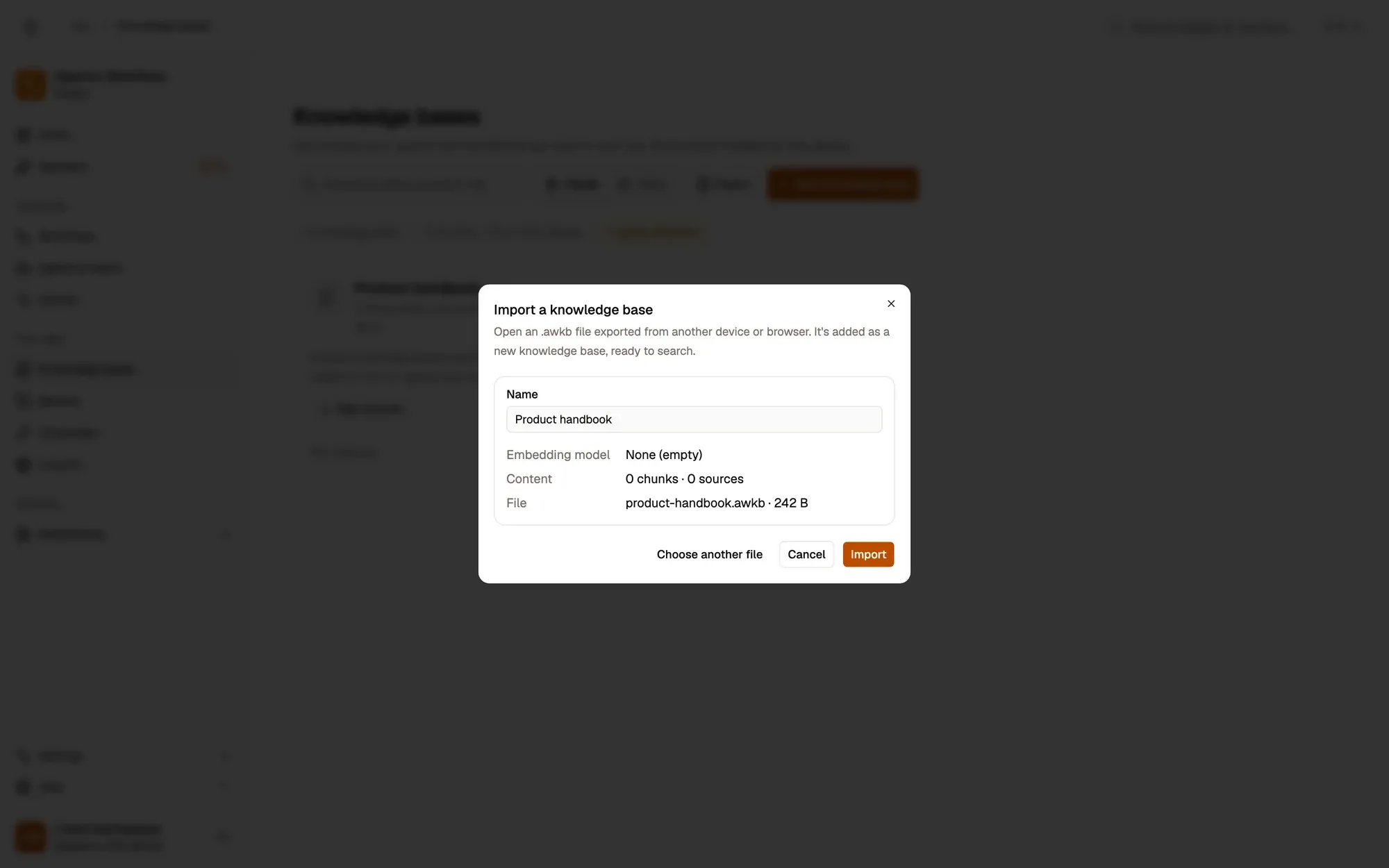
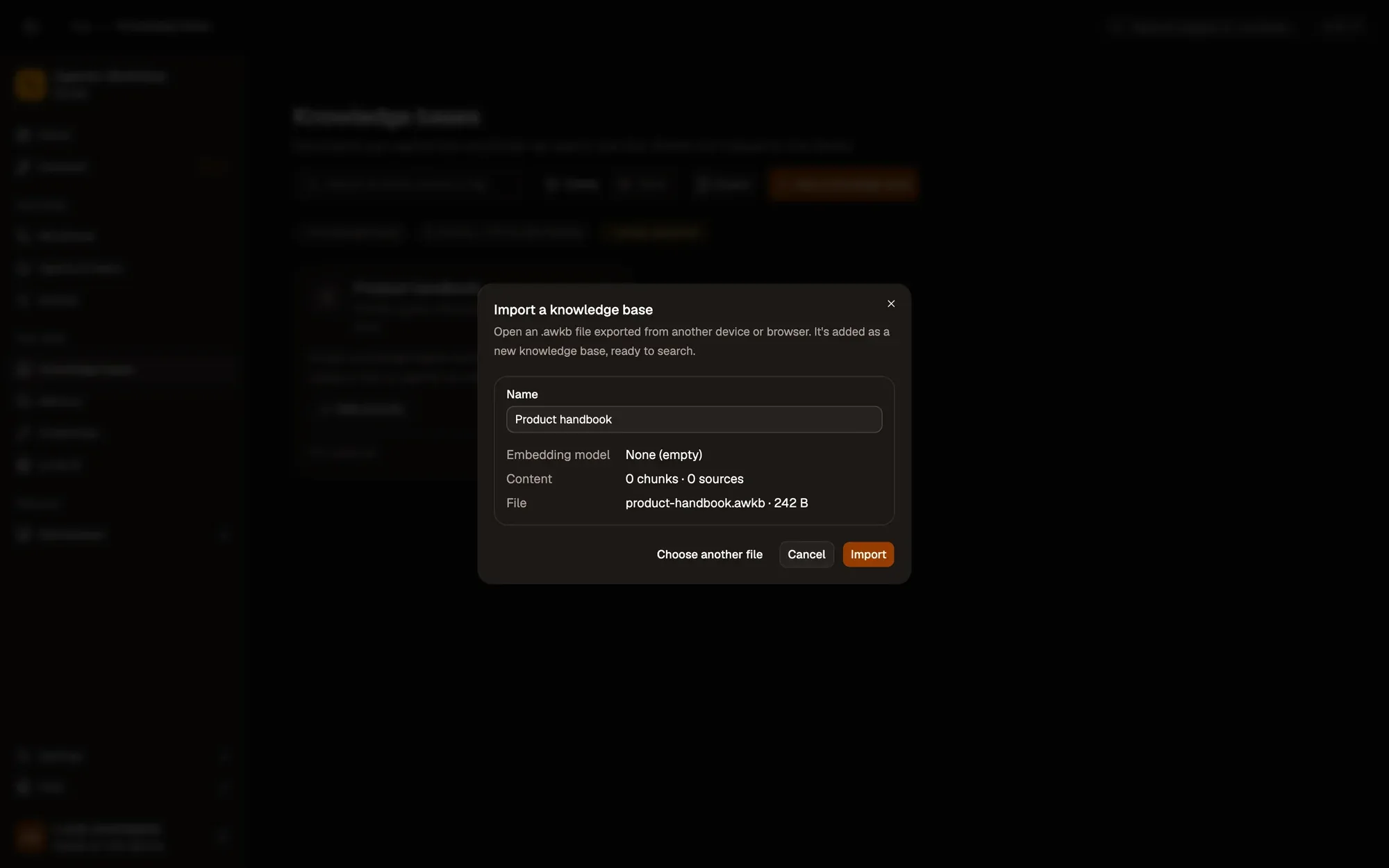
Check: a preview shows its name, embedding model, chunks and sources, and the file size.
Step 3:Check the name and click Import
Change the Name if you want, then click Import.
Check: the knowledge base is listed on the Knowledge bases page.
The file is added as a new knowledge base; an existing one is never overwritten. If the name is already used, “(imported)” is added. Nothing is embedded again, so the import is quick and searches give the same results as on the original device.
If the knowledge base was built with a cloud embedding model, that provider must be set up here too: your questions are embedded with it when you search.
Importing a workflow that uses knowledge bases
Section titled “Importing a workflow that uses knowledge bases”A workflow refers to its knowledge bases by id. When you import a workflow whose Local Knowledge nodes use knowledge bases that aren’t on this device, a dialog Knowledge bases used by this workflow lists each missing one and the nodes that use it. For each one you can:
- pick one of your knowledge bases to use instead;
- choose Import a .awkb file… to import the original and use it;
- Leave unset.
Click Use these knowledge bases to apply your choices, or Import without them. A node left unset stops with a clear message when the workflow runs (“Knowledge base … doesn’t exist on this device…”); you can pick a knowledge base later in the node’s settings.
The number of knowledge bases on your device is never limited.