Sticky Notes are text blocks you can place on the canvas.
They help you (and other people) understand what your workflow does.
Add, edit and arrange a note
Section titled “Add, edit and arrange a note”Open the workflow in the editor. Everything happens on the canvas:
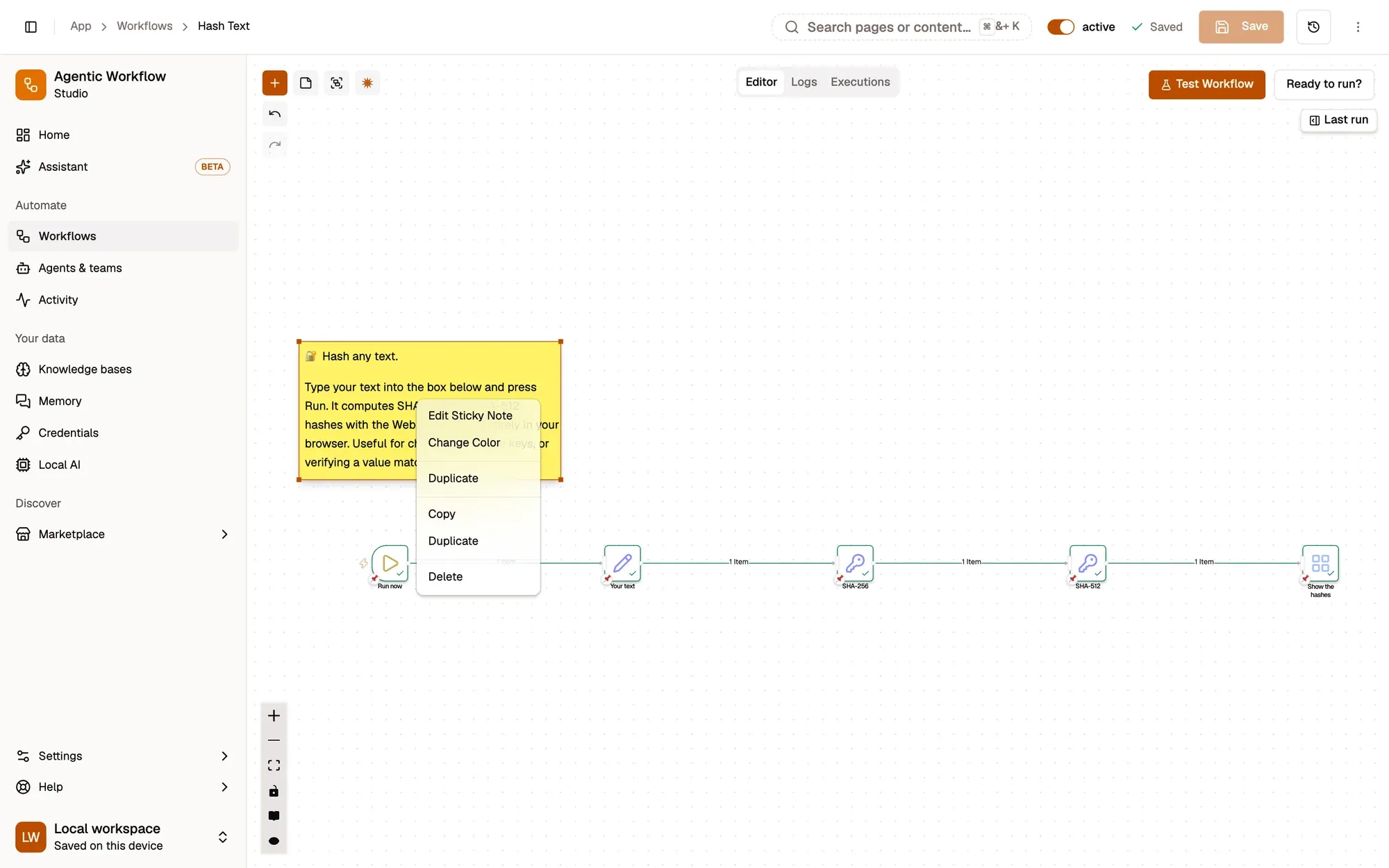
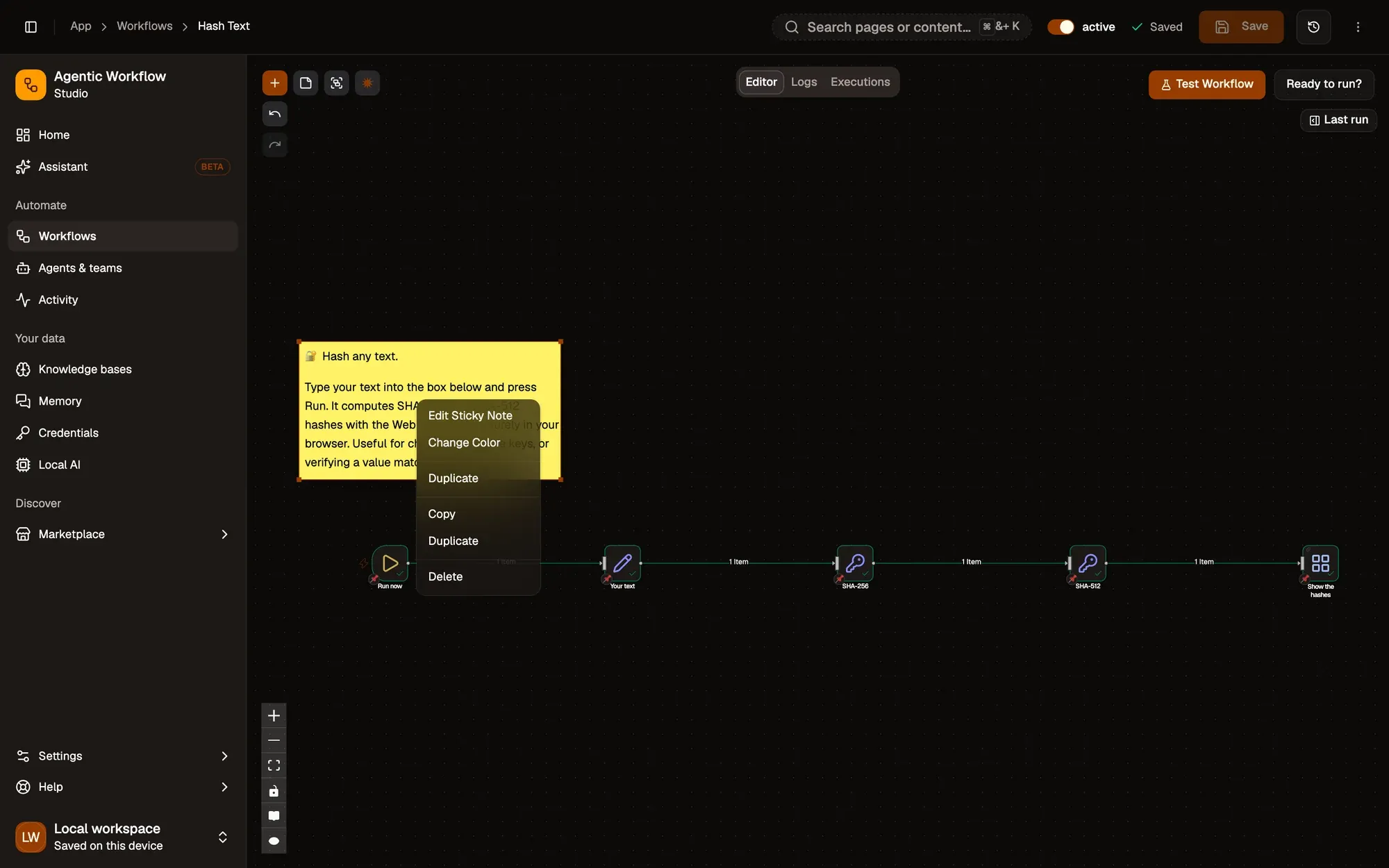
Numbered areas in the screenshot: 1. Add sticky note; 2. A sticky note: drag to move, double-click to edit; 3. Drag a corner to resize; 4. Edit Sticky Note; 5. Change Color.
In the editor, use simple formatting (bold, headings, links, lists). Close it to save the text.
Sticky Notes support embedding YouTube videos with this syntax:
@[youtube](VIDEO_ID)For instance:
@[youtube](ZCuL2e4zC_4)This renders the embedded video directly in the note (if video embedding is allowed).
Images in notes can be displayed full width by appending #full-width after the URL, e.g.:
Tips for Effective Notes
Section titled “Tips for Effective Notes”- Use one note at the top to explain the goal of the workflow.
- Use notes to label sections (for example: “Extract”, “Clean data”, “AI summary”, “Save”).
- In shared workflows, good notes save other people time.
If you want more information on Markdown used in notes, see the guide on Markdown formatting with markdown-it, which AWFlow uses.