Settings › General holds your account profile. You need to be signed in to use it. In a local workspace the page only offers a Sign in button; see Local or cloud.
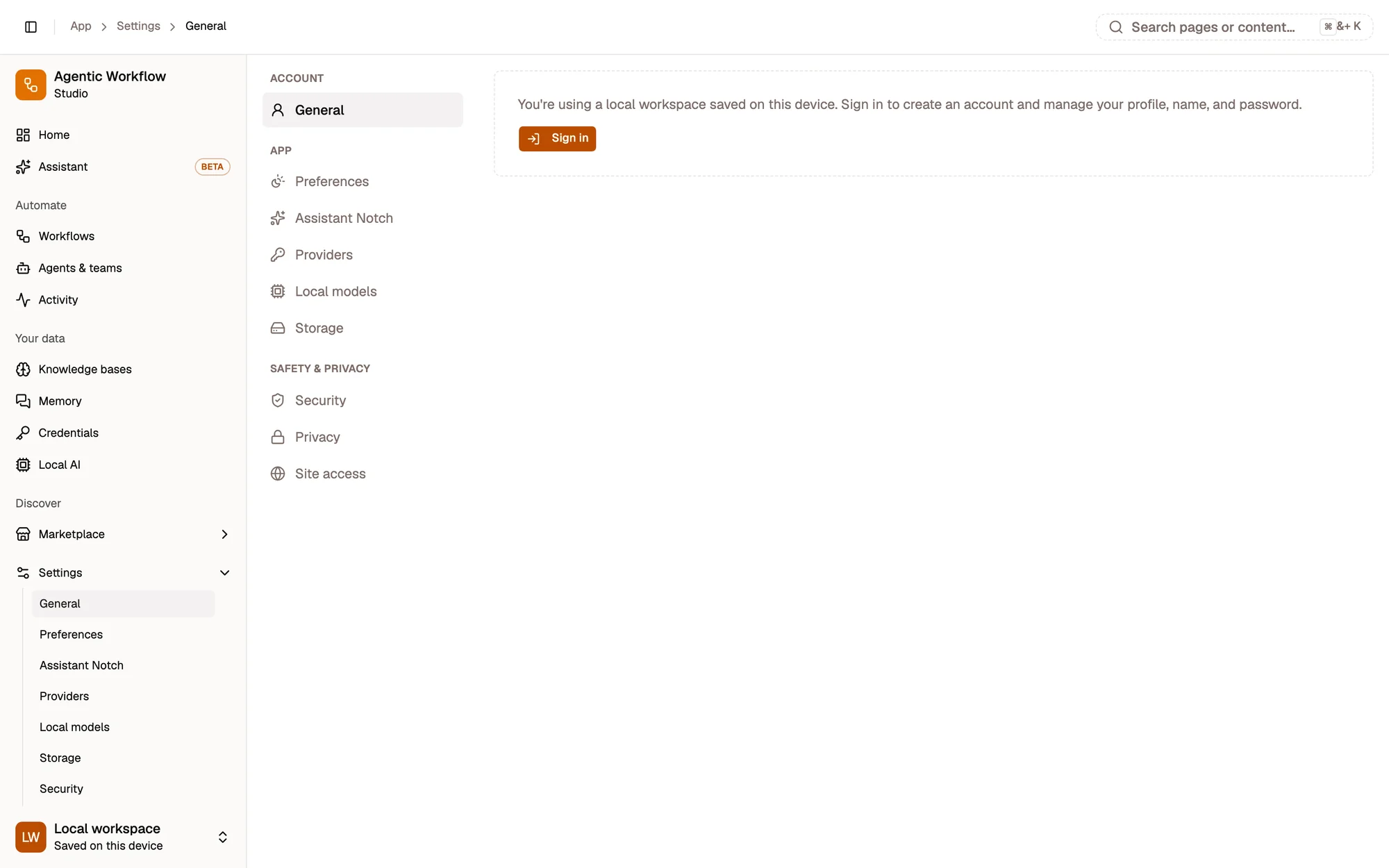
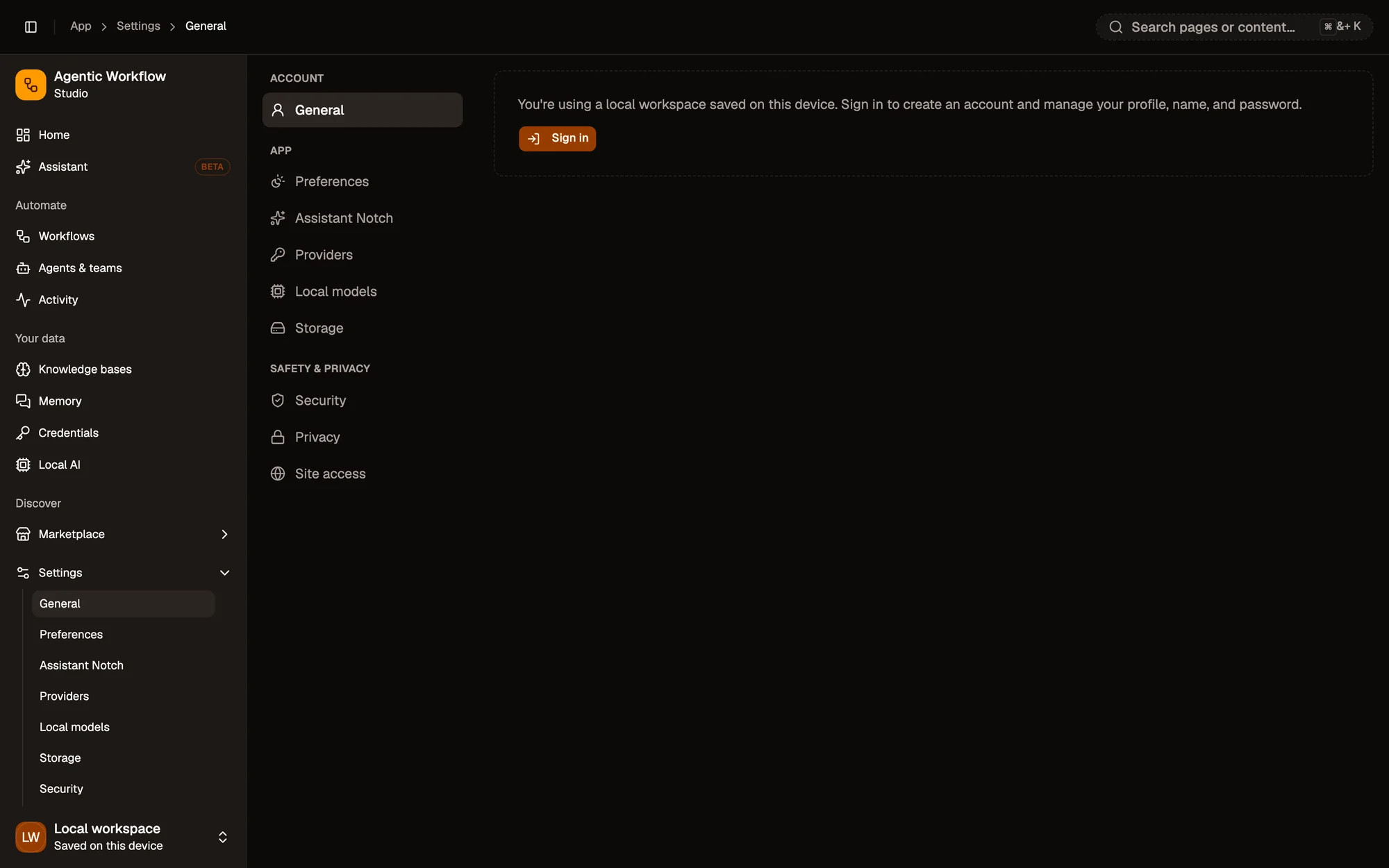
- Settings sections
- Sign in to manage your profile
Signed in, the page looks like this:
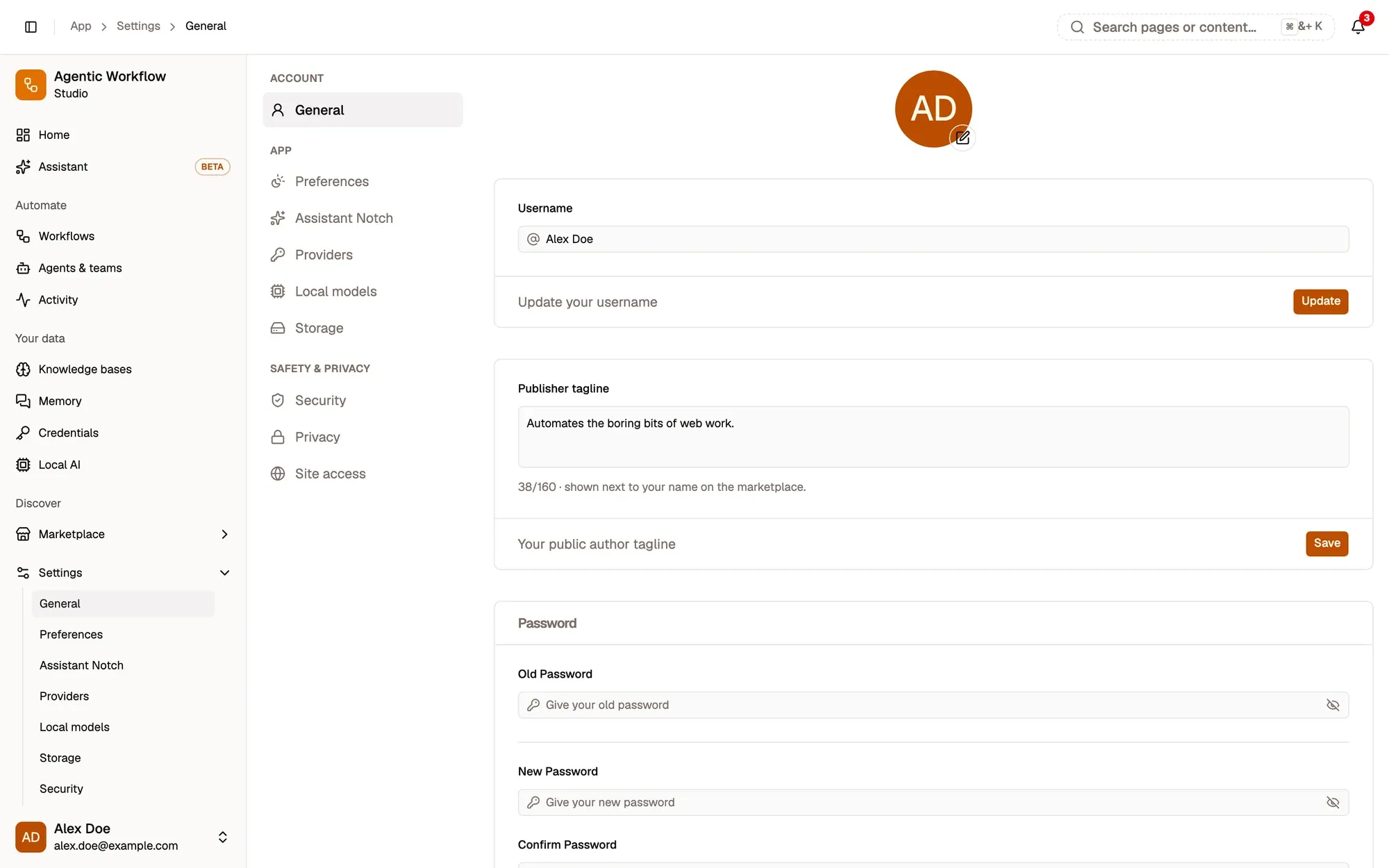
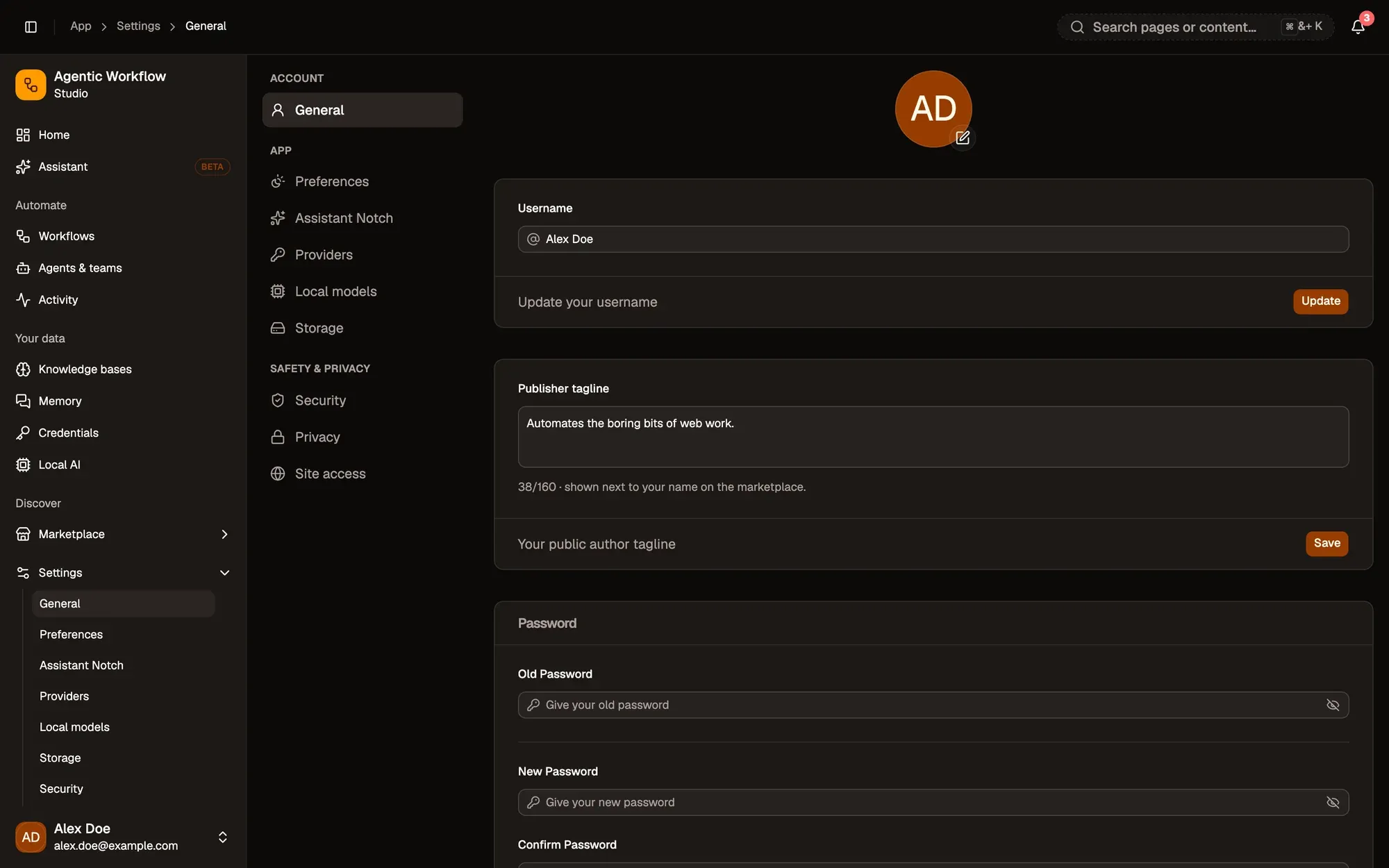
Numbered areas in the screenshot: 1. Avatar; 2. Username; 3. Update; 4. Publisher tagline; 5. Save.
Further down, the password and the newsletter:
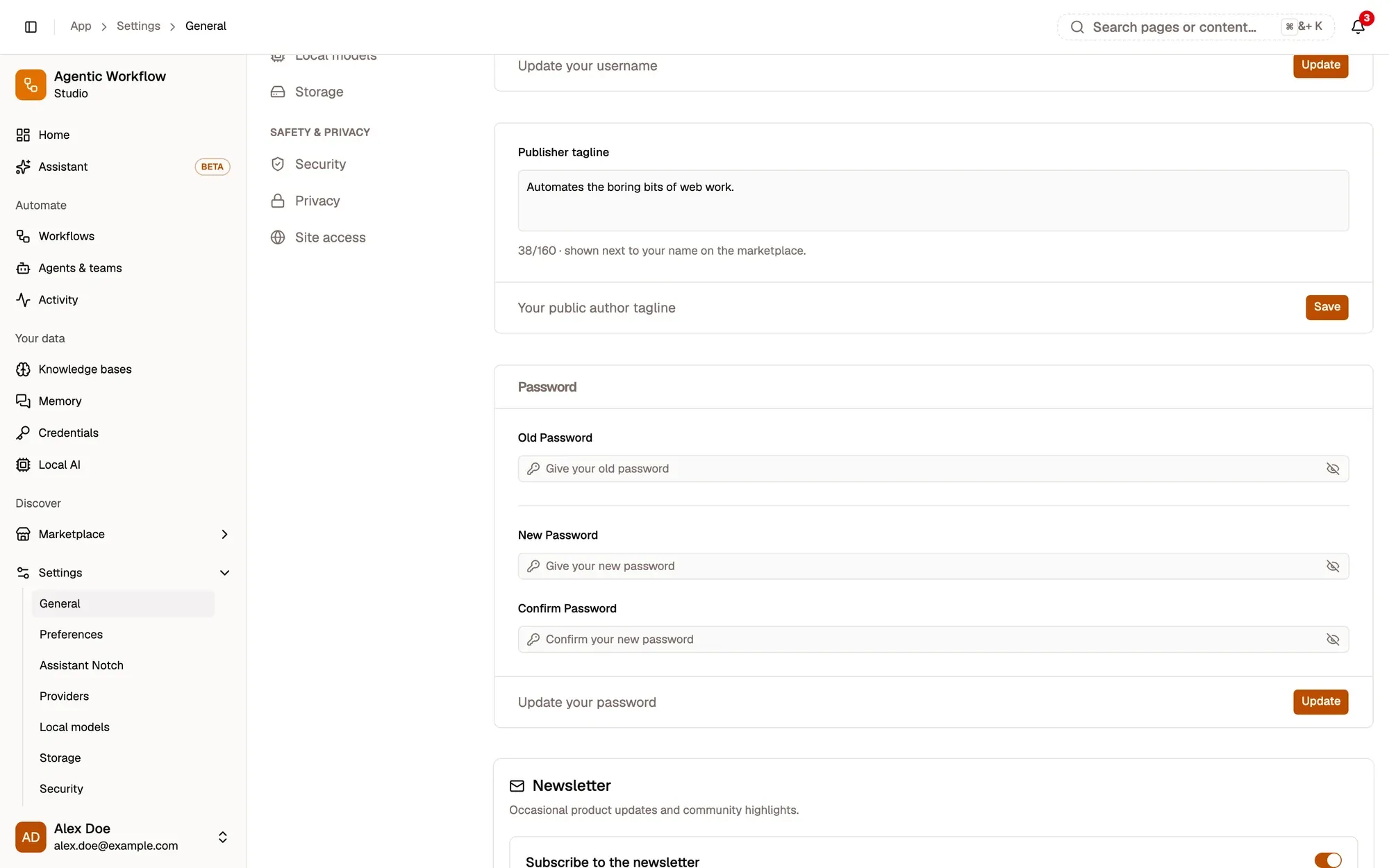
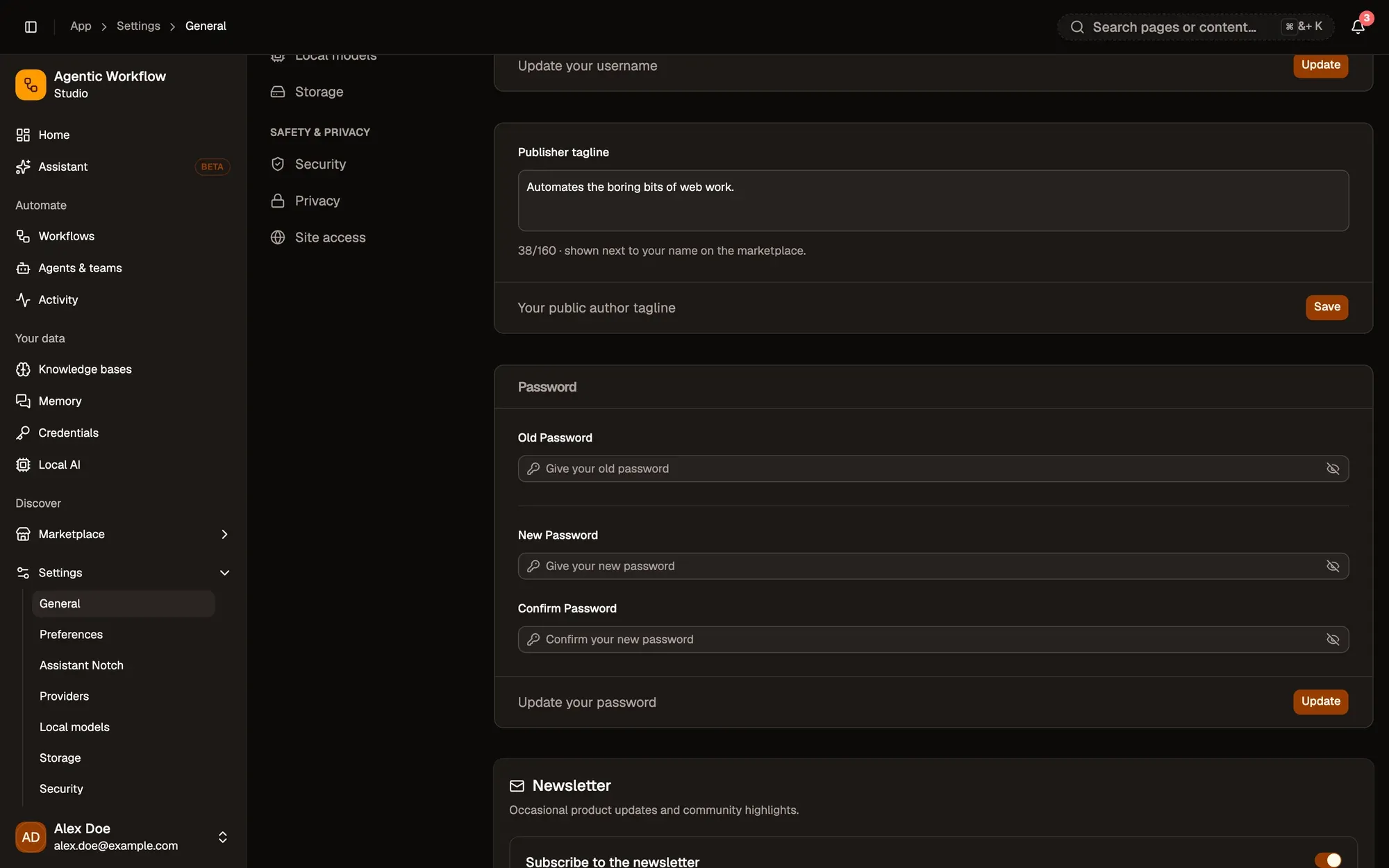
Numbered areas in the screenshot: 1. Old Password; 2. New Password and Confirm Password; 3. Update; 4. Subscribe to the newsletter.
Avatar
Section titled “Avatar”Click your avatar and pick Upload a photo…, then crop it. Remove photo goes back to the default.
Username
Section titled “Username”Type a new name in Username and click Update.
Publisher tagline
Section titled “Publisher tagline”A short line (up to 160 characters) shown next to your name on the Marketplace when you publish workflows. Click Save.
Password
Section titled “Password”Fill in Old Password, New Password and Confirm Password, then click Update. Use the eye icon to show what you typed.
If you forgot your current password, sign out and use Forgot your password? on the login screen. See Reset your password.
Newsletter
Section titled “Newsletter”Turn Subscribe to the newsletter on or off. You get occasional product updates and community highlights. Security and password emails are always sent, whatever you choose here. See Newsletter.
Delete your account
Section titled “Delete your account”There is no delete button in the app. To have your account and cloud data erased, email hello@awflow.io. See Privacy & data.