Before you start
Section titled “Before you start”- A Slack workspace where you may install apps (or an admin who approves it).
- The AWFlow browser extension. These steps run in the extension (the web app hands them to it).
Used by
Section titled “Used by”Pick a method
Section titled “Pick a method”| Method | Use it when |
|---|---|
| Bot token Recommended | Posts as your app. Covers every operation except Message › Search. |
| User token | Acts as you. Needed for Message › Search; it also sees every channel you are in. |
Set it up
Section titled “Set it up”-
Create the app from a manifest. Open api.slack.com/apps, click Create New App › From a manifest, pick your workspace and paste:
awflow-slack-manifest.yaml display_information:name: AWFlowfeatures:bot_user:display_name: AWFlowalways_online: falseoauth_config:scopes:bot:- channels:read- groups:read- channels:history- groups:history- chat:write- users:read- files:read- files:writeuser:- search:readsettings:org_deploy_enabled: falsesocket_mode_enabled: falsetoken_rotation_enabled: falseDrop the scopes you won’t use. The
userscope is only for Message › Search. -
Install it and copy the token. Click Install to Workspace and allow. In OAuth & Permissions, copy the Bot User OAuth Token (it starts with
xoxb-). -
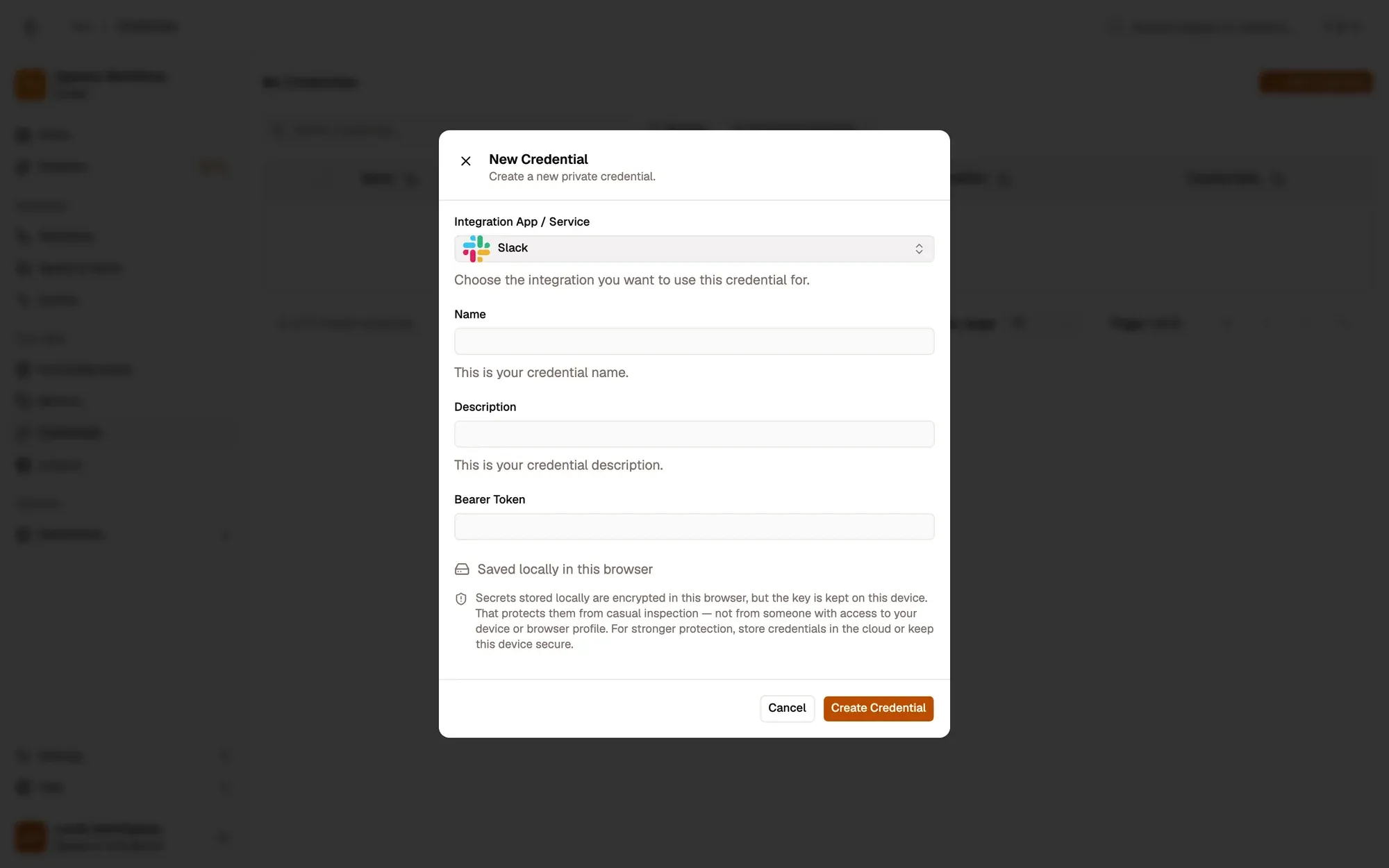
Save it in AWFlow. Open Credentials and click Add Credential (or + Add Credential in a node’s Credential field), then fill the New Credential form. In the browser side panel the form comes in two steps: tap Slack in the list, then fill the rest.
Numbered areas in the screenshot: 1. Integration App / Service: Slack; 2. Name; 3. Bearer Token; 4. Where the secret is stored (here, locally in this browser); 5. Create Credential.
-
Invite the bot to each channel it should post in or read: type
/invite @AWFlowin the channel.
-
Use the same app (the manifest above already asks for
search:readas a user scope), or add User Token Scopes under OAuth & Permissions. -
Reinstall the app to the workspace, then copy the User OAuth Token (it starts with
xoxp-). -
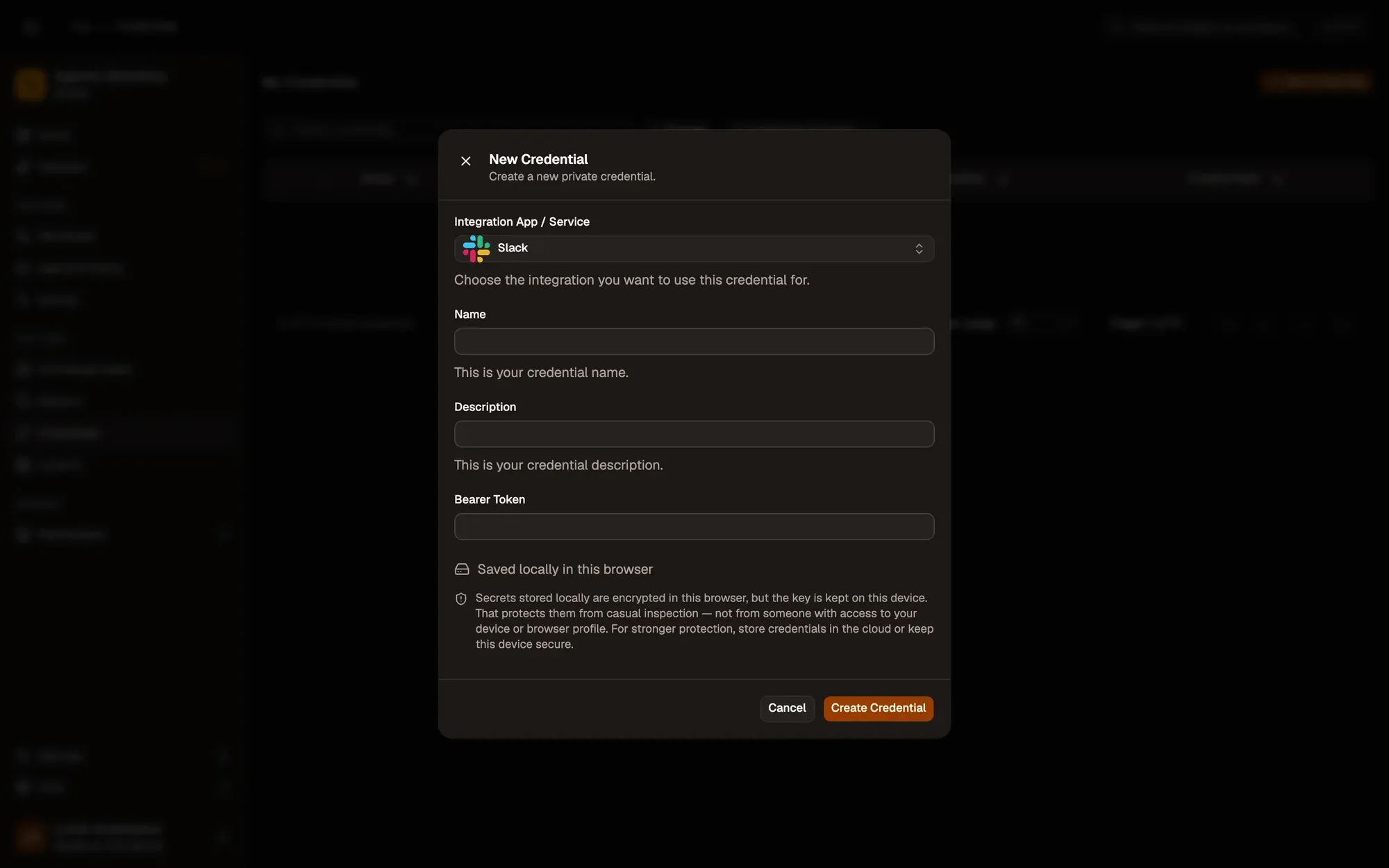
Save it in AWFlow. Open Credentials and click Add Credential (or + Add Credential in a node’s Credential field), then fill the New Credential form. In the browser side panel the form comes in two steps: tap Slack in the list, then fill the rest.
Numbered areas in the screenshot: 1. Integration App / Service: Slack; 2. Name; 3. Bearer Token; 4. Where the secret is stored (here, locally in this browser); 5. Create Credential.
Where your token lives
Section titled “Where your token lives”Permissions each operation needs
Section titled “Permissions each operation needs”| Operation | Token | Scope |
|---|---|---|
| Channel · Get many, Get info | Bot or user | channels:read (groups:read for private channels) |
| Message · Send, Update, Delete | Bot or user | chat:write |
| Message · Get | Bot or user | channels:history (groups:history for private channels) |
| Message · Search | User only | search:read |
| User · Get many, Get info | Bot or user | users:read |
| File · Upload | Bot or user | files:write |
| File · Get | Bot or user | files:read |
Common issues
Section titled “Common issues”- “missing_scope” or “not_allowed_token_type”. The token lacks the scope for this operation, or Search got a bot token. Add the scope in your Slack app, reinstall it, and copy the new token.
- “not_in_channel”. Invite the bot to the channel with
/invite @AWFlow. - “invalid_auth”. The token was revoked or the app was reinstalled. Copy the current token from OAuth & Permissions.
- The Channel list stays empty. Pick the credential first; the list loads from Slack with it.
- The run is blocked in the web app. Slack runs through the browser extension. Install the extension and allow Slack for this workflow when asked, or run the workflow from the extension. See Extension-only integrations in the web app.