Admin
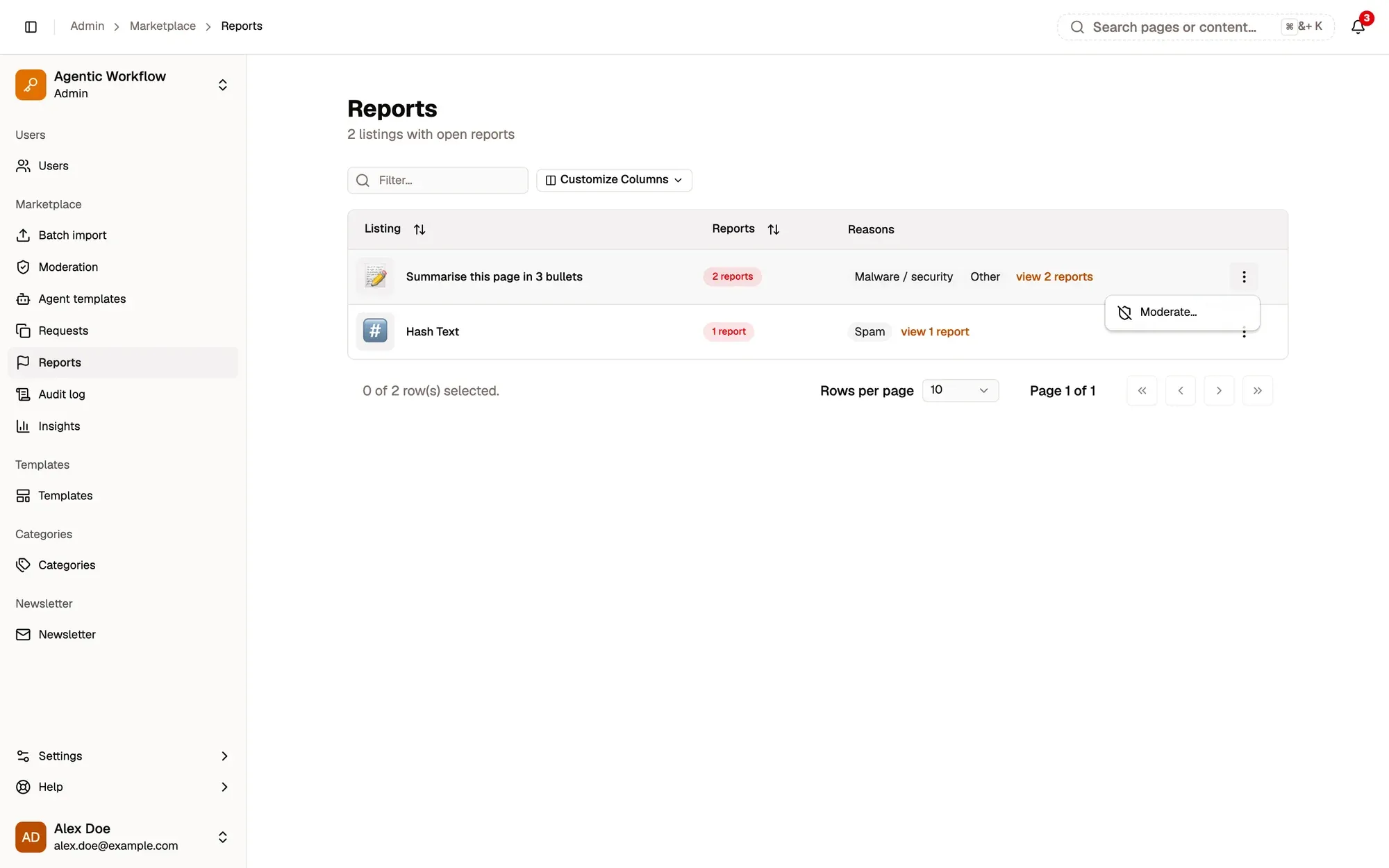
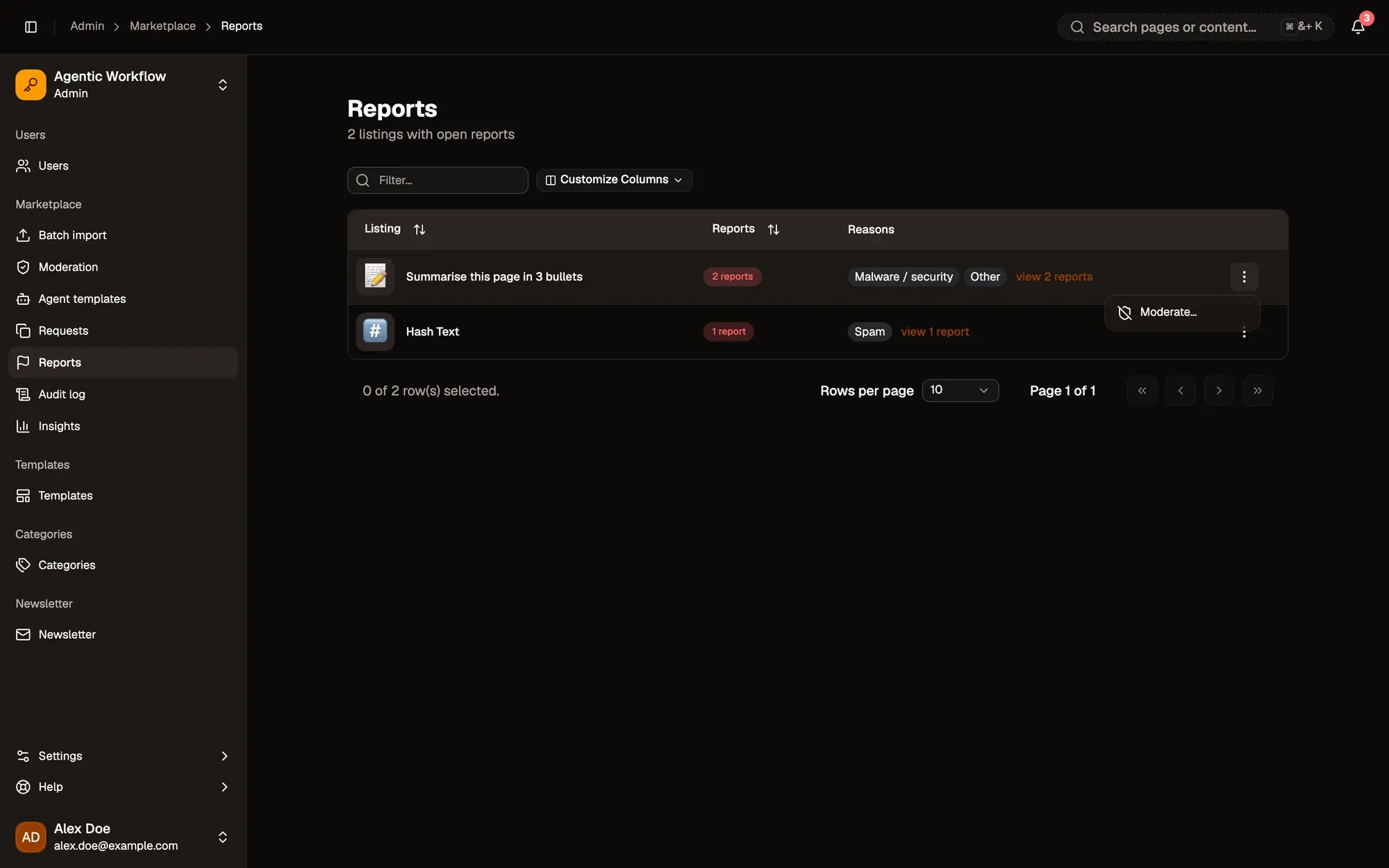
Ask Aria⌘IReports (Admin panel › Marketplace › Reports) lists every Marketplace listing with open reports from users.
Each row shows the Listing, how many Reports it has, and the Reasons given: Spam, Malware / security, Inappropriate, Copyright or Other. Click view N reports to read each report’s details and who sent it.
Handle a report
Section titled “Handle a report”Step 1:Open ⋮ › Moderate… on the listing's row
Read the Reasons first; view N reports shows each report and who sent it.
Step 2:Keep it: Dismiss reports
In the Moderate dialog, click Dismiss reports. A note is optional.
Step 3:Or take it down
Pick a Reason, write a Note, and optionally a Message to people who installed it. Then click Take down.
The reason decides what happens to people who already installed the workflow:
| Reason | Effect |
|---|---|
| Malware or data theft | Every installed copy stops and its triggers turn off. |
| Safety risk | Every installed copy stops and its triggers turn off. |
| Policy | The listing is hidden. Installed copies keep running, with a notice. |
The decision is recorded in the Audit log.