A team is a group of agents with a lead, a way of working and shared rules. Every conversation with a team is a team thread: you give the team a job, the agents hand work to each other, and the lead comes back with one answer.
Open Agents › Teams.
Create a team
Section titled “Create a team”- Describe a team (“A crew that researches a topic, writes a blog post and turns it into 3 social posts”) and click Suggest a team — Aria picks members from your agents and suggests new ones.
- Or start from a team template (Research desk, Inbox zero, Job hunt, Shop smart, Trip crew, Content studio), or New team.
The wizard has four steps:
Step 1:Goal
Give the team a Name and say what it is for under Goal, then click Suggest members.
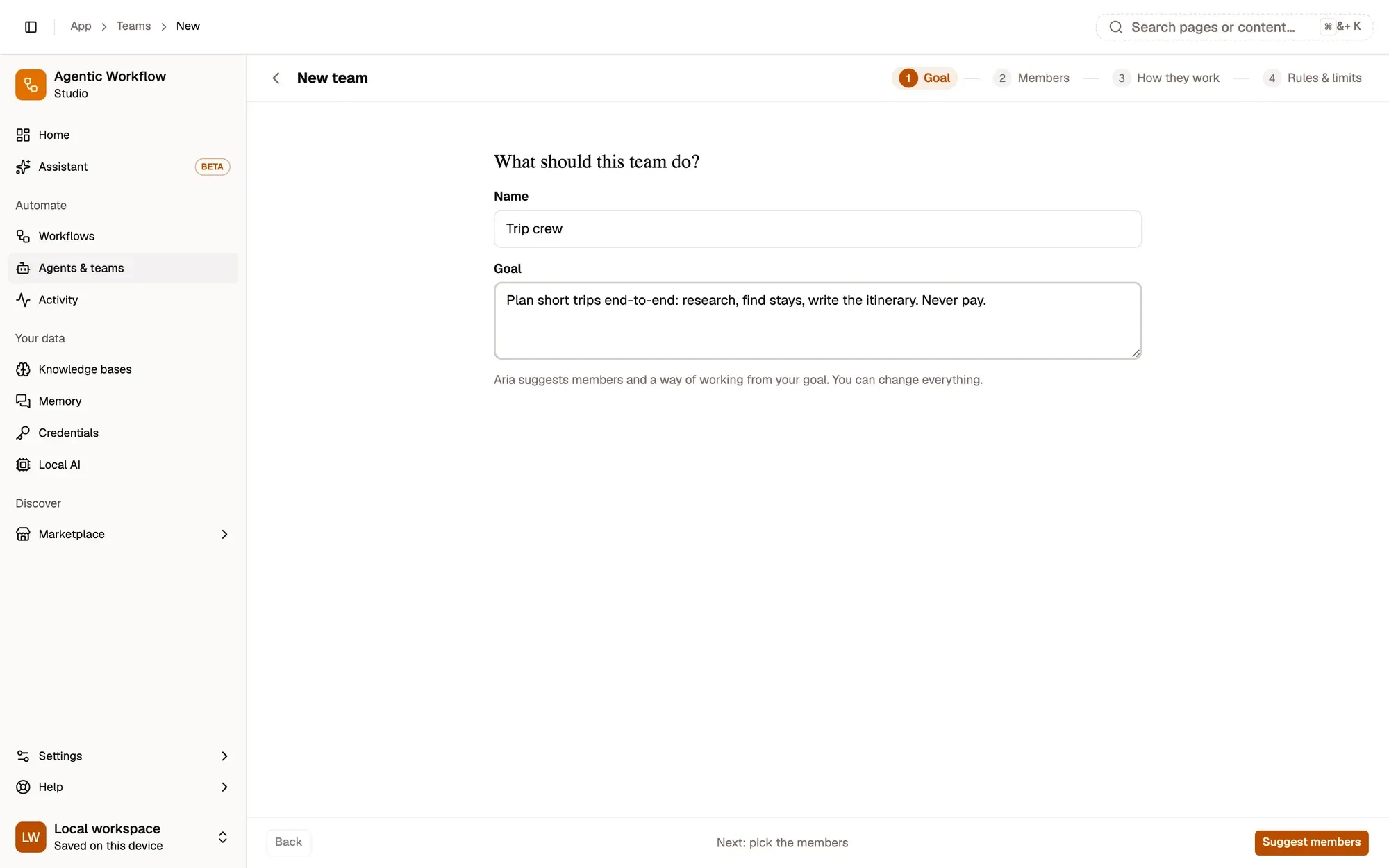
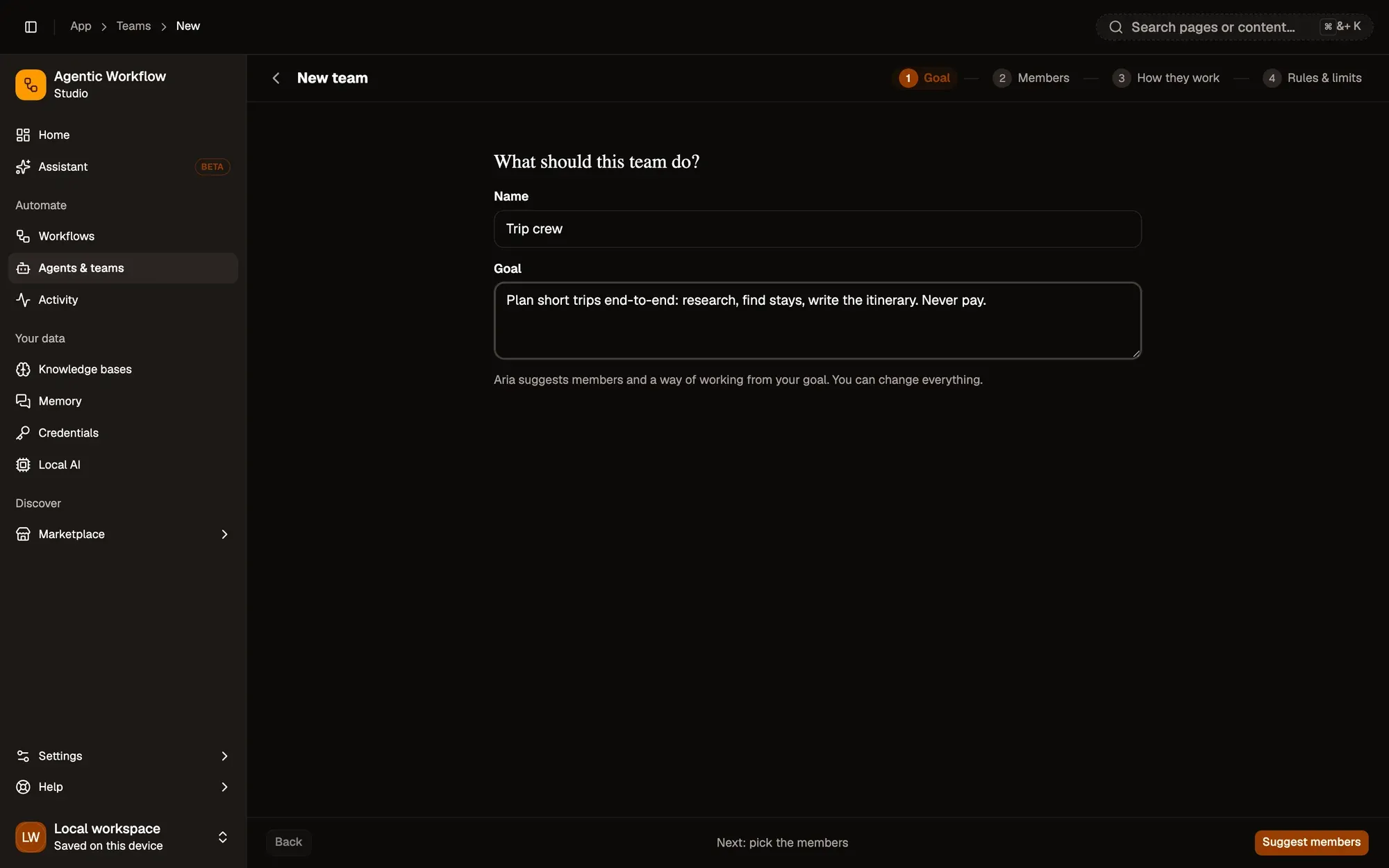
Check: the Suggest members button is enabled.
Step 2:Members
Aria suggests members from your goal. Add your agents, or create suggested agents inline, pick the lead and give each member a role in this team. Agents keep their own skills and rules.
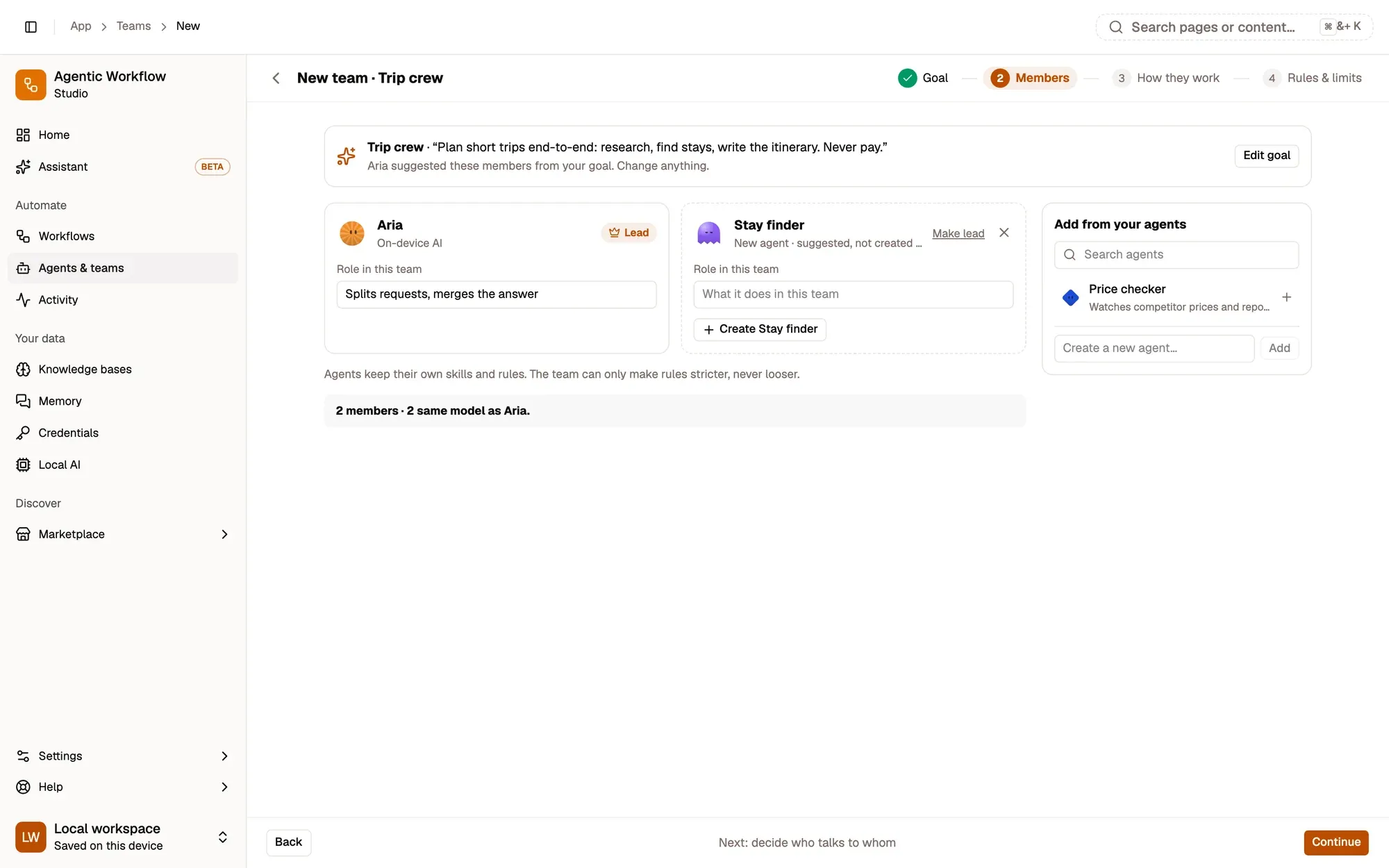
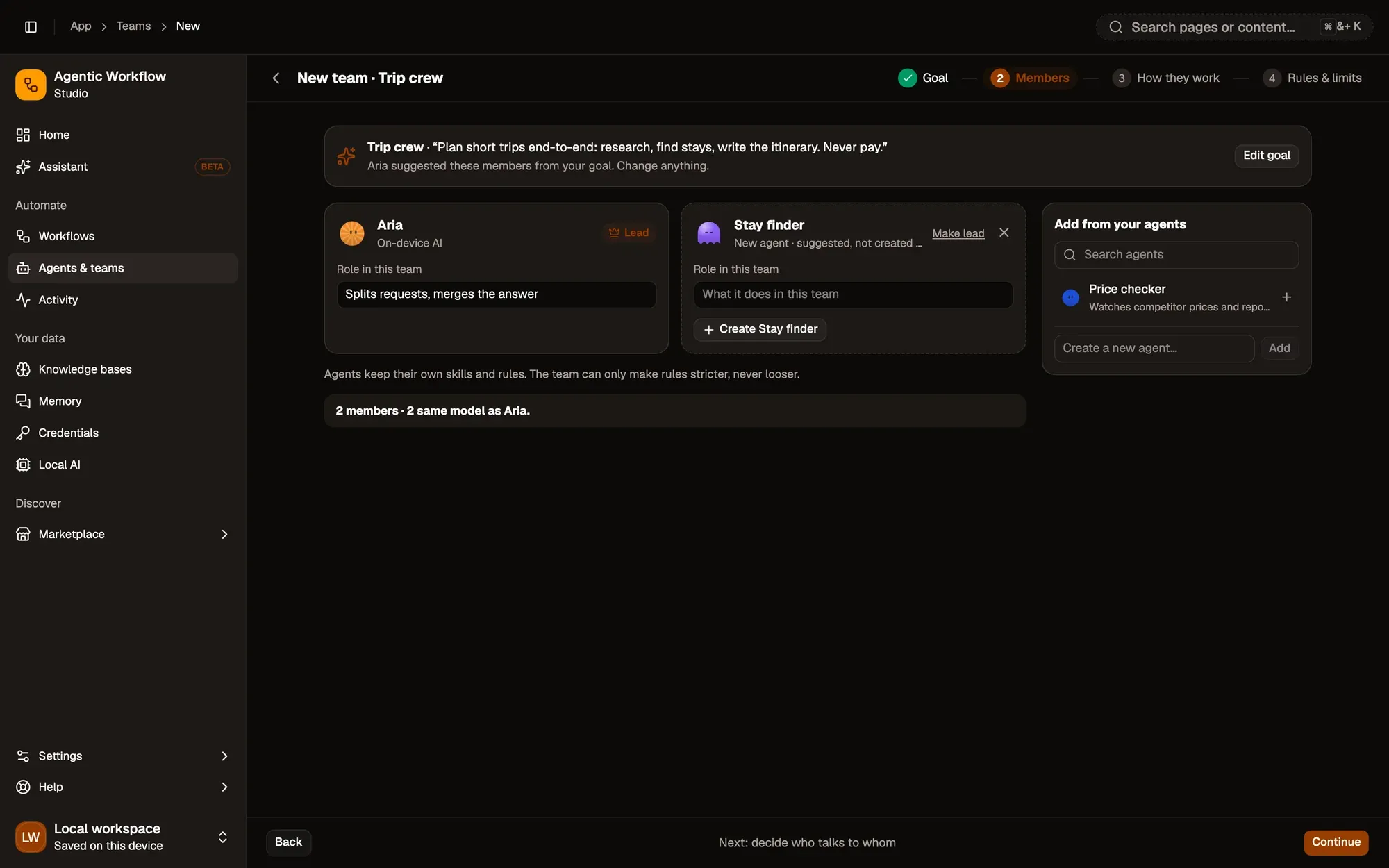
Check: the team has at least two members and Continue is enabled.
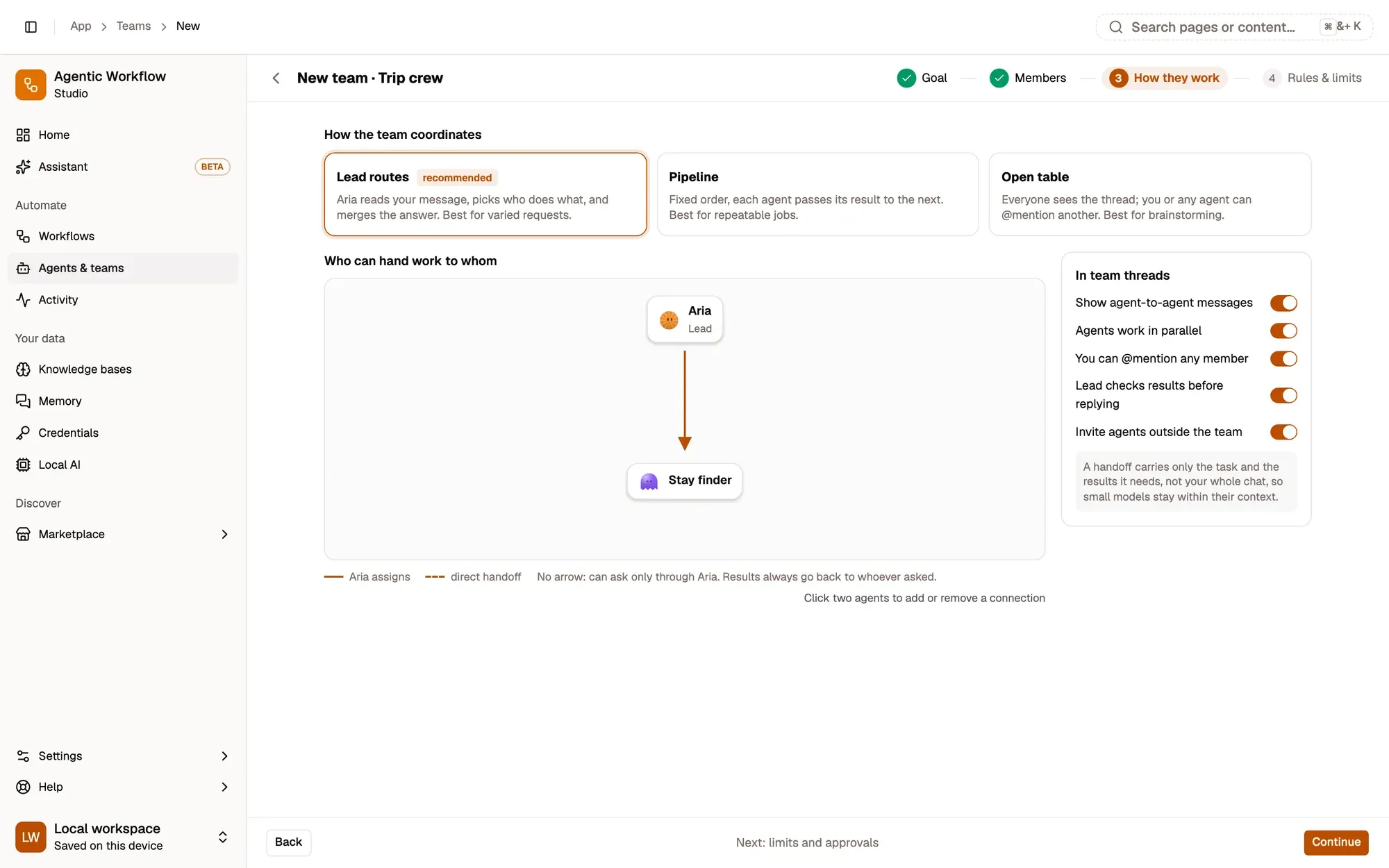
Step 3:How they work
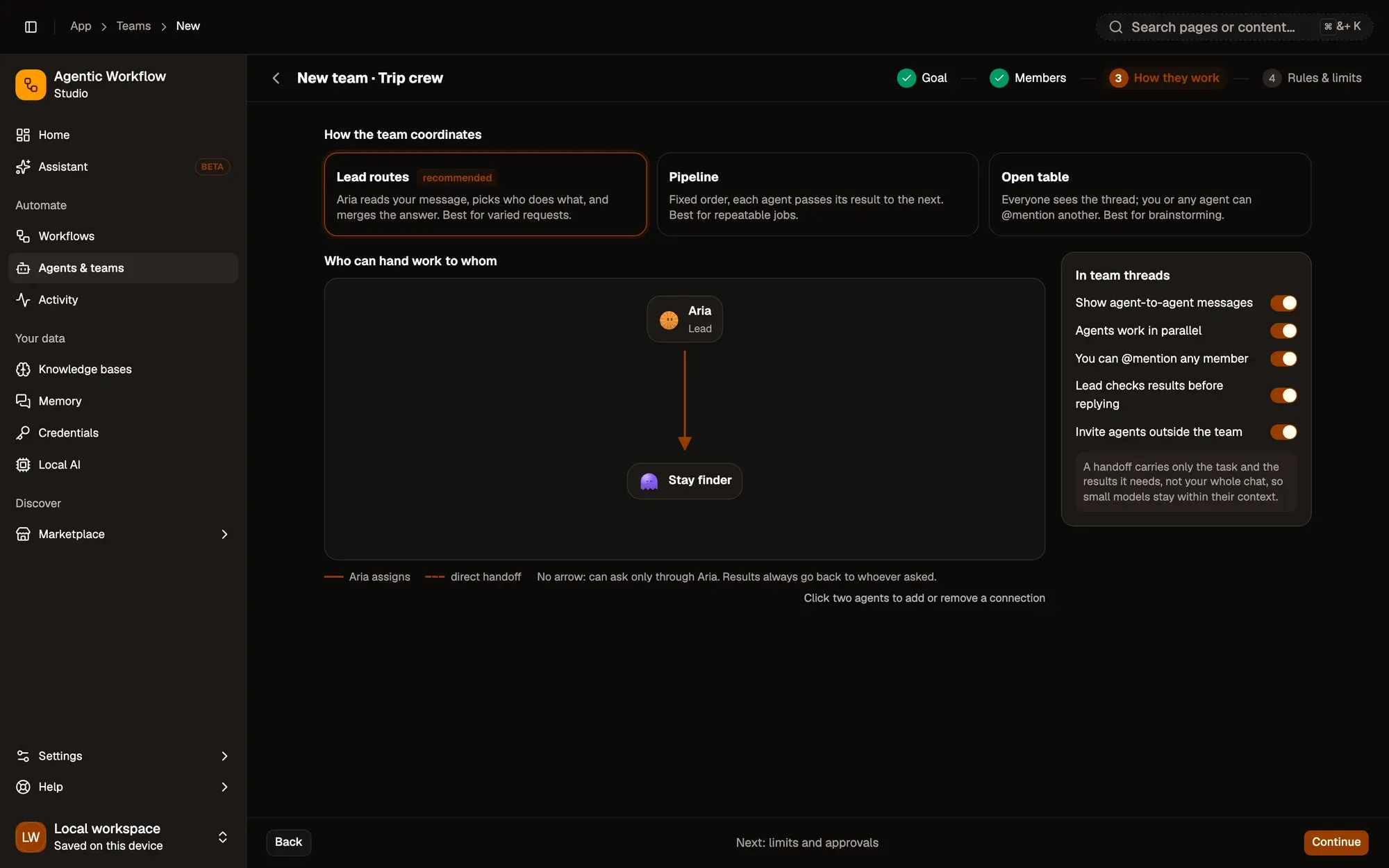
Pick the coordination mode and who can hand work to whom (click two agents to add or remove a connection). See Ways of working below.
Step 4:Rules & limits
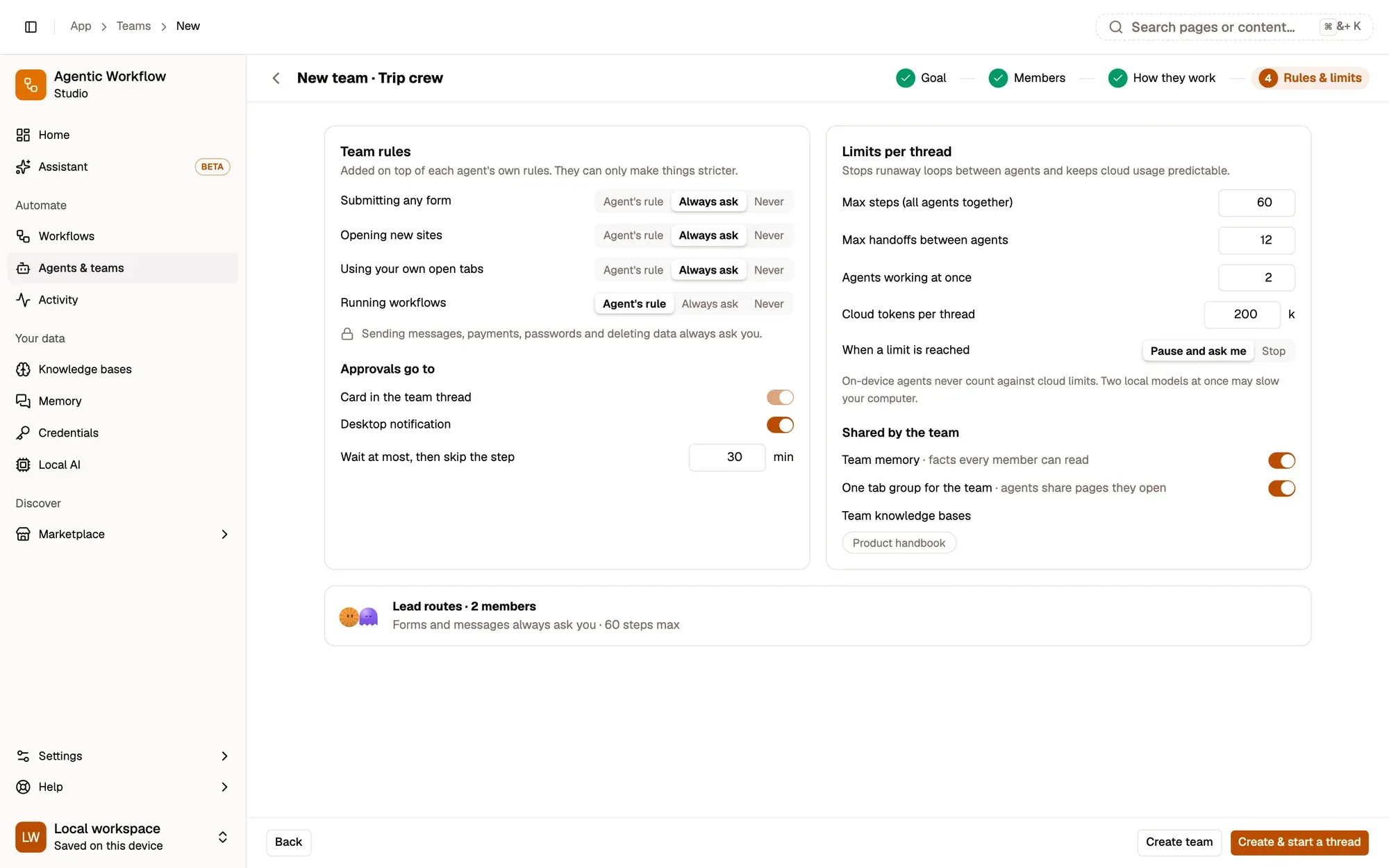
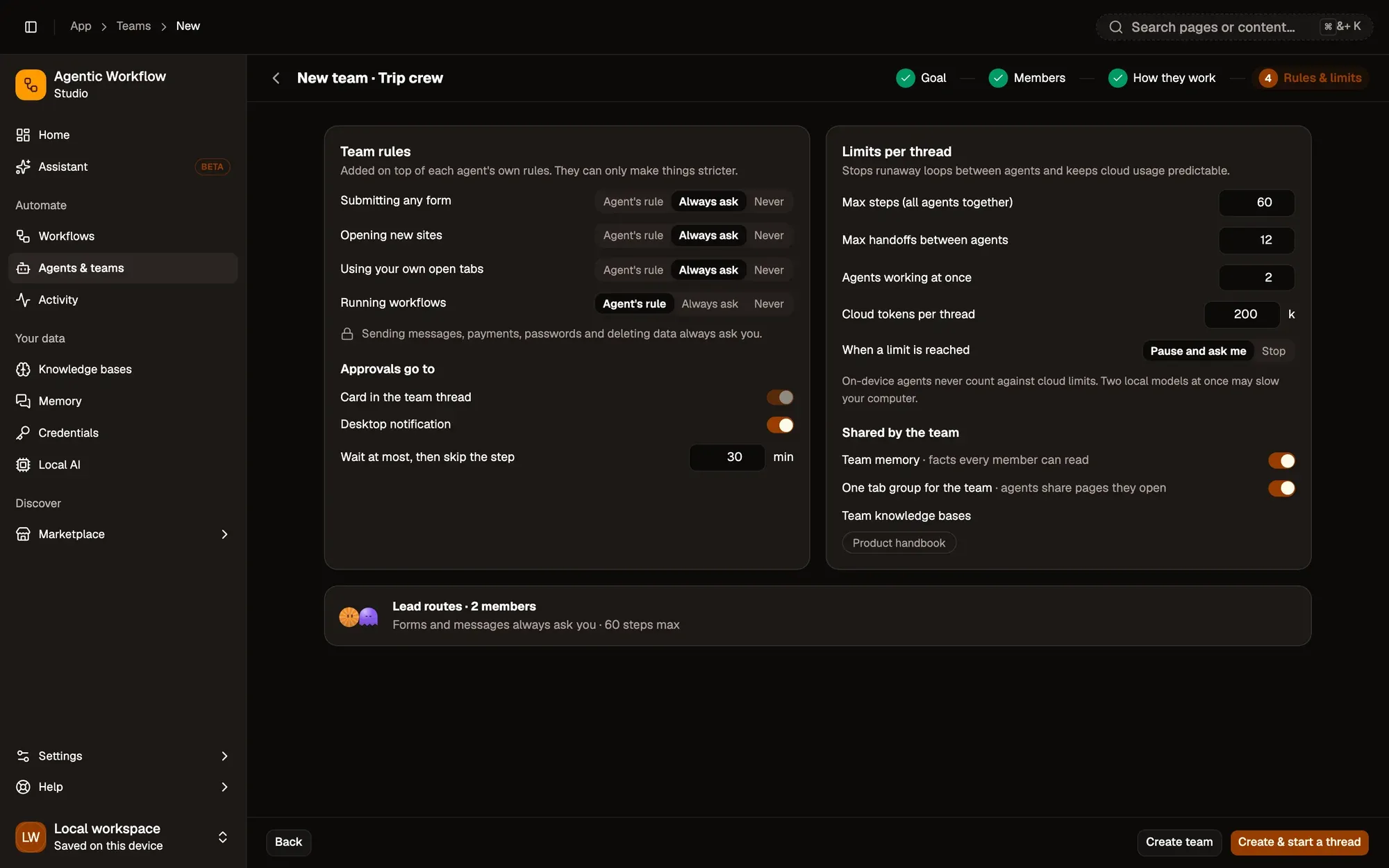
Set the team rules, where approvals go, the limits per thread and what the team shares. Finish with Create team, or Create & start a thread.
Check: the team is listed under Teams.
Ways of working
Section titled “Ways of working”| Mode | How it works | Best for |
|---|---|---|
| Lead routes | The lead reads your message, hands parts to the right members, then merges their results into one answer. | Varied requests |
| Pipeline | Members work in a fixed order; each gets your request plus the previous member’s result. The lead can check the final result. | Repeatable jobs |
| Open table | You — or any member — @mention whoever should answer. | Brainstorming |
Who can hand work to whom is a map: click one agent, then another, to add or remove a connection. A handoff carries the task and the results it needs, plus a short slice of the thread so far — the thread’s summary and its last few turns, fitted to the member’s model (at most about a third of its context window). Members know what was already said without reading your whole chat, and small models stay within their context.
Thread options: show agent-to-agent messages, let agents work in parallel, @mention any member, have the lead check results before replying, and allow guest agents.
Rules and limits
Section titled “Rules and limits”Team rules sit on top of each agent’s own rules and can only make them stricter: for submitting forms, opening new sites, using your own tabs and running workflows choose Agent’s rule, Always ask or Never. Payments, passwords, sending messages as you and deleting data always ask, whatever the rules say.
Approvals appear as a card in the team thread and as a desktop notification. If nobody answers within the wait time (30 minutes by default), the step is skipped.
Limits per thread stop runaway loops and keep cloud usage predictable:
- Max steps for all agents together (default 60)
- Max handoffs between agents (12)
- Cloud tokens per thread (200k) — every call to a cloud model counts, including the page text, search results and other tool results the agents send back to it; on-device agents never count. Input the provider serves from its prompt cache counts at a tenth of its size, since it is cheaper
- Agents working at once (2)
When a limit is reached, the thread pauses and asks you or stops. A paused thread shows a Not done yet card with Continue · 30 more steps and Change the limit.
Shared by the team: team memory (facts every member can read, plus the memories an agent shared with this team in its Memory tab — see Team memory), team knowledge bases (each member also uses its own), and one browser tab group that members share.
Team threads
Section titled “Team threads”Open a team to see its Threads. Type a new job to start one, or start a thread from anywhere:
- In any chat:
@trip-crew 3 days in Rome in March - Address bar:
aw @trip-crew … - Right-click a page: Send to a team…
- From a team routine: each run is a new thread.
In a thread you see which agent answered, the handoffs as pills (click one to read that member’s result), each member’s tool steps as they happen, approval cards, and a side panel with each member’s status, the plan, the team rules and usage against the limits. Under Cloud tokens, the panel lists each member’s usage (tokens in, out and cached), most expensive first.
A handoff pill reads Failed when the member hit an error (expand it to see why), and Skipped when it was stopped, ran into a limit, or an approval was declined or not answered. Members tell the lead whether they finished, only partly finished, were blocked or need you, so the lead can decide what to do next. Threads keep working when you switch to another page of the app while the browser is open. If you close the app before the team has finished, the thread shows This request was interrupted the next time you open it — click Retry to send the same request again.
Invite guest agent adds an agent to this thread only — the team doesn’t change.
Manage a team
Section titled “Manage a team”The team page has tabs for Threads, Members (roles, who each can hand work to, model, status; add, remove, make lead), How they work, Rules & limits, Shared memory and Routines.
Shared memory lists the team’s own facts and, under Shared by members, the facts each agent shared with this team — Stop sharing keeps one with its agent only. Deleting a team asks whether to delete its memories too. See Team memory.
A thread starts with the team’s setup at that moment. When you change the team, new threads use the new setup, and AWFlow asks whether running threads should keep it as is or apply the change.
Save a chat as a team
Section titled “Save a chat as a team”When two or more agents have joined a normal chat, Aria offers Save … as a team? — one click opens the wizard with those members.
Share a team
Section titled “Share a team”Share as template publishes the team to the marketplace or downloads it. See Agent & team templates.