When a workflow does not behave as expected, the problem is often how nodes are connected, not the nodes themselves.
This page helps you understand:
- How workflow connections work
- The most common connection mistakes
- How to fix data flow and execution order issues
No programming knowledge is required.
How Workflow Connections Work
Section titled “How Workflow Connections Work”A workflow is a sequence of nodes connected together.
Each connection:
- Sends data from one node to the next
- Defines the order in which nodes run
- Makes sure the right information arrives at the right step
If a connection is missing or incorrect, the workflow may:
- Stop early
- Run in the wrong order
- Produce empty or incorrect results
First Things to Check
Section titled “First Things to Check”Before looking deeper, always verify:
- All nodes are visually connected
- No required input is left unconnected
- Connections go from left to right (earlier → later)
- There are no loops unless intentionally designed
If something looks disconnected, it usually is.
Nodes Are Not Passing Data
Section titled “Nodes Are Not Passing Data”Nodes Look Connected but Nothing Happens
Section titled “Nodes Look Connected but Nothing Happens”Typical symptoms:
- A node runs but outputs nothing
- The next node runs with empty data
- Results are missing or incomplete
Most common reasons:
- The previous node did not produce any data
- The wrong output was connected
- The connection goes to the wrong input
What to do:
- Click the previous node and confirm it produces output
- Reconnect the line to the correct input
- Remove unused connections
Execution Order Problems
Section titled “Execution Order Problems”Nodes always run in the order defined by connections.
If a node runs too early, it may not receive the data it needs.
Correct Execution Flow
Section titled “Correct Execution Flow”flowchart TD
A[Start] --> B[Extract Data]
B --> C[Process Data]
C --> D[Use Result]
class A awf-trigger
class B awf-io
class C awf-data
class D awf-ok
Common Wrong Pattern
Section titled “Common Wrong Pattern”flowchart TD
A[Start] --> C[Process Data]
C --> B[Extract Data]
class A awf-trigger
class B,C awf-err
Fix:
- Ensure every node that needs data is connected after the node that produces it
- Avoid branching too early unless necessary
Missing or Empty Data
Section titled “Missing or Empty Data”If a node receives empty data:
- The extraction step may have failed
- The page may not have loaded yet
- The selector or target may not exist
Recommended fix: Add a Wait for Element node before extracting data.
Helpful links:
Too Many Connections
Section titled “Too Many Connections”Large workflows with many connections are harder to maintain.
Signs the workflow is too complex:
- Many lines crossing each other
- Multiple branches feeding the same node
- Difficult to tell where data comes from
Better approach:
- Split the workflow into smaller steps
- Keep each workflow focused on one task
- Reuse simpler workflows when possible
See:
Visual Guide to Connections
Section titled “Visual Guide to Connections”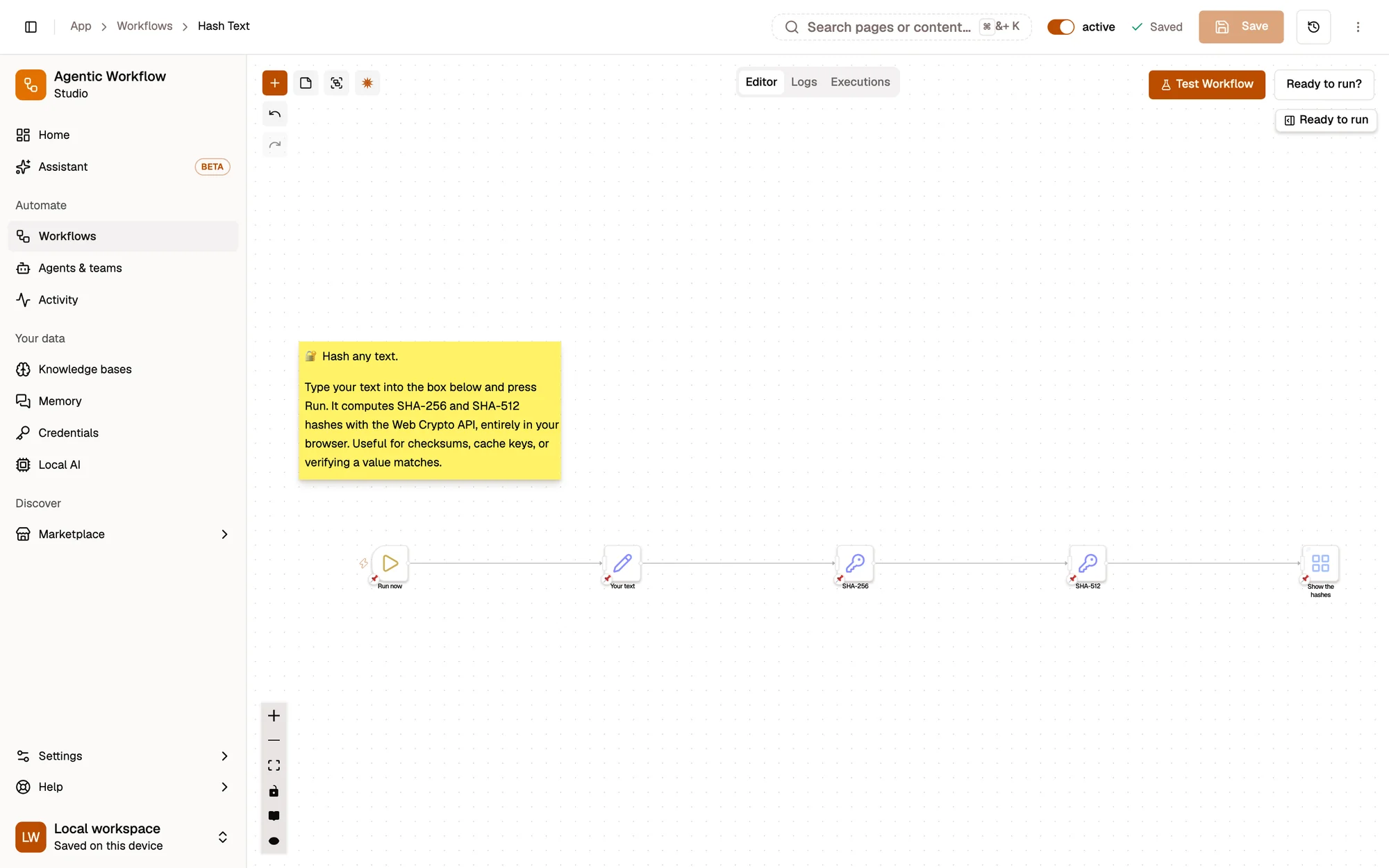
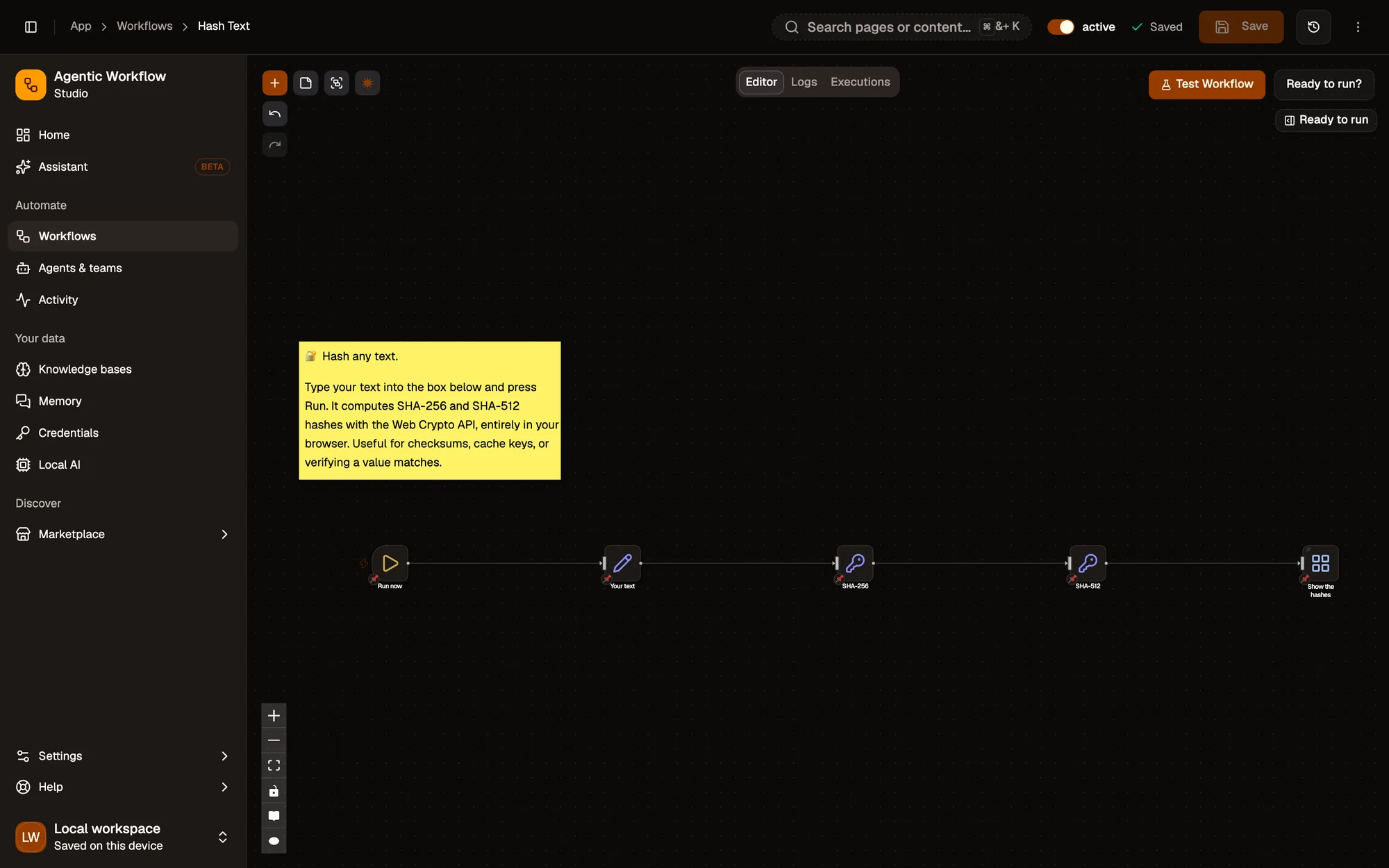
- Add a step (node)
- Editor, Logs and Executions tabs
- Test Workflow: run it now
- A step (node); drag from its handle to connect
Best Practices for Reliable Connections
Section titled “Best Practices for Reliable Connections”- Connect nodes only when data is actually needed
- Keep workflows linear when possible
- Avoid unnecessary branches
- Test each step before adding the next one
- Prefer clarity over compactness
A simple workflow is usually a reliable workflow.
When Connection Issues Persist
Section titled “When Connection Issues Persist”If the workflow still fails:
- Test it on a simpler website
- Temporarily disable other browser extensions
- Remove nodes one by one to find the breaking point
- Rebuild the workflow from scratch if needed
Related pages:
Summary
Section titled “Summary”Most workflow connection issues come from:
- Missing or incorrect connections
- Nodes running in the wrong order
- Empty data passed between steps
- Overly complex workflows
In most cases, the fix is visual: check the lines, the order, and the data flow.
If everything connects clearly, the workflow usually works.