These nodes take any credential. The Auth Type decides what AWFlow sends in the Authorization header:
| Auth Type | Fields | Sent as |
|---|---|---|
| Bearer Token | Bearer Token | Authorization: Bearer <token> |
| Basic Auth | Username, Password | Authorization: Basic <base64 of username:password> |
| JWT | JWT | Authorization: <value>, exactly as typed. Use it for schemes like Token abc123. |
| OAuth2 | Client ID, Client Secret | Only for Google and Microsoft 365. See Connect Google. |
Before you start
Section titled “Before you start”- The API’s documentation: it says how it expects the key (header, query or Basic Auth).
Used by
Section titled “Used by”Pick a method
Section titled “Pick a method”| Method | Use it when |
|---|---|
| Bearer token Recommended | Most modern APIs: “send Authorization: Bearer YOUR_KEY”. Also MCP servers that need a login. |
| Basic Auth | “Use your username and password”, or an API key plus secret sent as Basic Auth. |
| Raw header value (JWT) | The API wants another scheme in Authorization, such as Token abc123, or a JWT you got elsewhere. |
Set it up
Section titled “Set it up”-
Create a key in the service’s developer settings.
-
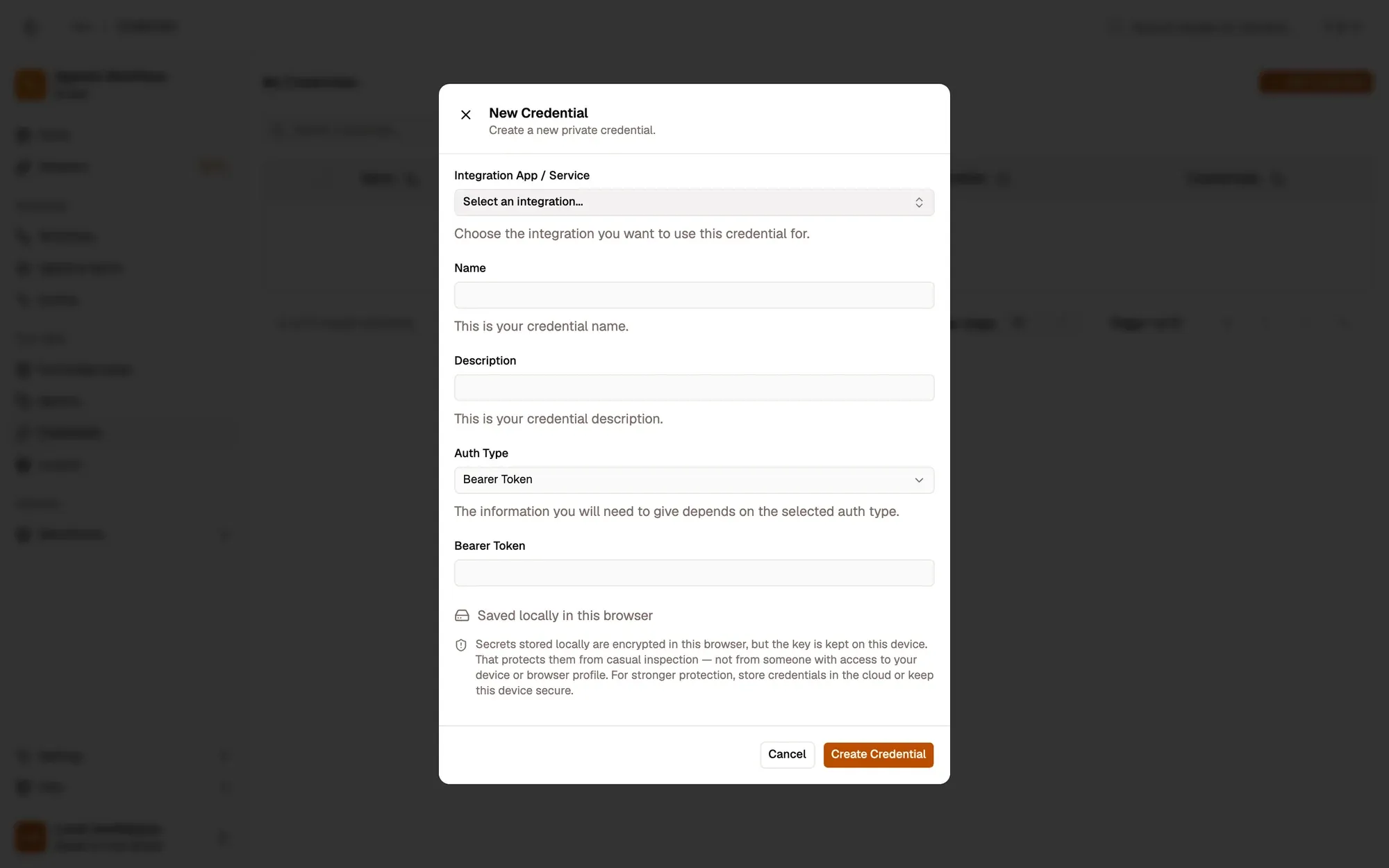
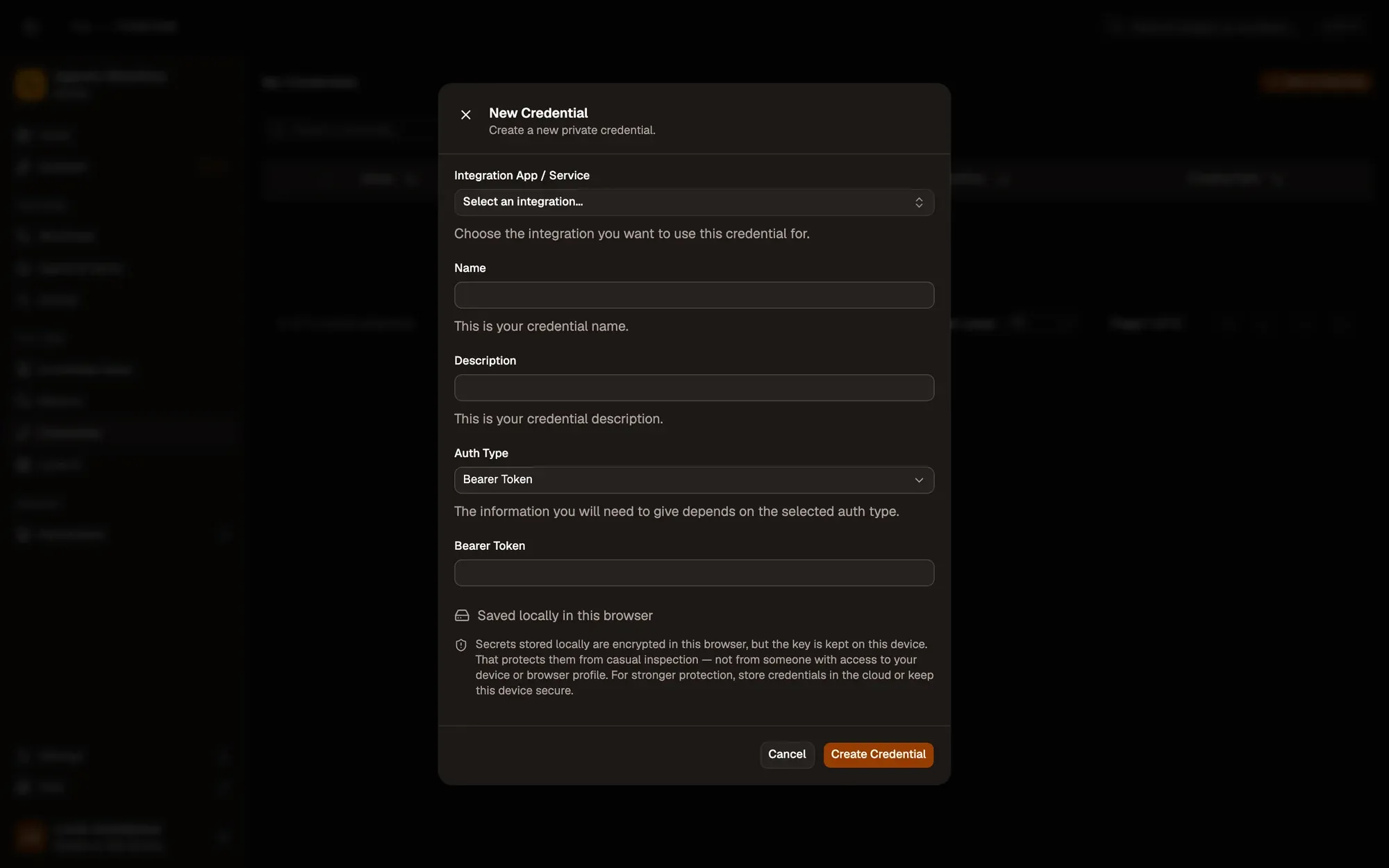
Save it in AWFlow. Open Credentials and click Add Credential (or + Add Credential in the node’s Authentication field), then fill the New Credential form. In the browser side panel the form comes in two steps: tap Simple Credential (or click Continue), then fill the rest.
Numbered areas in the screenshot: 1. Integration App / Service: none (Simple Credential); 2. Name; 3. Auth Type: Bearer Token; 4. Bearer Token; 5. Where the secret is stored (here, locally in this browser); 6. Create Credential.
-
Pick it in the node: Authentication on Http Request, HTTP Request Tool and RSS Feed Read; Credential on Custom API; Authentication next to the server on MCP Client Tool.
-
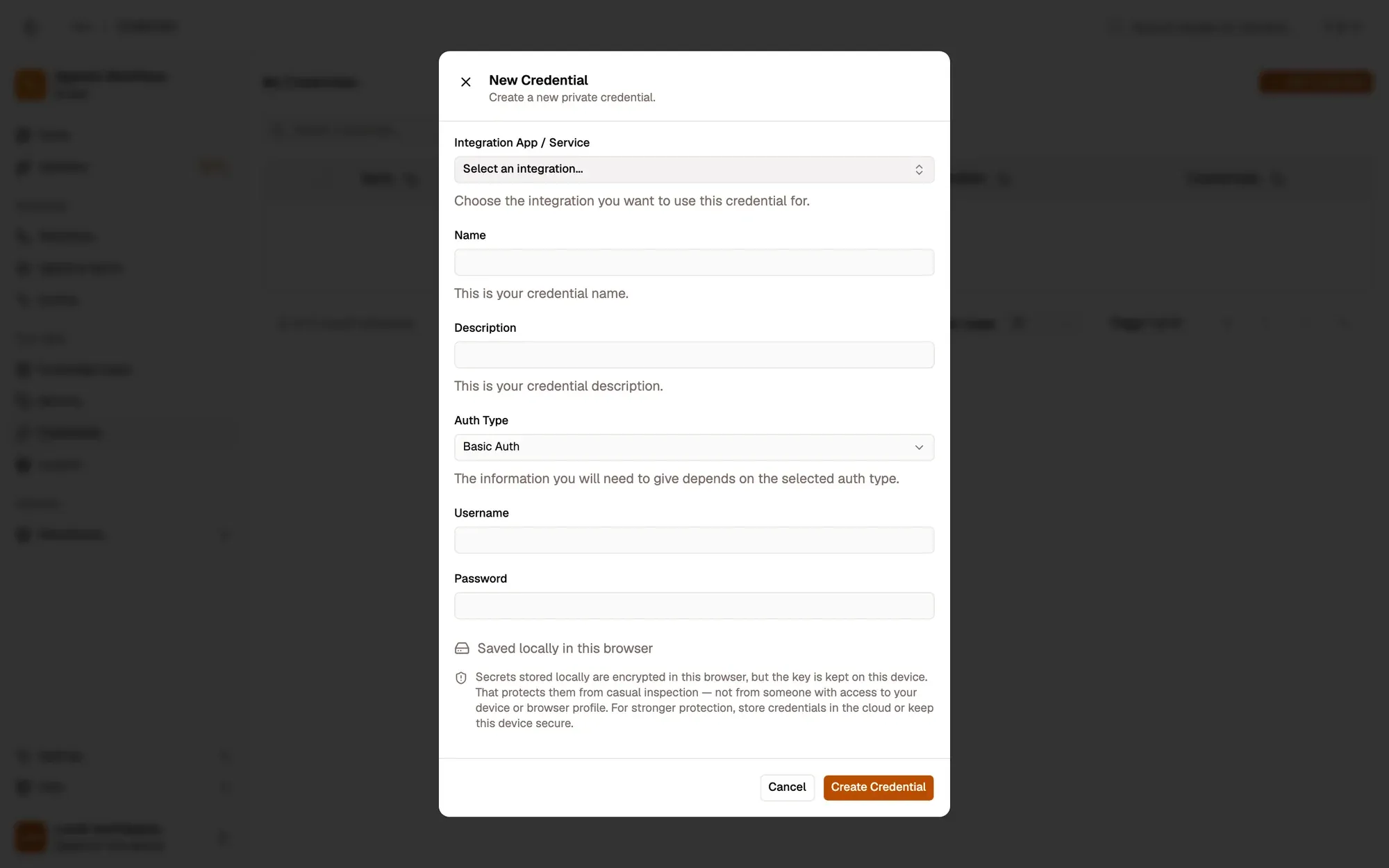
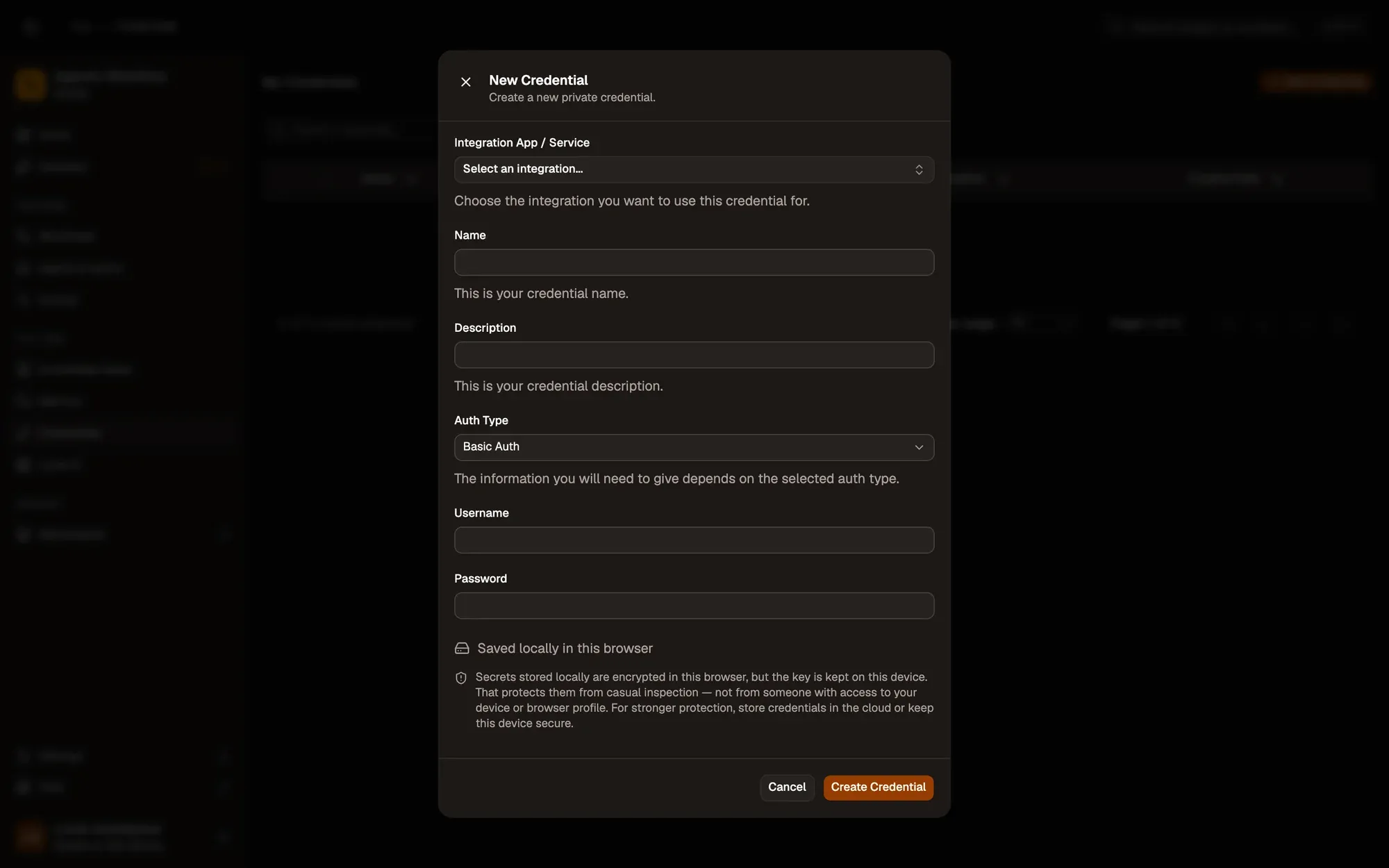
Save it in AWFlow. Open Credentials and click Add Credential (or + Add Credential in the node’s Authentication field), then fill the New Credential form. In the browser side panel the form comes in two steps: tap Simple Credential (or click Continue), then fill the rest.
Numbered areas in the screenshot: 1. Integration App / Service: none (Simple Credential); 2. Name; 3. Auth Type: Basic Auth; 4. Username; 5. Password; 6. Where the secret is stored (here, locally in this browser); 7. Create Credential.
-
Pick it in the node, the same way as a bearer token.
-
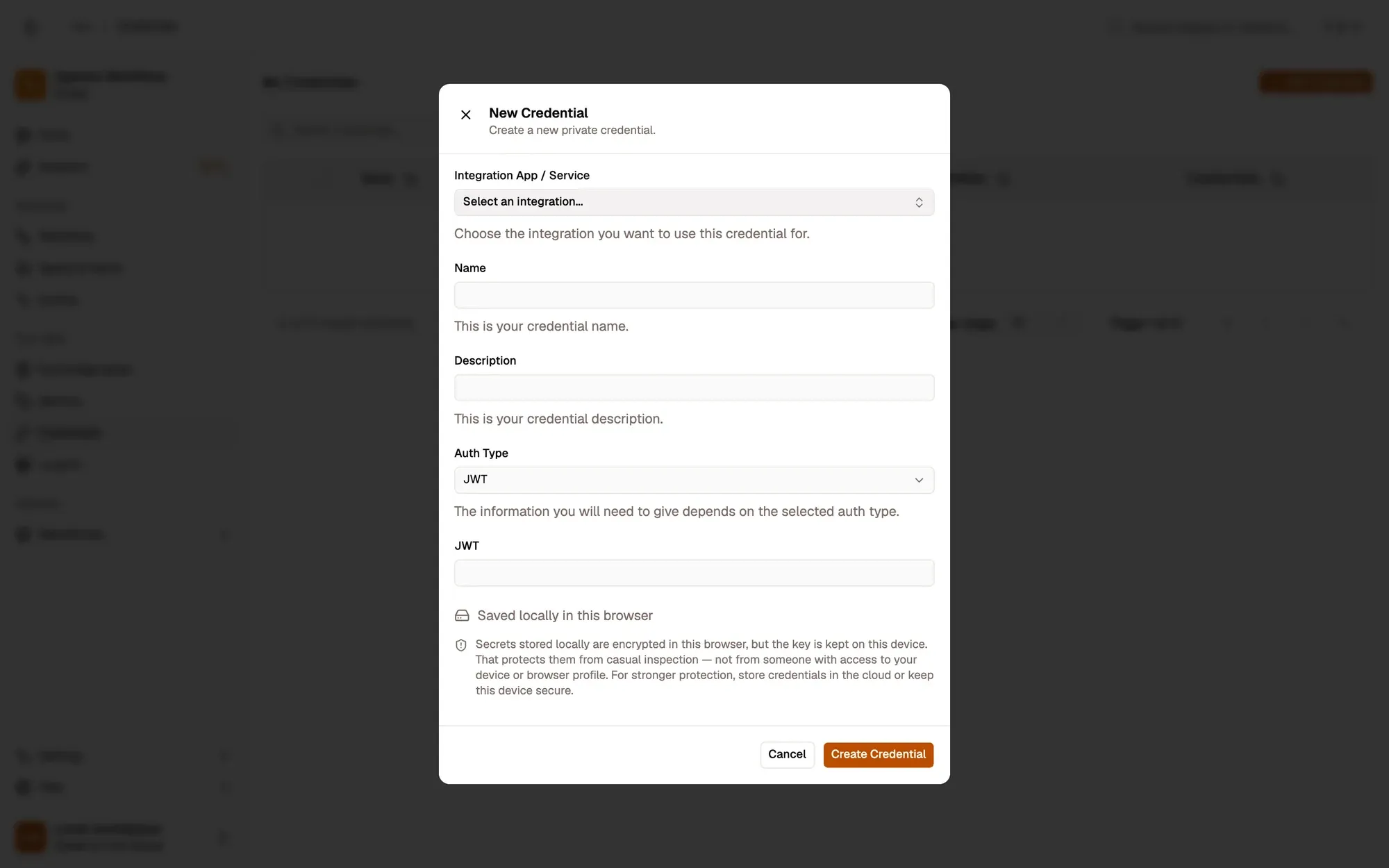
Save it in AWFlow. Open Credentials and click Add Credential (or + Add Credential in the node’s Authentication field), then fill the New Credential form. In the browser side panel the form comes in two steps: tap Simple Credential (or click Continue), then fill the rest.
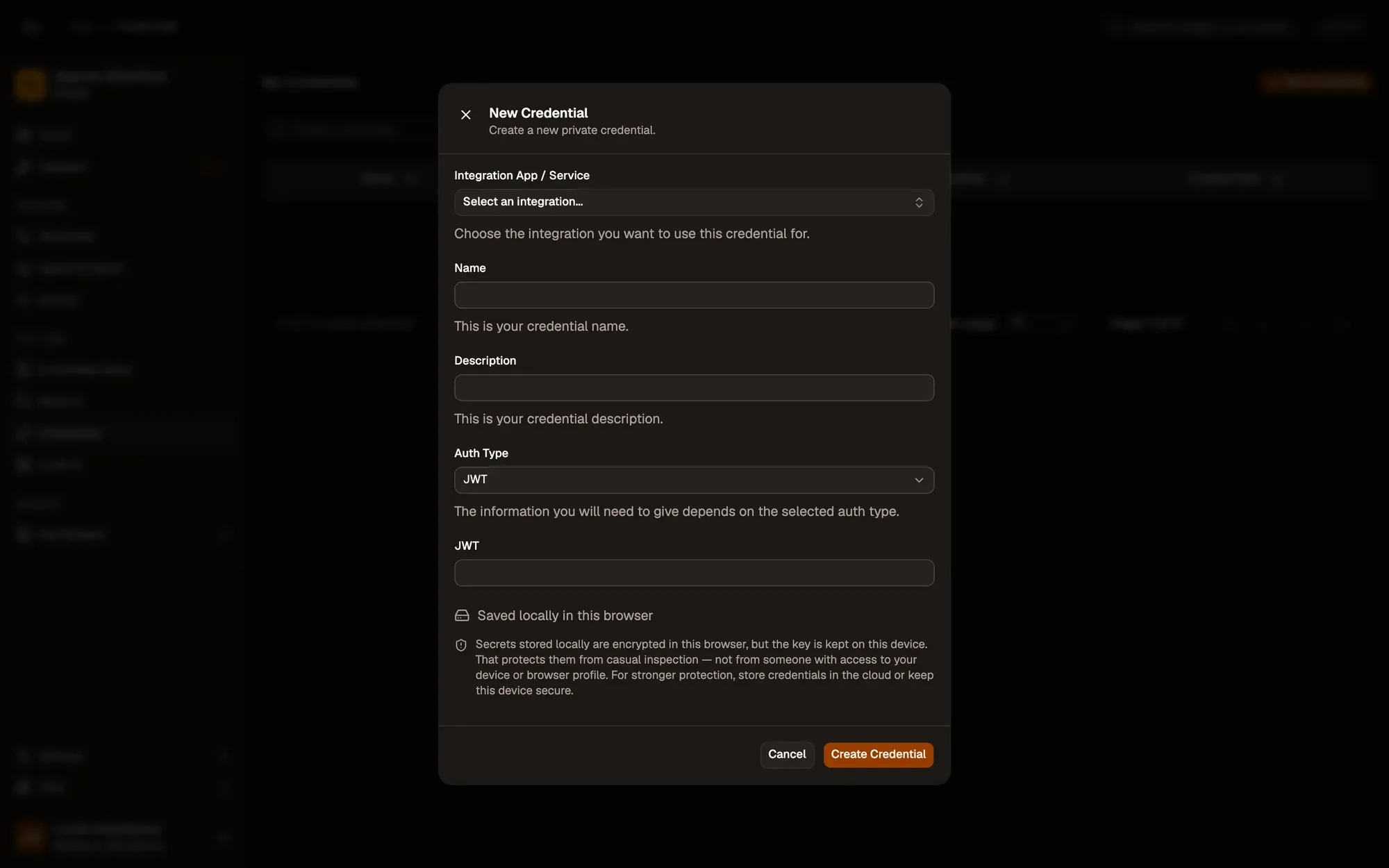
Numbered areas in the screenshot: 1. Integration App / Service: none (Simple Credential); 2. Name; 3. Auth Type: JWT; 4. JWT; 5. Where the secret is stored (here, locally in this browser); 6. Create Credential.
-
Pick it in the node. For a key in another header (
X-API-Key) or in the query string, see the note below.
Key in another header or in the query string? On Custom API, a Bearer Token credential is sent the way the API’s spec says (in the named header such as X-API-Key, or as a query parameter such as ?api_key=). On Http Request, add the header under the node’s headers instead, but keep in mind that values typed into a node travel with the workflow when you share it.
Signing with HMAC. The Crypto node’s HMAC Key reads the secret from a credential so it never travels with a shared workflow. Use a Bearer Token (or JWT) credential holding only the secret.
Where your token lives
Section titled “Where your token lives”Common issues
Section titled “Common issues”- 401 Unauthorized. The Auth Type doesn’t match what the API expects: Bearer for
Authorization: Bearer, Basic Auth for username and password, JWT for any other scheme. - The API says the key is malformed. You pasted
Bearer …into a Bearer Token credential. Paste only the key: AWFlow adds the word. - 403 Forbidden. The key is valid but lacks access to this endpoint. Check its permissions in the service.
- The MCP server shows as unavailable. The server URL is wrong or the credential was deleted. Pick it again next to the server.