The Compare page lines up two or three Local AI models so you can pick the right one for your device. Everything runs in your browser; nothing leaves your device.
Start a comparison
Section titled “Start a comparison”Open Local AI from the sidebar, then:
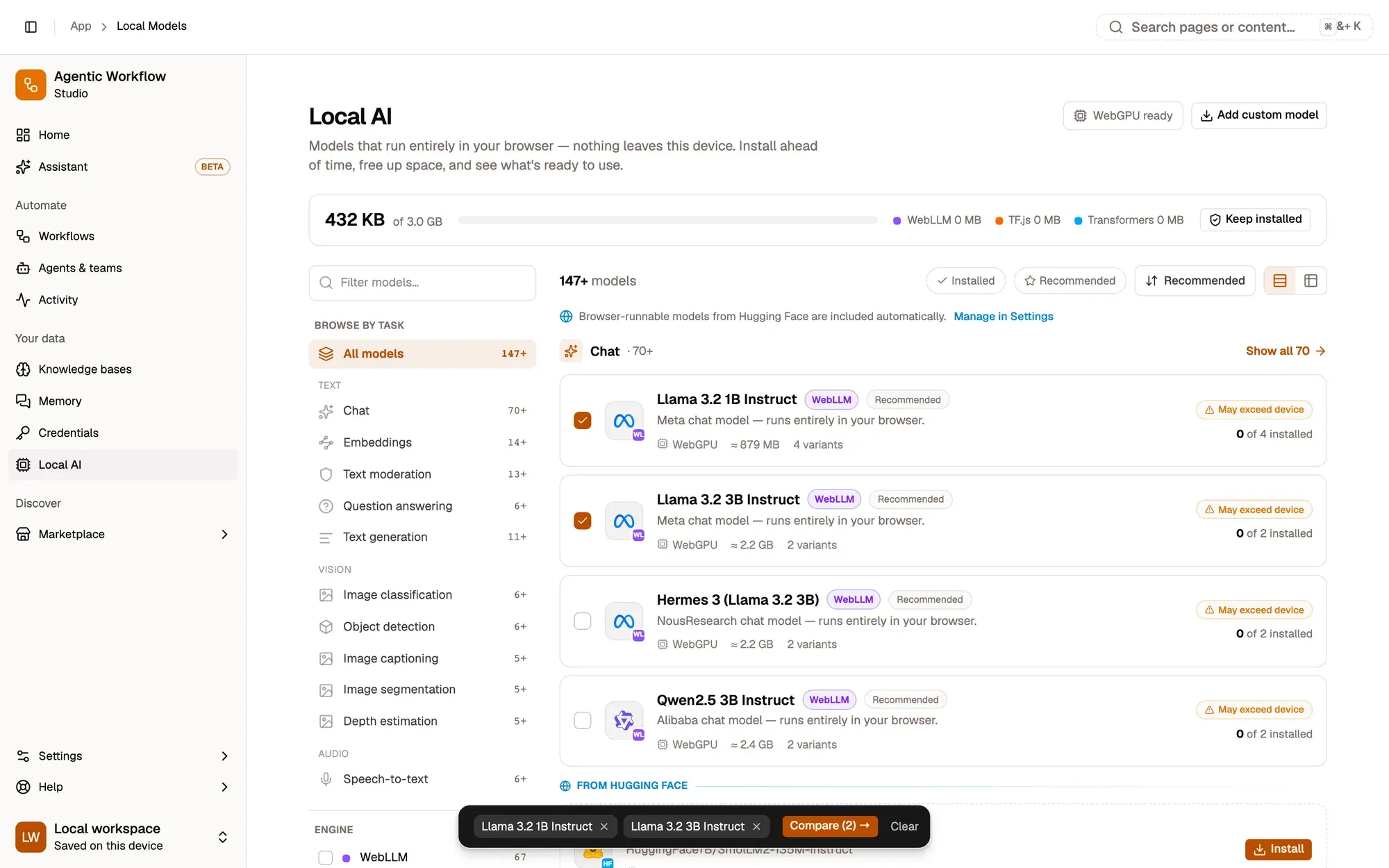
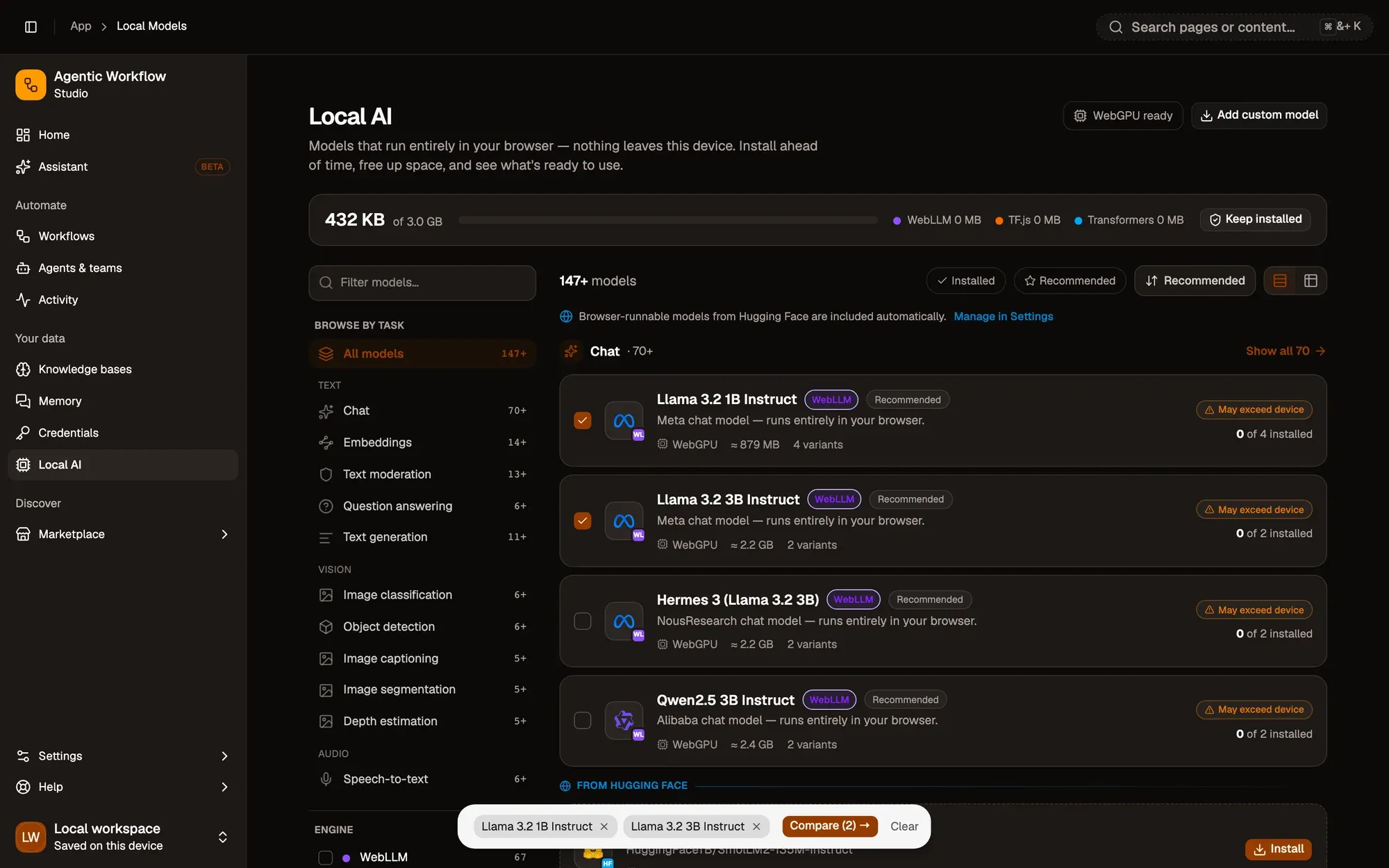
Numbered areas in the screenshot: 1. Compare checkbox on a model; 2. Compare checkbox on another model of the same task; 3. Compare (2).
You can compare up to three models. The first model you pick sets the task; checkboxes on models of other tasks are disabled. Clear empties the selection.
The comparison has its own link, so you can bookmark it or send it to someone with the same models.
Read the comparison
Section titled “Read the comparison”Each model has its own column, grouped into sections:
- Overview: task, modality, engine, backend, context size, parameters and whether it supports tools natively.
- Storage & device fit: approximate size, whether it fits your device’s memory (Fits, Tight, Exceeds memory or Not supported here), the number of variants, and how many are installed.
- Performance on this device: results of the on-device measurement (see below).
- Actions: Install or Set default, and Open details.
A short side-by-side summary closes the page.
Highlight best (on by default) marks the winning value in each row in green: the largest context, the smallest size, the best device fit and the fastest ready time. Ties all win.
On a phone, the same rows appear in a table you swipe sideways.
Measure on this device
Section titled “Measure on this device”Numbers from elsewhere don’t tell you how a model behaves on your hardware, so the page can measure it.
- Click Measure on this device under one model, or Measure all.
- You get Ready in (how long the model takes to load and warm up) and, where the engine supports it, Speed in tokens per second.
- A Ready time — lower is better chart compares the results.
- Re-measure runs it again.
If a model has an installed variant, that one is measured; otherwise the smallest variant is.
Change the models
Section titled “Change the models”- Add model lists other models of the same task. It shows while fewer than three are compared.
- The X on a model’s card removes it.
- Local AI at the top takes you back to the full list.