Settings › Storage shows what AWFlow keeps in this browser. Nothing on this page is uploaded. Open Settings at the bottom of the sidebar and click Storage; everything below happens on that one page.
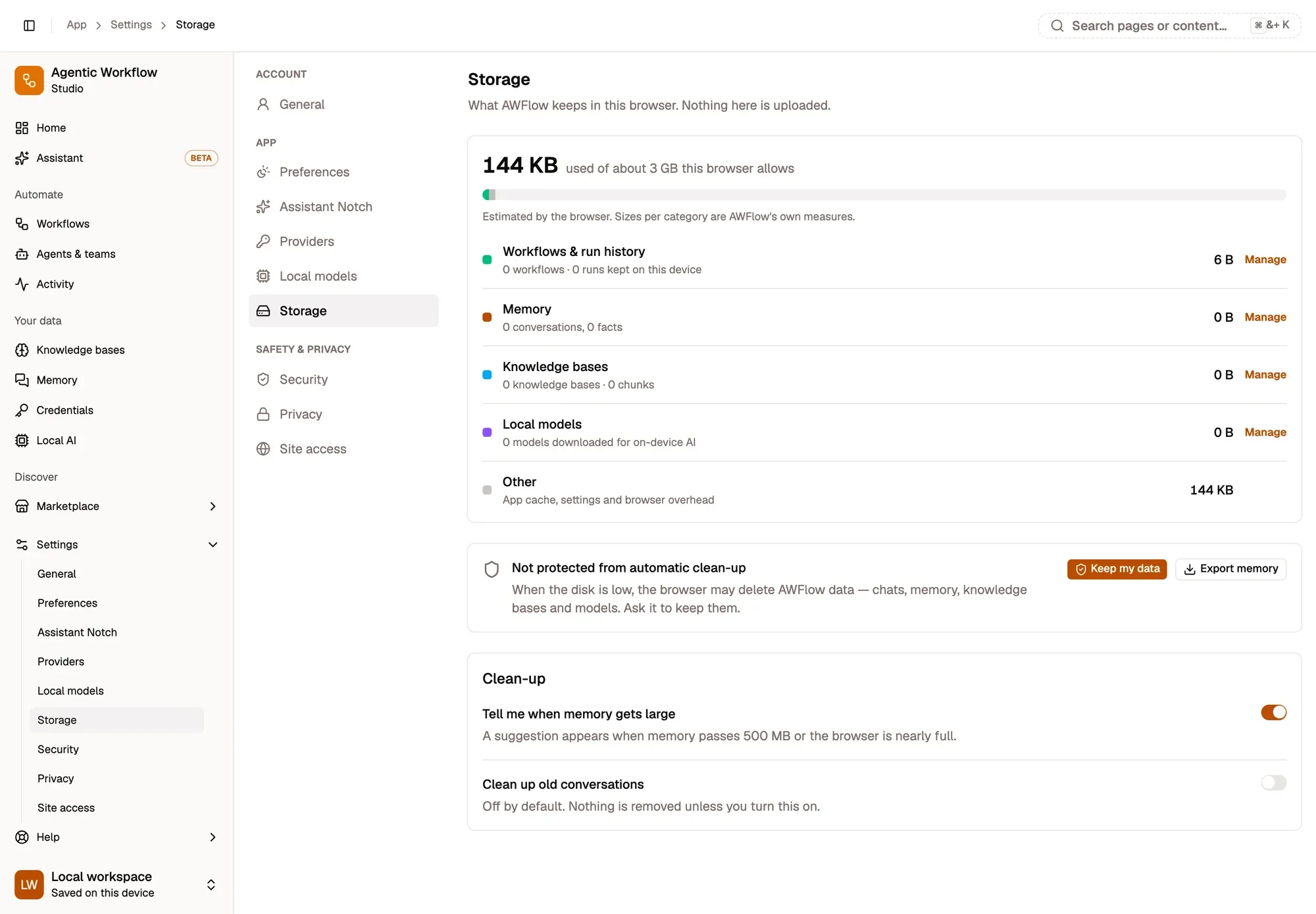
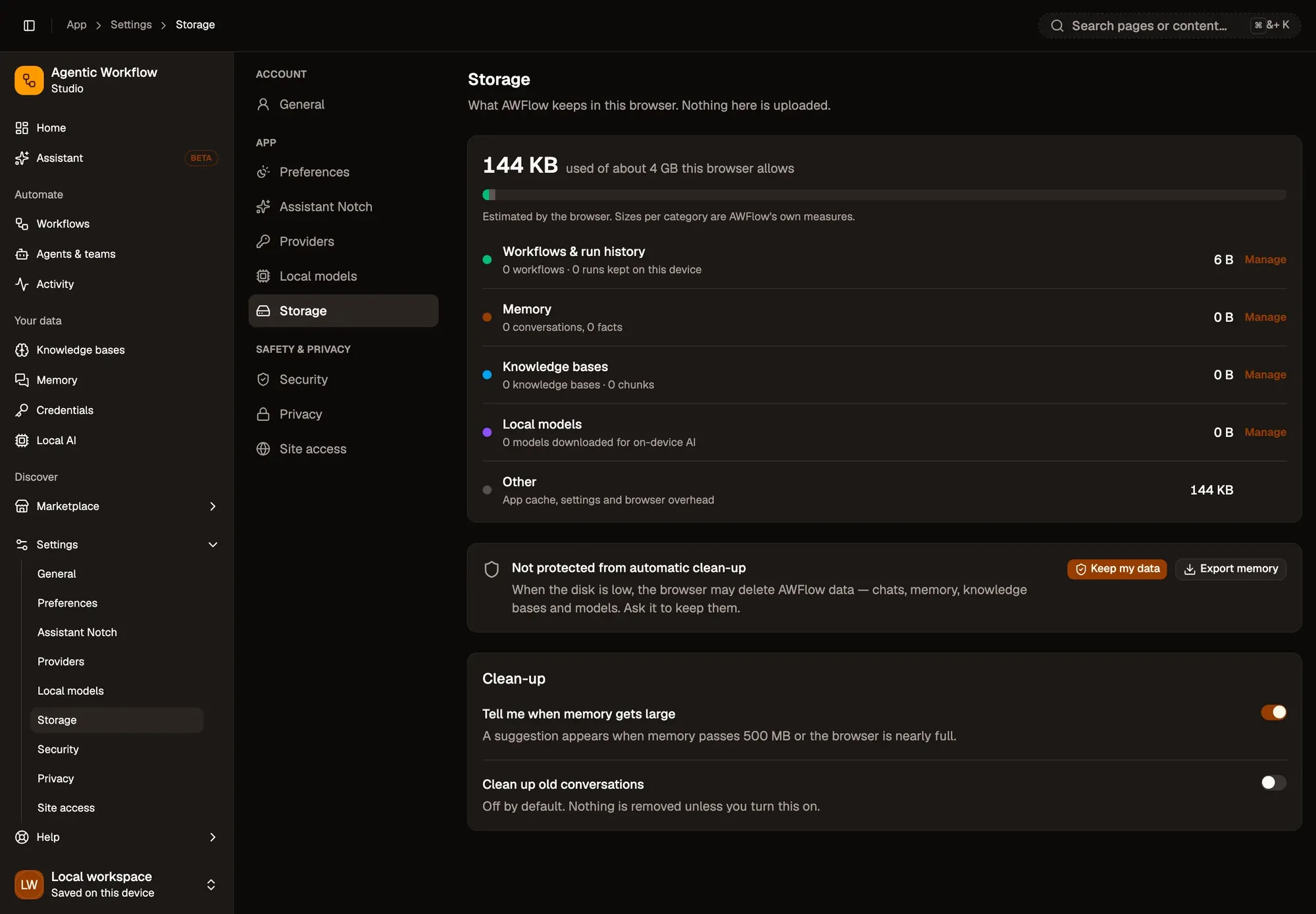
Numbered areas in the screenshot: 1. Manage a category; 2. Keep my data; 3. Export memory; 4. Tell me when memory gets large; 5. Clean up old conversations.
How much space is used
Section titled “How much space is used”A bar shows the space used out of what your browser allows, split into:
- Local models
- Memory (with how much it grew this week)
- Knowledge bases
- Workflows & run history
- Other: app cache, settings and browser overhead
Click Manage next to a category to open its page.
Keep your data safe from clean-up
Section titled “Keep your data safe from clean-up”When the disk is low, a browser may delete website and extension data on its own. Click Keep my data to ask the browser to protect AWFlow’s storage. The card then reads Protected from automatic clean-up.
The browser decides whether to agree. It often does once you use AWFlow more, or after you bookmark it.
Clean-up
Section titled “Clean-up”- Tell me when memory gets large shows a suggestion when memory passes 500 MB or the browser is nearly full. On by default.
- Clean up old conversations is off by default. When you turn it on, it acts on conversations you haven’t opened for a number of days (90 by default): it can slim them, archive them (export, then remove) or delete them. Choose which kinds of chats it covers and whether to skip pinned ones. A preview tells you what it would do right now. It runs once a day; Run now runs it immediately and History shows past runs.
See Memory › Storage & clean-up for more.