The Assistant Notch is an optional floating control that the AWFlow browser extension can show on the web pages you visit. It docks to the edge of the screen, expands into a small panel of blocks — workflows, pinned items, quick actions — and can be dragged, restyled, and customized to fit how you work.
It is off by default, and only appears once you enable it.
Enable or disable it
Section titled “Enable or disable it”Open Settings in the sidebar, then:
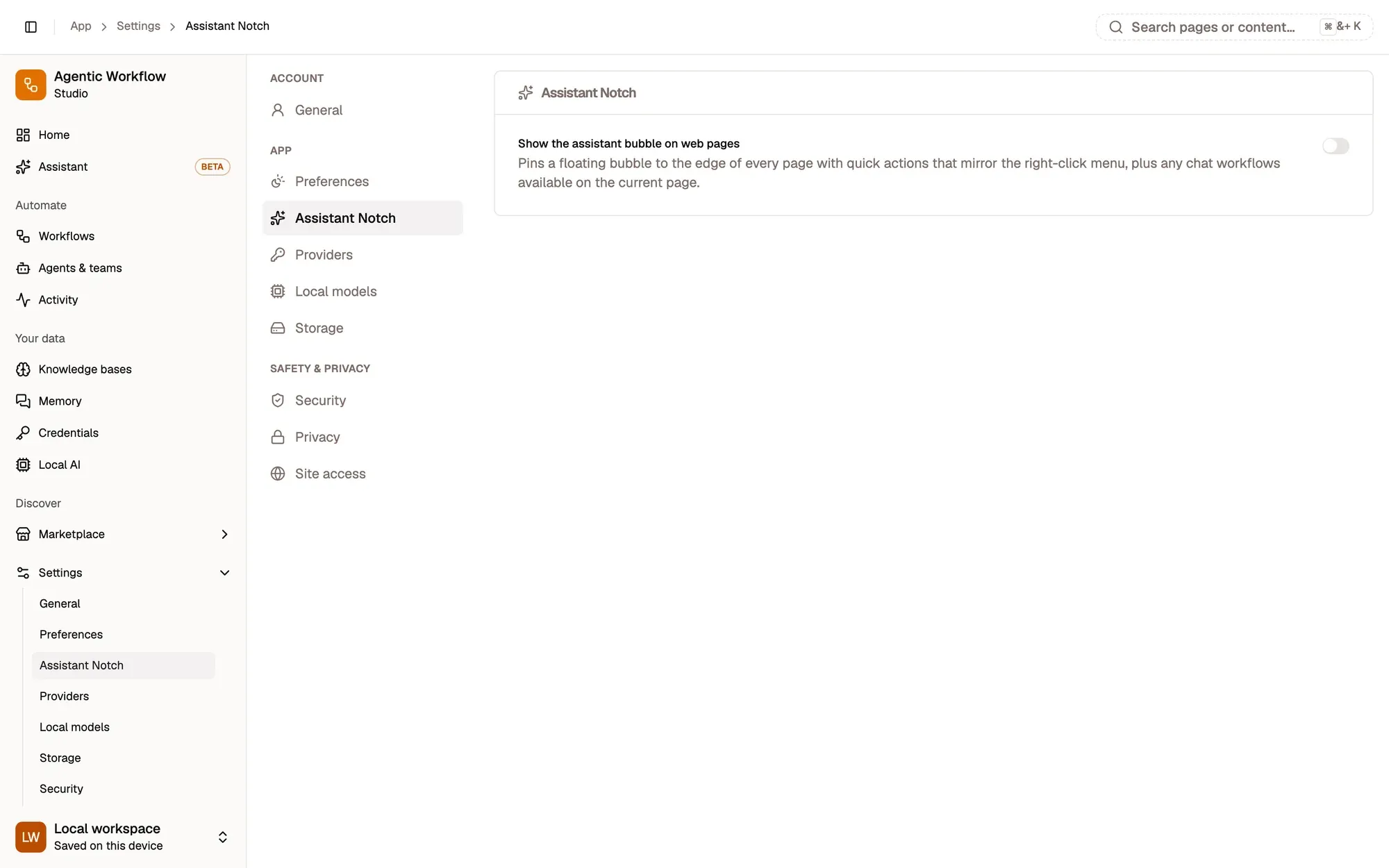
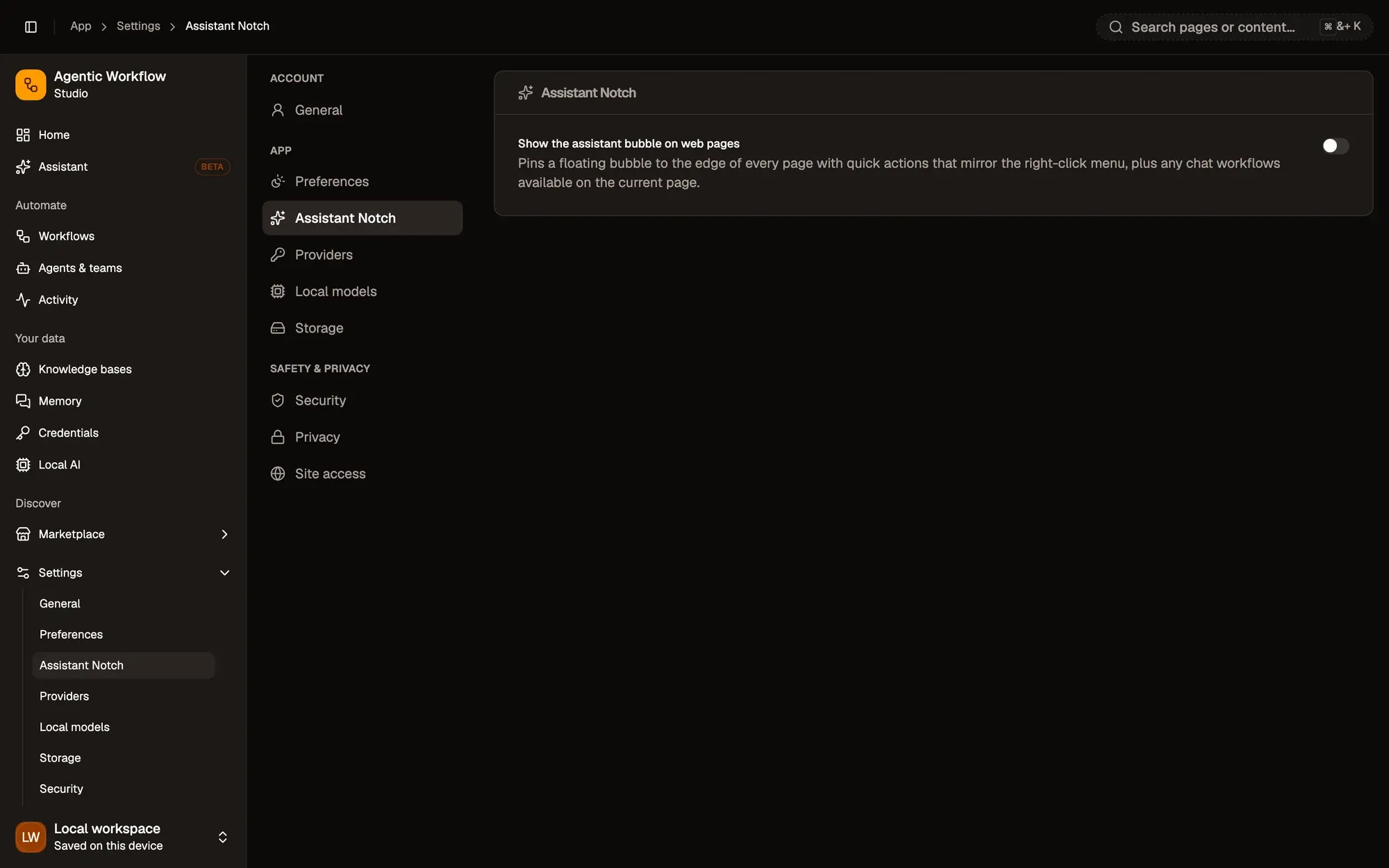
Numbered areas in the screenshot: 1. Assistant Notch; 2. Show the assistant bubble on web pages.
When enabled, the notch appears on each new web page you open. When disabled, it stops appearing.
The notch is injected by the browser extension, so it only shows on standard http(s) web pages — not on browser system pages (like chrome://), the extension gallery, or local file/PDF viewers.
Dragging and docking
Section titled “Dragging and docking”Drag the notch by its orb to move it. Release it anywhere near the left or right edge of the screen and it snaps to dock at the nearest edge — you don’t need to line it up precisely.
When you click the docked notch to open it, the expanded panel opens inward, toward the center of the screen, so it never runs off-screen.
Its position is remembered per device, so moving it on one computer doesn’t affect where it sits on another.
You can always snap it back to its default spot: open the notch, choose Customize, then Reset position.
Resting forms
Section titled “Resting forms”When collapsed (not expanded), the notch can take one of four shapes. Switch between them in Settings → Assistant Notch, under Resting form:
- Orb (default) — a small circular button.
- Pill — a rounded, slightly wider shape.
- Edge tab — a thin tab that sits flush against the screen edge.
- Orb + badge — the orb with a small badge, useful as an at-a-glance indicator.
What’s in the panel
Section titled “What’s in the panel”Opening the notch expands it into a panel made up of blocks. The available blocks are:
- On this page — workflows that have a trigger matching the current page’s URL.
- Pinned workflows — workflows you’ve pinned for quick access, regardless of the current page.
- Quick actions — shortcuts for:
- Open in Side Panel
- Open in Full Tab
- Open chat
- Refresh workflows
- Page tools — summarize, explain or translate the page you are on, or ask a quick question about it.
- Assistant — ask Aria directly from the page: describe what you want and Aria answers, builds or runs it.
A Recent block also appears in the block list with a Soon label. It is off and does nothing yet.
Asking Aria from the notch
Section titled “Asking Aria from the notch”Answers in the notch stream in as they are written and show the tools Aria uses as steps. If a reply fails, an error card says what went wrong, with Try again and Open in full chat. Long pages are shortened to fit small on-device models. See How quick answers behave.
The notch chat has the same memory as the full chat: long conversations are trimmed and summarised to fit the model, Aria uses your most relevant facts (Used 3 memories under a reply lists them), saves what you ask it to remember (Saved to Aria’s memory with Undo) and suggests the rest with a Remember this? card.
Customizing the notch
Section titled “Customizing the notch”There are two places to customize the notch, with different depth:
Full editor — Settings → Assistant Notch
Section titled “Full editor — Settings → Assistant Notch”Once the notch is on, Settings → Assistant Notch shows the complete editor, where you can:
- Choose the resting form (Orb, Pill, Edge tab, Orb + badge).
- Choose an accent color.
- Choose a size (S, M or L).
- Show or hide individual blocks, and reorder them.
- Choose where it shows (see below).
Click Save to apply your changes, or Discard to drop them.
Quick editor — in-notch Customize menu
Section titled “Quick editor — in-notch Customize menu”Opening the notch and choosing Customize gives you a lighter popover for on-the-fly changes:
- Reorder blocks.
- Show or hide blocks.
- Reset the notch’s position.
- All settings, a shortcut to the full editor in Settings → Assistant Notch.
Site scope
Section titled “Site scope”The Where it shows setting controls where the notch appears. Today the only choice is All sites: the notch shows on every standard web page.
An Allowlist only option is listed with a Soon label. You can’t select it yet.
- The notch is separate from the chat launcher; when both are enabled they sit in different corners so they don’t overlap.
- Because it runs inside the extension, the notch requires the AWFlow browser extension to be installed and active.