Users (Admin panel › Users) lists every account. Open a user to see their account, content, activity and the admin actions taken on them.
Find users
Section titled “Find users”- Segment chips give quick views: All, Staff, Banned / Disabled, Published authors, New this month.
- Search name or email… searches as you type.
- Filters: Role (User, Admin, Superadmin, Verified), Status (Active, Disabled, Banned), Plan, Email verified, and Joined in the last 7d, 30d or 90d.
- Clear filters resets everything.
The table shows User (name and email), Role, Status, Verified and Joined. Click a column header to sort. 20 users show per page.
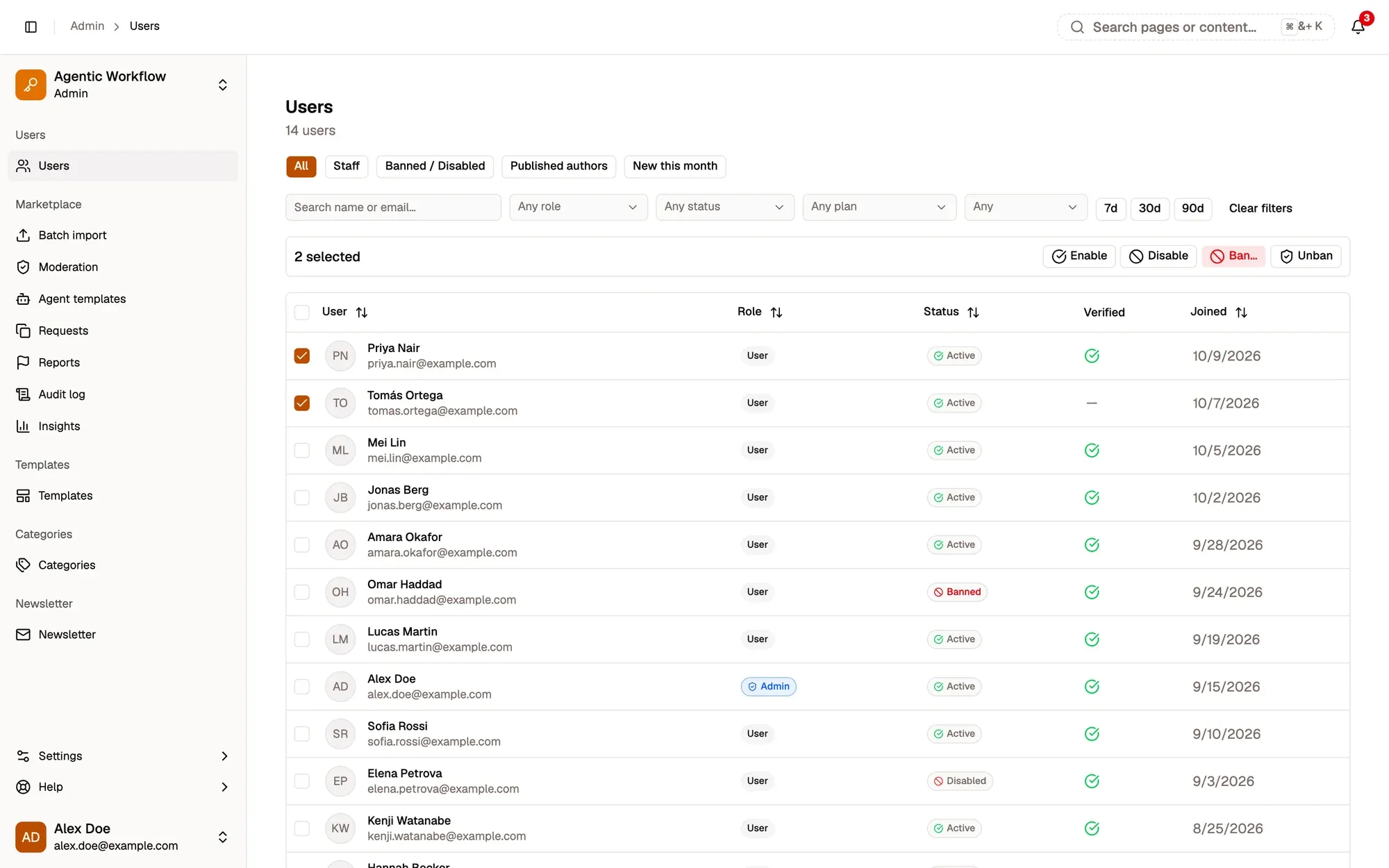
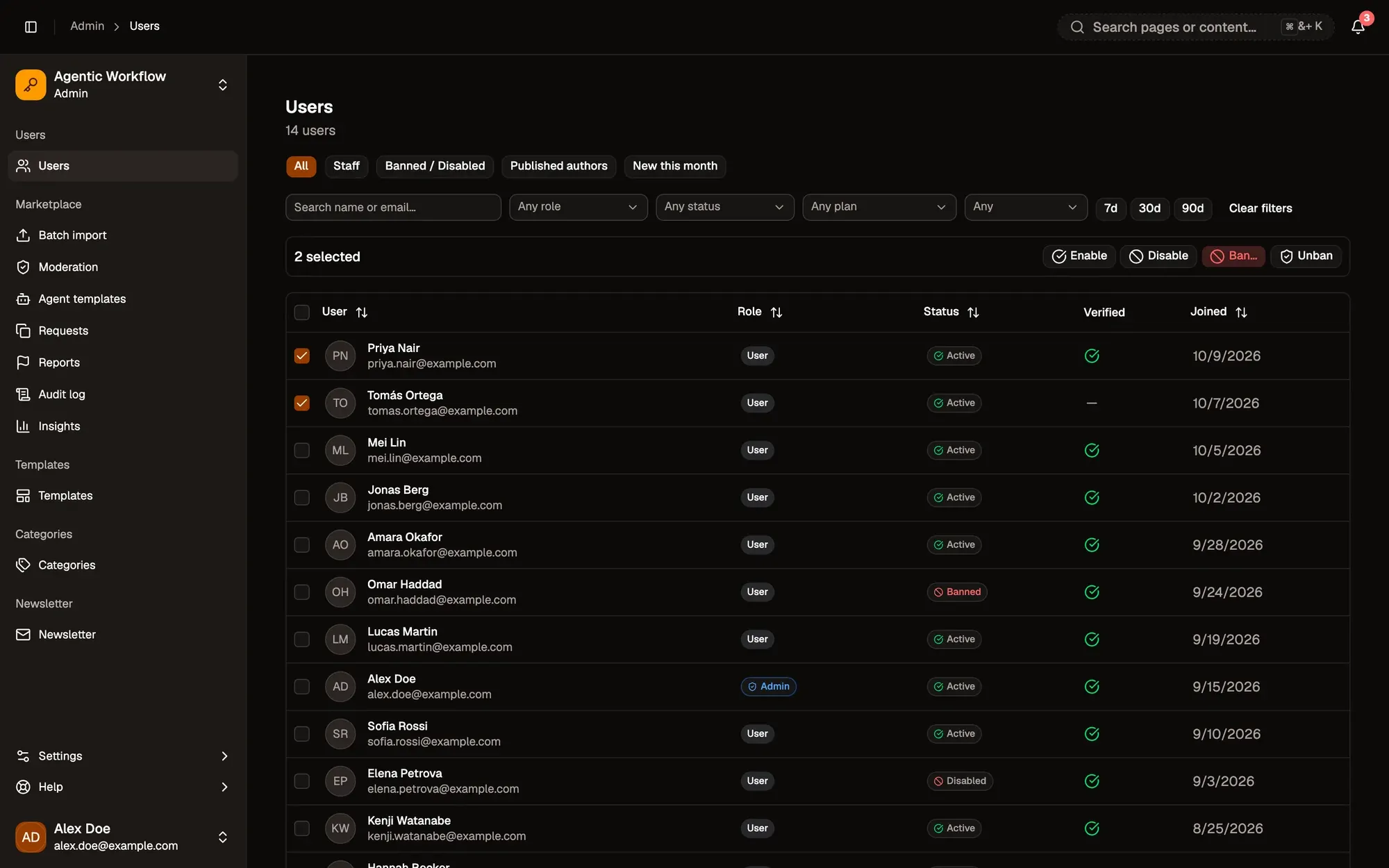
Numbered areas in the screenshot: 1. Segment chips; 2. Search name or email; 3. Role, Status, Plan, Email verified and Joined filters; 4. Tick users; 5. Bulk actions; 6. Open a user.
Act on many users
Section titled “Act on many users”Tick users to show the bulk toolbar:
- Enable and Unban apply right away.
- Disable asks you to confirm.
- Ban… asks for a Reason (required) and an optional Expires date. Banning blocks sign-in and ends the user’s active sessions.
Admin and superadmin accounts, and your own account, are always skipped by Disable and Ban.
To act on more than one page, tick the header box, then click Select all … matching these filters. A message at the end tells you how many were changed and how many skipped. If the selection is very large, only the first part is processed and the message asks you to narrow the filter.
One user’s details
Section titled “One user’s details”Click a name to open the user page. The header shows their name, email, user ID (with copy buttons), role, status, plan and some numbers: Workflows, Listings, Runs (30d), Last active and Joined. A red banner shows when the account is banned.
Actions in the header:
- Reset password emails them a reset link.
- Resend verification emails a new verification link.
- Ban… (reason required, expiry optional) or Unban.
These actions are disabled on other admin accounts.
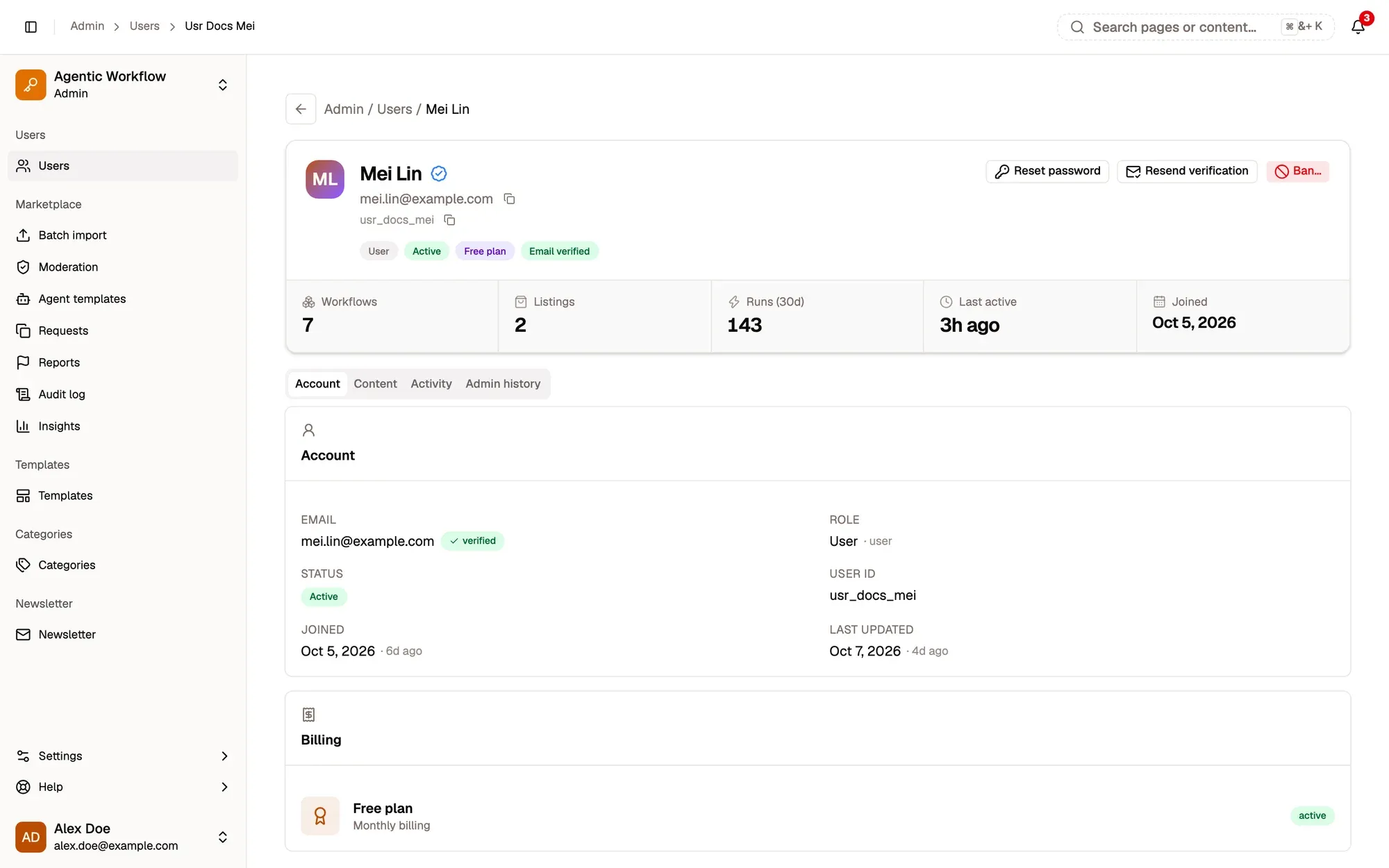
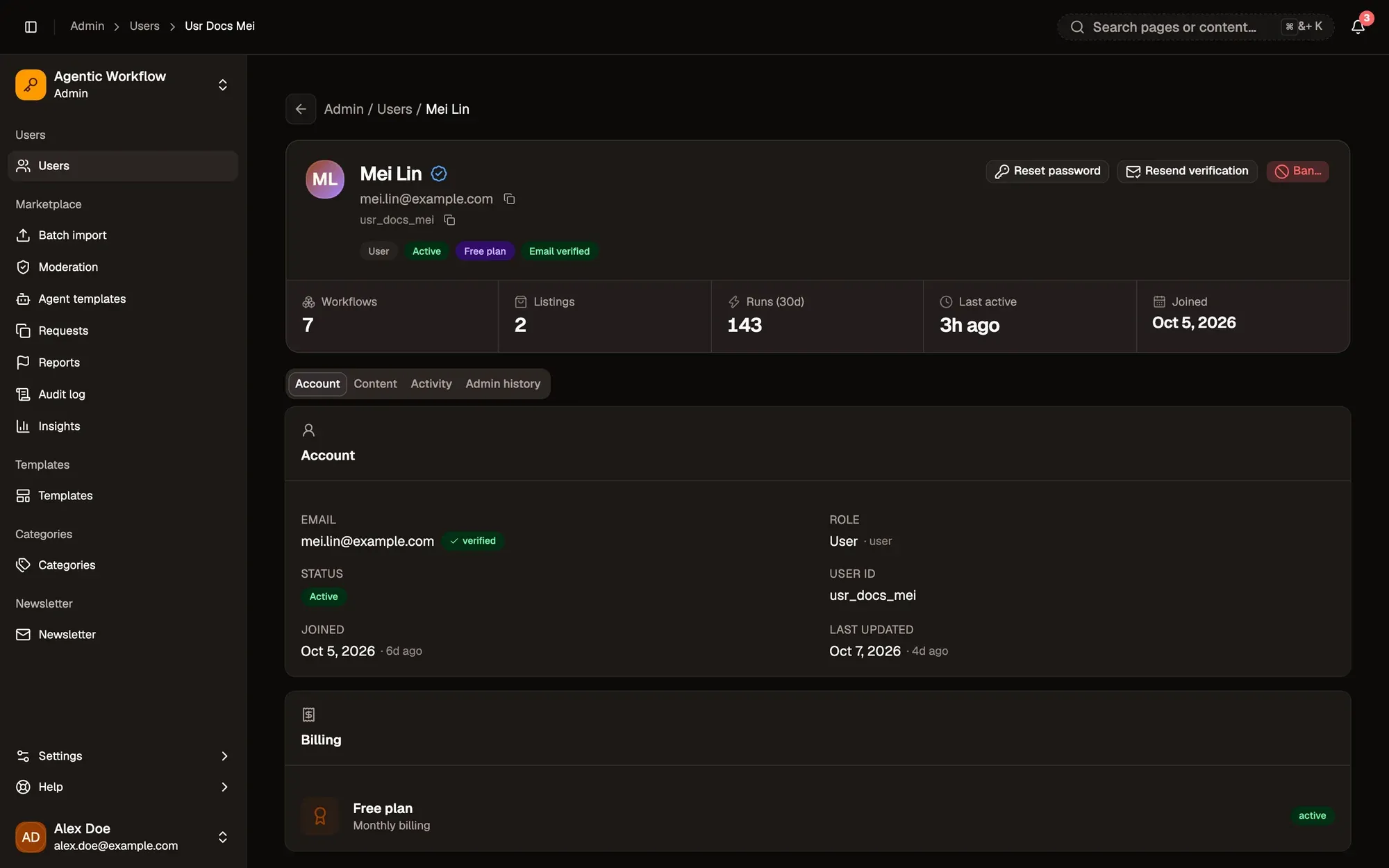
Numbered areas in the screenshot: 1. Reset password; 2. Resend verification; 3. Ban…; 4. Workflows, listings, runs, last active, joined; 5. Account, Content, Activity and Admin history.
The tabs:
- Account: email, role, status, IDs, dates and the Billing card with their plan.
- Content: their workflows and published Marketplace listings.
- Activity: recent runs (succeeded or failed) and sign-ins, with browser, system and IP address.
- Admin history: every admin action on this user, who did it, when and why.