Workflows in the sidebar lists every workflow you have. Use it to find a workflow, turn it on or off, move it between this device and the cloud, and clean up many workflows at once.
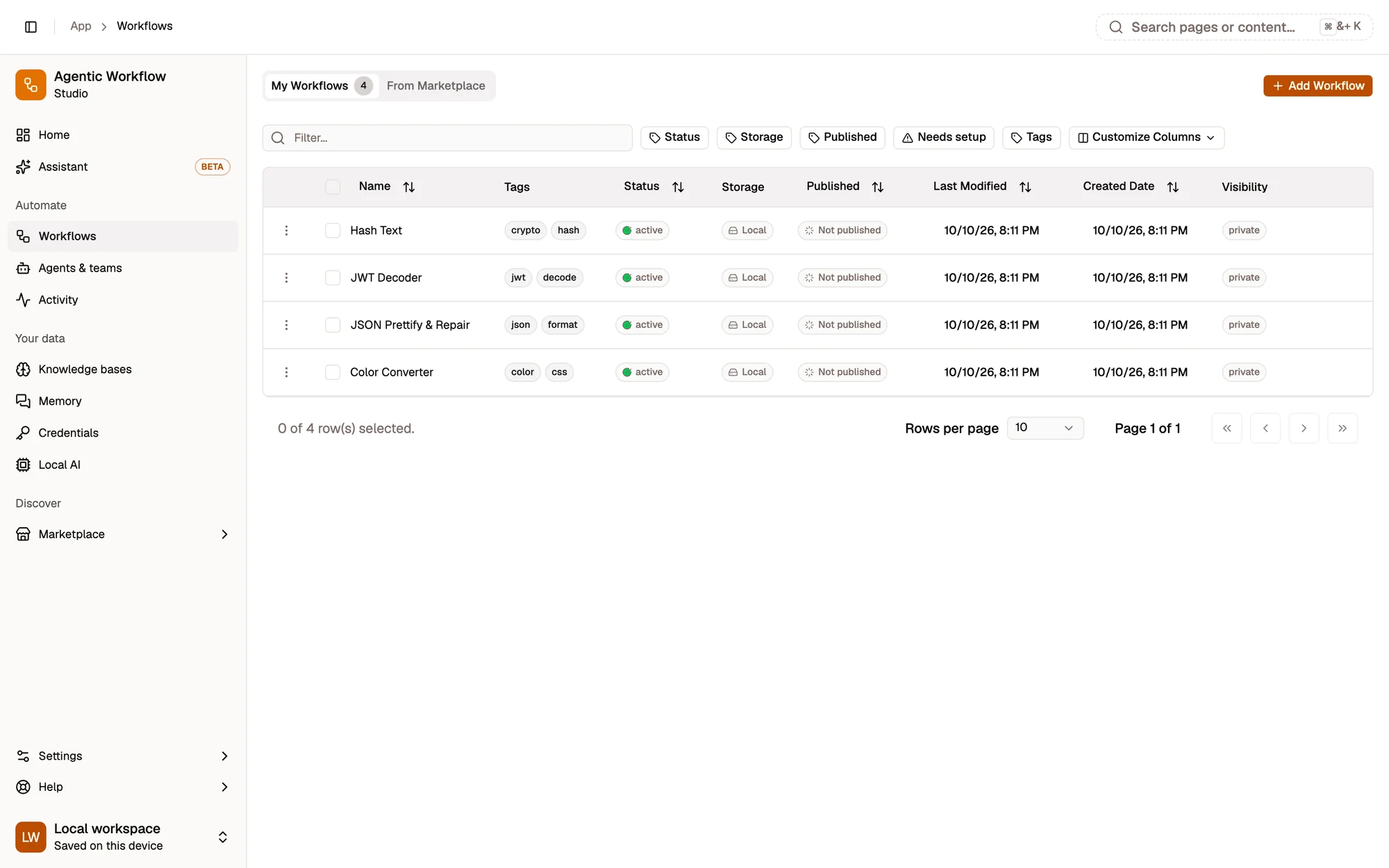
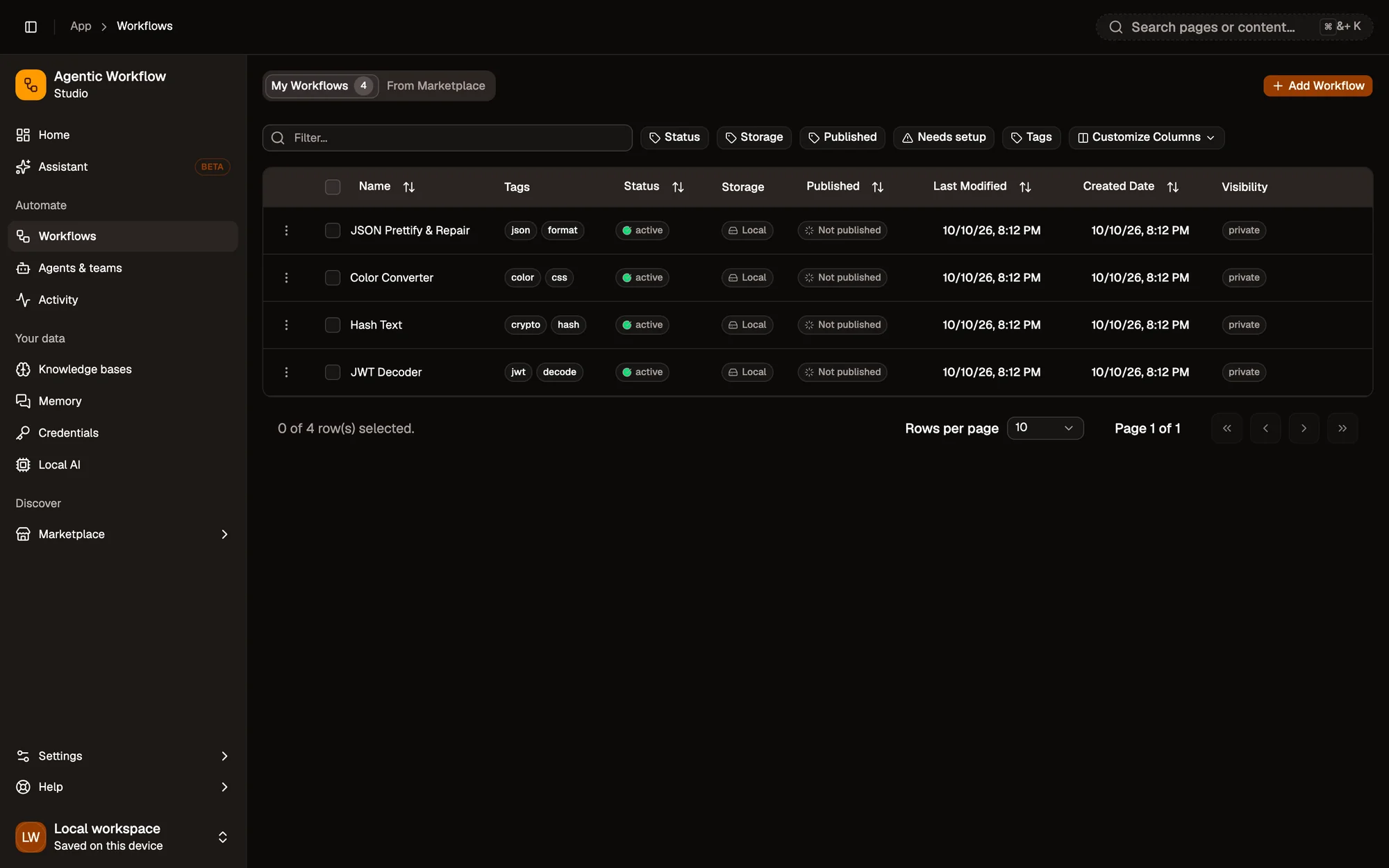
- Add Workflow: create, import or describe one
- Filters
- Row menu: open, run, duplicate, export, delete
The two tabs
Section titled “The two tabs”- My Workflows holds the workflows you created or imported.
- From Marketplace holds the workflows you downloaded from the Marketplace. This tab used to be a separate “Downloaded” page; old links to it now open this list.
Each tab shows a count of its workflows. Add Workflow at the top starts a new one.
Find a workflow
Section titled “Find a workflow”- Type in the Filter… box to search by workflow name.
- On My Workflows, use the filter buttons to narrow the list:
- Status: Active or Inactive.
- Storage: Cloud or Local.
- Published: Live, In review, Publishing draft, Rejected, Suspended or Not published.
- Needs setup: Needs setup or Ready to run.
- Tags: a workflow matches if it has any of the tags you pick.
- Customize Columns shows or hides columns. Click a column header to sort.
If nothing matches, click Clear filters. Your sort, filters and columns are remembered in this browser.
A Needs setup badge next to a name means the workflow is missing something before it can run, such as a connection. Hover the badge to see what.
Columns
Section titled “Columns”On My Workflows: Name, Tags, Status, Storage (Local or Cloud), Published, Last Modified, Created Date and Visibility.
On From Marketplace: Name, Status, Tags and Version. The Status column tells you about the listing you downloaded from:
| Status | What it means |
|---|---|
| Active | Everything is normal. |
| Update available | The author released a newer version. Click Update in the Version column. |
| No longer listed | The author stopped sharing it. Your copy still works. |
| Under review by AWFlow | AWFlow is reviewing it. It keeps running for now. |
| Stopped · removed for safety | AWFlow removed it. It can’t run and its triggers are off. |
Removed and under-review workflows also show a banner above the table. Click Details to read the explanation, or Remove to delete your copy.
Actions on one workflow
Section titled “Actions on one workflow”Open the ⋮ menu at the start of a row. In the editor, the ⋮ at the top right has most of the same items, plus Activate / Deactivate and the import actions.
On My Workflows:
- Open opens it in the editor.
- Improve with Aria opens the assistant with this workflow attached.
- Run runs it now. If it has more than one trigger, you pick which one first.
- Duplicate makes a copy.
- Edit changes its name and description.
- Manage tags adds or removes tags.
- Move to cloud / Move to local changes where it is stored (signed-in users only, see below).
- Publish (or Release for a new version) shares it on the Marketplace. Only cloud workflows can be published. See Publishing.
- Export downloads it as a file. See Export & import.
- Delete removes it after you confirm.
On From Marketplace:
- Open, Run and Export. Run is disabled for a workflow removed for safety.
- Update to v… when a newer version exists.
- Checkout a version switches to another released version.
- Reset permissions clears the site and app access you granted this workflow, so it asks again next time.
- Delete removes it from your library.
Activate or deactivate
Section titled “Activate or deactivate”A workflow’s status is Active or Inactive.
- Active turns its triggers on: schedules, page events and other triggers fire on their own.
- Inactive turns its triggers off. You can still start it by hand with Run.
To change one workflow, use the Active switch in the editor’s header. To change many, use the bulk actions below.
Local or cloud storage
Section titled “Local or cloud storage”Every workflow is stored in one of two places:
- Local: in your browser, on this device only. Local workflows have no step limit, but they can’t be published.
- Cloud: in your account, so they follow you when you sign in elsewhere. Cloud workflows count towards your plan’s limits.
You need to be signed in to move a workflow. A move copies the workflow, checks the copy, then deletes the original. If anything fails, the original stays where it was.
Run history is stored in the same place as the workflow. See Run history.
Bulk actions
Section titled “Bulk actions”Step 1:Select the workflows
Tick the checkbox on each row you want, or the header checkbox to select them all. A toolbar appears at the bottom of the screen with how many you selected.
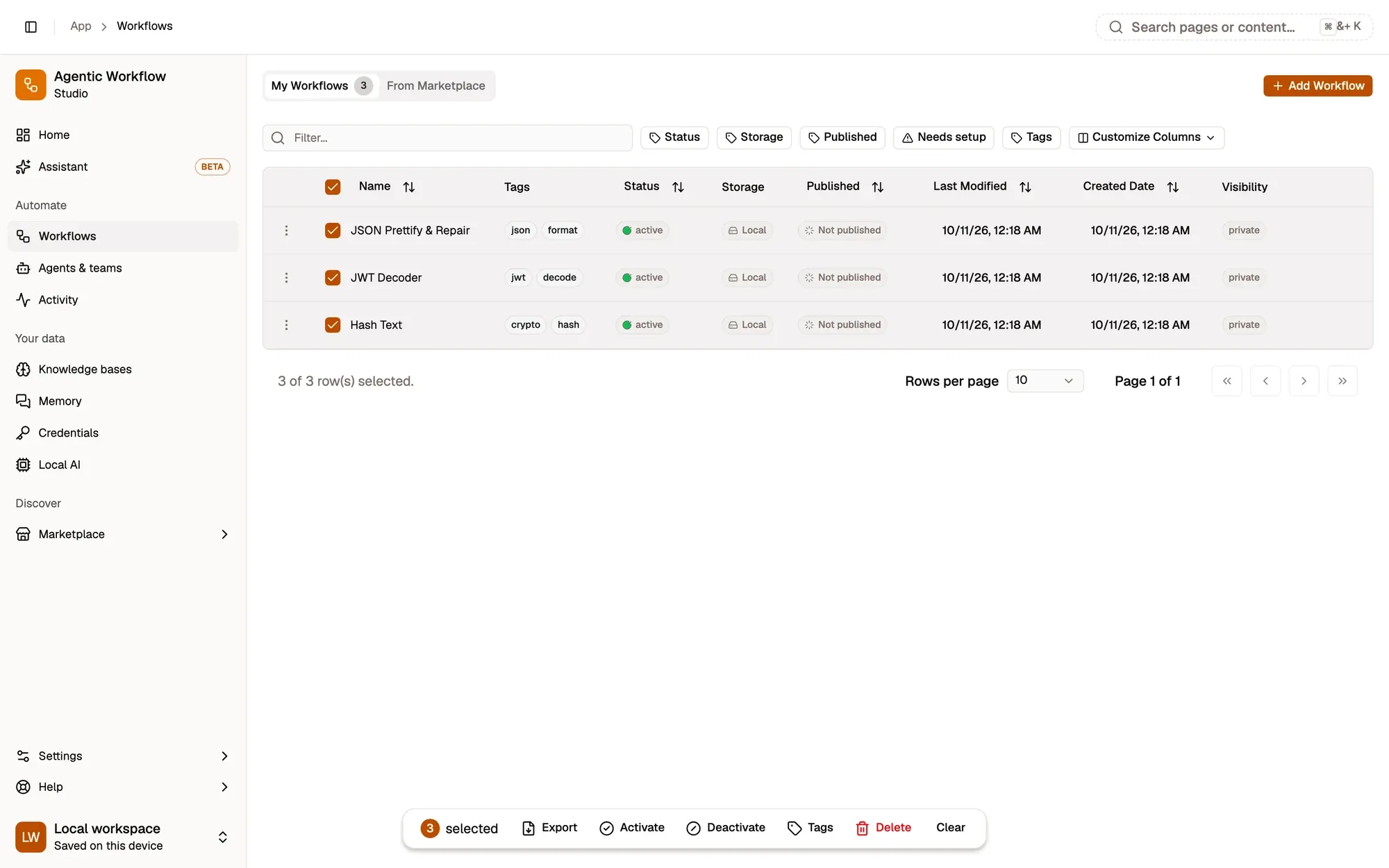
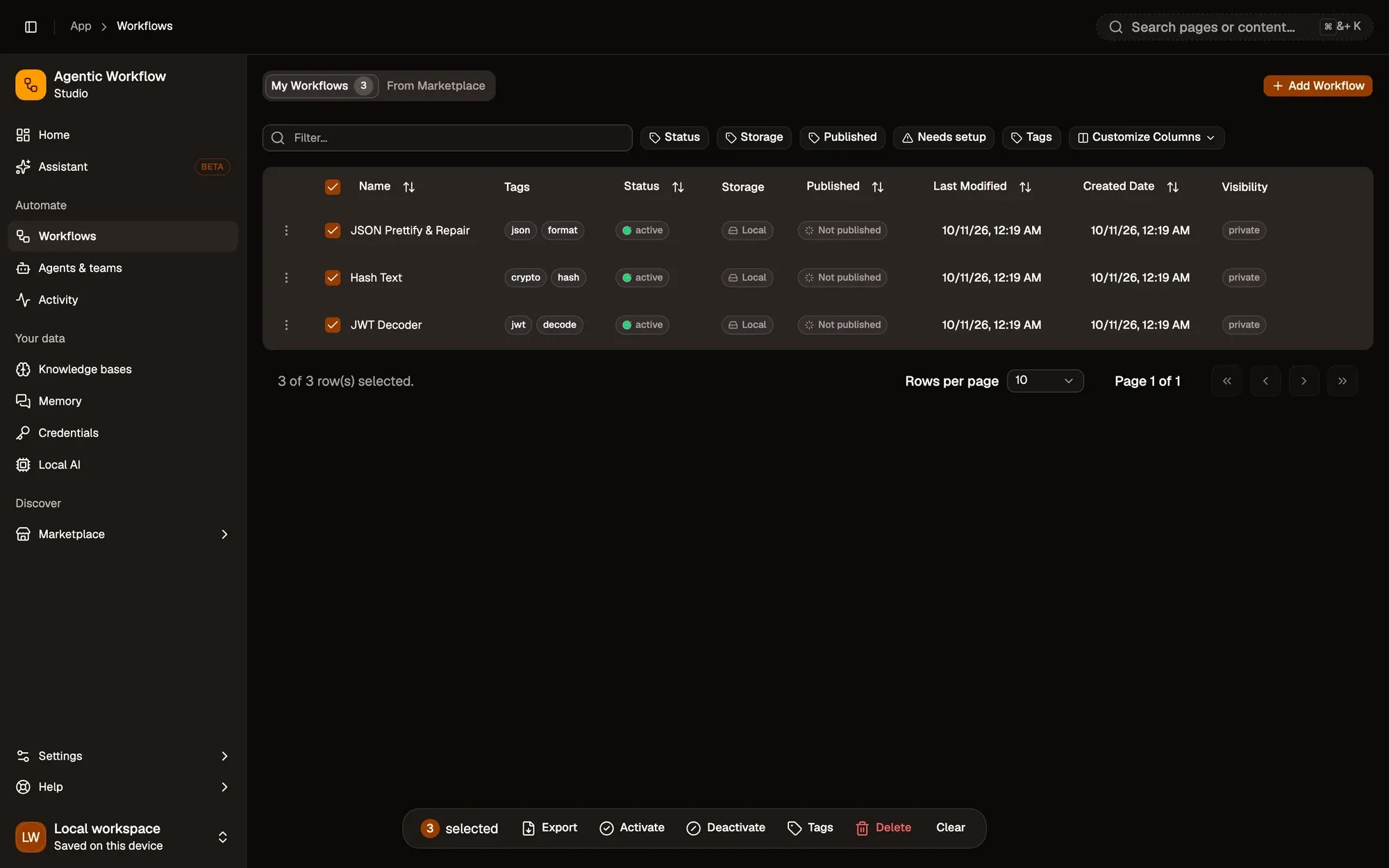
Step 2:Pick an action in the toolbar
For example Delete. The toolbar shows progress while it works through the list. Clear drops the selection.
Step 3:Confirm, when asked
Delete asks first, because it can’t be undone. Click Delete to go ahead, or Cancel.
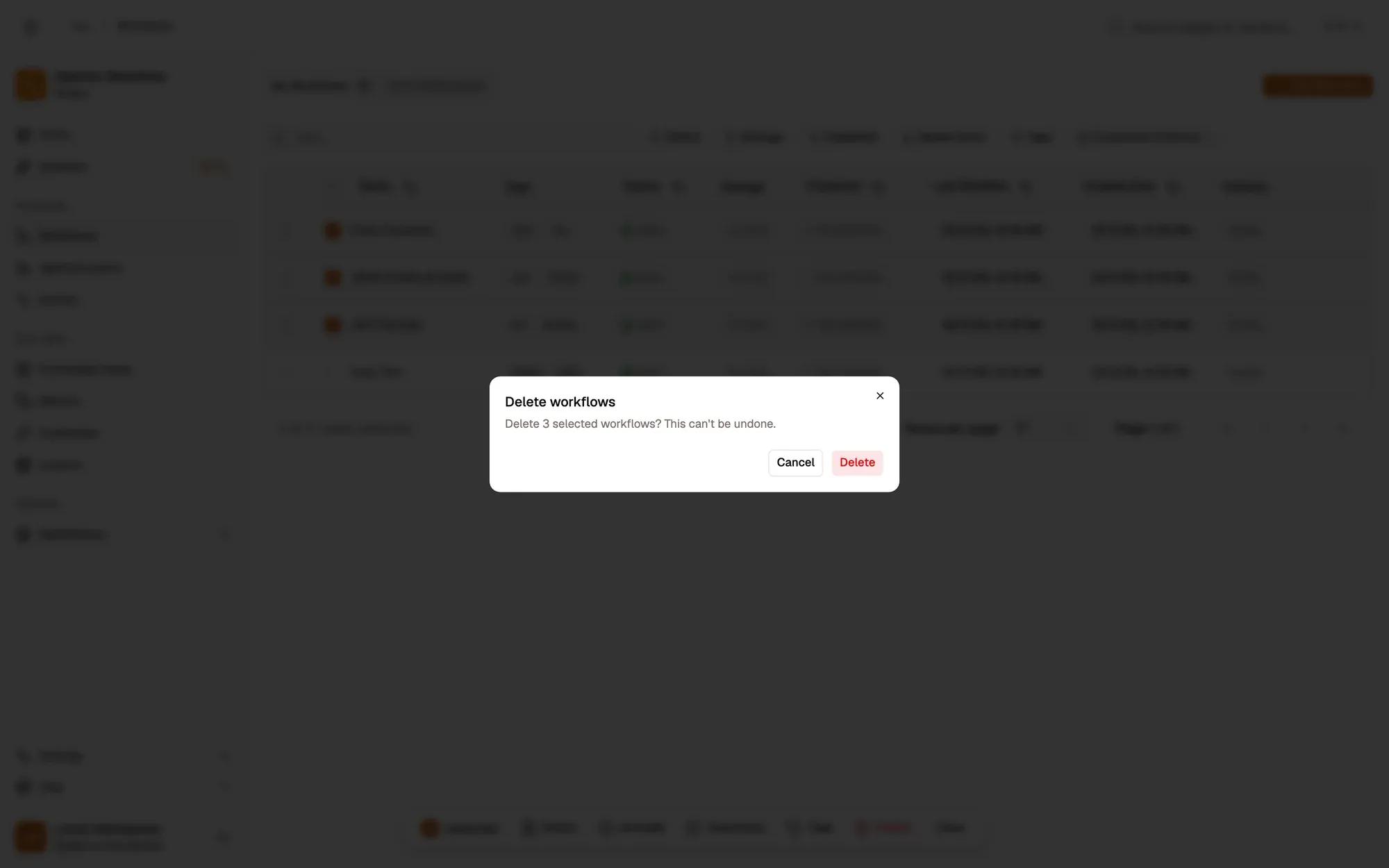
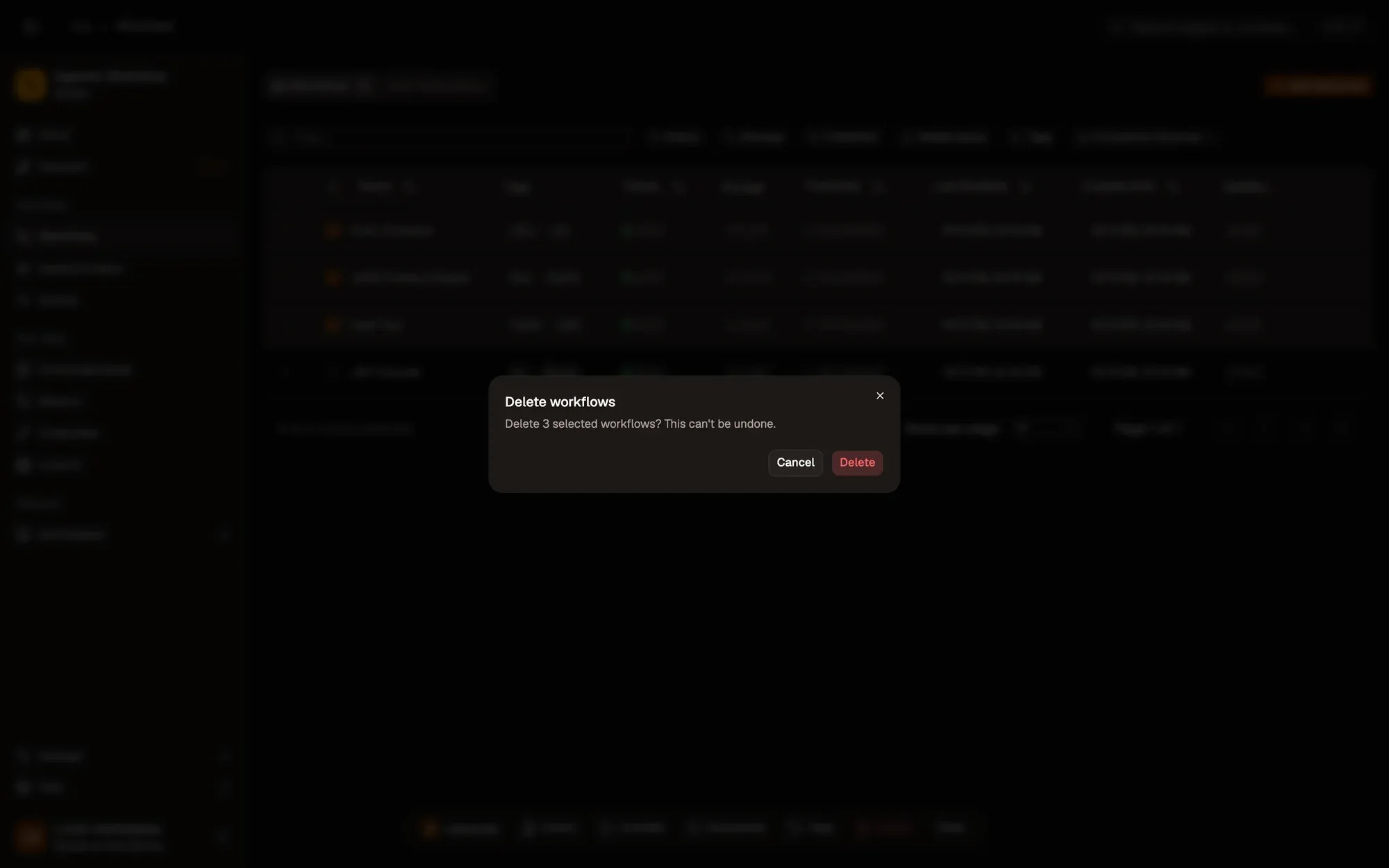
Check: a message tells you how many succeeded, were skipped or failed.
Bulk actions on My Workflows:
- Export downloads each selected workflow. If a workflow contains embedded secrets, it is exported with the secrets removed, and the summary tells you how many.
- To cloud / To local moves the selection. Workflows already in that place are skipped. Signed-in users only.
- Activate / Deactivate turns their triggers on or off.
- Tags opens a dialog with Add tags and Remove tags fields. The change applies to every selected workflow. See Workflow tags.
- Delete removes them after you confirm. This can’t be undone. If the workflows have their own chat memory, you choose whether to delete those conversations or keep them in Memory.
Bulk actions on From Marketplace:
- Export.
- Remove deletes the downloaded workflows from your library and clears the permissions you granted them.
Click Clear to drop the selection.