A credential is a saved key, token or sign-in that lets a node act in another service: an API key for OpenAI, a Slack bot token, a Google sign-in. You create it once, then pick it in any node. When you share or export a workflow, your credentials stay behind.
From the Credentials page
Section titled “From the Credentials page”Open Credentials in the sidebar and click Add Credential. Everything else happens in the New Credential form: hover or tap a step to find it on the screen. In the browser side panel (or any narrow window) the form comes in two steps: first a list of apps, where tapping one moves on (or Continue keeps Simple Credential), then the rest of the form.
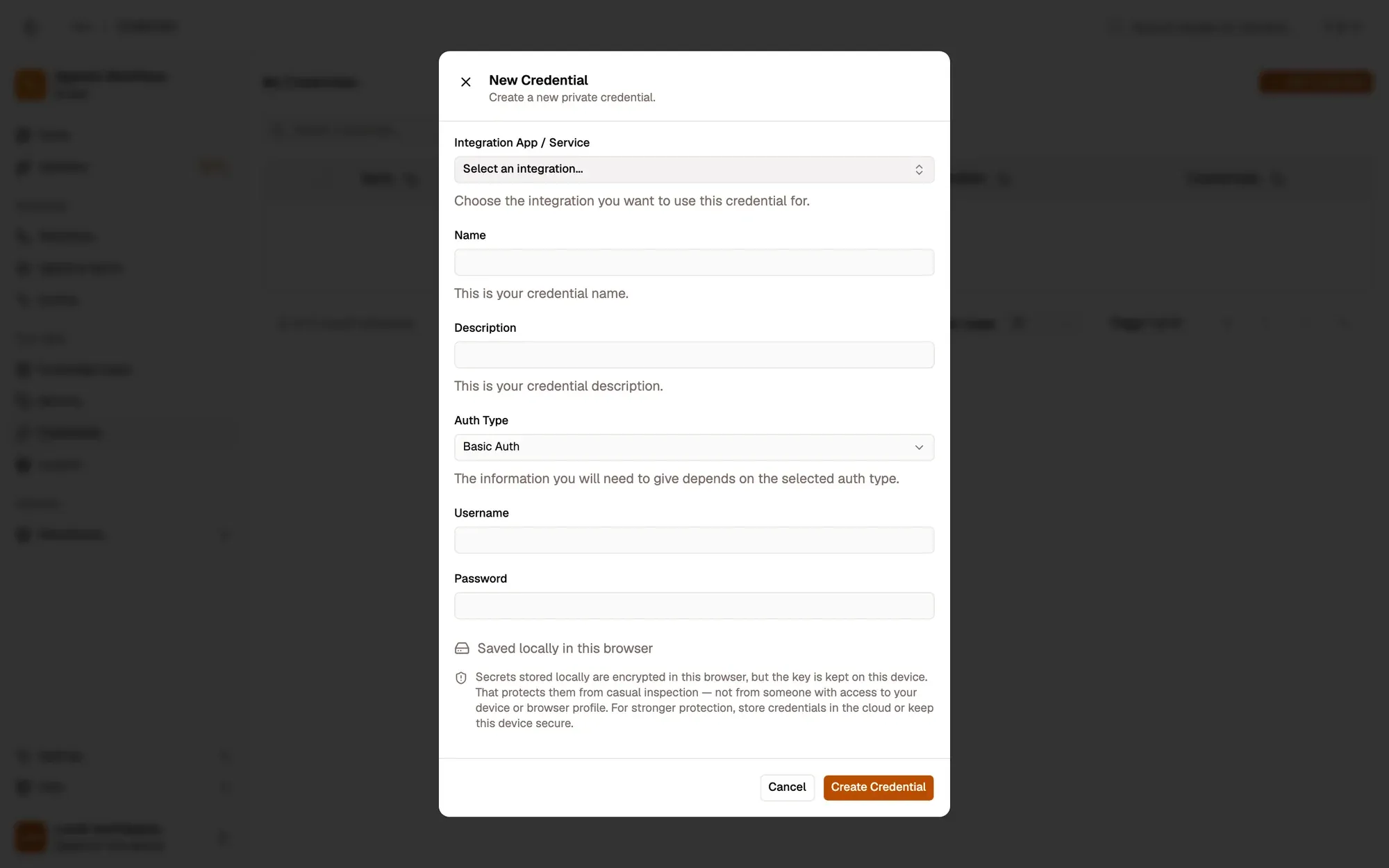
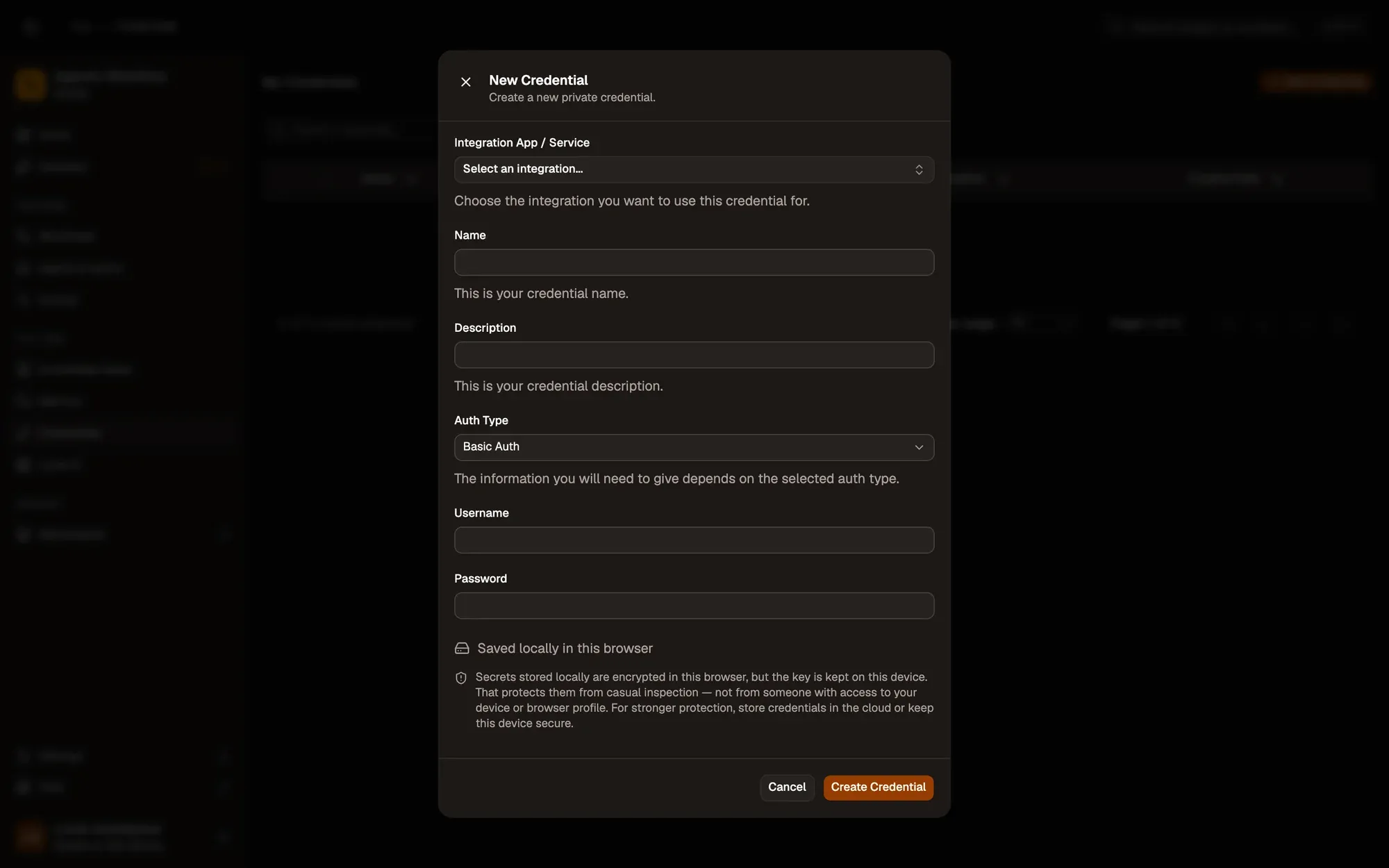
Numbered areas in the screenshot: 1. Pick the app or service; 2. Name it so you can find it in nodes; 3. Auth type decides which fields you fill; 4. The fields of the chosen auth type (here Username and Password); 5. Where the secret is stored; 6. Create Credential.
From a node
Section titled “From a node”In a node’s Credential (or Authentication) field, open the list and click + Add Credential. The same form opens. When you save, the new credential is in the list, ready to pick.
Auth types
Section titled “Auth types”| Auth Type | Fields | Use it for |
|---|---|---|
| Bearer Token | Bearer Token | Most app tokens and API keys (Slack, Notion, GitHub…). Paste only the token: AWFlow adds Bearer. |
| Basic Auth | Username, Password | Services that take two values, such as Trello (API key + token) or Pushover. |
| JWT | JWT | A value sent exactly as typed. Use it for AI provider API keys in workflow nodes. |
| OAuth2 | Client ID, Client Secret (optional) | Google (Gmail, Drive, Sheets, Calendar) and Microsoft 365, with your own OAuth client. |
Where credentials are stored
Section titled “Where credentials are stored”- Local (this browser only): encrypted in this browser. The key sits on the same device, which guards against casual inspection. Turn on the local secret vault to lock local credentials with a passphrase.
- Cloud (synced to your account): stored encrypted on your AWFlow account, so you can use them on your other devices.
If you use AWFlow without an account, credentials are always local. See Privacy & your data.
- Create one credential per account and purpose, and reuse it across workflows. Updating it updates every workflow that uses it.
- Give a token only the permissions your workflow needs. Each connection page lists them per operation.
- Never paste a secret into a node’s normal fields: those travel with the workflow when you share it.