Settings › Privacy controls what this device shares with AWFlow. For the full picture, read Privacy & data. Open Settings at the bottom of the sidebar and click Privacy: every setting is on that one page.
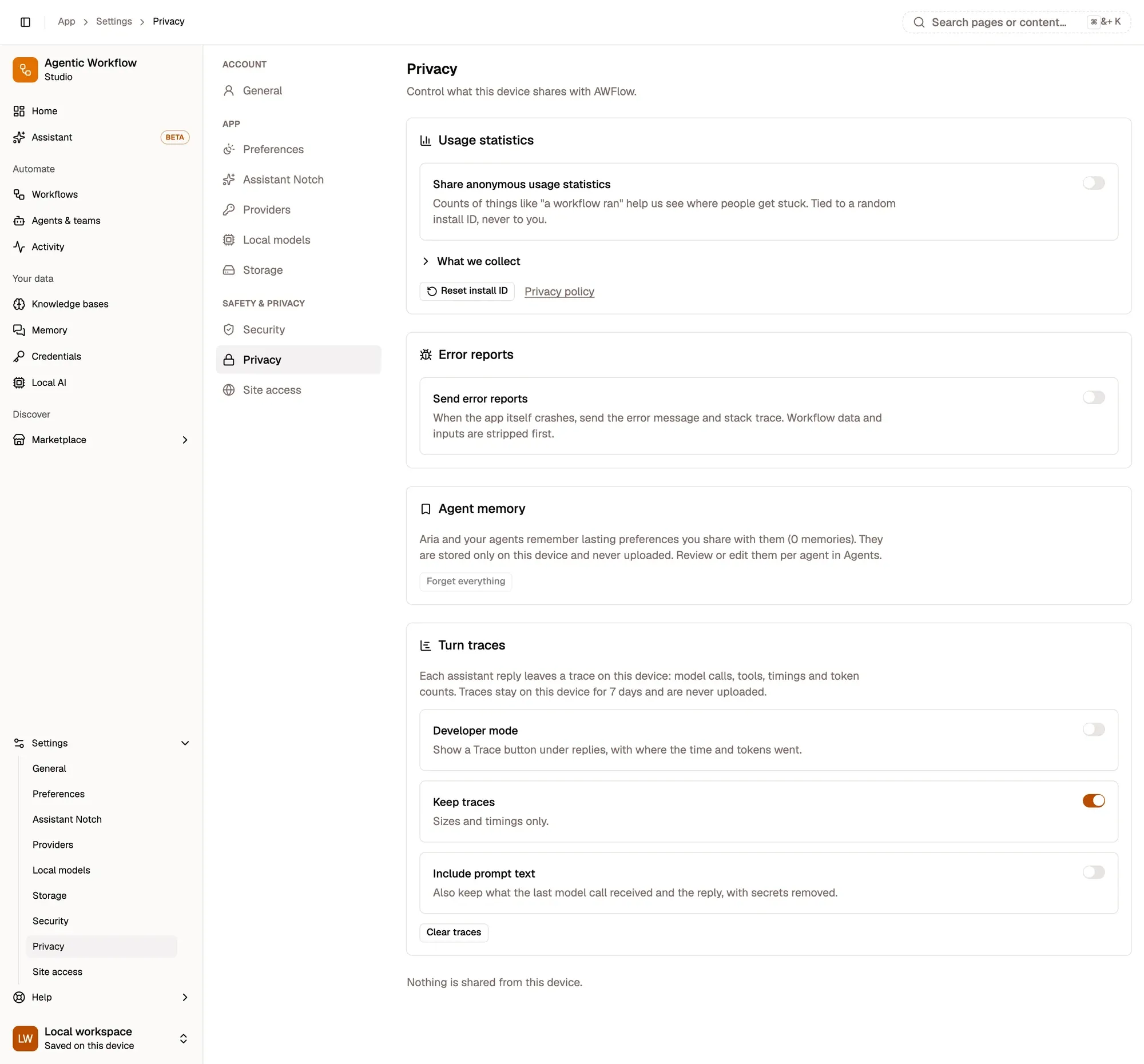
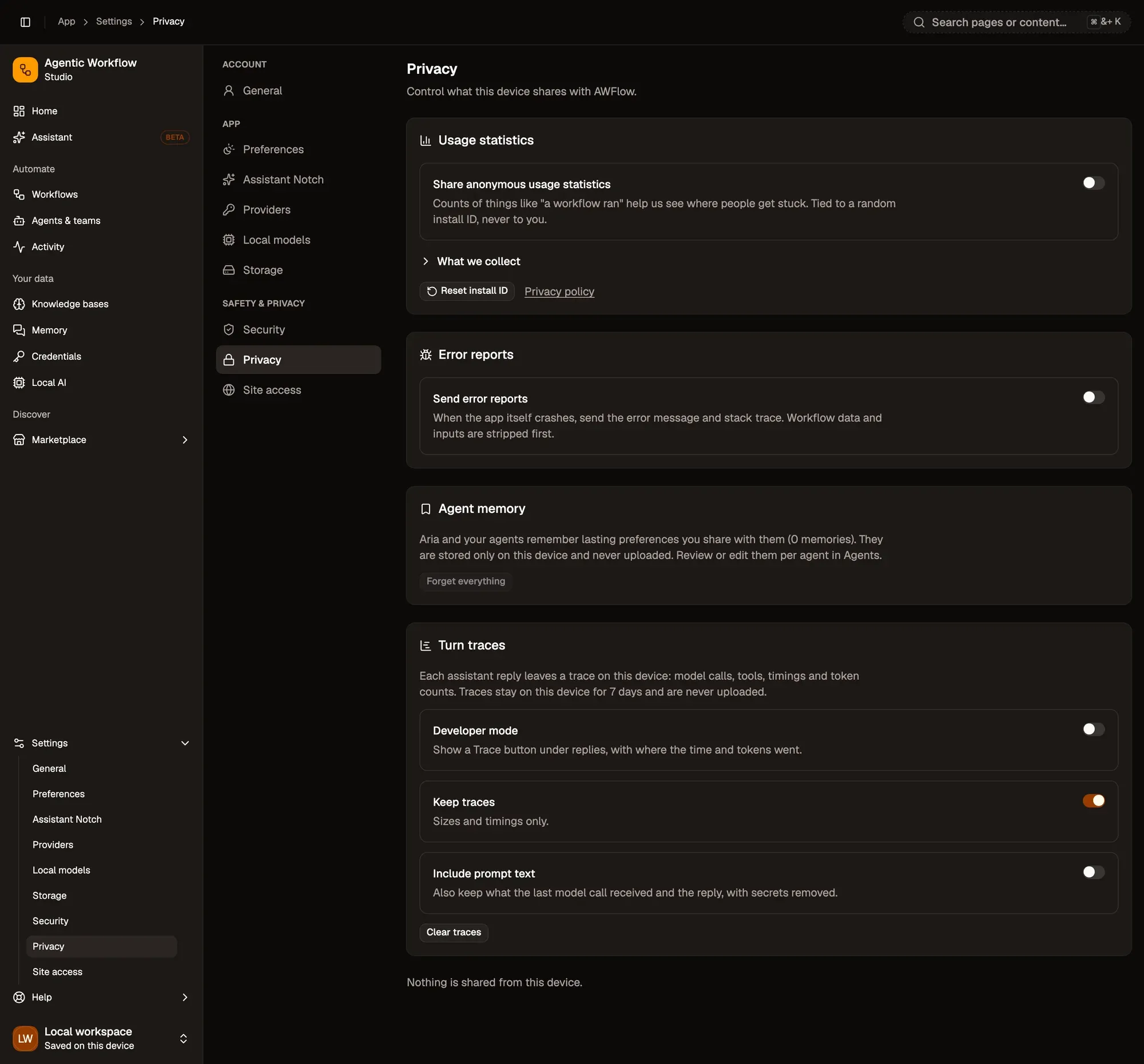
Numbered areas in the screenshot: 1. Share anonymous usage statistics; 2. What we collect; 3. Reset install ID; 4. Send error reports; 5. Forget everything; 6. Developer mode; 7. Keep traces and Include prompt text; 8. Clear traces.
Usage statistics
Section titled “Usage statistics”Share anonymous usage statistics sends counts such as “a workflow ran” so the team can see where people get stuck. It is on by default; switch it off at any time.
- Each event is tied to a random install ID, never to you or your account.
- Workflow names, steps and data, credentials, page URLs, and your email or name are never sent.
- Open What we collect to see examples of events.
- Reset install ID replaces the random ID with a new one.
Error reports
Section titled “Error reports”Send error reports sends the error message and technical trace when the app itself crashes. Workflow data and inputs are removed first. It is on by default.
At the bottom, a line sums up what this device shares, for example Nothing is shared from this device.
Agent memory
Section titled “Agent memory”Aria and your agents remember lasting preferences you share with them. These memories are stored only on this device. Forget everything erases them for all agents after you confirm with Yes, forget everything.
Turn traces
Section titled “Turn traces”Each assistant reply leaves a trace on this device: model calls, tools, timings and token counts. Traces are kept for 7 days and never uploaded.
- Developer mode shows a Trace button under replies. Off by default.
- Keep traces stores sizes and timings. On by default.
- Include prompt text also keeps what the model received and replied, with secrets removed. Off by default.
- Clear traces, then Delete traces, deletes every trace on this device.
See Turn traces.