Before you start
Section titled “Before you start”- A Supabase project, with Row Level Security (RLS) policies for the tables you use.
- The AWFlow browser extension. These steps run in the extension (the web app hands them to it).
Used by
Section titled “Used by”Set it up
Section titled “Set it up”This is the only method AWFlow accepts. The secret service_role key is refused because it bypasses RLS.
-
Copy the key. In Supabase, open Project Settings › API and copy the key labelled
anonpublic. Also note the Project URL (https://<project>.supabase.co). -
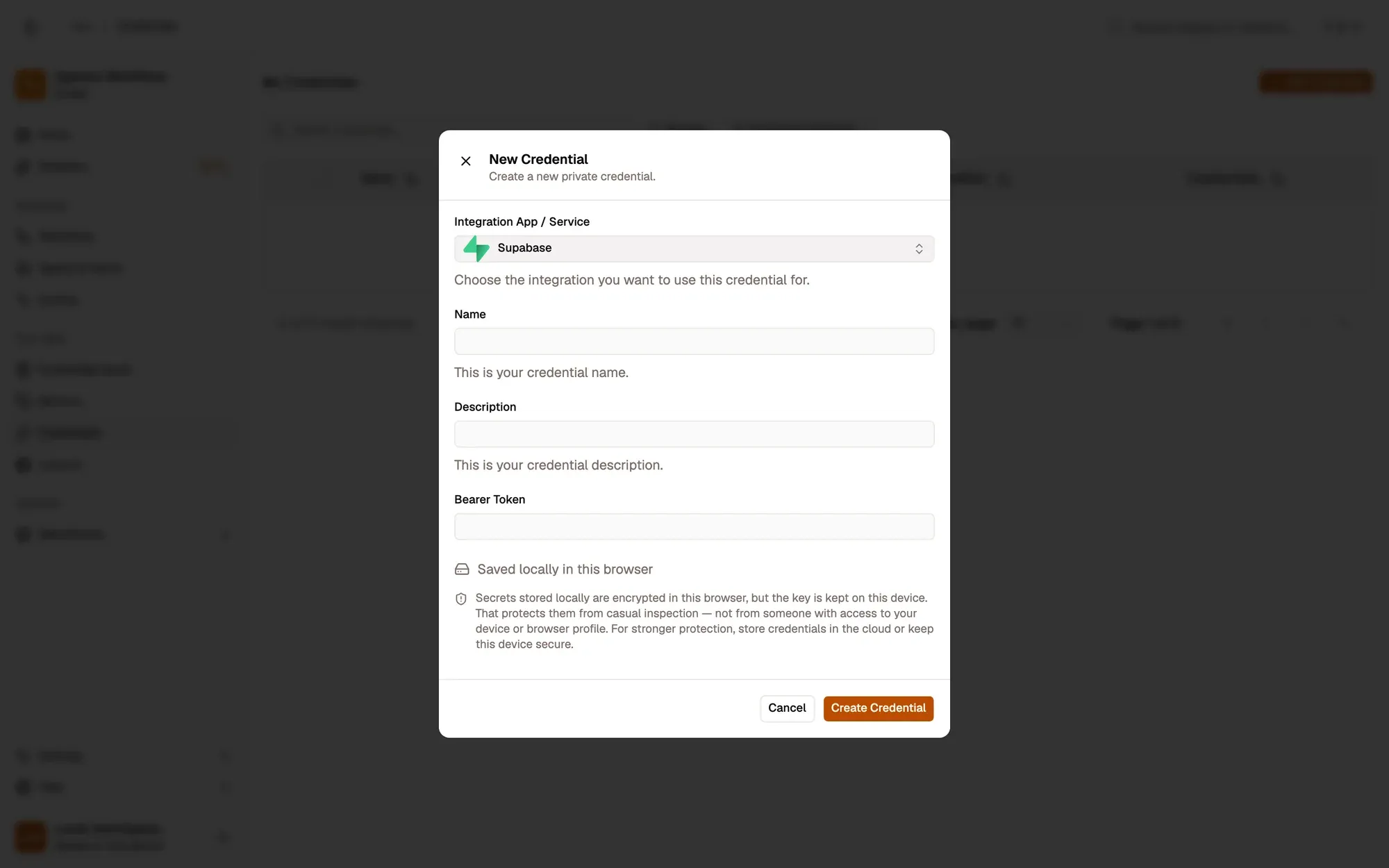
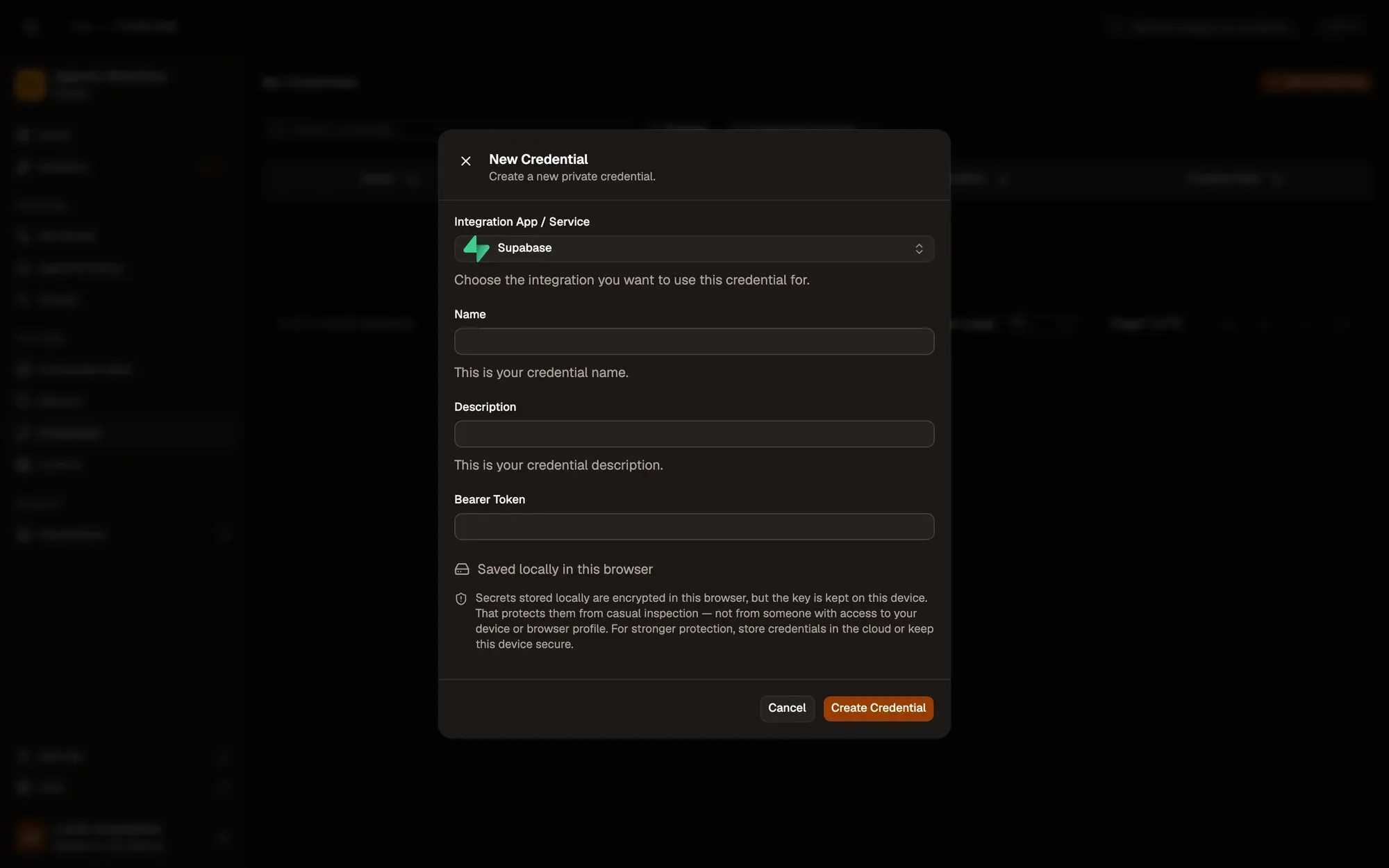
Save it in AWFlow. Open Credentials and click Add Credential (or + Add Credential in a node’s Credential field), then fill the New Credential form. In the browser side panel the form comes in two steps: tap Supabase in the list, then fill the rest.
Numbered areas in the screenshot: 1. Integration App / Service: Supabase; 2. Name; 3. Bearer Token; 4. Where the secret is stored (here, locally in this browser); 5. Create Credential.
-
Allow the access with RLS policies on each table, for example a policy that lets the
anonroleinsertintoprices. -
In the node, pick the credential and paste the Project URL.
Where your token lives
Section titled “Where your token lives”Common issues
Section titled “Common issues”- “This is a Supabase service_role key, which bypasses Row Level Security…”. Replace it with the
anonkey. - “401 … the request was blocked” (or 403). No RLS policy allows this operation for
anon. Add one on the table. - Select returns an empty list. RLS hides the rows from
anon, or the filter matches nothing (useeq.42, not42). - The run is blocked in the web app. Supabase runs through the browser extension. Install the extension and allow Supabase for this workflow when asked, or run the workflow from the extension. See Extension-only integrations in the web app.