≈ 3 min
Extension
Basic Auth
Ask Aria⌘IBefore you start
Section titled “Before you start”- A Trello account. Trello may ask you to create a Power-Up to get an API key.
- The AWFlow browser extension. These steps run in the extension (the web app hands them to it).
Used by
Section titled “Used by”Set it up
Section titled “Set it up”This is the only method. The token can act on all your boards.
-
Get the API key. Open trello.com/app-key while signed in. If Trello asks for a Power-Up, create one in its admin page; its API key tab shows the key. Copy it.
-
Get the token. Next to the key, follow the Token link, click Allow and copy the token.
-
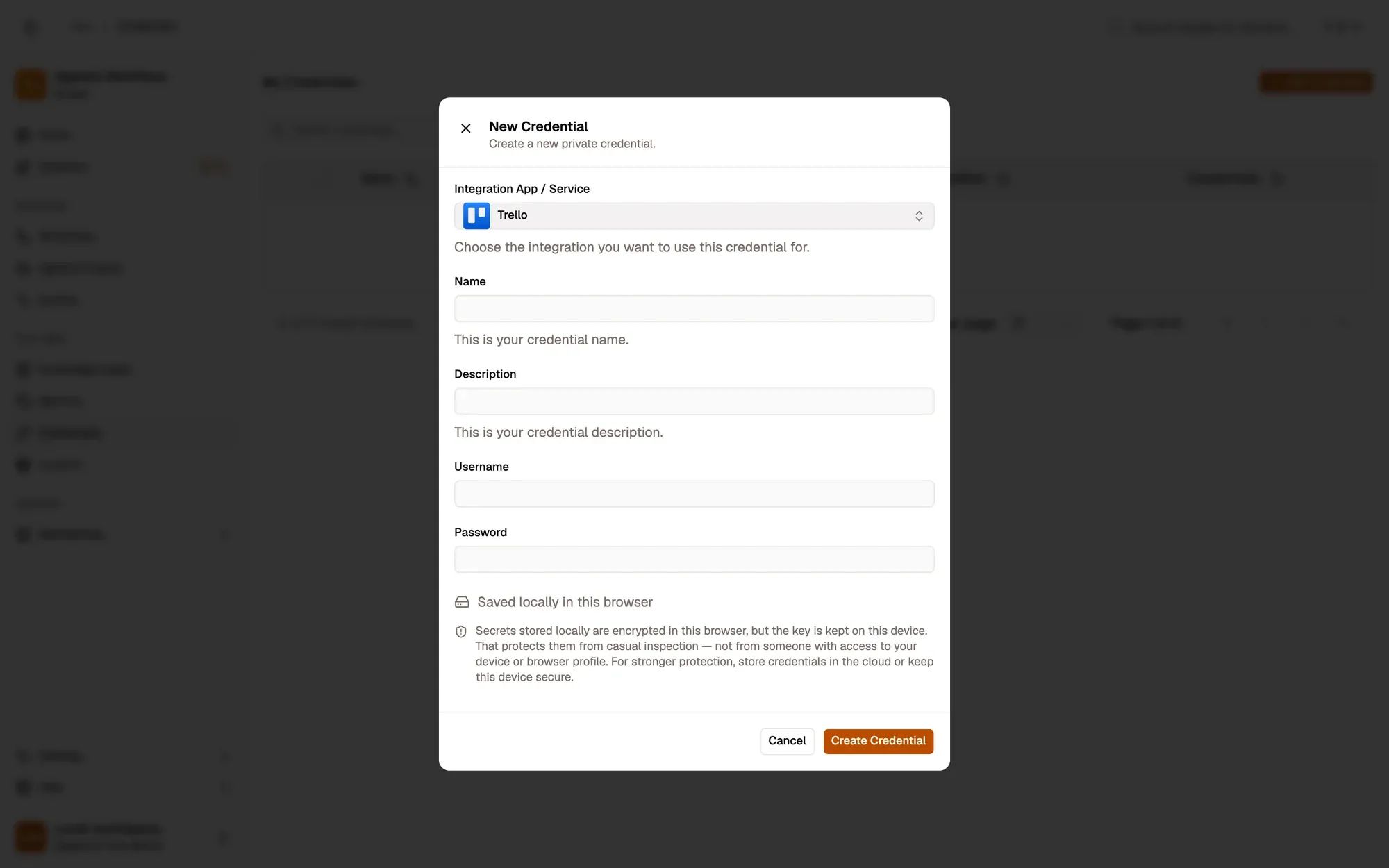
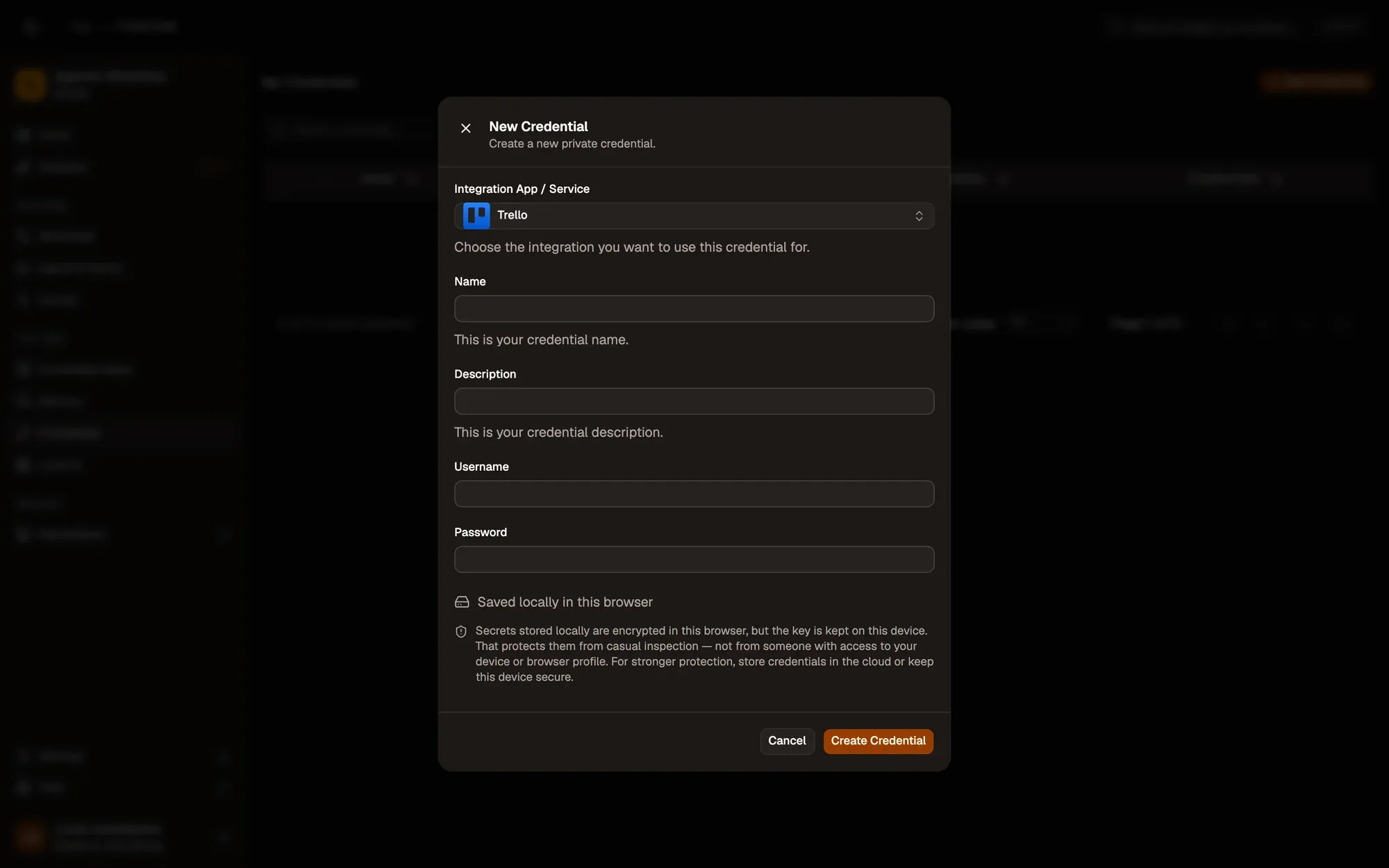
Save it in AWFlow. Open Credentials and click Add Credential (or + Add Credential in a node’s Credential field), then fill the New Credential form. In the browser side panel the form comes in two steps: tap Trello in the list, then fill the rest.
Numbered areas in the screenshot: 1. Integration App / Service: Trello; 2. Name; 3. Username; 4. Password; 5. Where the secret is stored (here, locally in this browser); 6. Create Credential.
Where your token lives
Section titled “Where your token lives”Common issues
Section titled “Common issues”- “Trello needs a Basic Auth credential with the API key in Username and the token in Password”. A field is empty, or the credential isn’t Basic Auth.
- “401 … the API key or token is invalid or expired”. The key and token don’t belong together, are swapped, or the token was revoked. Generate a new token next to your key.
- The run is blocked in the web app. Trello runs through the browser extension. Install the extension and allow Trello for this workflow when asked, or run the workflow from the extension. See Extension-only integrations in the web app.