Sometimes a workflow cannot run because the browser blocks access to a website or part of a page.
This is usually caused by browser security rules, not by a broken workflow.
This page explains:
- Why permissions are needed
- The most common permission problems
- How to fix them step by step
No technical knowledge is required.
Why Permissions Matter
Section titled “Why Permissions Matter”AWFlow runs inside your browser.
For security reasons, browsers do not automatically allow extensions to access every website.
Permissions are used to:
- Read page content
- Click buttons or fill forms
- Extract text, links, or data
- Run workflows on specific sites
If permission is missing, the workflow may:
- Fail immediately
- Stop without clear results
- Work on some websites but not others
Most Common Permission Issues
Section titled “Most Common Permission Issues”The Workflow Cannot Access the Website
Section titled “The Workflow Cannot Access the Website”You may see errors like:
- “Cannot access this page”
- “Permission denied”
- Workflow does nothing after starting
Most common causes:
- The extension is not allowed on this site
- The site is opened in a special browser page
- The browser is in private / incognito mode
Allowing the Extension on a Website
Section titled “Allowing the Extension on a Website”To allow access to a website:
- Open the website where the workflow should run
- Click the extension icon in your browser toolbar
- Choose Allow on this site
- Refresh the page
- Run the workflow again
This fixes most permission problems.
Special Pages That Do Not Work
Section titled “Special Pages That Do Not Work”Some browser pages cannot be accessed by any extension, for security reasons.
Examples:
- New Tab page
- Browser settings pages
- Extension store pages
- PDF viewer pages
What to do instead:
- Navigate to a normal website page
- Reload the content in a regular tab
- Then start the workflow
Private / Incognito Mode Issues
Section titled “Private / Incognito Mode Issues”By default, extensions are disabled in private browsing.
If you are using incognito mode:
- Workflows may fail
- Pages may appear inaccessible
How to fix it:
- Open your browser’s extension settings
- Find AWFlow
- Enable Allow in incognito
- Restart the incognito window
If possible, use a normal browsing window instead.
Websites With Strong Security
Section titled “Websites With Strong Security”Some websites intentionally limit automation and data access.
Common examples:
- Banking and financial platforms
- Government portals
- Internal company tools
- Social networks
On these sites:
- Some elements may not be accessible
- Data extraction may be limited
- Workflows may partially work or fail
This is expected behavior and not a bug.
What You Can Try on Secure Websites
Section titled “What You Can Try on Secure Websites”If a workflow does not work on a secure site:
- Extract only visible text, not the full page
- Avoid full HTML extraction
- Add a Wait for Element step before extracting
- Simplify the workflow
Helpful pages:
Company or Managed Computers
Section titled “Company or Managed Computers”If you are using:
- A work computer
- A school laptop
- A managed browser profile
Your organization may block:
- Extensions
- Certain websites
- Script execution
- Downloads or data export
In this case:
- You may not be able to fix the issue yourself
- Contact your IT administrator
- Ask whether browser extensions are allowed
Recommended Permission Practices
Section titled “Recommended Permission Practices”Use the minimum access needed:
- Allow the extension only on sites you trust
- Avoid “Allow on all sites” unless required
- Remove access from sites you no longer use
This keeps your browser secure and predictable.
When a Workflow Still Does Not Work
Section titled “When a Workflow Still Does Not Work”If you have allowed permissions and the workflow still fails:
- Try the workflow on a simpler website
- Test it in another browser
- Disable other browser extensions temporarily
- Reduce the number of workflow steps
Related help:
Installed Marketplace Workflows
Section titled “Installed Marketplace Workflows”When you install or download a workflow from the marketplace, you approve a short list of permissions it needs — for example reaching the network, running code, or reading the current page. The app remembers exactly what you approved.
To keep you safe, an installed workflow can only do what you approved:
- If you later edit an installed workflow so that it needs more than you approved — a new network destination, or a new capability such as running code — the app blocks the run and asks you to re-install it so you can review and approve the new permissions.
- Running a single step (“Test Step”) of an installed workflow is checked the same way.
You may see a message like:
This installed workflow can’t run — it now needs: code-execution. Re-install it from the marketplace to review and approve the new permissions.
This is expected. To approve the new permissions, either:
- Pull the new version from the workflow’s version picker — it shows exactly what the new version can do and asks you to approve before switching; or
- Re-install the workflow from the marketplace to review and approve.
Then run it again. Workflows you created yourself are never restricted this way.
What the permission list covers
Section titled “What the permission list covers”The list is worked out on your device from the workflow’s steps, not taken from the author. If the author’s own list left something out, the listing shows the full list and says so. Moderators see the same check when they review a listing. It includes the sites a workflow can reach (also through feeds, page loaders, “Poll until” checks, AI model providers and tool servers), the pages it can read or change, and the connected accounts it uses. If a newer version of AWFlow detects access that wasn’t on the list when you installed an unchanged workflow, you’re asked once the first time it runs instead of being blocked.
When AWFlow removes a workflow for safety
Section titled “When AWFlow removes a workflow for safety”If a published workflow turns out to be harmful (for example it sends page content somewhere it didn’t disclose), AWFlow removes it from the Marketplace and stops every installed copy:
- It can’t run — from the canvas, the workflows list or any trigger — and its triggers are switched off.
- You get a notification, and the workflow shows Stopped · removed for safety with an explanation. Use Uninstall to remove it.
- Nothing else in your account changes.
When a listing is only under review for a policy question (copyright, spam…), it shows Under review by AWFlow and keeps running.
Check which sites a workflow may contact
Section titled “Check which sites a workflow may contact”If a step fails because it needs permission, or keeps asking, check the workflow’s grants. Open Settings › Site access:
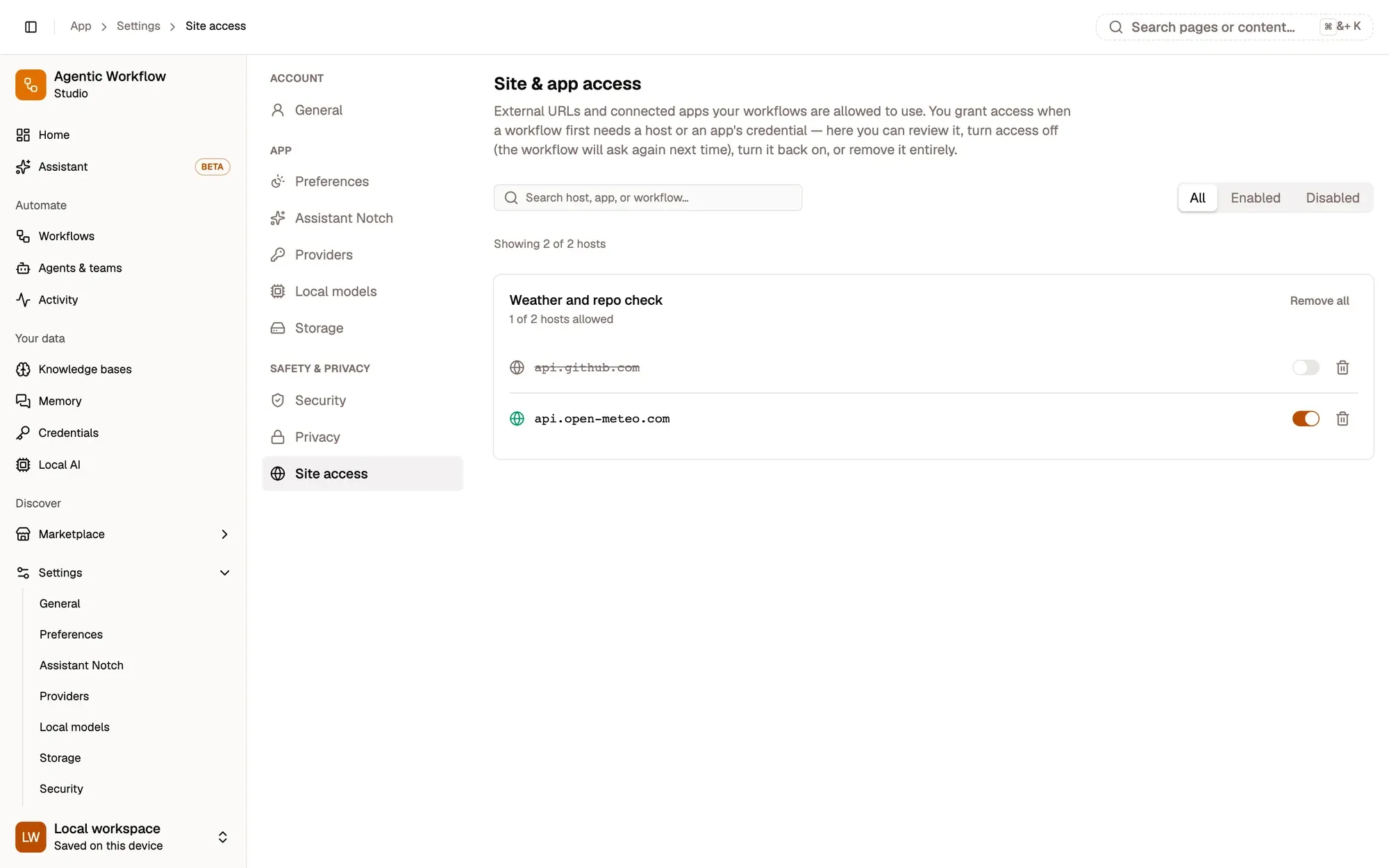
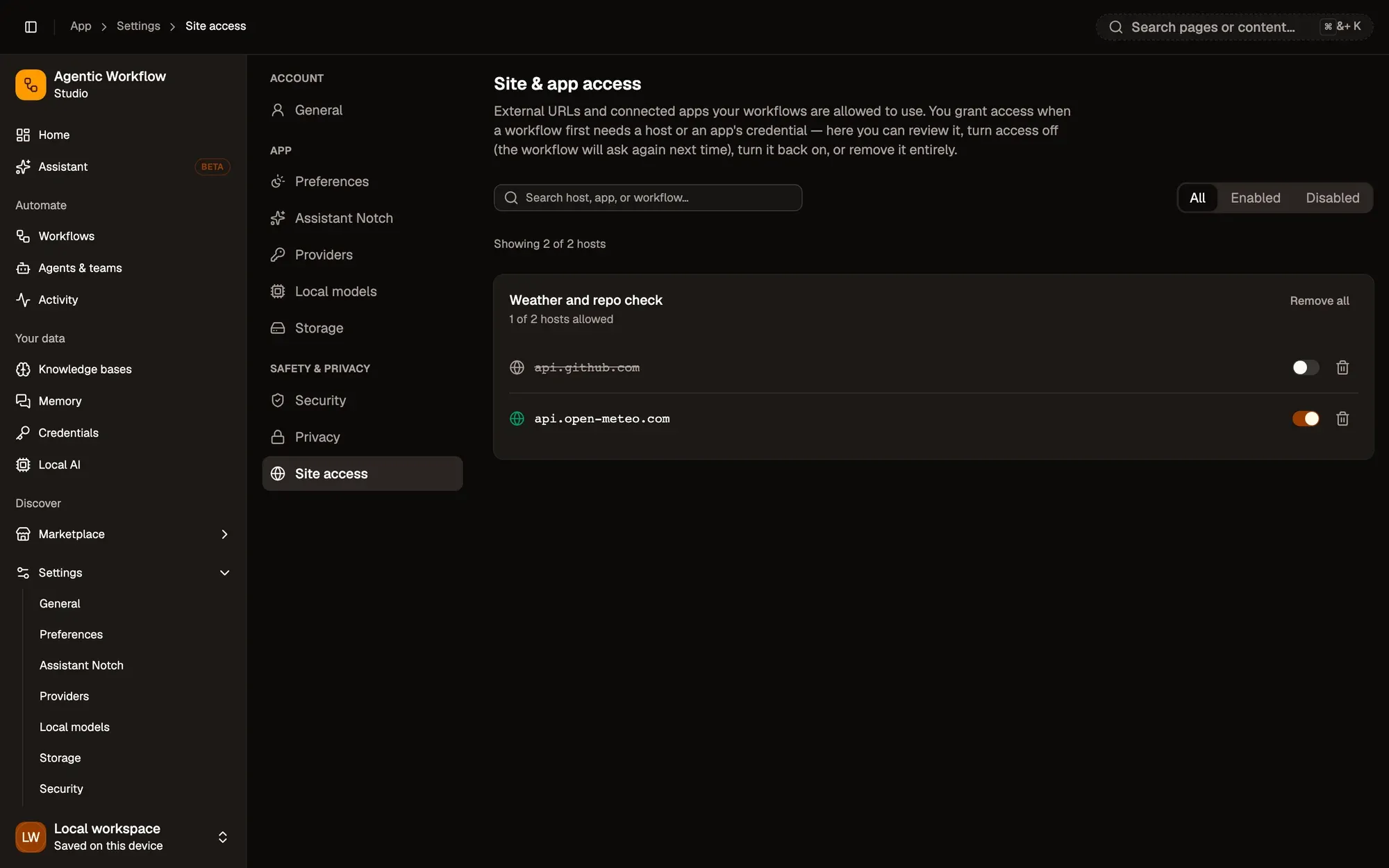
Numbered areas in the screenshot: 1. Search host, app or workflow; 2. Switch a host off or on; 3. Remove all.
For your own workflows these grants only apply when Safe mode is on. See Site access.
Summary
Section titled “Summary”Most permission issues come from:
- The extension not being allowed on a site
- Using special or restricted browser pages
- Strong security rules on certain websites
- Company-managed browser restrictions
In most cases, the fix is simple: allow the extension on the site and reload the page.
If the browser blocks access, it is usually by design — not a workflow error. See also: Security and Safe mode and Site access for how host access and Safe mode work.