The Workflows page lets you narrow the list to just the workflows you care about. Filters sit in the toolbar above the table, next to the search box. Your selections, along with sorting, visible columns and rows per page, are remembered per table and re-applied the next time you open the page.
Available filters
Section titled “Available filters”Each filter is a multi-select: pick one or more values, and the list shows workflows matching any of them.
- Status: Active or Inactive.
- Storage: where the workflow is saved: Cloud (your account) or Local (this device only).
- Published: the state of its marketplace listing: Live, In review, Publishing draft, Rejected, Suspended or Not published.
- Needs setup: Needs setup or Ready to run. A workflow needs setup when a step still has to be connected to an account or has a required field left empty. Those rows also carry an amber Needs setup badge next to their name; hover it to see what’s missing. The check is the one the canvas’s Ready to run panel makes, so it is up to date as of the last time the workflow was opened.
- Tags: narrow by tag. See Workflow tags. The Tags filter only appears once at least one workflow carries a tag.
You can combine filters (for example, Active + Local) to narrow further, and use the search box for free-text matching.
Filter the list
Section titled “Filter the list”Everything happens in the toolbar above the table. Here the Tags filter is open:
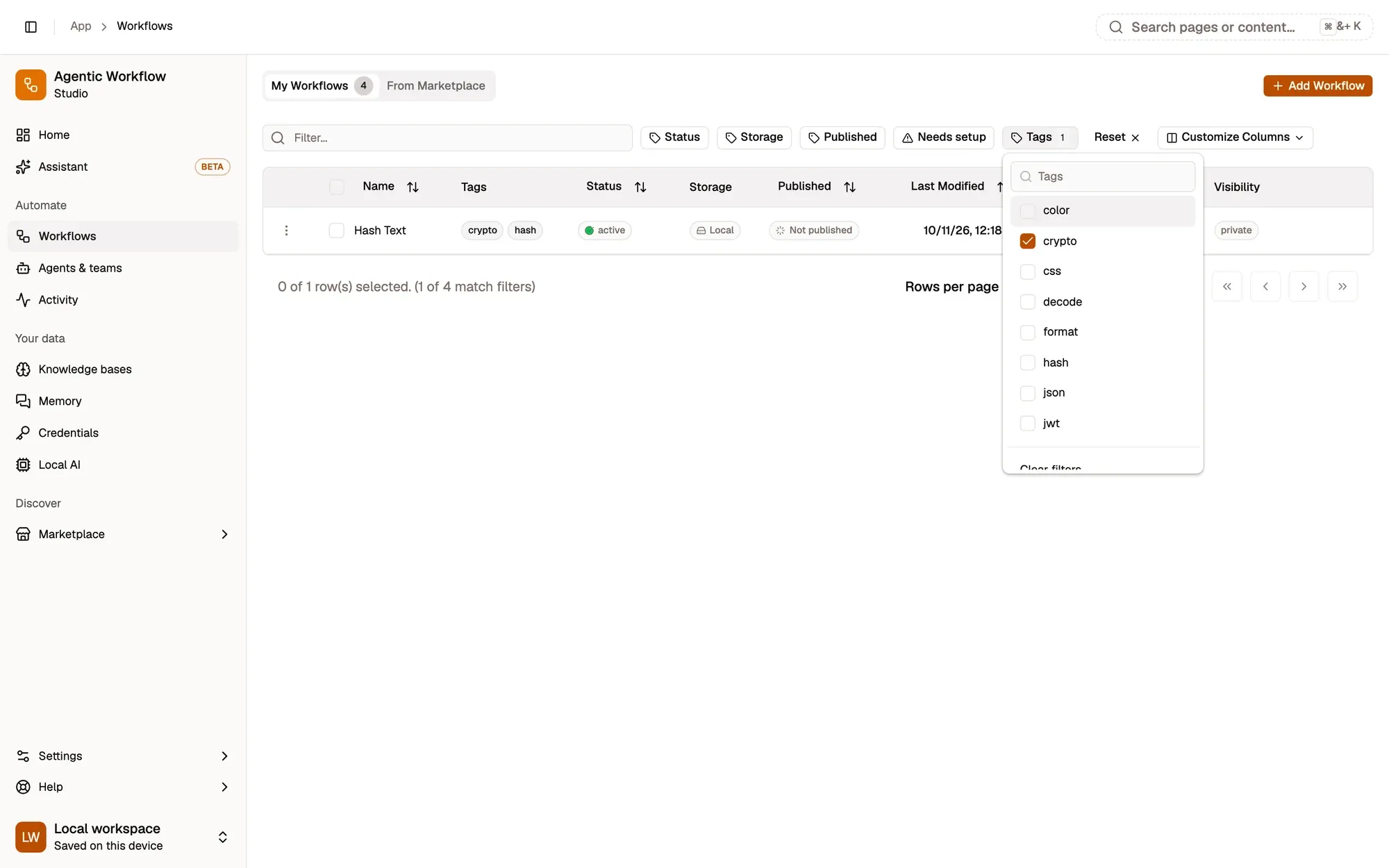
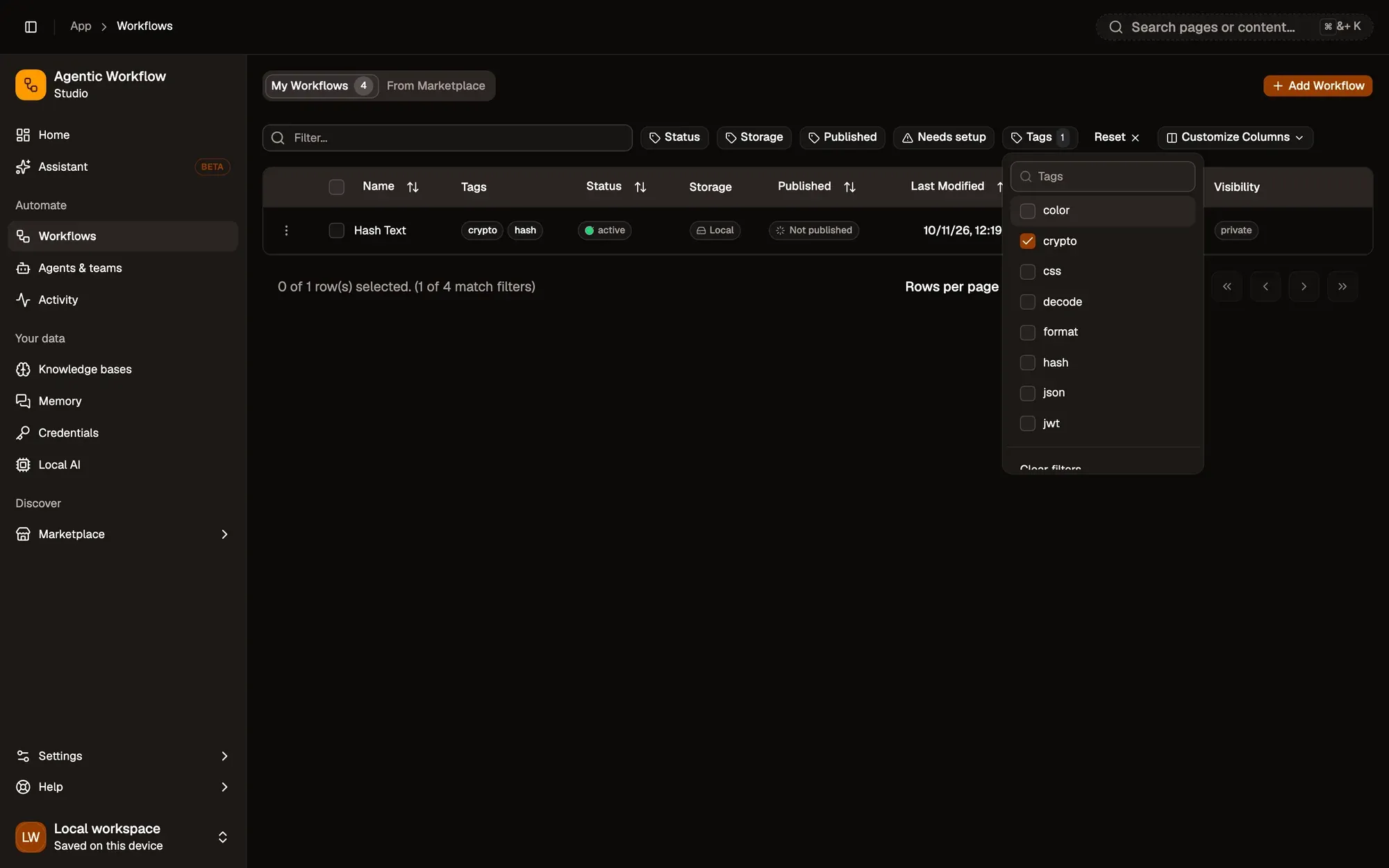
Numbered areas in the screenshot: 1. Search by name; 2. A filter, with the number of values picked; 3. Tick one or more values; 4. Reset: clear every filter.
Filters are remembered
Section titled “Filters are remembered”Your filters, sort order, chosen columns and page size are saved in the browser for each list. When you reload the app or come back later, the list opens exactly as you left it.
Note: This is stored on the device you are using, so it does not follow you to another browser or device. Clearing your browser data resets it to the defaults.