Before you start
Section titled “Before you start”- A Microsoft account (personal, work or school).
- Access to the Azure portal to register an app (free). Work accounts may need an admin to approve the permissions.
- The AWFlow browser extension. These steps run in the extension (the web app hands them to it).
Used by
Section titled “Used by”Set it up
Section titled “Set it up”This is the only method. Microsoft 365 uses a public client: only the Application (client) ID is stored, never a secret.
-
Register an app in the Azure portal’s App registrations: New registration, any name, Accounts in any organizational directory and personal Microsoft accounts.
-
Add the redirect URI as a Single-page application. Copy it from the credential form in AWFlow (step 4 shows where), then click Register.
-
Add permissions. In API permissions › Add a permission › Microsoft Graph › Delegated permissions, add
offline_access,Mail.ReadWrite,Mail.Send,Files.ReadWrite,Calendars.ReadWriteandTasks.ReadWrite. -
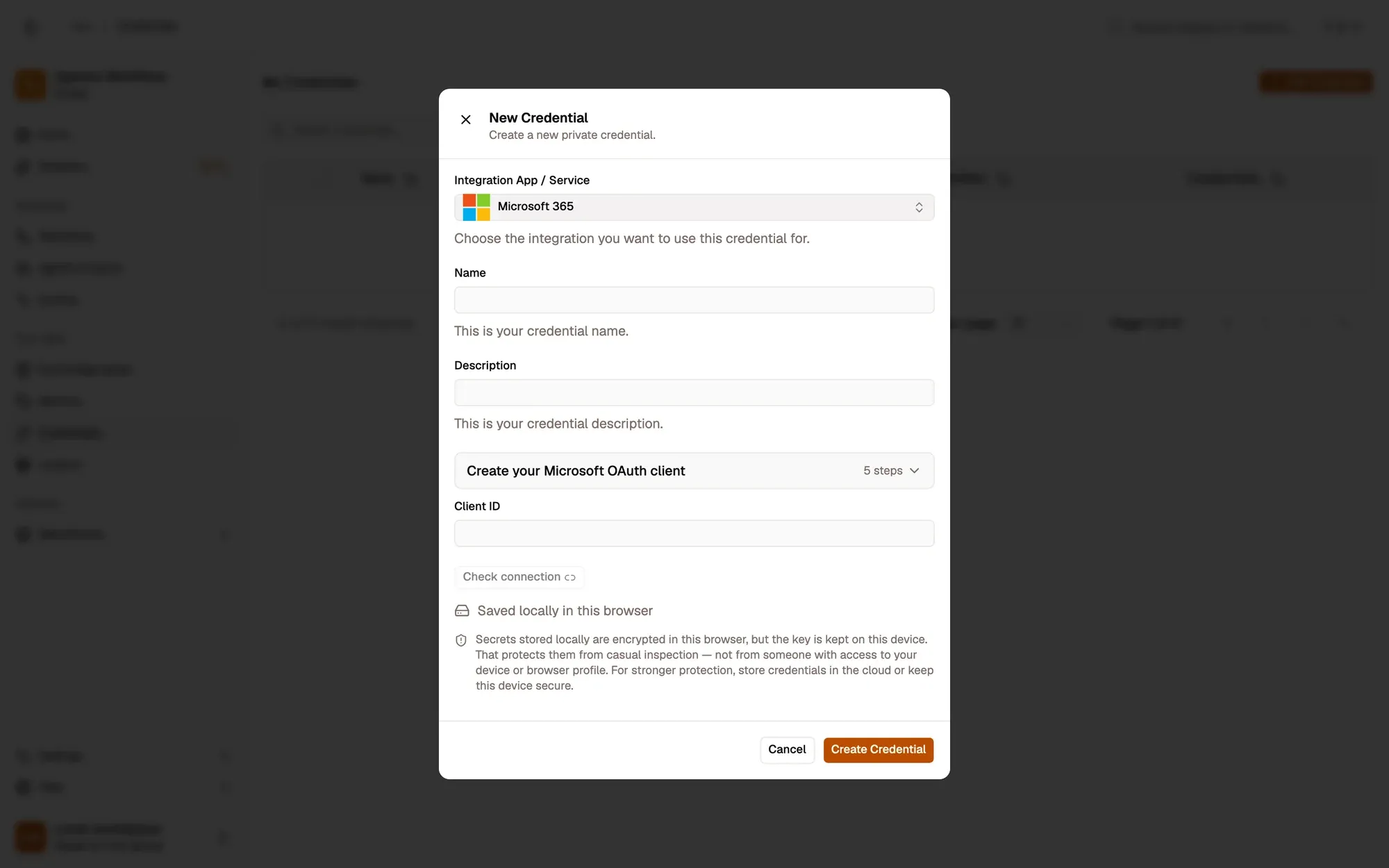
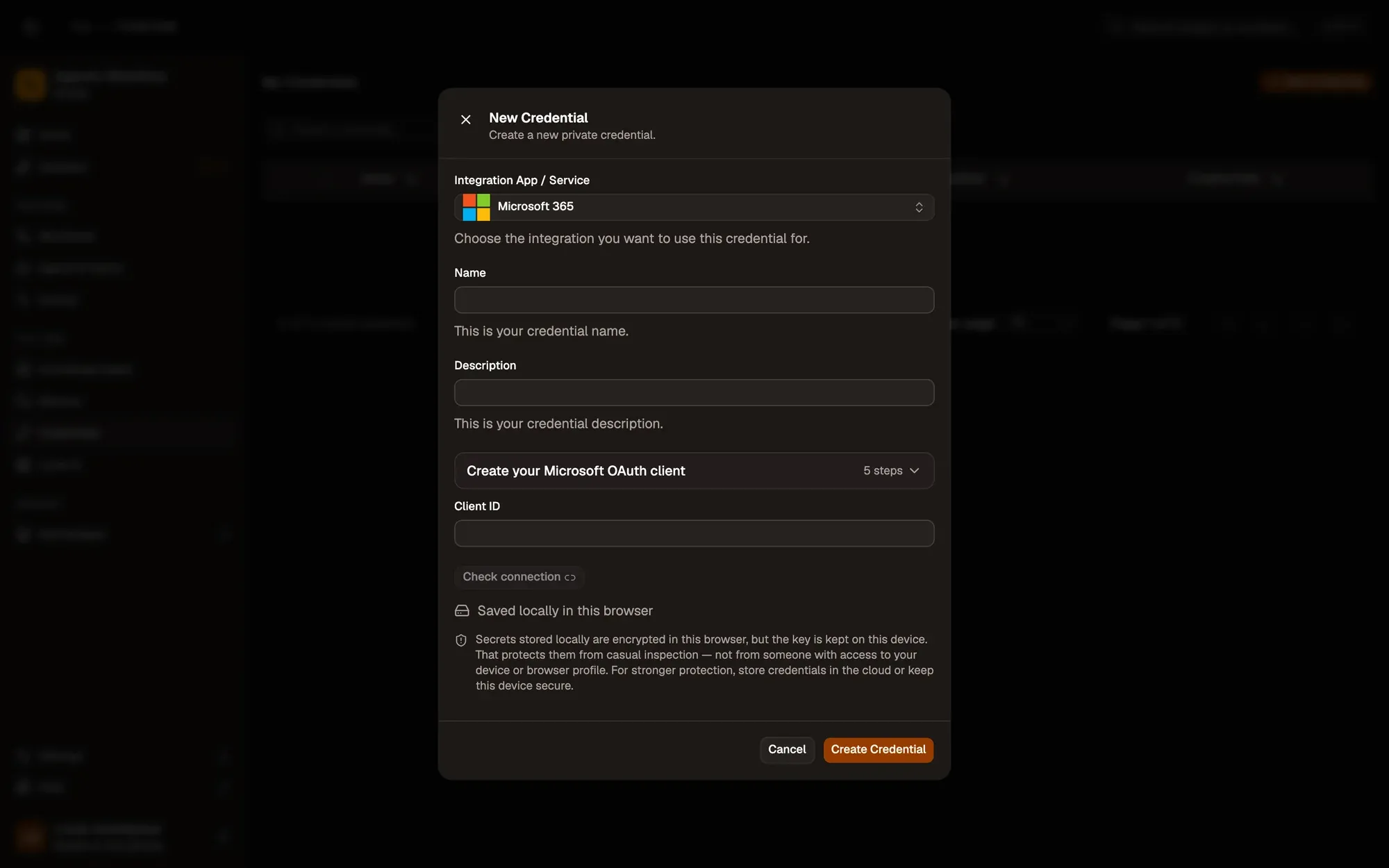
Fill the credential in AWFlow. Open Credentials and click Add Credential, then fill the New Credential form. In the browser side panel the form comes in two steps: tap Microsoft 365 in the list, then fill the rest.
Numbered areas in the screenshot: 1. Integration App / Service: Microsoft 365; 2. Name; 3. Create your Microsoft OAuth client guide; 4. Client ID; 5. Check connection (sign in); 6. Where the secret is stored (here, locally in this browser); 7. Create Credential.
Where your token lives
Section titled “Where your token lives”Permissions each operation needs
Section titled “Permissions each operation needs”| Operation | Delegated permission |
|---|---|
| Mail · Send | Mail.Send |
| Mail · List, Get, Draft | Mail.ReadWrite |
| File · Upload, List, Get link (OneDrive) | Files.ReadWrite |
| Calendar · Create event, List | Calendars.ReadWrite |
| To Do · Create task, List | Tasks.ReadWrite |
| Stay signed in (refresh token) | offline_access |
Common issues
Section titled “Common issues”AADSTS50011(redirect URI mismatch). The URI isn’t registered, or it was added as Web instead of Single-page application. Copy it again from the credential form.- “Need admin approval”. Your organization lets only admins grant these permissions. Ask an admin to grant consent for the app, or use a personal account.
- 403 on one operation. A permission is missing in API permissions. Add it, then click Check connection again.
- The run is blocked in the web app. Microsoft 365 runs through the browser extension. Install the extension and allow Microsoft 365 for this workflow when asked, or run the workflow from the extension. See Extension-only integrations in the web app.