Before you start
Section titled “Before you start”- A Baserow or NocoDB account, cloud or self-hosted. Self-hosted addresses such as
localhostwork from the extension. - The AWFlow browser extension. These steps run in the extension (the web app hands them to it).
Used by
Section titled “Used by”Pick a method
Section titled “Pick a method”| Method | Use it when |
|---|---|
| Baserow database token Recommended | For Baserow (baserow.io or your own server). |
| NocoDB API token | For NocoDB (app.nocodb.com or your own server). |
Set it up
Section titled “Set it up”-
Create the token. In Baserow, open Settings › Database tokens, click Create token, pick the workspace that holds the table and allow create, read, update and delete. Copy it.
-
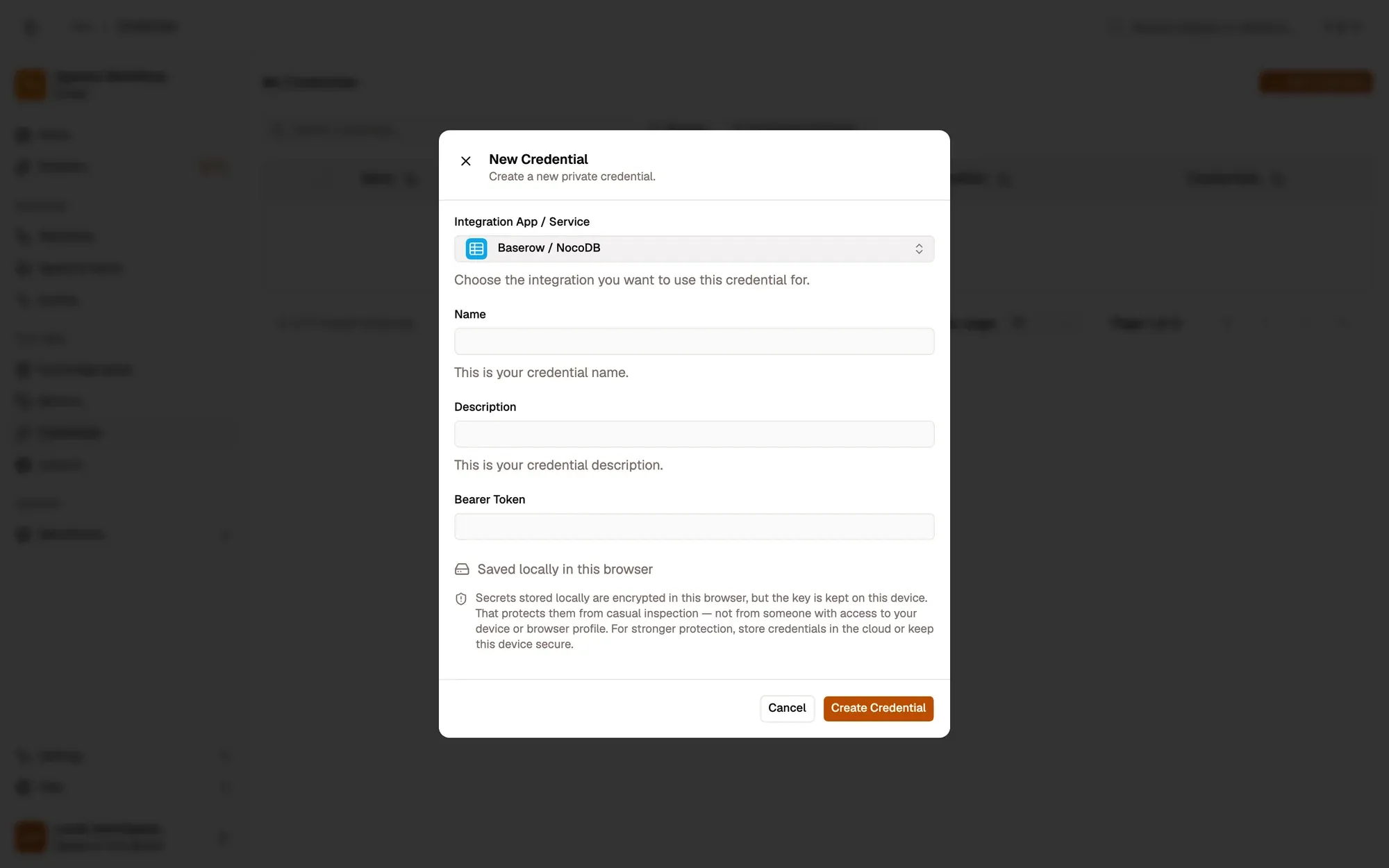
Save it in AWFlow. Open Credentials and click Add Credential (or + Add Credential in a node’s Credential field), then fill the New Credential form. In the browser side panel the form comes in two steps: tap Baserow / NocoDB in the list, then fill the rest.
Numbered areas in the screenshot: 1. Integration App / Service: Baserow / NocoDB; 2. Name; 3. Bearer Token; 4. Where the secret is stored (here, locally in this browser); 5. Create Credential.
-
In the node, choose Baserow, set Base URL (for example
https://api.baserow.io) and the Table ID.
-
Create the token. In NocoDB, open Account settings › Tokens, click Add new token and copy it.
-
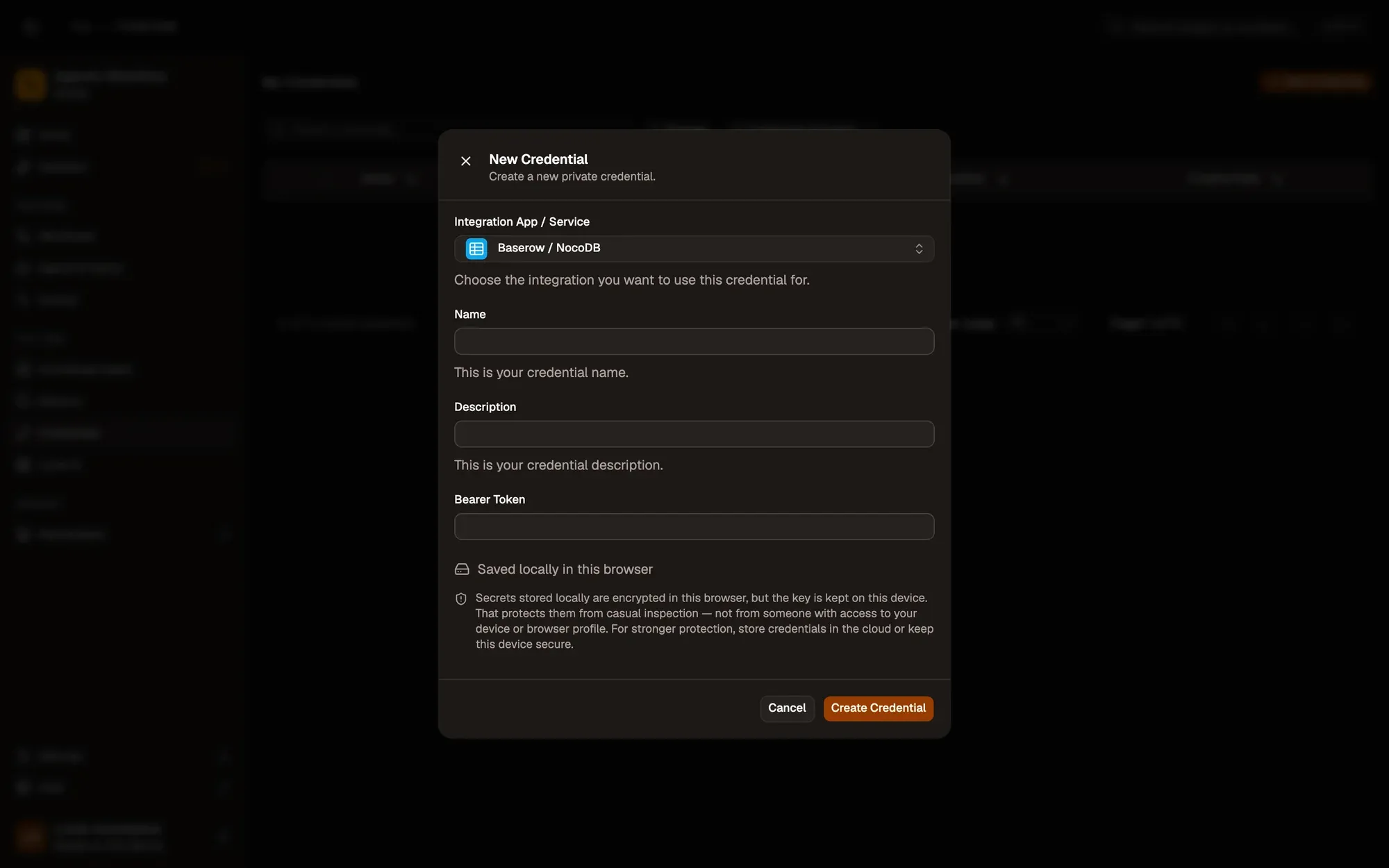
Save it in AWFlow. Open Credentials and click Add Credential (or + Add Credential in a node’s Credential field), then fill the New Credential form. In the browser side panel the form comes in two steps: tap Baserow / NocoDB in the list, then fill the rest.
Numbered areas in the screenshot: 1. Integration App / Service: Baserow / NocoDB; 2. Name; 3. Bearer Token; 4. Where the secret is stored (here, locally in this browser); 5. Create Credential.
-
In the node, choose NocoDB, set Base URL (for example
https://app.nocodb.com) and the Table ID.
Where your token lives
Section titled “Where your token lives”Common issues
Section titled “Common issues”- “Baserow API Error: 401” or “NocoDB API Error: 401”. The token is wrong or doesn’t cover this table. Create one that does.
- “404 Not Found”. Check Base URL (no path after the address, right port) and Table ID.
- The run is blocked in the web app. Baserow / NocoDB runs through the browser extension. Install the extension and allow Baserow / NocoDB for this workflow when asked, or run the workflow from the extension. See Extension-only integrations in the web app.