Templates (Admin panel › Templates) holds the first-party workflow templates shared by all admins. Users see published templates when they create a new workflow.
The list shows each template’s Title and slug, Category, Status (published or draft), Tags, Order, and an Editing column that names whoever is editing it right now.
Create a template
Section titled “Create a template”Click New template, then fill in the dialog:
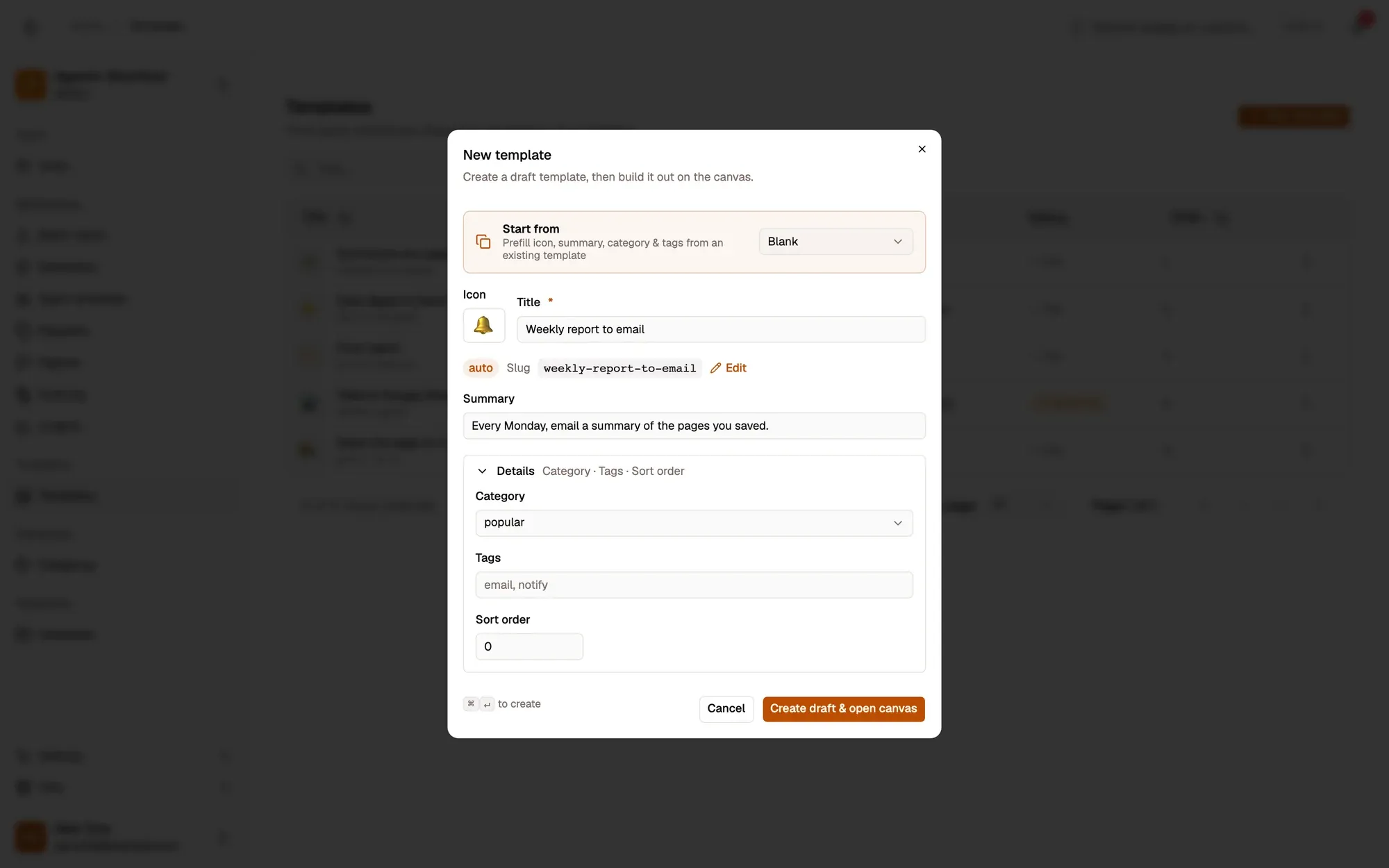
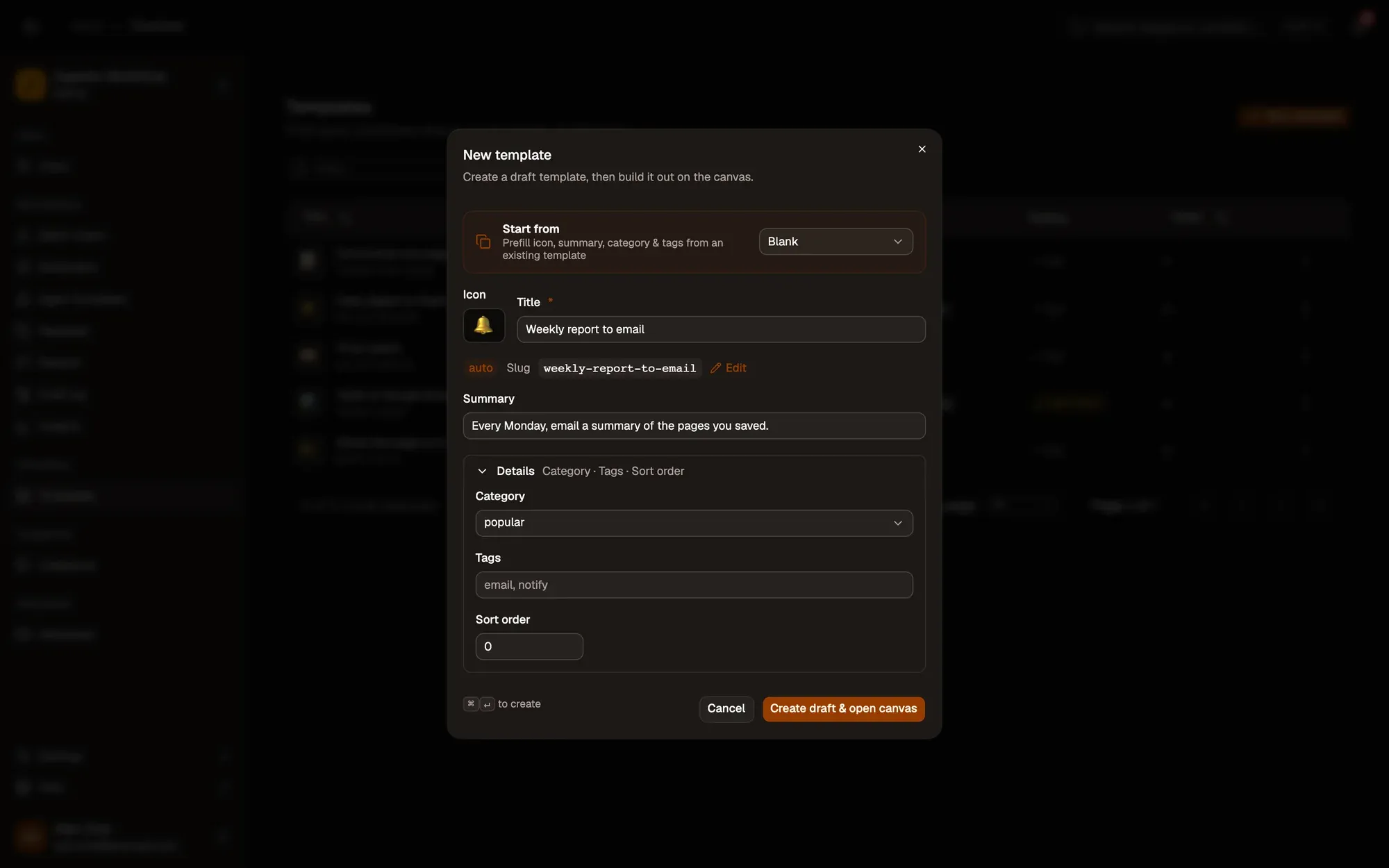
Numbered areas in the screenshot: 1. Start from an existing template; 2. Icon, title and summary; 3. Details: category, tags, sort order; 4. Create draft & open canvas.
The template is created as a draft and opens on the canvas.
Edit, publish, delete
Section titled “Edit, publish, delete”From the ⋮ menu:
- Edit opens the template on the canvas. It is disabled while another admin holds the edit lock.
- Publish / Unpublish makes it visible to users or hides it. This applies straight away.
- Delete removes the template straight away, without asking.
On the canvas, Template details lets you change the title, slug, summary, icon, order, category, tags and publish status. These are saved with the graph when you click Save.
Only one admin can edit a template at a time. Edit locking, Force unlock and running a template while editing are explained in Publishing › Admin: maintaining templates in the canvas.