Before you start
Section titled “Before you start”- A Voyage AI account with billing or credit set up.
Used by
Section titled “Used by”Set it up
Section titled “Set it up”Use Voyage Embeddings in a workflow. The key is a saved credential.
-
Create a key. In the Voyage AI dashboard, open API keys, click Create new secret key and copy it. It starts with
pa-. -
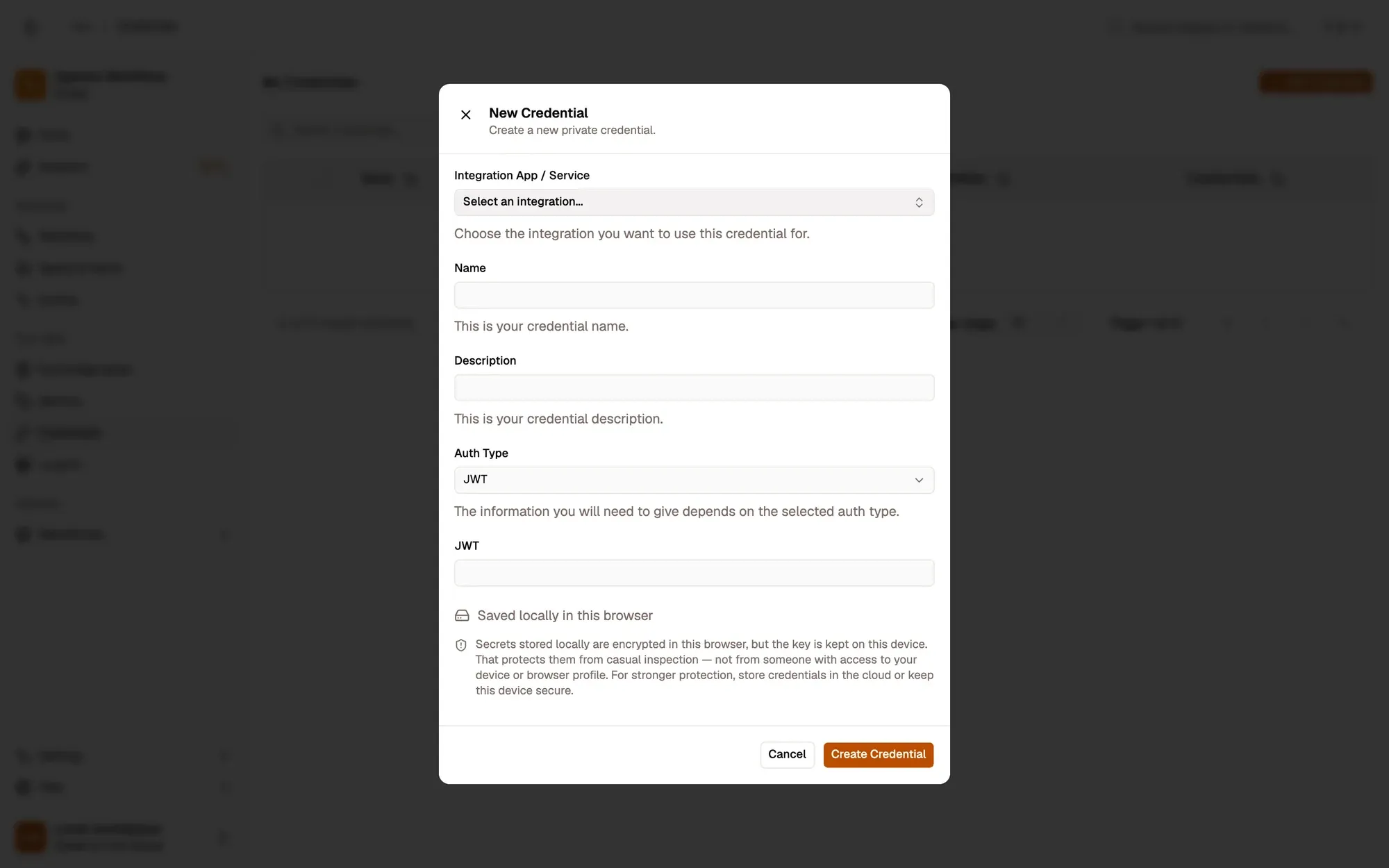
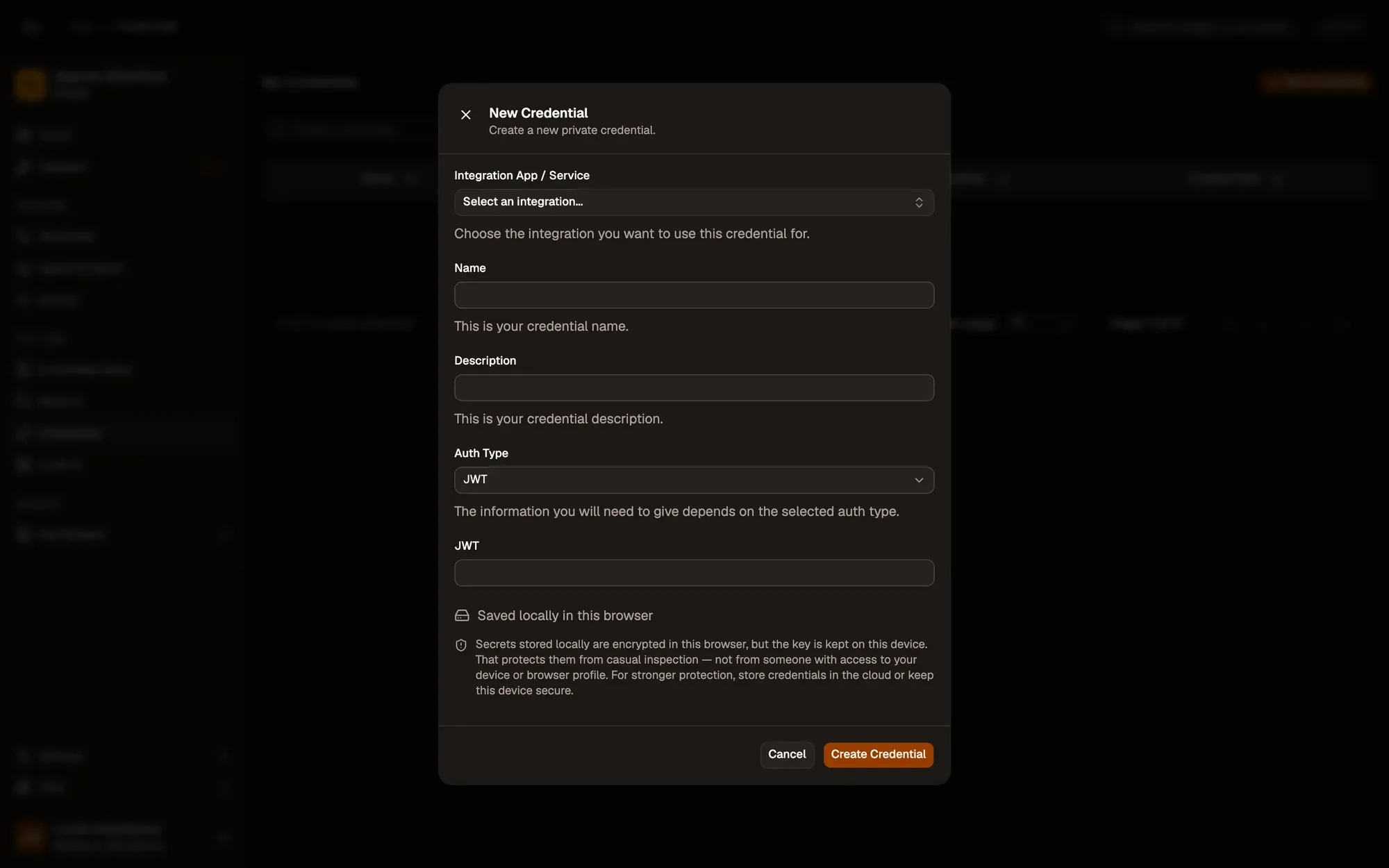
Save it in AWFlow. Open Credentials and click Add Credential (or + Add Credential in the node’s Authentication field), then fill the New Credential form. In the browser side panel the form comes in two steps: tap Simple Credential (or click Continue), then fill the rest.
Numbered areas in the screenshot: 1. Integration App / Service: none (Simple Credential); 2. Name; 3. Auth Type: JWT; 4. JWT; 5. Where the secret is stored (here, locally in this browser); 6. Create Credential.
-
Pick it in the node. In Voyage Embeddings, choose the credential in Authentication and type the Model id.
Where your token lives
Section titled “Where your token lives”Common issues
Section titled “Common issues”- A 401, “invalid API key” or “Incorrect API key” error. The key was mistyped, revoked, or belongs to another account. Create a new key and update the credential (or the provider in Settings › Providers).
- A 429 or “quota” error. The account is out of credit or over its rate limit. Add credit or wait, then run again.
- An embeddings node fails with 401 while a chat node with the same key works. The credential is a Bearer Token. Embeddings nodes pass the value to the provider as it is, so use a JWT credential that holds only the key.