Every time a workflow runs, AWFlow saves a record of it: when it started, how long it took, whether it worked, and its log. You find these records in the workflow’s Executions tab.
Open a workflow’s runs
Section titled “Open a workflow’s runs”-
Open Workflows in the sidebar and click the workflow.
-
Click the Executions tab at the top (it reads Runs on narrow screens).
The workflow page has three tabs:
- Editor: the canvas.
- Logs: the live log of the run you started from the editor in this session. It is not kept after you leave.
- Executions: every saved run of this workflow.
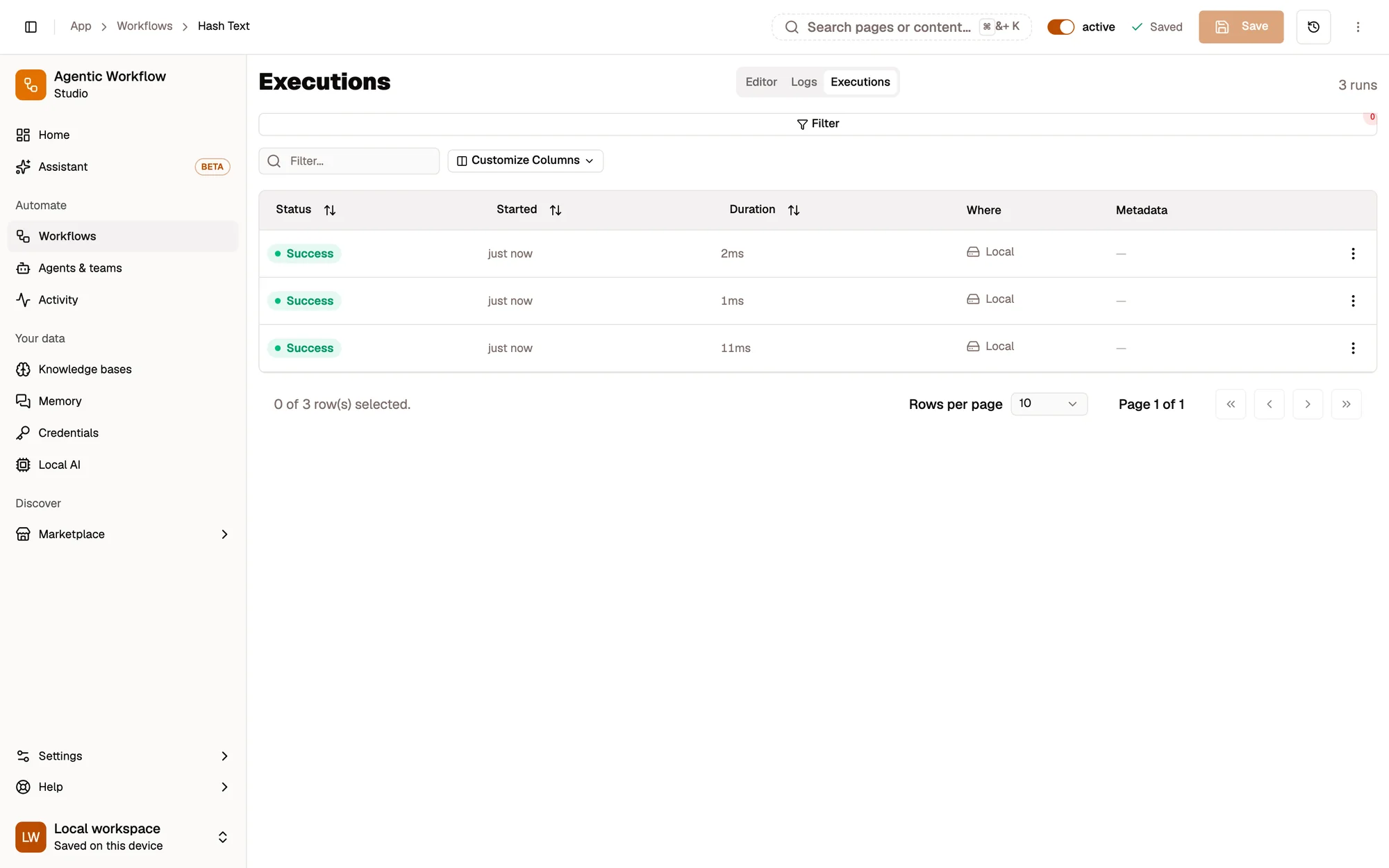
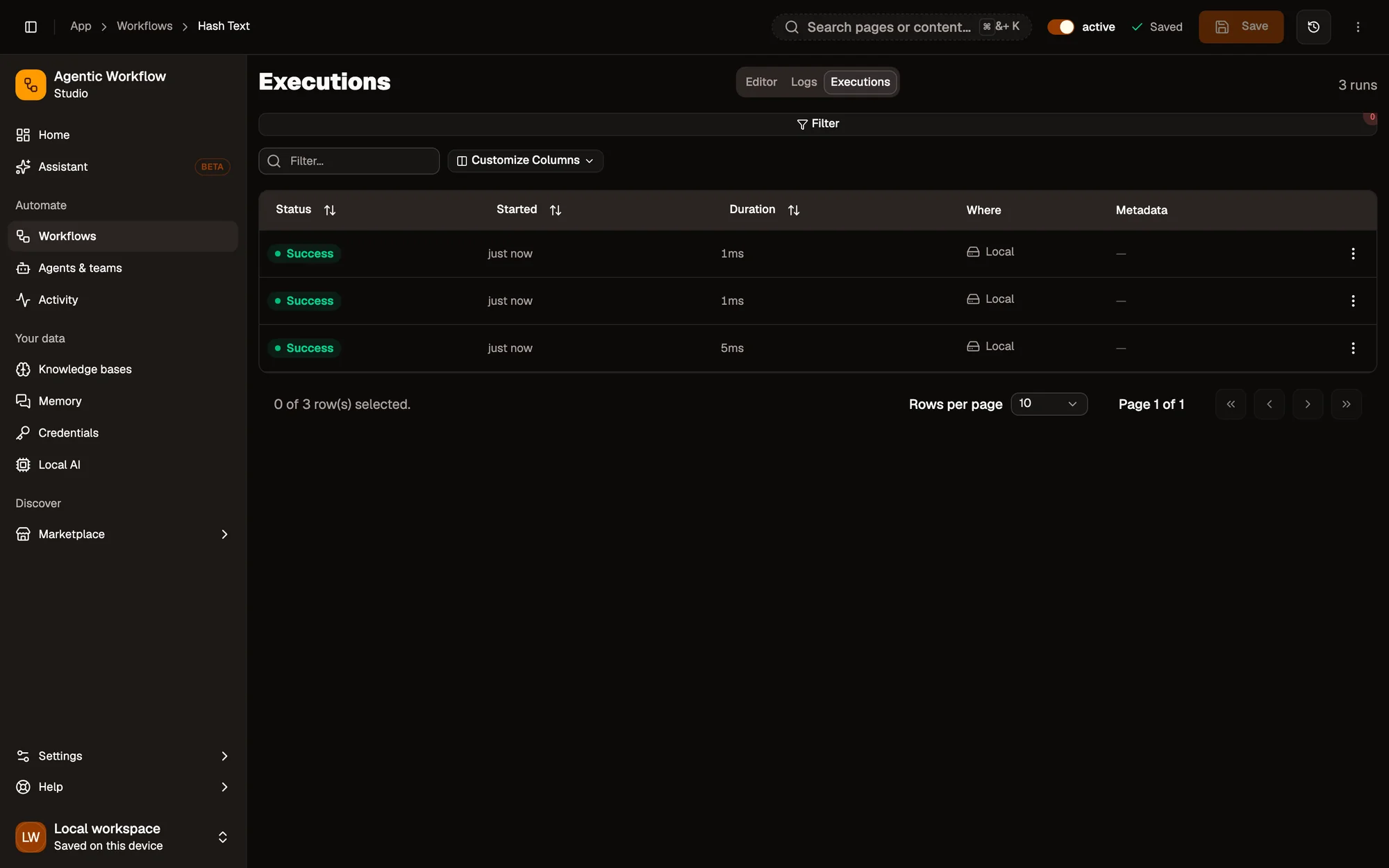
- Executions tab
- Filter runs
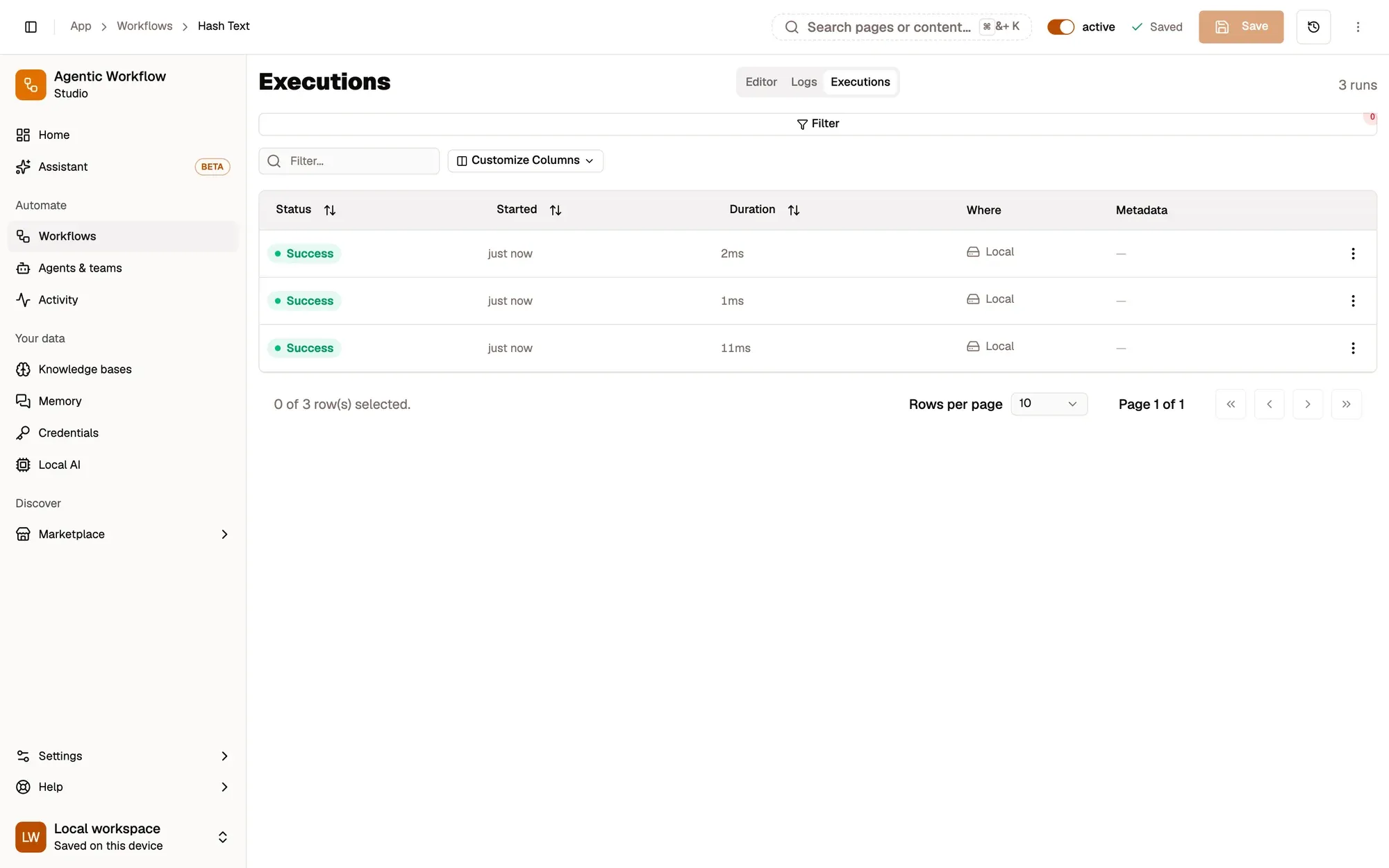
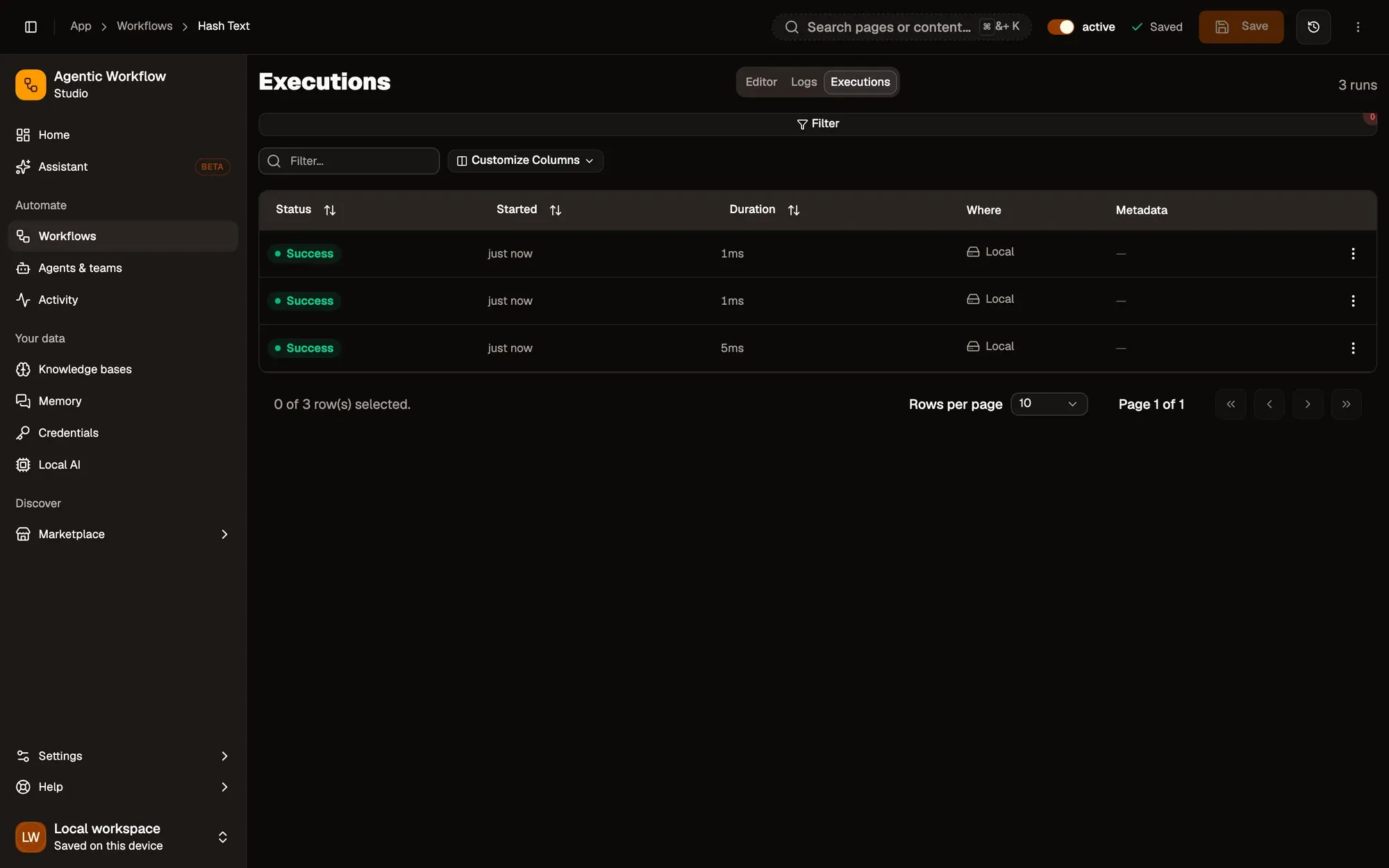
- A saved run and its status
Read the list
Section titled “Read the list”Each row is one run:
- Status: what happened.
- Started: when it began, such as 5m ago or Yesterday 18:20.
- Duration: how long it took.
- Where: Local or Cloud, the same place the workflow is stored.
- Metadata: labels the run attached to itself with the Execution Data node, if the workflow uses it.
| Status | Meaning |
|---|---|
| Success | The run finished without errors. |
| Failed | A step stopped with an error. |
| Waiting | The run is paused until you approve something or fill in a form. |
| Running | The run is still going. |
| Canceled | Someone canceled the run. |
| Queued | The run is waiting to start. |
Failed and waiting runs have a coloured stripe on the left so they stand out.
Find yesterday’s failed run
Section titled “Find yesterday’s failed run”Step 1:Click Filter
In the Executions tab, click Filter above the list.
Step 2:Pick the status
Under Status, open the list and pick Failed.
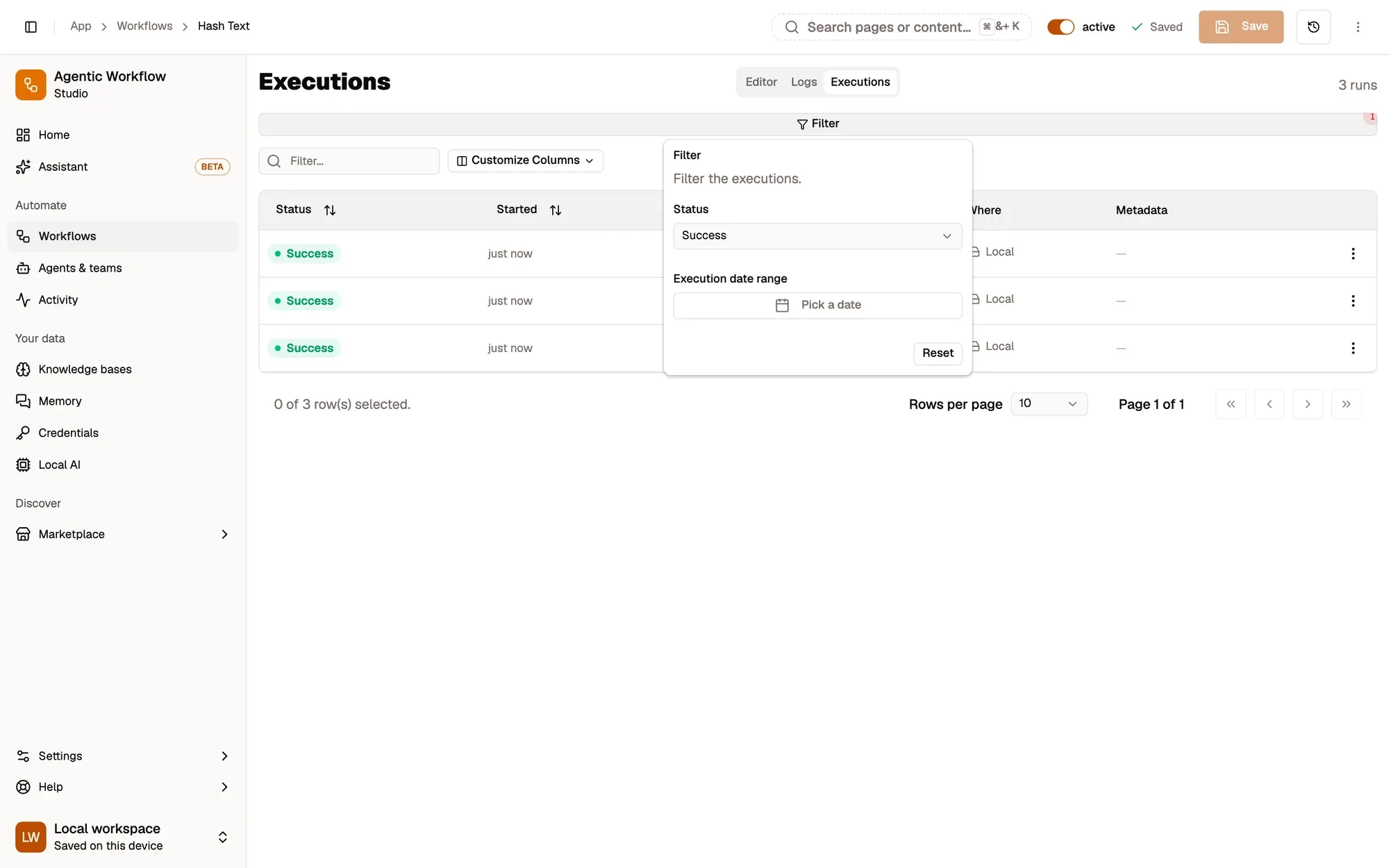
Step 3:Pick the dates
Under Execution date range, click Pick a date and pick yesterday. The last day of the range is fully included.
Step 4:Open the run
Click the run in the list.
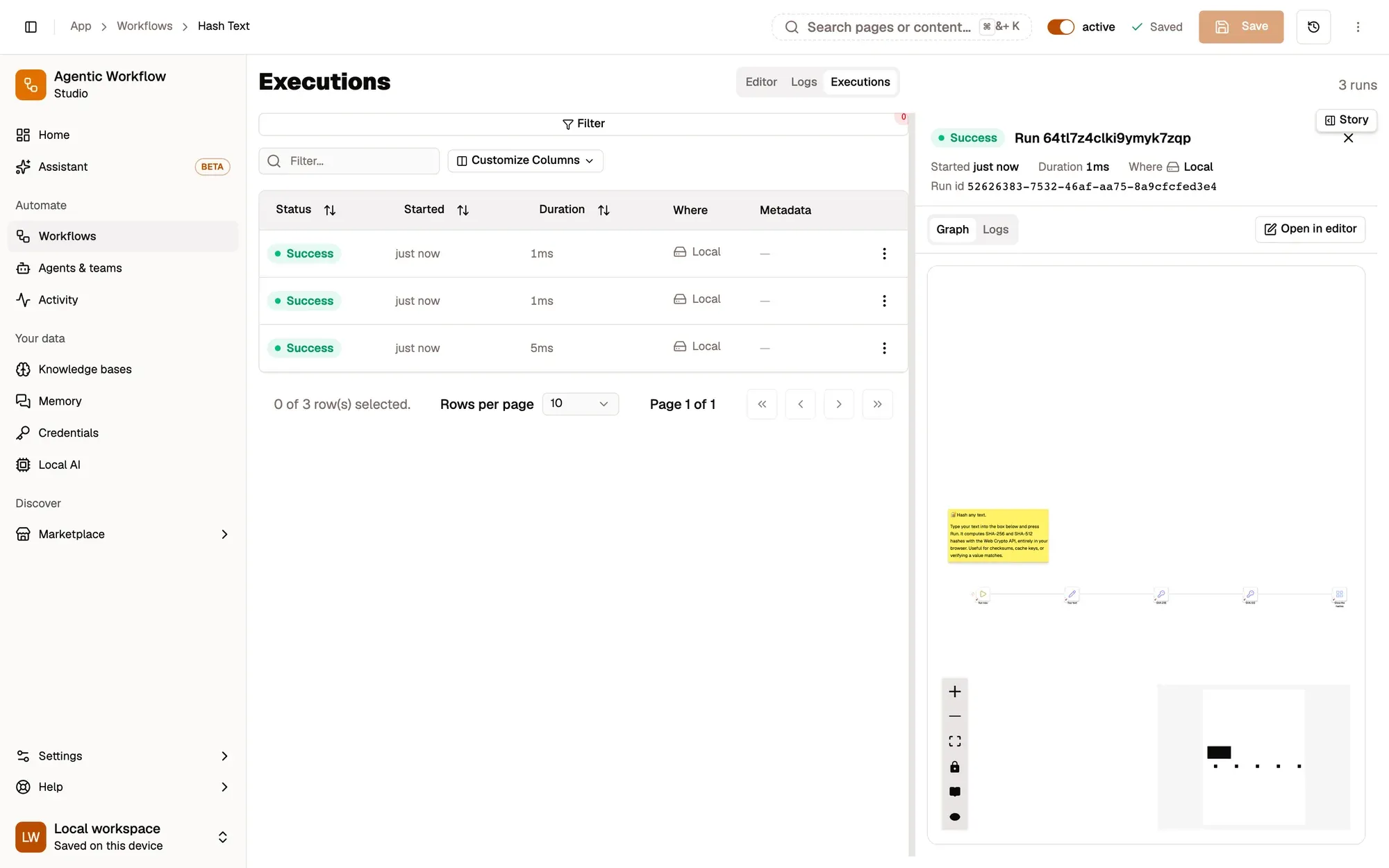
Check: its details open beside the list.
You can also type in the Filter… box. It matches the status name (for example Failed), the run id, and metadata such as order:1234. Click Reset in the filter panel to clear the status and dates.
On narrow screens, use the All, Failed and Waiting chips at the top instead.
Read a run’s details
Section titled “Read a run’s details”Click a row, or use ⋮ › Open detail. A panel opens beside the list with the status, start time, duration, where it ran, its run id and its metadata. Drag the divider to make the panel wider.
Numbered areas in the screenshot: 1. The run you opened; 2. Graph: the workflow as it was when it ran; 3. Logs: every line the run wrote; 4. Open in editor.
There is no “retry” button on a past run. To run it again, use Run in the editor or on the workflows list.
Runs that need you
Section titled “Runs that need you”When a run pauses for an approval or a form, it shows up in a Needs attention band at the top of the Executions tab.
- For an approval, click Approve, Reject or Cancel.
- For a form, fill in the fields and click Submit, or Cancel run. Required fields must be filled in.
Canceling records the run as Canceled. Only paused runs of the workflow’s current version are listed here.
While a run is going, requests to approve an action on a website also appear in this band, with a countdown before they are rejected automatically. After you approve one, Approve all remaining for this run skips the rest of the prompts for that run. Use it with care.
How long runs are kept
Section titled “How long runs are kept”- Local workflows keep their newest 100 runs. Older runs are removed automatically.
- Cloud workflows keep a number of runs set by your plan, counted across all your cloud workflows. When you reach it, the oldest runs are removed first. See Plan.
See also
Section titled “See also”- Manage your workflows list
- Activity for what your agents did
- Error handling