A project groups conversations and gives them shared context. Every chat in a project — with Aria, any agent, or a team thread — automatically uses:
- Project instructions — added after each agent’s own instructions (the agent’s rules still apply).
- Project files — documents every agent in the project can read and cite.
- A default agent or team — new chats in the project start with it.
- Project memory — facts every agent in the project can read.
Projects, their files and their memory are stored only on this device.
Create a project
Section titled “Create a project”In the assistant’s side panel, click + New next to Projects (or open Projects and click New project). Then fill in the New project dialog:
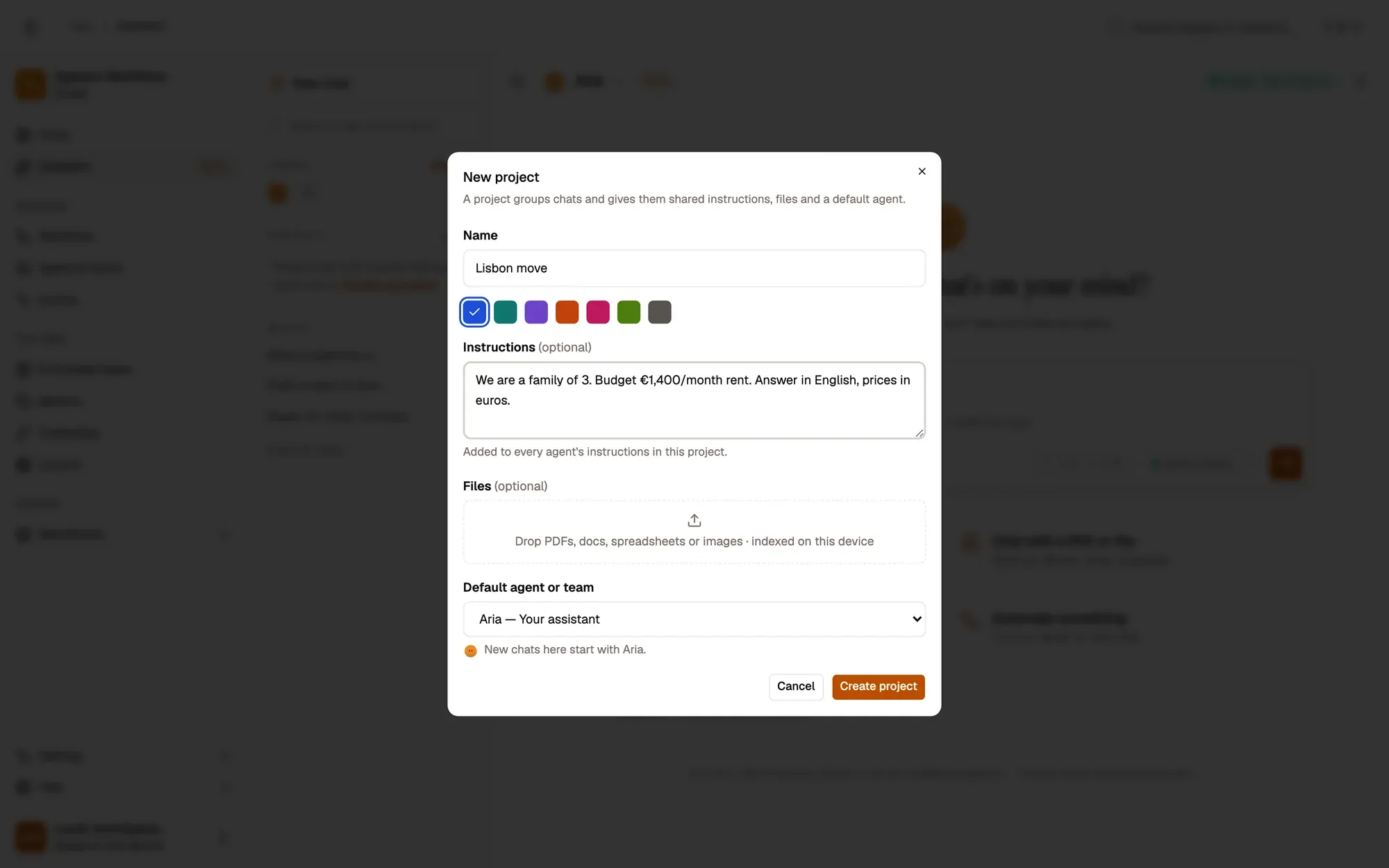
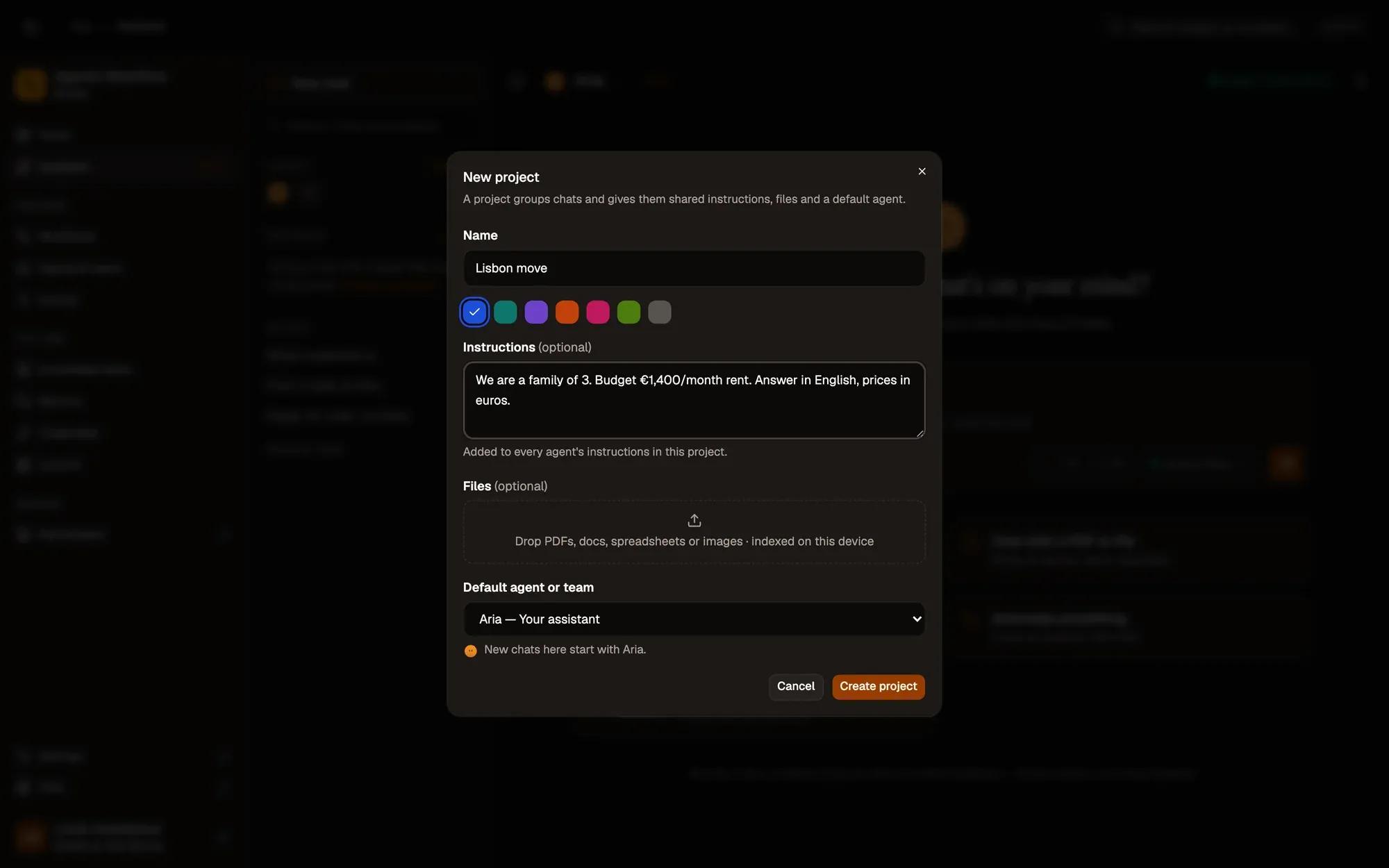
Numbered areas in the screenshot: 1. Name; 2. Colour; 3. Instructions; 4. Files; 5. Default agent or team; 6. Create project.
What each field is for:
- Instructions — for example “We are a family of 3. Budget €1,400/month rent. Answer in English, prices in euros.” You can use
{today},{my name}and{current tab}. - Files — drop PDFs, documents, spreadsheets or text files.
- Default agent or team — new chats start with this agent, or as a thread of this team.
You can also make a project from an existing chat: open the chat’s ⋯ menu → Move to project ▸ New project….
The project page
Section titled “The project page”Click a project in the side panel to open it:
- New chat in project — type a question to start a chat that already has the project context.
- Chats — every chat and team thread in the project, newest first.
- Project context — the instructions, files, default agent or team, and project memory.
Settings has tabs for General (name, colour, description, archive, delete), Instructions, Files, Agents & teams, and Memory.
- Text is extracted on your device. Small files are read whole; larger ones are split and searched with an on-device embedding model, so only the relevant passages are used. Answers cite them as numbered sources.
- Never send to cloud models — lock a file (the lock icon, or the Cloud models column in settings) and it is skipped whenever the chat runs on a cloud model. The steps under the answer say which files were skipped.
- How files are used — Always, When relevant (the default), or Only when asked (“check my documents…”).
- Also use knowledge bases — link existing knowledge bases to the project; every chat in the project searches them too.
- Larger files are indexed by the same engine as knowledge bases, in a hidden knowledge base that belongs to the project (it doesn’t appear on the knowledge bases page and is deleted with the project). Files indexed before this change are moved over automatically the first time you open the project.
- Right-click any web page → Add page to project… to save its text as a project file.
Chats in a project
Section titled “Chats in a project”A chat in a project shows the project name before the agent in its header, and a Using project banner. Turn the context off for one chat in Chat settings › Use project context.
Facts learned in a project chat (“remember that we already have a NIF number”) go to the project memory, not to the agent, and stay in the project — but only when the agent answering has Learn from chats and feedback on; an agent with learning off never learns, even in a project. In the project’s settings, under Memory, turn on Also read my personal memory if agents in the project should also use your personal memory. See Assistant memory.
Moving and organising chats
Section titled “Moving and organising chats”- In the side panel, open a chat’s ⋯ menu → Move to project ▸, or drag the chat onto a project (drag it to Recent to take it out). An Undo button appears.
- Pin projects or chats to keep them at the top.
- Show all chats lists every conversation with filters (project, agent, chats or team threads, not in a project) and lets you move, pin or delete several at once.
- Archive hides a project and keeps everything; archived projects can be restored from All chats or Projects.
- Delete asks whether to keep the project’s chats (they move to Recent) or delete them too. Its files and memory are always deleted.
Ask inside a project from anywhere
Section titled “Ask inside a project from anywhere”- Start a message with
#and the project name:#lisbon what is still missing for the visa? - In the address bar:
aw #lisbon … - The quick chat card and palette have a project picker — answers use that project’s context, and Open in full chat continues inside the project.