You don’t need an account to use AWFlow. An account adds cloud storage, the Marketplace, publishing and notifications. See Local or cloud to decide.
Create an account with email
Section titled “Create an account with email”On the login screen, click Sign up. Then fill in the form:
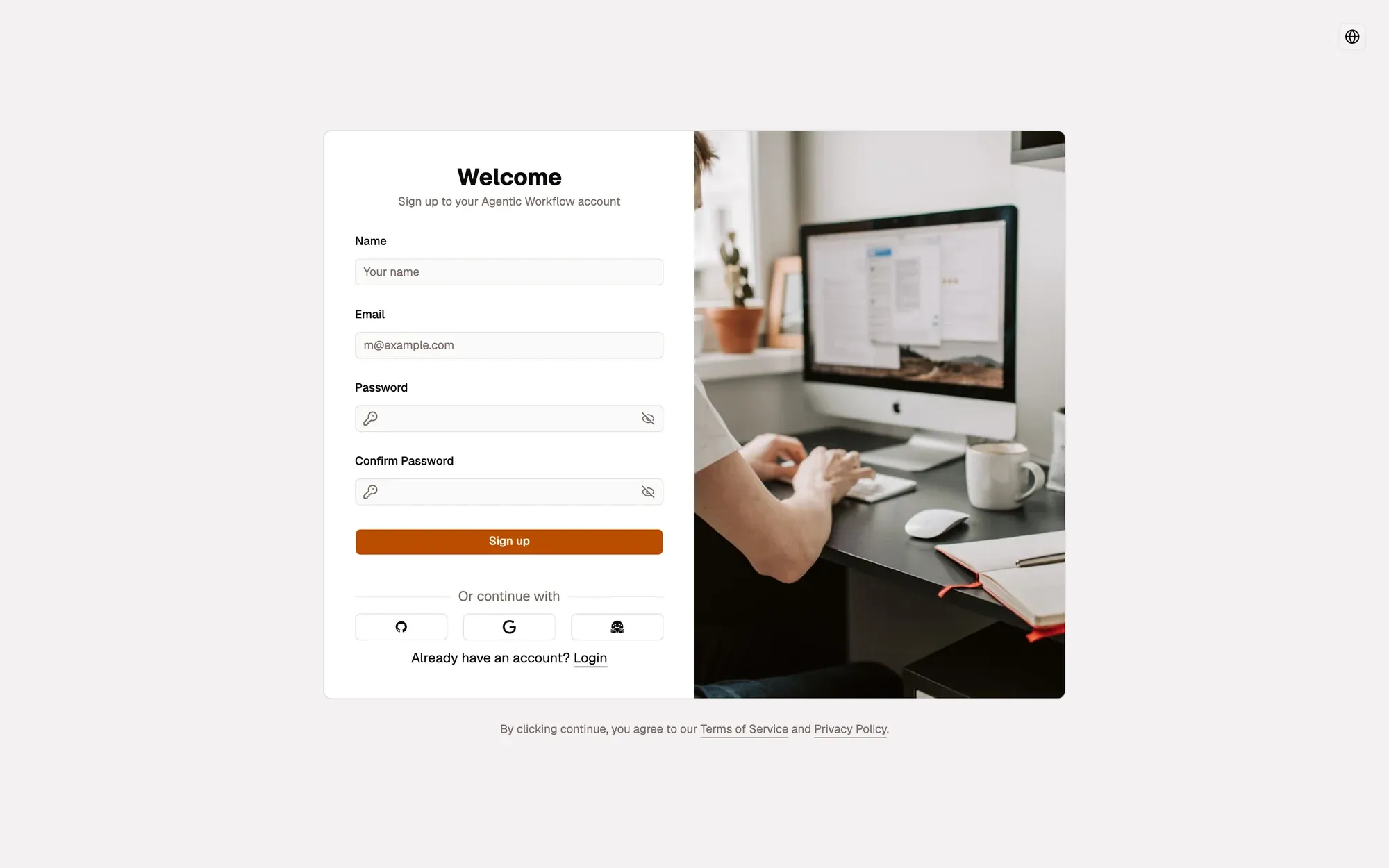
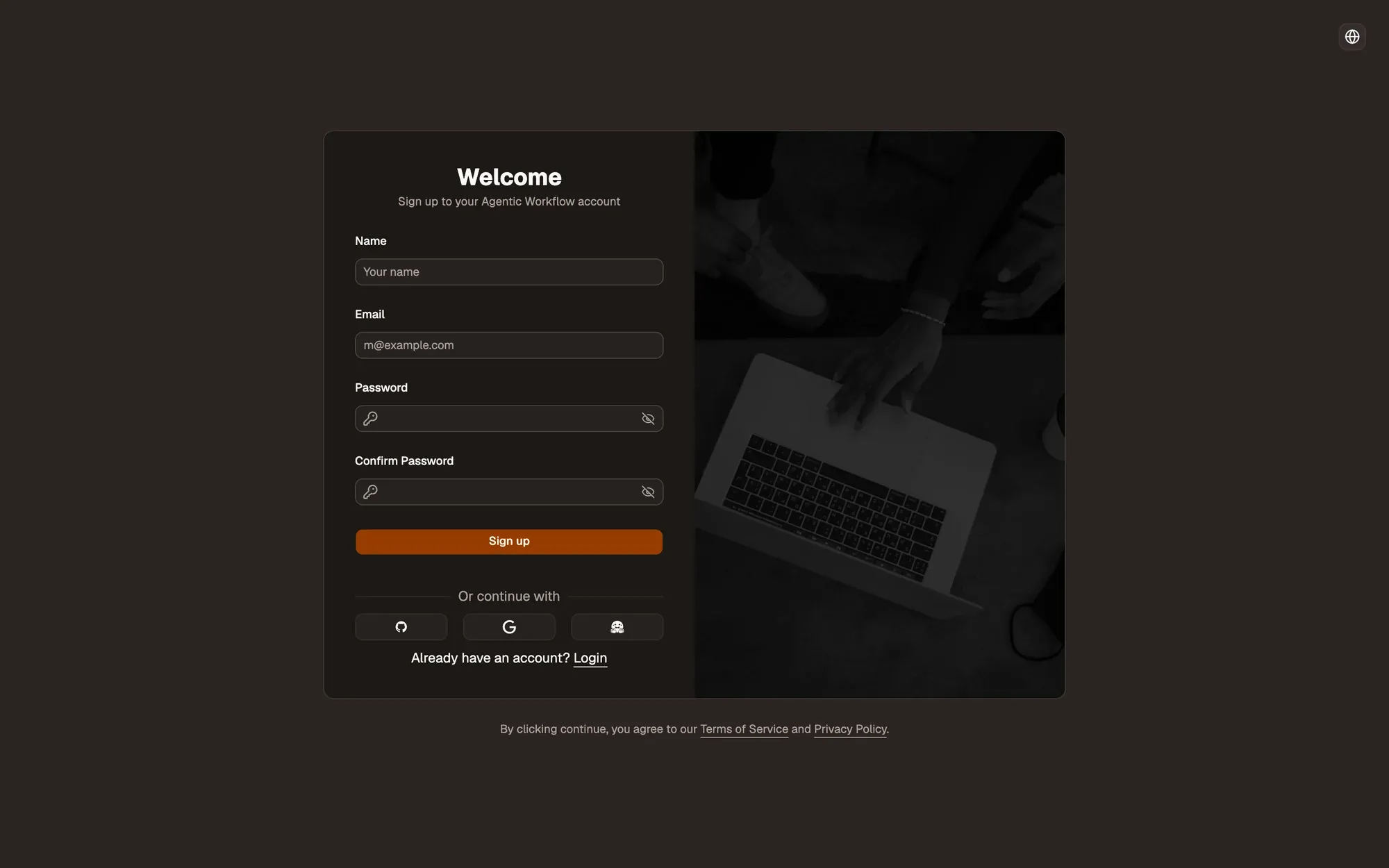
Numbered areas in the screenshot: 1. Name; 2. Name, email and password; 3. Password; 4. Confirm Password; 5. Sign up.
Then open the email we sent you and click the link. A page confirms Your email has been verified. Click Login to your account.
Log in
Section titled “Log in”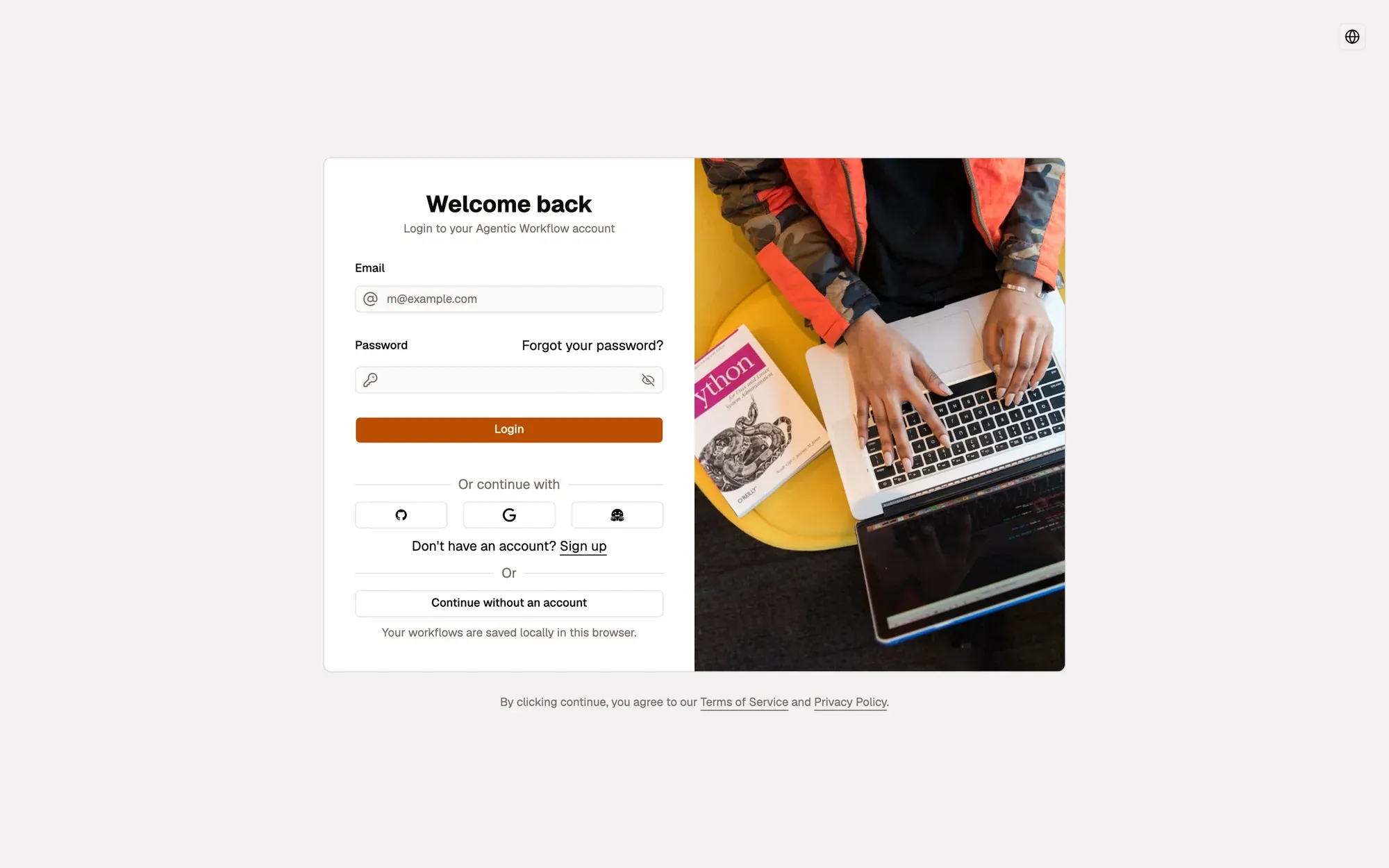
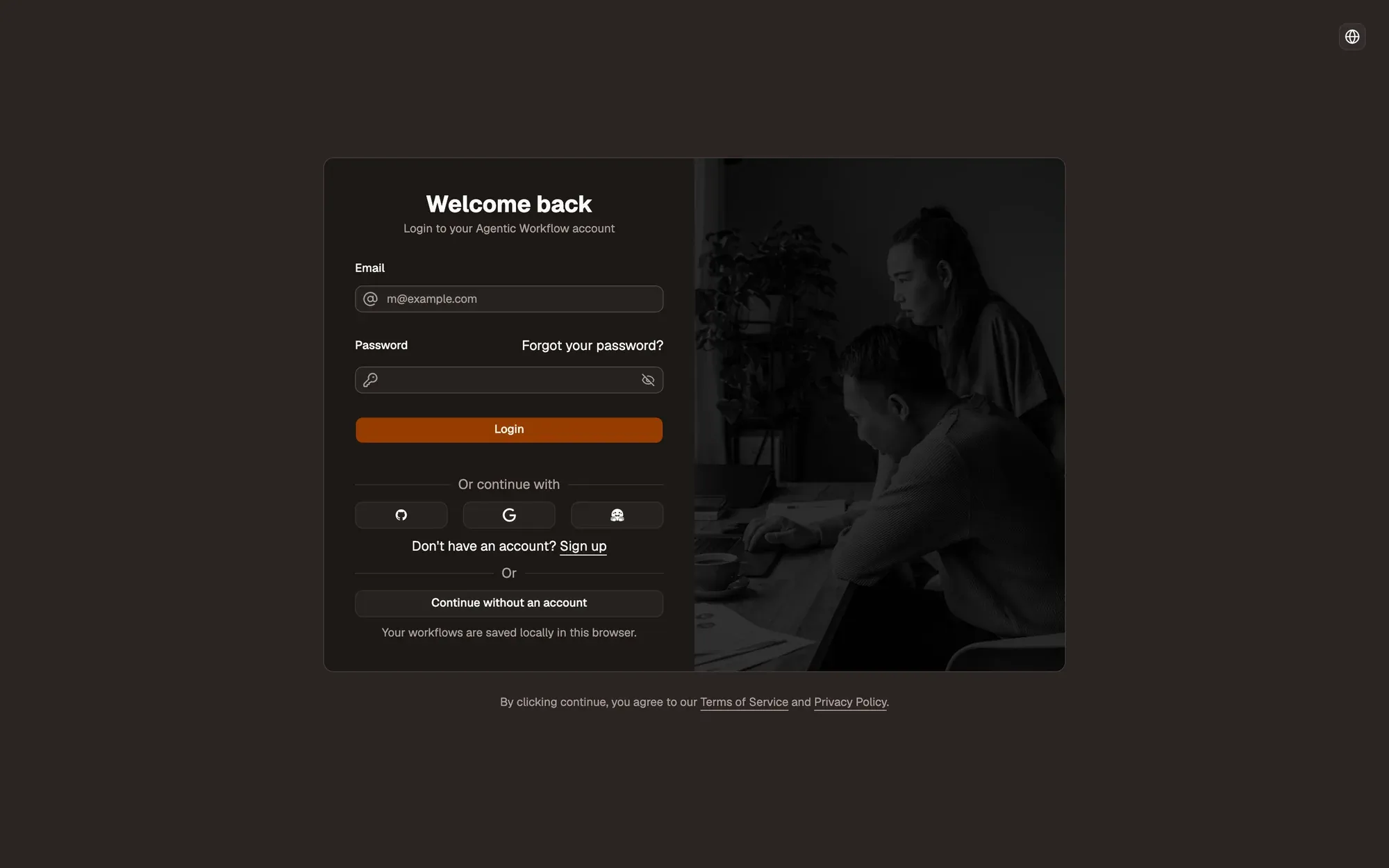
Numbered areas in the screenshot: 1. Email; 2. Password; 3. Login; 4. GitHub, Google or Hugging Face; 5. Continue without an account.
If you forgot your password, see Reset your password. With a social account:
- In the extension, a small window opens for you to finish signing in. Come back to AWFlow when you’re done; it notices and logs you in. Click Continue if it doesn’t.
- In the web app, the page goes to the provider and comes back.
The language picker in the top corner changes the language of these screens.
Use AWFlow without an account
Section titled “Use AWFlow without an account”Click Continue without an account under the login form. Your workflows are saved in this browser. You can sign in later at any time.
Log out
Section titled “Log out”Open your user menu at the bottom of the sidebar and click Log out. AWFlow switches to a local workspace on this device: your local workflows stay usable; cloud items come back when you log in again.