AWFlow tells you about things in two ways: the bell for account updates, and waiting-run alerts when a workflow needs your answer.
The bell
Section titled “The bell”The bell sits at the top right of the app. A badge counts unread notifications.
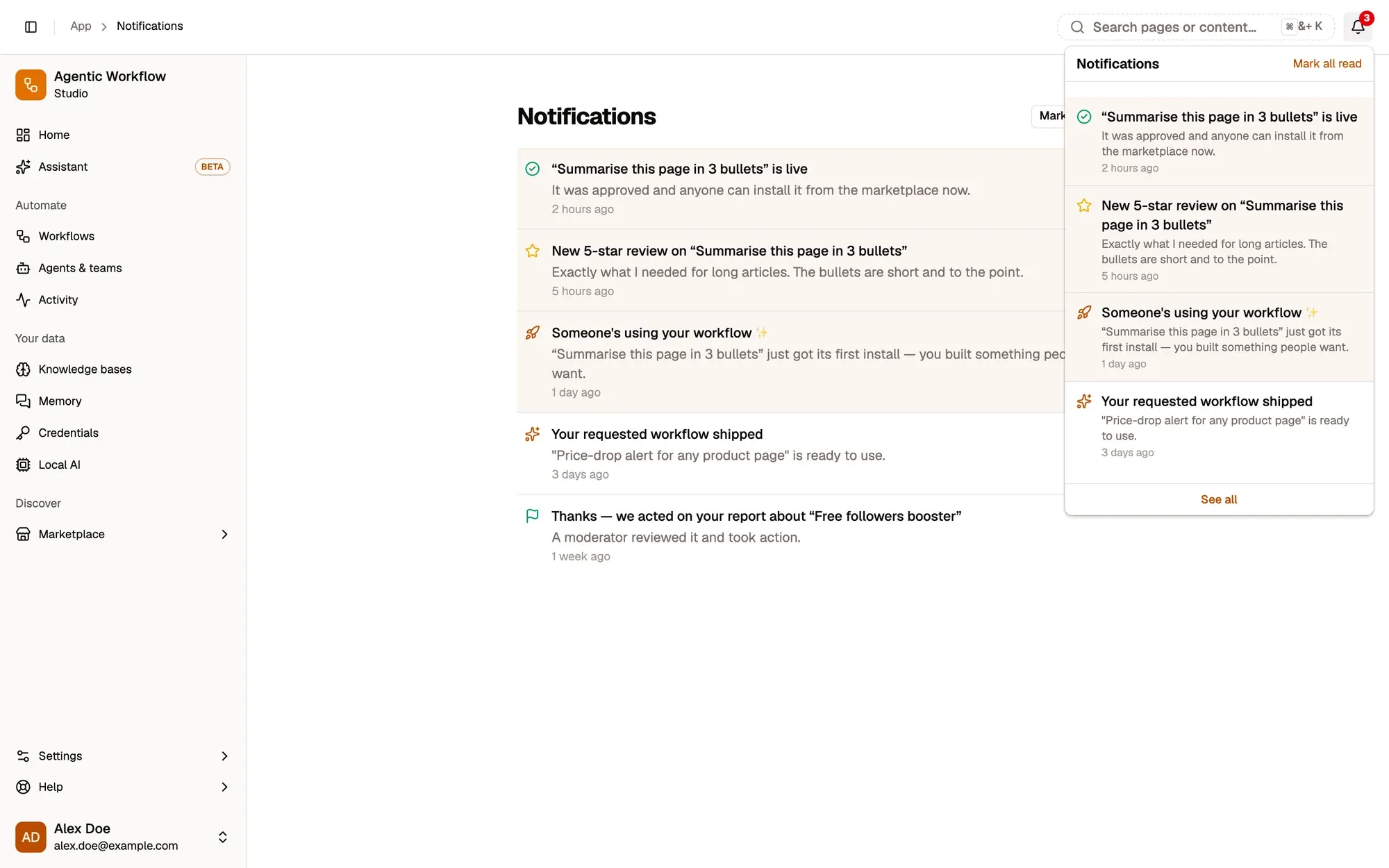
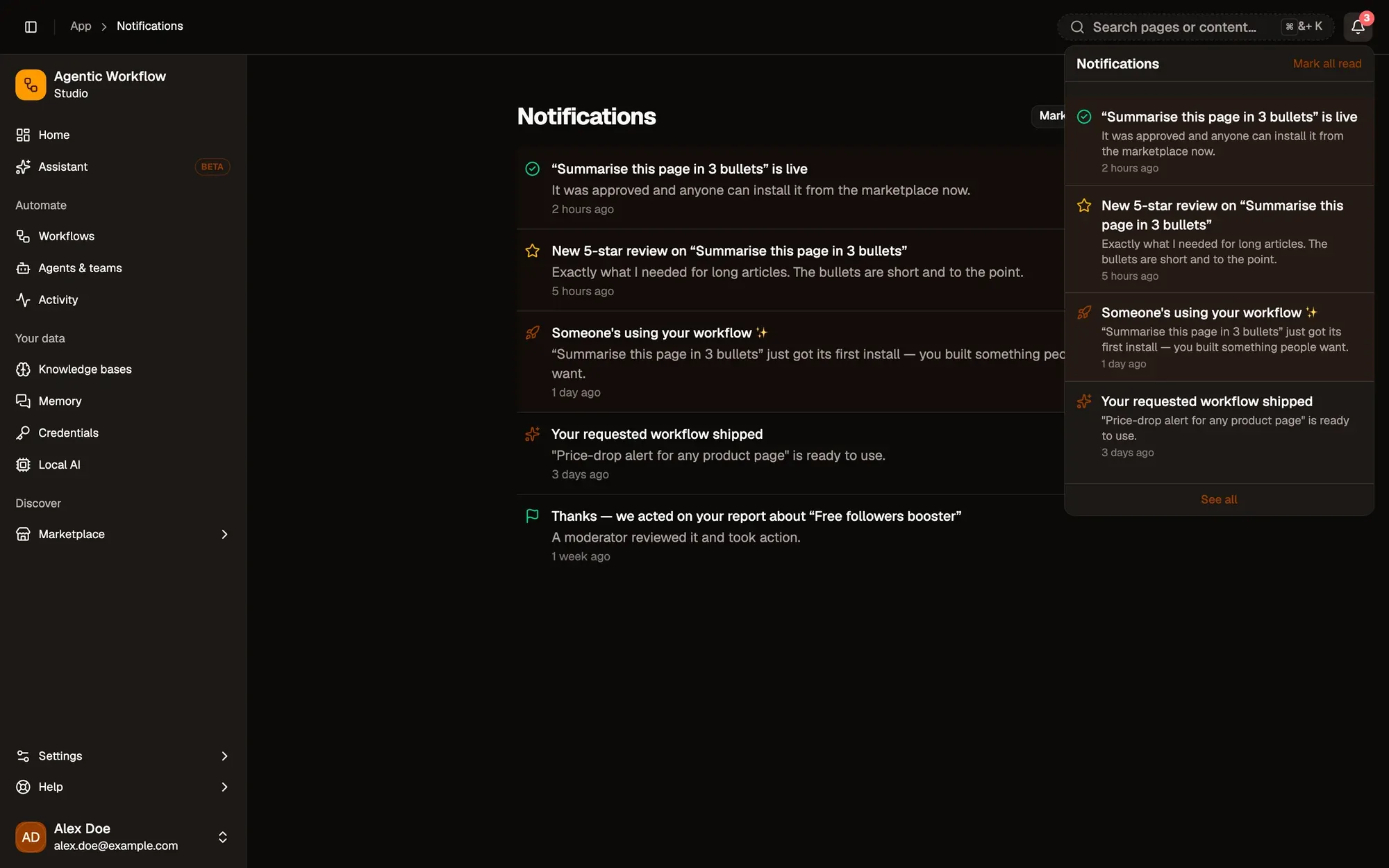
Numbered areas in the screenshot: 1. The bell and its unread count; 2. Mark all read; 3. See all; 4. An unread notification.
What you’re notified about
Section titled “What you’re notified about”- your Marketplace listing (or agent template) was approved, needs changes, or was suspended,
- a workflow you installed was taken down for safety,
- someone wrote a review of your listing,
- a report you filed was resolved,
- someone used your workflow,
- a workflow you requested on the request board was published.
The Notifications page
Section titled “The Notifications page”The page lists every notification, newest first. Unread ones are highlighted. Click one to mark it read and open what it is about. Mark all read clears the unread count.
Runs waiting for you
Section titled “Runs waiting for you”When a workflow pauses for an approval or a form, the header shows N waiting. Click it to approve, reject, or open the run. You can also answer in the workflow’s run history.
You are also alerted outside the app:
- In the extension, when AWFlow isn’t the window in front of you, a desktop notification says Your approval is needed. It stays until you act.
- When the app is in front of you (or in the web app), a short chime plays. Turn it off with Play a sound when your approval is needed in Preferences.
Waiting runs don’t add an entry to the bell.
Newsletter
Section titled “Newsletter”The newsletter is separate from notifications. Subscribe or unsubscribe in Settings › General.