Create a knowledge base
Section titled “Create a knowledge base”Open Knowledge bases in the sidebar and click New knowledge base. Everything else happens in the dialog: hover or tap a step to find it on the screen.
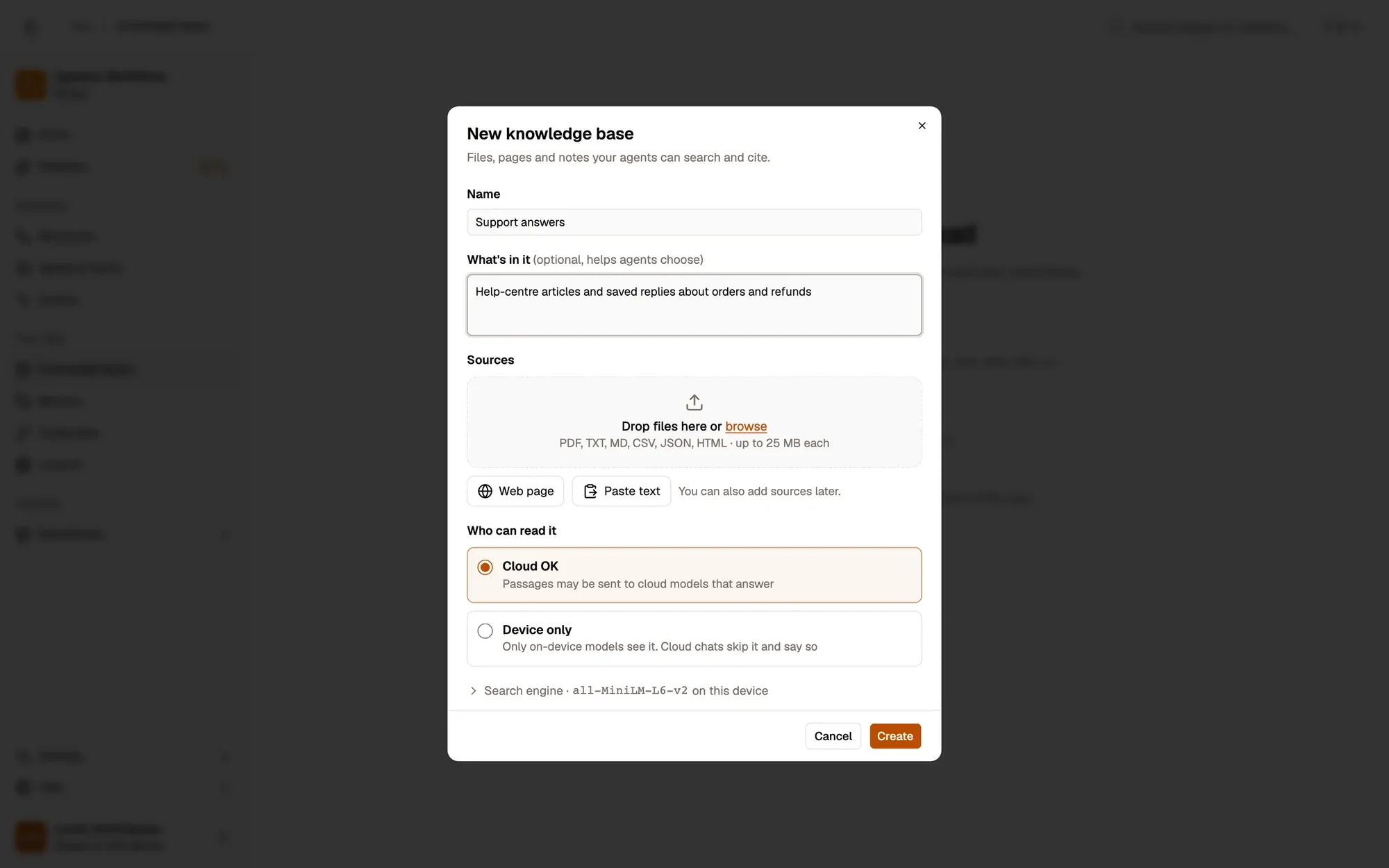
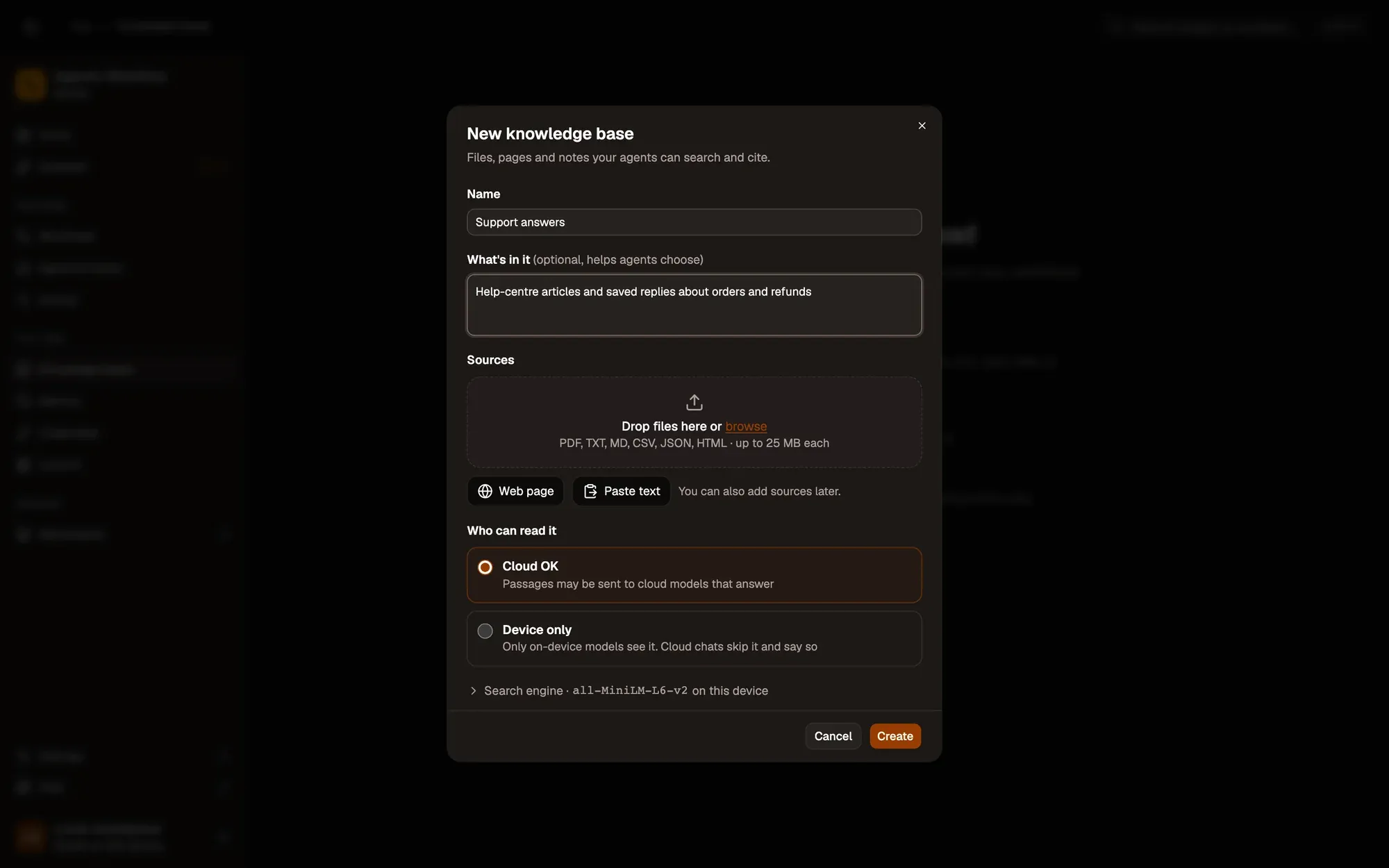
Numbered areas in the screenshot: 1. Name; 2. What's in it; 3. Sources: drop files, Web page or Paste text; 4. Who can read it; 5. Search engine; 6. Create.
Read more about the two choices in Privacy.
Add sources
Section titled “Add sources”Open a knowledge base and click Add sources (or Add sources on its card).
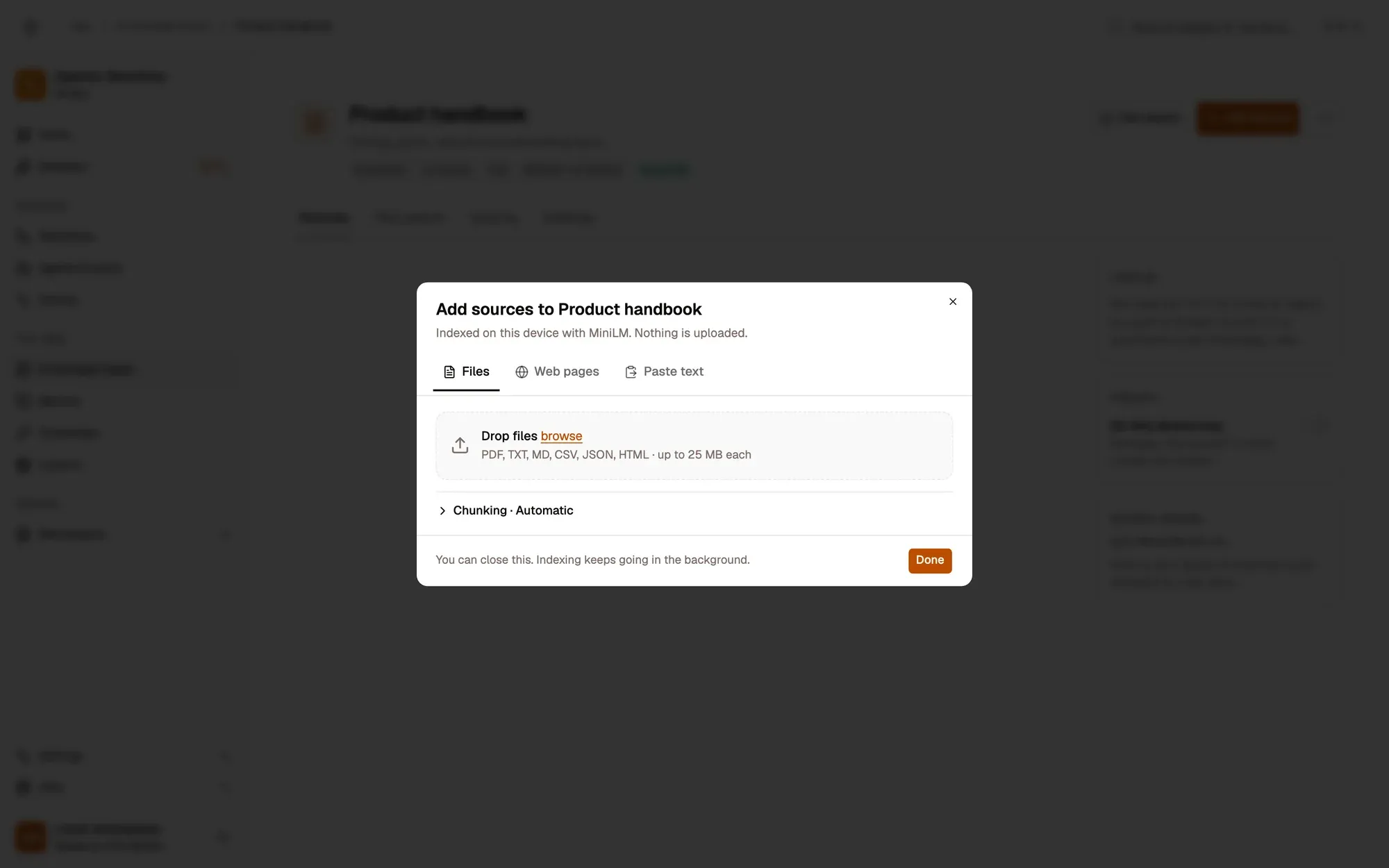
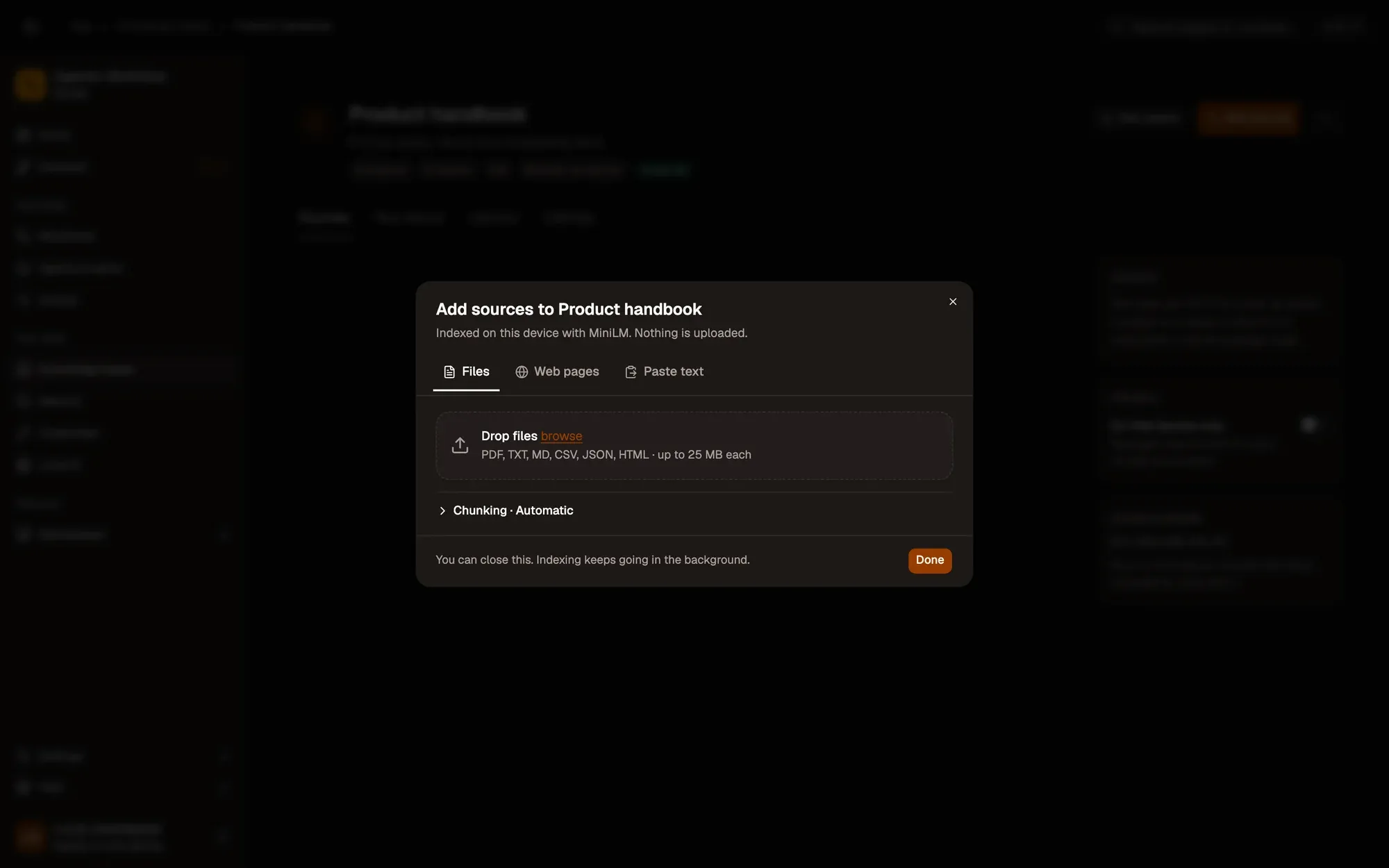
Numbered areas in the screenshot: 1. Files, Web pages and Paste text tabs; 2. Drop files or browse; 3. Chunking; 4. Done.
The dialog has four tabs:
| Tab | What it adds |
|---|---|
| Files | Drop or browse for files: PDF, TXT, Markdown, CSV, JSON and HTML. Text is extracted on this device. |
| Web pages | One URL per line. A bare domain gets https://. Duplicates and invalid entries are reported. |
| Open tabs | Extension only. Pick tabs, or Select all in a tab group. The text is read from the tab itself, so pages you are signed in to work too. |
| Paste text | A title and the text. |
The dialog header says which model indexes the sources, for example “Indexed on this device with MiniLM. Nothing is uploaded.”
Each source gets its own row with a live status:
- Reading → Embedding · 12 of 40 chunks → Added · 40 chunks.
- Already in this knowledge base and unchanged · skipped, with Re-index anyway.
- An error in plain words, for example “No text found. It looks like a scanned image.”, with Try again. A failed source never stops the others.
Under Chunking you choose how sources are split: Automatic (about 350 tokens per chunk), Small or Large, and whether to Skip sources that haven’t changed (on by default).
You can close the dialog: indexing continues in the background, and the card and the knowledge base page show the progress. Stop cancels a job.
Adding a source that is already there updates it in place instead of adding a copy. If the new version is shorter, its leftover old passages are removed.
The knowledge base page
Section titled “The knowledge base page”Click a card to open it. The header shows sources, chunks, size, the model and the privacy badge, with Test search, Add sources and a menu (Edit, Export, Delete). The page has four tabs:
- Sources: every source with its type, title or link, number of chunks, when it was added and its status. Text indexed by a workflow shows as From workflow …; content added before sources were tracked is grouped under Older content. Click a source to open its chunks (number, page, size, with the overlap greyed), Find in this source, and Re-index, Replace file… and Remove source.
- Test search: see Test what gets found.
- Used by: every agent, project, team, chat and workflow that uses it, with links.
- Settings: the On this device only switch and the Search engine. See Re-embed or delete.
In the side panel the page switches to one column, with Add this tab (extension) and More sources.